Edita una foto con un toque, a mano o en capas.
El editor de fotos para las fotos ya en su cuenta. Finalice una foto o toda una sesión, luego comparta una Galería desde la cual su cliente elija sus favoritos.
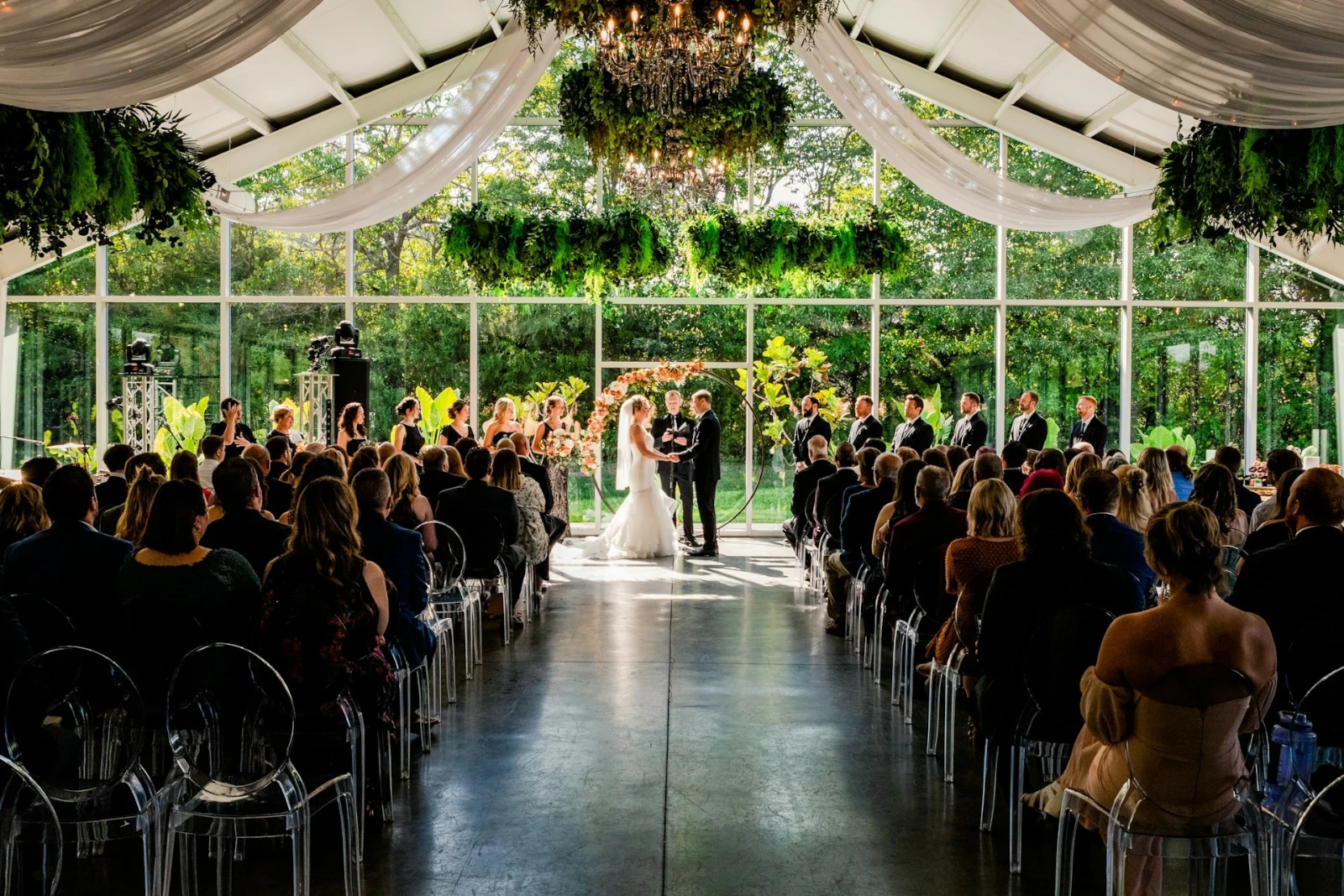
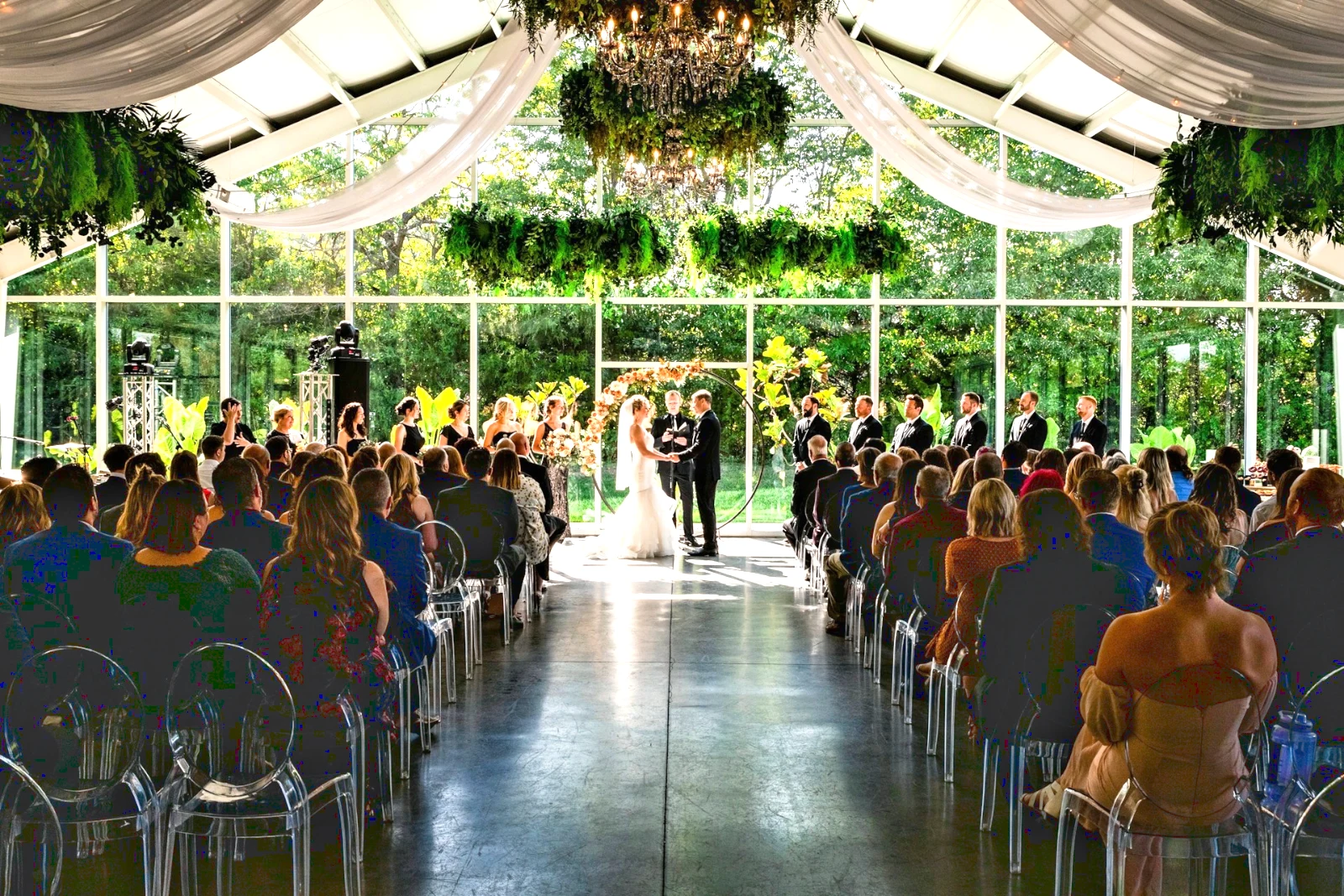
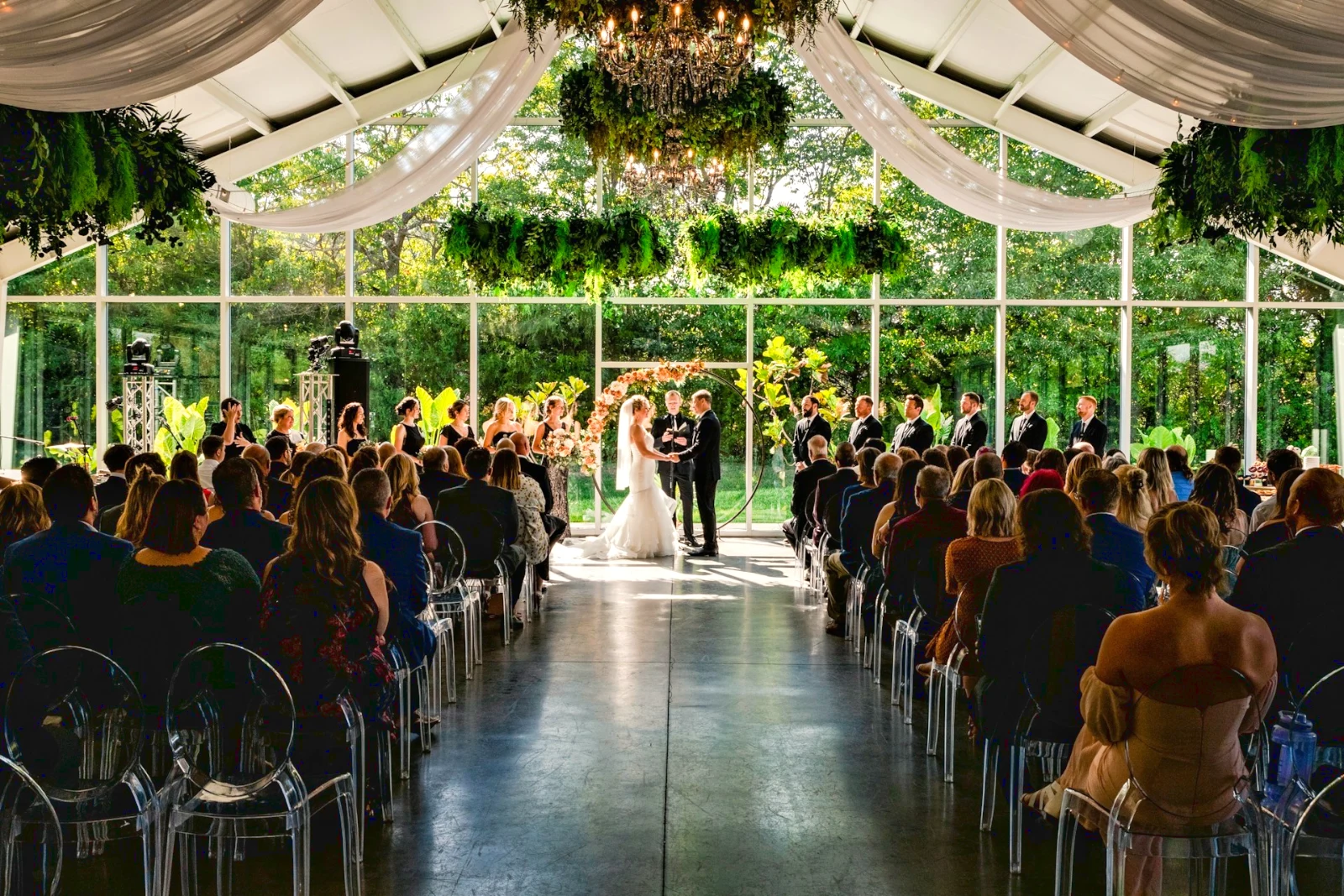
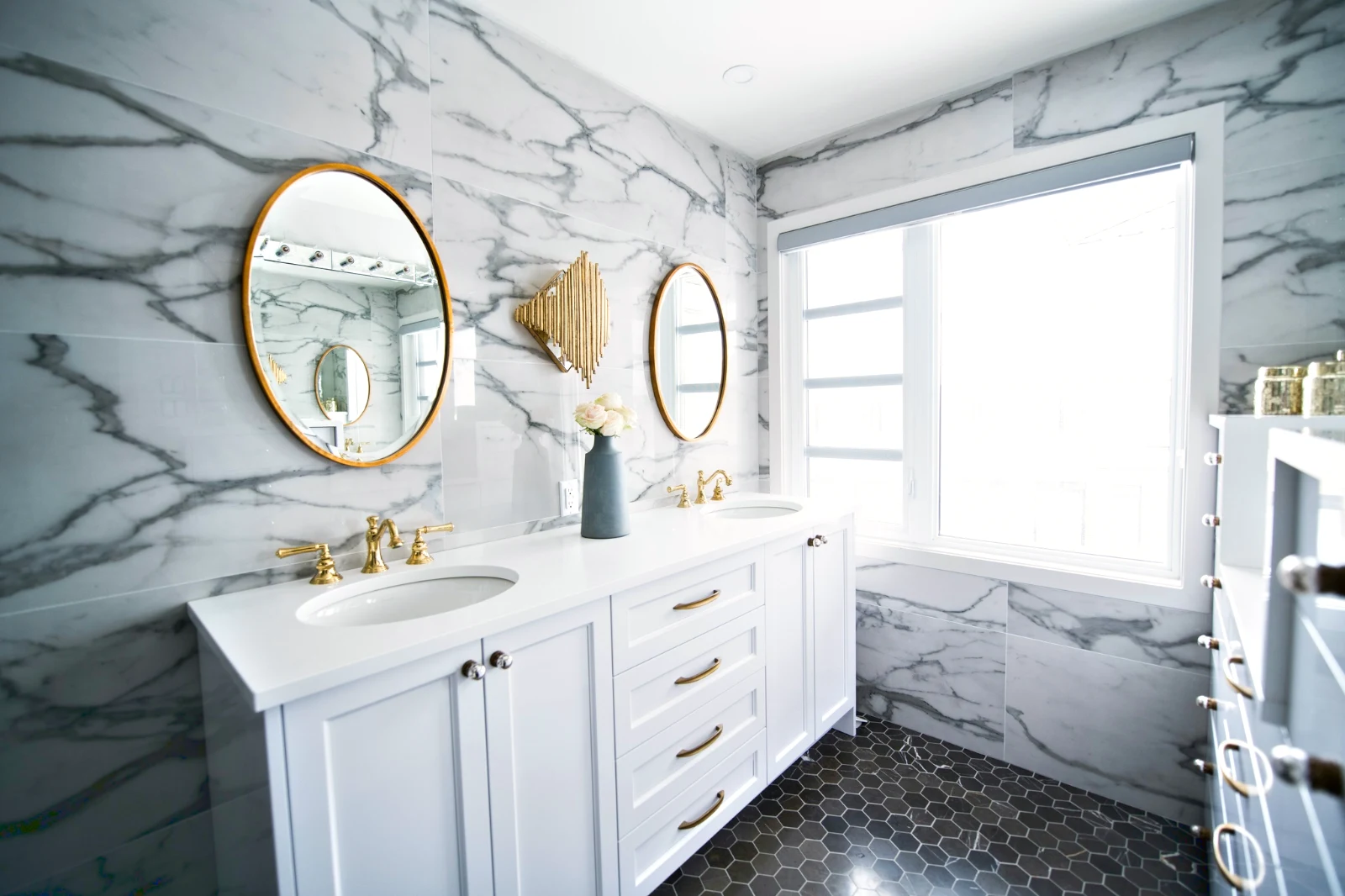
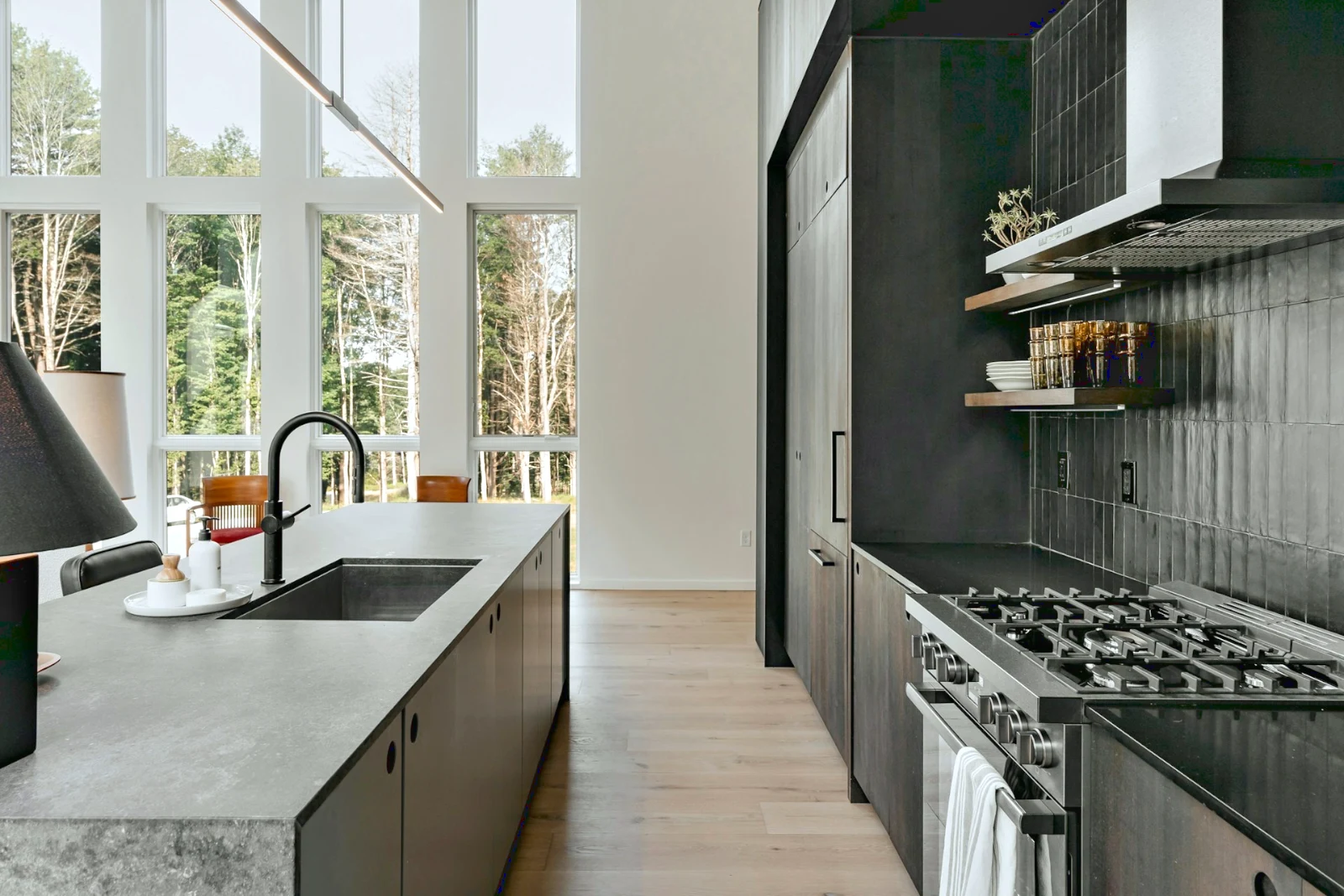 Bright and Airy
 Punchy Social
 Punchy Social
 True Color
 True Color
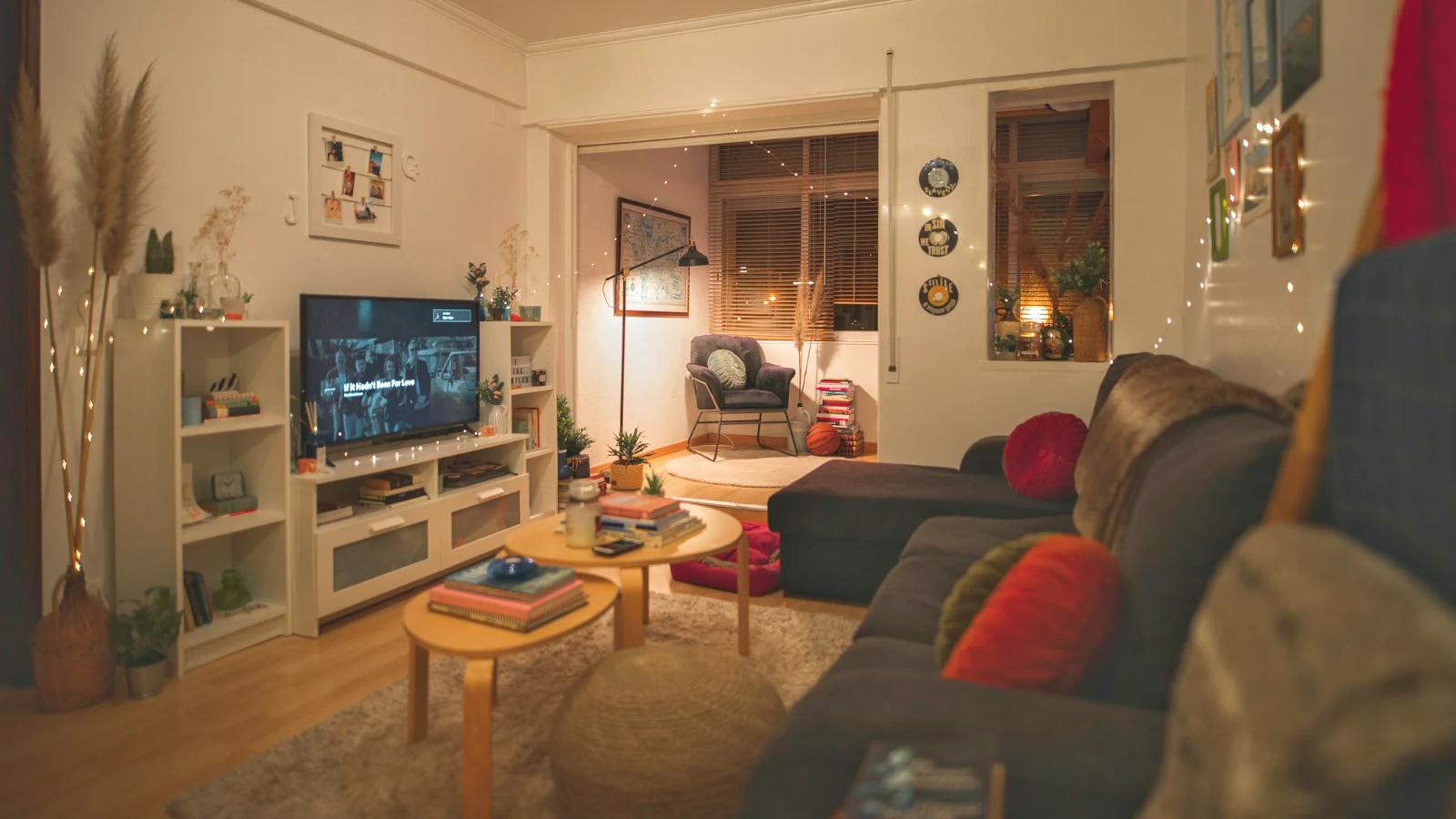
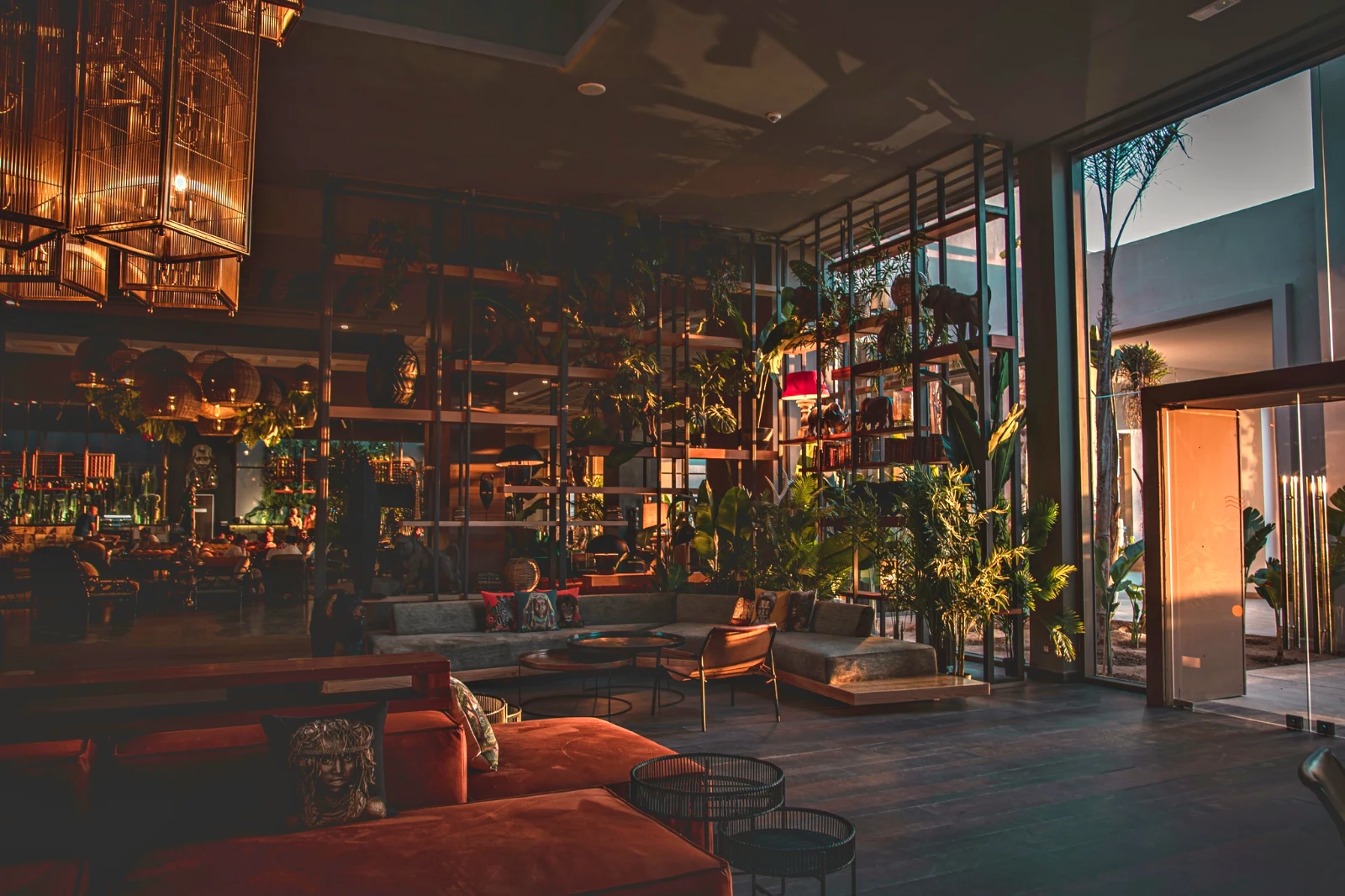 Warm Interior
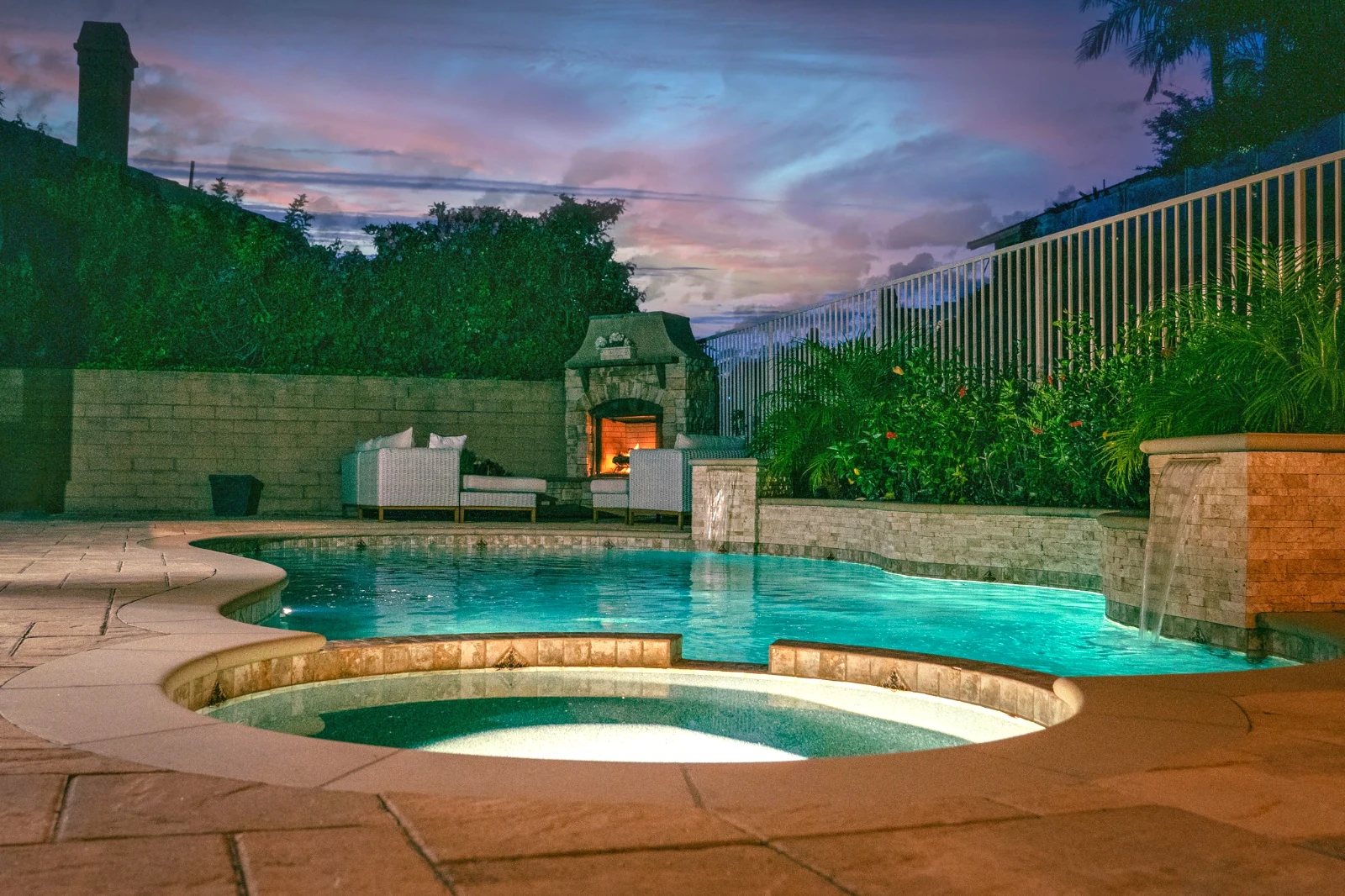
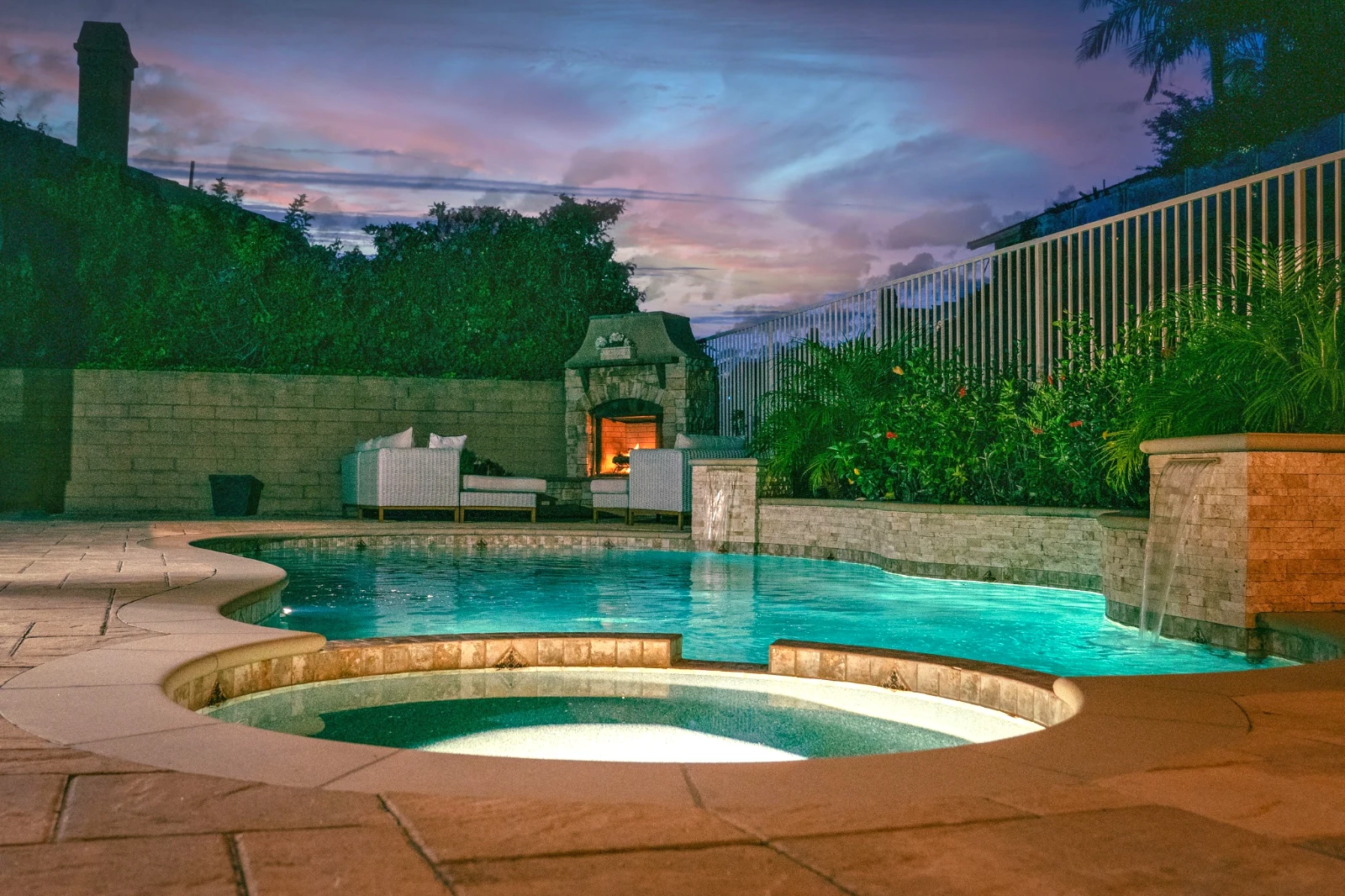
 Twilight Glow
 Bright and Airy
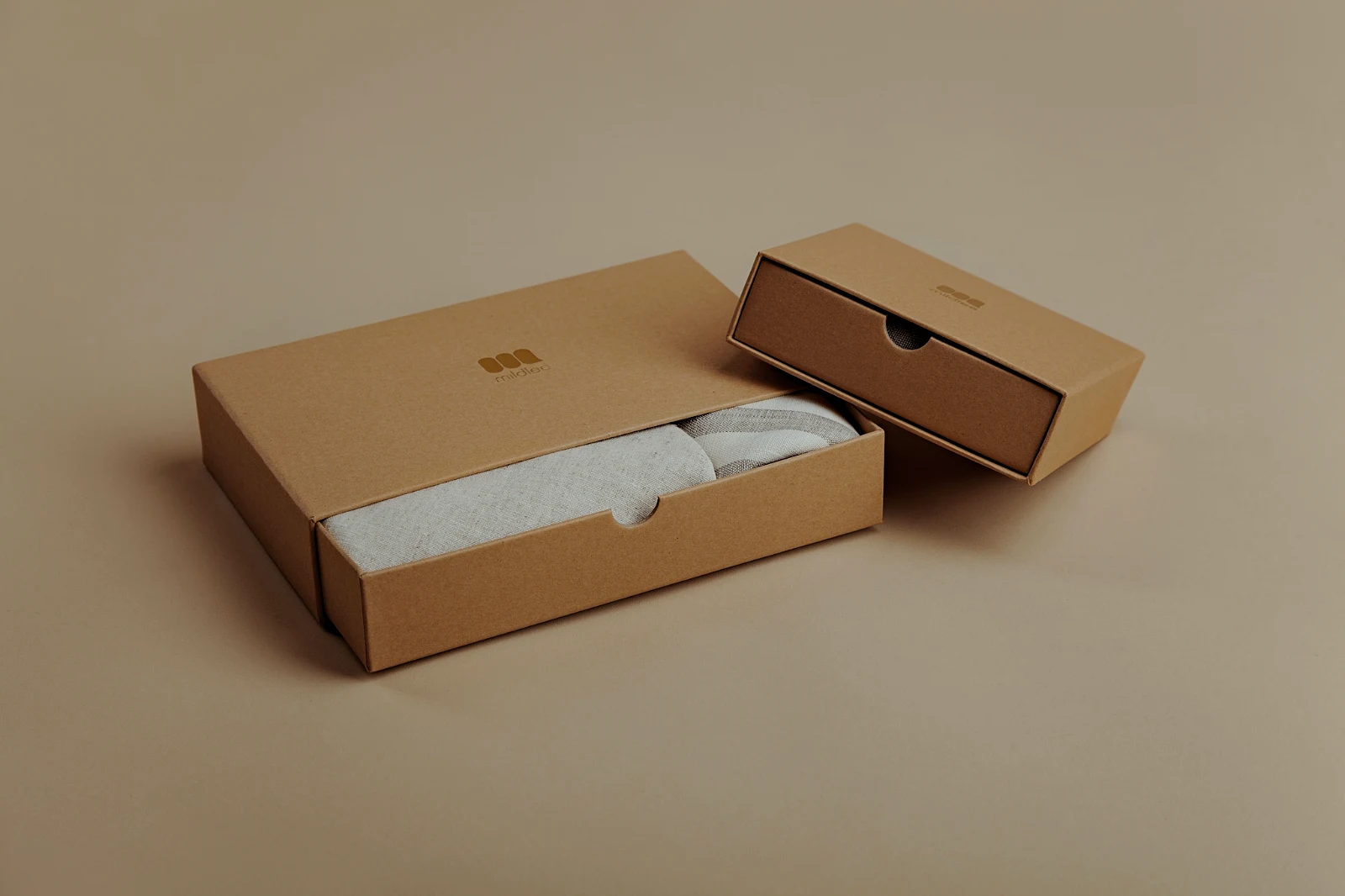 True ColorBright and AiryPunchy SocialPunchy SocialTrue ColorTrue ColorWarm InteriorTwilight GlowBright and AiryTrue ColorBright and AiryPunchy SocialPunchy SocialTrue ColorTrue ColorWarm InteriorTwilight GlowBright and AiryTrue ColorBright and AiryPunchy SocialPunchy SocialTrue ColorTrue ColorWarm InteriorTwilight GlowBright and AiryTrue Color
 Golden Hour WarmthMina
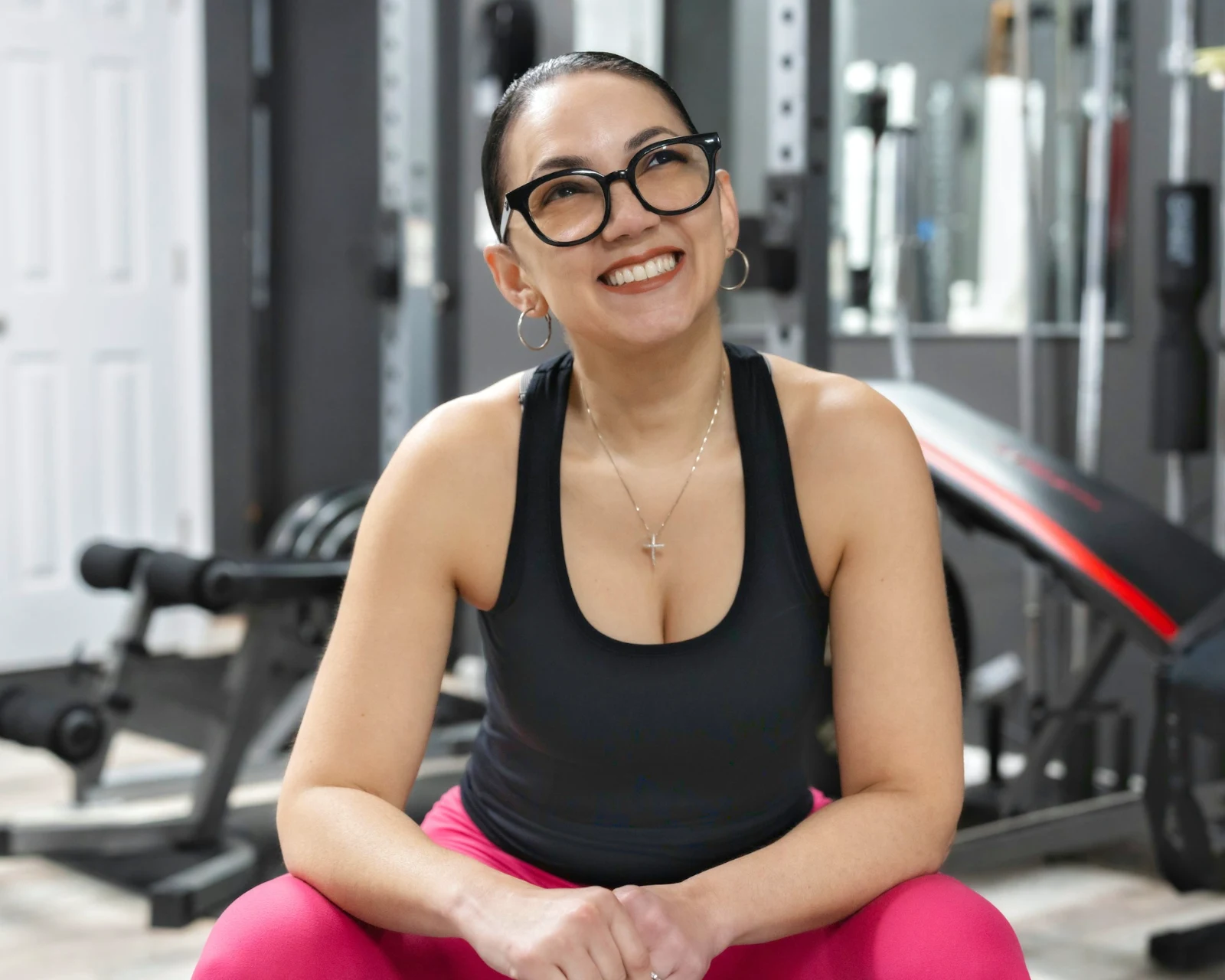 Soft Portrait
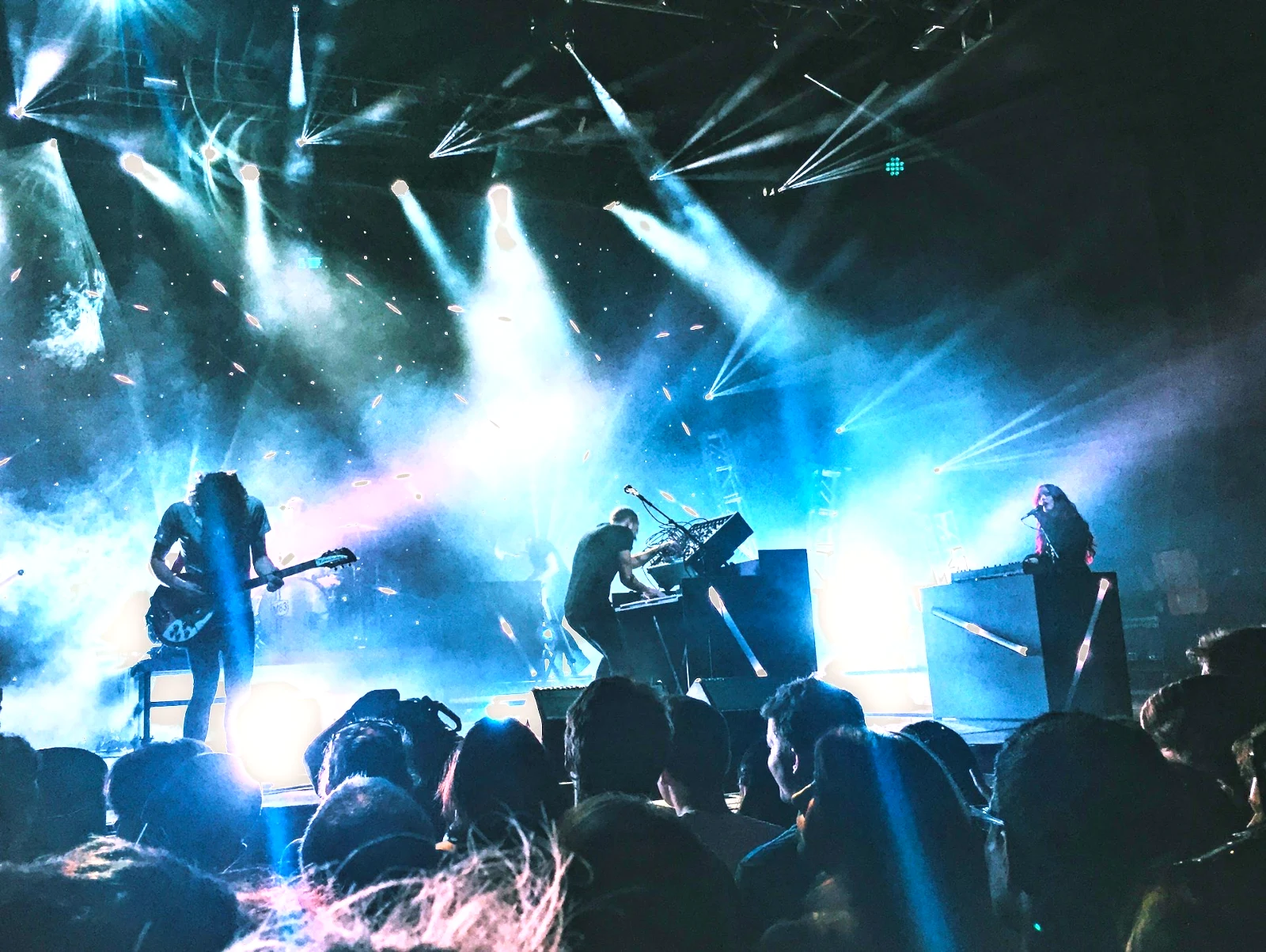 Punchy Social
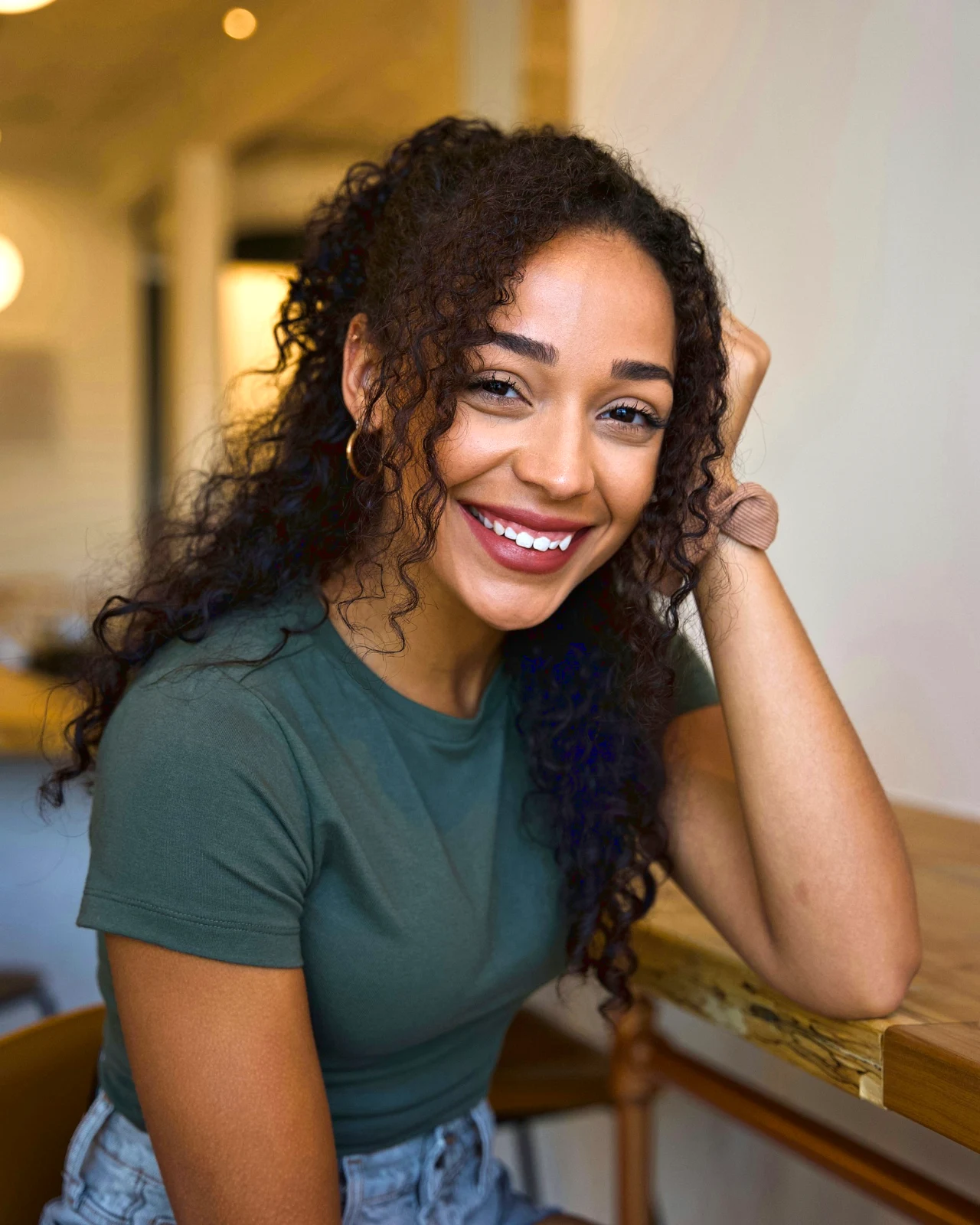 Punchy Social
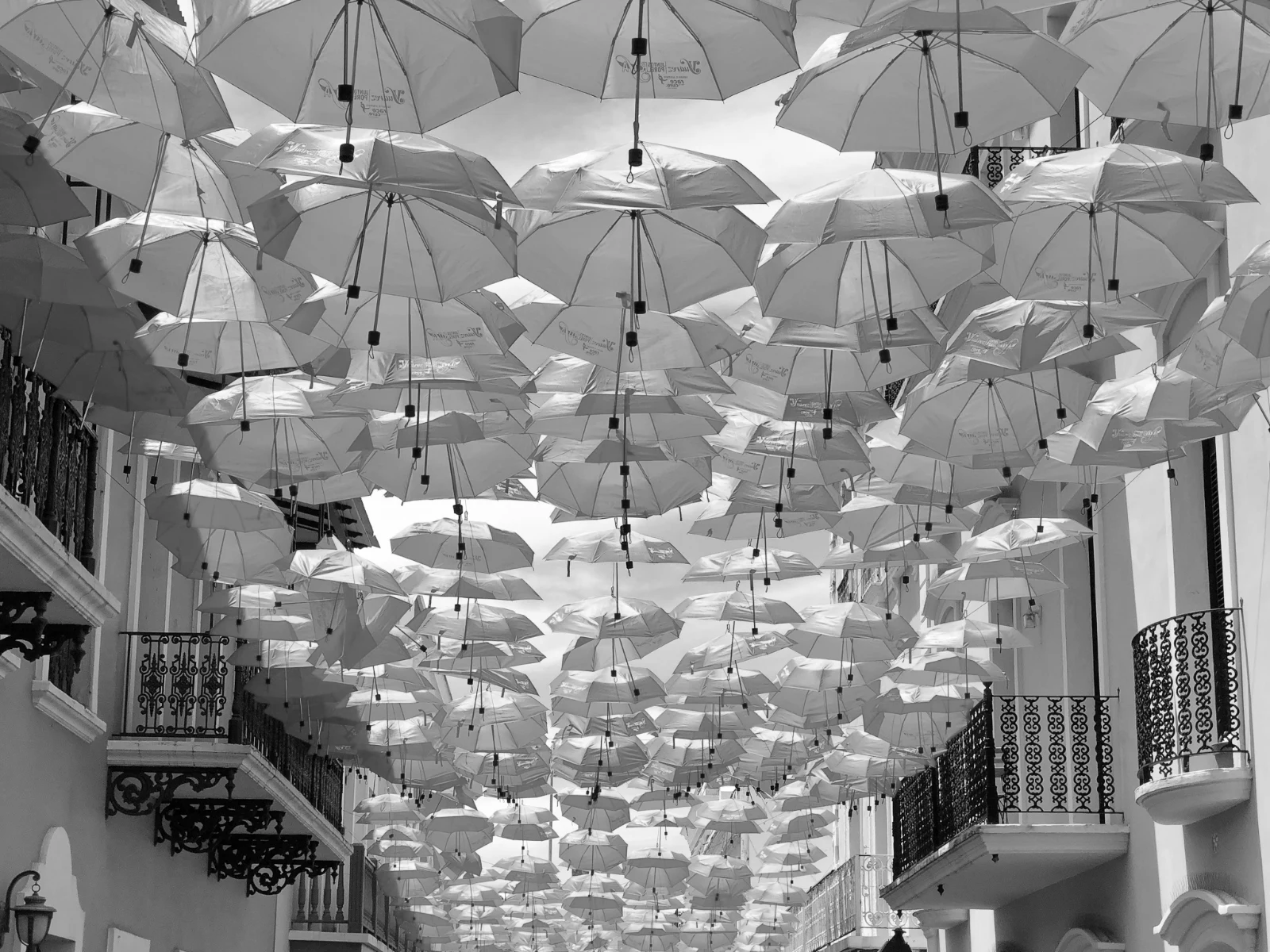 Blanco y negro
 Soft Portrait
 Soft Portrait
 Twilight Glow
 Soft Portrait
 Soft PortraitGolden Hour WarmthMinaSoft PortraitPunchy SocialPunchy SocialBlanco y negroSoft PortraitSoft PortraitTwilight GlowSoft PortraitSoft PortraitGolden Hour WarmthMinaSoft PortraitPunchy SocialPunchy SocialBlanco y negroSoft PortraitSoft PortraitTwilight GlowSoft PortraitSoft PortraitGolden Hour WarmthMinaSoft PortraitPunchy SocialPunchy SocialBlanco y negroSoft PortraitSoft PortraitTwilight GlowSoft PortraitSoft PortraitBright and AiryPunchy SocialPunchy SocialTrue ColorTrue ColorWarm InteriorTwilight GlowBright and AiryTrue ColorGolden Hour WarmthMinaSoft PortraitPunchy SocialPunchy SocialBlanco y negroSoft PortraitSoft PortraitTwilight GlowSoft PortraitSoft Portrait
Desde el rodaje hasta las elecciones del cliente
Un editor a dos niveles de profundidad: simple para todos, cada control para las personas que editan por oficio.
Biblioteca
Cada foto que la cuenta guarda.
Selección
Banderas, mejores primeros planos y tomas similares.
Auto y Apariencia
Un toque, o una mirada propia.
Ajustar
Luz, color, líneas y partes.
Automático por Lotes
Un conjunto completo en una sola ejecución.
Capas
Selección, máscaras y pintura.
Galerías
El cliente elige y anota.
Enviar a
Un diseño, un sitio web, una publicación.
En un teléfono
La foto a pantalla completa.
Trae todas las fotos y vuelve a encontrarlas
Subir desde un escritorio, la cámara o el rollo de la cámara, o compartir una foto a Foto desde cualquier aplicación. Cada foto que la cuenta guarda en Depot está en la Biblioteca, encontrada de nuevo por su estrella, sus etiquetas, las selecciones del cliente o una búsqueda.
 Editado



 Editado
 Editado



Estrellas y Etiquetas
La misma estrella y etiquetas Depot, Docs y Studio leen.
Centros y carpetas
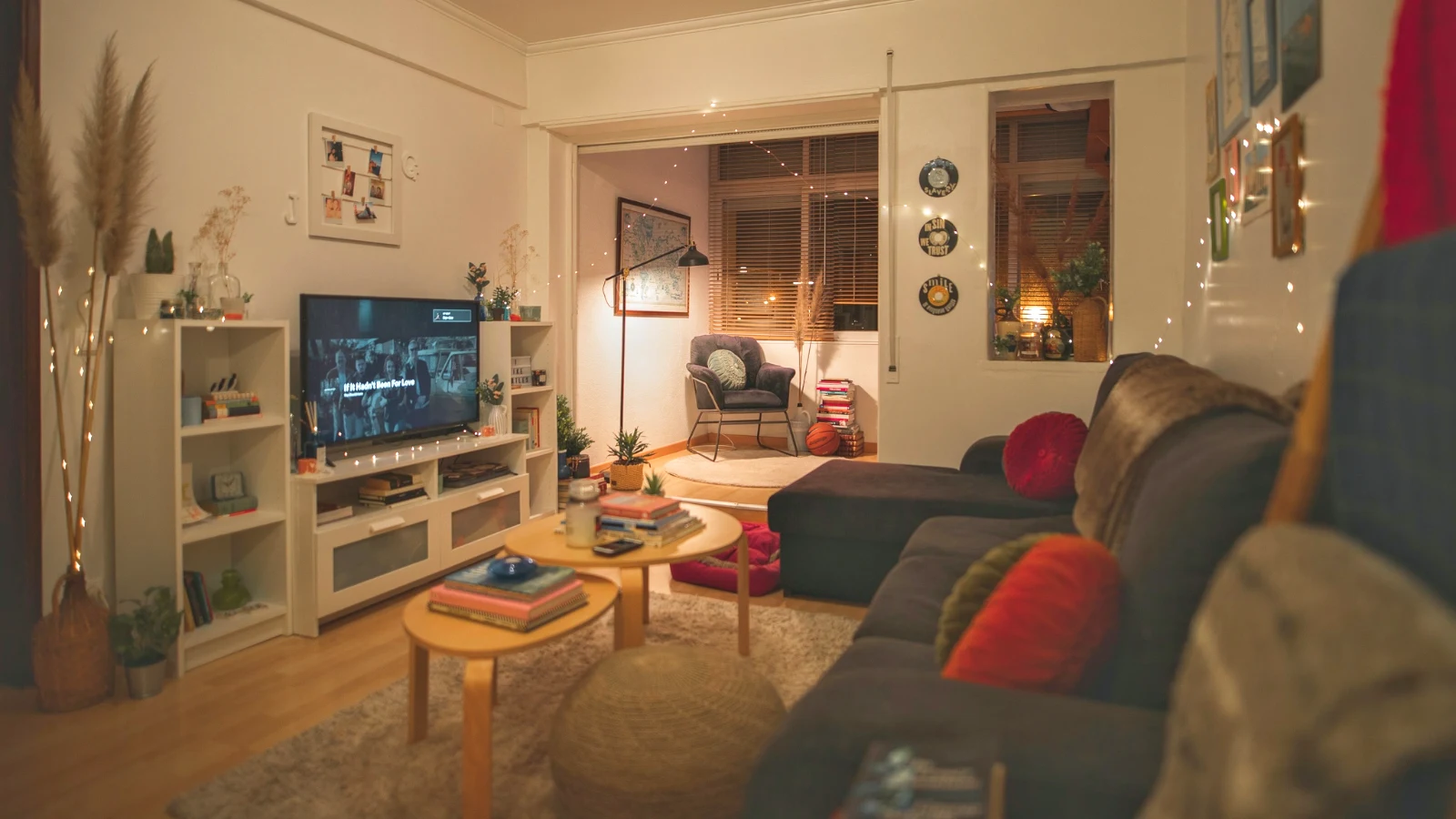
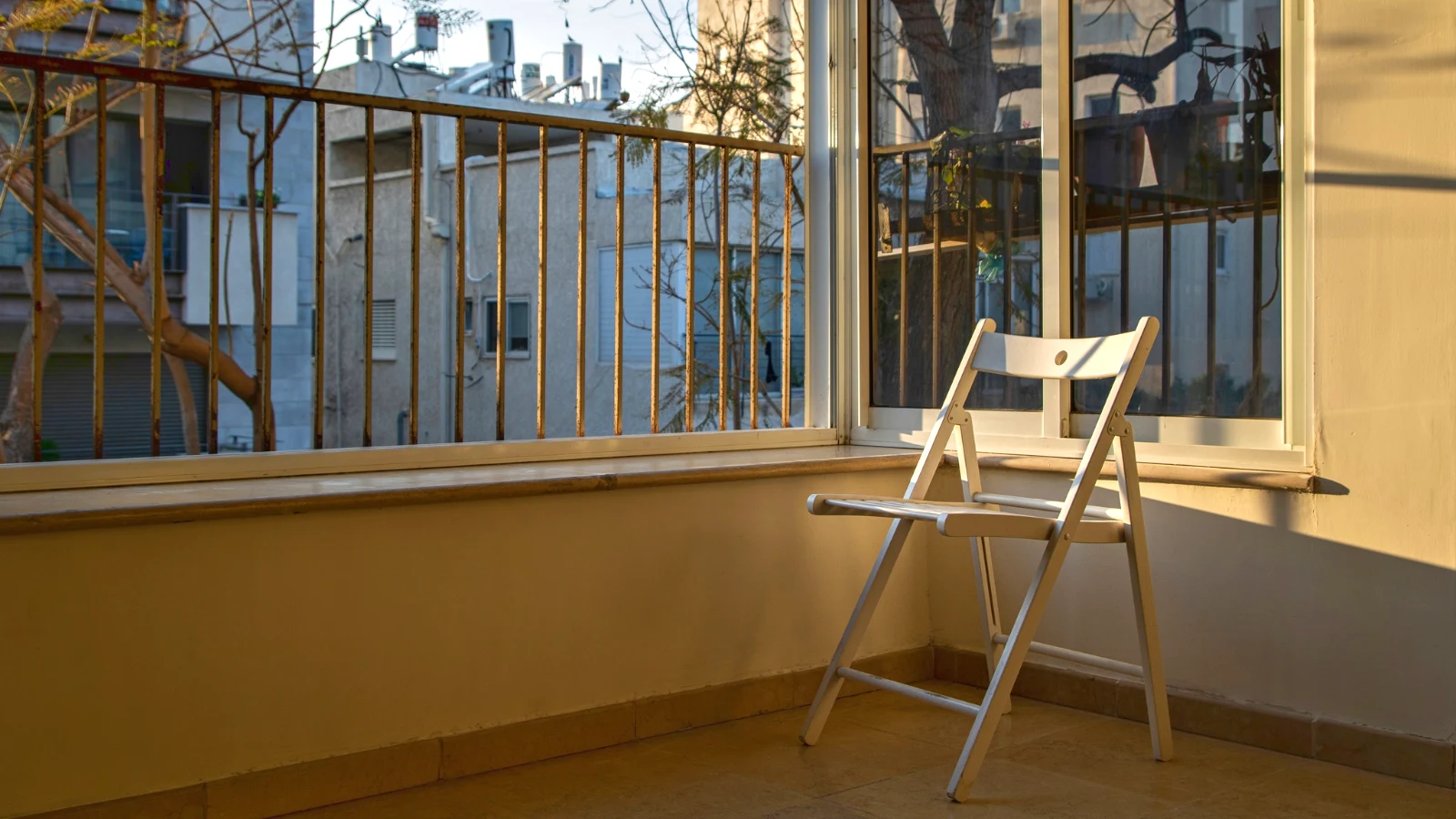
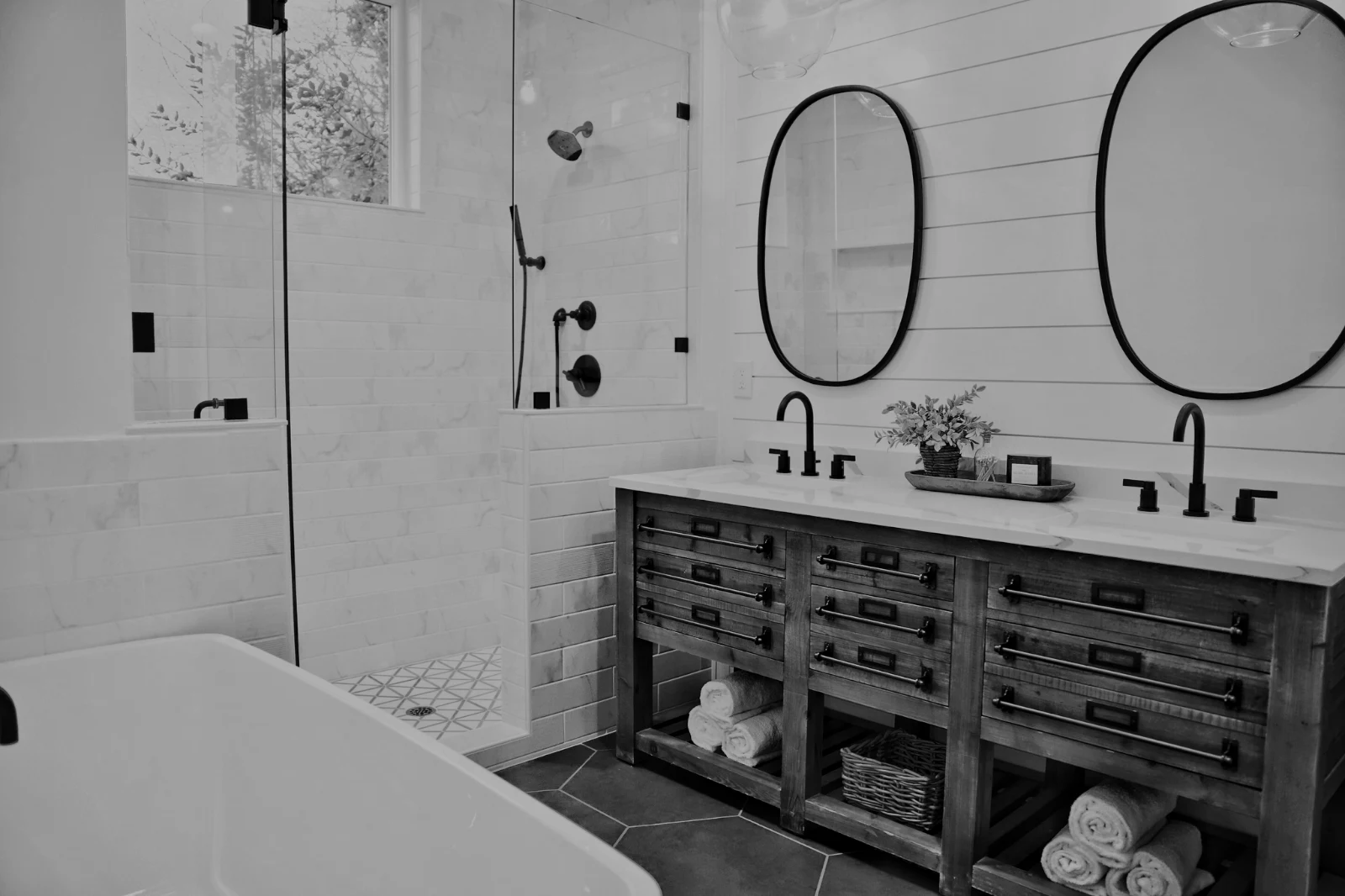
Fotos de un Hub por sí solas; Mover a… una carpeta (con Depot).
RAW y HEIC
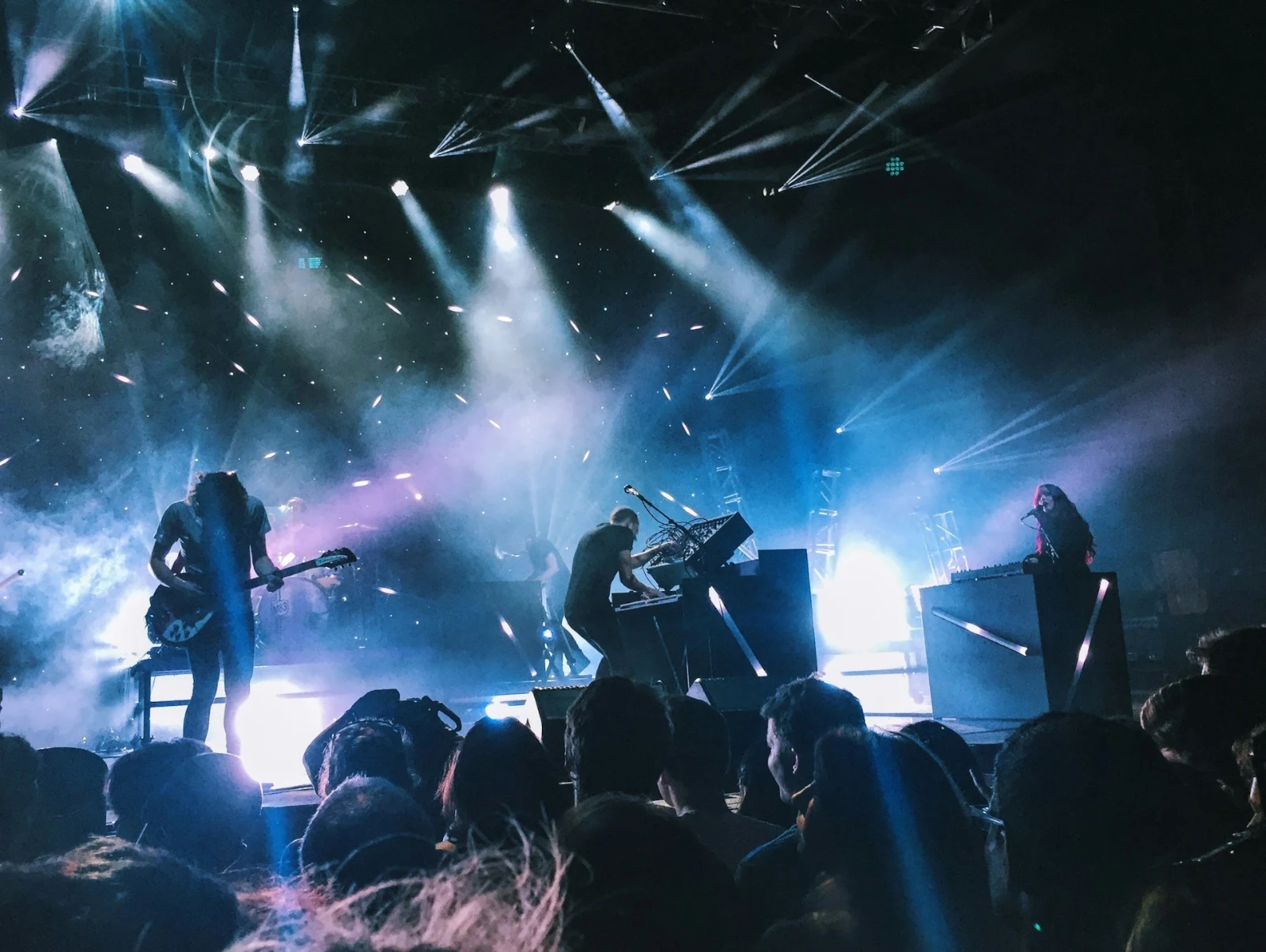
Un RAW se desarrolla en el dispositivo, o en el servidor cuando no puede ser.
Captura atada
Cámara en USBCámara conectada · Canon EOS R6 Mark II
 Vista en vivoDispararDetener Vista en Vivo
LlegadoLas fotos de la cámara aterrizan aquí y en el Hub de Cargas de Cámara.
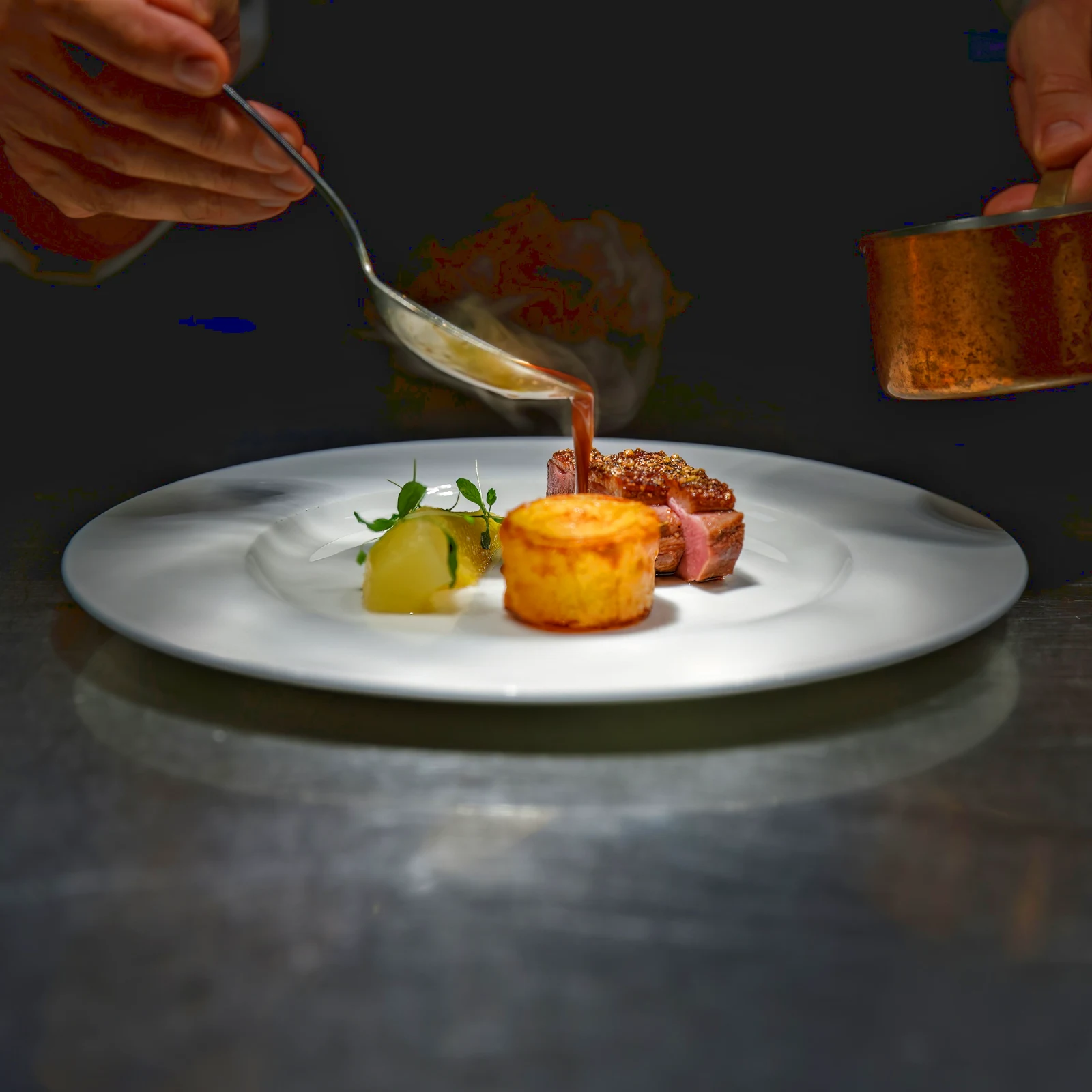
Aplicar a cada nuevo marcoAplicar True Color AW27_flatlay_01.jpg
 AW27_packing.jpg
 AW27_unboxing.jpg
 AW27_shelf.jpg
 AW27_tote.jpg
Dispara directamente a Foto mediante USB con vista en vivo, o desde la subida Wi-Fi propia de la cámara.
Encuentra a los guardias sin mirar cada cuadro
Cada foto se lee después de ser subida: su enfoque, su exposición y si los ojos de alguien están cerrados. Ordenar Mejor Primero, muestra los disparos sugeridos como mejores, filtra por cada bandera y compara disparos similares lado a lado. Nada está marcado con estrella por ti: tú eliges los que guardar.
 Closed EyesMissed FlashMissed FocusBlurryBlack Frame
Ojos cerrados y enfoque perdido
Marcado en la foto, al igual que Desenfocado, Marco negro y Flash perdido, cada uno un filtro.
Closed EyesBlurryMissed FocusMissed FlashBlack FrameFija una foto con un toque, o aplica un look
Auto lee la foto en tu dispositivo, ajusta sus controles deslizantes y nombra cada uno que mueva; Deshacer devuelve la foto. Looks guarda los looks de Calisto y los tuyos, los que encajan primero con la foto, y Guardar Look guarda cualquier edición como una de las tuyas.
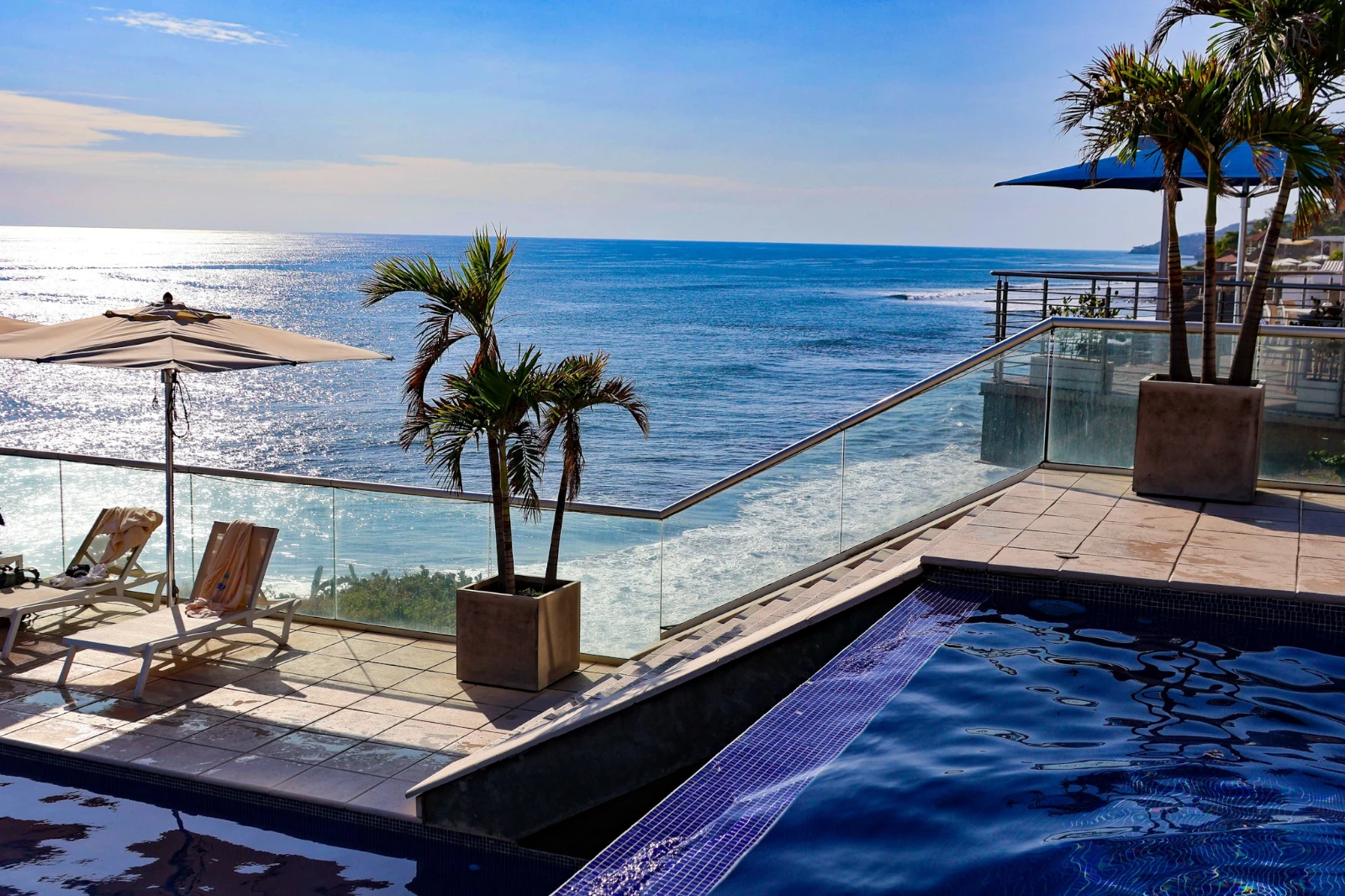
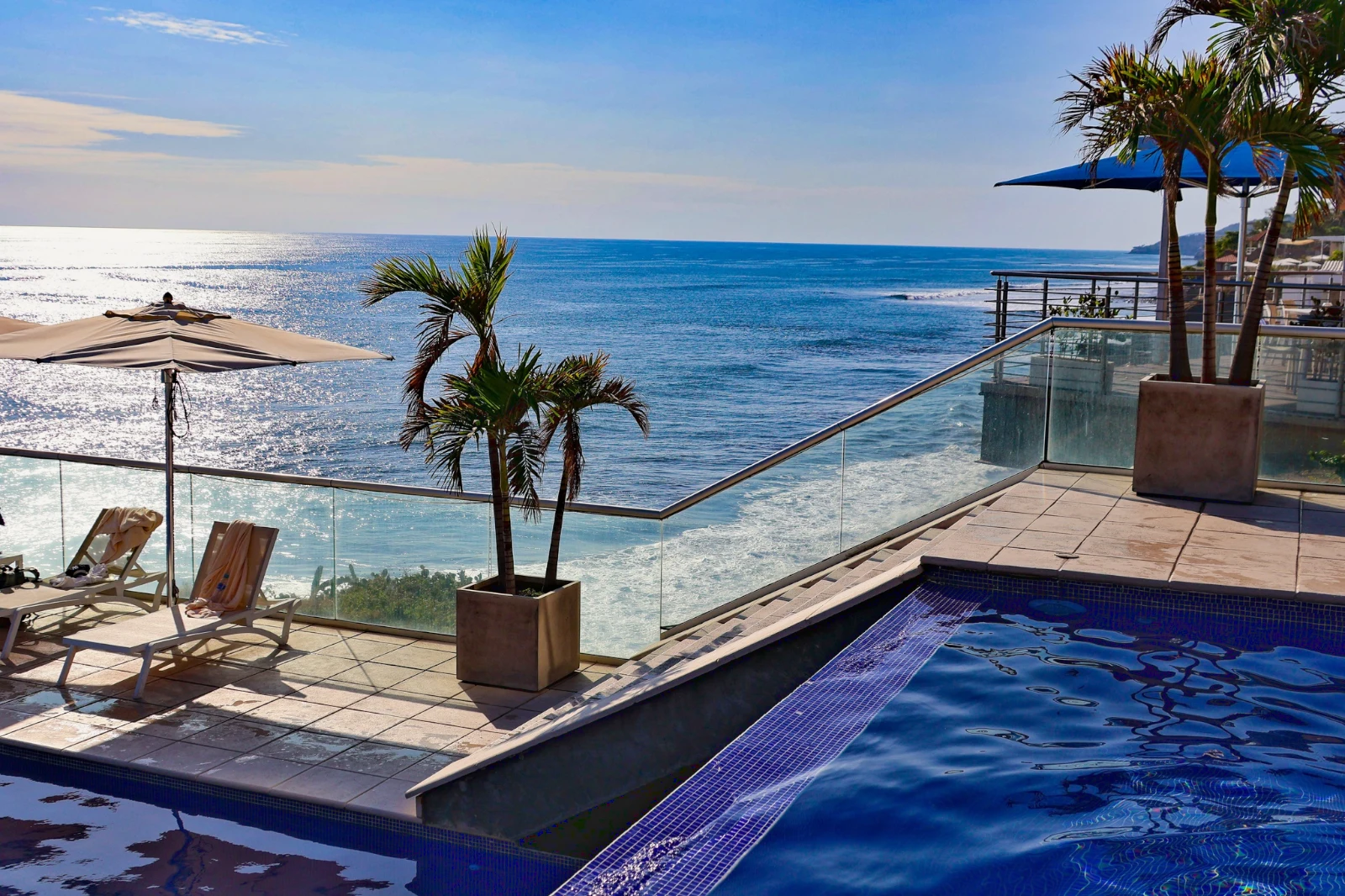
Su Estilo
Auto se movió como tú lo mueves, aprendido de tus propias ediciones; cada valor es un deslizador.
Looks Sugeridos
Los looks hechos para una foto como esta, primero en la lista.
Acciones
Registra tus pasos una vez y repítelos en cualquier foto o en una selección completa.
Hojas de contacto
Una selección impresa en una cuadrícula con nombres, estrellas, selecciones y banderas, como PDF.
Coincidir una foto
La luz y el color de otra foto, establecidos como los deslizadores de esta.
Nunca el Original
Una edición se sitúa junto a la foto con su historial; el original permanece tal como llegó.
Antes
Mantener presionado para ver la foto tal como llegó.
 Antes
Configura la luz, el color y las líneas manualmente
Luz, Color y Recorte se abren primero, y cada otro control, desde la curva de tonos hasta el ruido y la lente, está a un toque de distancia detrás de Más. Rectificar líneas encuentra las líneas de la foto y establece la Transformación por sí misma, o resuelve las líneas que dibujas.

Eliminar y Reparar
Pinte sobre un cable o una mancha; clone y rellene al lado.
Ajustar Parte
El cielo, el tema o el fondo, un pincel, degradados o un rango de brillo.
Personas
Piel, rostro, ojos, labios, cabello, ropa o la persona entera; Retocar Piel la uniformiza hacia su propio tono.
Desenfoque de lente y retrato
El fondo desenfocado, o toda la foto por su profundidad, con el enfoque donde usted lo estableció.
Negativos de película
Una película de color o blanco y negro escaneada convertida a positivo, con la máscara naranja eliminada.
Lente Correcto
La corrección propia de la cámara, de lo contrario el perfil del lente, y los bordes de color eliminados.
Markup
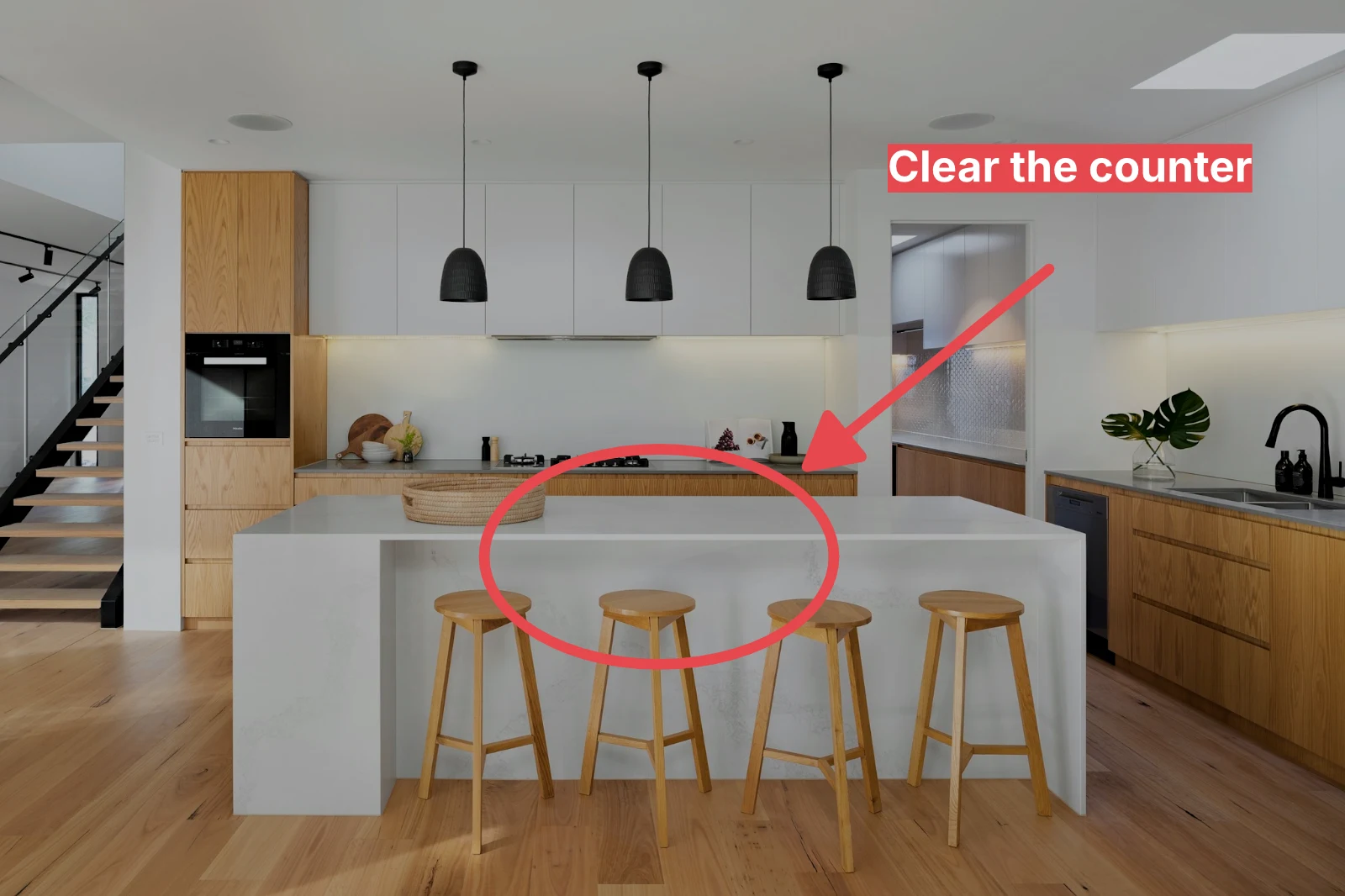
Una flecha, un círculo, un cuadro o una etiqueta dibujados en la foto.
Otorga a un conjunto completo su Auto y tu estilo
Elija fotos en la Biblioteca y un estilo, luego presione Auto masivo. Cada foto obtiene su propio Auto en su dispositivo, luego el estilo, guardado como un paso de su edición. Las exportaciones se realizan en el servidor, por lo que terminan con la página cerrada.



2. Elija un estilo
Golden Hour WarmthSolo Automóvil9 de 9 copias listas.
Crea una foto en capas y exportala a cualquier lugar
Inicie una nueva Foto en un tamaño que la gente sube, o abra una selección como capas, manteniendo cada foto su propia edición. Seleccione el sujeto o el cielo, enmascare, pinte, cure, clone y deforme, añada texto y formas, y luego exporte como JPEG, PNG, WebP, AVIF, TIFF o un PSD con capas.
Selección
Pluma, expandir, refinar bordes y convertir una selección en una máscara.
Comparta una Galería y vea lo que el cliente elige
Coloque un rodaje en una Galería y compártalo para la revisión. El cliente avanza hasta el número que usted establezca, deja un comentario en cualquier foto y envía su selección, aprueba o solicita cambios, ronda por ronda. Sus selecciones son las Elecciones del Cliente en su Biblioteca.
Revisión
Cada galería compartida para revisión: lo que el cliente eligió y anotó, y cómo respondió la ronda.
| Galería | Ronda | Seleccionado | De | Notas | Respuesta | Cliente | Respondido |
|---|---|---|---|---|---|---|---|
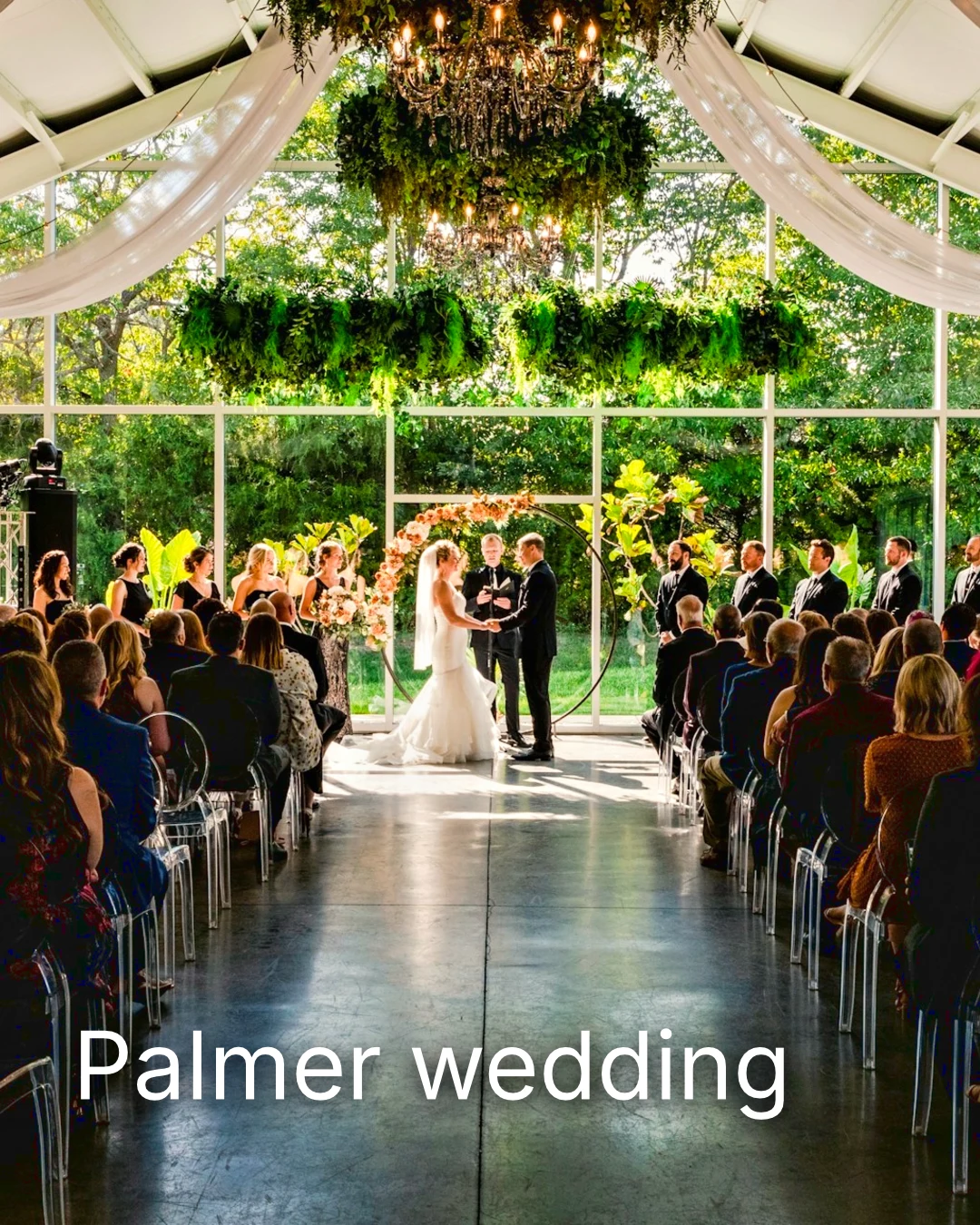
| Palmer wedding | 1 | 4 | 4 | 2 | Esperando al cliente | Sarah Palmer | Esperando al cliente |
| Carter portrait session | 2 | 3 | Sin límite | 0 | Aprobado | James Carter | 18/11/2026 |
| Harbourline Dental team headshots | 1 | 0 | Sin límite | 2 | Cambios solicitados | James Bennett | 18/11/2026 |
| Nguyen Family at Brighton | 1 | 12 | 15 | 3 | Selección enviada | Linh Nguyen | 19/11/2026 |
| Okonkwo Engagement | 2 | 20 | 20 | 0 | Aprobado | Ada Okonkwo | 16/11/2026 |
| St Kilda Bakery Menu | 1 | 6 | Sin límite | 1 | Esperando al cliente | Marco Ricci | Esperando al cliente |
Notas sobre la foto
Cada nota aparece sobre su foto mientras editas.
Ver o Descargar
Avenida da Liberdade 212
Galería
Cada enlace es solo de visualización o descargable, con una contraseña opcional.
Tu marca de agua
Elige tus favoritos y deja una nota en cualquier cosa que te gustaría cambiar. Cuando termines, envía tu respuesta. Puedes responder cada ronda una sola vez.

Tu logotipo o palabras en cada foto que el cliente ve o descarga, hasta que entregues.
Impresiones desde la Galería
$ 149.000 cada uno. El envío y los impuestos se suman en el pago.
El cliente compra una impresión de cualquier foto, realizada y enviada por su laboratorio, pagada en su propia caja registradora.
Una Galería de Trabajo, Con Talento
Lookbook SS27 En revisión
- Cliente
- Maison Kiri
- Ronda
- 1
- Seleccionado
- 8 / 12
- Respuesta
- Esperando al cliente
- Enlace cierra
- 2026/12/11
Un trabajo en Talent tiene su propia Galería, revisada de la misma manera.
Un día de cierre
Galerías
Galería de cada trabajo: lo que el cliente ve, selecciona y descarga.
| Galería | Cliente | Etapa de trabajo | Enlace cierra | Creado |
|---|---|---|---|---|
| Program Shoot · Strength | Thandi Mokoena | En revisión | 2026/11/29 | 2026/11/08 |
| Client Story · Pieter | Pieter van Wyk | En revisión | 2026/12/06 | 2026/11/11 |
| Mobility Series | Aisha Davids | Entregado | 2026/12/17 | 2026/10/21 |
| Coaches Team Photos | Kopje Coaching | Entregado | 2027/01/04 | 2026/10/30 |
| Summer Bootcamp | Lerato Nkosi | En producción | 2027/01/19 | 2026/11/17 |
El enlace de cada Galería se cierra el día que usted establece, y la lista de Galerías muestra las que se cierran en los próximos 30 días.
Enviar una foto terminada donde se utiliza
Una foto se añade como su exportación más reciente, o la original si no tiene ninguna: a una Galería a tamaño completo, a un nuevo diseño, a los activos de un sitio web o a una lista. Cada selector de fotos en Calisto ya enumera las fotos de la cuenta, incluidas las exportaciones.
Un Diseño, Con Estudio
Un nuevo post o historia se abre con la foto colocada.
 Menú de OtoñoTostadas de jaiba, desde hoy
Un sitio web, con sitios
Añadido a los activos del sitio.
Activos
Un listado, con listados
Añadido a sus fotos, cuando el negocio tiene un listado.
T3 Rua do Século 41 Publicado
Edite con la foto a pantalla completa en su teléfono
Pincha para hacer zoom, toca dos veces para ajustar y mantén presionado para Antes. Cada sección es un chip debajo de la foto cuyos controles se anclan debajo de ella, nunca encima, y el deslizador solo se mueve con un arrastre lateral, por lo que el desplazamiento nunca edita.
Compartido a Foto
Una foto compartida desde el rol de cámara llega a Agregar fotos.
Comparte fotos a Foto desde cualquier aplicación en este dispositivo, toma una, o elige las aquí.
Fotos para añadir
Sin señal
Inicio, la Biblioteca, Looks y Añadir fotos abiertos; las ediciones y las subidas esperan y aterrizan una sola vez.
Comparte fotos a Foto desde cualquier aplicación en este dispositivo, toma una, o elige las aquí.
Fotos para añadir
Donde Foto toca todo lo resto.
4 of these 5 connections are in your plan today; the other is its own app.
Depot
Every photo and every export is a file in Depot, on the account’s one storage quota, and a Gallery is a Hub.
Studio
An image’s Adjust in Studio is Foto’s, Send To opens a new design with the photo placed, and a layered Photo opens there as a design.
Talent
Galleries and Proofing are the same views Talent shows, and a job’s Gallery is the Hub of that job.
Listings
Bulk Auto takes a listing’s photos as a set, and the exports replace them on the listing.
Sites
Send To adds a photo to a website’s assets.
Sin costo de instalación. Paga solo cuando comiences a usarlo.
Photos edited in one tap, by hand or in layers.
Calisto Create
La Biblioteca, Auto, Auto masivo, Looks, Ajustes y Galerías, incluidos con cada cuenta de Calisto.
Foto Pro
Cada control de Ajuste en línea y el espacio de trabajo de Capas, para una persona, en un asiento propio o con un Crear asiento; un negocio asigna sus asientos a sus personas.
Recomendado para ti
Funciona bien junto.
Calisto Depot
Calisto Studio
Calisto Create
A Studio seat designs anything at every size, from Calisto’s templates or a blank page: layers, photos, Copy & Resize, Bulk Create, mockups, QR codes, print-ready PDFs, sharing and whiteboards.
Learn more →Calisto Talent
Incluido con sus planes
Tu app Core muestra todo lo que activan tus planes de Comercio y Operaciones.
Learn more →Calisto Listings
Anuncios
Tus listados, citas, desarrollos, alquileres y la oficina, para cada persona que trabaja en Listados.
Learn more →Calisto Sites
Sitios de Calisto
A website and its phone app, built from a template on the page itself, showing what you sell from your own records and published on your own domain.
Learn more →Todo incluido en Calisto Foto.
- Foto Essentials for every signed-in person: Home, the Library, Auto, Bulk Auto, Looks, Adjust with Auto, Light, Color and Crop, and Galleries; every other control one tap away behind More.
- Foto Pro, a seat per person: every Adjust control inline and the Layers workspace.
- Essentials or Pro is each person’s own choice, in Profile & Preferences ▸ Creative Tools, never a business setting.
- Without a seat, More and Layers read Pro · Upgrade, or Ask for a Pro Seat for a team member.
- A photo whose edit holds Pro fields always opens, saves and draws at Essentials.
- First open asks nothing technical at Essentials, and leads with Layers and the keys at Pro.
- Every photo read after it is uploaded: when it was taken, its exposure, its focus and its faces.
- Flags: Blurry, Missed Focus, Black Frame, Missed Flash and Closed Eyes, each a filter in the Library.
- A score from focus, exposure and open eyes: Best First, and the Suggested Best Shots.
- Similar Shots: bursts, brackets and the same pose taken twice, grouped best first, with Star the Best of Each.
- Faces and eyes are read on your own device; nothing is starred or hidden for you.
- Home: the photos to pick up again, Upload Photos, New Photo, From Media Library, Bulk Auto, and Recent Photos.
- The Library: All Photos, Starred, Edited, Similar Shots, Layers and Client Picks, with search, sort (Best First and Date Taken included) and a Tag filter.
- A Hub’s photos on their own, from the Hubs in the sidebar; Move To… a Folder of a Hub, and New Hub, Private or Public (with Depot).
- A selection is starred, tagged, given a look, run through Bulk Auto, sent on, opened as layers or assigned to a client project.
- Star and Tags are the platform’s: the same in Depot, Docs and Studio, carried wherever the photo is picked.
- An export is listed with its photo, never among the originals.
- The account’s storage shown in the Library, on the one Depot quota (with Depot).
- Upload from a desk, the camera or the device’s photos, through the one upload queue.
- Add Photos is where a photo shared to Foto lands: the camera roll’s Share sheet, or Open With on a desk.
- Then Adjust for one photo, Bulk Auto for a set, or the Library.
- JPEG, PNG, WebP, HEIC, HEIF, AVIF, TIFF and camera RAW; a RAW is developed on the device, or converted on the server when the device cannot.
- The camera and lens a file says made it, read once from the original and kept on the file.
- Auto: one tap reads the photo on the device, sets its sliders and names each one; Undo puts the photo back.
- Your Style beside Auto, once you have edited eight photos: Auto moved the way you move it, and the Texture, Clarity and Saturation you usually set, learned from your own edits; yours, never the business’s.
- Light, Color, Crop and Straighten; Whites and Blacks, Detail (Detail, Fine Detail, Clear Haze), Tone Curve, Color Mixer, Color Grading, Sharpening and Noise, Lens, Transform and Effects.
- Straighten Lines: Auto and Vertical, and Level, Full and Guided (up to four lines drawn on the photo); it sets the Transform sliders it solved and names them, and leaves a photo with no clear lines as it is.
- Lens: Correct Lens from the camera’s own correction in the RAW, else the lens profile; Remove Color Fringes; nothing the camera already corrected is corrected twice.
- How it was drawn, said under the control it concerns.
- Remove and Repair: Remove what you paint over; Clone and Fill.
- Adjust Part: Sky, Subject and Background; a Brush, Linear and Radial gradients and a Brightness Range.
- People: Skin, Face, Eyes, Lips, Hair, Clothes and Body, found on your device.
- Retouch Skin: Even Skin smooths blotches and keeps the pores; Match Skin Tone evens the skin toward the person’s own tone.
- Frequency Separation: paint where, then Smooth Tone and Fine Detail retouch the tone and the texture each on its own.
- Portrait Blur on the background, and Lens Blur by the photo’s depth with Focus Distance and Depth of Focus.
- Film Negative: a scanned color or black and white negative turned positive from its film base, shared across a roll by copying the edit.
- Changes: every change to a part, with its own controls, opacity, blend and invert.
- Markup: an arrow, a circle, a box, a freehand line or a label drawn on the photo, carried by every export.
- Before: press and hold. Undo and Redo through the edit’s whole history.
- The original is never changed; the edit is kept beside it with its history.
- A client’s note from Proofing shown on the photo while it is edited.
- Calisto’s looks and the business’s own, in Looks ▸ Calisto and Mine.
- Match a Photo: another photo’s look, solved into Exposure, Contrast, Saturation, White Balance and Color Grading.
- Suggested looks first in Adjust: the looks made for a photo like this one, from the kind of photo each of Calisto’s was made for and the photos each of yours has been put on.
- Save Look keeps an edit’s settings as a look of the business’s own.
- A look given to one photo or a whole selection.
- A selection from the Library, or one listing’s photos for a business with listings (with Listings), and a look.
- Start From Auto or Your Style.
- Each photo read on the device and given its own Auto, then the look; a look that straightens lines solves each photo’s lines.
- Saved as a step of each photo’s edit.
- The exports made on the server, so they finish with the page closed; the results screen shows each one as it is ready.
- For a listing’s photos, the exports replace them on the listing, through Listings’ own write (with Listings).
- Bulk Auto Finished is sent once per run, to the person who started it.
- Camera on USB, in Chrome or Edge: Connect Camera, Shoot, Live View on Canon EOS and Nikon, every frame straight into Foto.
- The camera’s own Wi-Fi upload: FTP, FTPS or SFTP to Calisto with a login of your own, the password shown once.
- Every frame in the Camera Uploads Hub as it lands, with the last edited frame’s edit or a look applied to each new one.
- Nothing to install: the camera talks to the page itself.
- Record Action in Adjust: your steps kept as steps, then played on any photo or a Library selection, with Auto, looks, straightening and found parts solved again for each photo.
- Actions are the business’s, kept beside its looks.
- Contact Sheet: a selection or a Gallery printed 2 to 8 across, portrait or landscape, with names, stars, client picks and culling flags, filed in Depot as a PDF.
- HDR: bracketed exposures fused into one photo, lined up even when taken by hand.
- Panorama: overlapping frames joined, laid on a cylinder for a known lens, cropped clean; brackets at each position fused first.
- Focus Stack: frames focused at different distances, sharp from near to far.
- Astro Stack: night-sky frames aligned on their stars and stacked by sigma clipping, median or mean, dark frames taken off.
- A new photo in Depot every time; the photos merged stay as they were. Large merges finish on our servers.
- Smart Objects: Convert to Smart Object, New Linked Copy, Update Linked Copies and Release Smart Object; each copy keeps its own opacity, blend and styles.
- New Photo at a size people make: YouTube Thumbnail, Instagram Post and Story, Square, A4 and US Letter at 300 ppi, or a custom size, on white, black, a color or transparent.
- Open as Layers on a selection: each photo a layer carrying its own edit.
- Photo, pixels, adjustment, text and shape layers in one layer tree: chosen, checked to act on several, shown, hidden, locked, renamed, moved, grouped, duplicated and deleted.
- Tools: Move, Select Rectangle, Ellipse, Freehand and Straight Lines, Select Similar Color, Select Subject and Sky, Brush, Eraser, Dodge, Burn, Blur, Sharpen, Heal, Clone, Fill, Warp, Warp Grid, Warp Perspective, Text, Shapes and Crop.
- The Select menu: Select All, Deselect, Invert, Feather, Expand, Contract, Smooth, Refine Edges, Selection to Mask and Fill with Color; Shift adds, Alt subtracts, both intersect.
- Layer masks and shape masks, each enabled, inverted, feathered, applied or deleted; layer styles: drop and inner shadow, outer and inner glow, color overlay and stroke.
- Apply and Convert to Pixels; every paint stroke written as new tiles, so every earlier step still undoes.
- Export as JPEG, PNG, WebP, AVIF, TIFF or a layered PSD, with what it could not hold said in plain words; Recent Exports in the Export dialog.
- A layered Photo opens in Studio as any design does (with Studio).
- Without the seat, a layered Photo opens to look at.
- A Gallery is a Hub shared with a client through its link, Private or Public; a job’s Gallery is the Hub of that job (with Talent).
- Send To ▸ Gallery puts the photos in at full size.
- Share for Proofing: the client’s email (the Gallery also lists in their portal), how many they may pick, view or download, a password, and your watermark.
- Your watermark on every photo of the link, at every size and on every download: your logo, your business name or your own words, where it sits, its size and its opacity, set once in Settings ▸ Photos ▸ Watermark.
- Watermark the Photos or Remove the Watermark on a link in Proofing, so the final delivery goes out clean.
- Prints from the Gallery: Choose Prints from your drop-ship products on sale online; the client taps Buy Print on a photo, picks the print, the size and how many, and pays on your own checkout (with Shop and Orderflow).
- Your lab prints the photo the client chose and ships it to them; the order is in Orderflow beside every other web order.
- The client picks up to the limit, leaves notes, and sends their selection, approves or asks for changes, round by round.
- Open the Next Round, or Stop Proofing; an earlier round stays as it was.
- Galleries counts what is delivered, waiting on the client and closing in 30 days.
- The same Galleries and Proofing views Talent shows (with Talent).
- A photo goes on as its current export, or the original when it has none.
- A Gallery; a design, opened in Studio with the photo placed (with Studio); a website’s assets (with Sites); a listing’s photos, when the business has a listing (with Listings).
- Every picture picker in Calisto lists the business’s photos in Depot, exports included.
- Adjust and Layers, switched in the header: ⌘⌥1 and ⌘⌥2, or A and L.
- Keyboard Shortcuts (⌘/) lists every key; ⌘K finds every command.
- Each editor’s back link returns to the Library.
- Home, Library and Settings in the tab bar; shortcuts to Add Photos, the Library, Bulk Auto and Looks.
- The photo fills the screen: pinch to zoom and pan, double-tap to fit, press and hold for Before.
- Each section a chip under the photo, its tray docked under it, never over it, with the desk’s controls and a Reset.
- A slider moves only on a sideways drag, so a scroll never edits; words are typed in a dialog above the keyboard.
- Layers on a phone: the canvas full screen, the tools in a bottom bar, the layer tree and Format as bottom sheets.
- Keep Foto on This Device: Home, the Library, Looks and Add Photos open with no signal; an edit’s save, a new look and uploads wait and land once.
- Copy Saved is sent when the server finishes a copy, to the person who asked for it.
- Foto installs as part of the Calisto app.
- Every photo and every export is a Depot file on the account’s one quota; each Foto Pro seat adds its included storage to it (with Depot).
- Working copies and the render cache never count.
- Settings ▸ General: the business’s name, design and sign-in.
- Settings ▸ Photos: the export format, size on the long side or the original’s, quality, and the look Bulk Auto starts from; changed by the business’s admins, and Purview may lock it.
Questions about Calisto Foto
Cada persona iniciada sesión tiene Foto Essentials: la Biblioteca, Auto, Auto masivo, Looks, Ajustar con luz, Color y Recortar, y Galerías. Todos los demás controles de Ajustar están detrás de Más. Foto Pro los coloca todos en línea y añade el espacio de trabajo Capas, para una persona por asiento.
No. Una edición se mantiene junto a la foto con su historial, por lo que cualquier paso se puede deshacer después. Una exportación es un nuevo archivo en Depot, accesible desde su foto, y el original permanece tal como llegó.
Archivos JPEG, PNG, WebP, HEIC, HEIF, AVIF, TIFF y RAW de cámara. Un archivo RAW se desarrolla en tu dispositivo o en el servidor cuando el dispositivo no puede hacerlo. Una foto con capas exporta como JPEG, PNG, WebP, AVIF, TIFF o un PSD con capas.
Studio abre un PSD en capas como un diseño. Foto guarda una Foto en capas como un PSD que mantiene sus capas, máscaras, mezclas, grupos, texto y estilos, y dice en palabras simples lo que no pudo mantener.
Comparte la Galería para la revisión. El cliente abre el enlace, selecciona hasta el número que establezcas, deja un comentario en cualquier foto y envía su selección, aprueba o solicita cambios, ronda por ronda. Sus selecciones aparecen como Client Picks en tu Biblioteca, y cada comentario se muestra en la foto mientras editas.
Sí. Elija cuáles de sus productos de drop-ship vende la Galería, como impresiones que su laboratorio fabrica y envía. El cliente toca Comprar Impresión en una foto, selecciona la impresión, el tamaño y la cantidad, y paga en su propio pago. Su laboratorio imprime esa foto y se la envía.
En Depósito, en el único cupo de almacenamiento de tu cuenta, donde cada selector de fotos en Calisto los encuentra. Cada asiento Foto Pro o Create añade el almacenamiento que incluye a ese mismo cupo.
