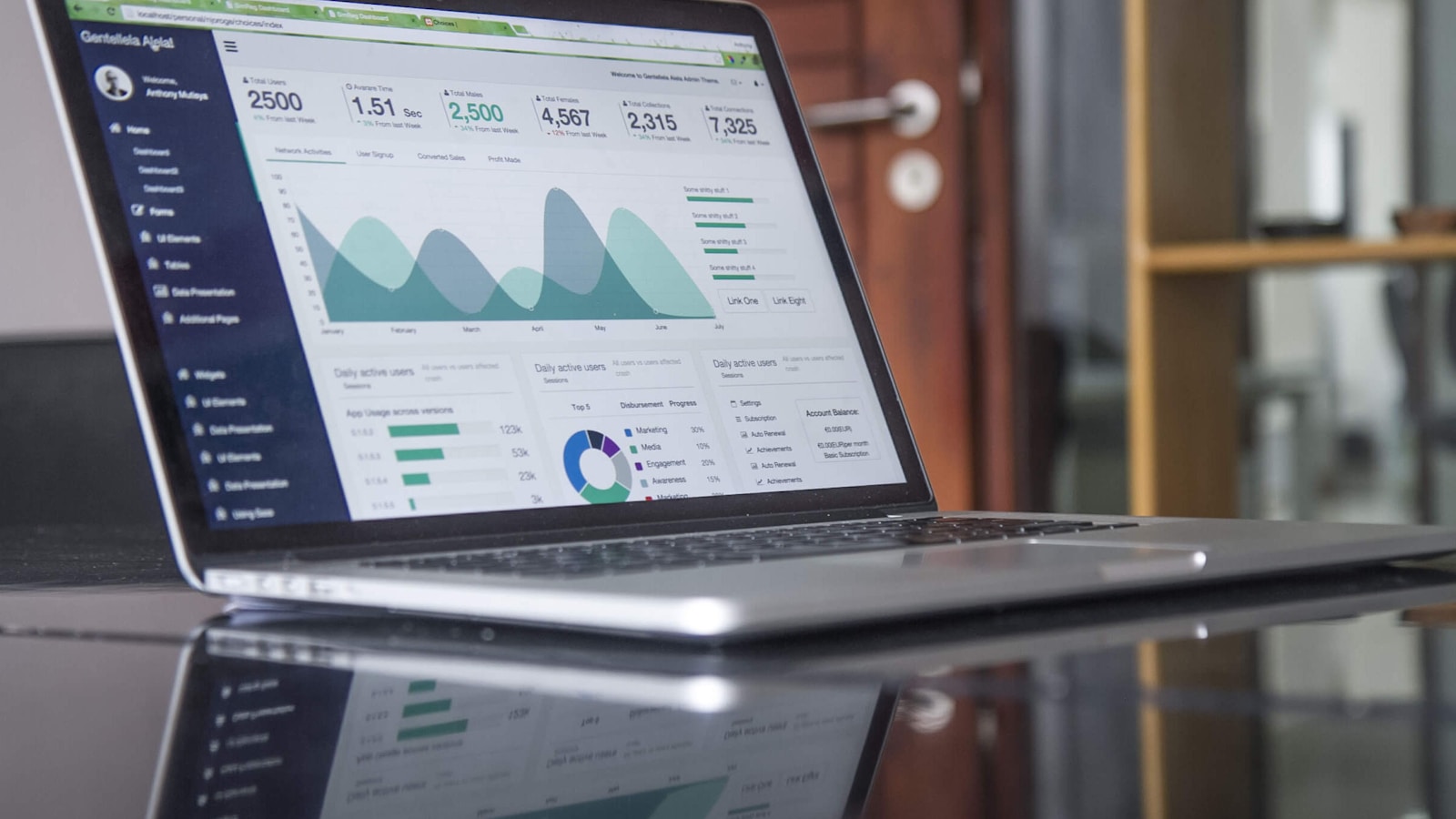
Every TV in your business, each running its own job.
Give every TV in your business a job, from the kitchen to the guest’s room, and it shows your own orders, rooms and menu as they change. Run them all from one place, even your phone.
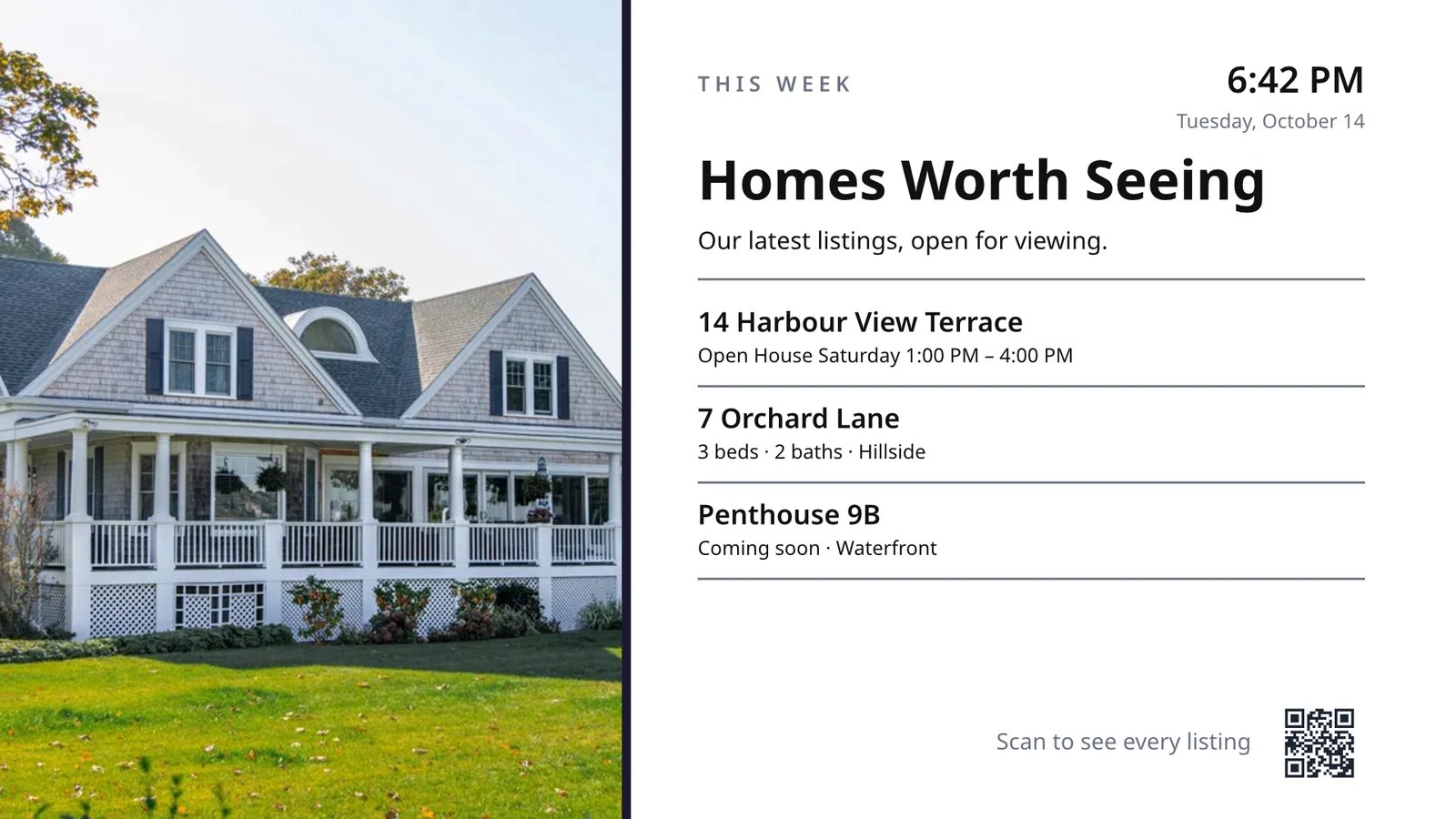
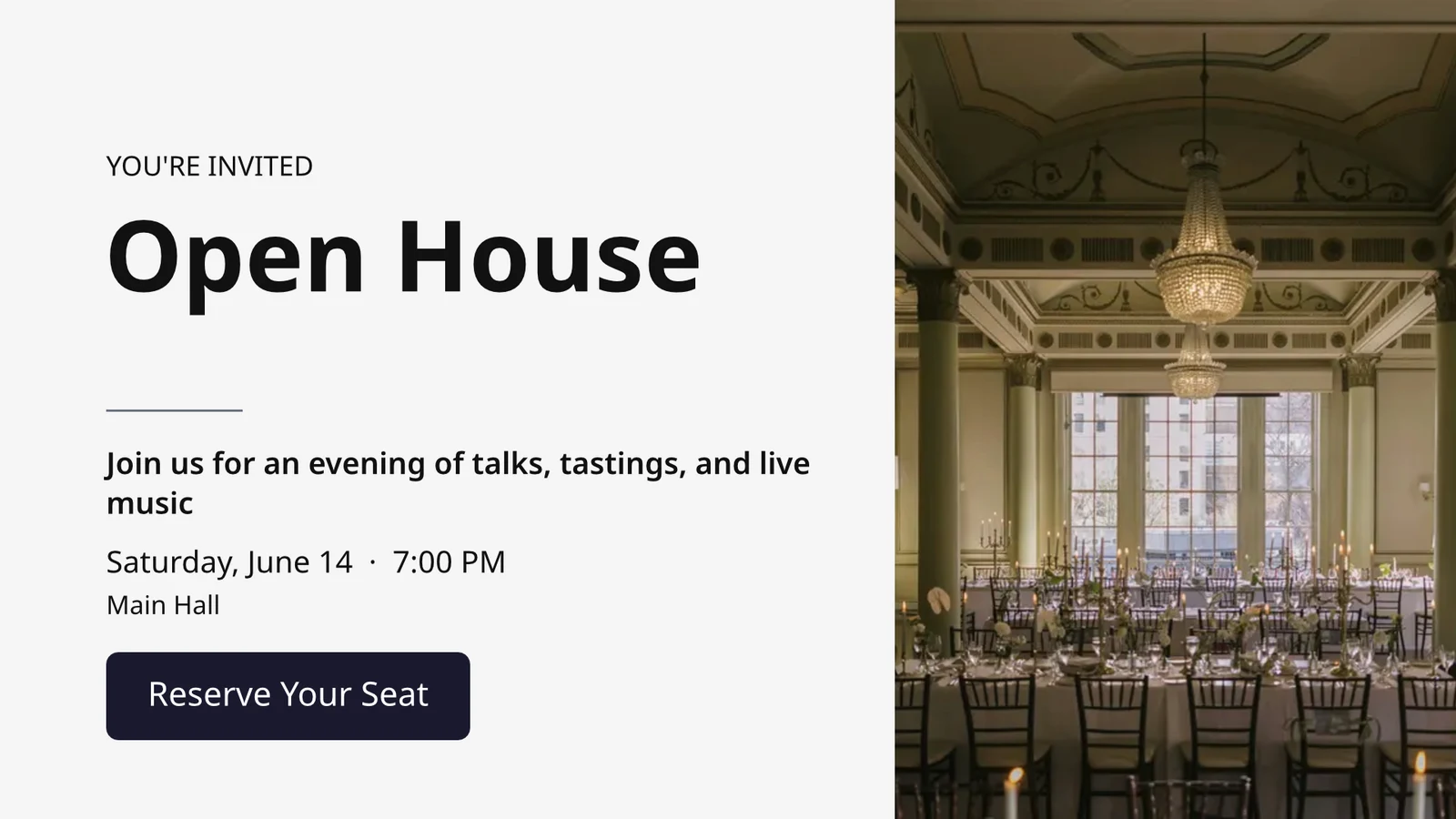
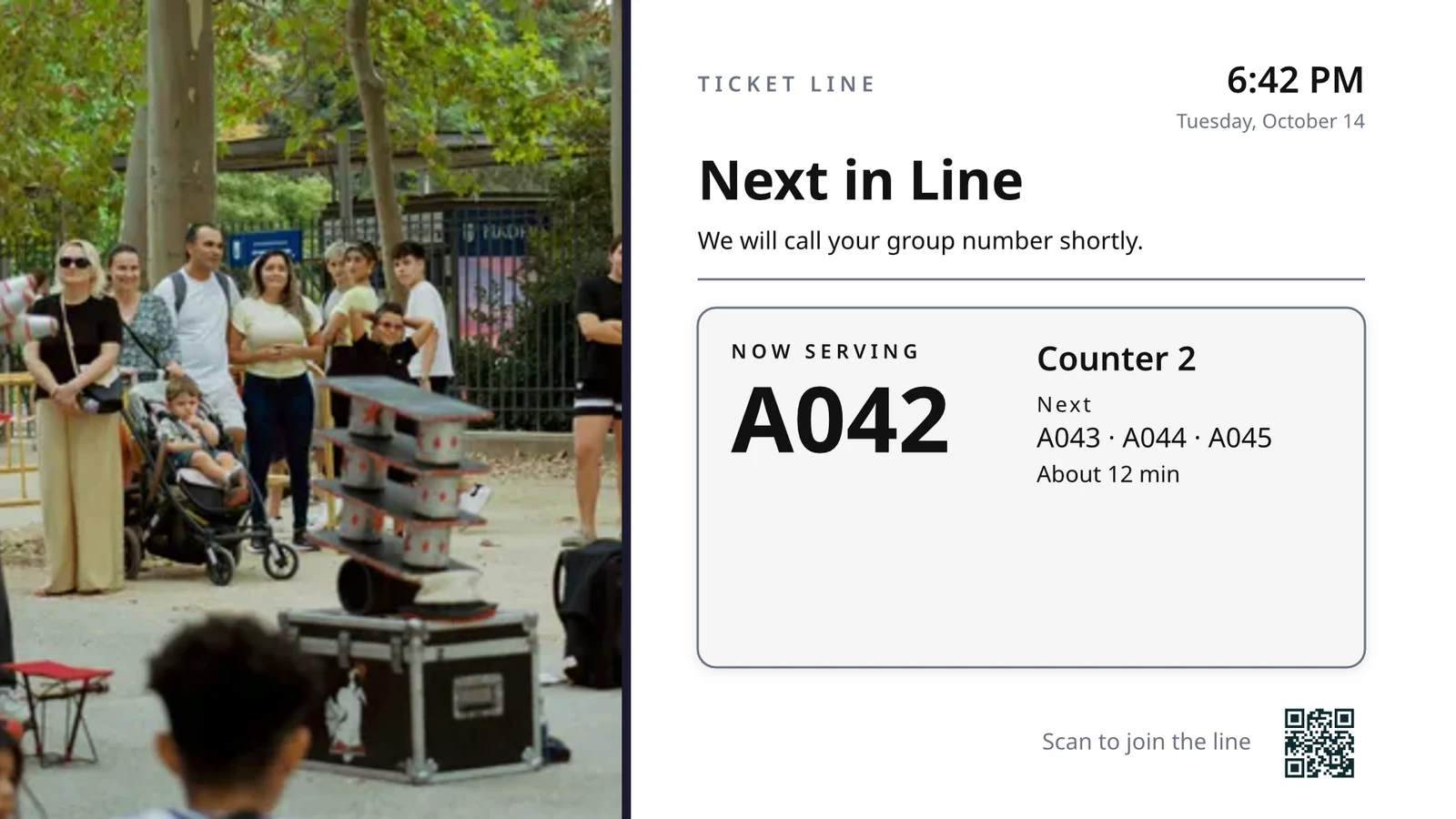
Choose what each TV does, then run them all
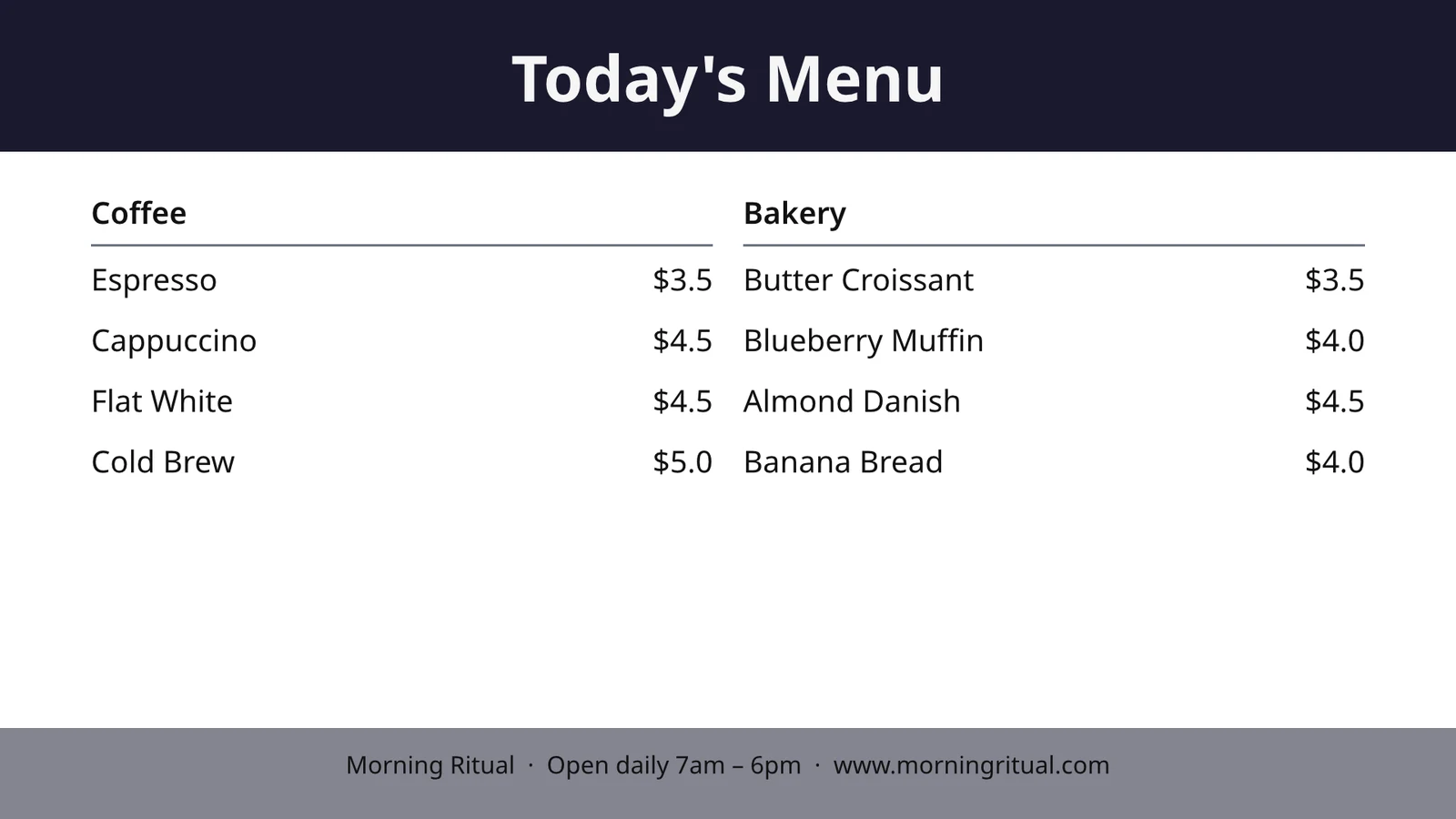
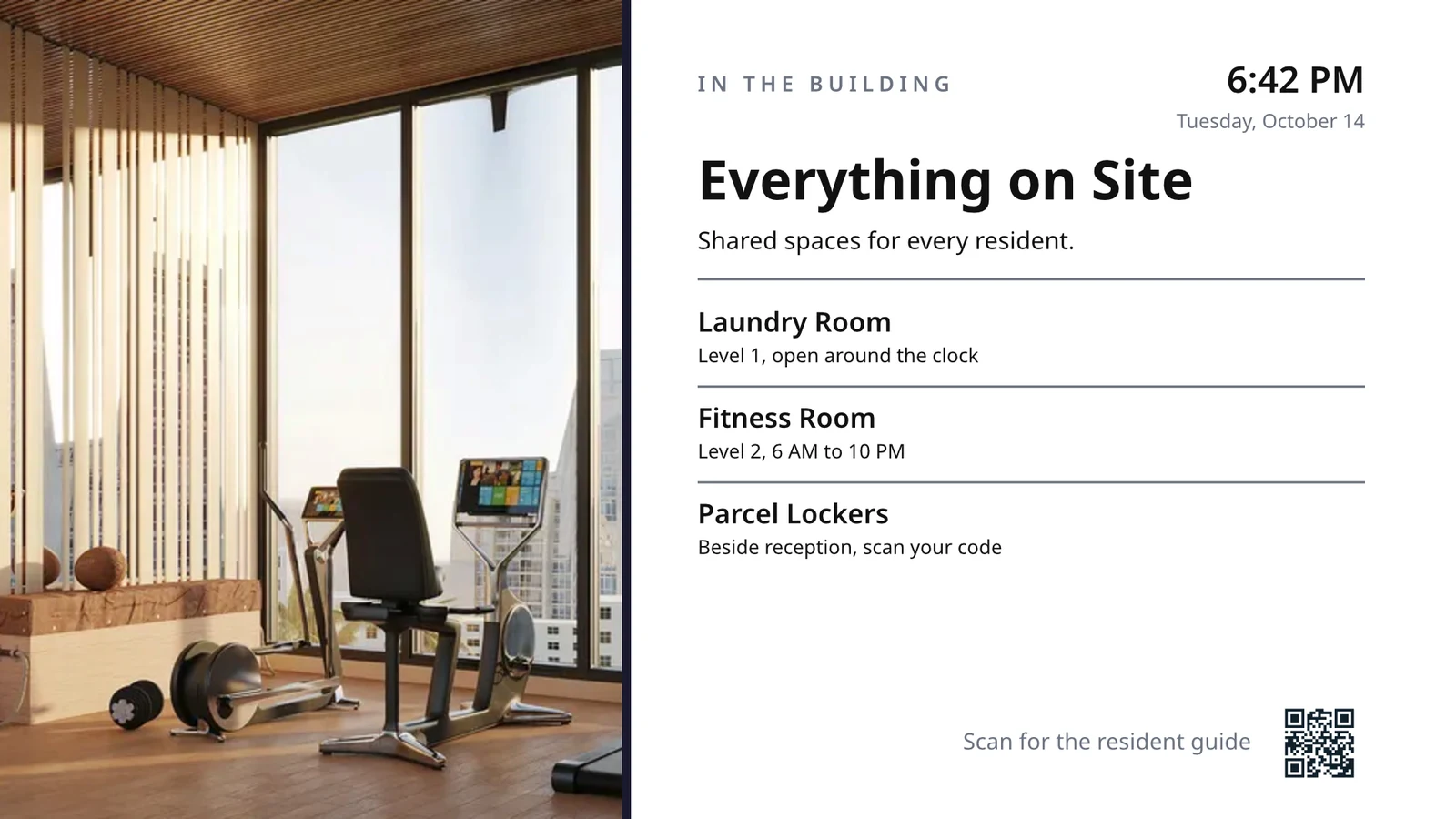
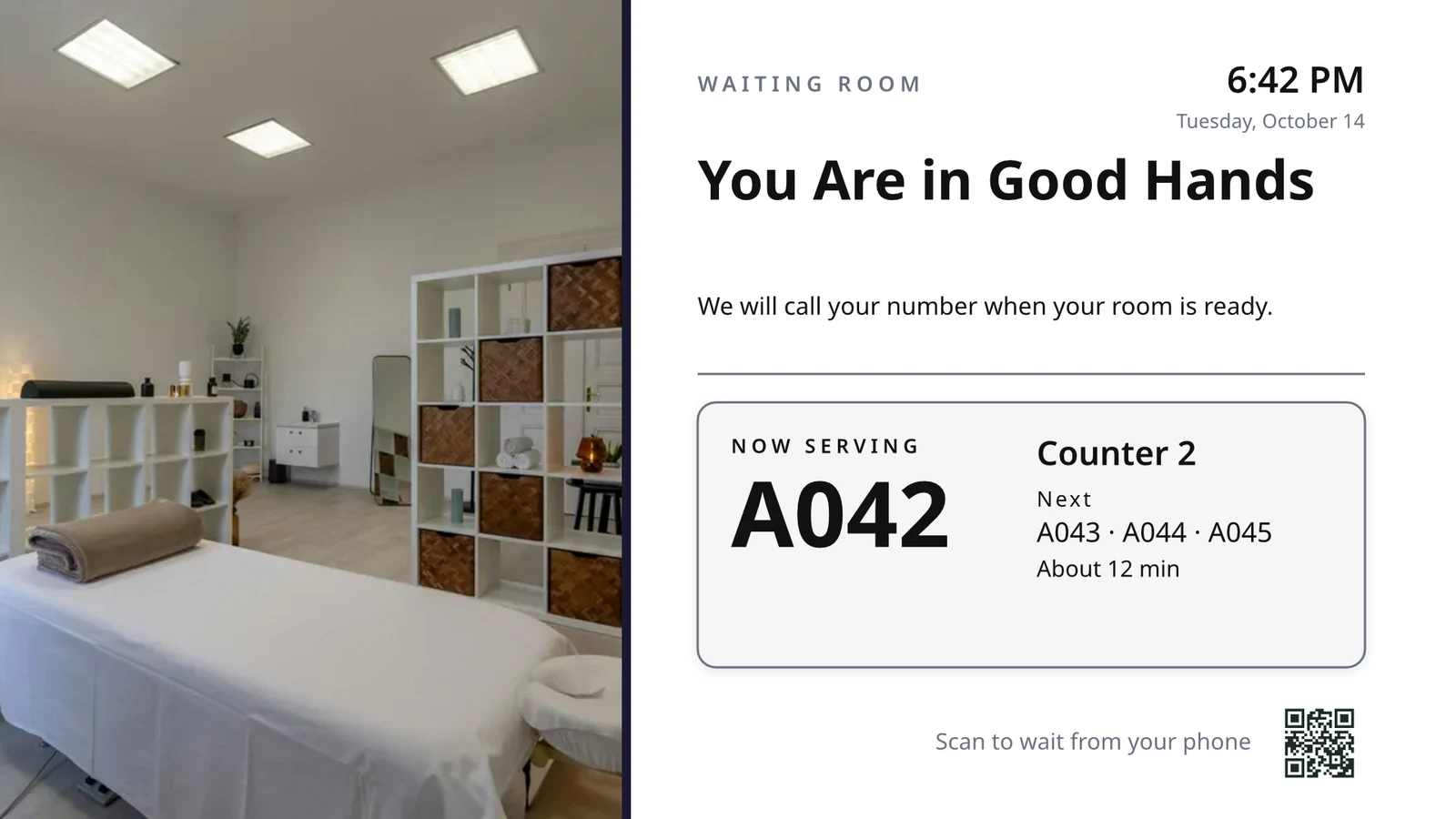
Each TV runs a screen made for one job, showing what is happening in your business right now.
Screens by Job
Kitchen, pickup, queue, guest, signage.
Designed Screens
Your own design, with live data.
Your TVs
Paired with a code, run remotely.
Schedules
Another screen at the right hour.
Alerts
One message on every TV.
Performance
What played, and for how long.
TV App
Your own app on TV stores.
On a Phone
Your TVs from anywhere.
Choose what each TV does, from its job
Pick a job and watch it play on sample data before it goes on a TV, the jobs for your kind of business first, or set up every screen your kind of business uses at once. Each screen keeps its purpose, where it works, its content, its look, its TVs and its schedule.
What will your TV do?
Pick the job. Set where it works. Enter the Code on the TV, and it runs on your live data.
A kitchen display staff bump, housekeeping and room status, the front desk, today’s appointments, the golf starter, a door count, order fulfillment and sales targets.
Kitchen Display
Tickets by station with timers. Cooks start, finish and bump; expo sends.
Housekeeping
Every room’s state (dirty, cleaning, clean, inspected) and what to turn first.
Front Desk
Who arrives and leaves today, which rooms are ready, who is late to check out.
Today’s Appointments
Every appointment today by chair, room or provider: who is here, who is next.
Golf Starter
The next groups to tee off, who has checked in, pace of play. Send them off.
Door Count
How many are in against capacity, scanned per gate, how fast the line moves.
Order Fulfillment
Incoming orders and how long each is taking: what is late, what is next.
Sales Targets
The month, quarter or year against target, the leaderboard and the latest wins.
Design a TV-size screen with live data on it
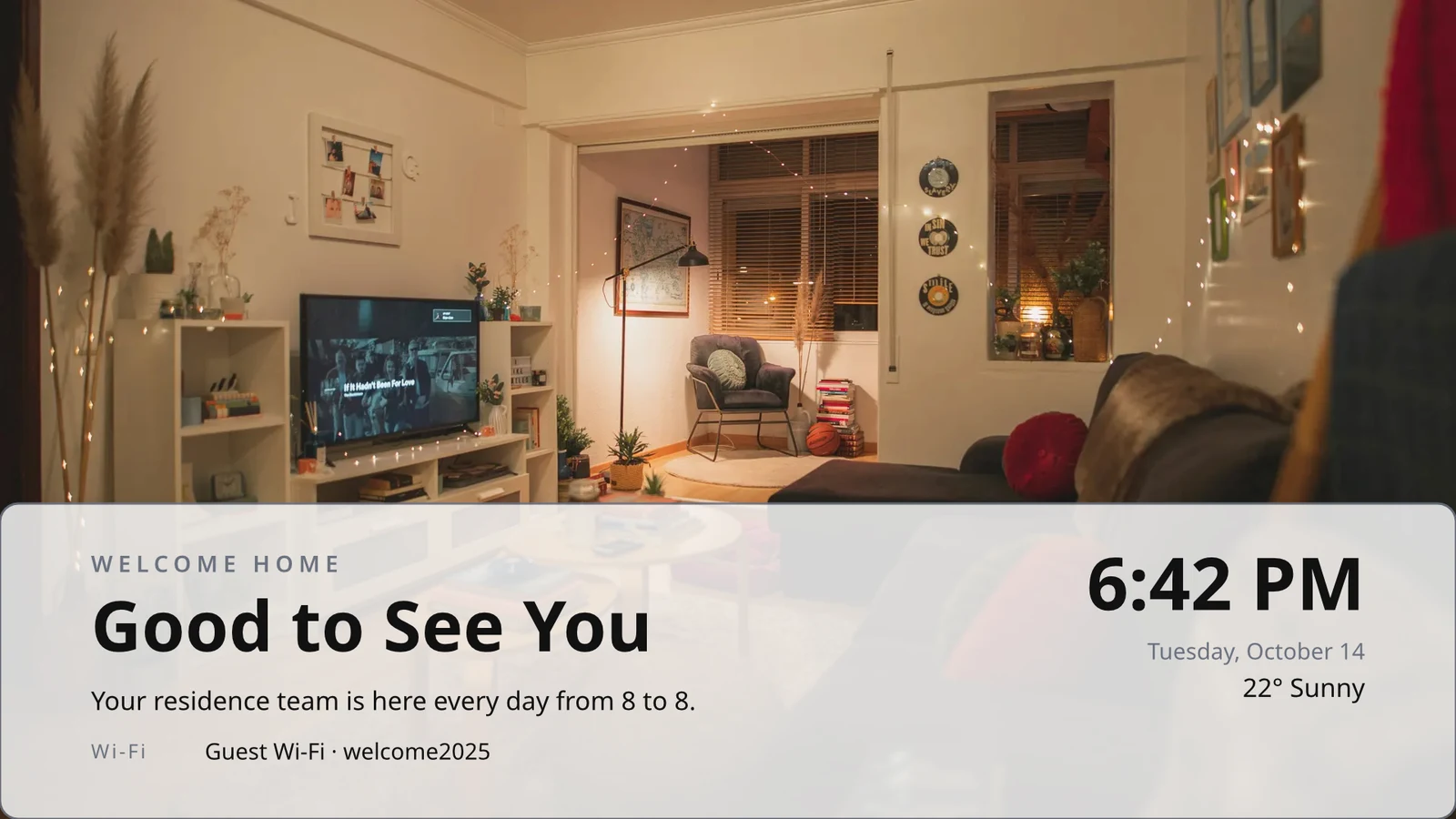
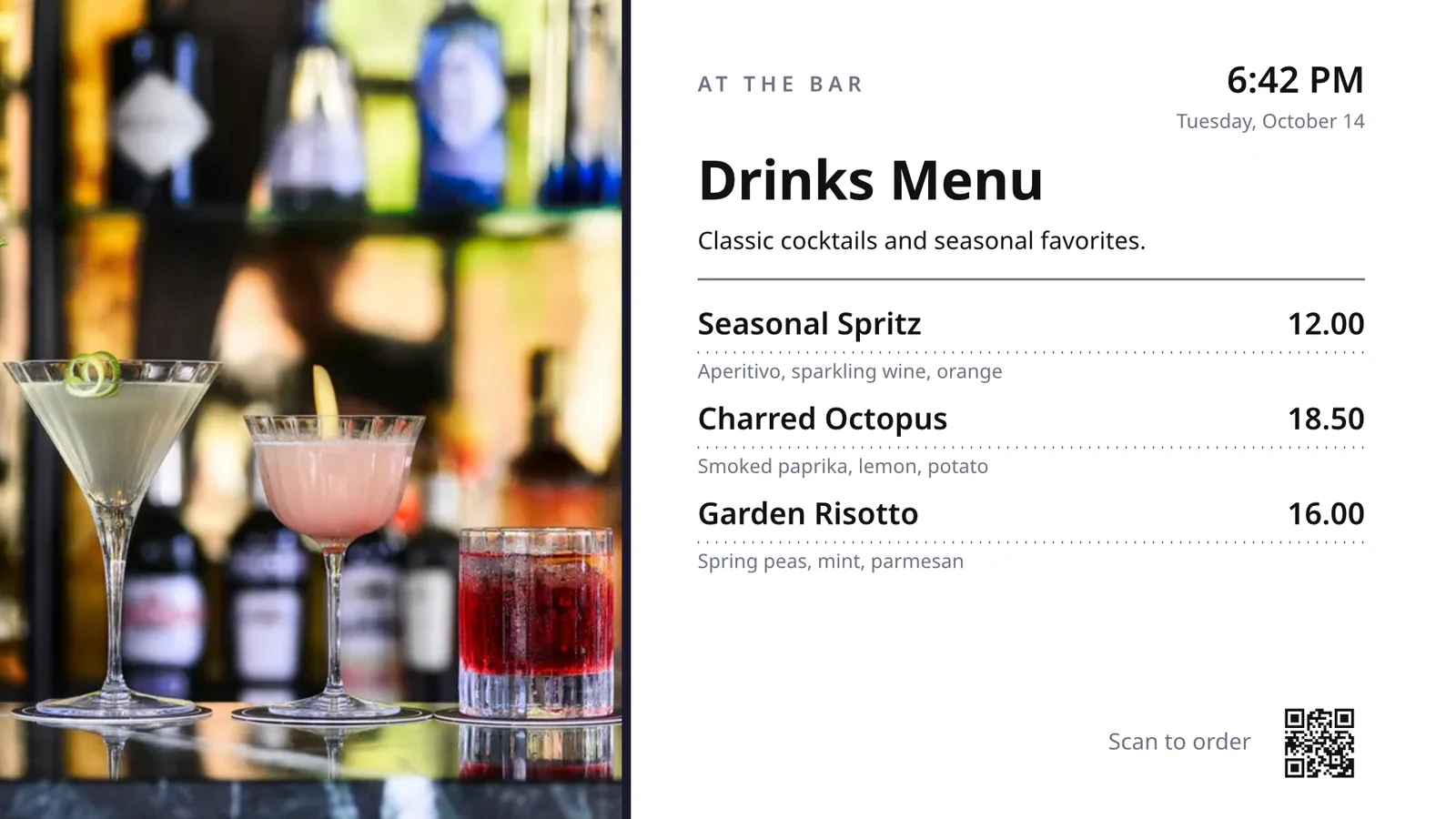
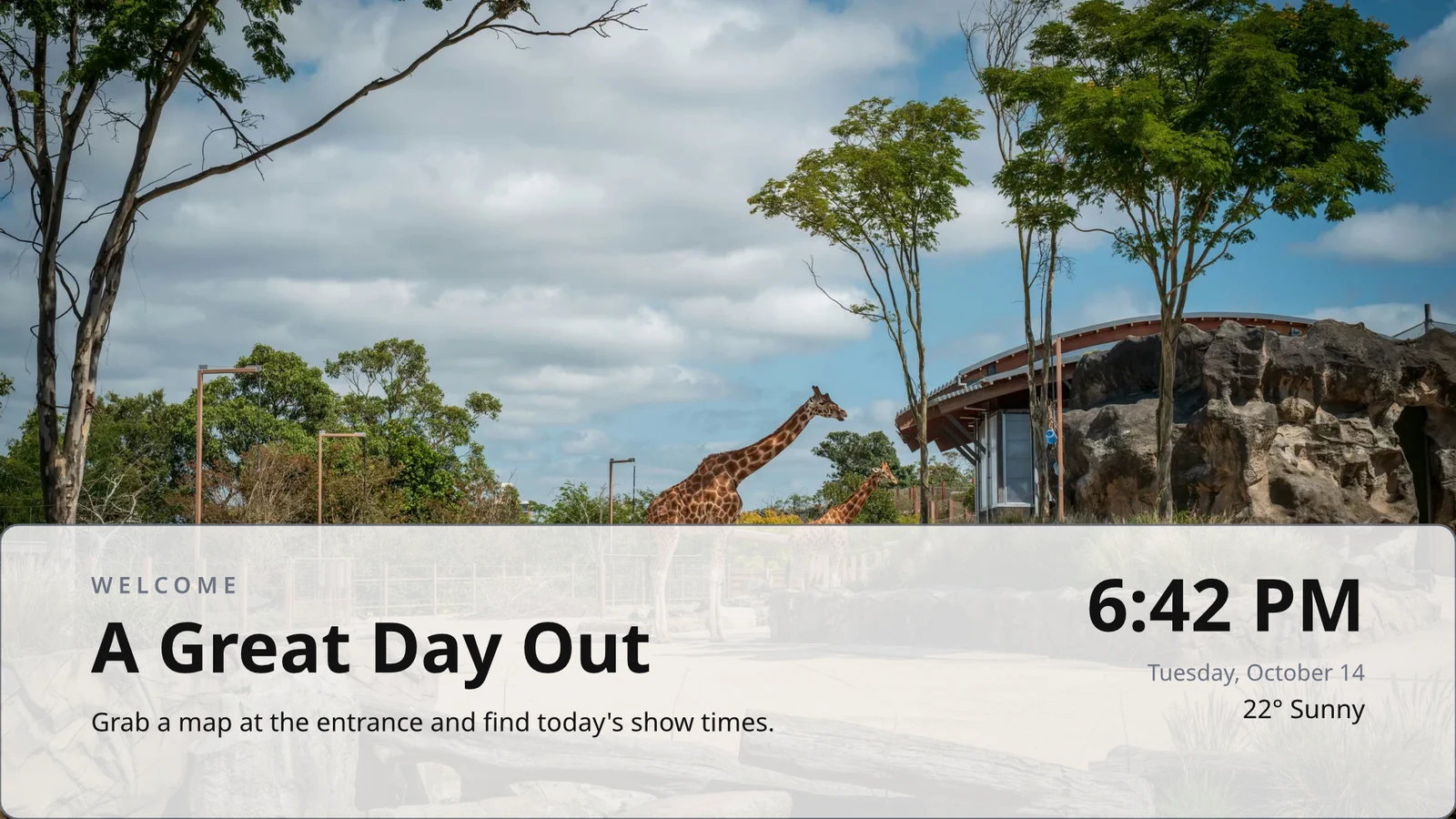
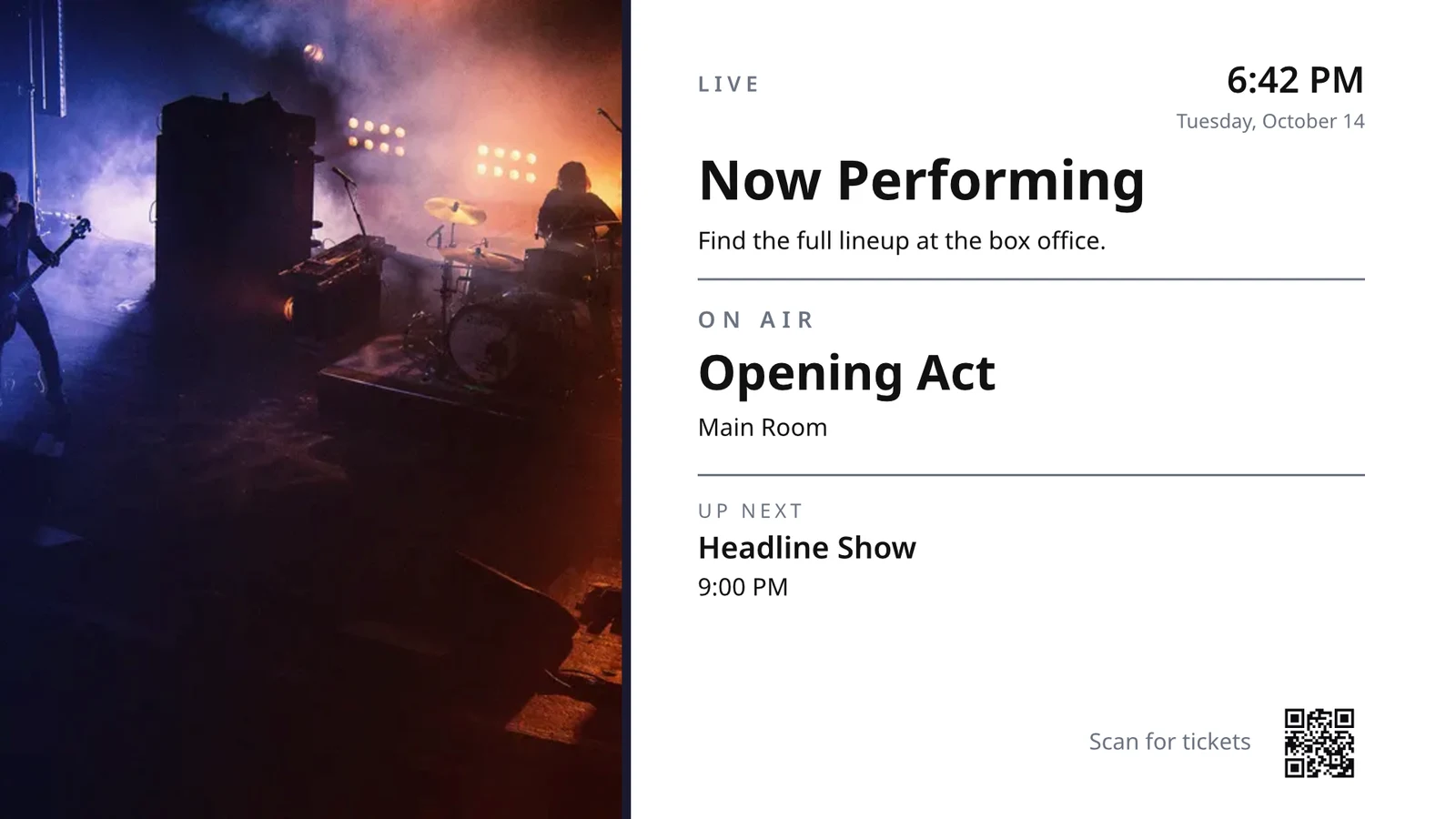
Design a screen in the editor Studio uses, at 16:9 or 9:16, blank or from Calisto’s layouts for your industry, with photographs. Live Data places your menu, schedule, offers, listings, clock, weather, Wi-Fi and the number being served, drawn from your records on the TV.
Layouts for Your Industry
Start blank or from 160 layouts, landscape and portrait, each with photographs and made for an industry, yours first.
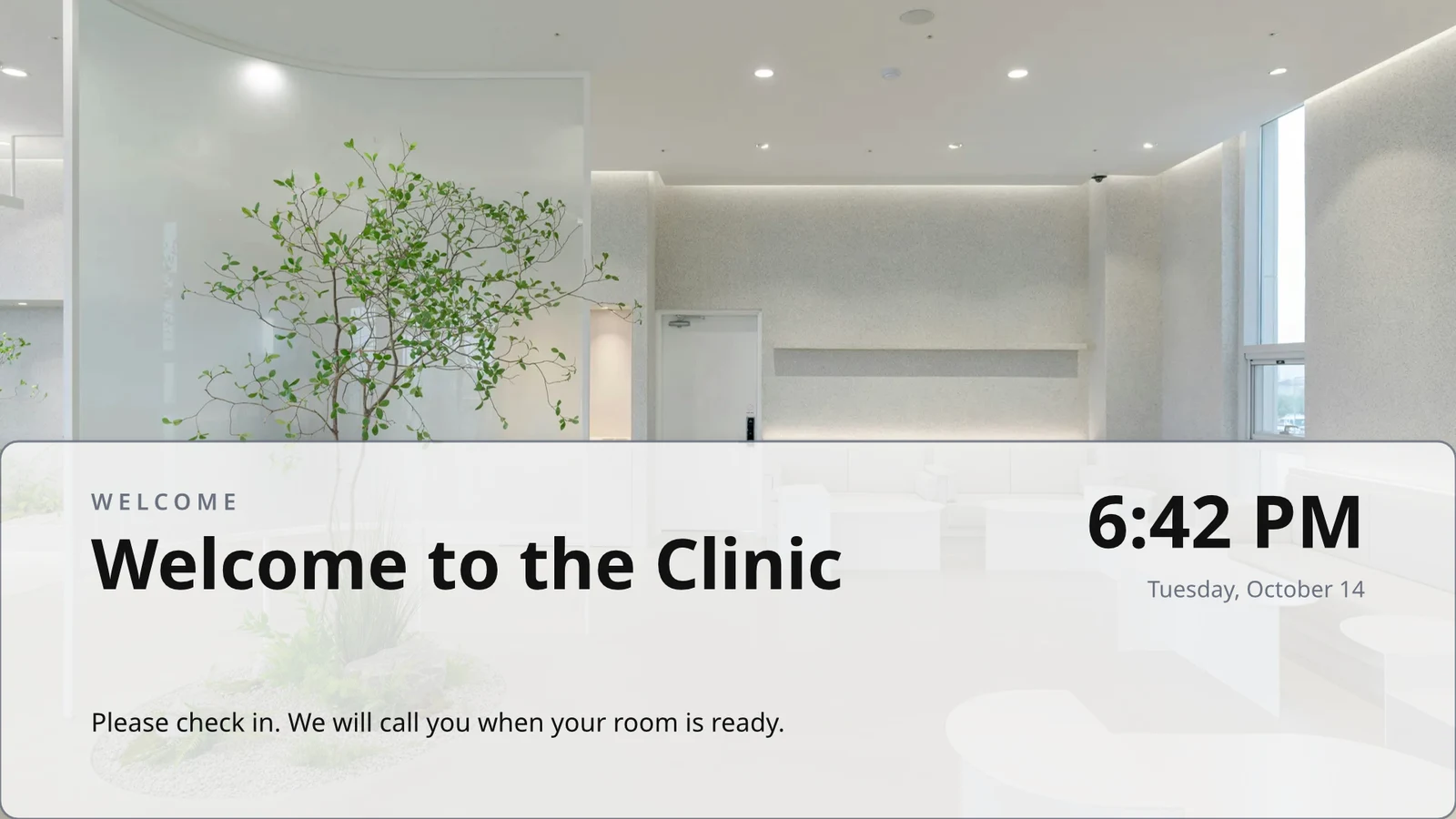
Rows You Design Once
Design one row of a menu, schedule or offers list; the TV repeats it for every record, page by page.
Themes
Calisto’s 48 Themes and your own, tuned per design and saved as a Theme.
Publish to Screens
Each page is drawn at 4K; Update Screens reaches every TV playing the design at once.
123Every page is drawn in 4K for your screens. Live data, like your menu, prices and the clock, stays live.
Pages turn with the transition each one has. Every screen turns together.
Moving Pages
A page animated with Animate plays on the TV as a video, as long as the page.
Page 2 of 3 · 10 secA Copy for Each Location
Each location gets its own copy, which keeps the parts you lock and takes your changes to them.
 Locked for copiesLocked for copies
Pair a TV by its code and run it remotely
The TV shows a six-character code, and Add a TV pairs it. It reports its platform, panel, touch, remote and sound. Each TV’s page shows its health, its room and what it runs now and next, with identify, screenshot, restart and reload.
Remote Control
What It Runs
Lunch menuMenu board · Promote & informOn air from the schedule “Lunch menu on the pass”.Next: Dinner menu from 17:00Health
- Status
- Online
- Last Seen
- 12 seconds ago
- Up Today
- 9 h 41 min
- Showing
- Lunch menu
- Platform
- Android TV
- Model
- 55" UHD panel
- App Version
- 3.14.2
- System Version
- Android TV 12
What It Can Do
TouchRemoteSoundBilling
Ad-freeOn the TVs You Have
Apple TV, Android TV, Google TV and Fire TV, Samsung and LG smart TVs, or any browser.
K7QX4MThis screen will start automatically once it’s approved.Add a TV
Enter the code your TV is showing to pair it with your account.
Put another screen on a TV at the right hour
A schedule puts a screen or a playlist on chosen TVs or TV groups between dates, on chosen days and hours, in each TV’s own time zone. The most specific schedule wins. When your business asks for approval, a schedule plays only after someone approves it.
Schedules
What your TVs play, and when
| Schedule | Description | What It Does | Plays On | Approval | Status |
|---|---|---|---|---|---|
| Breakfast menu in the restaurant | Weekdays from 6:30 | Play the content chosen below | 3 TVs · 1 TV group | Approved | Active |
| Sunset spa ritual offer | Lobby and pool bar, evenings | Play the content chosen below | 2 TV groups | Awaiting Approval | Active |
| Rainy day activities | Only when it rains | Play the content chosen below | 1 TV group | Approved | Active |
| Weekly restart | Mondays at 4:00 | Restart the TVs when it opens | TVs that run no screen of their own (account default) | Approved | Active |
| Nyepi quiet day | Every TV off for the day of silence | Turn the TVs off for the whole window | 4 TV groups | Approved | Active |
| Cooking class promo | Restaurant TVs, afternoons | Play the content chosen below | 2 TVs | Sent Back | Inactive |
| Wedding weekend welcome | Lobby, Friday to Sunday | Play the content chosen below | 1 TV group | Draft | Inactive |
| Galungan offerings guide | Lobby and villas, festival week | Play the content chosen below | 2 TV groups | Approved | Active |
| Refresh before check-in | Daily at 13:45 | Refresh the TVs when it opens | 1 TV group | Approved | Active |
| Kids’ club afternoons | Pool bar TVs, 14:00 to 17:00 | Play the content chosen below | 2 TVs | Awaiting Approval | Active |
Documents, Spreadsheets and Presentations
PDFs, documents, spreadsheets and presentations play as pages, and a Slides deck again whenever it is saved.
Media
Web Pages and Published Dashboards
A public web page or a dashboard published to the web, drawn at the TV’s size and refreshed on your interval.
Media
A public page: your website, or a dashboard shared by link. It is drawn at the TV’s size and shown as a picture.
Dashboards From Your Analytics Tools
Signed-in dashboards drawn through each tool’s own image export, with your own connection, its secret kept sealed.
Live TV and Streams
Your own channel or stream from your TV provider, with its sound on or off.
Members’ bar screen
Data From a Sheet
Rows from a Sheet you published, or a CSV or JSON file, a page at a time.
Your Social Posts
What you published, and your recent posts on each of your channels.
Your Broadcast, Live
Your broadcast or webinar while it is live, with the room’s reactions and a code to join.
Media and Playlists
Photos and videos in the Media library, stock photos, and playlists that time each item.
Media
Approve or Send Back
Decided on the schedule, in the Approvals panel or from the notification itself.
Fado night on the lobby TVs
Schedule Information
- Description
- Thursday to Saturday evenings
- Approval
- Awaiting Approval
- Last Modified
- 10/11 · Inês Carvalho
Window
- Daily Window
- 18:00 to 23:00
- Active Days
- Thu, Fri, Sat
- Evaluated in
- Each TV’s own time zone
- Priority
- 20
Content
- Playlist
- Fado nights
- Screen content
- Keep each TV’s own content
Where
- Plays on
- 2 TVs · 1 TV group
- TV groups
- Lobby TVs
Activity
Account Default
A schedule with no TVs plays only where a TV runs no screen of its own.
New Schedule
Choose what your TVs play, and when
Where
Which TVs play this schedule. Leave both empty to make it the account-wide default. It then plays on every TV that runs no screen of its own.
Only in Some Weather
A schedule or a zone item plays only when the sky is clear or rainy, or warmer or colder than you say.
New Schedule
Choose what your TVs play, and when
Weather
Play only in some weather, where each screen is set up. When the weather cannot be read, it does not play.
Restart or Turn Off
A window that restarts or refreshes the TVs once when it opens, or turns them off until it closes.
New Schedule
Choose what your TVs play, and when
What It Does
Put one message on every TV, then take it down
An alert goes over whatever the chosen TVs are playing until it is cleared or its time runs out. Save it as a draft, activate it when needed, and clear it from its page or from the notification. Its text shows as written, never as code.
See what each TV played, and for how long
Every TV reports what it plays on each check-in. Performance counts the plays, the minutes each TV was on and the errors it caught, by day and by TV, over the window you choose. A TV that went dark reads as dark. Reports sit beside it.
Performance
Impressions, uptime and errors across your TVs, day by day.
| Date | TV | Impressions | Uptime (min) | Errors |
|---|---|---|---|---|
| 10/11/2026 | Lobby Welcome TV | 1284 | 1022 | 1 |
| 10/11/2026 | Restaurant Menu TV | 962 | 958 | 2 |
| 10/11/2026 | Front Desk TV | 1118 | 1440 | 1 |
| 10/11/2026 | Room 204 TV | 46 | 312 | 3 |
| 9/11/2026 | Lobby Welcome TV | 1301 | 1031 | 1 |
| 9/11/2026 | Restaurant Menu TV | 977 | 965 | 2 |
| 9/11/2026 | Housekeeping TV | 1440 | 1440 | 1 |
Uptime
Credited from each TV’s check-ins, never assumed.
Performance
Which TVs stayed up, and which dropped out.
| TV | Uptime | Days with Errors | Last Error |
|---|---|---|---|
| Cold Prep TV | 95.8% | 2 | Yesterday |
| Rider Pickup TV | 97.1% | 1 | 2 days ago |
| Packing TV | 99.2% | 1 | 6 days ago |
| Office TV | 99.6% | 1 | 11 days ago |
| Expo TV | 99.7% | 1 | 19 days ago |
| Grill Line TV | 99.9% | 1 | 26 days ago |
A TV That Stops
Admins are told once when a TV goes dark and again when it is back.
Your Rules
Every notice is an Automations rule you can change or turn off.
Automations
| Automation | When | Then | Last 7 days | Last run | Status |
|---|---|---|---|---|---|
| Tell the admins when a screen stops checking in | Screen went dark | Tell the admins a screen went dark | 3 | 2 hours ago | On |
| Tell the admins when a screen is back | Screen is back | Tell the admins a screen is back | 3 | 1 hour ago | On |
| Tell the admins when a schedule ends | Schedule ended | Tell the admins a schedule ended | 1 | 9 days ago | On |
| Tell the admins when an alert goes live | Alert went live | Tell the admins an alert went live | 2 | 3 days ago | On |
| Tell the admins when an alert is taken down | Alert taken down | Tell the admins an alert was taken down | 2 | 3 days ago | On |
| Tell the approvers a schedule waits for approval | Schedule waits for approval | Tell the approvers a schedule waits for approval | 4 | Yesterday | On |
| Tell the sender their schedule was approved | Schedule approved | Tell the sender the decision on their schedule | 3 | Yesterday | On |
| Tell the sender their schedule was sent back | Schedule sent back | Tell the sender the decision on their schedule | 1 | 2 weeks ago | On |
| Tell the admins a TV app build finished | TV app build finished | Tell the admins a TV app build finished | 1 | 1 month ago | On |
Proof of Play
Each TV files what it plays on every check-in, and a screen that fails shows your branded fallback and is counted as an error.
Performance
Proof of play: how often content and ads were on screen.
| Date | Impressions | TV | Ad Impressions | Audience per Play |
|---|---|---|---|---|
| 10 nov 2026 | 1,421 | Pickup TV | 366 | 14.8 |
| 10 nov 2026 | 1,304 | Menu Board Left | 341 | 12.1 |
| 10 nov 2026 | 1,298 | Menu Board Right | 339 | 12.1 |
| 9 nov 2026 | 1,377 | Pickup TV | 352 | 13.5 |
| 9 nov 2026 | 1,270 | Menu Board Left | 330 | 10.9 |
| 9 nov 2026 | 1,262 | Menu Board Right | 328 | 10.9 |
Audience
Each play counts the people in the TV’s room where Access counts it, shown as the average per play.
Performance
Proof of play: how often content and ads were on screen.
| Date | Impressions | TV | Ad Impressions | Audience per Play |
|---|---|---|---|---|
| 10 nov. 2026 | 612 | Event Hall TV | 148 | 23,6 |
| 10 nov. 2026 | 588 | Floor 2 Lounge TV | 141 | 9,1 |
| 10 nov. 2026 | 541 | Kitchen TV | 129 | 6,8 |
| 10 nov. 2026 | 524 | Reception TV | 126 | 4,2 |
| 9 nov. 2026 | 597 | Event Hall TV | 143 | 31,0 |
| 9 nov. 2026 | 579 | Floor 2 Lounge TV | 139 | 8,4 |
By Screen
Every figure, one row per TV, with ad impressions and clicks.
Performance
Every figure, one row per screen.
| TV | Impressions | Ad Impressions | Ad Clicks | Uptime (h) | Errors |
|---|---|---|---|---|---|
| Departures TV · Bávaro Office | 14,822 | 3,706 | 118 | 712 | 1 |
| Check-in Line TV | 12,406 | 3,101 | 96 | 698 | 1 |
| Dock Pier 2 TV | 11,930 | 2,982 | 74 | 655 | 2 |
| Beach Bar TV | 9,718 | 2,430 | 61 | 640 | 1 |
| Shop Window TV | 8,604 | 2,151 | 48 | 702 | 1 |
| Marina Lobby TV | 6,800 | 1,032 | 15 | 690 | 1 |
Performance
Which TVs stayed up, and which dropped out.
| TV | Uptime | Days with Errors | Last Error |
|---|---|---|---|
| Cold Prep TV | 95.8% | 2 | Yesterday |
| Rider Pickup TV | 97.1% | 1 | 2 days ago |
| Packing TV | 99.2% | 1 | 6 days ago |
| Office TV | 99.6% | 1 | 11 days ago |
| Expo TV | 99.7% | 1 | 19 days ago |
| Grill Line TV | 99.9% | 1 | 26 days ago |
Publish your own app on the TV stores
The TV App builder designs your branded app for Apple TV, Android TV and Fire TV: its look, its content and channels, a preview on a TV, the build, the store listing and its analytics. Calisto builds each platform’s app, and you are told when a build finishes.
TV App
Your branded app for Apple TV, Fire TV and Android TV. Design, build and publish it.
Design and Content
Colors, type, navigation, video and channels, previewed as a TV draws them.
TV App
Your branded app for Apple TV, Fire TV and Android TV. Design, build and publish it.
#7b2cbfBackground Color#120a1cBackground StyleSolidGradientBlurRun your TVs from a phone
On a phone, Display opens on your TVs and the ones that need you, worst first, any alert on the walls and the schedules waiting for approval. A screen and a TV open as their own pages.
With No Signal
Home, TVs, a TV’s page and Alerts open offline on a device you choose.
TV Status
TVs online, TVs that need you, alerts showing and approvals waiting, on the Windows Widgets Board.
Share Photos In
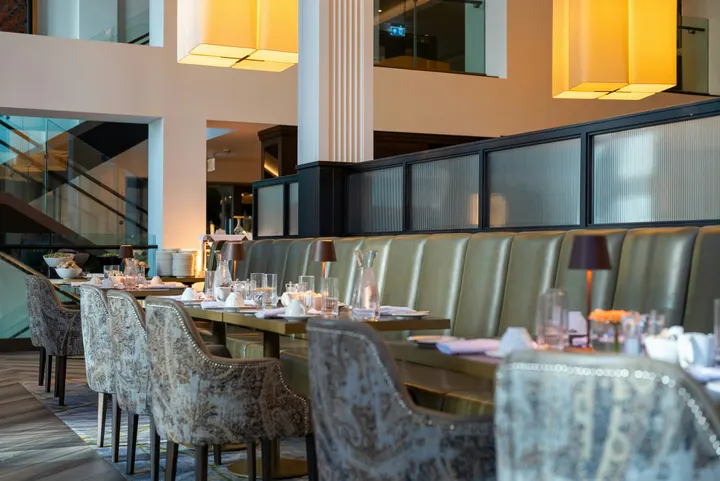 fine-dining-01.jpgImage · Just now
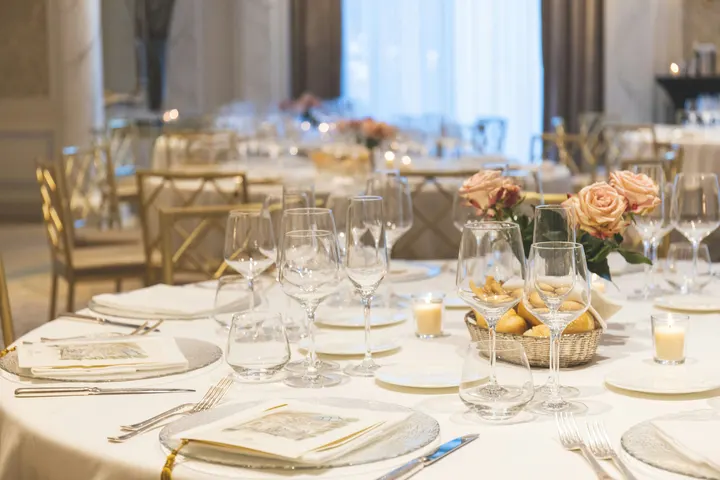 fine-dining-02.jpgImage · Just now
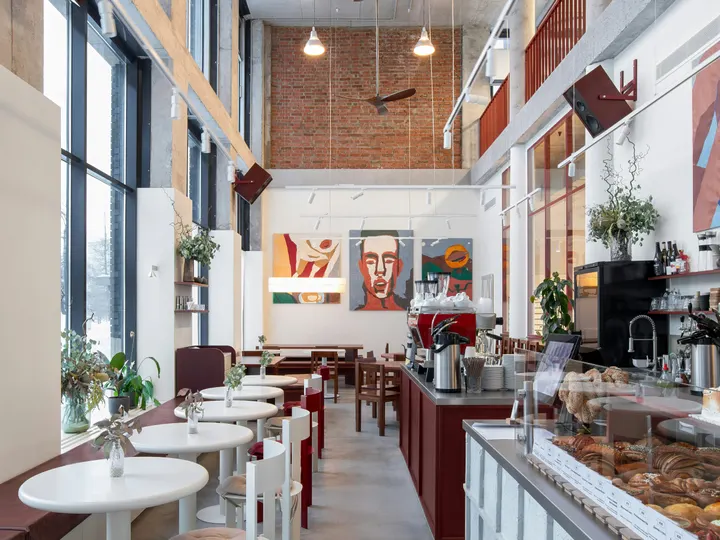 restaurant-01.jpgImage · Just now
 fine-dining-04.jpgImage · Yesterday
 restaurant-03.jpgImage · 3 days ago
 restaurant-02.pngImage · Last weekBistro Kogarashi · Tokyo
Photos and videos shared from the phone land in the Media library.
Shortcuts
TVs, Alerts, Schedules, Add a TV, My Screens and Live Preview from the app’s icon.
Clear Alert or Approve From the Notice
Clear an alert another admin raised, or approve a schedule waiting for you, from the notification.
Where Display touches everything else.
4 of these 8 connections are in your plan today; the others are their own apps.
Dine
The kitchen display shows and bumps the kitchen’s own orders, and the menu board reads the menu set up in Dine.
Stays
A guest TV reads the stay in its room, and the housekeeping TV is the same board as Stays’ Housekeeping.
Coworking
A meeting room’s door sign is made and paired from Coworking’s Spaces, each paired with the room it hangs outside.
Kiosks
Kiosks and TVs are set up through the same screen records, and play the same designed screens and live feeds.
Orderflow
Room service ordered from a guest TV goes to Orderflow, and the order fulfillment screen is Orderflow’s queue on a TV.
Studio
Designed screens are made in the same design editor Studio opens, and a Studio design at TV size plays as one.
Automations
Every notice Display sends is an Automations rule, and other apps’ rules can repaint a board.
Ads
A free TV’s ad band is filled through Ads, the one place a screen’s ads are chosen.
No setup cost. Pay when you start using.
Every TV free with Calisto’s ad band, or ad-free per TV.
Calisto Display
Runs the TVs in a business: kitchen displays, pickup and now-serving boards, guest TVs, menu boards, signage and designed screens, with schedules, alerts and performance.
Recommended for you
Works well together.
Calisto Dine
Included With Your Plans
Your Core app shows everything your Commerce and Ops plans turn on.
Learn more →Calisto Stays
Included With Your Plans
Your Core app shows everything your Commerce and Ops plans turn on.
Learn more →Calisto Coworking
Included With Your Plans
Your Core app shows everything your Commerce and Ops plans turn on.
Learn more →Calisto Kiosks
Calisto Kiosks
One job per kiosk, from check-in and ordering to wayfinding, set up on any tablet at your own kiosk address, with each screen’s own card terminal and printer.
Learn more →Calisto Orderflow
Calisto Ops
One queue for every channel, stages moved one at a time, exceptions and service levels, picking, packing and shipping from the right place, carriers, couriers and your own drivers, returns, every floor that fulfills, and the floor worked from a phone with no signal.
Learn more →Calisto Studio
Calisto Create
A Studio seat designs anything at every size, from Calisto’s templates or a blank page: layers, photos, Copy & Resize, Bulk Create, mockups, QR codes, print-ready PDFs, sharing and whiteboards.
Learn more →Calisto Automations
Calisto Ops
Rules that start from your Calisto apps, a schedule or a date and act across them all, every app’s automatic messages as rules, sequences that follow up until a person acts, and every run on record.
Learn more →Calisto Ads
Calisto Engage
Run campaigns on the websites, apps, kiosks, TV screens and member portals other Calisto businesses publish, and sell the ad space on your own.
Learn more →Recommended for
The industries that run Display, and what each of them runs it for.
Hotels & ResortsLobby & meeting screens
Lobby, meeting floor and restaurant screens.
Hotels & Resorts on Calisto →RestaurantsDigital menu boards
Kitchen display and guest-facing menu screens.
Restaurants on Calisto →Property DevelopmentSales gallery screens
Sales gallery screens and site hoardings.
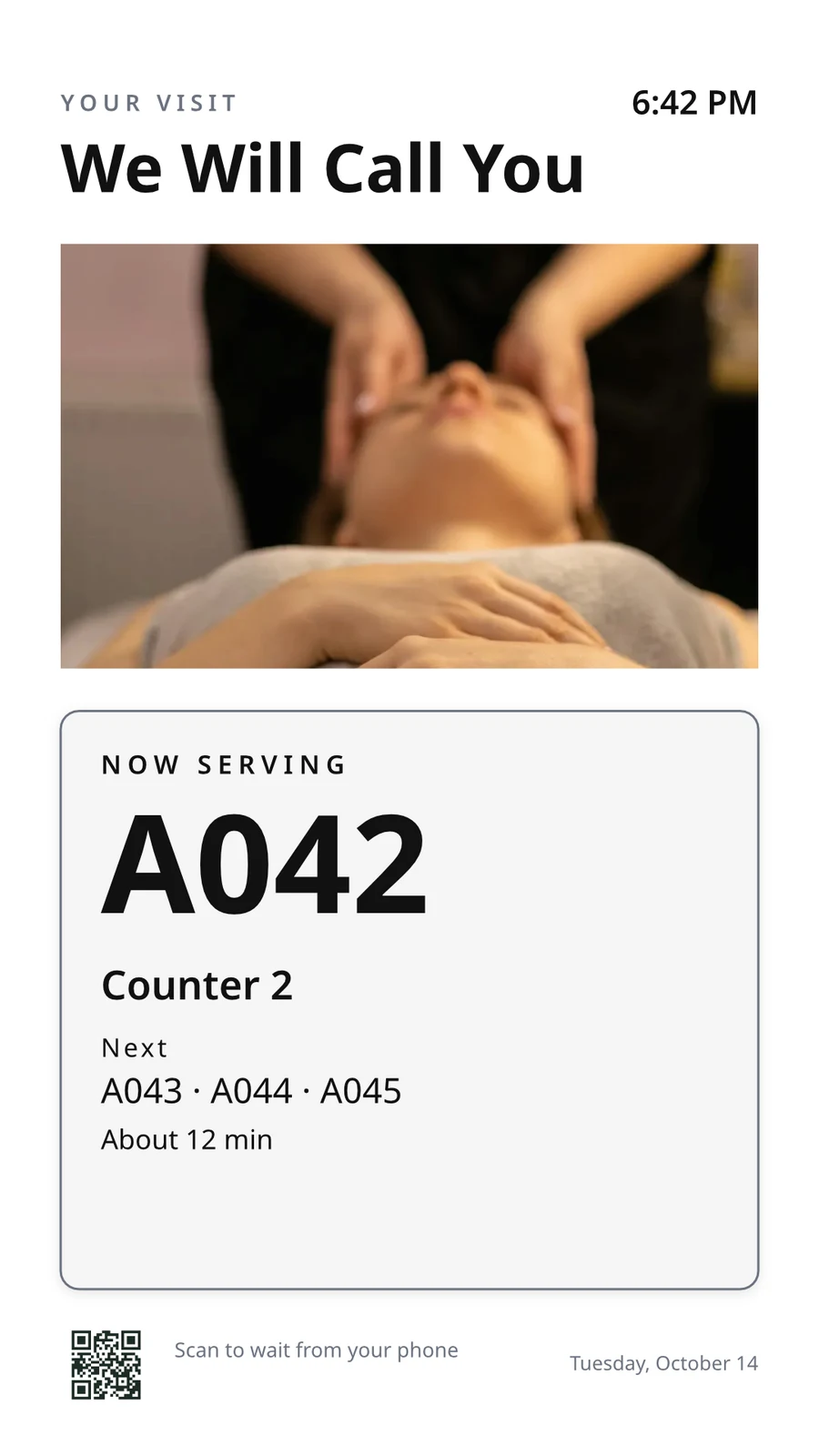
Property Development on Calisto →Salons & BarbersLobby screen
The waiting area reads the same queue as the desk.
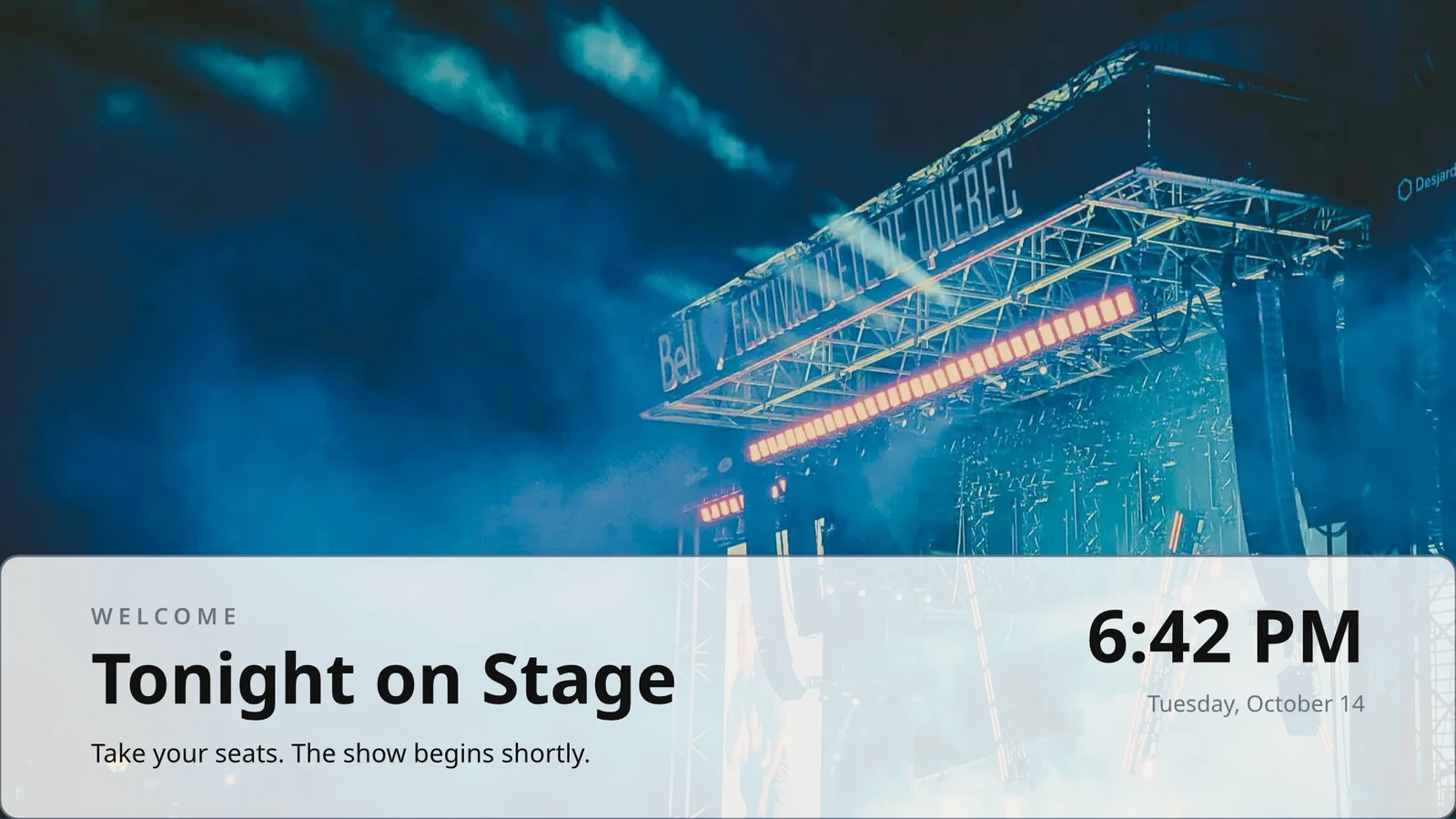
Salons & Barbers on Calisto →Live Music & FestivalsStage & wayfinding screens
Stage, wayfinding and sponsor screens.
Live Music & Festivals on Calisto →Marathons & EnduranceStart, finish & expo screens
Start, finish and expo screens.
Marathons & Endurance on Calisto →Venue ManagementWayfinding & room screens
Wayfinding, room and sponsor screens.
Venue Management on Calisto →Stadiums & ArenasConcourse & stand screens
Wayfinding, concourse and sponsor screens.
Stadiums & Arenas on Calisto →In-Person RetailersIn-store screens
Window, shelf-edge and queue screens.
In-Person Retailers on Calisto →Everything included in Calisto Display.
- New: every job a TV can do, ordered for your industry, each shown running on sample data, with the one choice that makes it this screen and where it works.
- Set Up Every Screen: your kind of business’s set at once, a screen set for each of the 38 kinds of business.
- Run the operation: kitchen display (prep, expo and bar, with bump), housekeeping and room status, front desk, today’s appointments, golf starter, door counter, order fulfillment (Orderflow’s queue, with accept, reject and bump) and sales targets.
- Move customers: order pickup, now serving on any app’s walk-in line, check-in welcome, meeting room sign, departures and tours, wayfinding, tournament and race leaderboard, class schedule.
- Serve guests: the guest TV in a hotel, apartment or short-stay room, and the resident and member TV.
- Promote and inform: designed screen, digital signage with zones and playlists, menu board, offers and upgrades, property window, on air.
- A screen’s record: Purpose, Where (location, station, counter, room, course or event, filled in when there is one), Content, Look (dark or light, your logo and color), TVs and Schedule, beside the screen running live on your data.
- Put It on a TV: the one step that puts a screen on its TVs, refused with the reason when something it needs is missing.
- My Screens: each screen, what it runs and on how many TVs.
- Other apps put their own screens on a TV from their own desk: now serving from a walk-in line, a leaderboard from a competition, room signs from Coworking’s Spaces and every Events host’s Rooms.
- The kitchen display reads and moves the kitchen’s orders, the same orders Dine’s kitchen screen and Station work from.
- The menu board reads the menu set up in Dine.
- Room service ordered on a guest TV is charged to the stay and handed to Orderflow, whose accept fires the kitchen.
- Late checkout and the property guide come from the stay and the property.
- The housekeeping TV is the same board as Stays’ Housekeeping, moving each room’s tasks.
- Staff act from a staff screen of their own account; a guest acts only from the room TV while its stay is checked in.
- A TV reads only its own screen’s data, scoped on the server to its station, counter or room.
- The design editor Studio uses, at 16:9 landscape or 9:16 portrait; a Studio design at a screen’s shape is a designed screen too.
- Start blank or from 160 layouts, 81 landscape and 79 portrait, each tagged with its industries and carrying photographs, your own industry first.
- Themes: Calisto’s 48 and your own, chosen and tuned per design, Save as Theme; a design that picks none keeps its own look.
- Live Data: the menu, the schedule (classes, sessions, events, tours, race waves, today and the next six days), offers running now, homes on the market, a dish’s price, the offer on now, clock, date, weather, guest Wi-Fi, a QR code, the number being served and what is on air.
- Lists are one designed row, repeated for every record in the list’s columns and gaps, paging by its area; a list with no records draws nothing.
- Publish to Screens draws each page at 4K and keeps the live layer apart; Update Screens reaches every TV and kiosk playing the design at once.
- Each page shows for its own length; pages turn together across a bank of TVs.
- A page animated with Animate plays as a video made on your device or Calisto’s servers, from the start each time the page comes on.
- Played full screen, or as an item in any signage zone.
- People Inside: how many are in the screen’s room now, its limit, the places left and how full it is, where Access counts the room.
- A copy for each location keeps the parts its original locks for copies, and takes their changes; your business chooses who may lock them.
- Add a TV: the TV shows a six-character code; you enter it and give the TV a name and, in a room, its room.
- The TV reports its platform, panel resolution, touch, remote and sound at pairing and on every check-in.
- Apple TV, Android TV, Google TV and Fire TV run the Calisto TV app from their stores; Samsung Tizen and LG webOS open it from their own app; any browser opens the TV address.
- A TV that cannot get a code keeps asking and replaces a lapsed code by itself.
- TVs: every TV, its platform, location, what it runs, its state and when it was last seen, searched, filtered and sorted on the server however many you have.
- A TV’s page: health, capabilities, room, what it runs now and next, Choose What This TV Runs, remote control, billing and unpair.
- Remote control: identify, screenshot, restart and reload, answered by the TV on its next check-in; on a commercial display that lets Calisto control it, turn on, turn off, switch input and volume.
- Video walls: TVs mounted together play one screen across the wall, each its slice, with the panels’ frames allowed for.
- One clock for every TV: page turns, zone rotations, looping videos and music play in step across screens.
- Audio zones: your own tracks or your music service’s stream under whatever a set of TVs shows, every TV at the same moment, quieter for a chime, silent while a TV sleeps.
- TV hours: TVs follow the place’s opening hours or your own; outside them they go dark and wake for opening.
- Meeting rooms: a room’s TV shows the Calisto Live meeting booked in it, a code to join before it starts and the meeting once it is live.
- Runs as the digital signage of the video-meeting displays in your rooms.
- TV Groups: a floor, a building or a brand as one target.
- A TV with nothing to run shows your logo, your name and the time where it hangs.
- Starts from what it last received when it powers on with no network.
- Spaces: a TV assigned to an archived Space stops; one that cannot be read for a moment keeps playing.
- Unpair reaches the TV on its next check-in.
- Live Preview: what a real TV is showing right now.
- A schedule puts a screen, or a playlist in a signage screen’s main zone, on chosen TVs and TV groups between dates, on chosen days and hours.
- Each TV keeps its own time zone; a schedule may set one.
- The most specific schedule wins (a TV, then its group, then the account default), then priority, then the latest start.
- A schedule with no TVs is the account default: it plays only on a TV that runs no screen of its own.
- Approvals: when your business asks for them, a schedule plays only once approved; Approve, or Send Back with a note, on its page, in the Approvals panel or from the notification.
- A schedule that is on is turned off before it can be deleted.
- Media: photos and videos (JPEG, PNG, WebP, GIF, MP4, WebM), audio, stock photos and playlists that time each item by its seconds.
- Documents, decks and web pages: PDFs, documents, spreadsheets, presentations and Slides decks play as pages; a public web page or a published dashboard is drawn at the screen’s size and refreshed on your interval.
- Dashboards: your analytics tools’ dashboards drawn through each service’s own image export with your own connection, its secret kept sealed, refreshed on your interval.
- Zones also play live TV and IPTV streams, your Live broadcast with its reactions, rows from a published Sheet or a CSV or JSON file, and your published social posts.
- A schedule or a zone item can play only in some weather: rain, snow, sun, warmer or colder than you say.
- An alert goes over whatever its TVs are playing until it is cleared or its time runs out.
- Info, warning or critical, with its colors and how long it stays.
- Saved as a draft, activated when needed, cleared from its page, the list or the notification.
- Each alert names who raised and who cleared it; its text shows as written, never as code.
- An Access alert (a lockdown, an evacuation) goes over the TVs where it is raised and comes off at the stand-down.
- Official warnings from public alerting authorities go over the TVs at the places they cover until they end.
- Your own alert system, such as a campus or building system, posts to a private address, in CAP or JSON, and its alerts go over the TVs at the places you choose until it cancels them.
- Rules put a screen on the TVs for a while when something happens: a visitor checks in, a badge is shown at a door, a zone fills up.
- Overview: plays, minutes on and errors, in total and by TV and day, over all time, 7, 30 or 90 days.
- Impressions, Uptime and By Screen views, and Reports.
- Proof of play: each TV files what it plays on every check-in; a screen that fails is shown as your branded fallback and reported as an error.
- Uptime is credited from check-ins, so a TV that was dark reads as dark.
- Audience: each play counts the people in the TV’s room where Access counts it, shown as the average per play.
- Notices as Automations rules you can change or turn off: a TV stopped checking in or is back, a schedule ended, an alert went live or was cleared, a schedule waits for approval, was approved or sent back, a TV app build finished.
- The fleet is checked every 15 minutes, on Calisto’s database or your own.
- Every paired TV is free with 15% of the screen given to an ad band, on customer and guest screens.
- Staff screens never show ads, and a guest navigating a room TV sees none.
- Remove Ads makes one TV ad-free at the per-TV price, agreed once before anything is billed.
- An ad-free TV may opt back in: its band sells with you as the seller, sharing what it earns, and your own ads fill the rest.
- Ad Surfaces: your own house ads.
- Your branded app for Apple TV, Android TV and Fire TV.
- Overview, Design, Content, Preview, Build, Store Listing and Analytics in one workspace.
- Built by Calisto’s build pipeline for each platform; Display holds no store keys.
- Analytics: installs, active TVs and watch time by month.
- Tabs for Home, TVs, Alerts and Schedules, and More for the whole menu.
- Home: the fleet’s counts and the TVs that need someone, worst first, any alert on the walls and schedules waiting for approval.
- A screen and a TV open as their own pages, with Put It on a TV and Choose What This TV Runs; alerts and schedules are edited from their own pages.
- Designed screens and the TV App’s artwork open in the phone design view: pages, Edit Words and Photos, Publish to Screens.
- Shortcuts: TVs, Alerts, Schedules, Add a TV, My Screens and Live Preview.
- Home, TVs, a TV’s page and Alerts open with no signal on a device you choose; raising or clearing an alert, approving a schedule and restarting a TV need the signal, and say so.
- Notifications with buttons: Clear Alert on an alert another admin raised, Approve on a schedule waiting for you.
- TV Status on the Windows Widgets Board: TVs online, TVs that need you, alerts showing and schedules waiting.
- Photos and videos shared from the phone land in Media.
- Calisto’s search finds TVs, screens, schedules and alerts.
- Every create happens once, however often the button is pressed.
Questions about Calisto Display
An Apple TV, Android TV, Google TV or Fire TV runs the Calisto TV app from its store; Samsung and LG smart TVs open it from their own app; any other TV with a browser opens its address. The TV shows a code and you pair it from Add a TV. Calisto installs nothing on your premises.
The kitchen display shows and bumps the orders your kitchen receives, the same orders Dine’s kitchen screen and a Station work from, and the menu board reads the menu set up in Dine. A screen that reads another app’s records needs that app; a designed screen, signage and alerts need nothing else.
A free TV gives a band of its screen to Calisto’s ads on customer and guest screens. Staff screens never show ads, and a guest using a room TV sees none. Remove Ads makes one TV ad-free at the per-TV price, and an ad-free TV may opt back in and earn a share.
A TV keeps what it last received and starts from it when it powers on with no network. Its page shows when it last checked in, and the admins are told once when a TV goes dark and again when it is back.
Where the job needs it. Kitchen staff bump tickets from the kitchen display, housekeeping moves rooms on its board, and a guest orders room service or asks for late checkout on the room TV while the stay is checked in. A menu board takes no action at all.
Photos and videos are uploaded to Media, from a phone too, and play in playlists and signage zones. Marketing screens are designed again in Designed Screens, starting from a layout for your industry, with live data where a price or a time would otherwise be typed in.