Make a short vertical video, captioned and cut on the beat.
Start from a template or your own video, caption it from what is said, cut it to the beat, and publish it to TikTok, Reels and Shorts.
Every Clip, from the first cut to the post
A Clip is 9:16 and mixed for social video from the moment it is made, and captioned from what is said.
Start a Clip
A template, a video or a blank one.
Edit
On a phone, a tablet or a desk.
Captions and Titles
From what is said, in bold.
Beats and Sound
Cut to the beat, mix the voice.
Speed and Framing
Ramps, reframing and looks.
Clips Pro
Color, masks, keys and tracking.
Export and Publish
To TikTok, Reels and Shorts.
Library
Every Clip, its Hubs and projects.
Start a Clip from a template or your own video
Home holds the Templates wall: each card makes a Clip in that template, and Blank makes an empty one. New Clip makes one at once, 9:16 in the vertical template. A video dropped on Home, or shared from the phone, becomes a Clip with it placed.
Templates
Reel, Short or TikTok, Intro Title, End Card, Name and Role and Chapter Cards.
Pick up where you left off
New ClipTemplates
Recent Clips
 Meet the Team
 Behind the Scenes
 New This November
 A Customer Says Thank You
 Our Holiday Hours
From Your Videos
A video picked on your phone or computer is made a Clip with it placed.
From Your Videos
 IMG_2207.MOVPick a video on this device to make a Clip from it.
Templates
One Clip per Press
A second tap or a retry opens the same Clip, never a second one.
A template dresses what is on the timeline. Everything it adds stays editable, and Undo takes it back.
Stock Videos and Music
Stock videos, music and sound effects, placed from the Media Library.
 Morning Run0:14
 City Rooftop0:22
 Market Stall0:09
 Studio Light0:18
 Coastline0:31
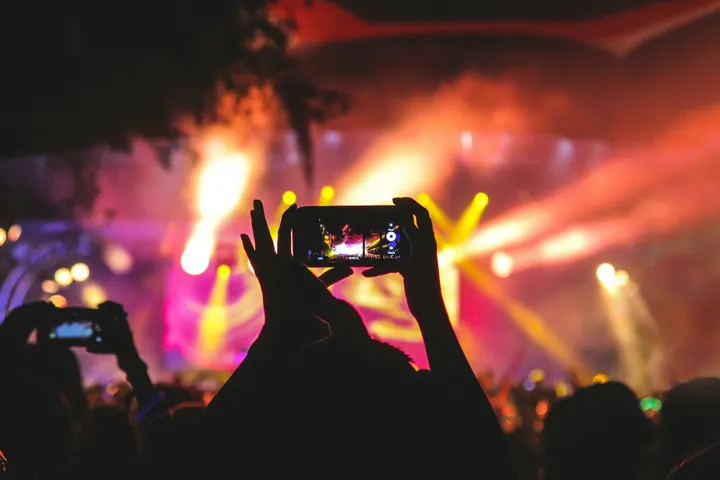 Night Crowd0:12
Music
Pick up where you left off
New ClipTemplates
Recent Clips
Meet the TeamBehind the ScenesNew This NovemberA Customer Says Thank YouOur Holiday HoursEdit a Clip in your hand or at a desk
A Clip opens full screen on a phone: a vertical preview over a multi-clip timeline, with pinch zoom, trim handles and press and hold to reorder. On a desk, media and tools are added on the left and refined on the right, beside the preview and its transcript.
So, um, twelve new wines by the glass this week.
Three of them are Irish, like, from Wexford. Pause 1.8s
The red from Rioja actually, is my pick.
Happy hour runs every day from five to seven.
You know, come early for the window.
Caption a Clip from what is said, word by word
Captions are timed to each spoken word, transcribed on your device first, and start in Bold Pop: heavy capitals that light up as each word is said. Titles are designed pages, from a headline to an end card, edited in the design editor and animated in and out.
Transcribe and Add Captions
Every word timed as it is said, in the language spoken, with the word being said lit.
6 captions, made from what is said in the edit. Cut words first, then make them again.
Look
Captions are made from the words that play, and are timed word by word.
Cut to the beat, and keep the voice clear
Find Beats marks a sound’s beats on your device, or type a tempo or tap it. Cut to Beat cuts on every beat, every two or every bar, in one step. A trending sound can be a guide kept on your device, used for timing and never exported.
- 01Cut to the BeatThe beats found in a sound, or a tempo typed or tapped, become cuts on every beat, every two beats or every bar.
- 02A Guide SoundEdit against a sound kept on your device, for timing only and never exported.
- 03Find a Trending SoundOpens TikTok’s trending songs, and Reels and Shorts with where their Trending list is.
- 04Clean VoiceRemove background noise, or tap Clear Voice, Broadcast, Studio Clean or Warm; each says what it set and is undone in one step.
- 05Music Under VoicesLower under voices dips the music while someone speaks; gain, a gate, an equalizer and a compressor come with Clips Pro.
- 06LoudnessEvery Clip is brought to the loudness social video plays at, so it never sounds too quiet or distorts.
- 07The Mixer, With Clips ProEvery track’s level, pan, mute and solo, with a live meter and its own equalizer and compressor.
Beats on This Timeline
Find Beats
Find Beats in This SoundFound on this device, from the sound itself.
Cut to Beat
Select the clips to cut, then choose how often.
4 clips on 4 beats
Edit to a Sound
For timing only. It stays on this device and is never exported.
Tempo Grid
Edit to a Sound
Find a Trending SoundPick a sound there, then add it here as a guide sound or tap its tempo. Calisto reads nothing from these pages.
Voice
Level
Clean Up
Remove background noiseDucking
Lower under voicesVoice
Equalizer
Compressor
Track
Size
Frame Rate
Loudness
The export is measured and brought to this loudness, never past a −1 dB true peak.
Whole Mix
The beats found in a sound, or a tempo typed or tapped, become cuts on every beat, every two beats or every bar.
Beats on This Timeline
Find Beats
Find Beats in This SoundFound on this device, from the sound itself.
Cut to Beat
Select the clips to cut, then choose how often.
4 clips on 4 beats
Edit against a sound kept on your device, for timing only and never exported.
Edit to a Sound
For timing only. It stays on this device and is never exported.
Tempo Grid
Opens TikTok’s trending songs, and Reels and Shorts with where their Trending list is.
Edit to a Sound
Find a Trending SoundPick a sound there, then add it here as a guide sound or tap its tempo. Calisto reads nothing from these pages.
Remove background noise, or tap Clear Voice, Broadcast, Studio Clean or Warm; each says what it set and is undone in one step.
Voice
Lower under voices dips the music while someone speaks; gain, a gate, an equalizer and a compressor come with Clips Pro.
Level
Clean Up
Remove background noiseDucking
Lower under voicesVoice
Equalizer
Compressor
Track
Every Clip is brought to the loudness social video plays at, so it never sounds too quiet or distorts.
Size
Frame Rate
Loudness
The export is measured and brought to this loudness, never past a −1 dB true peak.
Whole Mix
Every track’s level, pan, mute and solo, with a live meter and its own equalizer and compressor.
Ramp the speed, keep the subject in the frame
Five one-tap speed ramps write real keyframes and name what they set, with Reverse, Freeze Frame and the voice’s pitch kept. Auto-Reframe finds the subject on your device and follows it in the vertical frame. A look, a transition or every cut changes in one tap.
Speed
Lasts 0:04 at this speed. The rest of its track moves to follow it.
Speed Ramp
Reverse
Play backwardsFreeze Frame
Freeze Frame at the PlayheadSpeed Ramps
Speed Ramp
Fast and Slow, Slow Middle, Near Stop, Slow Down and Speed Up in one tap, with Reverse and Freeze Frame; the curve itself with Clips Pro.
Auto-Reframe
Size
Auto-Reframe
Auto-Reframe Every ClipAuto-Reframe the Selected ClipsEach recording fills the frame and follows the person or thing in it, found and followed on this device. Choose the size first; the keys it sets are in Transform & Keyframes.
Each shot fills the vertical frame and follows the person or thing in it, found on your device.
Looks
Looks
Eight looks in one tap, each saying exactly what it set, and Undo takes it back.
Transitions
Into the Selected Clip
A transition overlaps the two clips by its length, so the rest of the track moves left by it.
On one cut, or applied to every cut at once.
Adjust
Adjust
Brightness, contrast, saturation and temperature.
Grade the color, mask, key and track with Pro
Clips Pro is one person’s seat. It opens the Adjust workspace (Color Grade, Noise Reduction and Scopes) and the Effects workspace (keyframes, masks, track mattes, chroma key, tracking and adjustment layers), adds the Mixer to Edit, and shows every precise control inline. A Clip holding Pro work always opens, saves and exports, seat or not.
Color Grade
Wheels, levels, curves, .cube LUTs and Auto Color, read on the scopes.
Color Wheels
Levels
Curves
Look (LUT)
Keyframes, With Clips Pro
Position, scale, rotation, opacity and crop, eased.
Position and Size
Keyframe Easing
Crop
Crop KeyframeMasks and Key
Drawn on the picture; Auto Key picks the screen color.
Add a Mask
Chroma Key
Auto KeyTrack Matte
Track This
Tracking
Track This follows a point or a plane and writes the keyframes.
Track This
Stabilize
Stabilize with the Last TrackTracks
Your Own Depth
Essentials or Pro is each person’s preference, in every business.
Color Wheels
Levels
Curves
Look (LUT)
Export on your device, and publish where your audience watches
A Clip exports as MP4 at 1080p in each platform’s shape, on your device’s graphics first and on Calisto’s servers when it cannot. Publish sends it to TikTok, Instagram Reels or YouTube Shorts over the accounts the business connects, and says which guide sound to add there.
Publish
To TikTok, Instagram Reels and YouTube Shorts over your own accounts, or scheduled with Impreta.
Where
More Formats
M4A or MP3 audio; 720p, 4K, WebM, WAV and ProRes with Clips Pro.
This device will make the file. If it cannot finish, Calisto’s servers take over.
Ready Notice
A server export announces itself with Publish on it.
Send to Phone
For Instagram and YouTube, the Clip arrives on your phone to post from there.
 9:41
Subtitle Files
A subtitle file for each caption language, kept in Depot.
Subtitle Files
Kept with it in your files.
Find every Clip, and file it where the work is
The Library lists every Clip in the account, newest edit first, each in its own vertical shape, with search, rename and delete. A Clip belongs to the business and records who made it. Its sources and exports are files on the account’s Depot storage.
Meet the TeamBehind the ScenesNew This NovemberA Customer Says Thank YouOur Holiday HoursWhere Clips touches everything else.
2 of these 6 connections are in your plan today; the others are their own apps.
Depot
Every source and export is a file in Depot, and every Clip sits in its Hubs.
Video
A landscape or square one opens in Video, and Make Shorts turns a Video’s moments into Clips.
Studio
Create Video opens a design in the Clips editor, with the same Clips Pro seat.
Direct
Make a Clip opens a video post in the Clips editor.
Velocity
A Clip goes on a client project, so the work shows there.
Workforce
A business assigns its Clips Pro seats where its people are set up.
No setup cost. Pay when you start using.
Short vertical videos, captioned and cut on the beat.
Everything included in Calisto Clips.
- The Clips to pick up again, then the Templates wall, then Recent Clips.
- New Clip makes an Untitled Clip at once, 9:16 in the vertical template, and opens it; its captions start in Bold Pop when you add them.
- Templates: Reel, Short or TikTok, Intro Title, End Card, Name and Role, Chapter Cards, and Blank.
- A video dropped anywhere on Home is made a Clip with the video placed (MP4, MOV or WebM).
- Every door that makes a Clip makes exactly one per press, even after a retry.
- 9:16 at 1080 × 1920 and 30 fps, mixed to −14 LUFS, until you change it in Clip Settings.
- Clip Settings: the size for each platform, the frame rate, the loudness target and the whole mix.
- Renamed from its title in the editor header; autosaved, with Saving, Saved and Not Saved shown.
- Edits from two windows are merged; one that cannot be merged shows the saved version and offers yours back.
- A landscape or square one opens in Video, which says so.
- Cut to Beat and Captions up front in the header.
- The left rail adds: Media, Record, Audio, Text, Captions, Transitions, Effects and Templates.
- The right rail refines: Clip, Transform & Keyframes, Adjust, Speed, Audio, Caption Style and Clip Settings.
- Essentials folds each panel’s precise controls behind one More; Pro shows them inline.
- The transcript beside the preview on a desk: cut words to cut the video, Remove Filler Words, Remove Silences, and restore what was removed.
- The strip: play, In and Out, markers, snapping, ripple and zoom; tracks with mute, lock and hide.
- Search Actions (⌘K), the shortcuts list (⌘/) and a right-click menu for the selection; undo and redo.
- Keys: Space, J, K and L, I and O, S or ⌘B to split, delete and ripple delete, duplicate, nudge, zoom and markers.
- Upload from the device, or place your files from Depot; a 720p proxy is made on the device.
- Record the camera, the screen or the microphone into the Clip.
- A teleprompter: your script scrolls over the preview at a reading pace while you record, in your size, mirrored for a glass if you want, and never in the video.
- Waveforms and thumbnails drawn on the device.
- Captions word-timed from the transcript, made on the device, with Calisto’s servers as the fallback.
- Caption looks: Classic, Bold Pop, Boxed, Minimal, Neon and Big Center.
- Caption Style: font, size, all capitals, colors and height on screen; weight, width and lines under More.
- Translate Captions: a caption track in any of 31 languages, at the same times and in the same look, shown in place of the original and edited like any caption.
- Speaker Coach: each speaker’s pace, filler words, long pauses, words said twice and quiet words, each a moment to jump to, read on the device.
- Designed titles (Headline, Lower Third, Quote, Pop, Label, Chapter, End Card), edited in the design editor.
- In Your Brand: captions and titles set in the brand kit’s fonts and colors in one tap, its fonts and colors listed first, and its logo placed as a title.
- In and Out animations on any picture, title or sticker: Fade, Rise, Drop, Slide, Pop, Zoom and Spin.
- The beats lane on the desk and the phone, and Snap to Beats.
- Find Beats in a sound, on the device; or a Tempo Grid from a typed BPM or Tap Tempo.
- Cut to Beat on every beat, every two or every bar, in one undo step that names what it did.
- Guide sounds: a sound from the device for timing only, never uploaded, kept or exported; the track says Timing Only.
- Find a Trending Sound opens TikTok Creative Center’s trending songs, and Instagram Reels and YouTube Shorts with where their Trending list is in the app.
- Speed: constant speed, five one-tap ramps that name what they set, Reverse, Freeze Frame and keep the voice’s pitch.
- The ramp curve editor at Pro.
- Auto-Reframe finds the subject on the device and keeps it in the vertical frame.
- Stabilize in one tap, on the desk and the phone: the shake taken out on the device, a deliberate pan kept.
- Transitions on one cut or on every cut, with their exact length under More.
- Looks (Natural, Warm, Cool, Vivid, Black and White, Faded, Punchy, Moody) and Auto, which reports what it set.
- Adjust: brightness, contrast, saturation and temperature.
- Volume, remove background noise and lower music under voices.
- Gain, volume keyframes, a noise gate, an equalizer, a compressor, track volume and pan with Clips Pro.
- One-tap voice presets (Clear Voice, Broadcast, Studio Clean, Warm), each saying what it set and undone in one step.
- The Adjust workspace: Color Grade (wheels, levels, curves, .cube LUTs with intensity, Auto Color) and Scopes.
- The Effects workspace: Transform & Keyframes with named or custom eases, Masks (rectangle, ellipse, pen), Key with Auto Key and the eyedropper, Tracking and adjustment layers.
- Masks, keys and trackers drawn and edited on the picture.
- Stabilize: a tracked point or plane held still, zoomed to hide the moving edges.
- The Mixer: every track and bus a channel with a fader, pan, mute, solo, a live meter, its route and a channel strip (EQ, then compressor); buses added and named there.
- Every precise control inline, without More.
- Without the seat, Pro reads Pro · Upgrade, or Ask for a Pro Seat for a team member.
- A Clip that already holds Pro work always opens, saves, plays and exports.
- Essentials or Pro is each person’s own preference, the same in every business.
- MP4 at 1080p, each platform’s shape, and M4A or MP3 audio.
- Each caption track as an SRT or WebVTT subtitle file, downloaded and kept with the Clip in Depot.
- 720p, 4K, WebM and WAV, and an export on Calisto’s servers by choice, with Clips Pro.
- With Clips Pro, the codec (H.264, HEVC or AV1; VP9 or AV1), ProRes 422 HQ and 4444, and the frame rate from 23.976 to 60.
- Exported on the device’s graphics first; on Calisto’s servers when the device cannot, or when you choose.
- A finished export is kept with the Clip in your files on Depot storage.
- A server export sends a notice when it is ready, with Publish on it; a failed one says so.
- Publish from the ⋯ menu or the export notice: TikTok, Instagram Reels and YouTube Shorts.
- Schedule with Impreta: the finished Clip opens in Impreta’s composer, and its queue and calendar send it when it is due (with Impreta).
- Over the accounts the business connects, from inside Clips.
- A Clip edited against a guide sound says which sound to add on the network and where it starts.
- Send to Phone, for Instagram and YouTube: a notice on your own phone that opens the publish dialog on the Clip, to post from there.
- Every Clip, newest edit first, each in its 9:16 shape; search by title.
- Rename and Delete from a card or from the checked cards.
- Hubs in the sidebar narrow the Library to one Hub (with Depot).
- Assign to Project puts a Clip on a client project (with Velocity).
- The account’s Depot storage shown in the header.
- A Clip belongs to the account and records who made it; anyone in the account who opens Clips can open it.
- Edited together: everyone in a Clip sees the others’ edits as they happen, who else is in it and where their playheads are.
- Comments pinned to a moment of the Clip, with replies, @mentions, assign and resolve, marked on the timeline; a reviewer’s notes from the review link show at their moments too.
- Home, Library and Settings in the tab bar; + is New Clip.
- Home leads with From Your Videos: a video picked on the phone is made a Clip with it placed.
- The phone editor takes the whole screen: a vertical preview, a multi-clip timeline under a centered playhead, pinch zoom, trim handles and press and hold to reorder.
- Its ⋯ holds Publish and Clip Settings; its tool bar leads with Captions and Audio.
- Shortcuts: New Clip, Templates and Library. A video shared from the Share sheet is made a Clip.
- The Library two across, with pull to refresh and the selection bar.
- Home and the Library open with no signal, showing the Clips last read on that device, when you keep them there.
- On a desktop, Clips comes in the Calisto app, installed from the browser or the Microsoft Store, with the Recent Clips widget on Windows.
- Every source and export is a file on the account’s one Depot storage.
- Each Clips Pro seat adds its included storage to that same storage (with Depot).
- Proxies and the render cache are working copies and never count.
- General: the business, its design and sign-in, the one business record.
- Clips: Essentials or Pro (your own preference), the Depot storage Clips use, and This Device.
- A business assigns its Clips Pro seats where its people are set up (with Workforce).
Questions about Calisto Clips
The Edit workspace: Templates, the phone timeline, recording, your media from Depot, captions from the transcript, designed titles, transitions, one-tap looks and voice, Cut to Beat, speed ramps, Auto-Reframe, export and publishing. Every signed-in person has it, with no plan checked.
Adjust (Color Grade with wheels, levels, curves, .cube LUTs and Auto Color, Noise Reduction and the scopes), Effects (keyframes, masks, track mattes, chroma key with Auto Key, tracking and adjustment layers), the Mixer, gain, a gate, an equalizer and a compressor on any sound, and 720p, 4K, WebM, WAV and ProRes exports. A Clips Pro seat is one person’s, and it adds its Depot storage to the account. A Create seat holds it too. A team member without one can ask for one from the editor.
It still opens, saves, plays and exports. The grade, masks and keys stay as they are, and the Essentials tools keep working on it.
One editor and one record. A vertical one is a Clip and opens in Clips; a landscape or square one is a Video and opens in Video. Video’s Make Shorts turns a long Video’s moments into Clips. Each has its own Pro seat, and a Create seat holds both.
TikTok, Instagram Reels and YouTube Shorts, over the accounts the business connects. For Instagram and YouTube, Send to Phone puts the Clip on your own phone to post from there. A Clip edited against a sound kept only on your device says which sound to add on the network and where it starts.
Yes, as a guide. Find a Trending Sound opens TikTok’s trending songs, and Reels and Shorts with where their Trending list is in the app. The sound you add from your device is used for timing only: it is never uploaded, kept in Depot or exported.
The transcript and the captions are written in the language spoken, timed word by word, on your device first. Translate Captions then makes a caption track in any of 31 languages, at the same times and in the same look, for you to edit; each language is also its own subtitle file.
Home and the Library open with no signal and show the Clips last read on that device, when you keep Clips there (Settings, This Device). Making or editing a Clip needs a connection, because its videos are in Depot.
