Design posts, flyers, menus and screens in your brand.
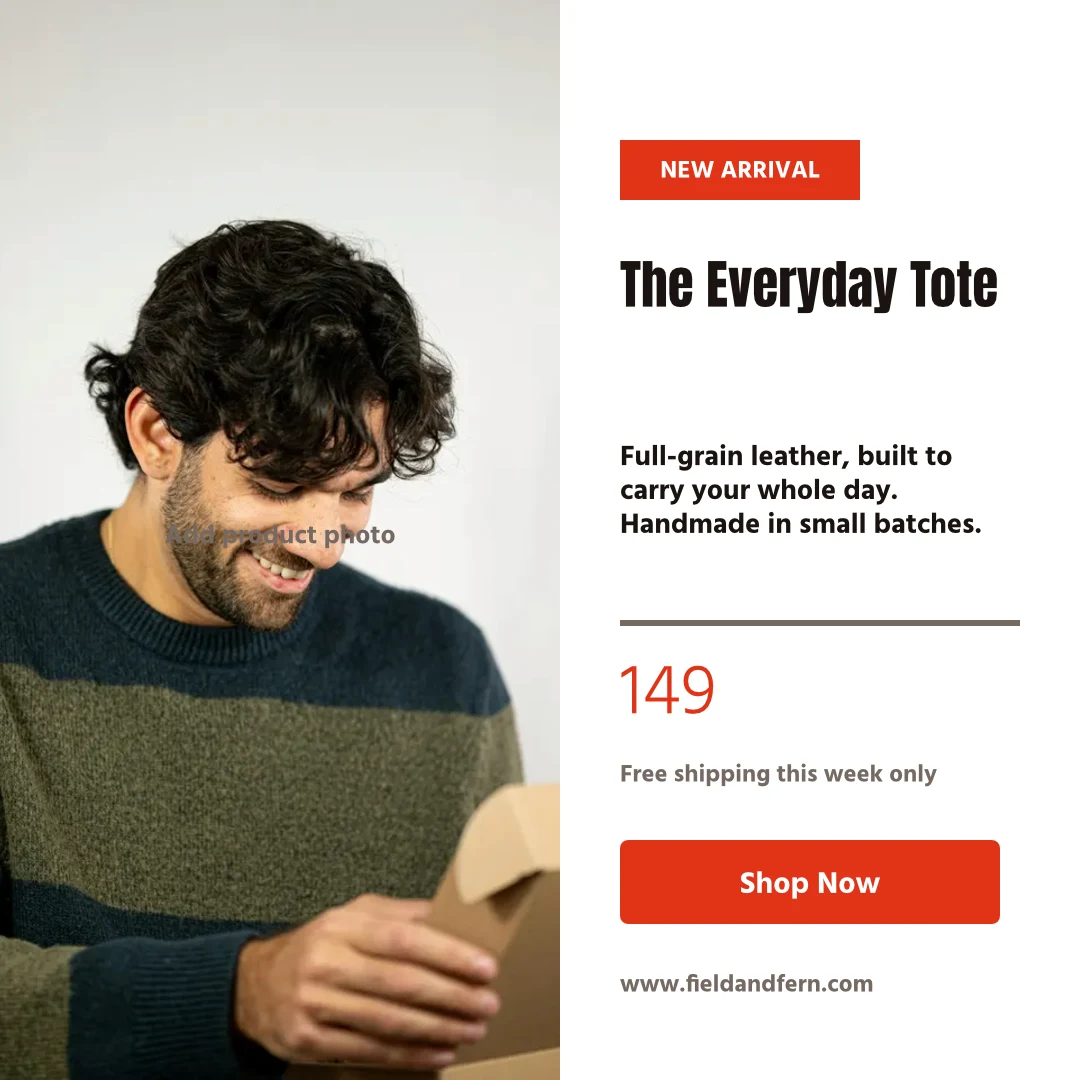
Pick a template made for your kind of business, already in your colors and logo, and change the words and photos. Then post it, print it or put it on a screen.
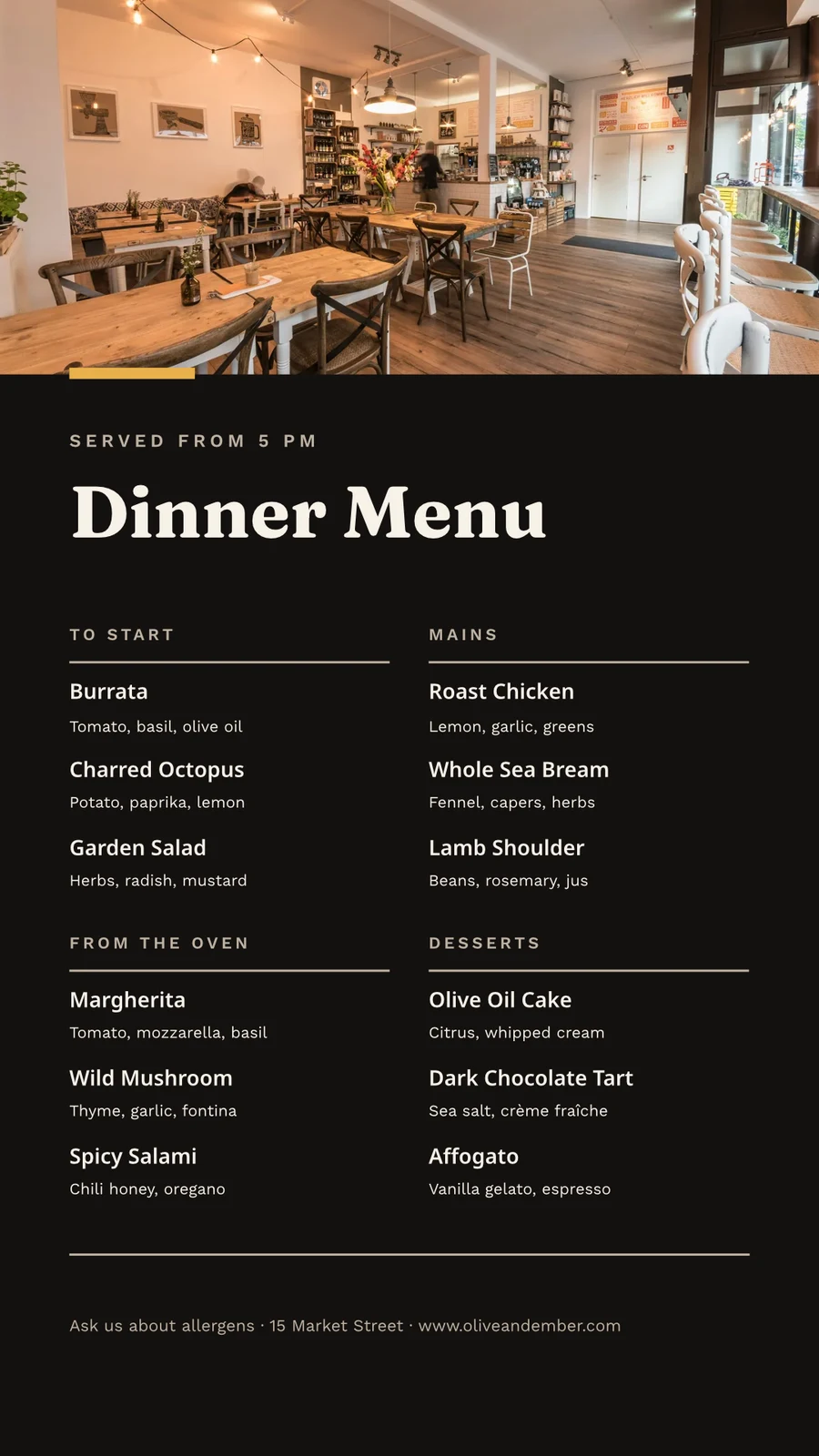
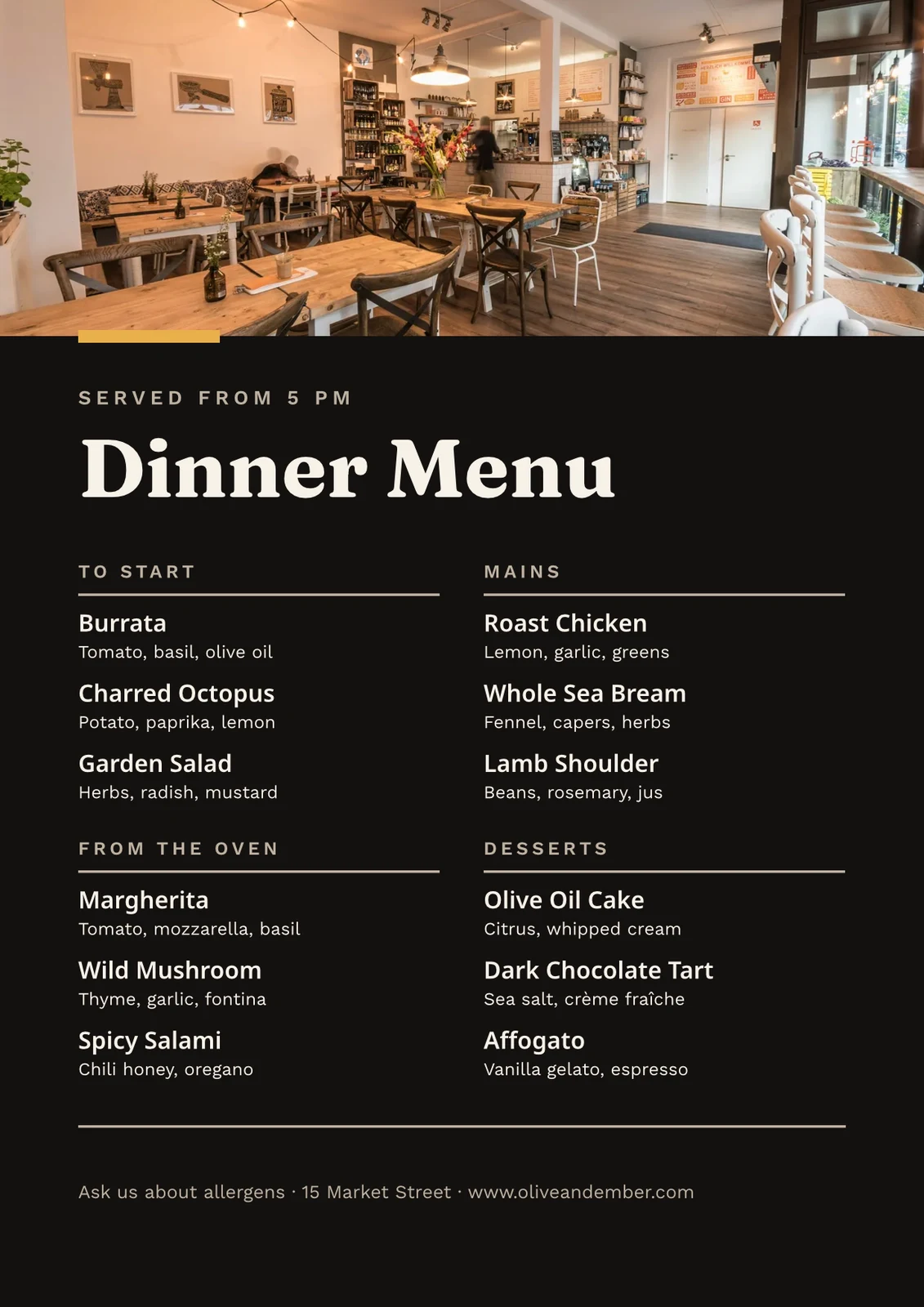
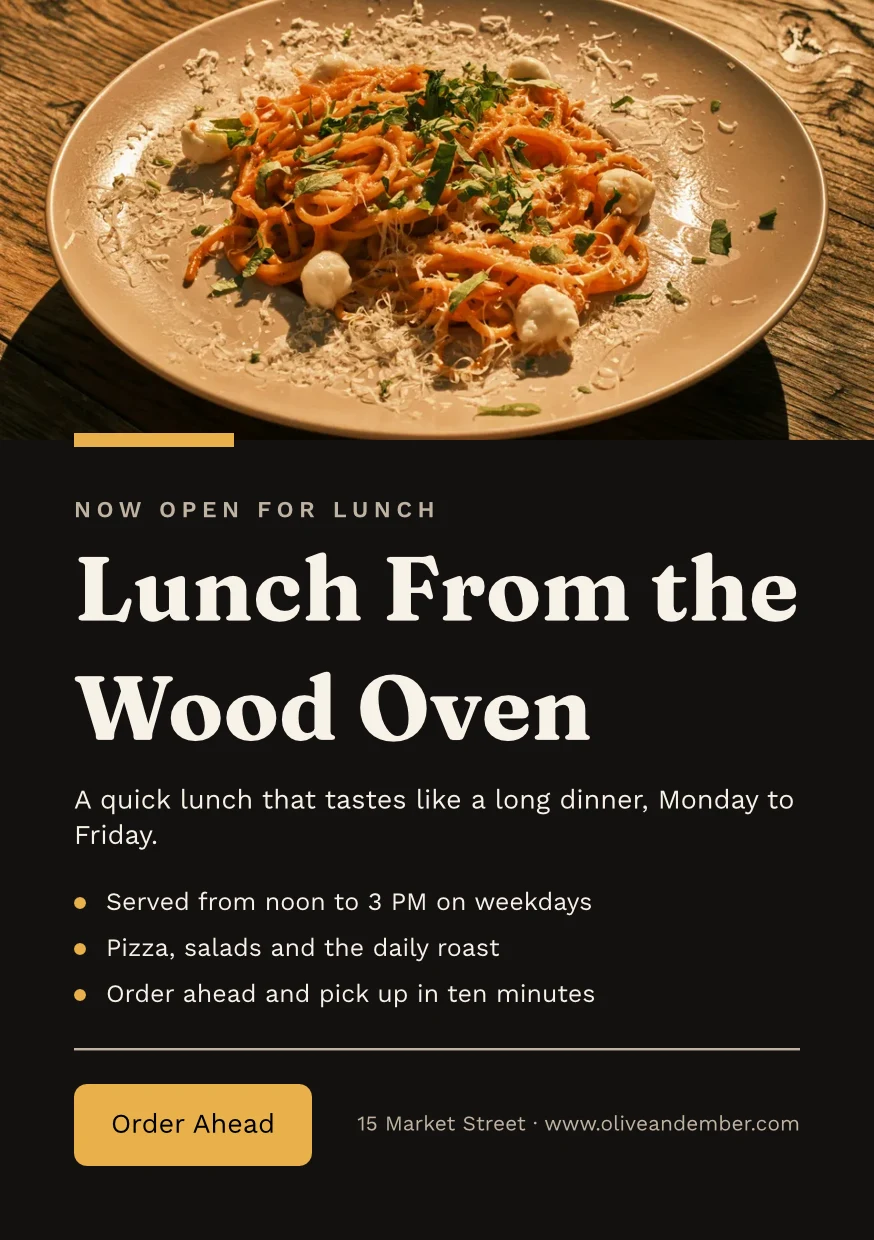
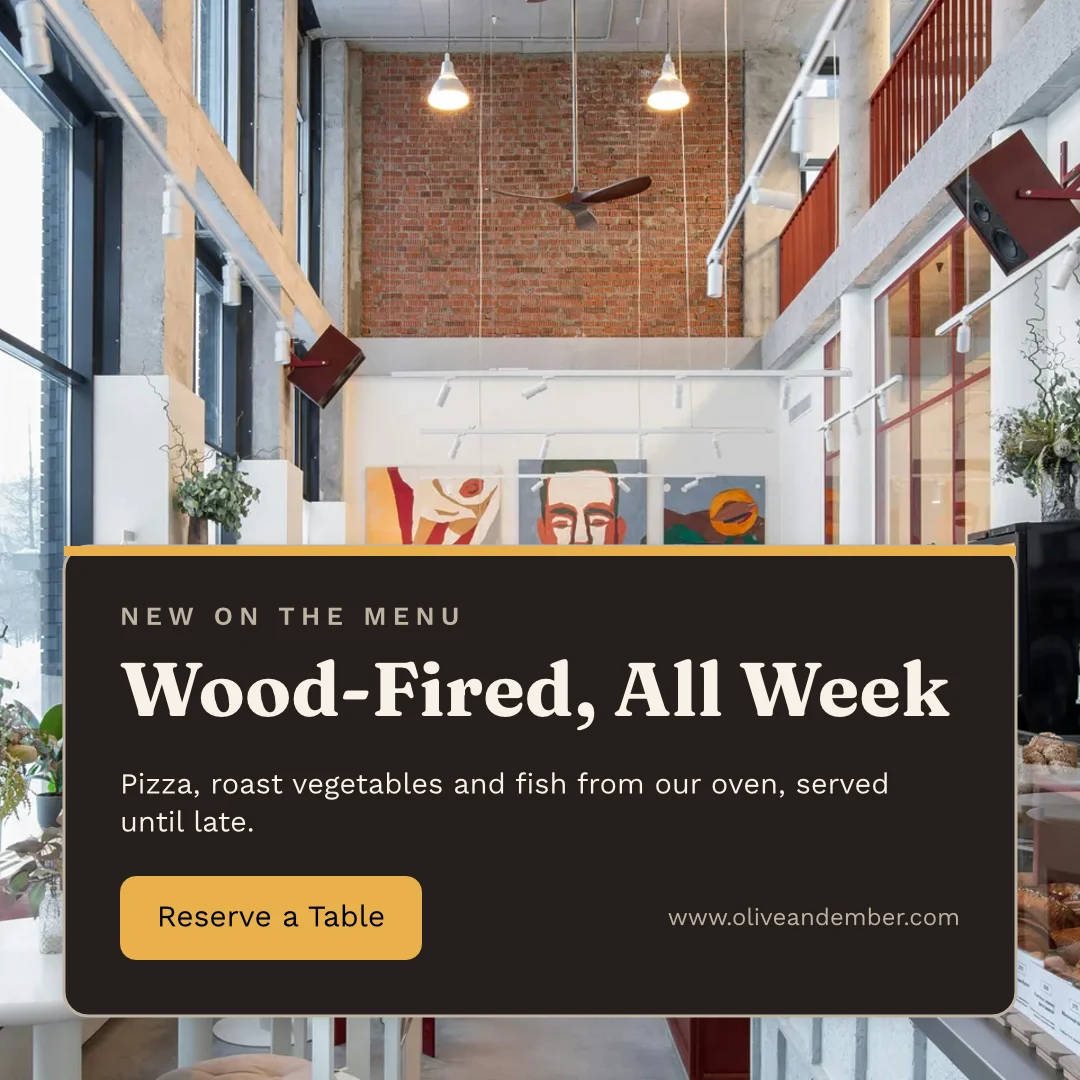
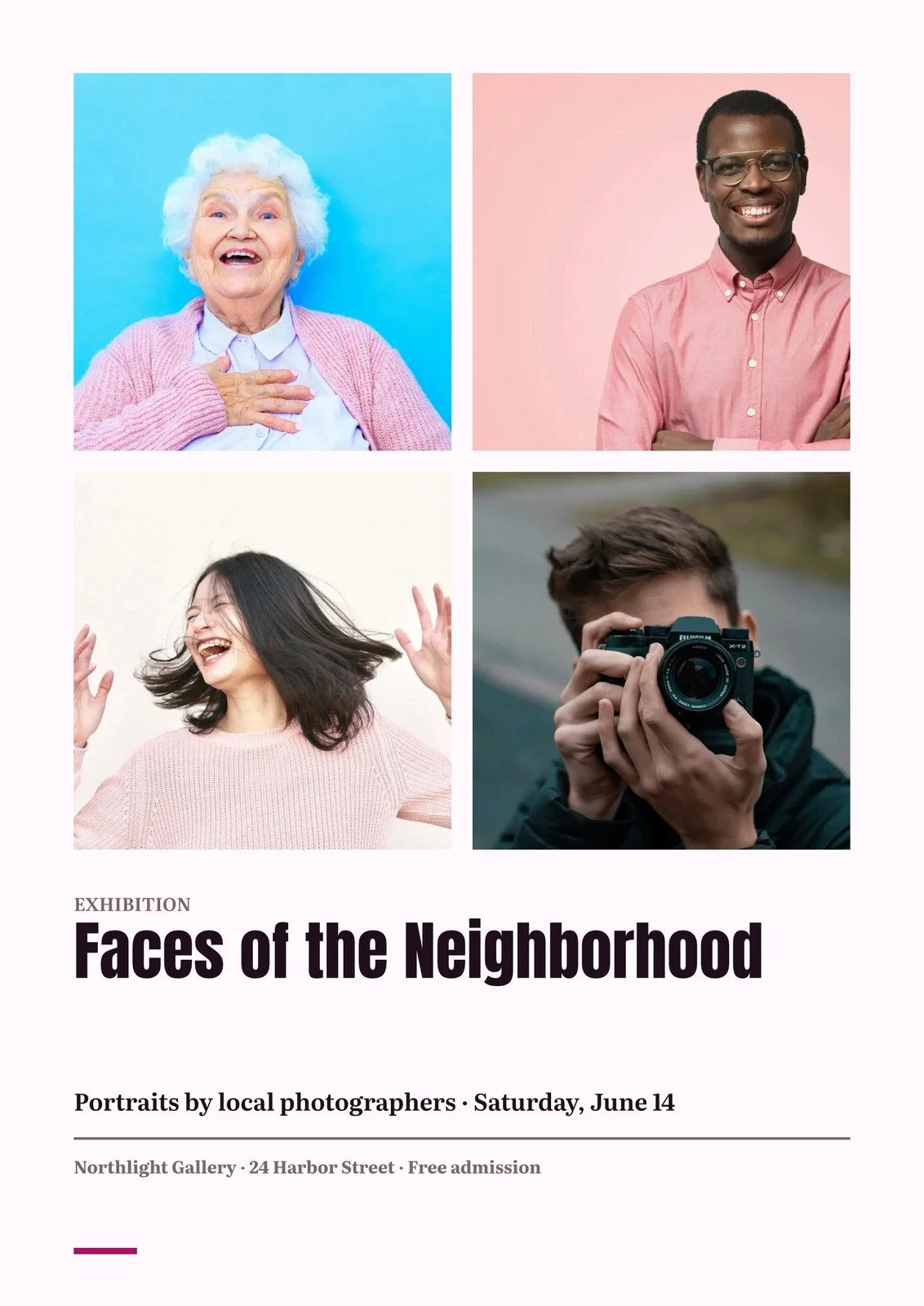
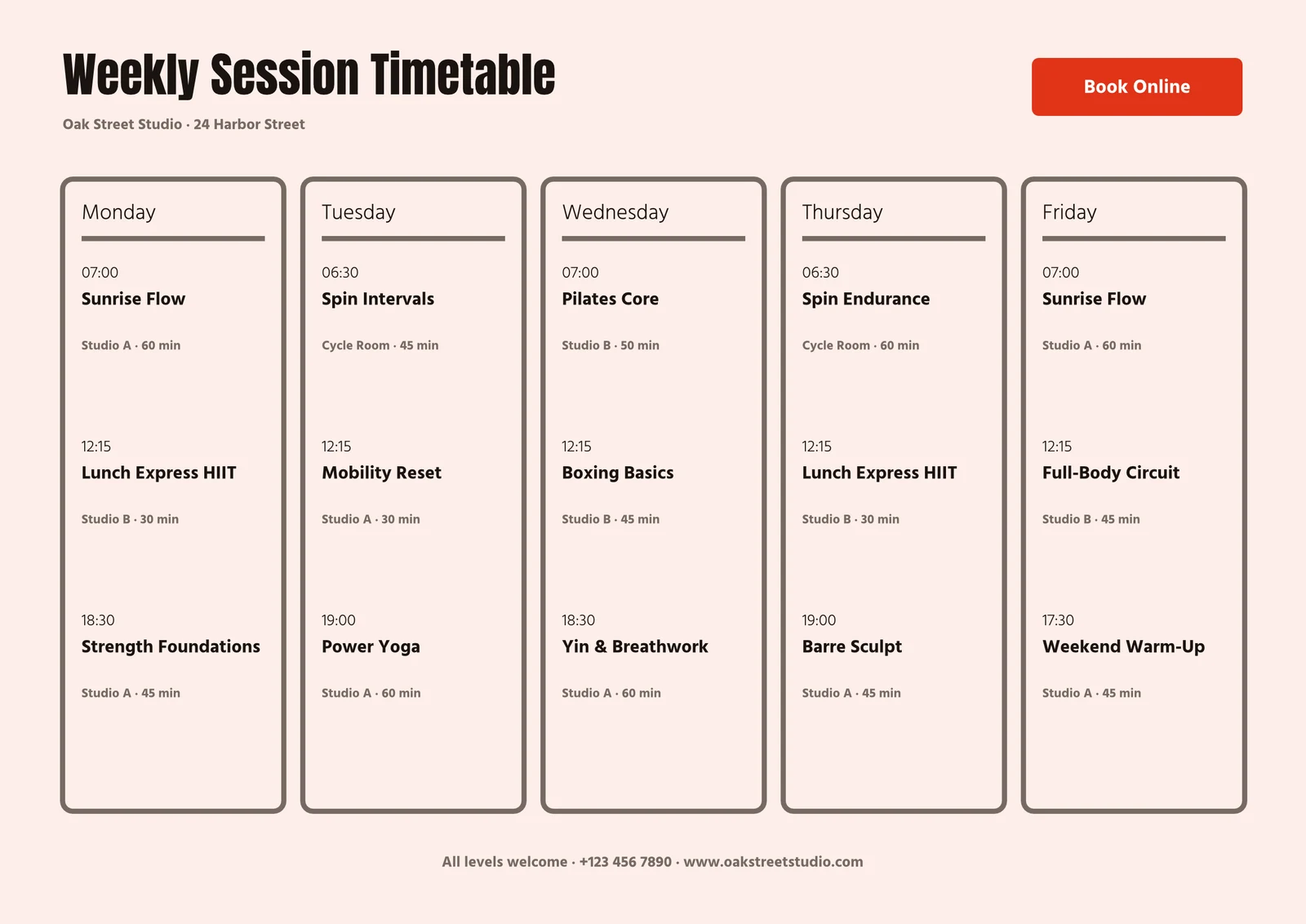
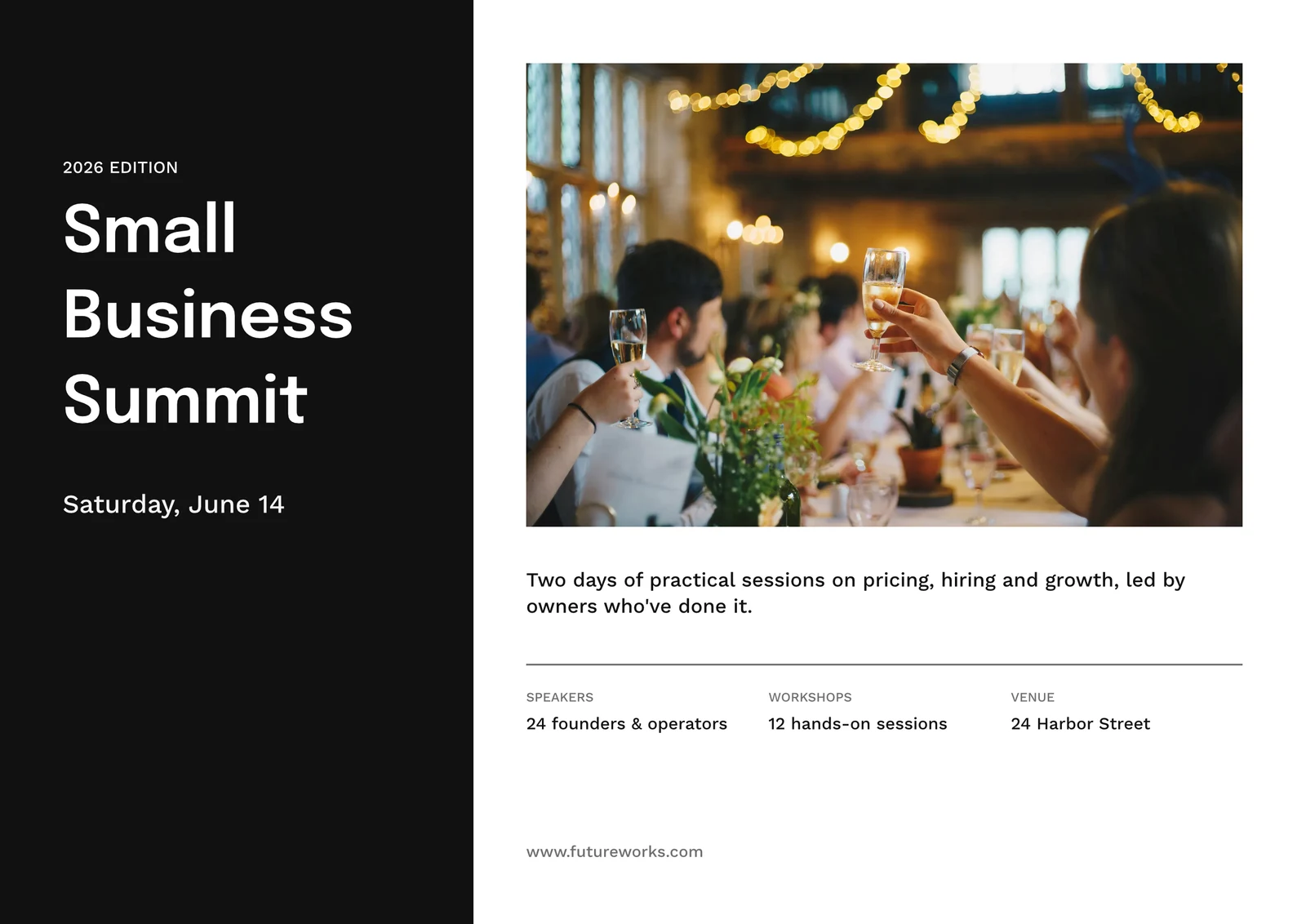
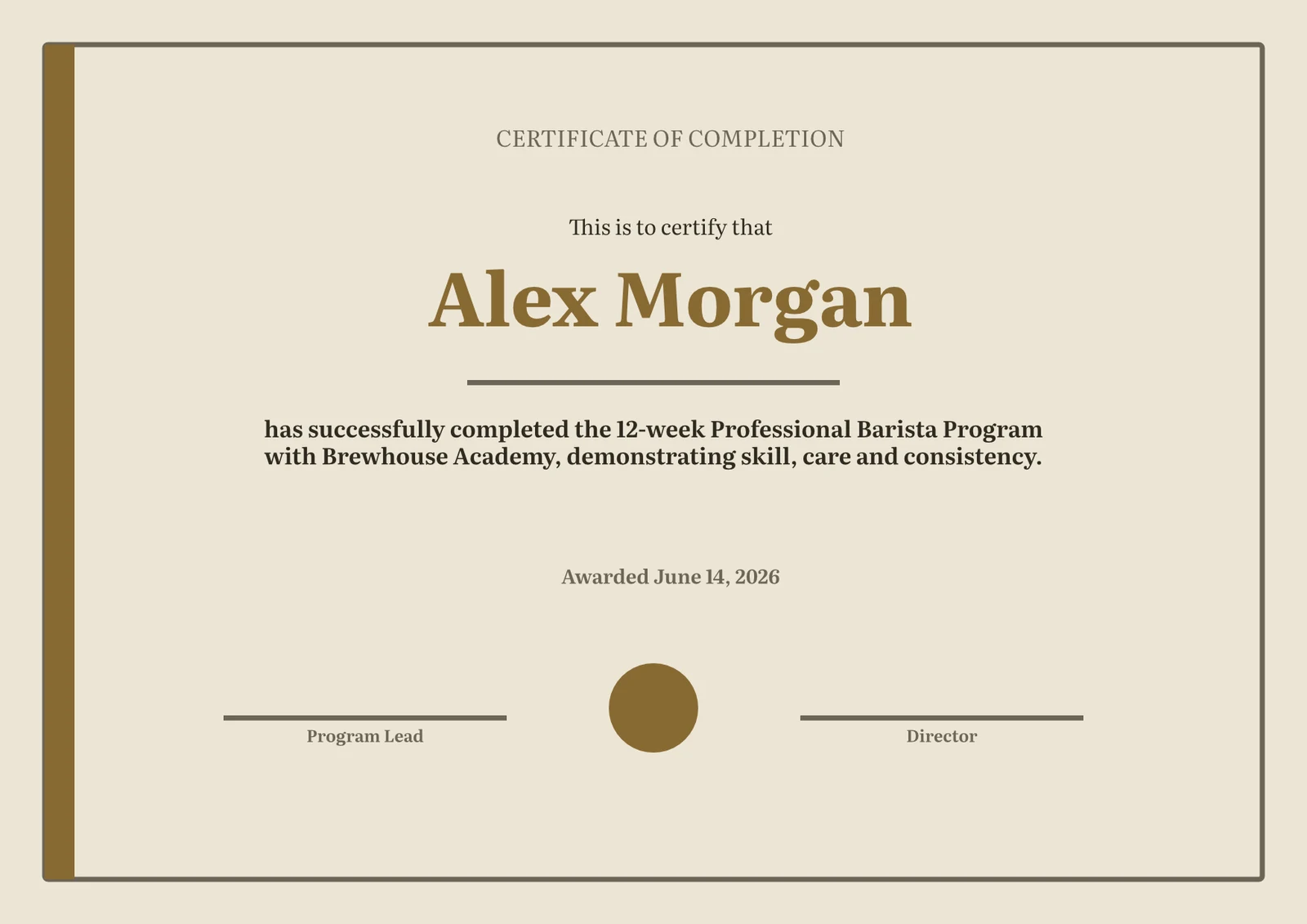
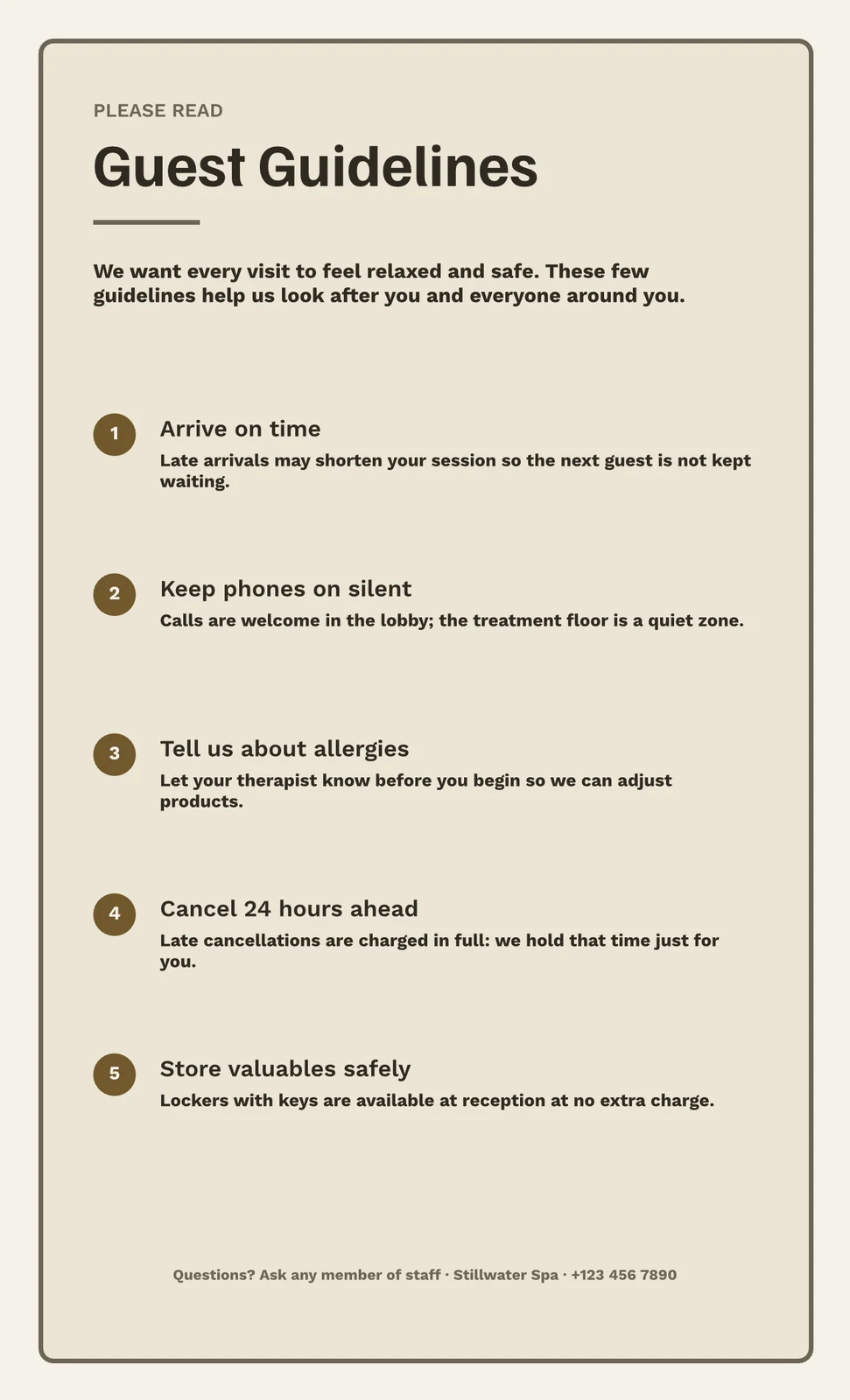

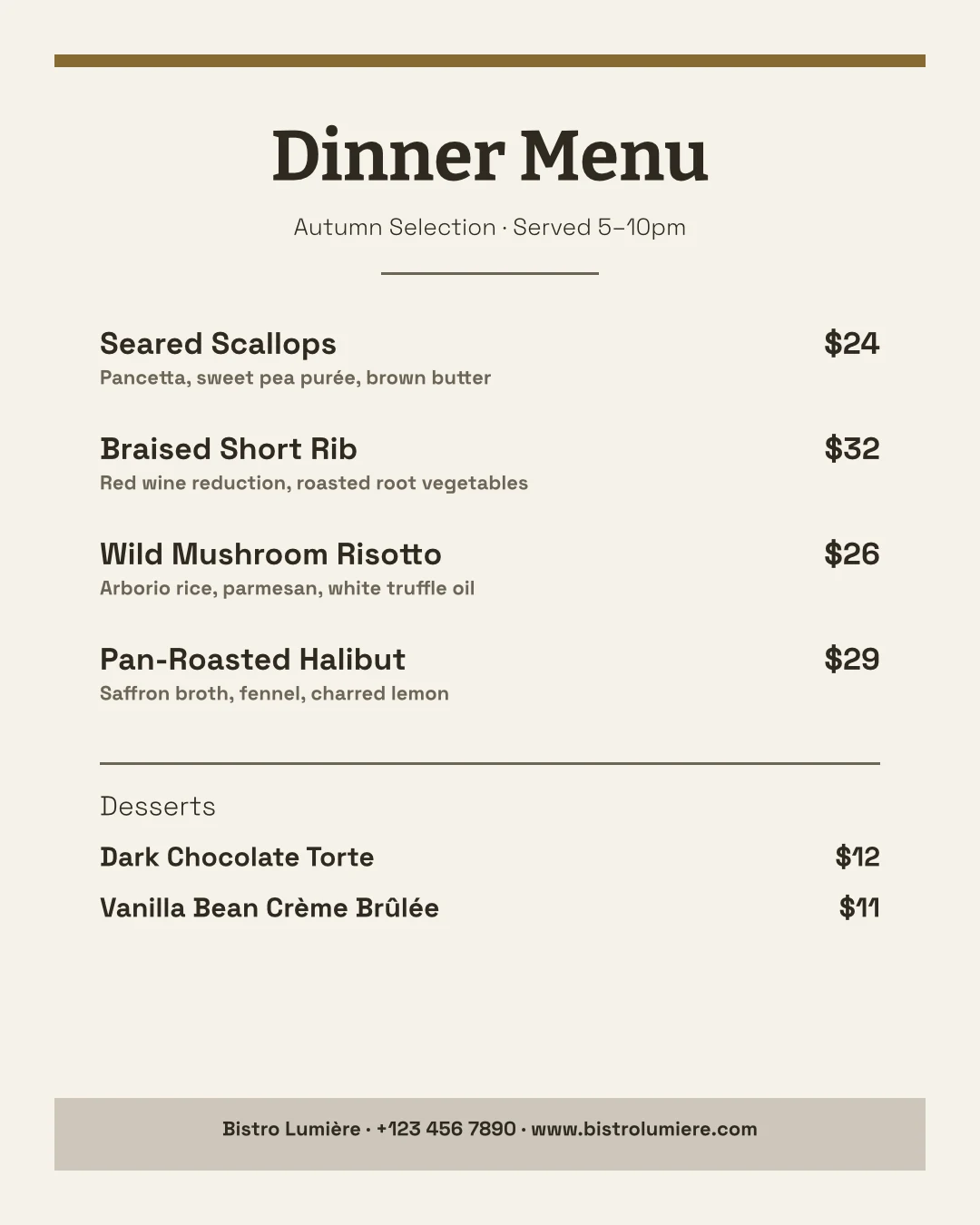
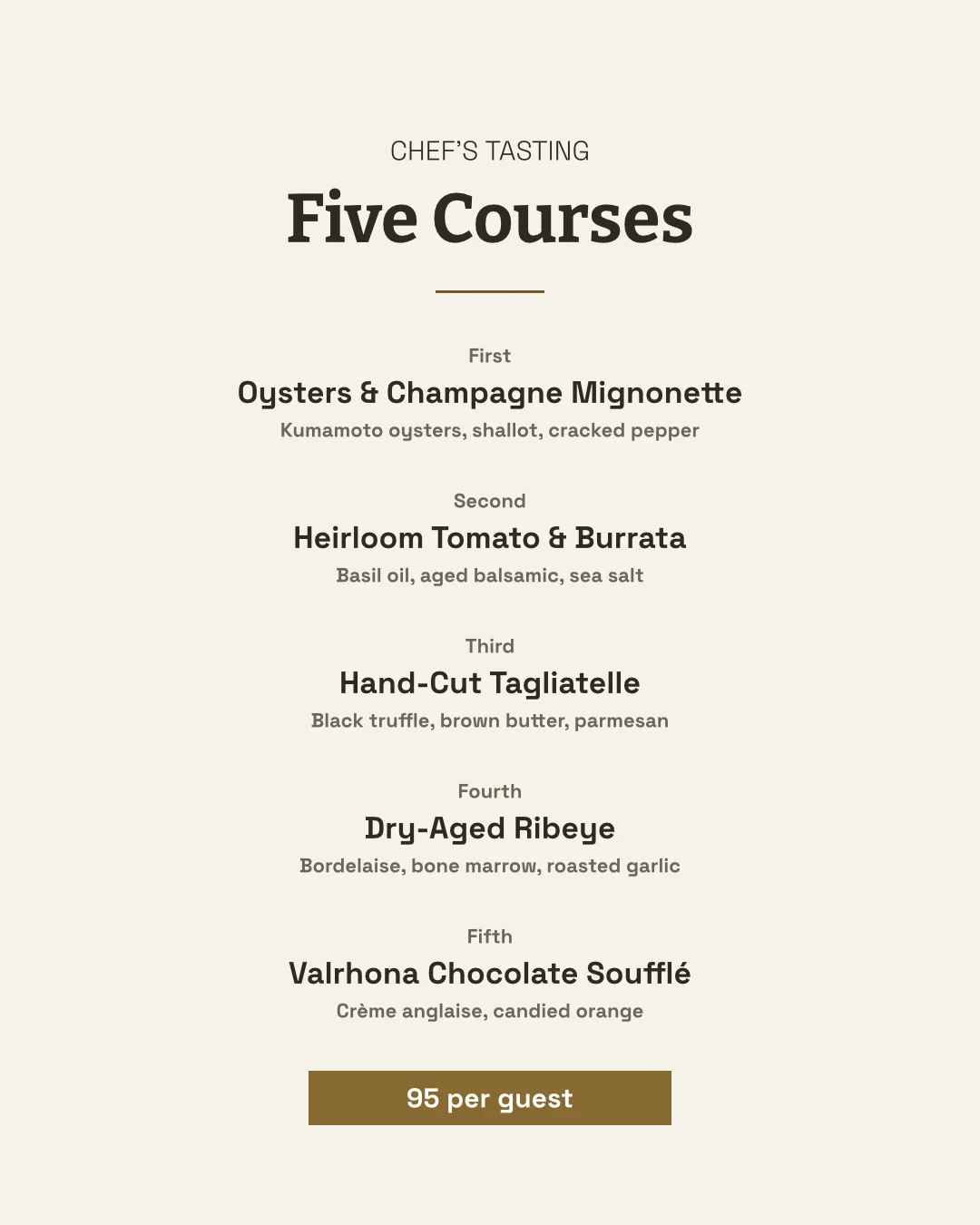
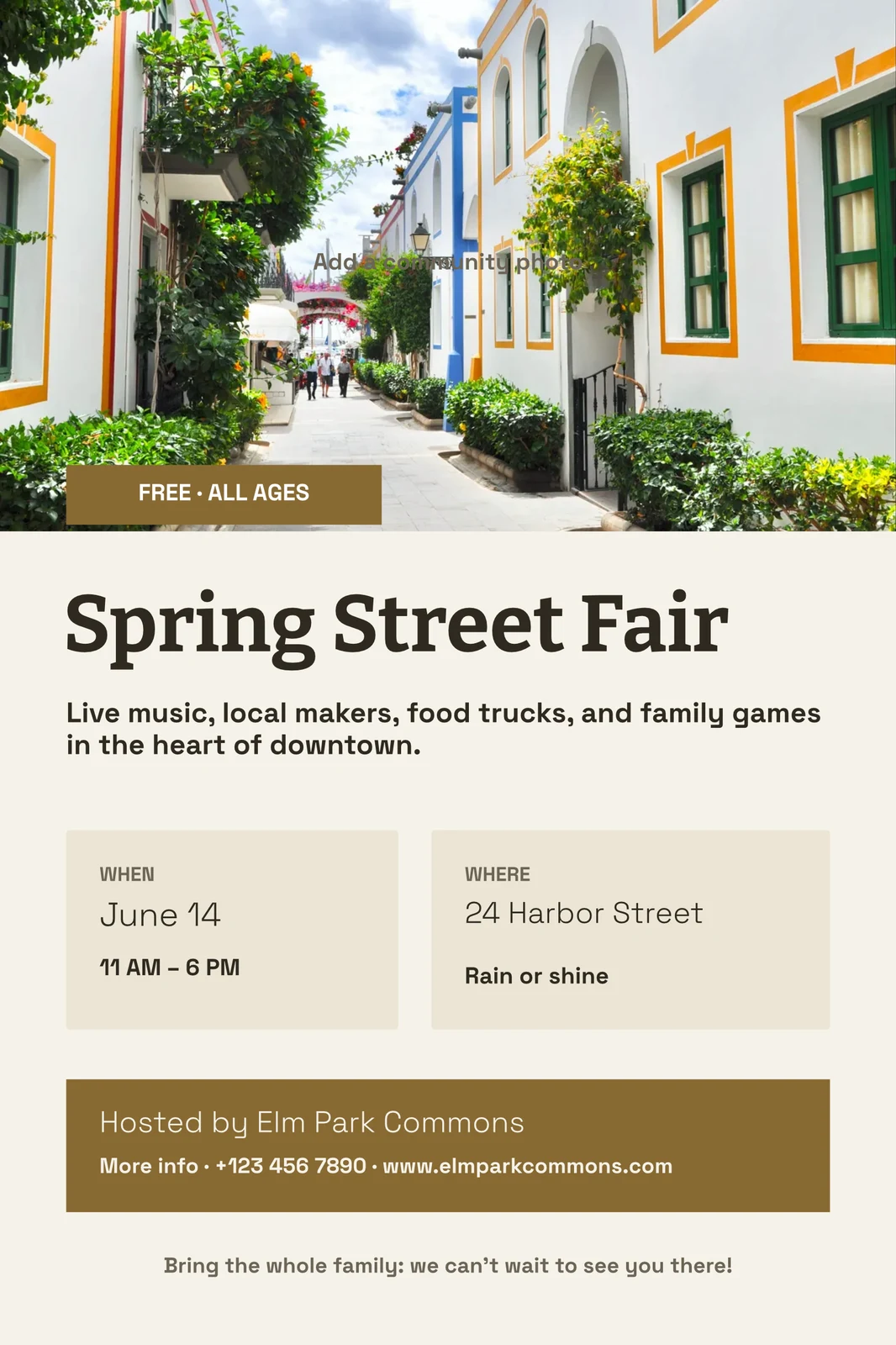





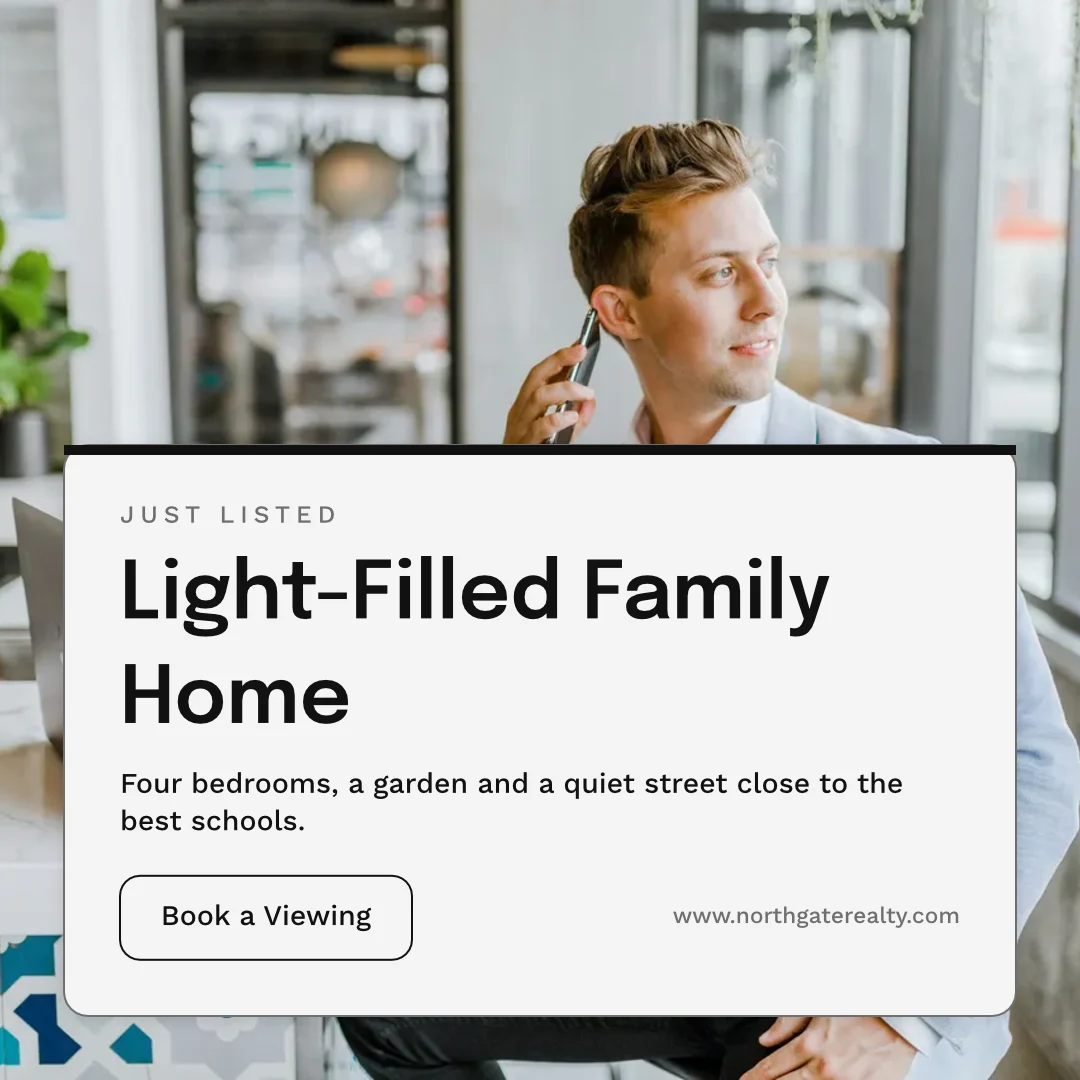
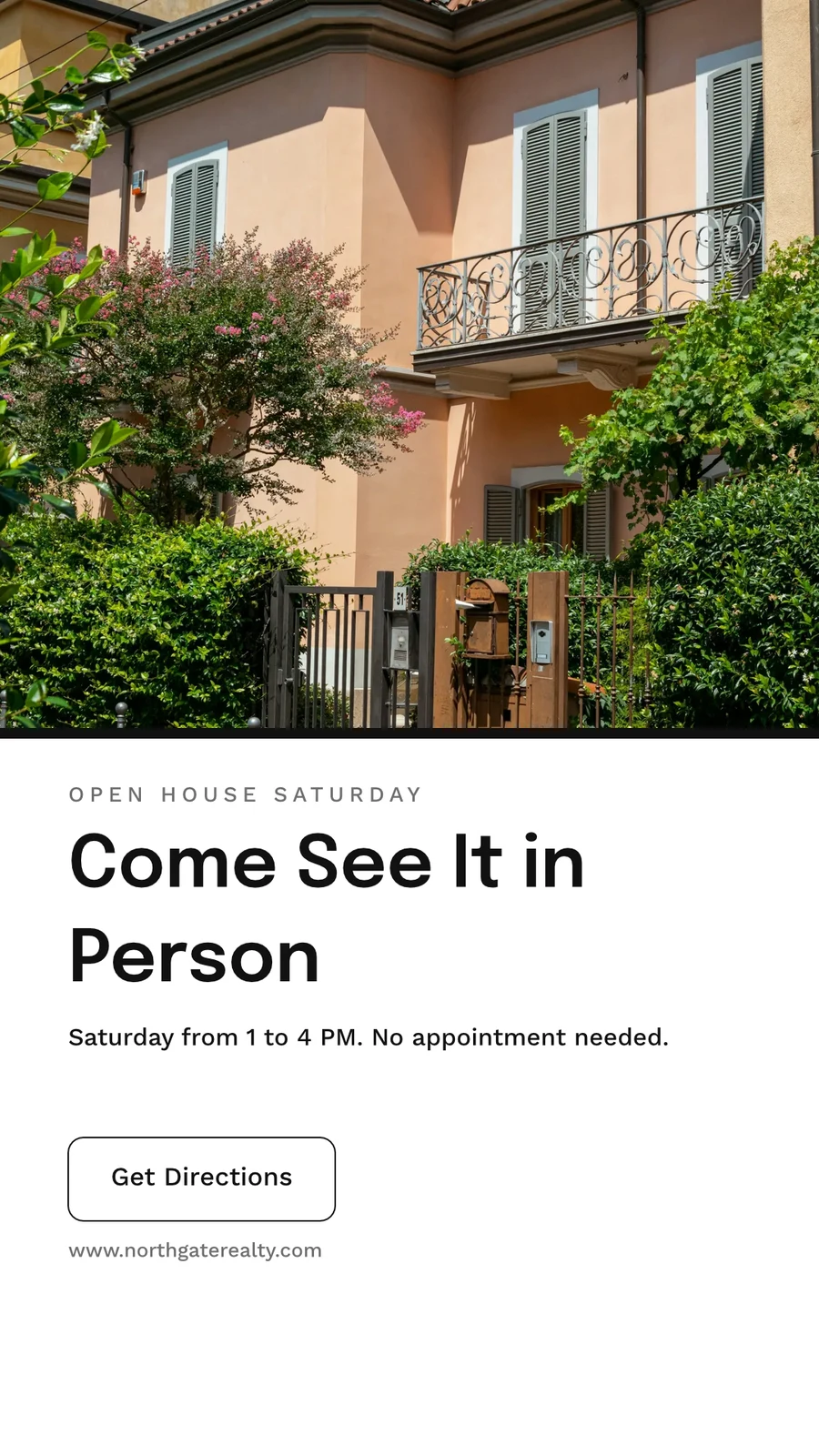
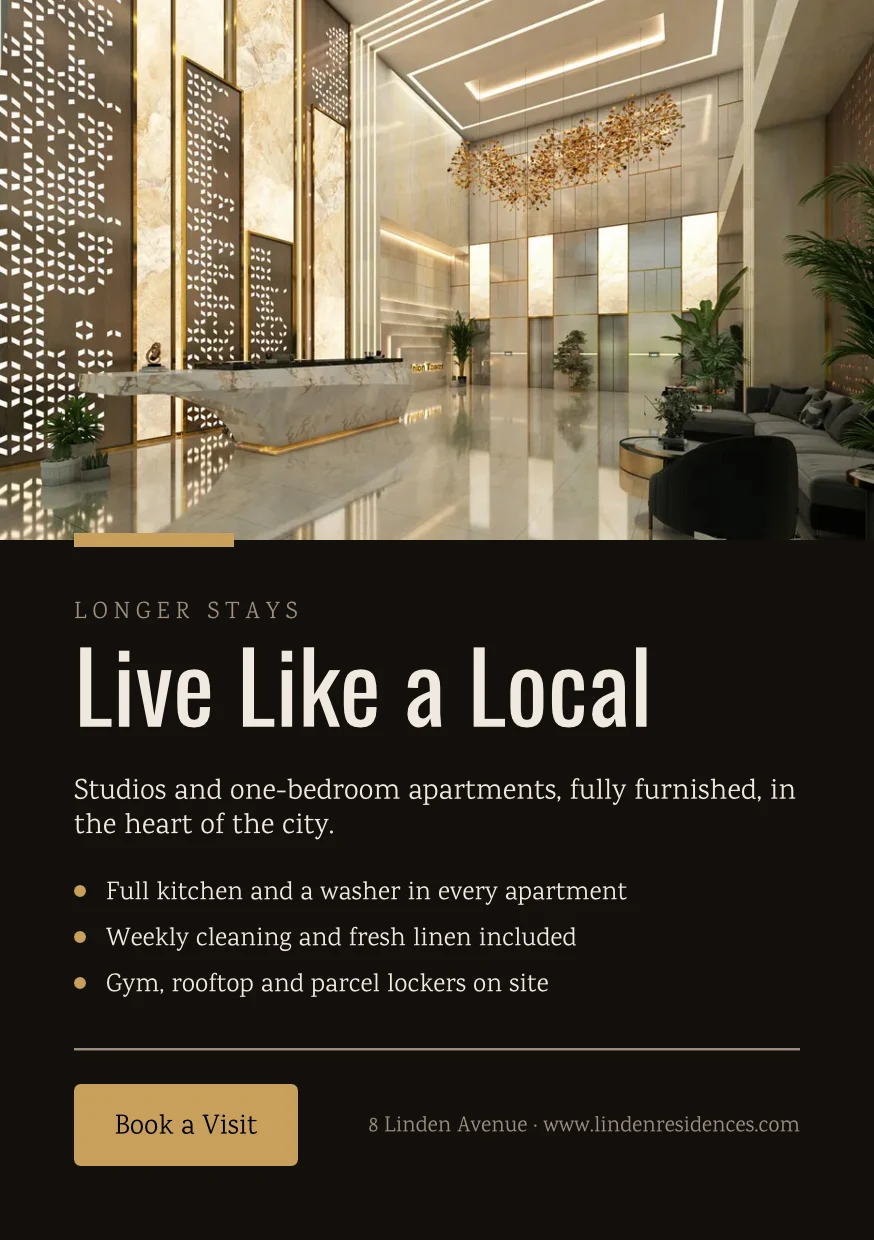
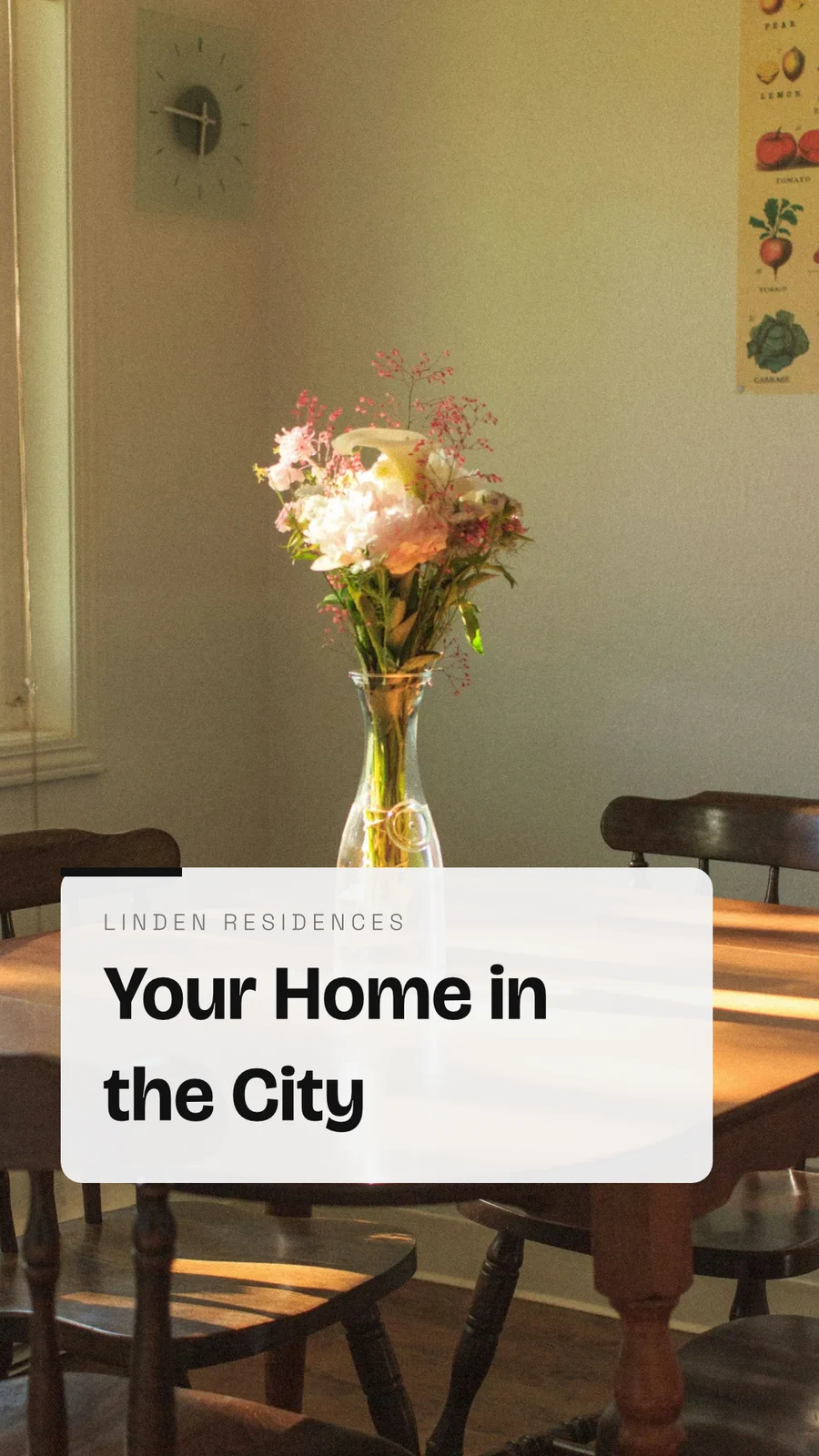

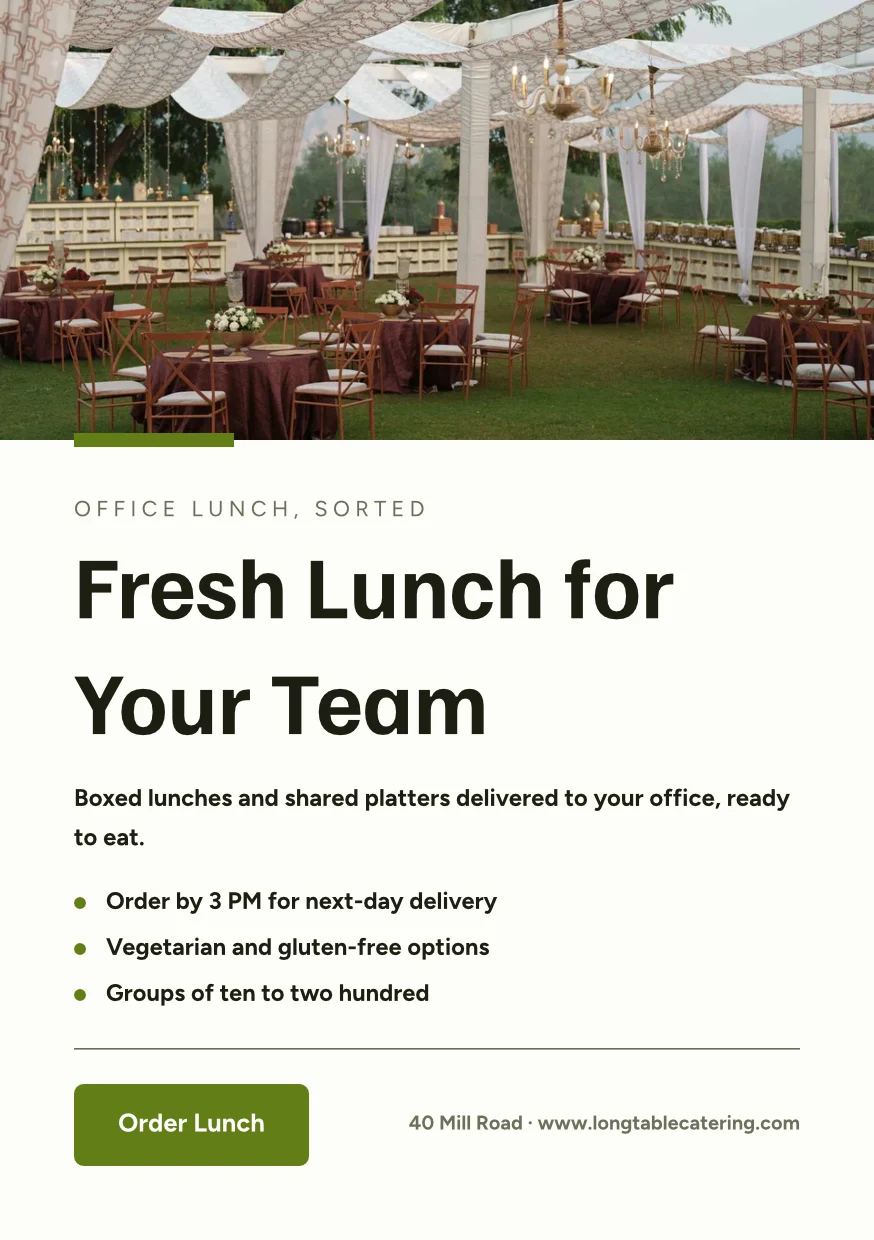
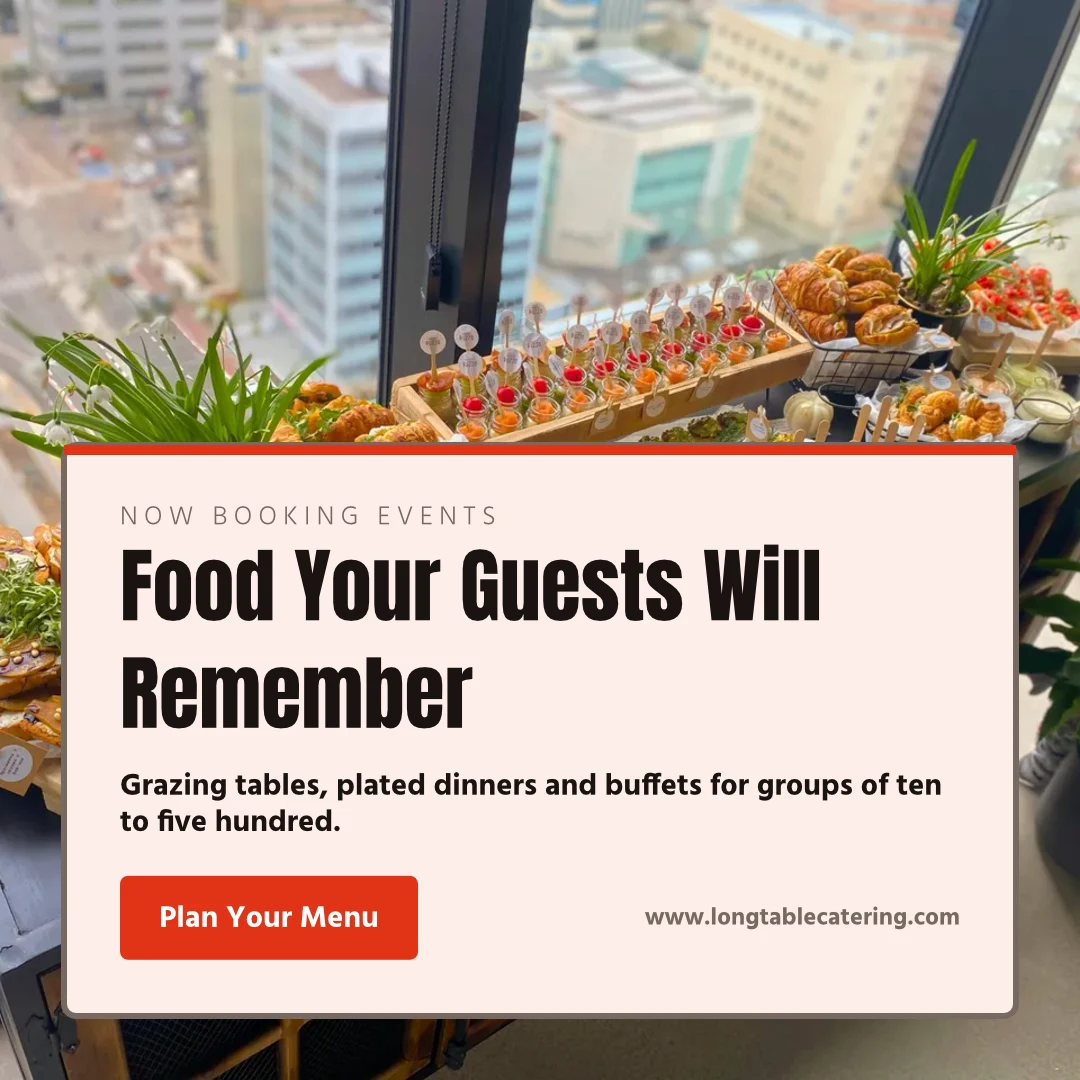
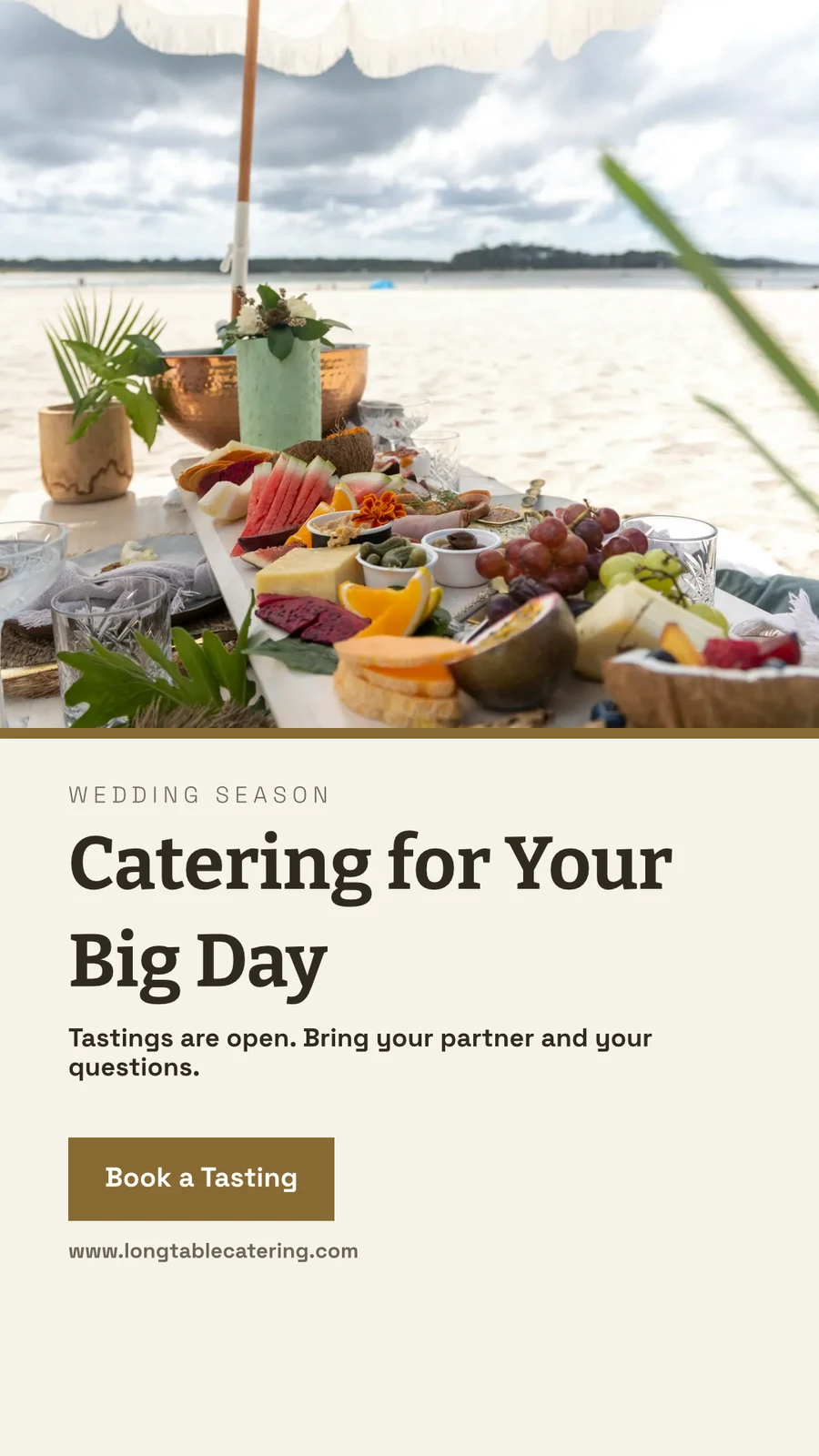

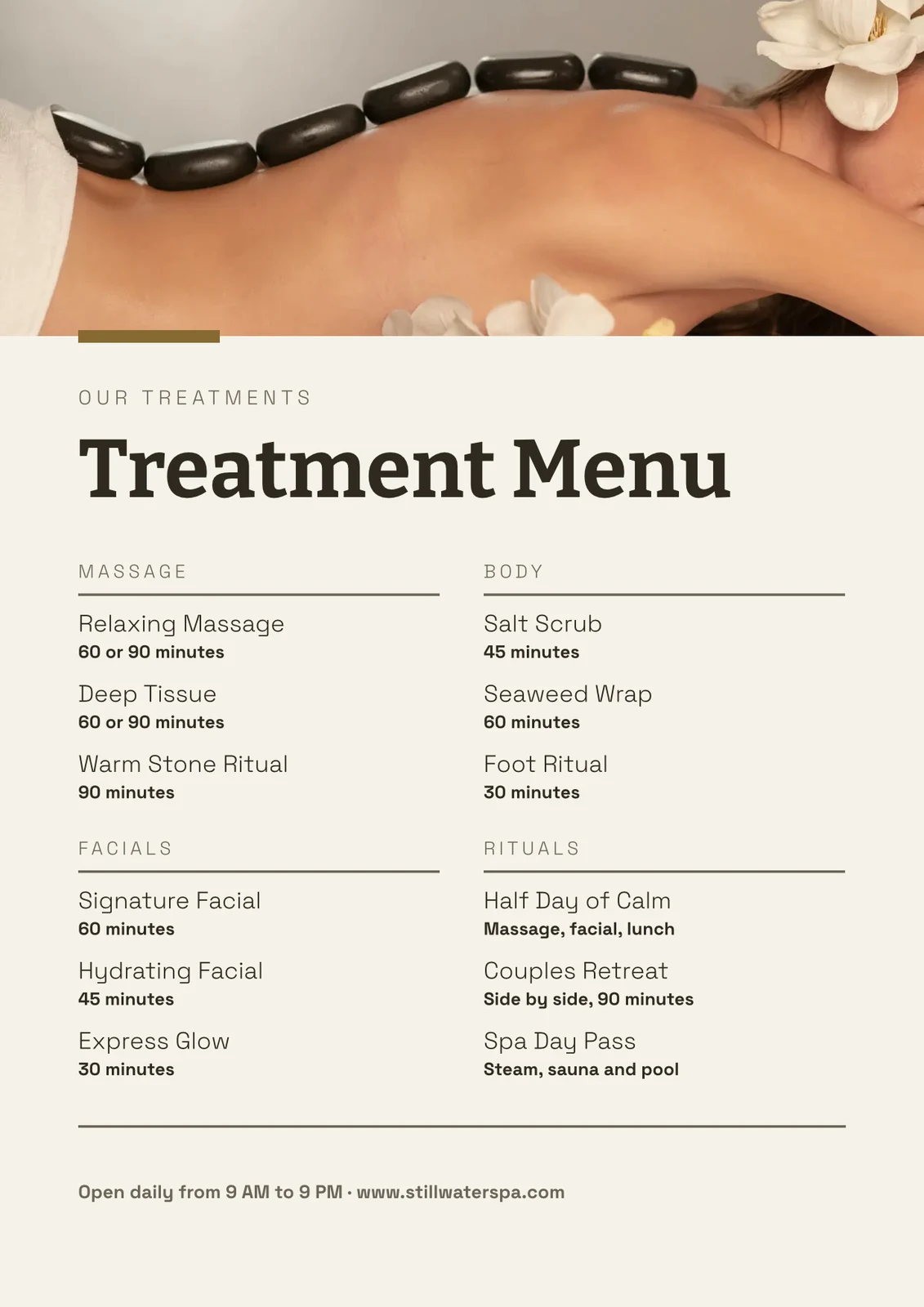

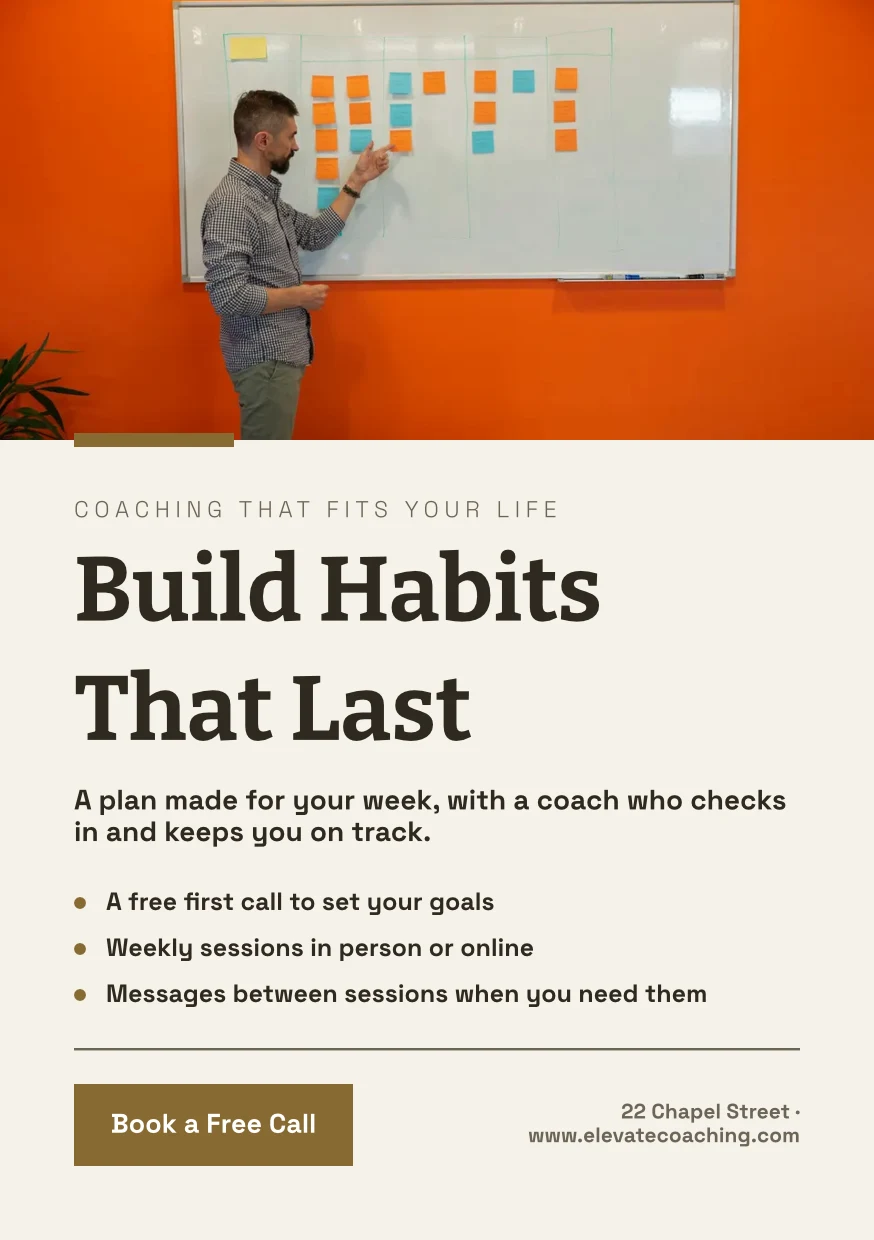

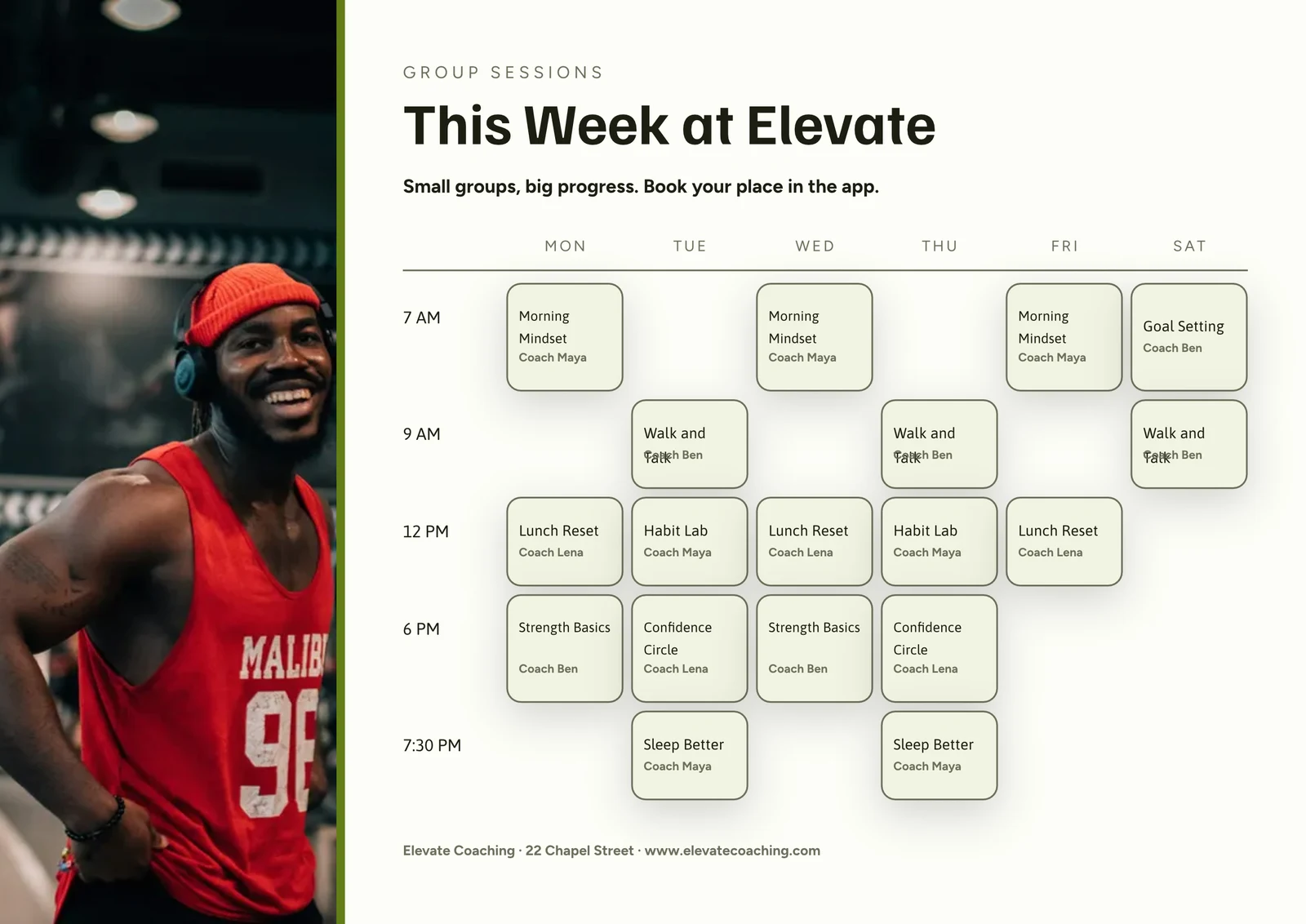
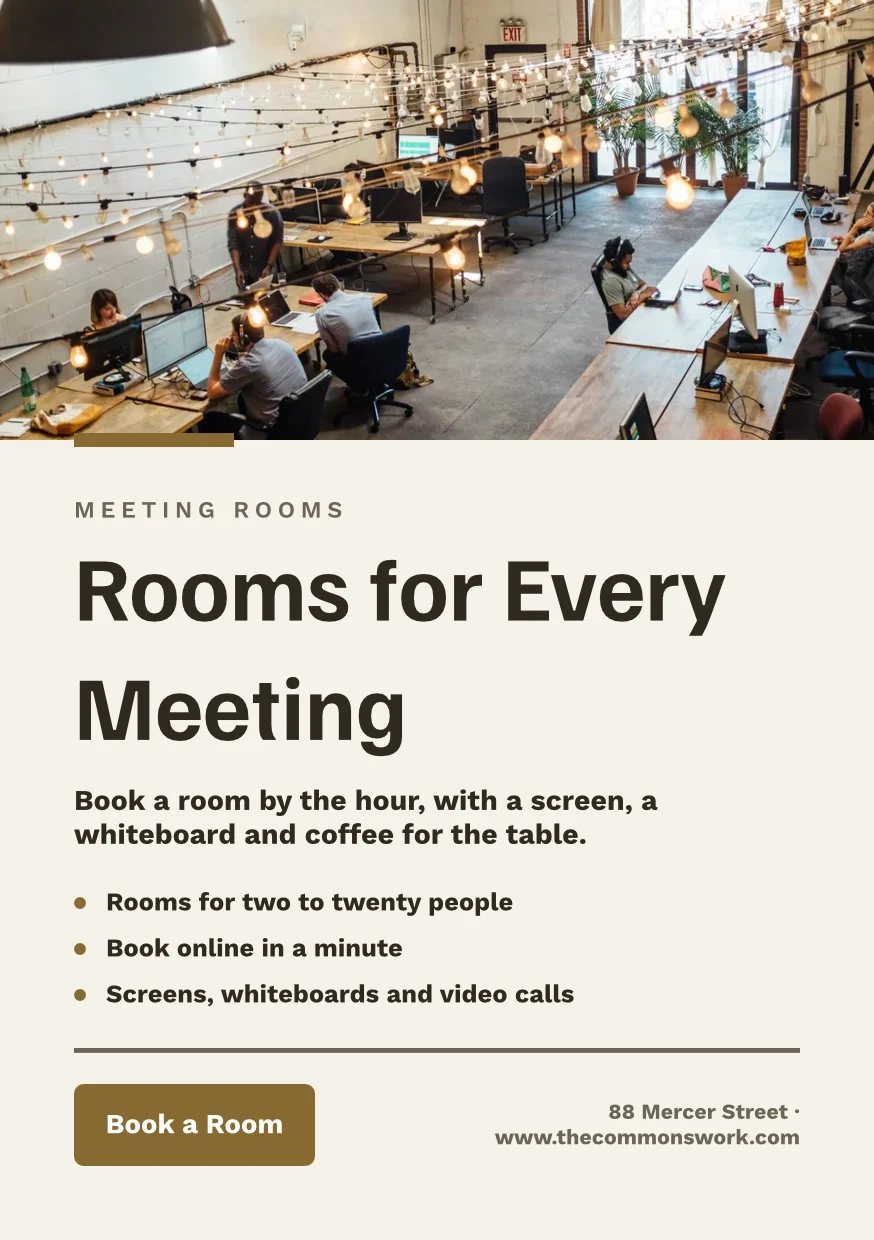
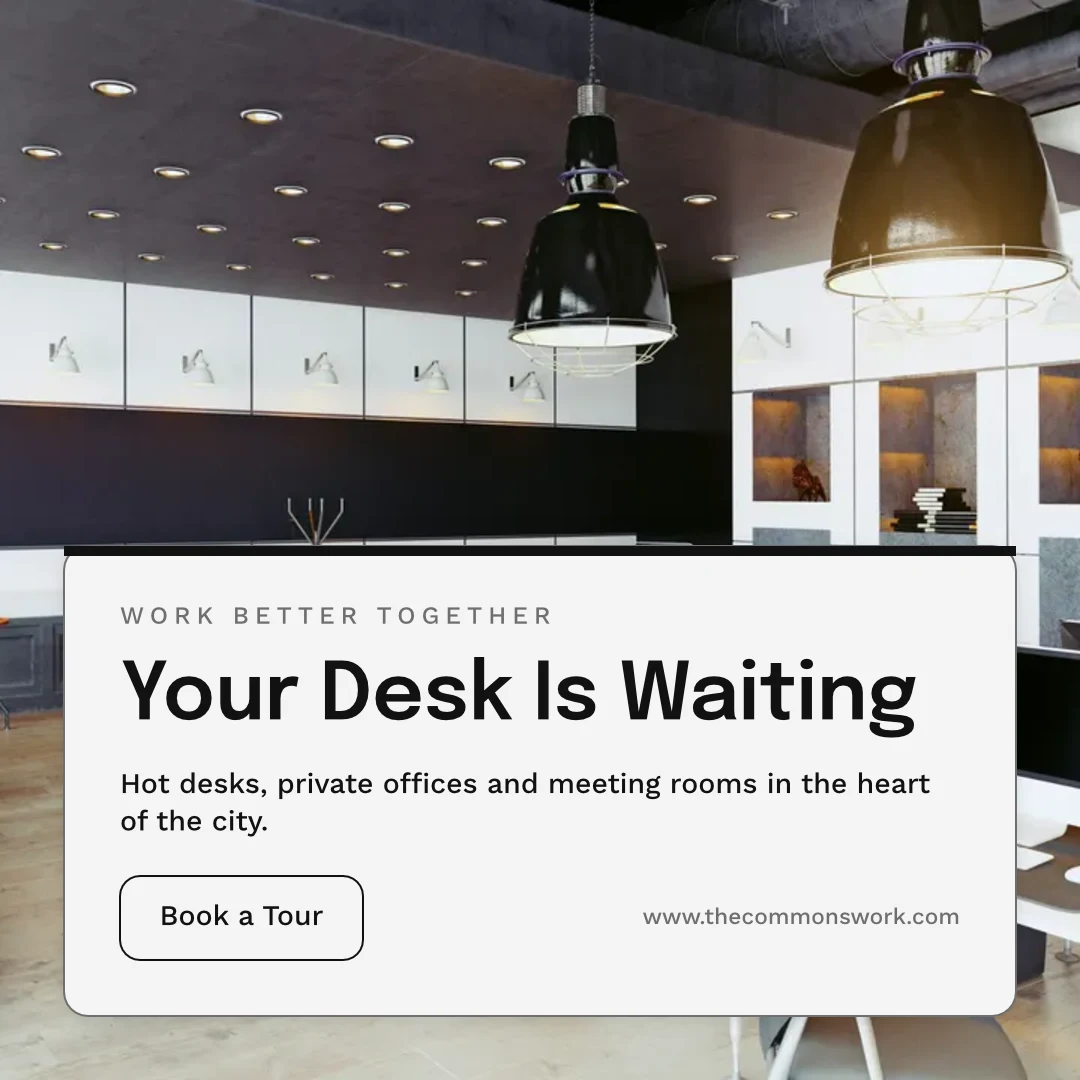










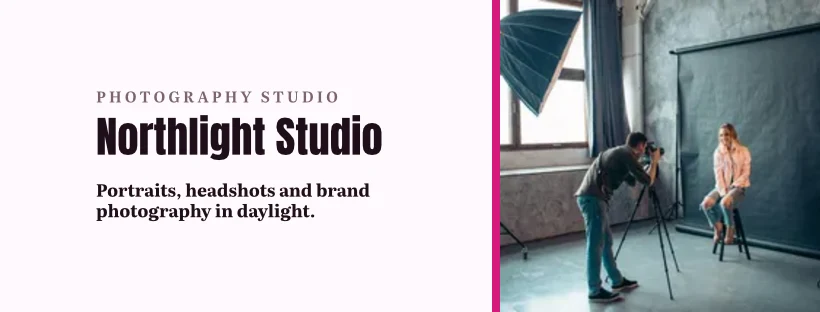
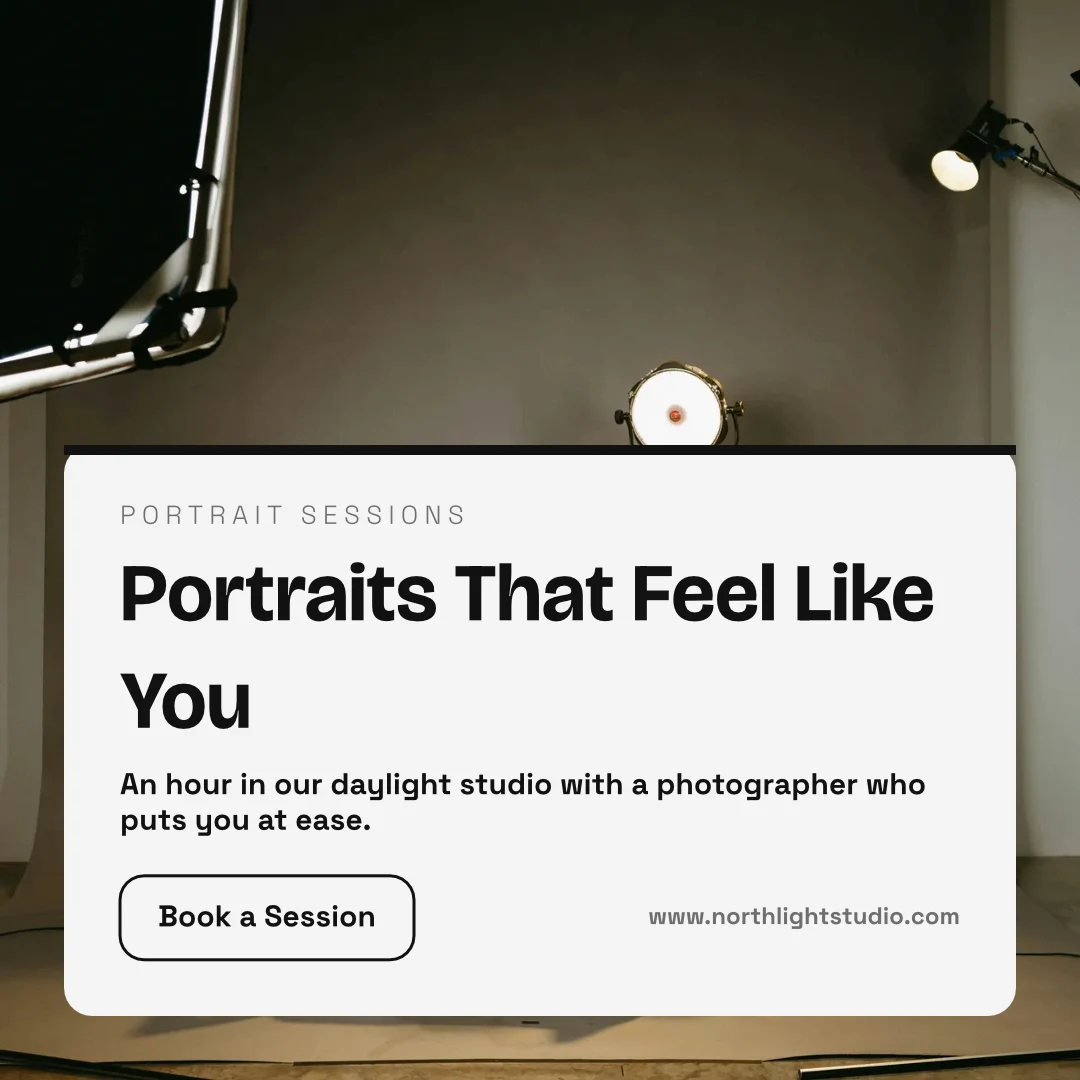
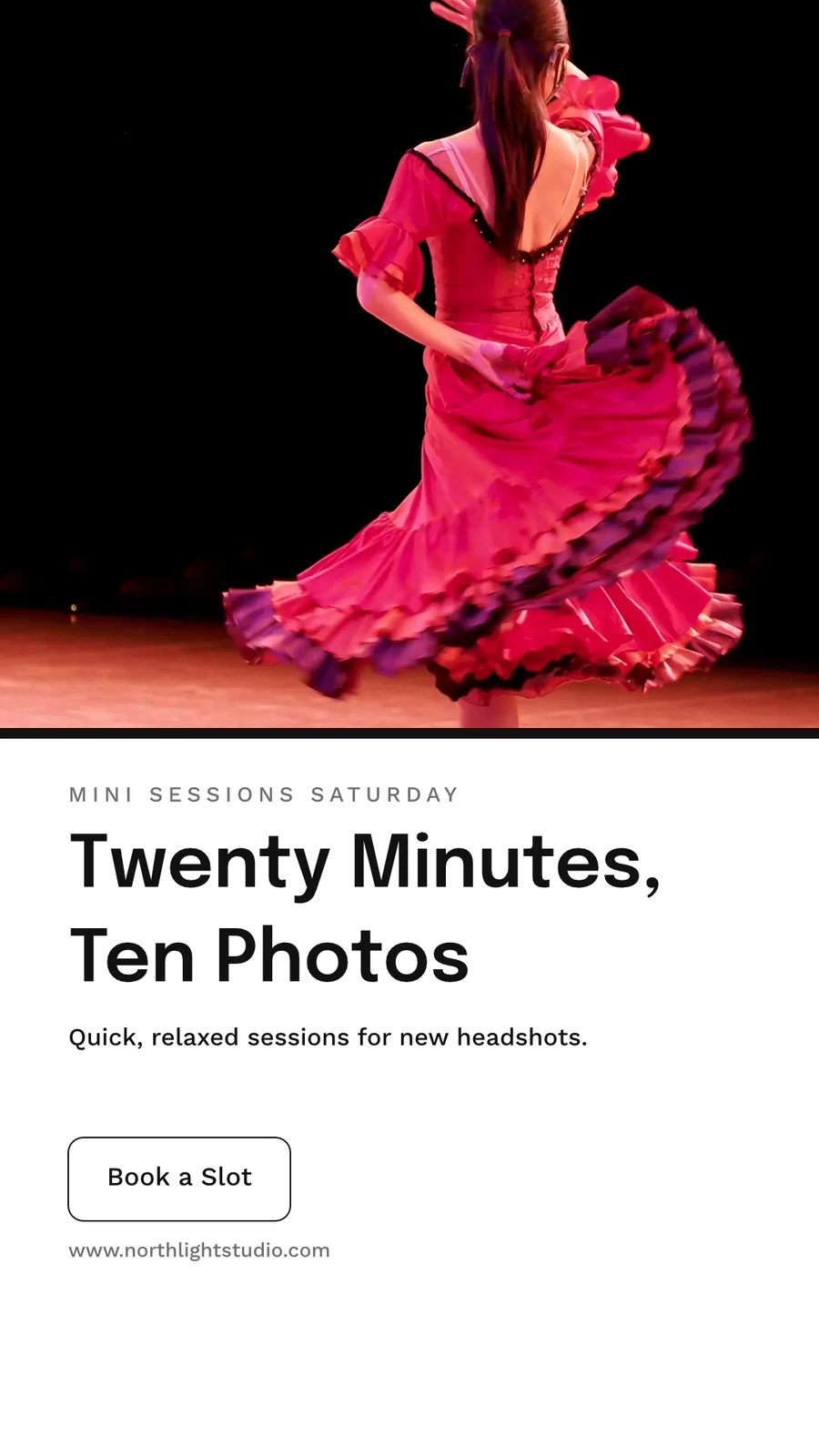
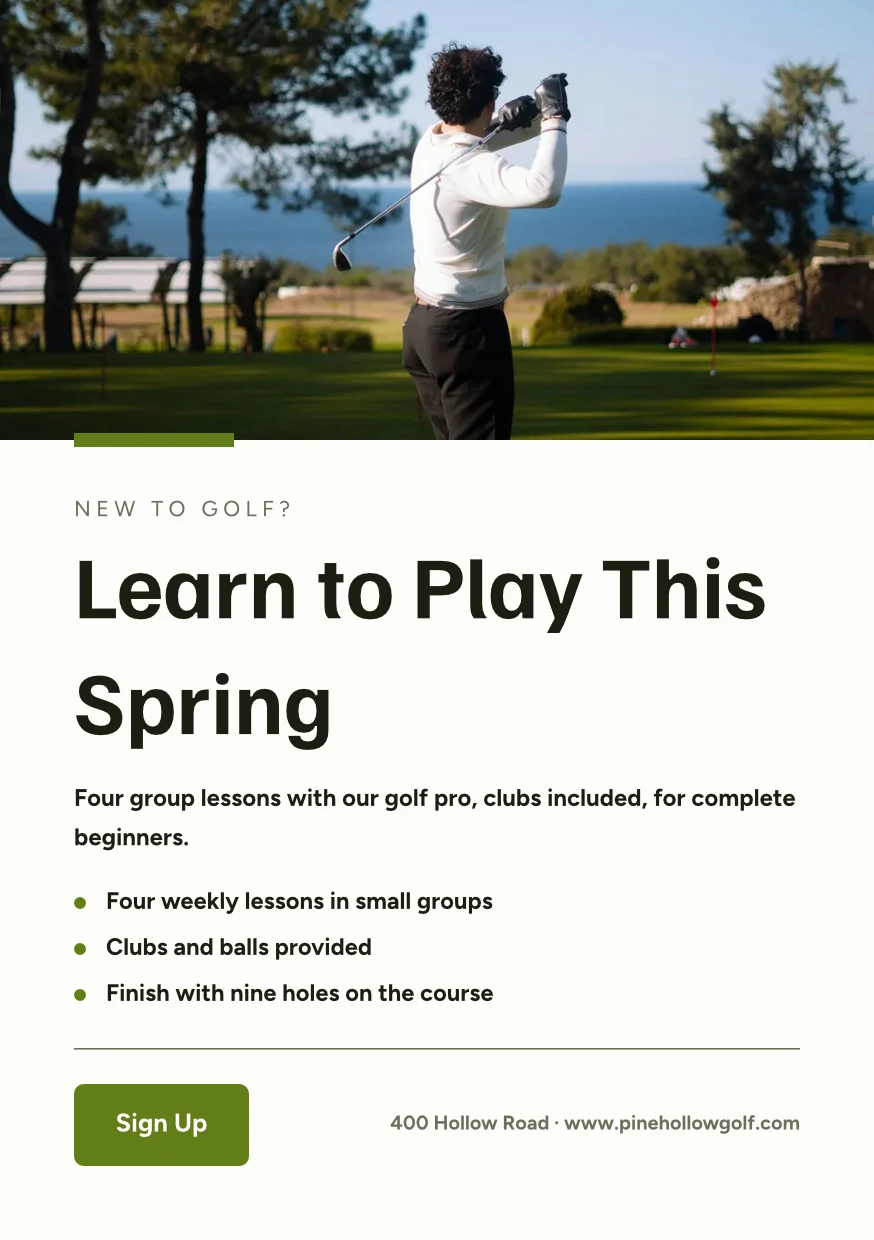
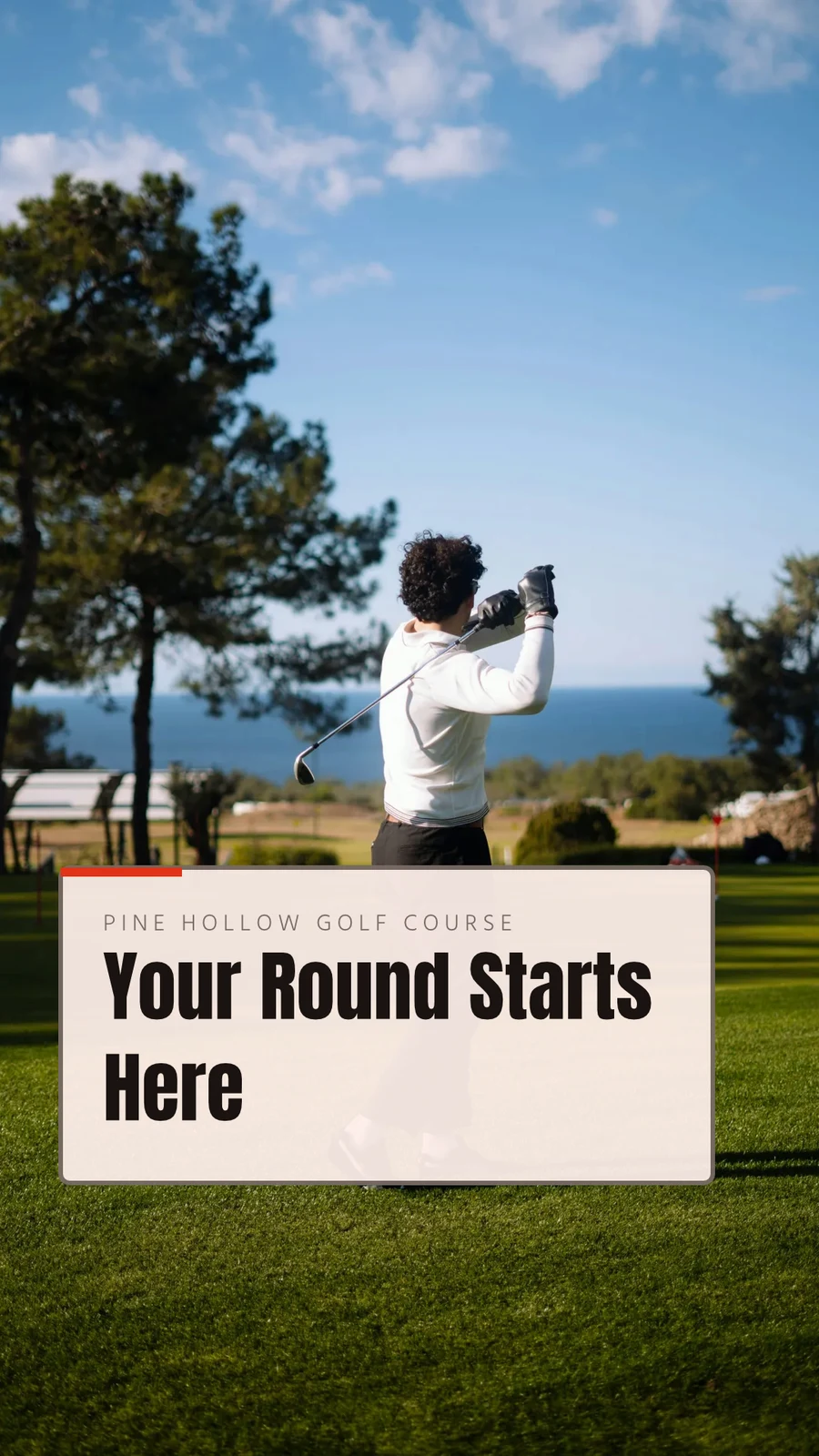
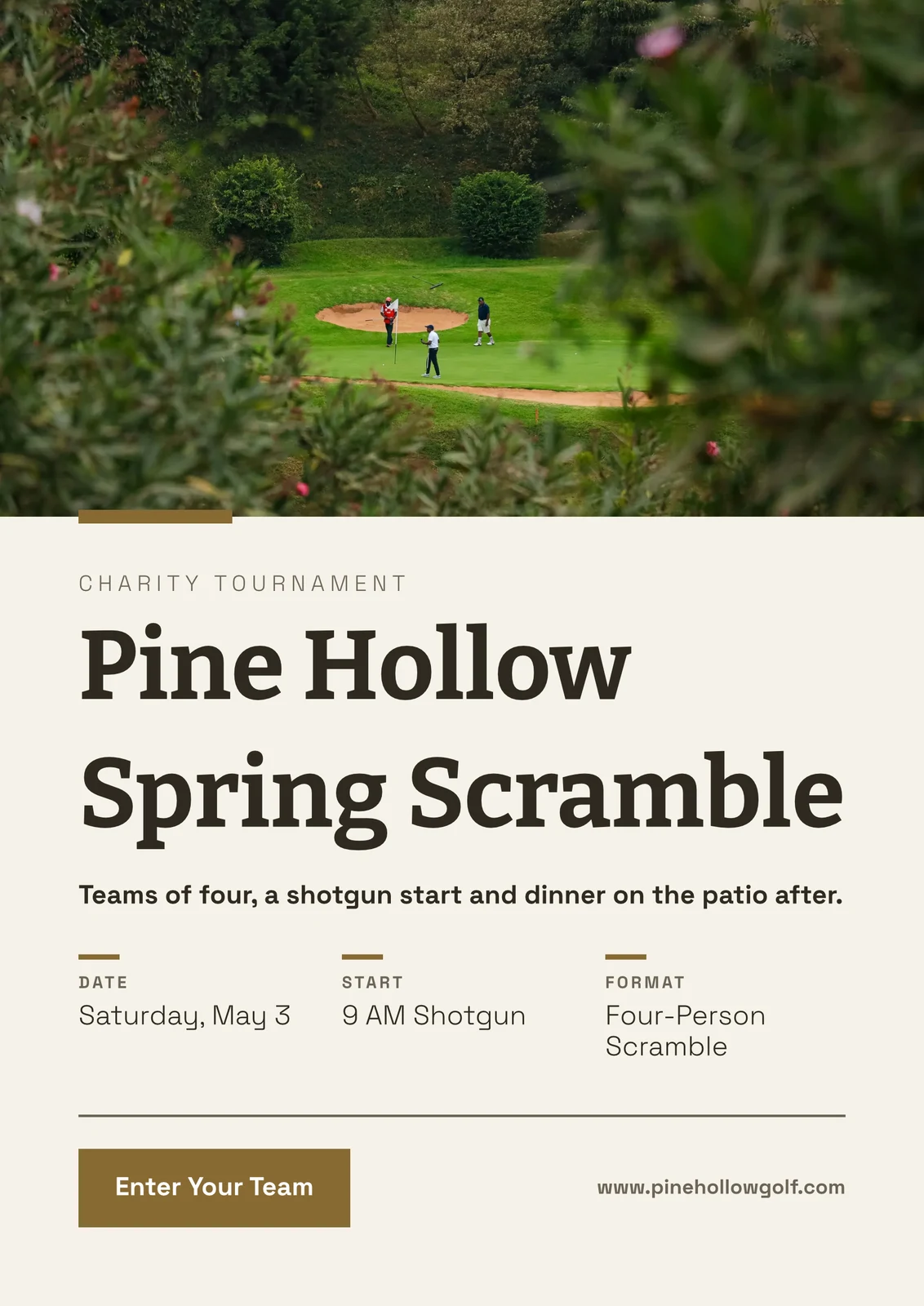
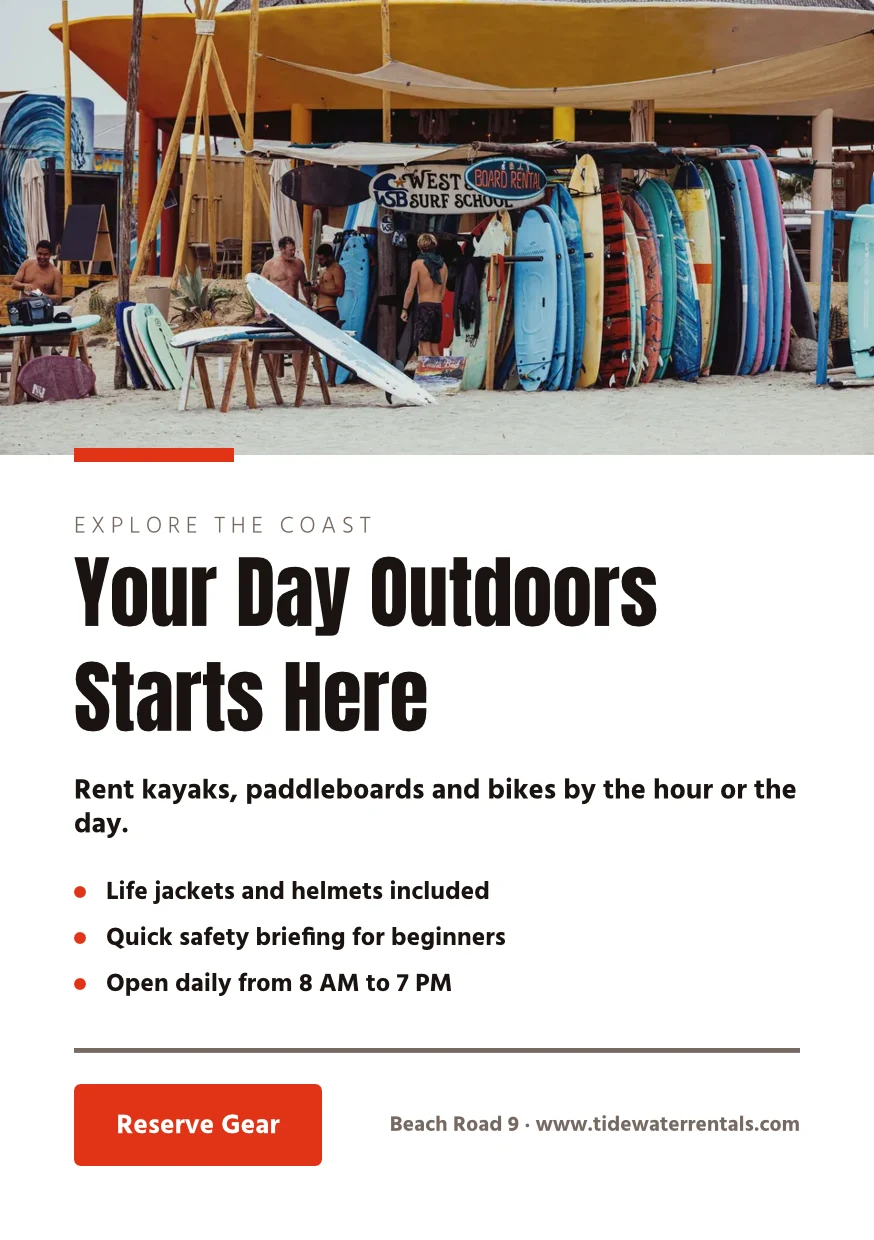
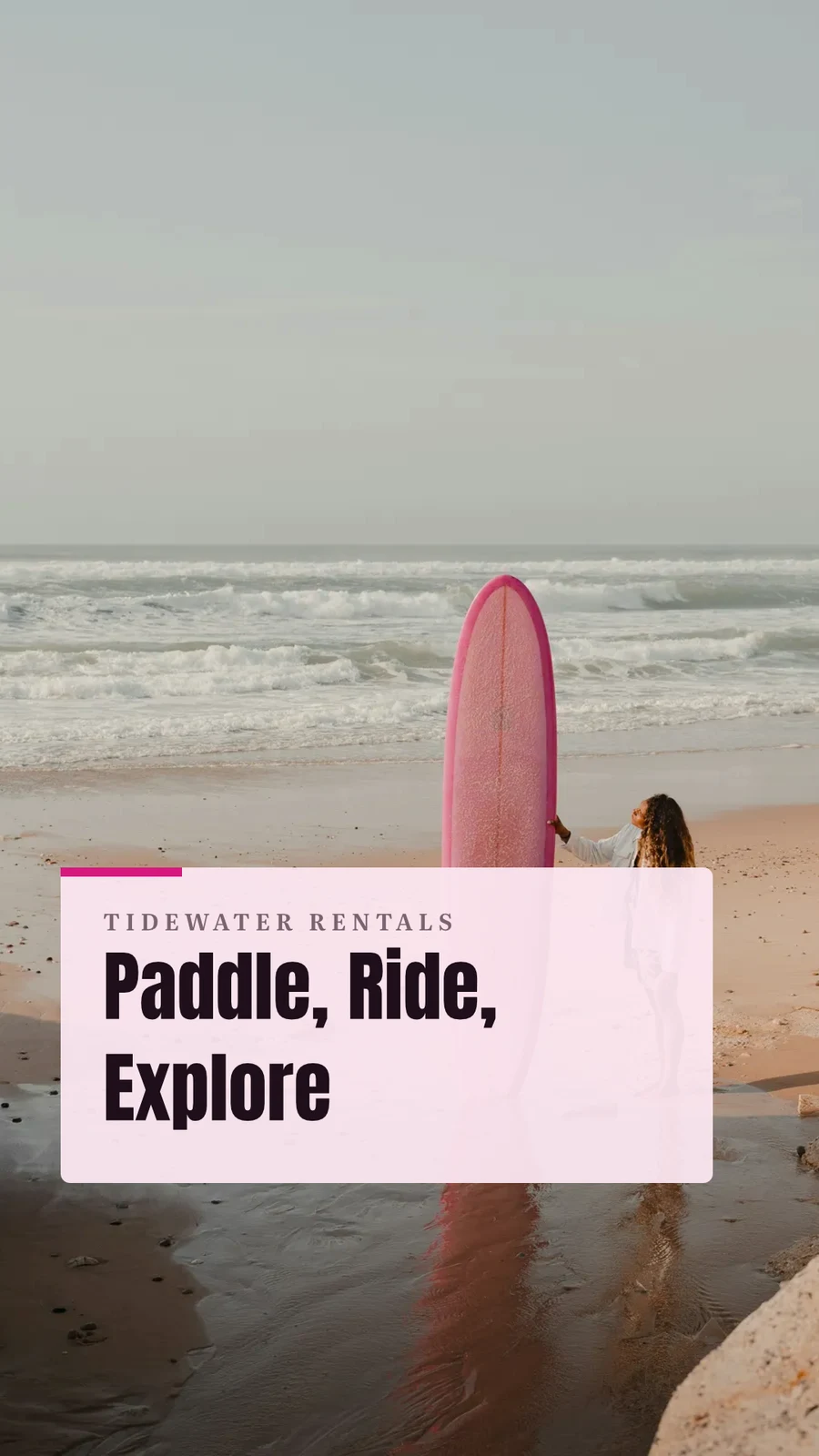
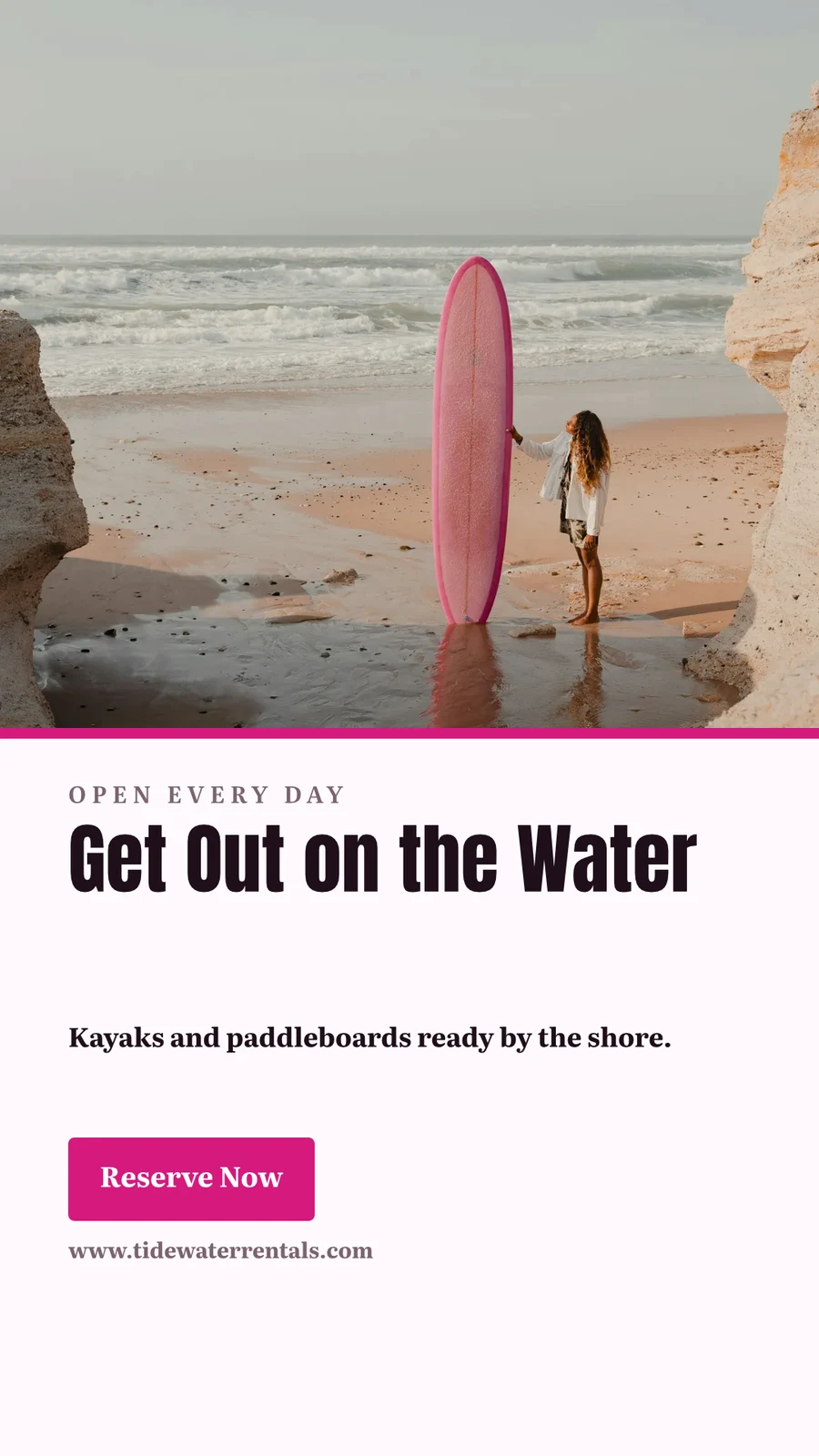
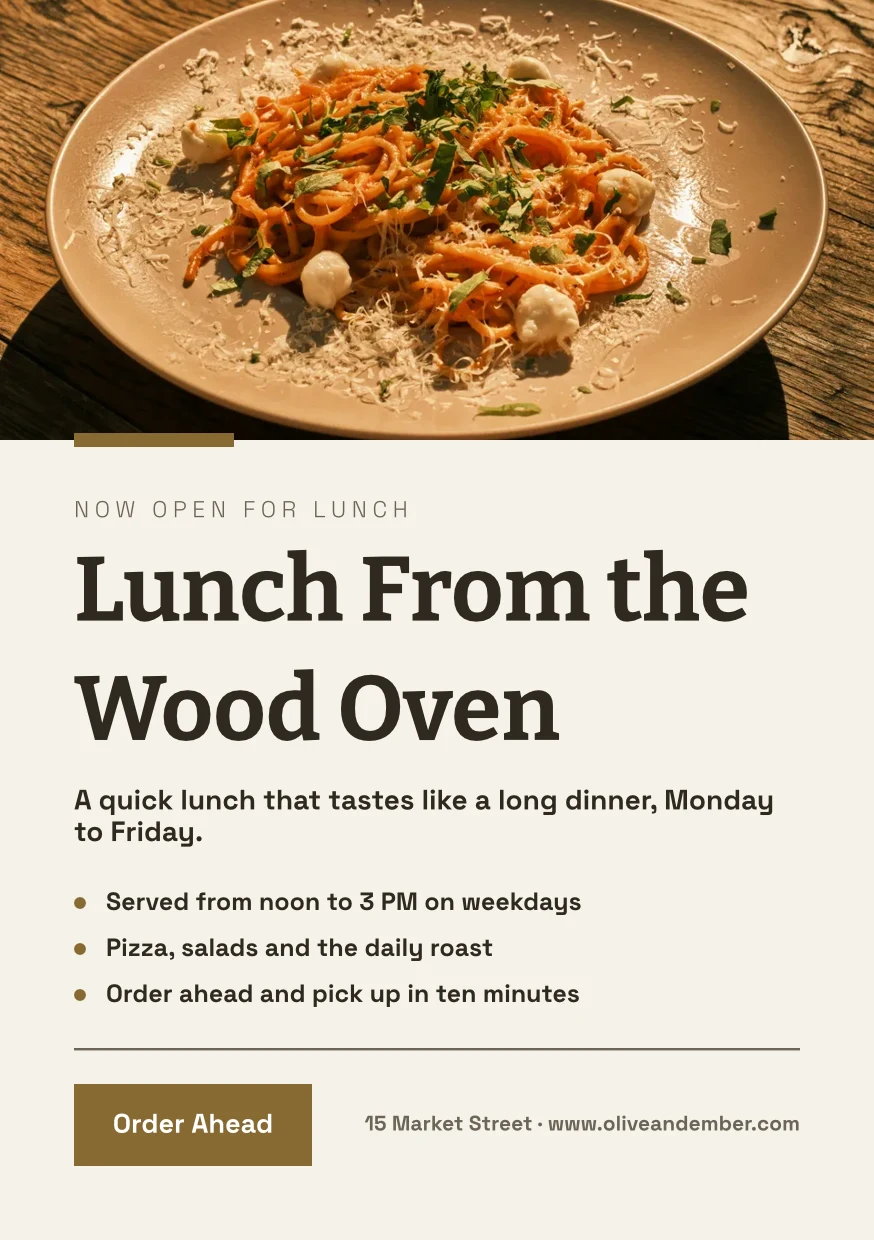
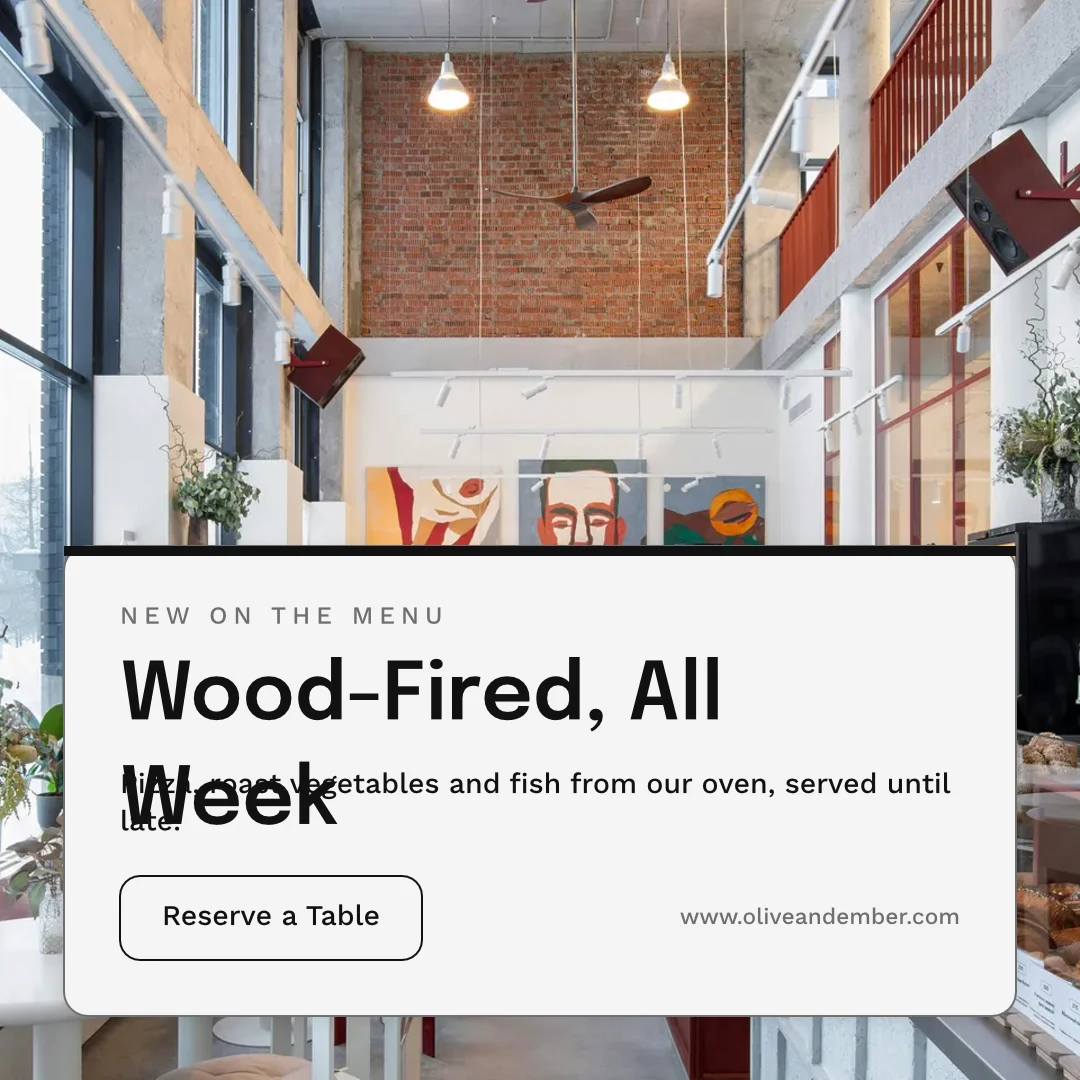

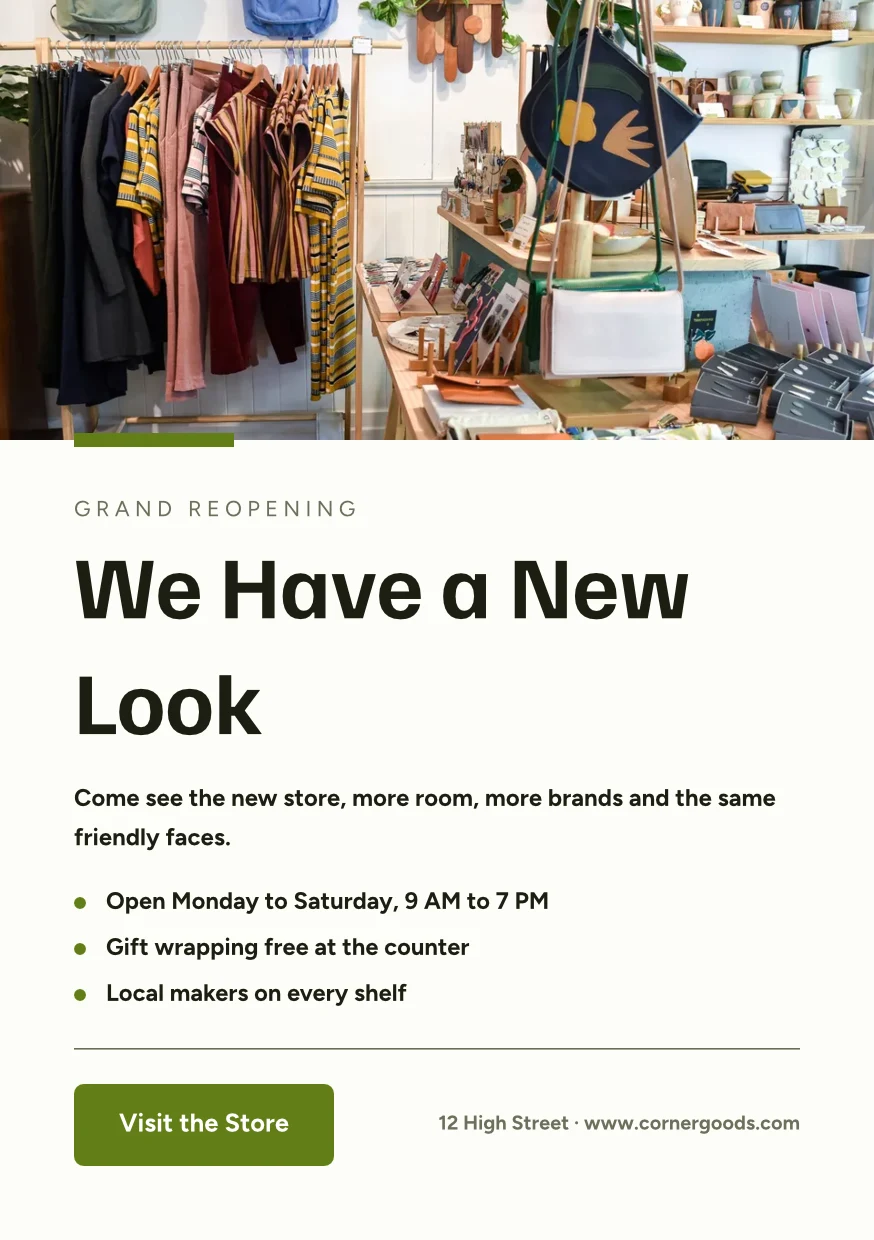
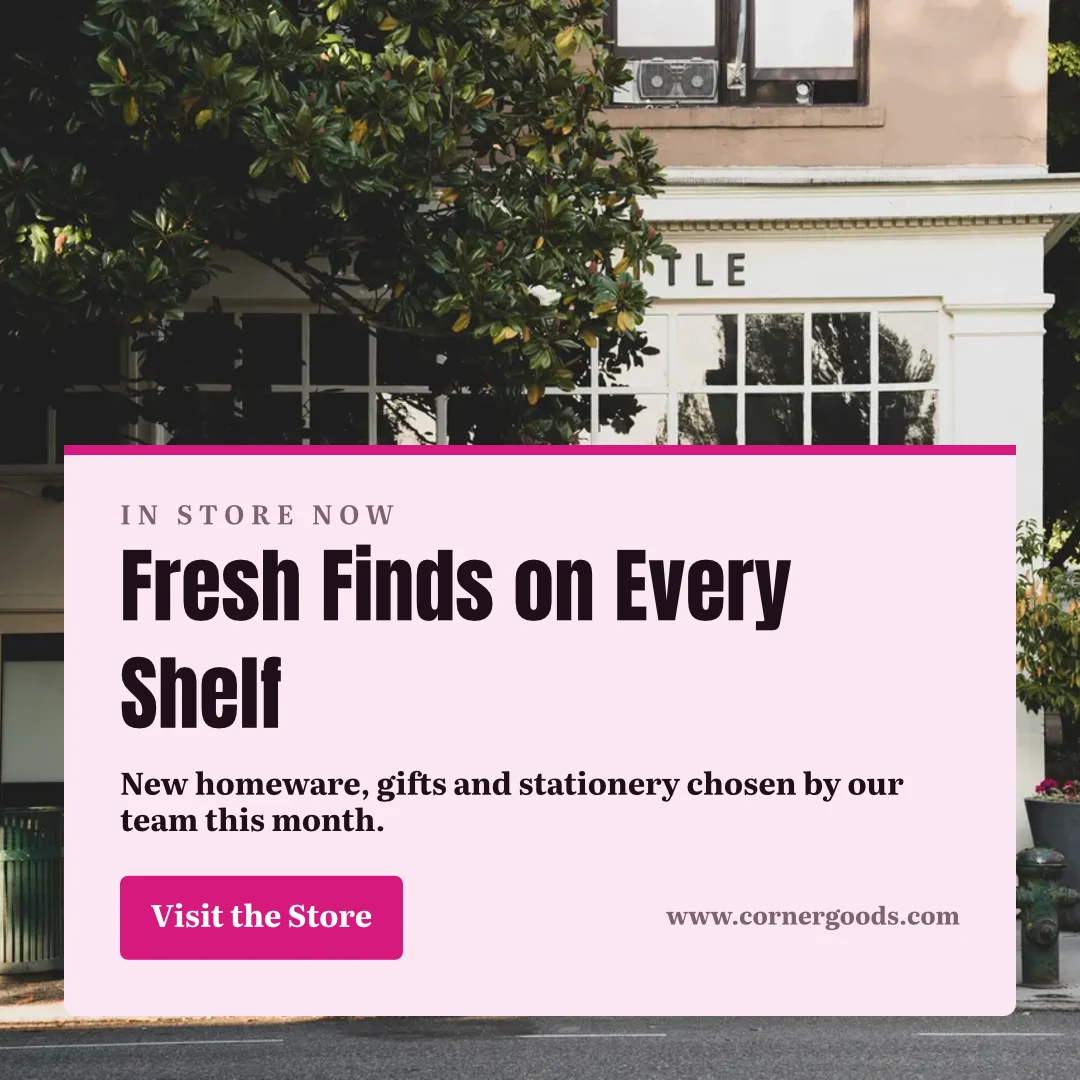
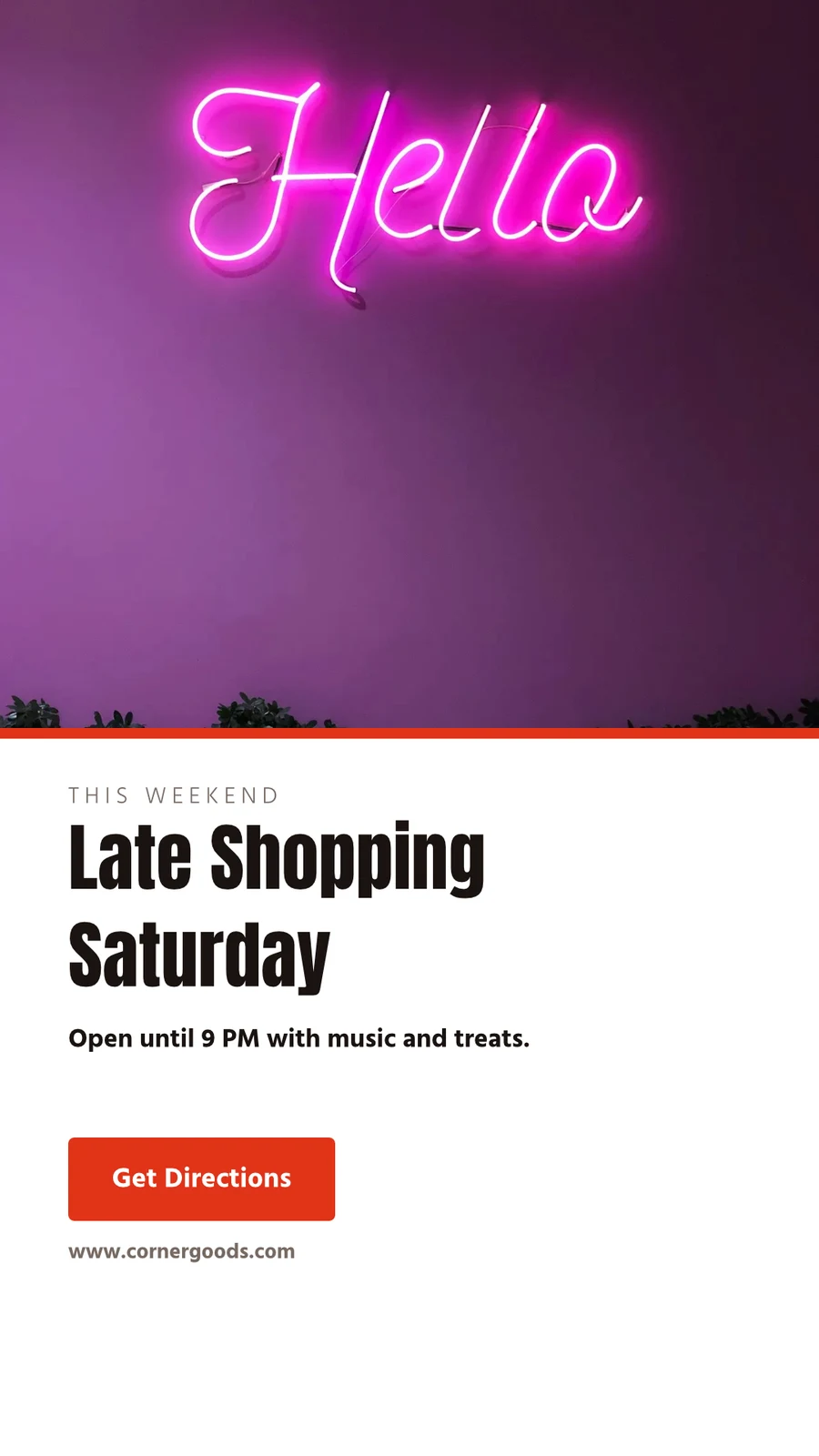
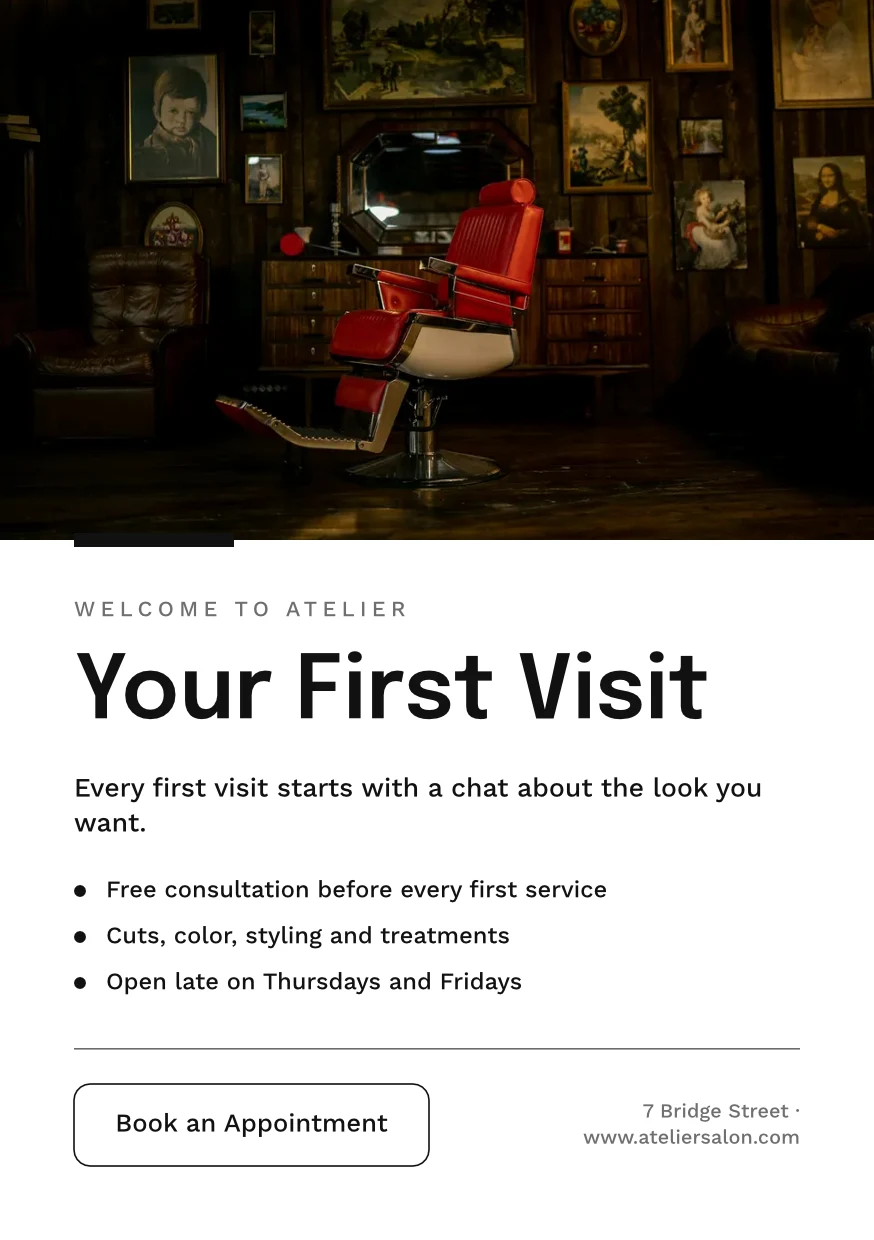
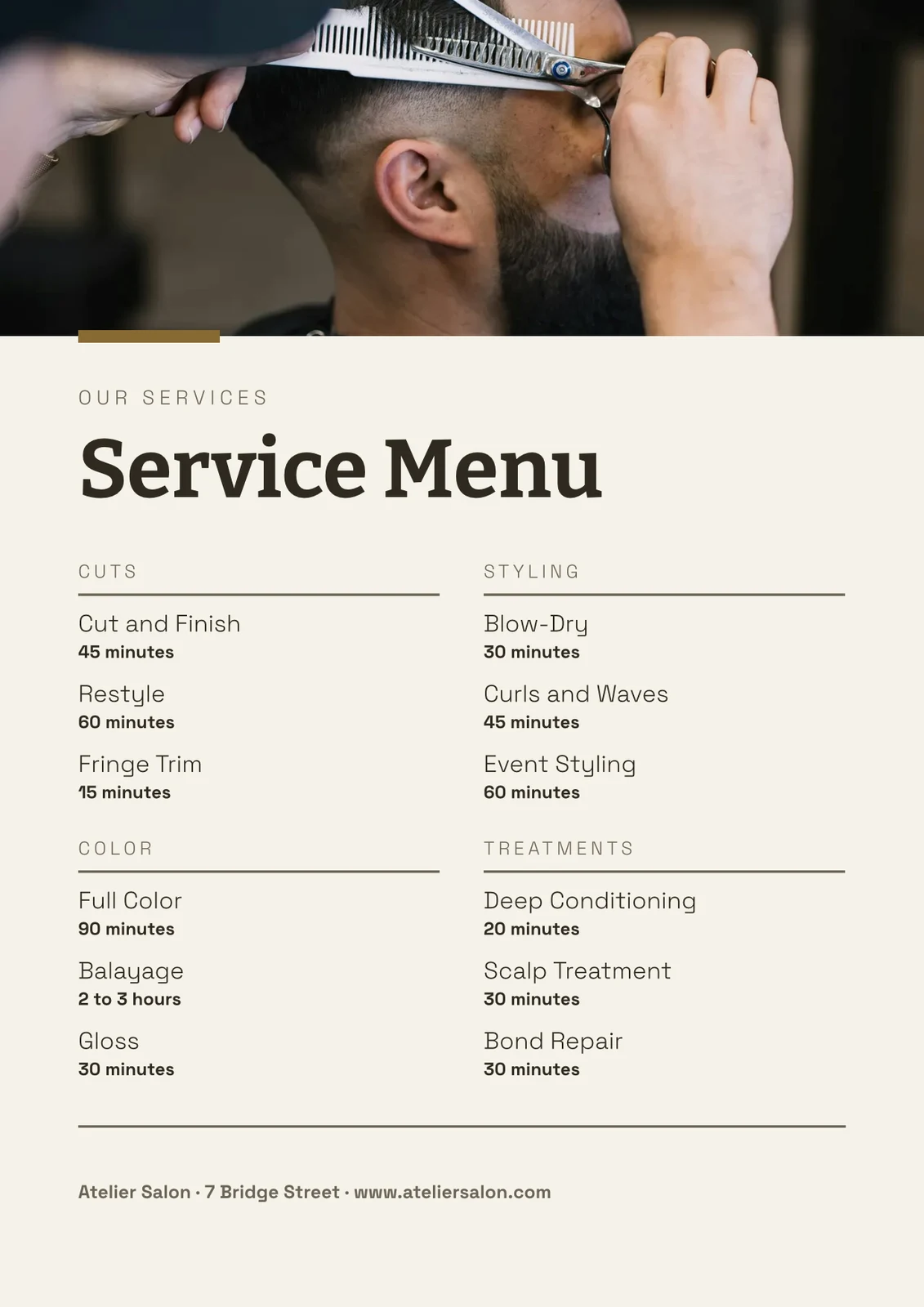
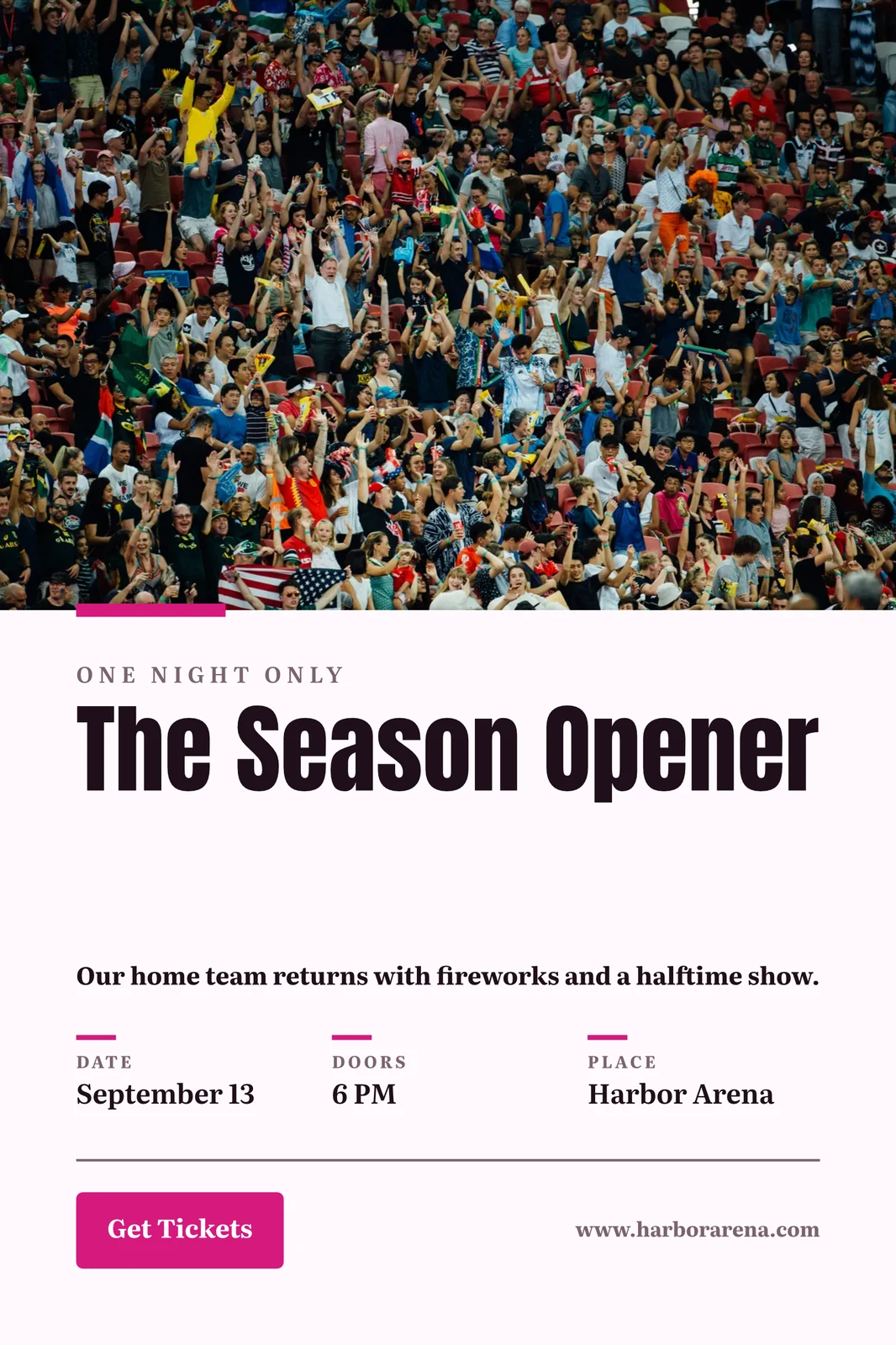
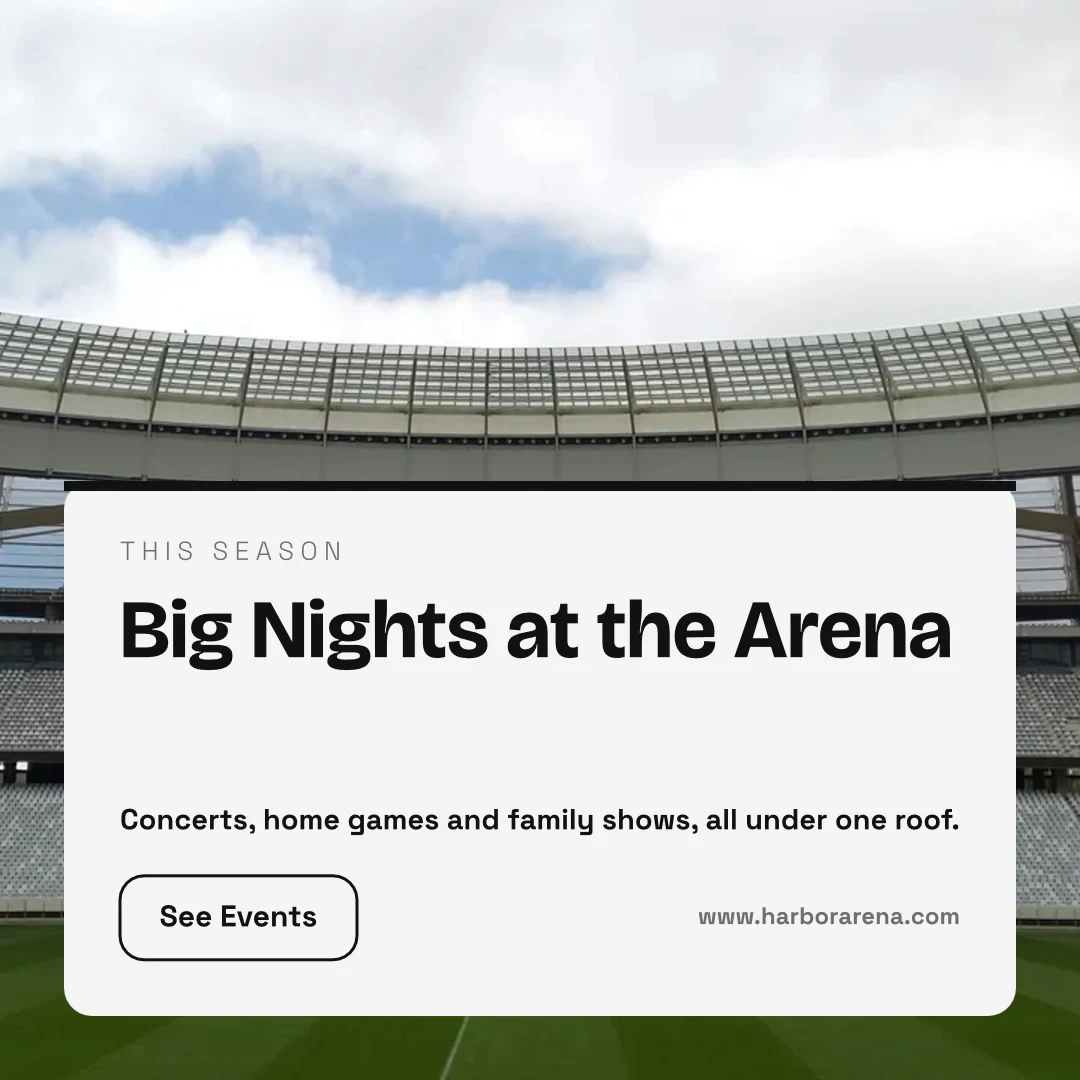
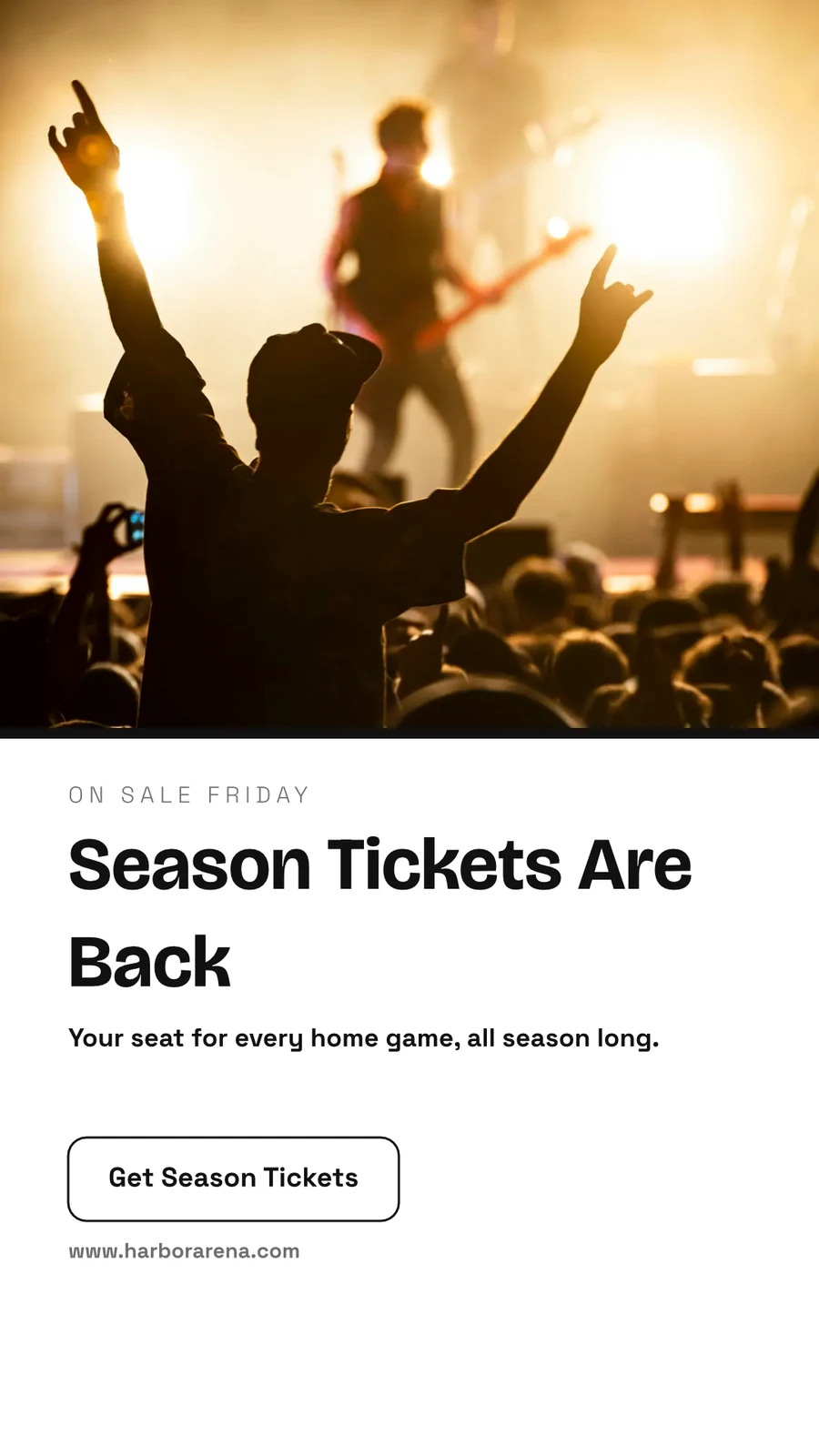
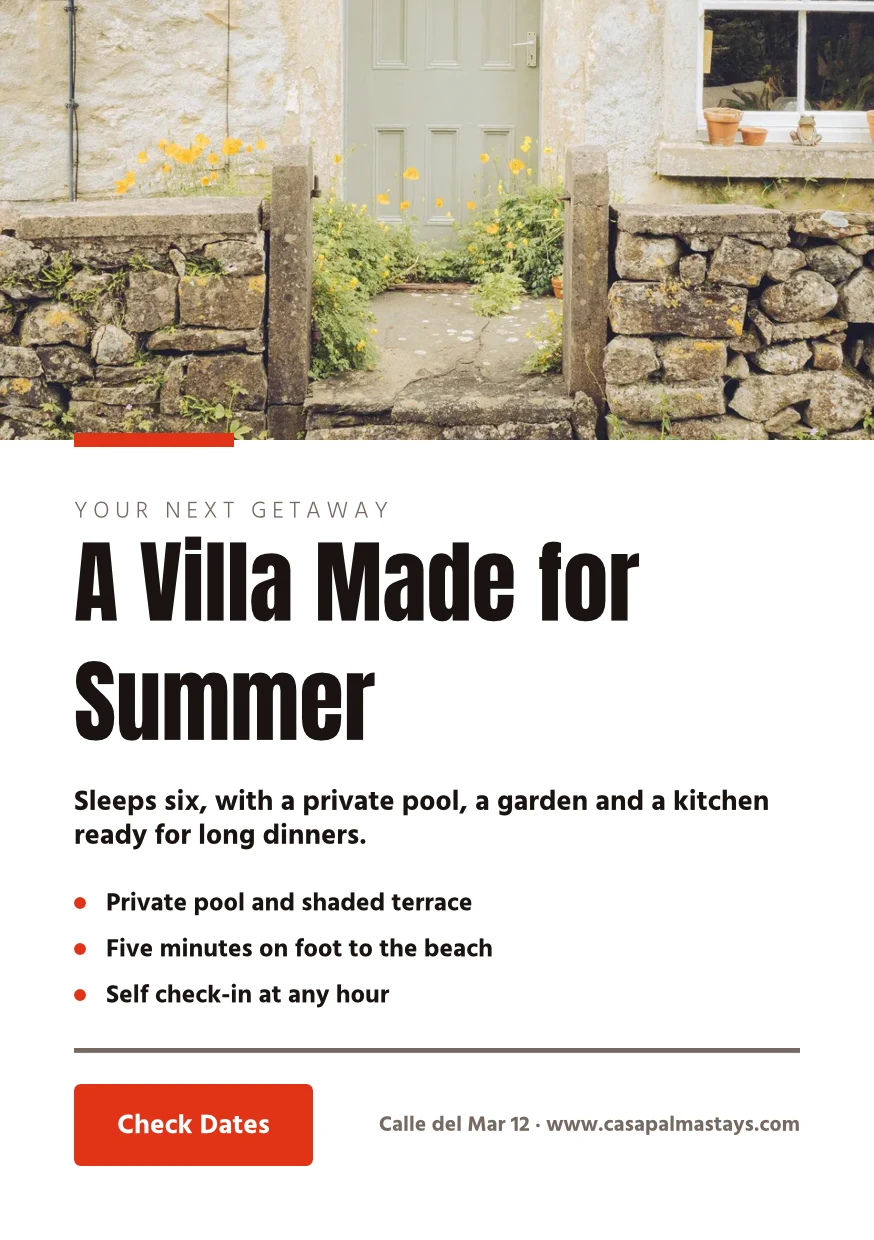
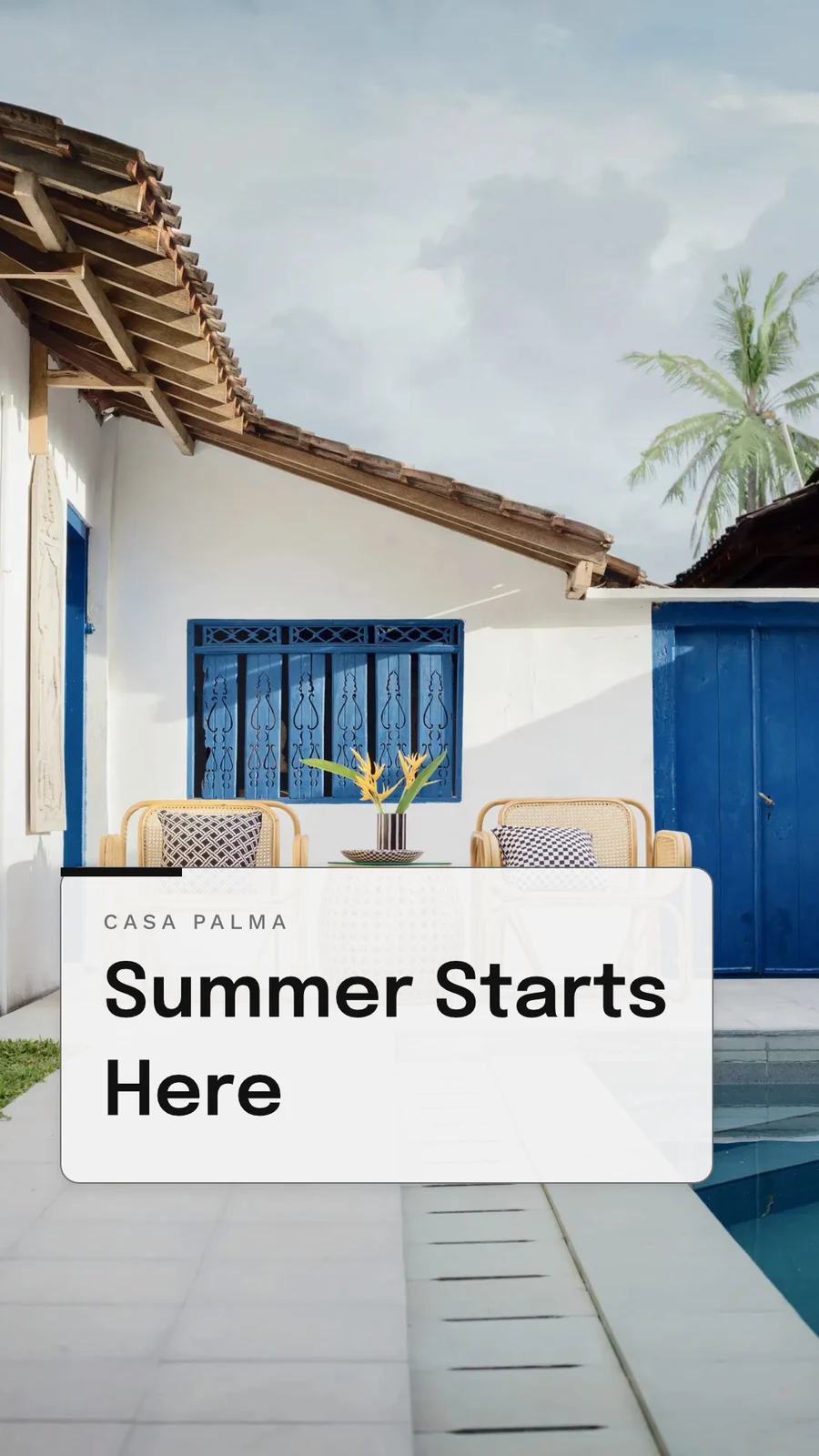
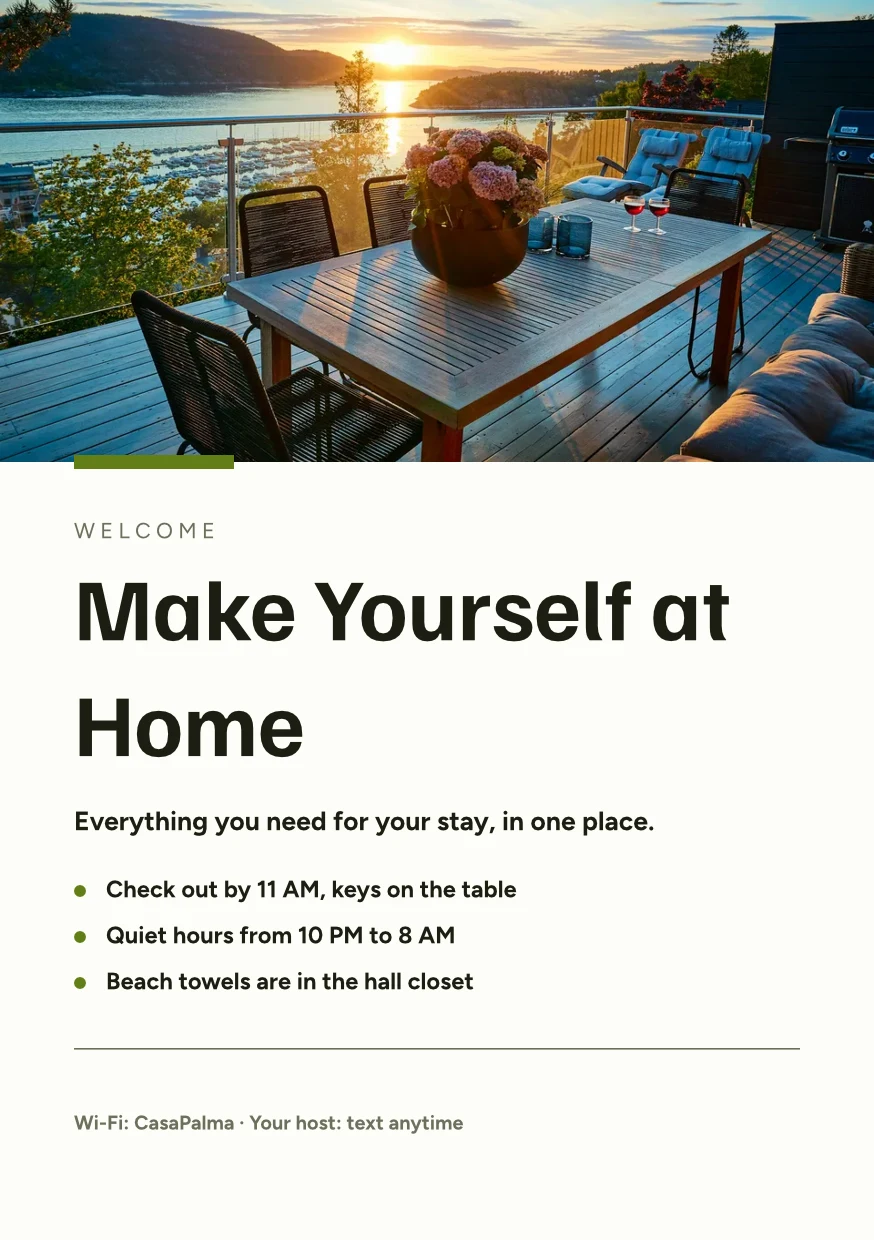
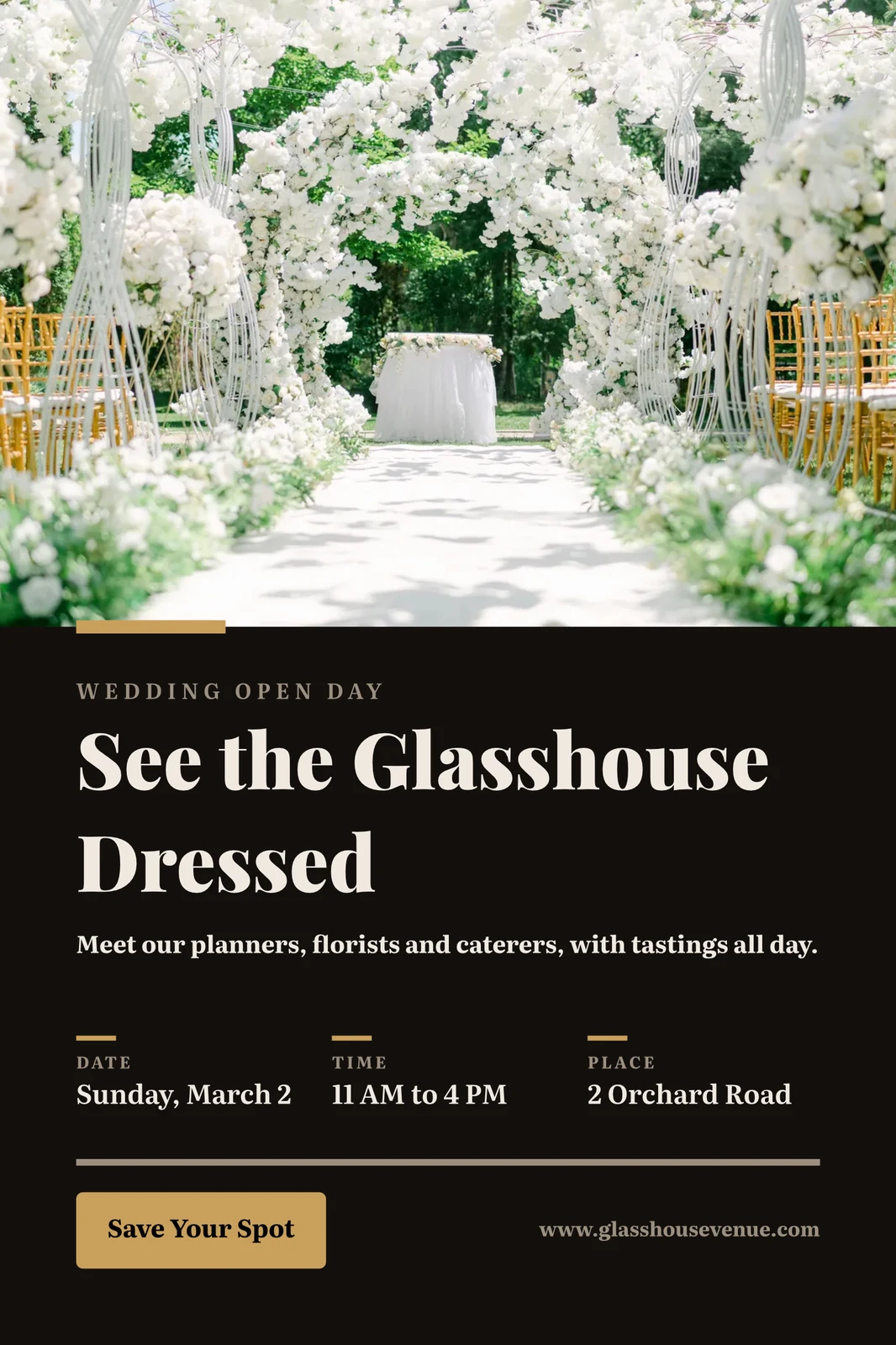
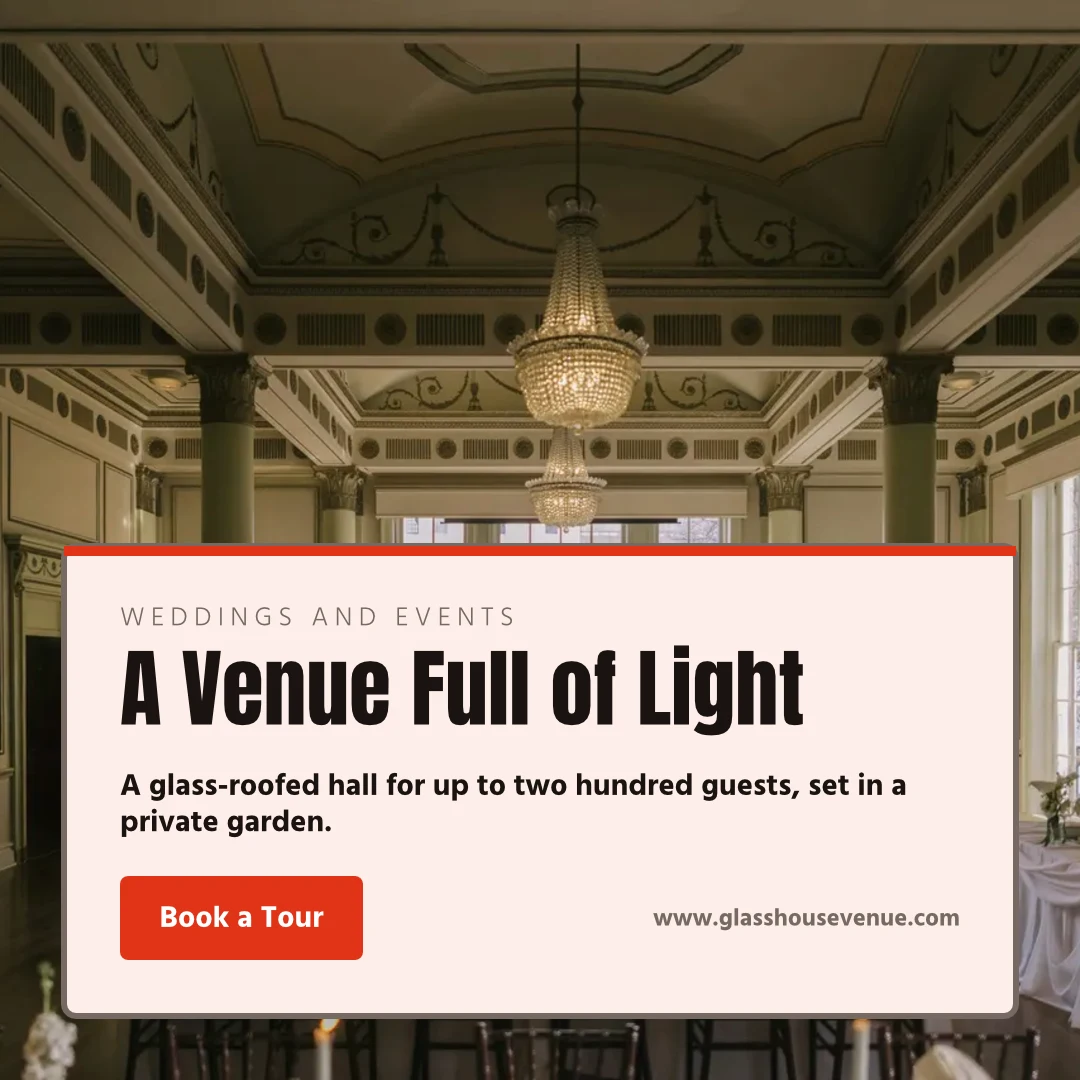
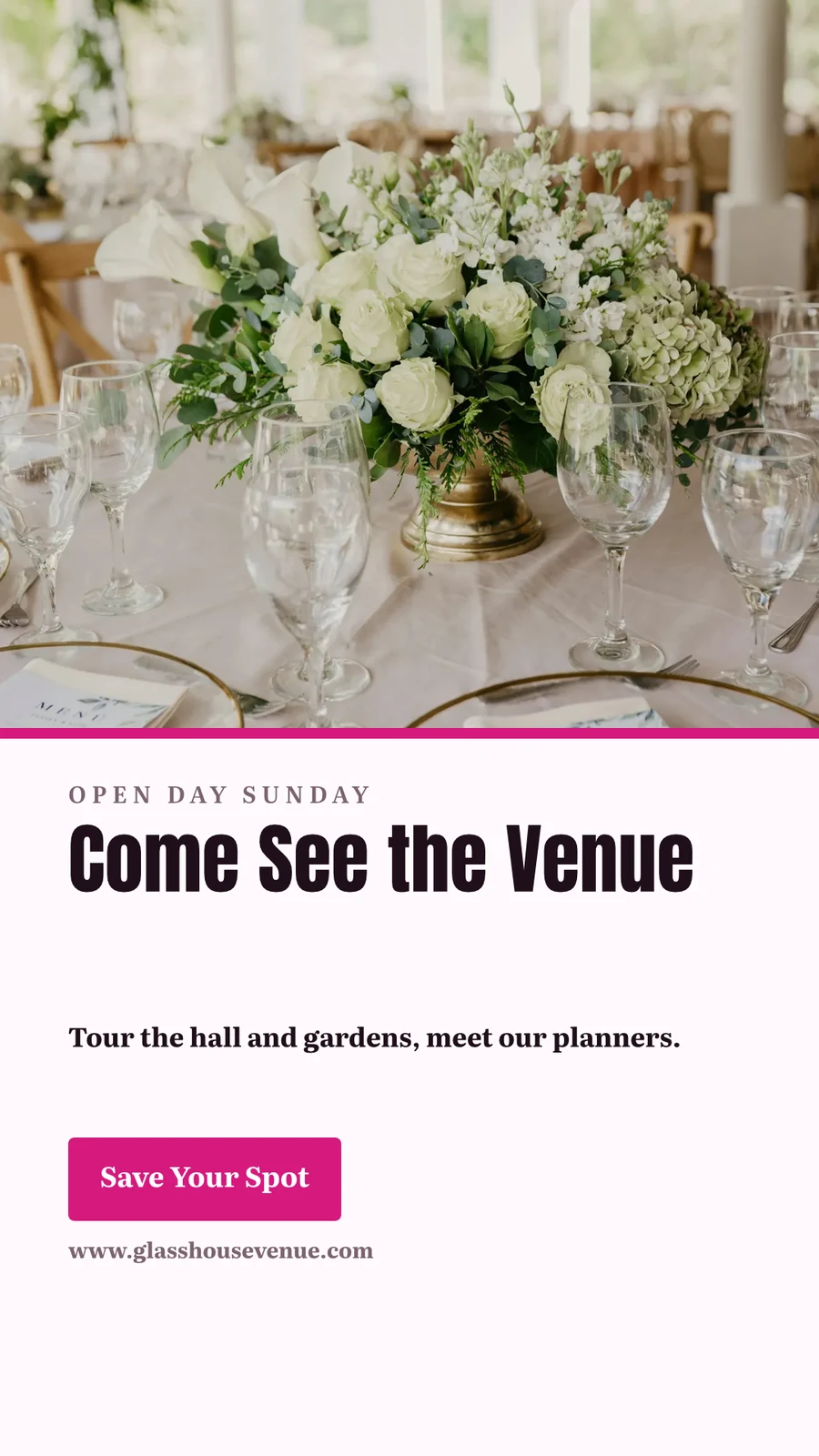
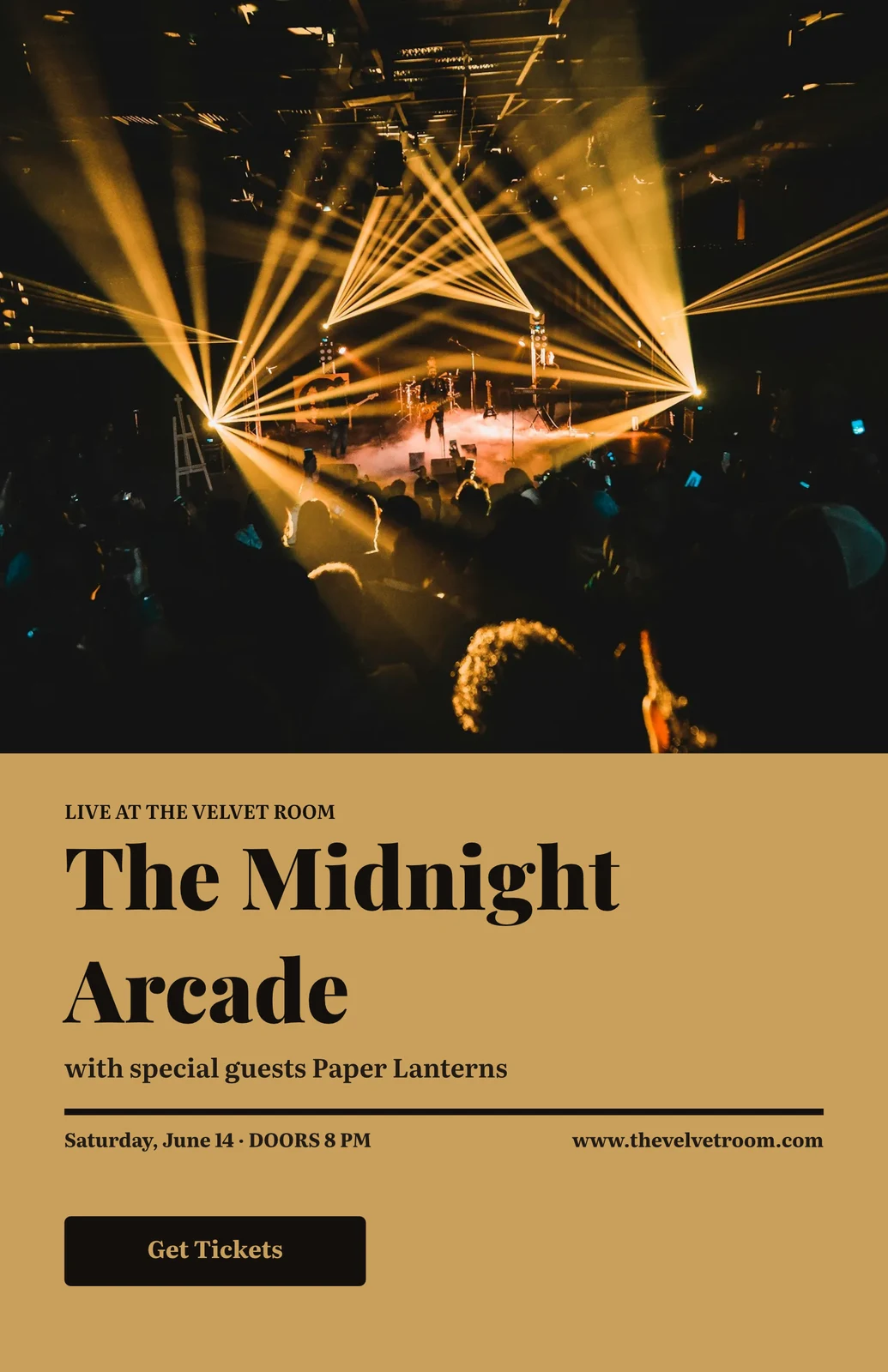
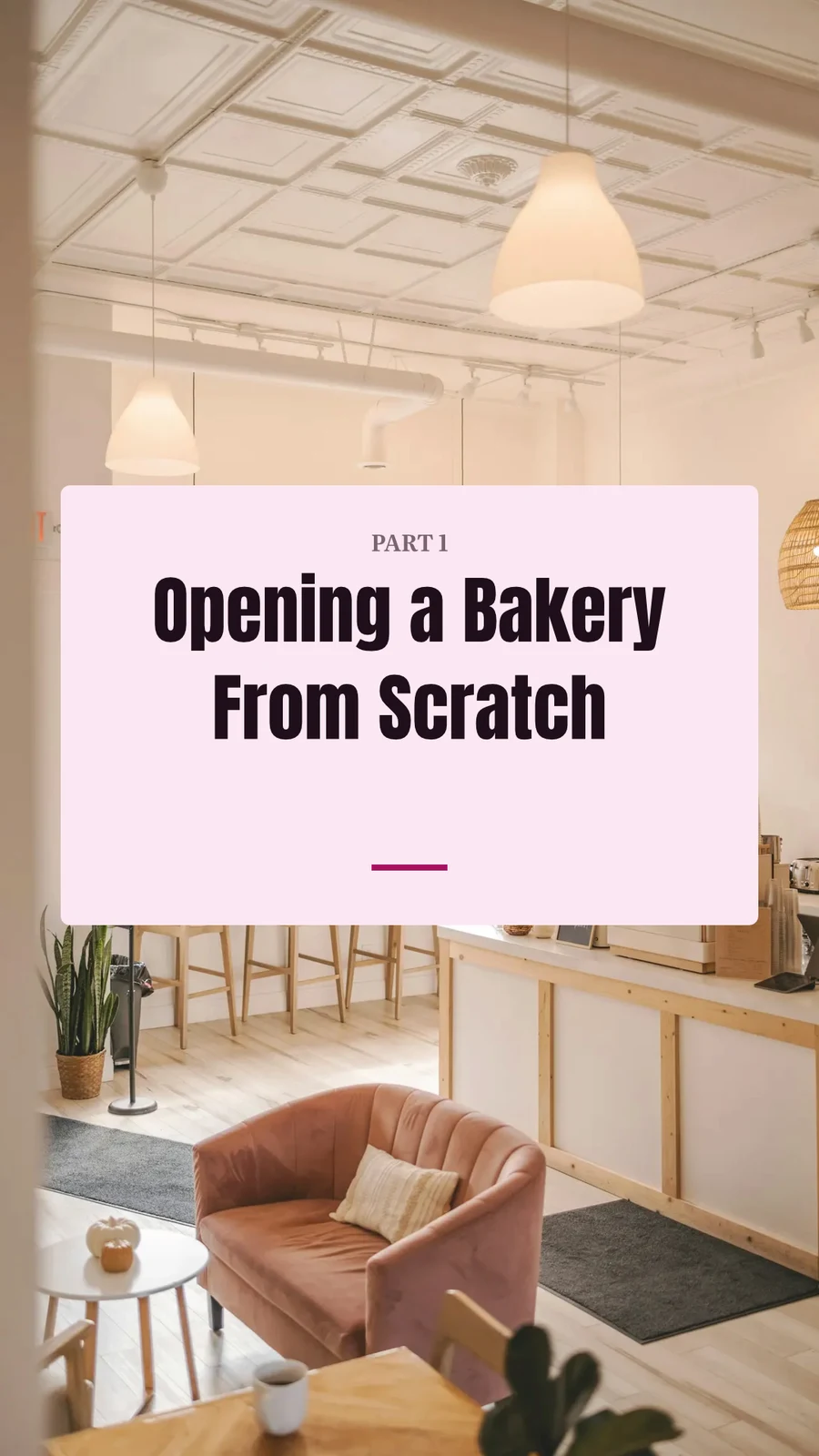
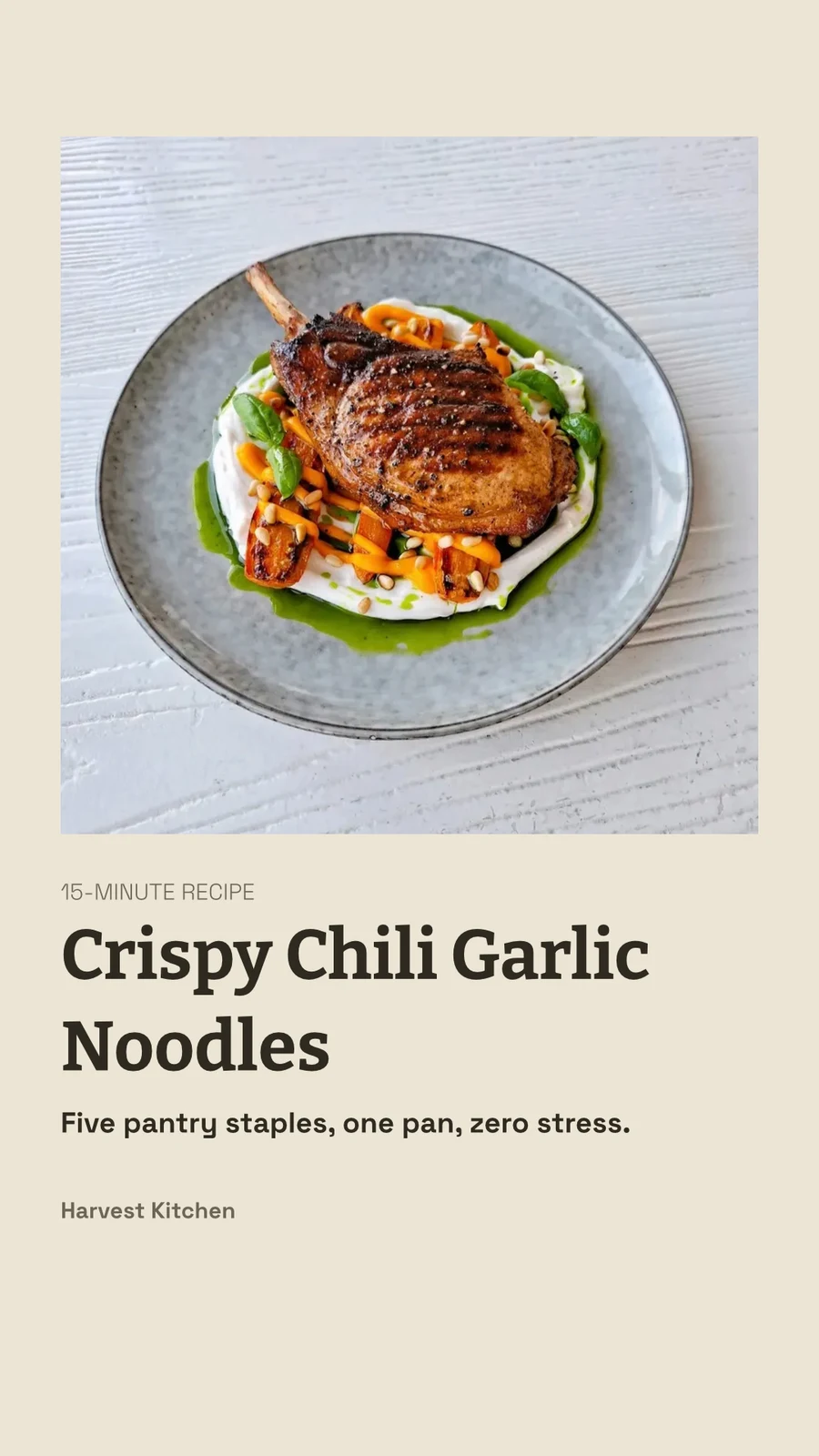
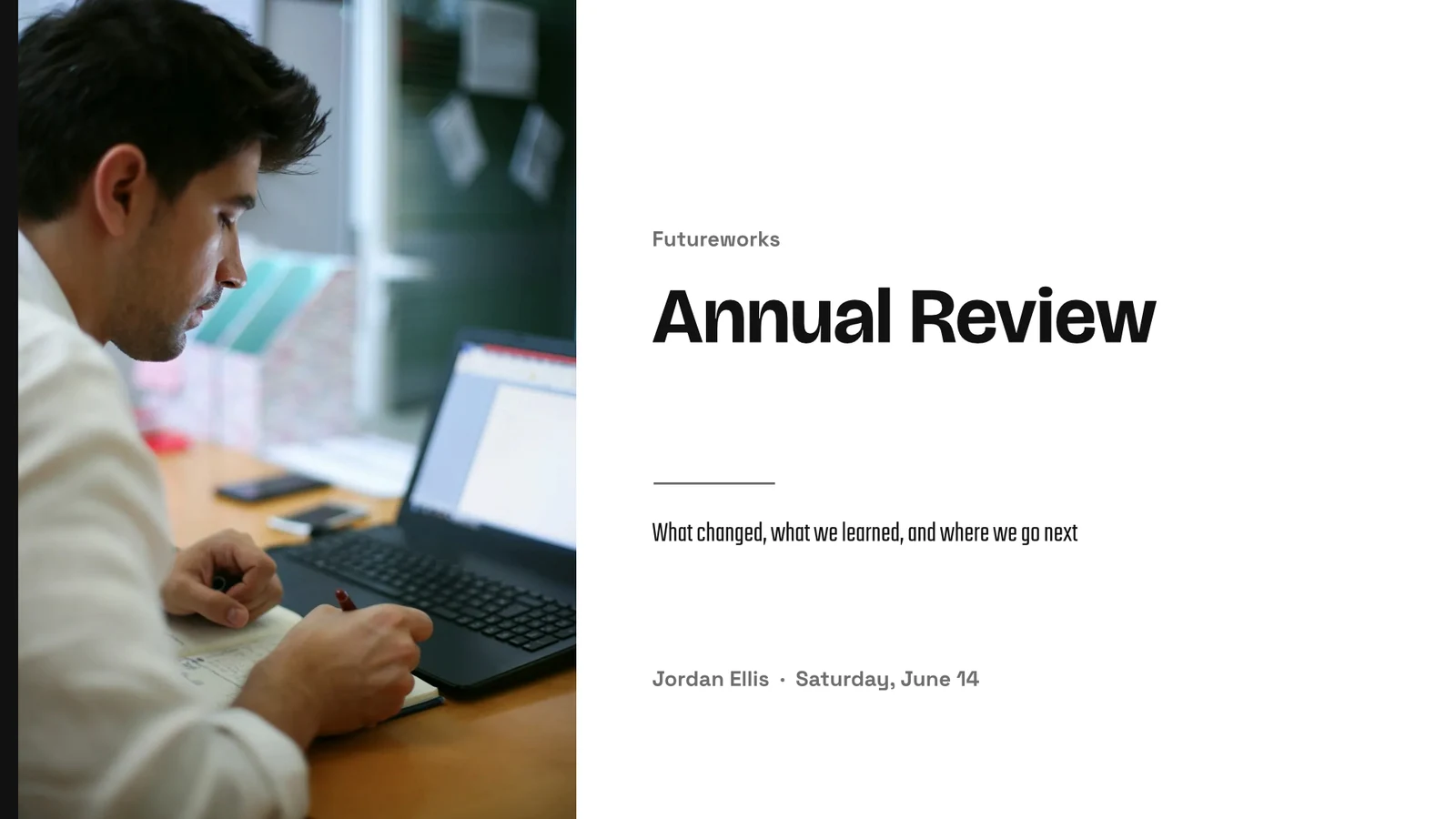



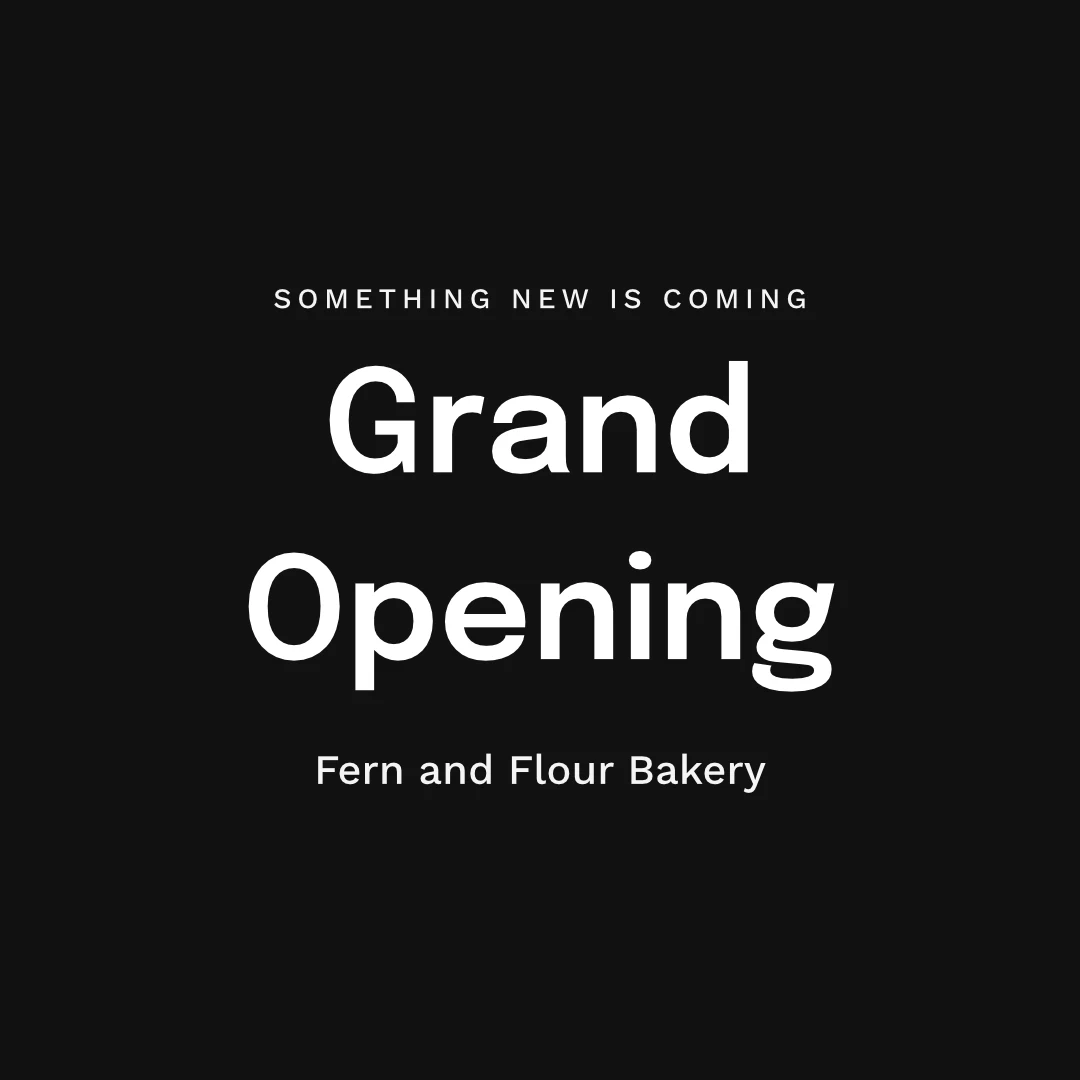
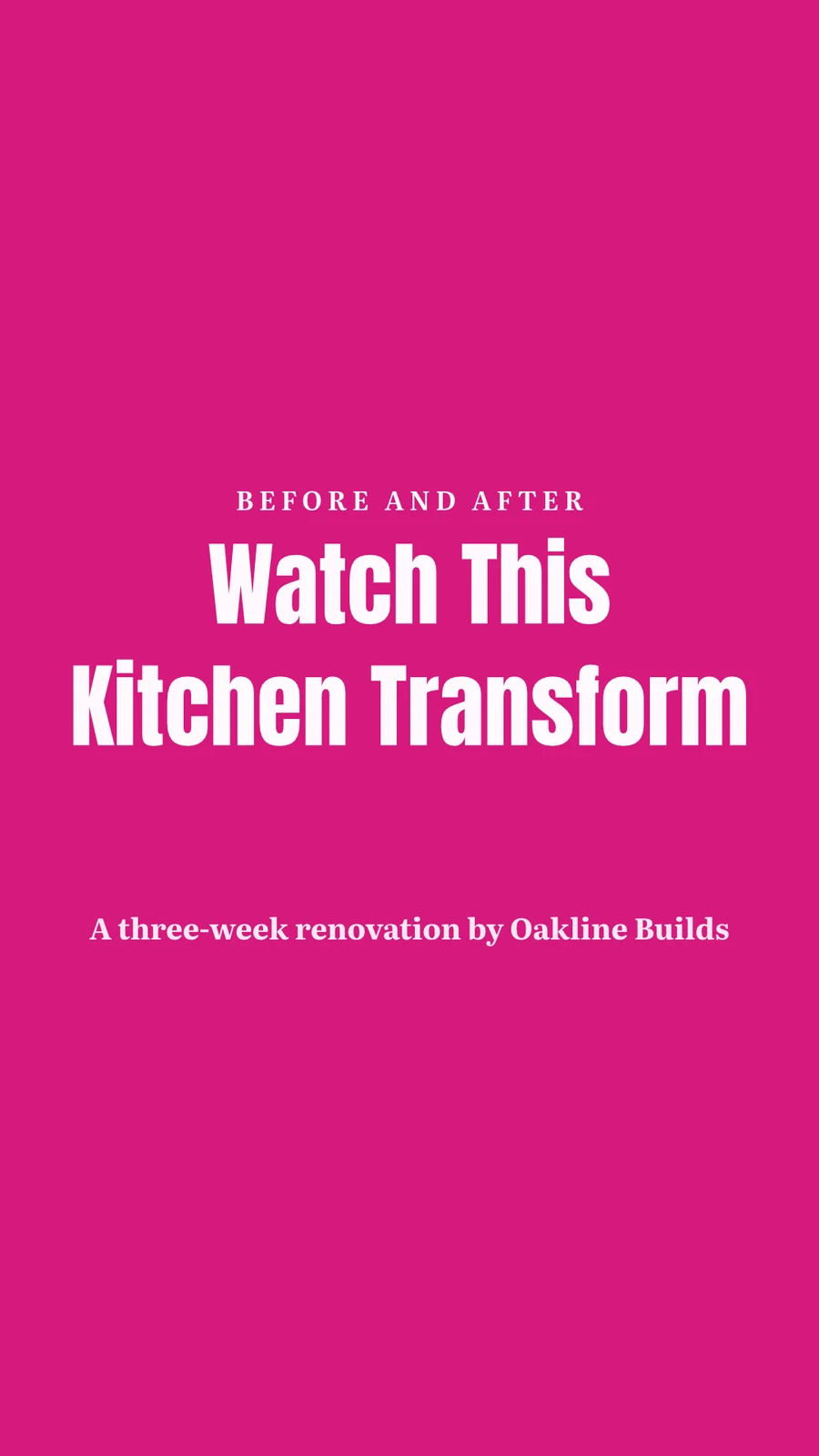
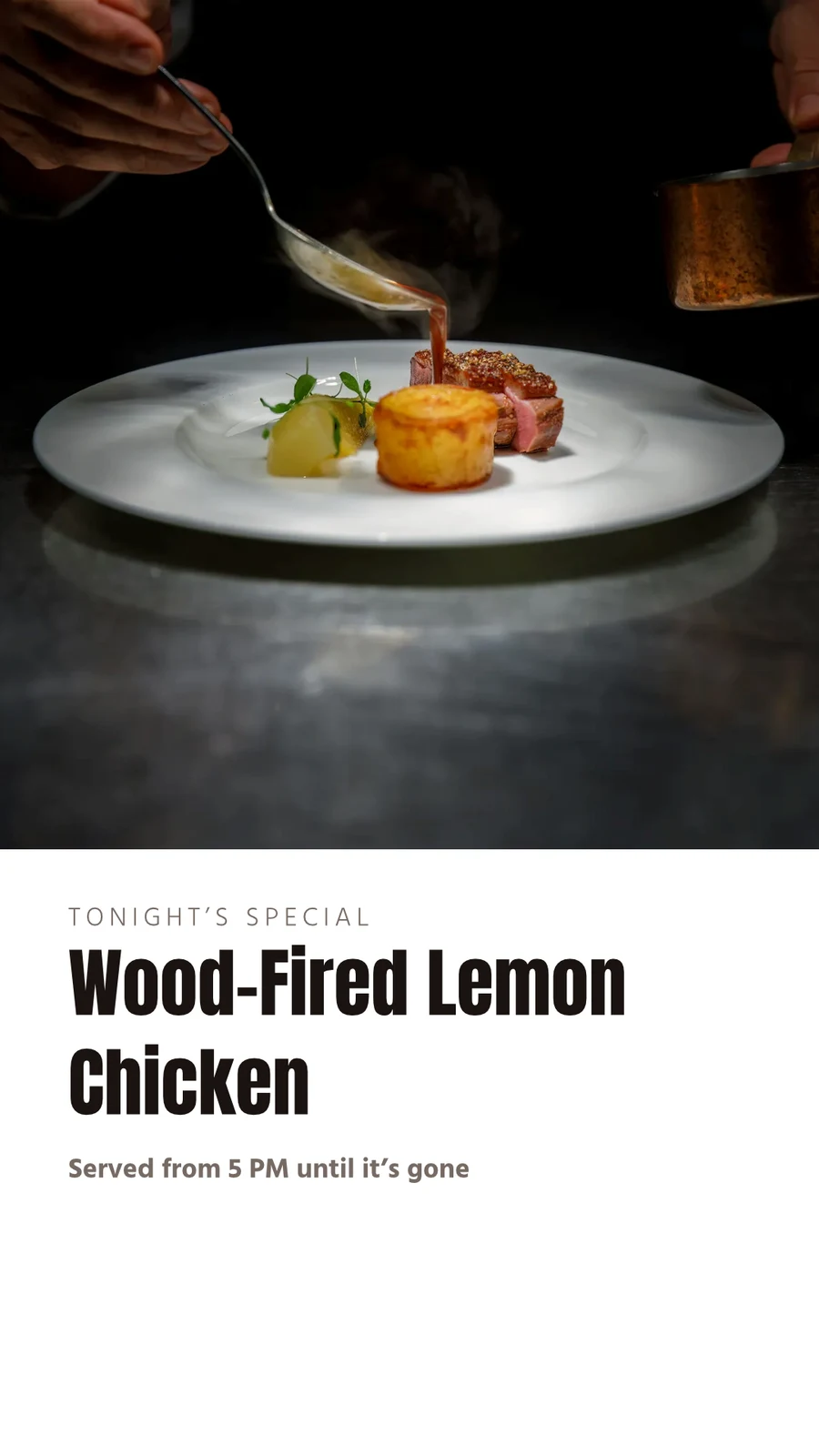
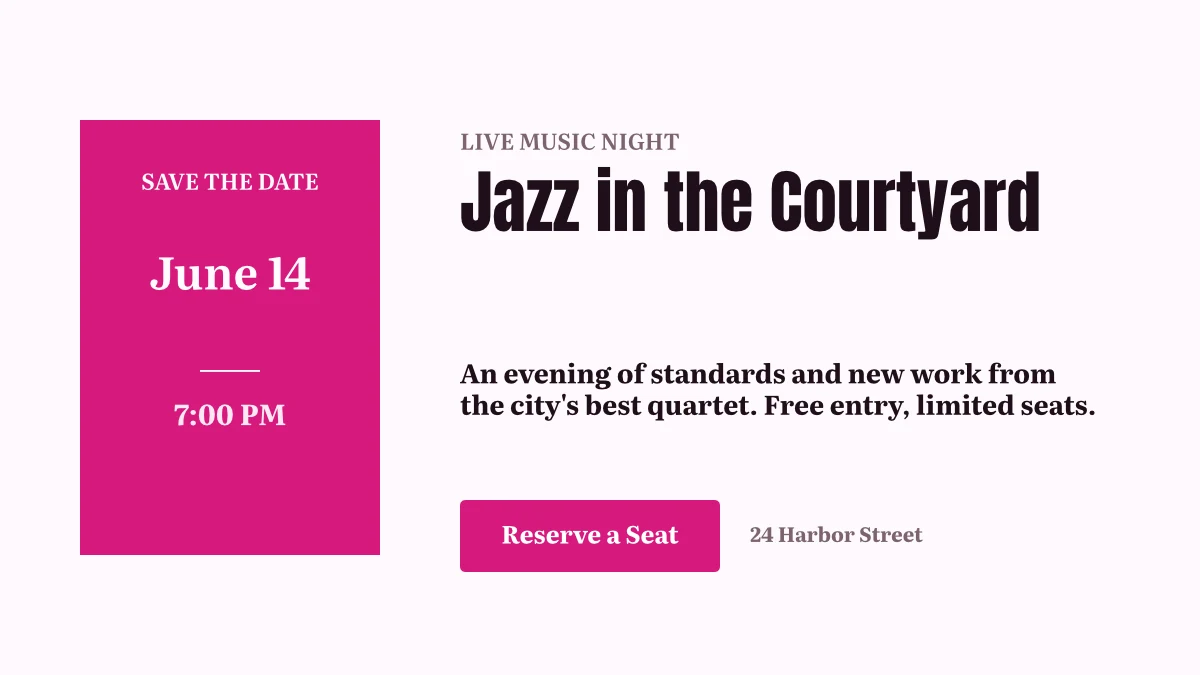
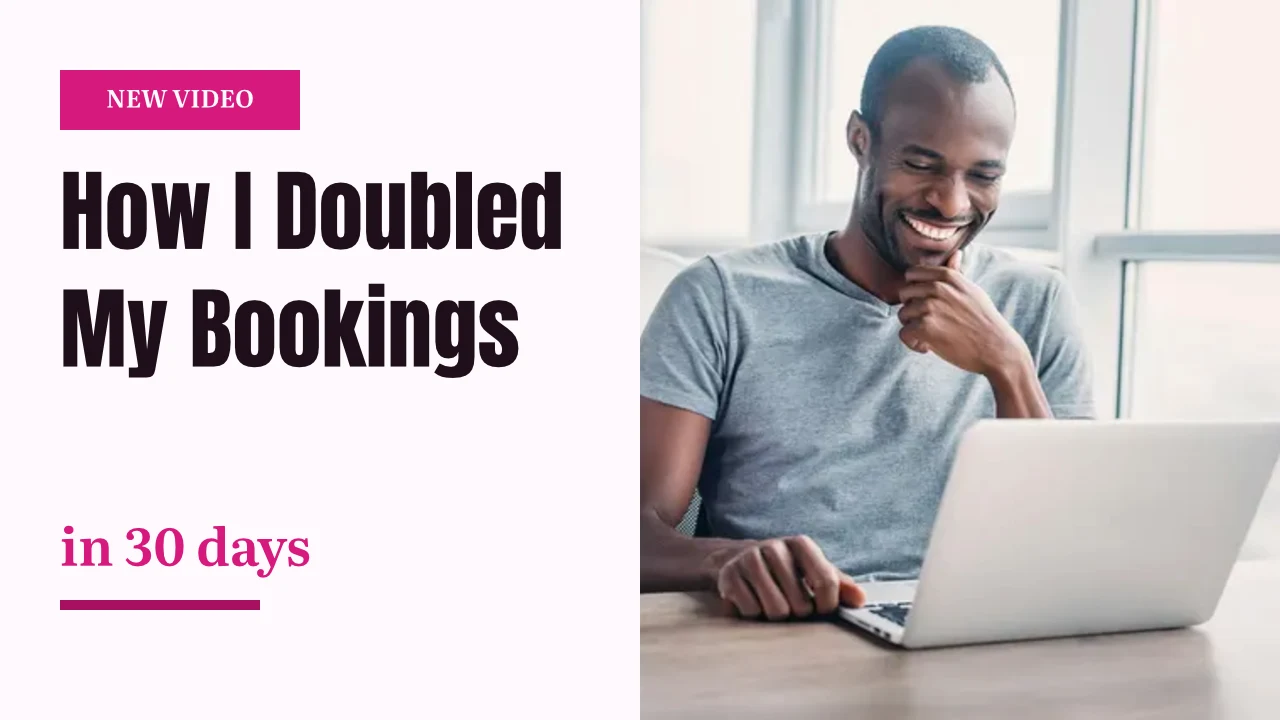
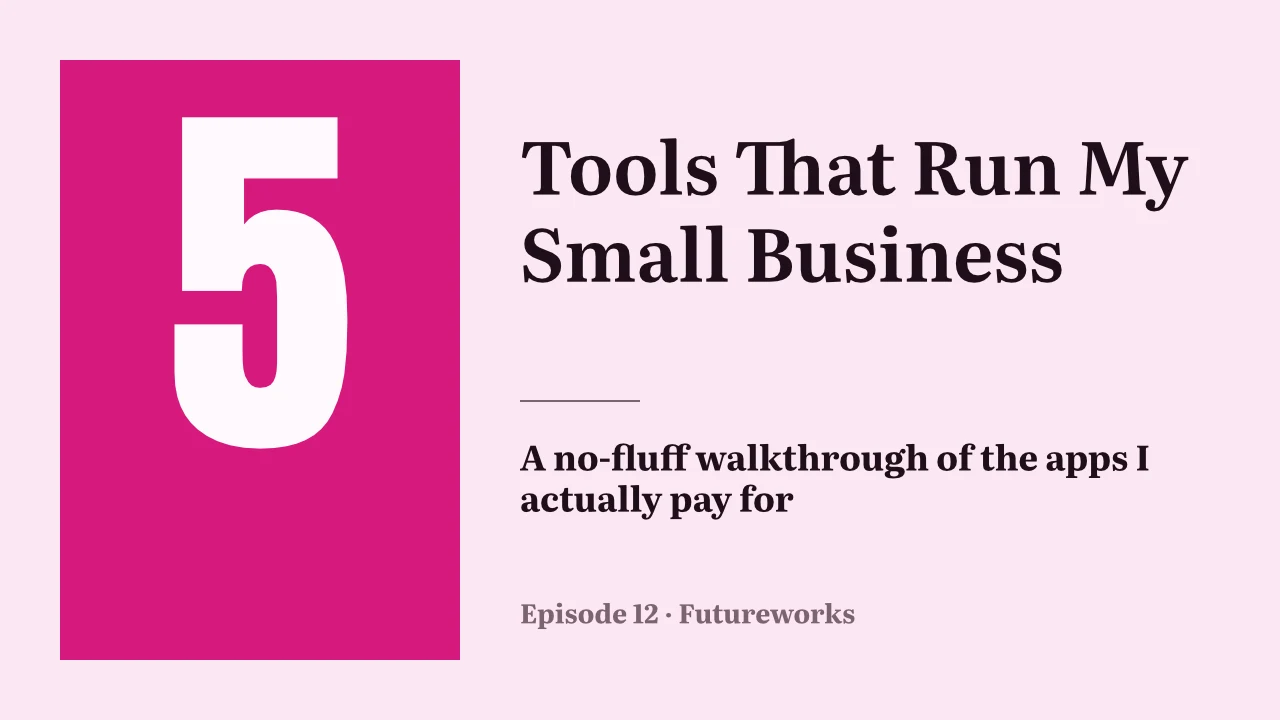
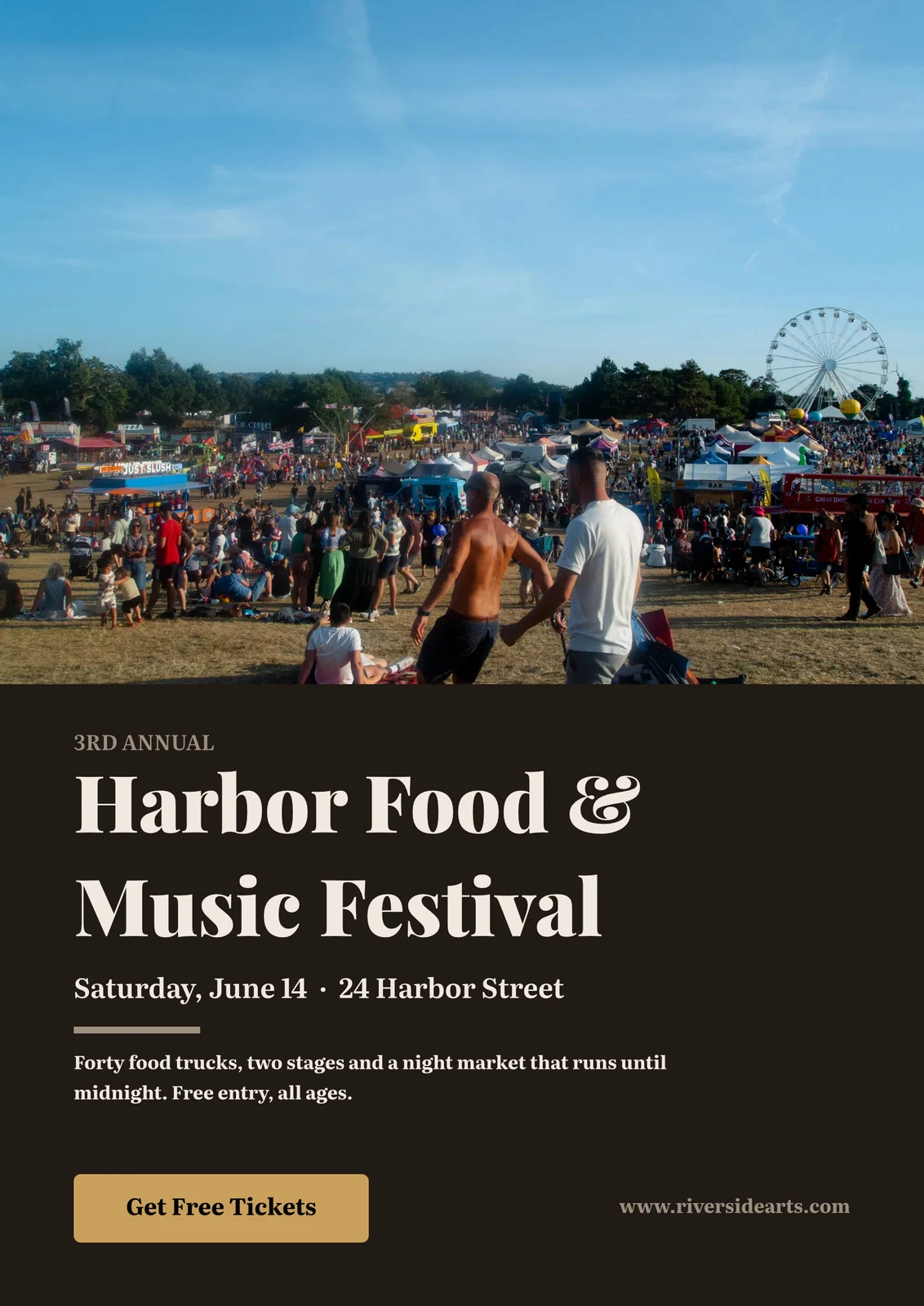
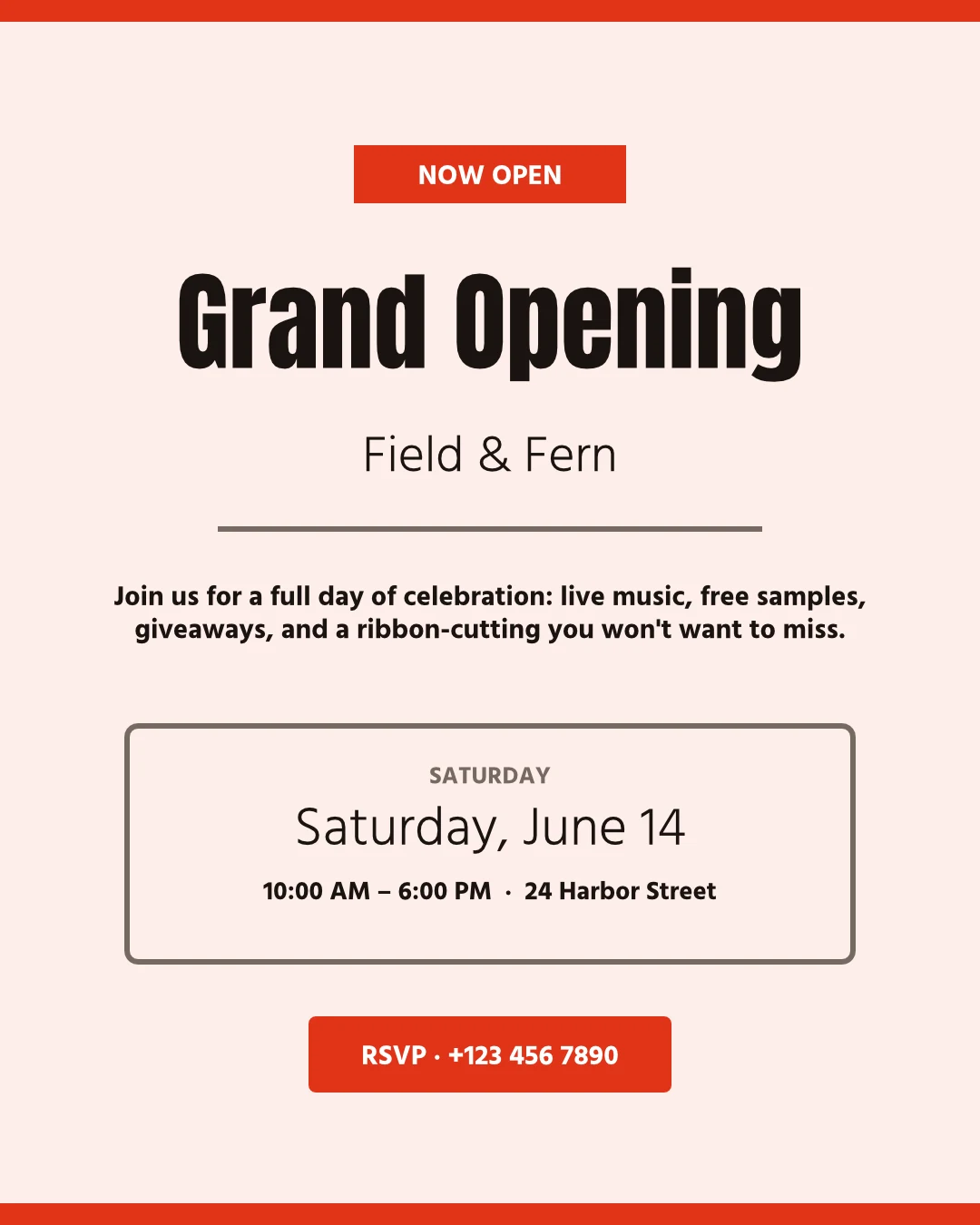
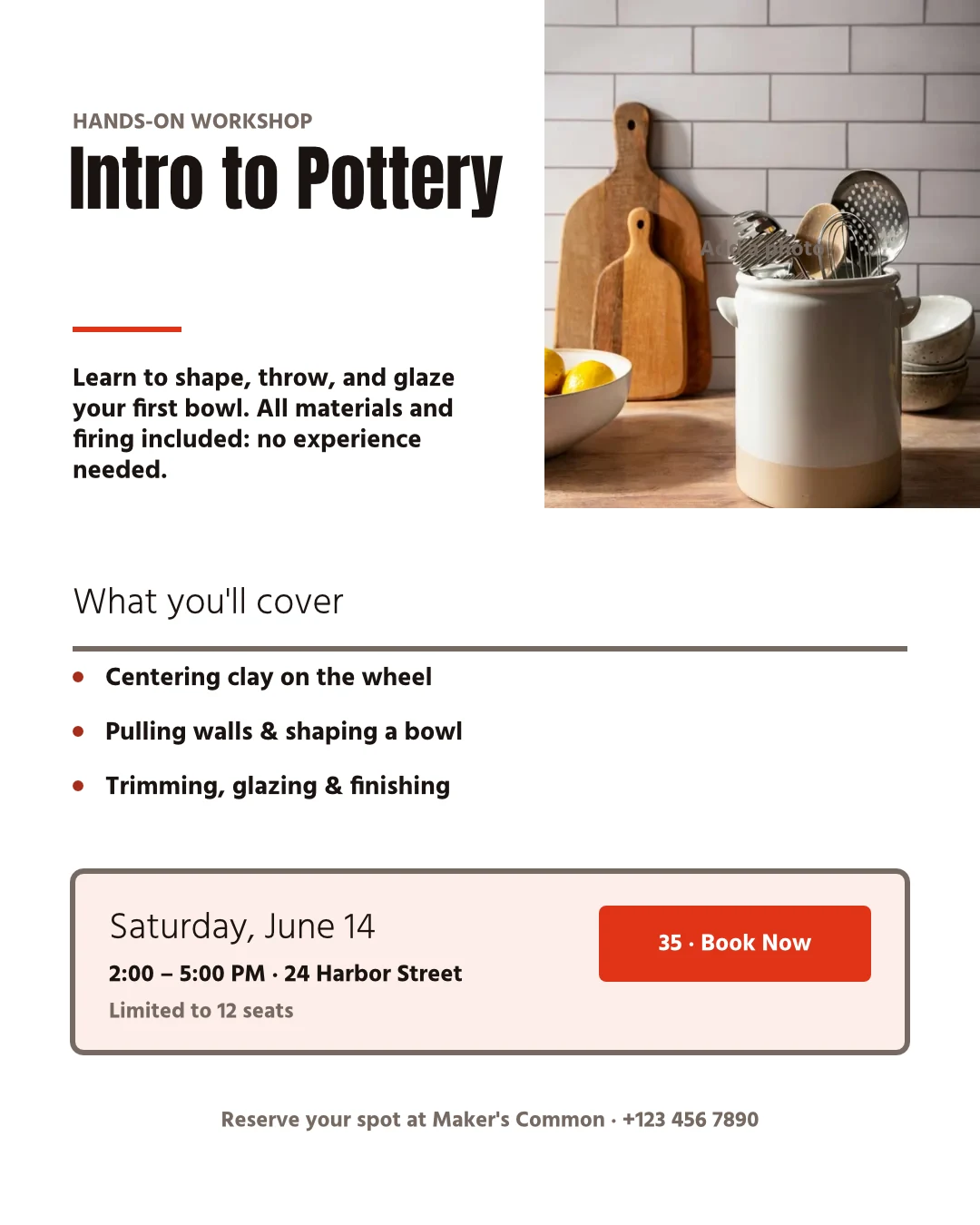
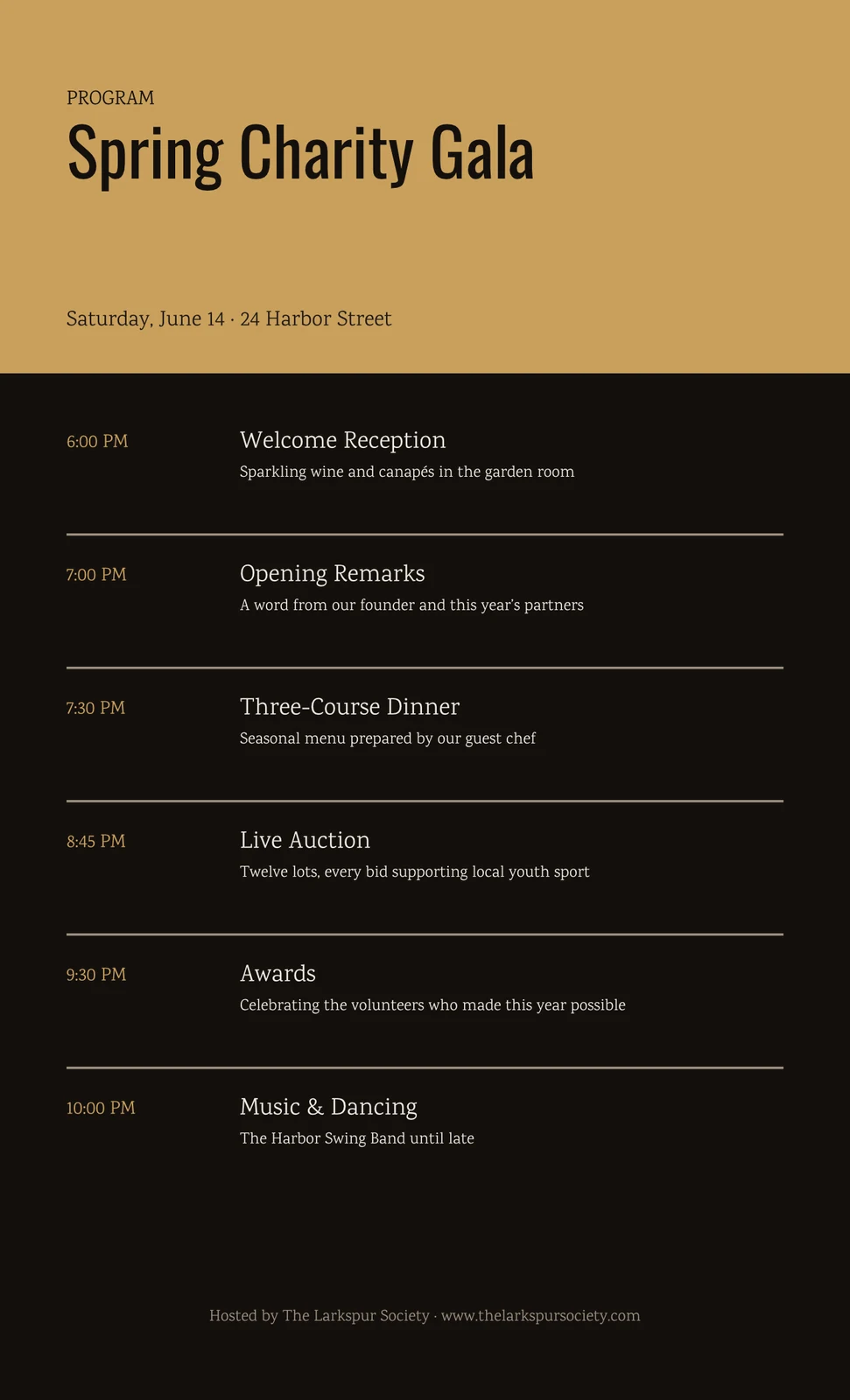
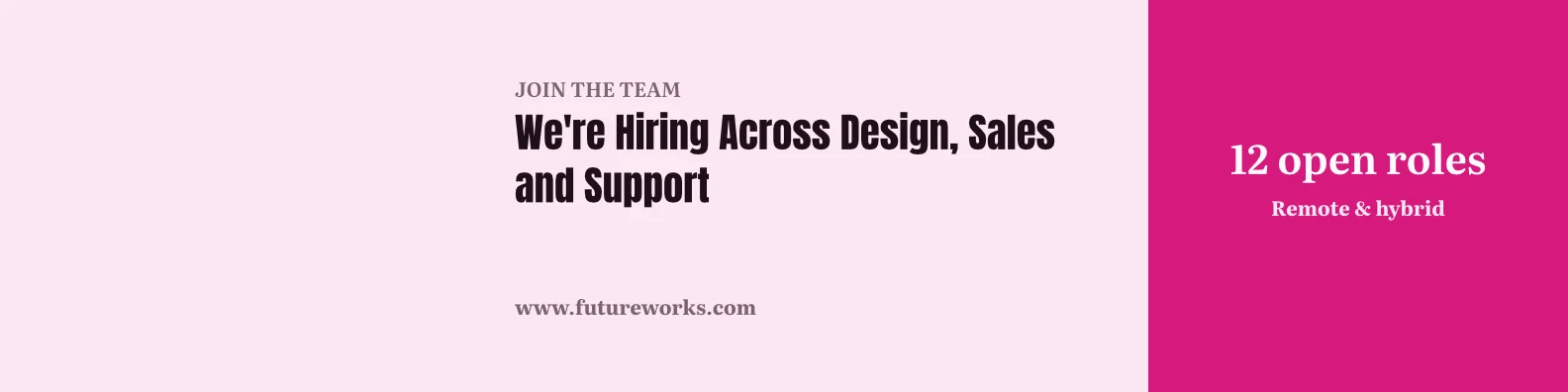
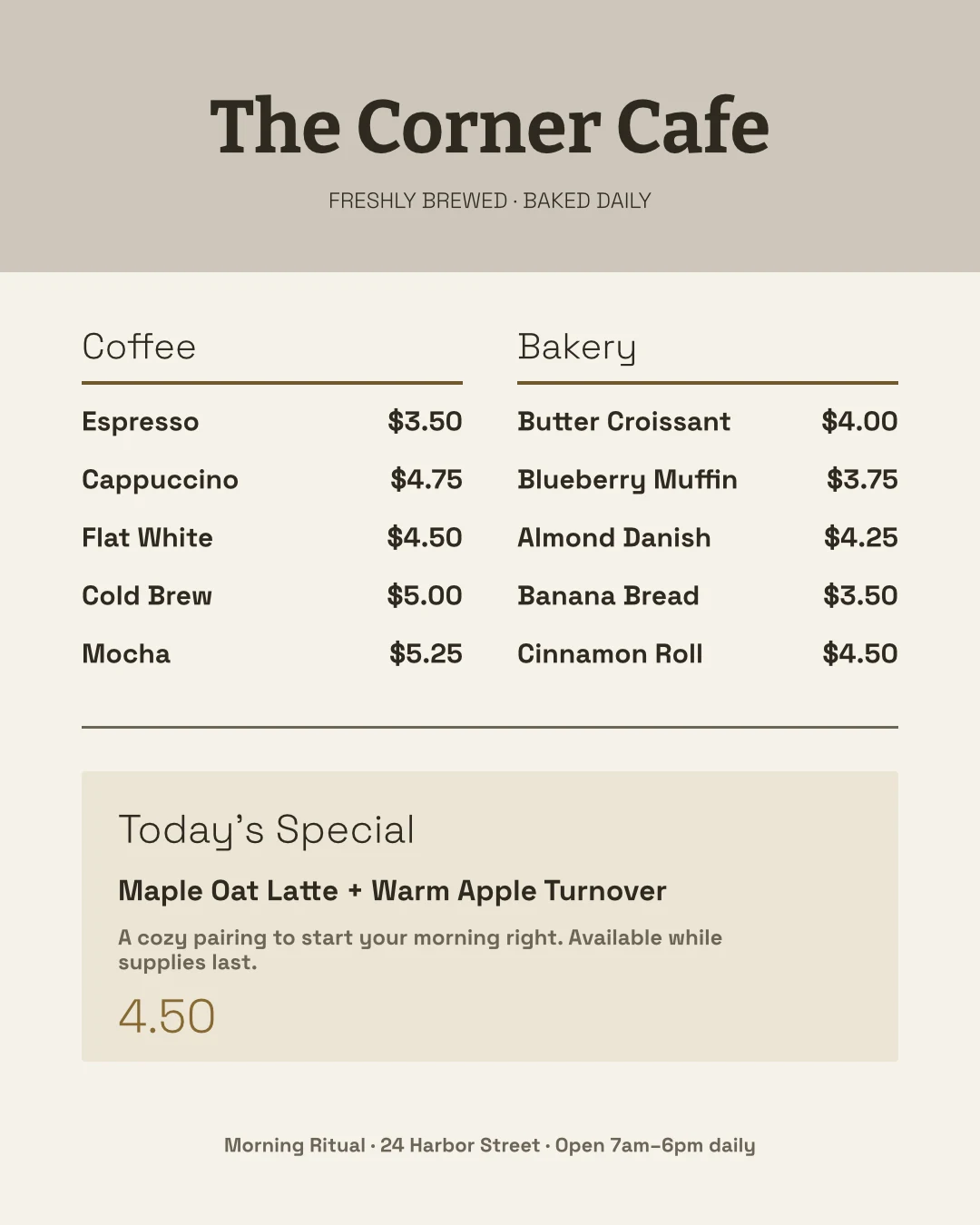
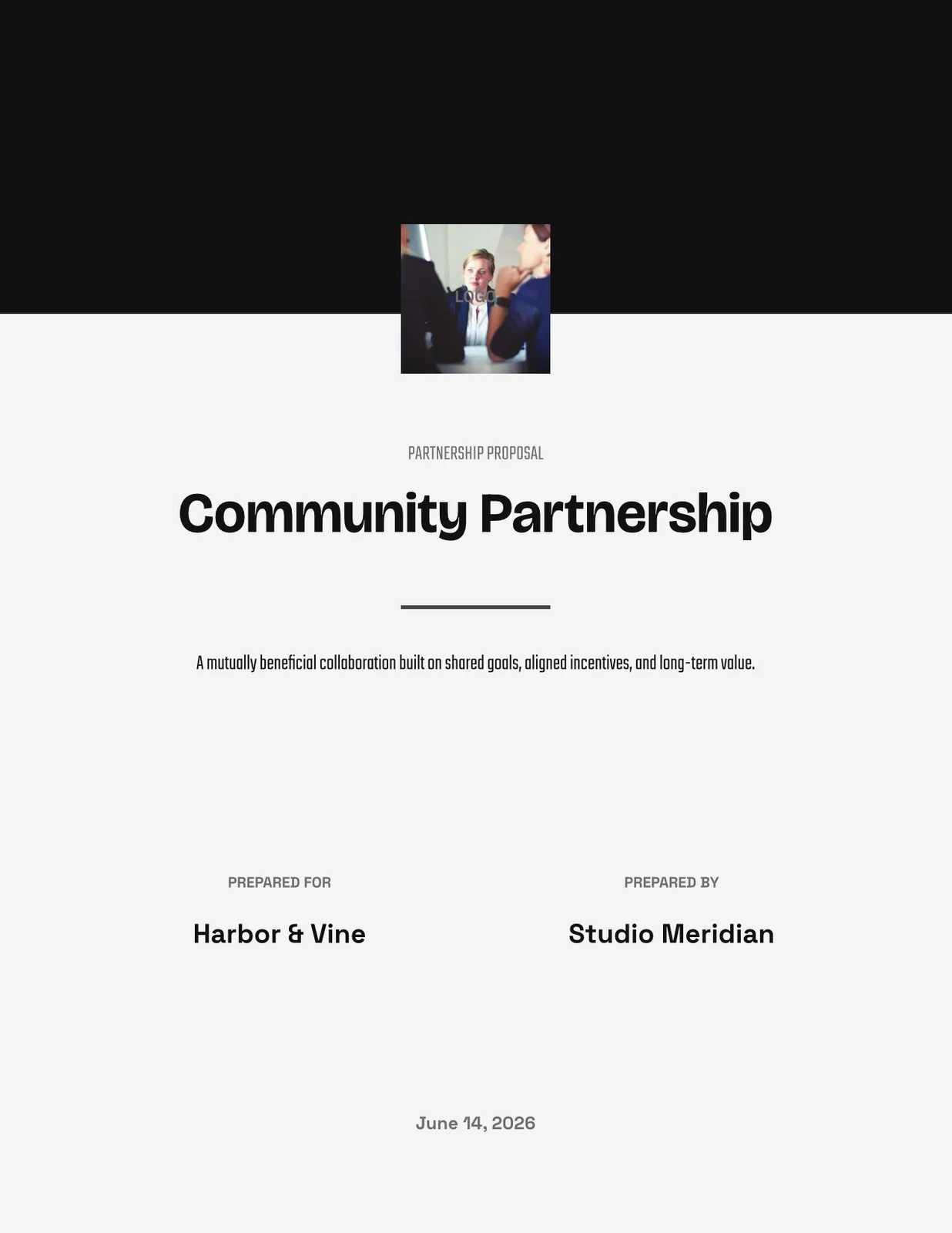

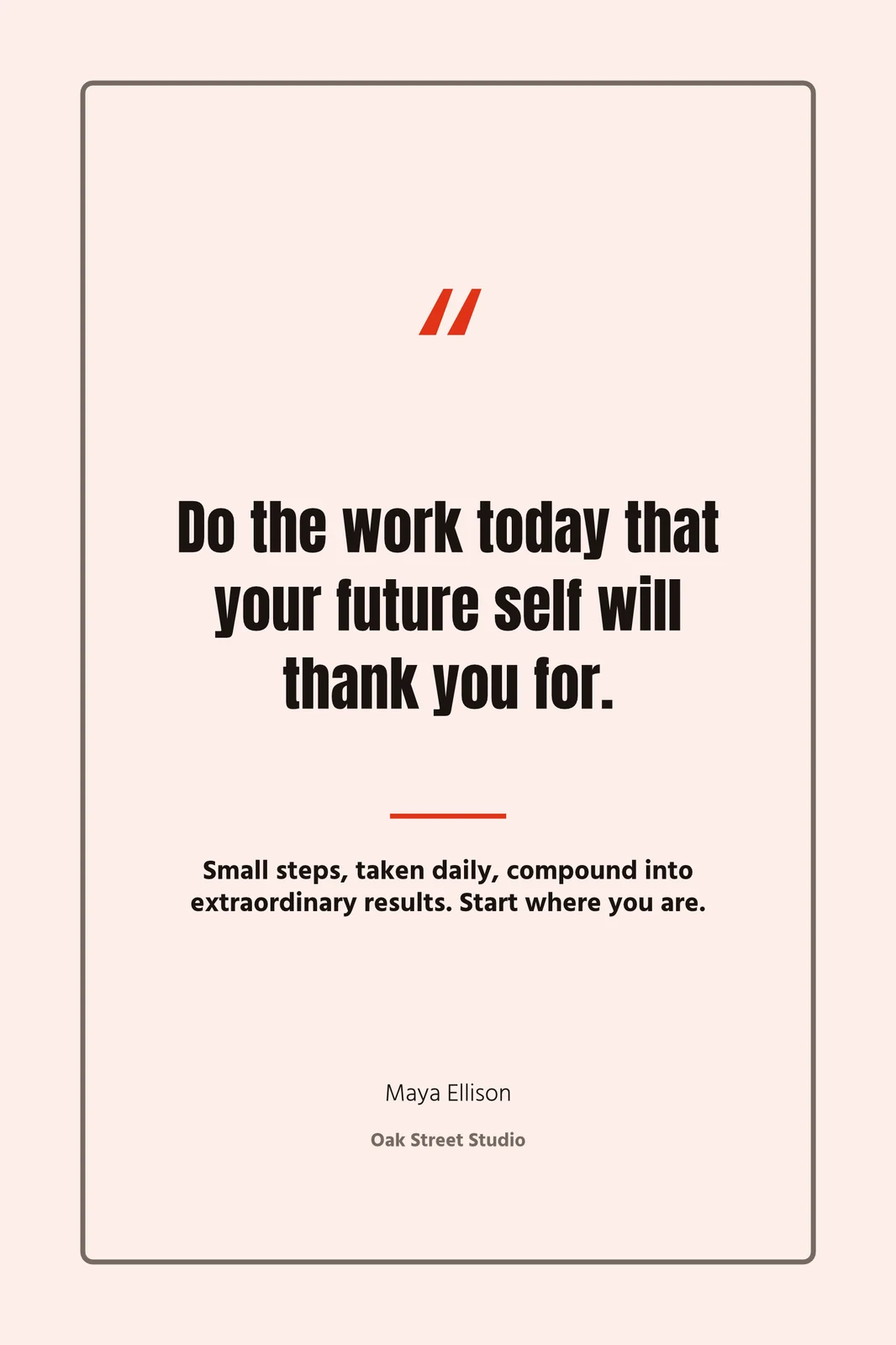
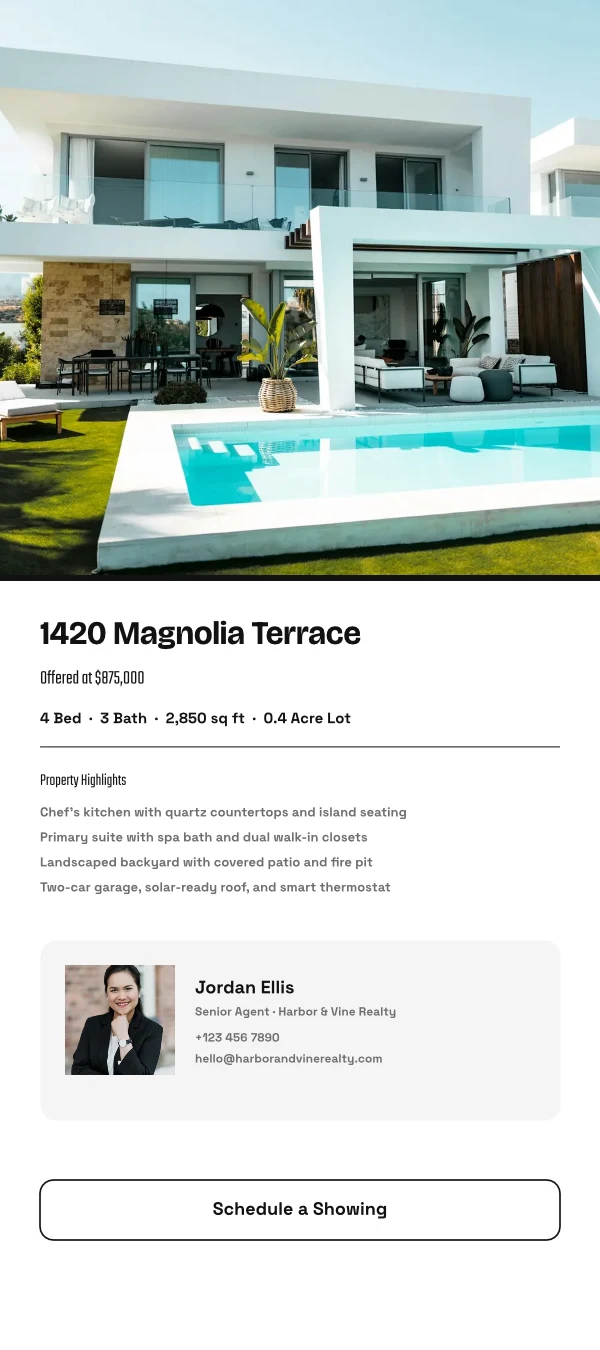
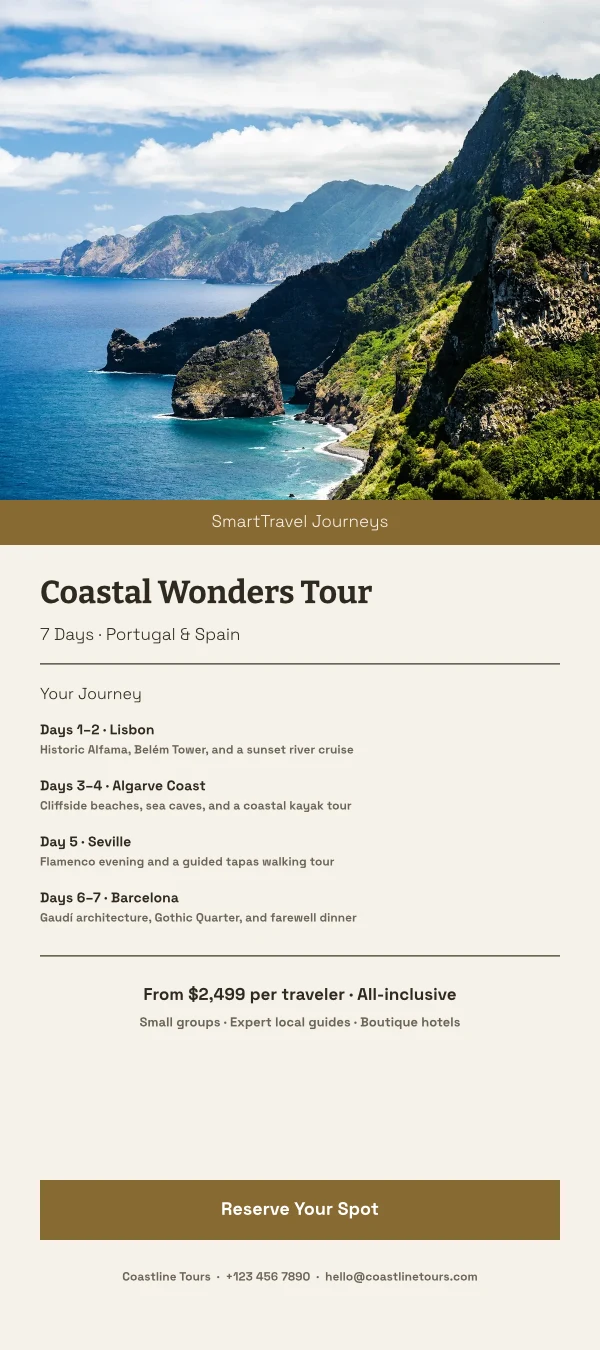
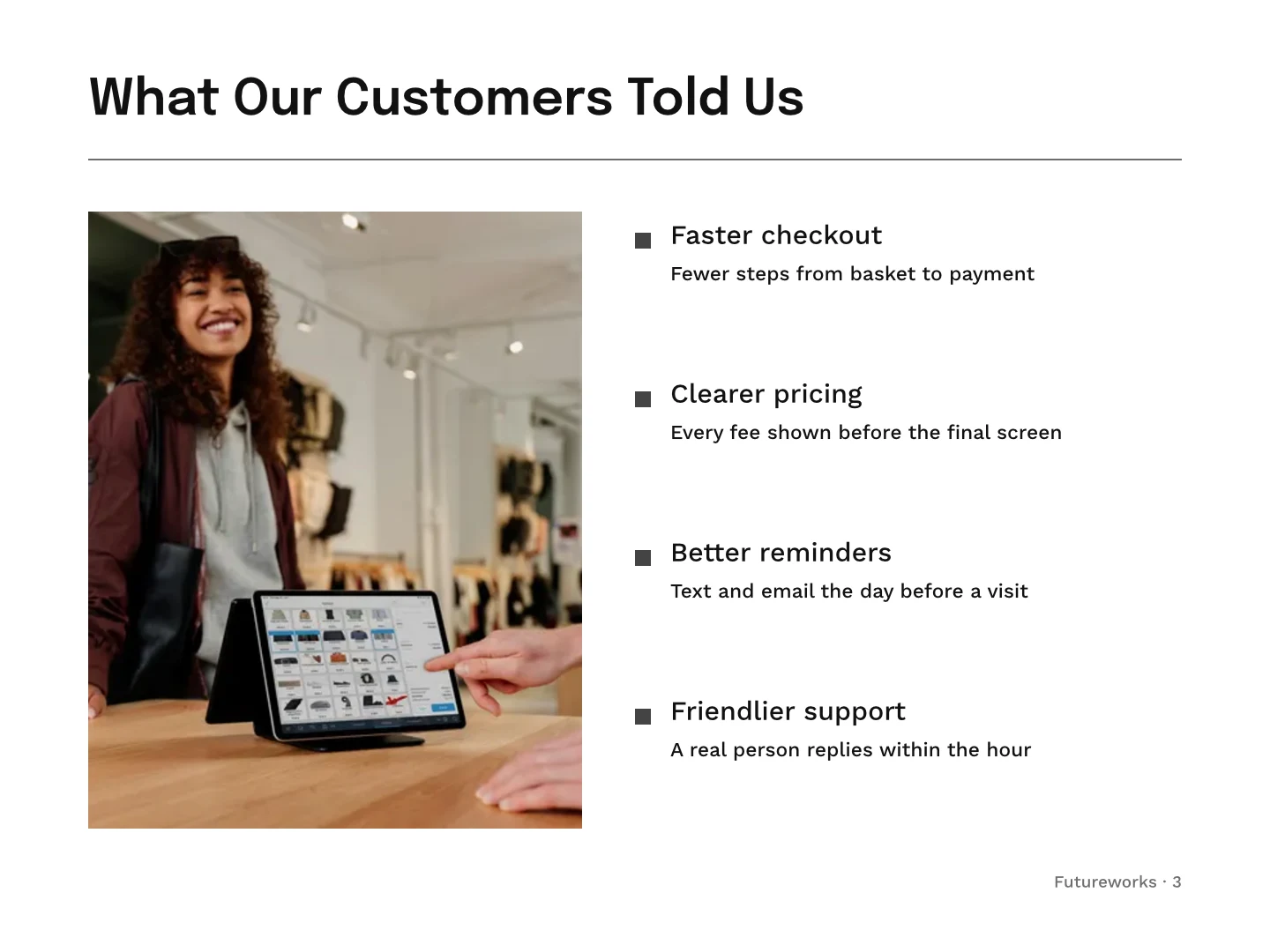
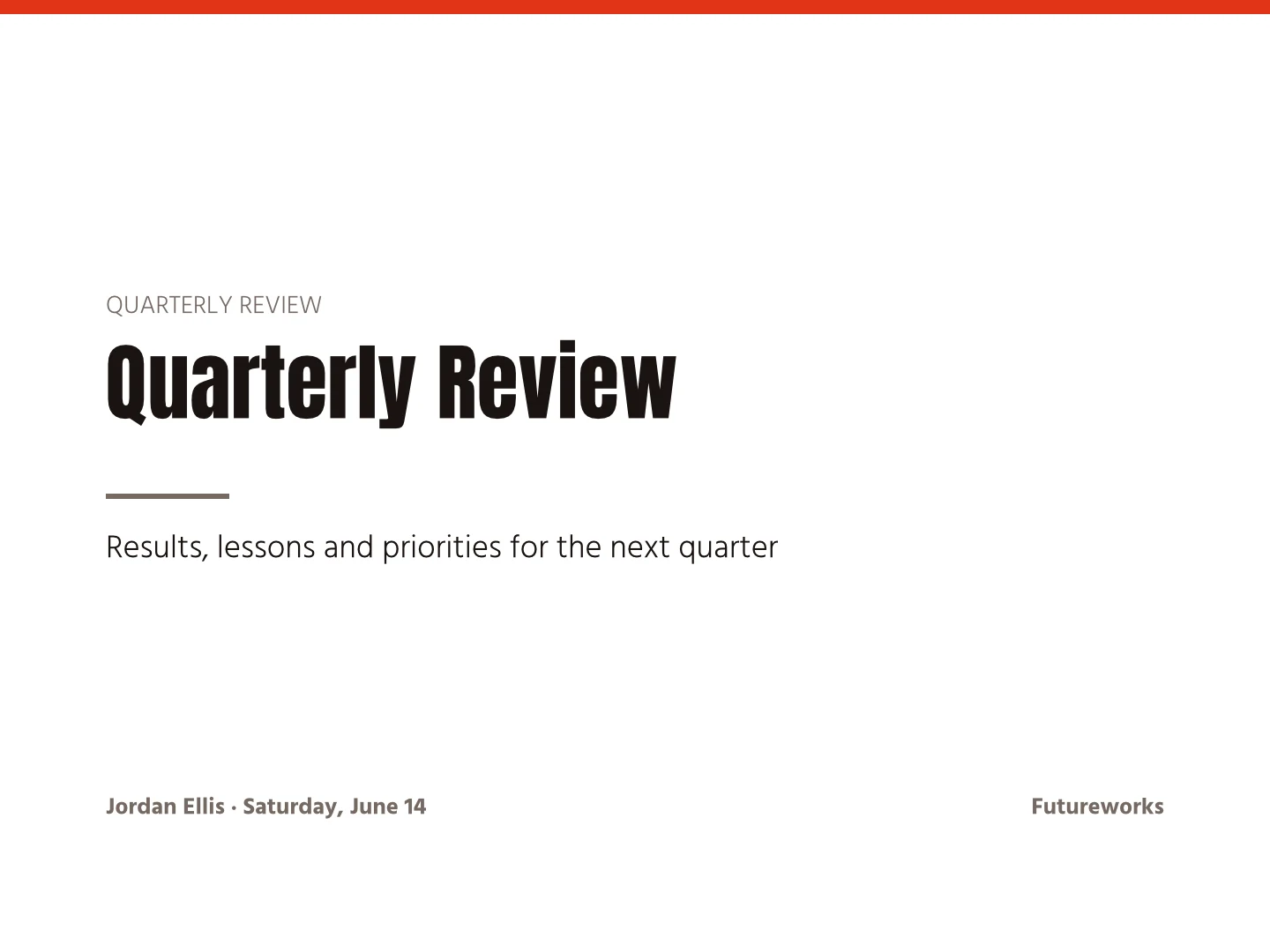



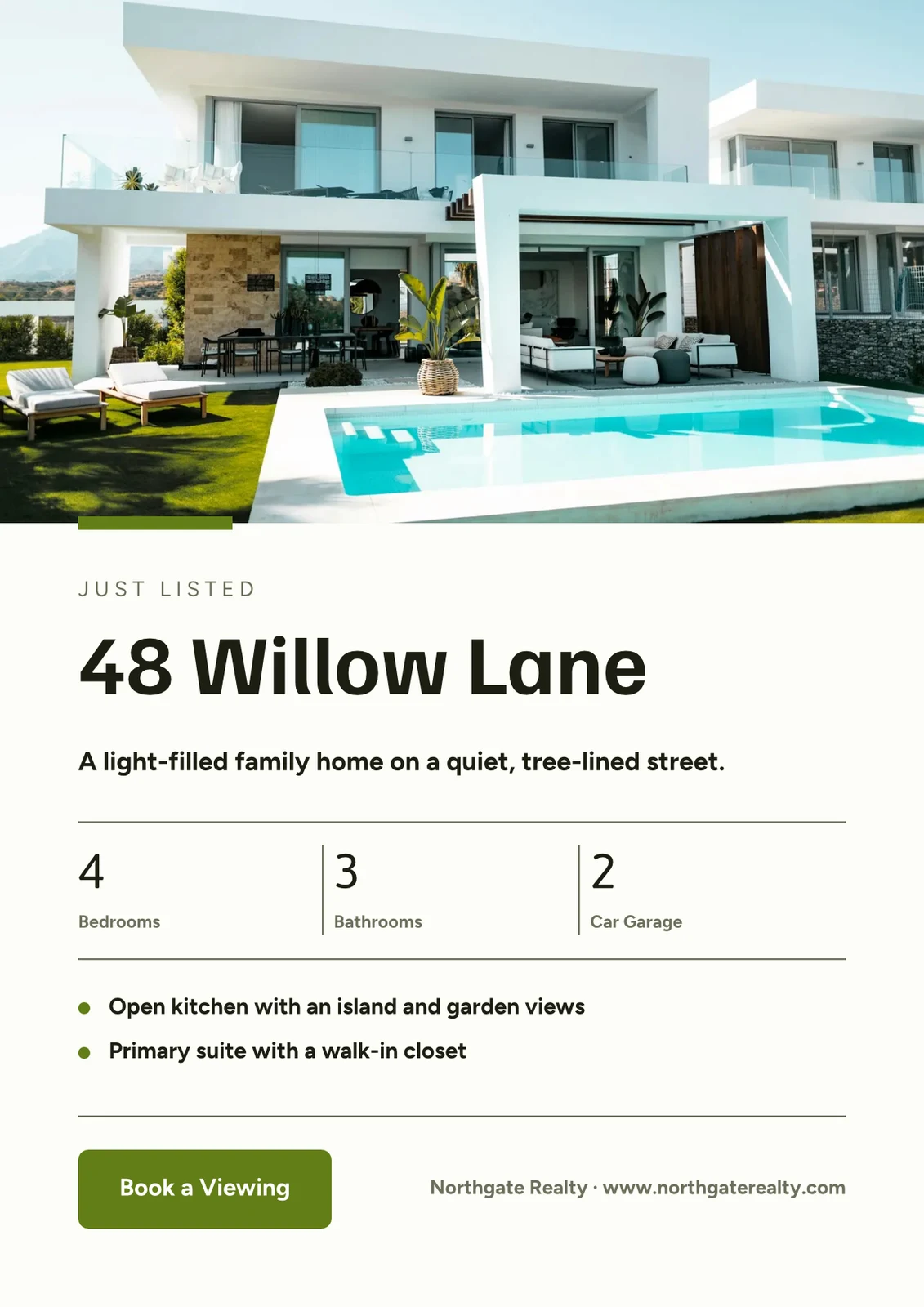
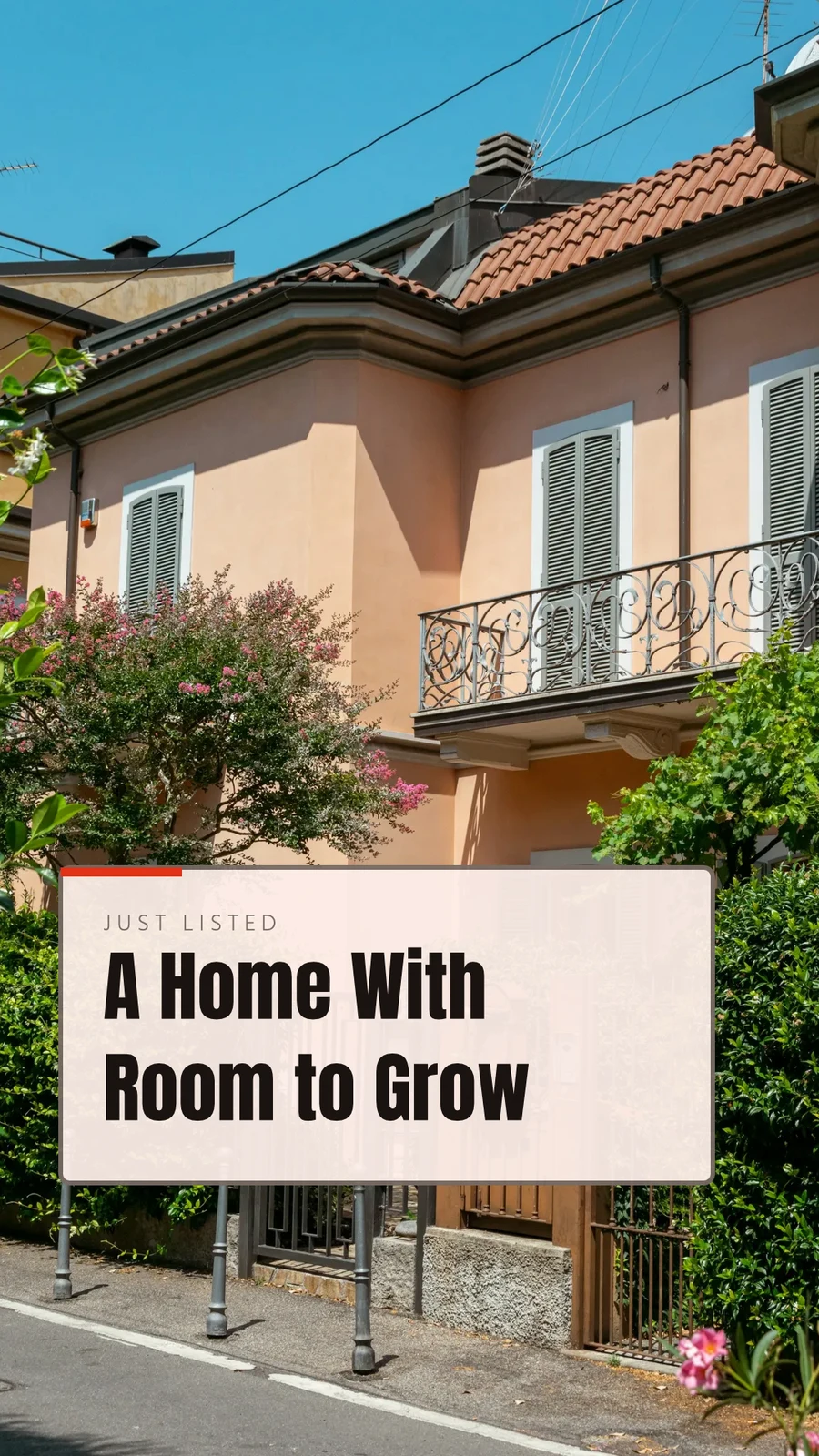

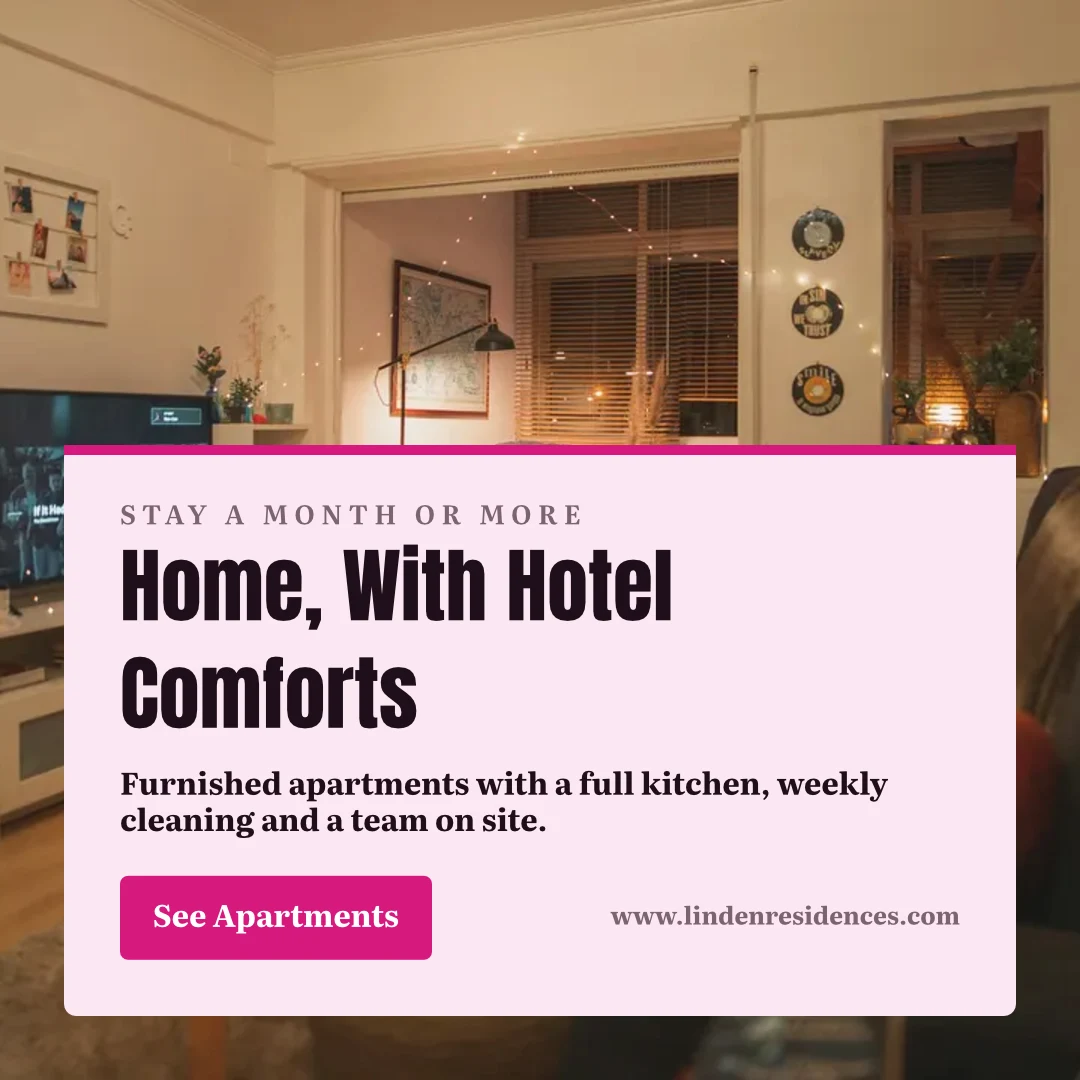
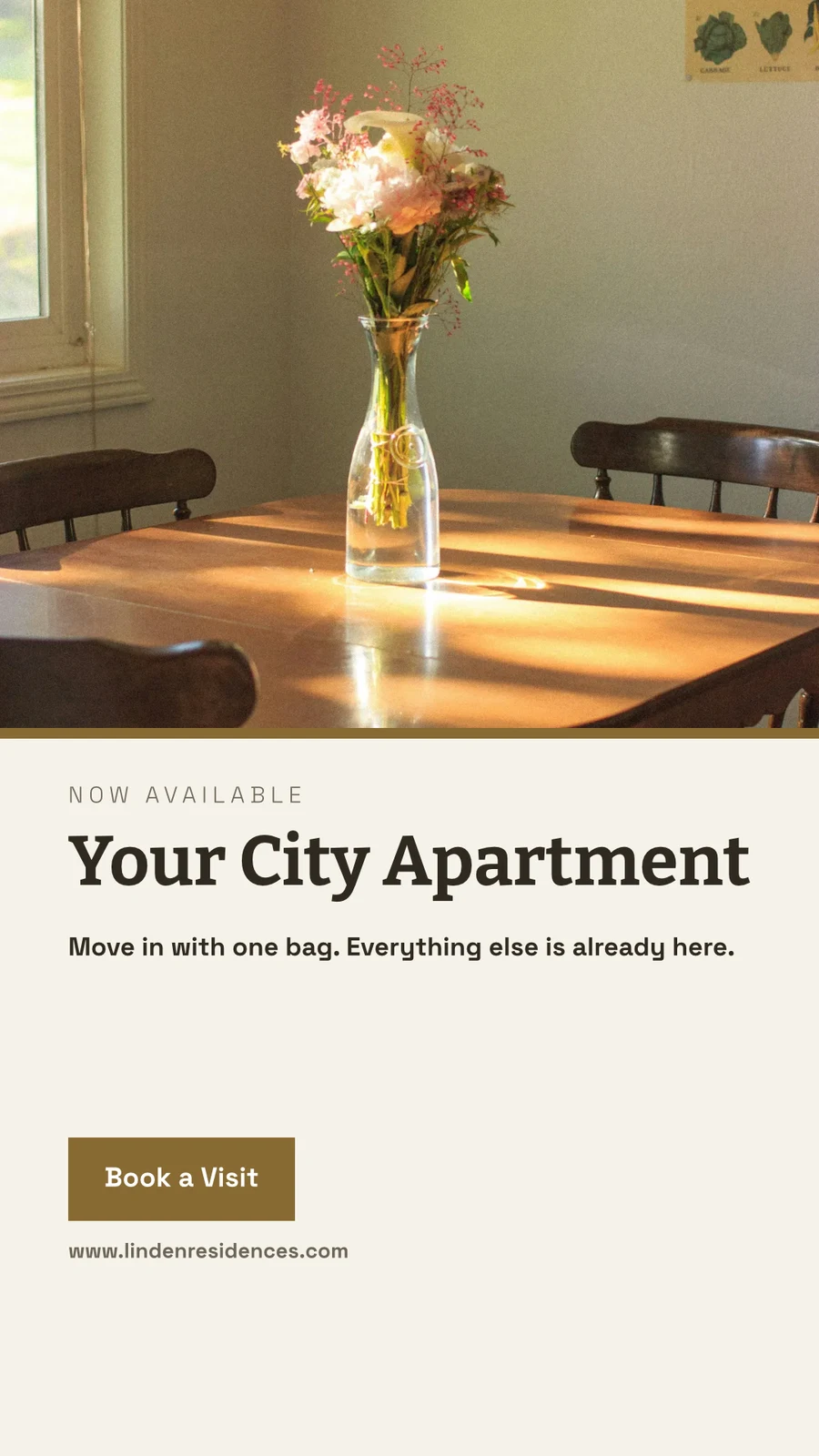
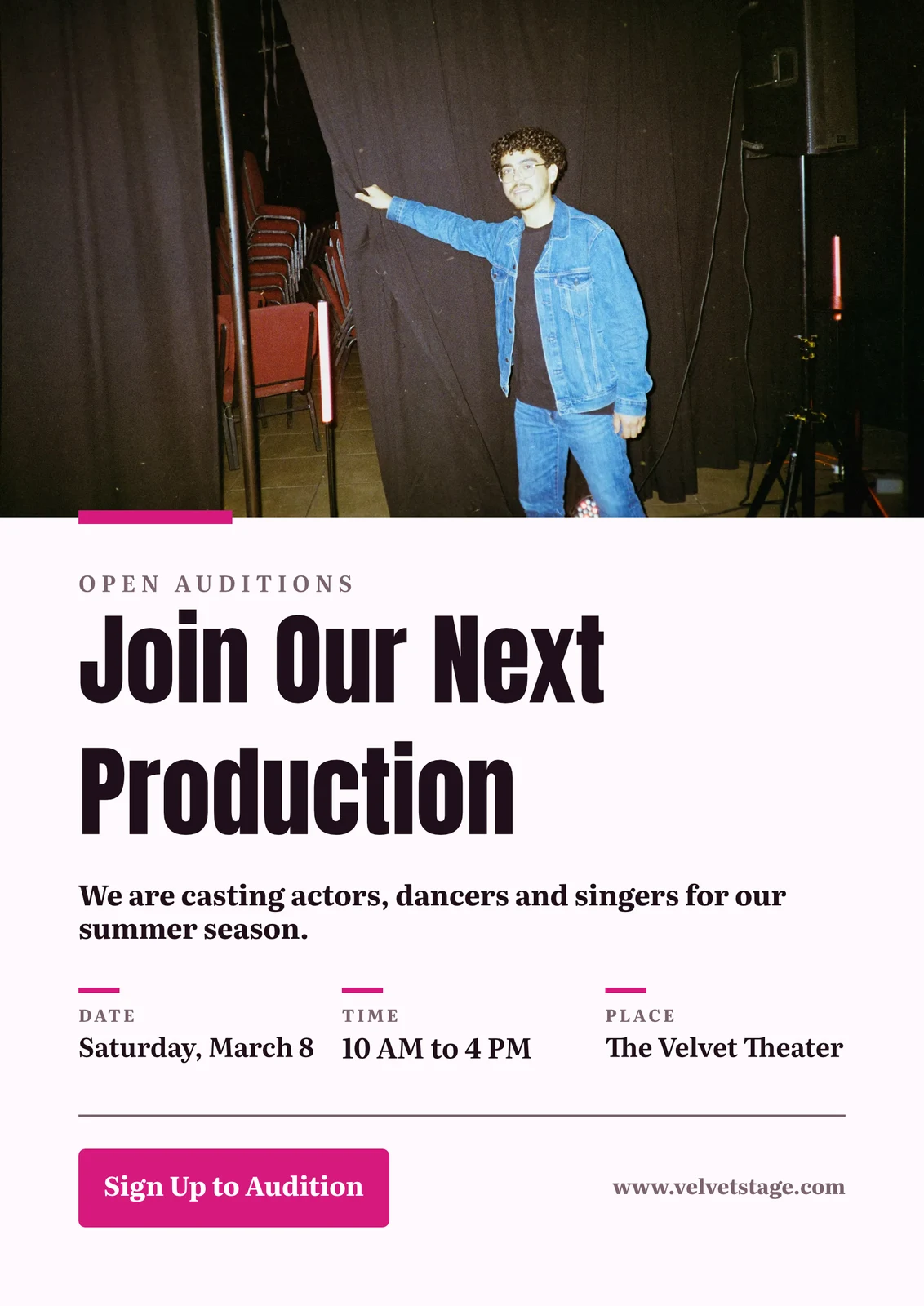
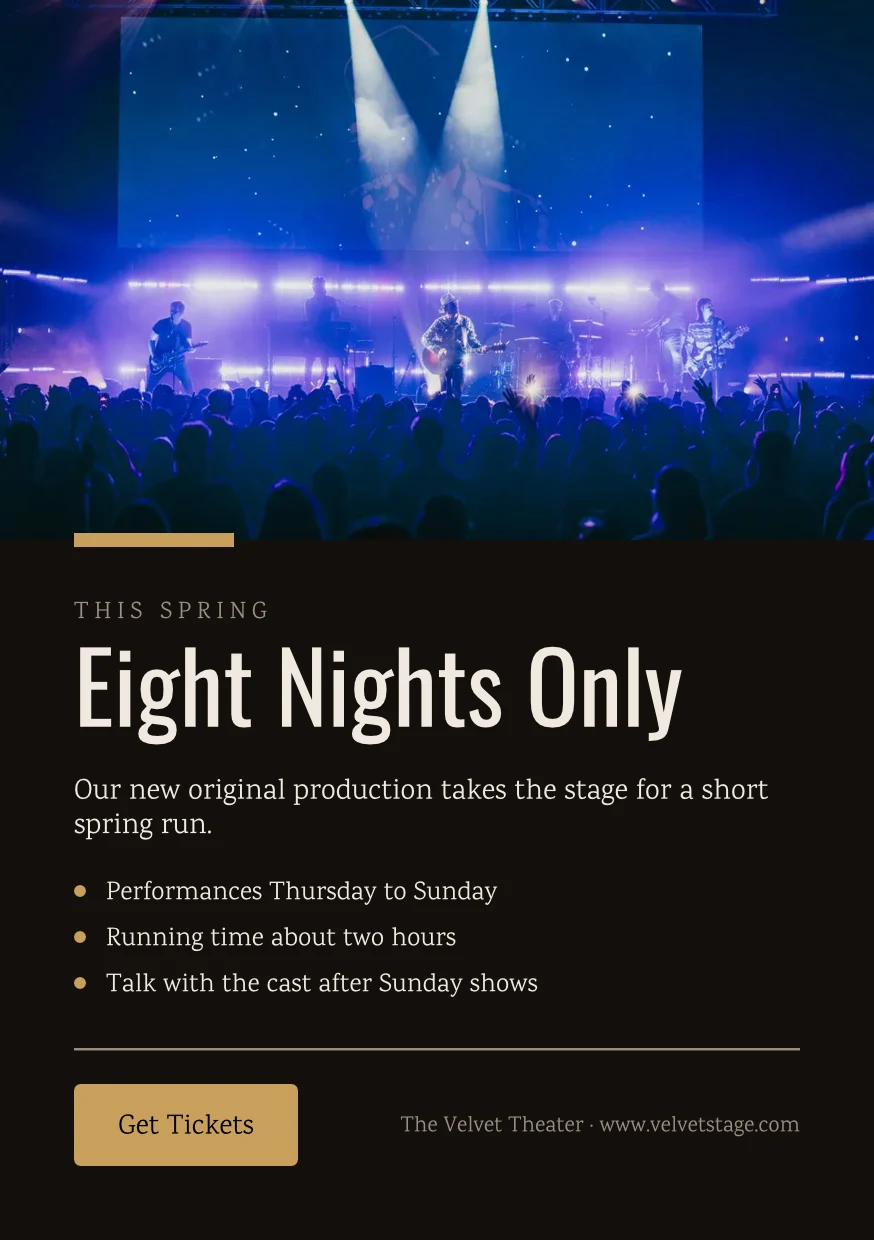
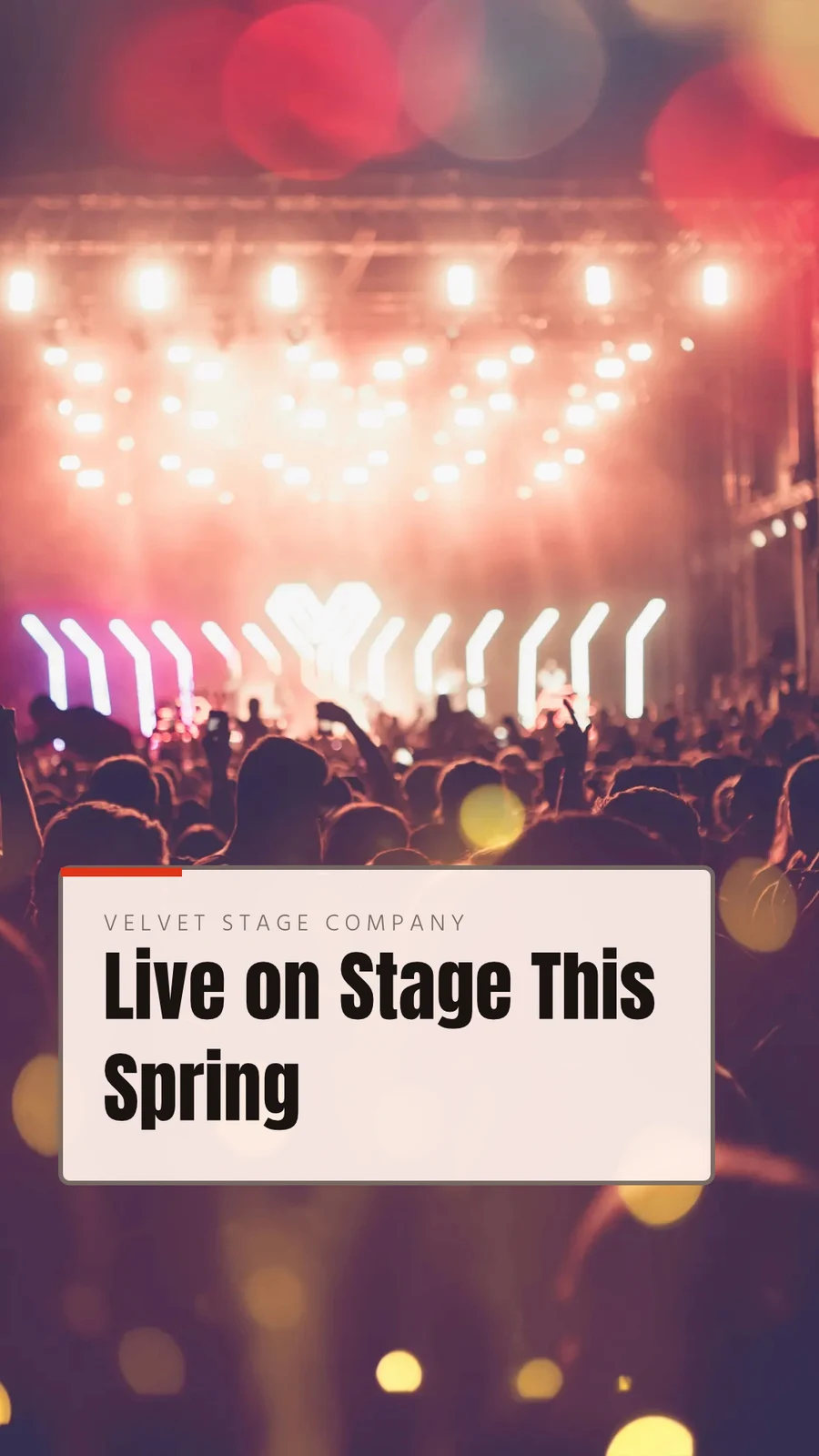
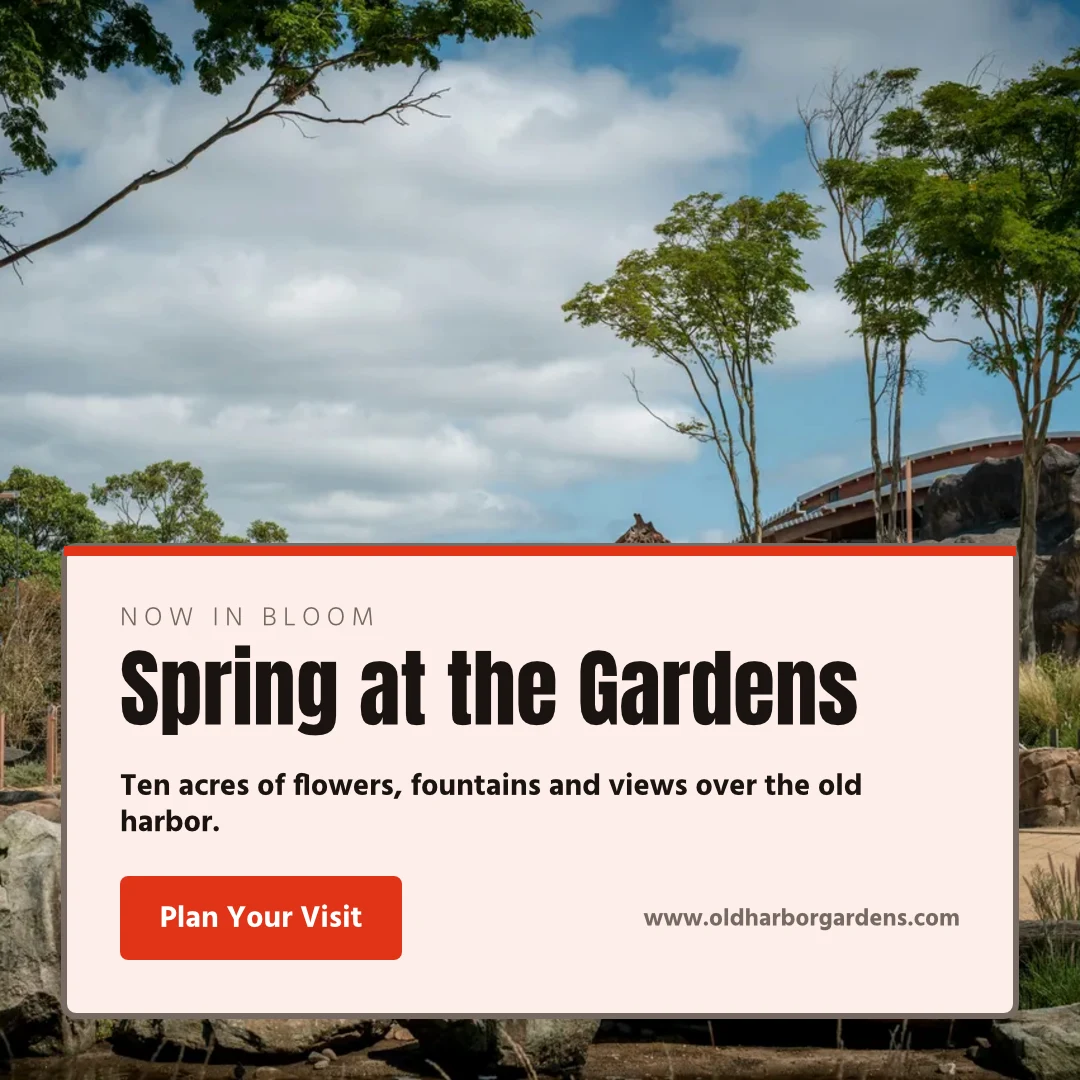
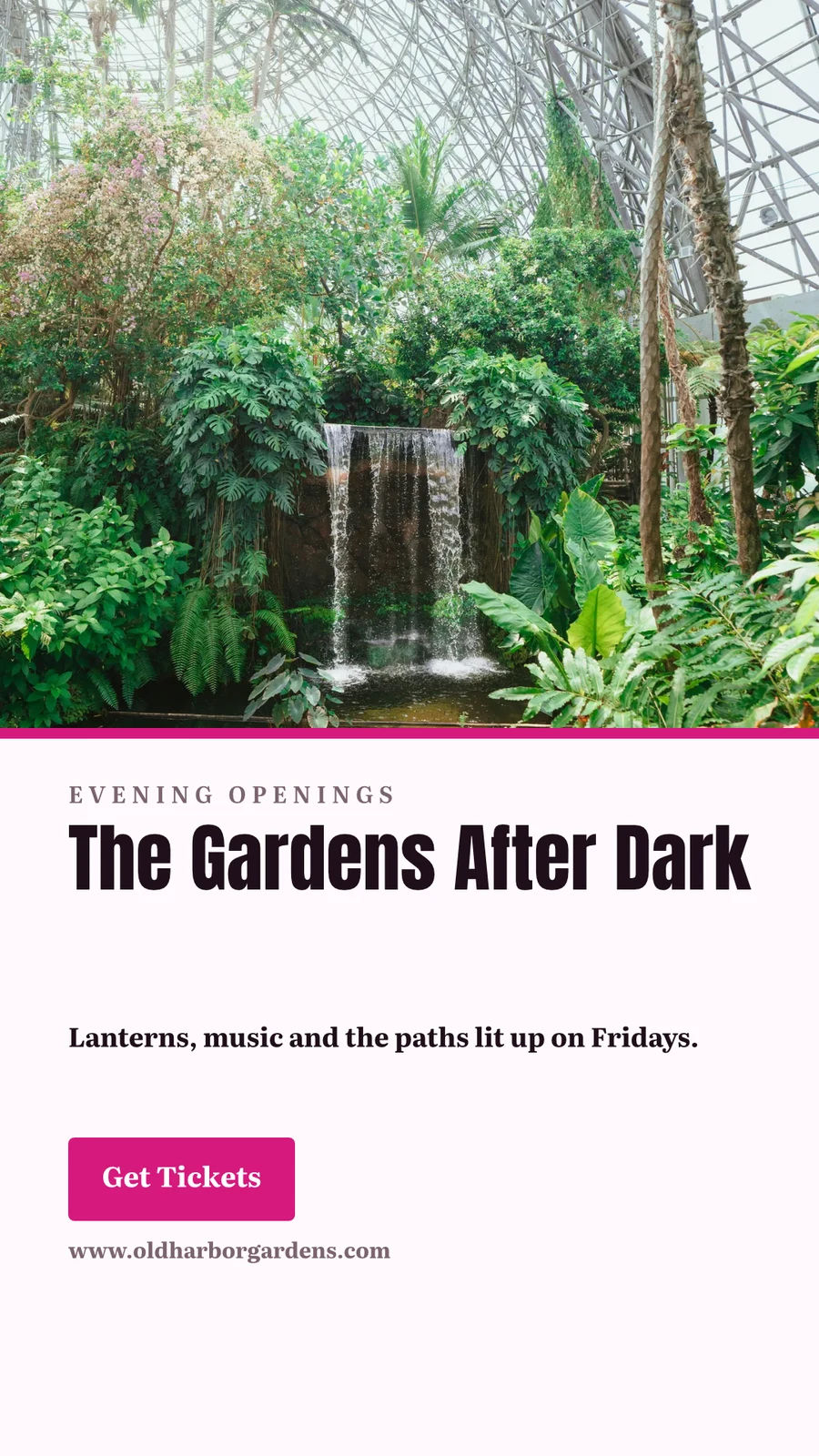
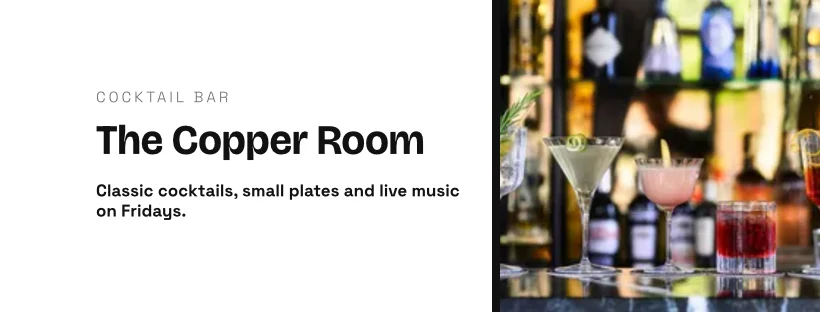
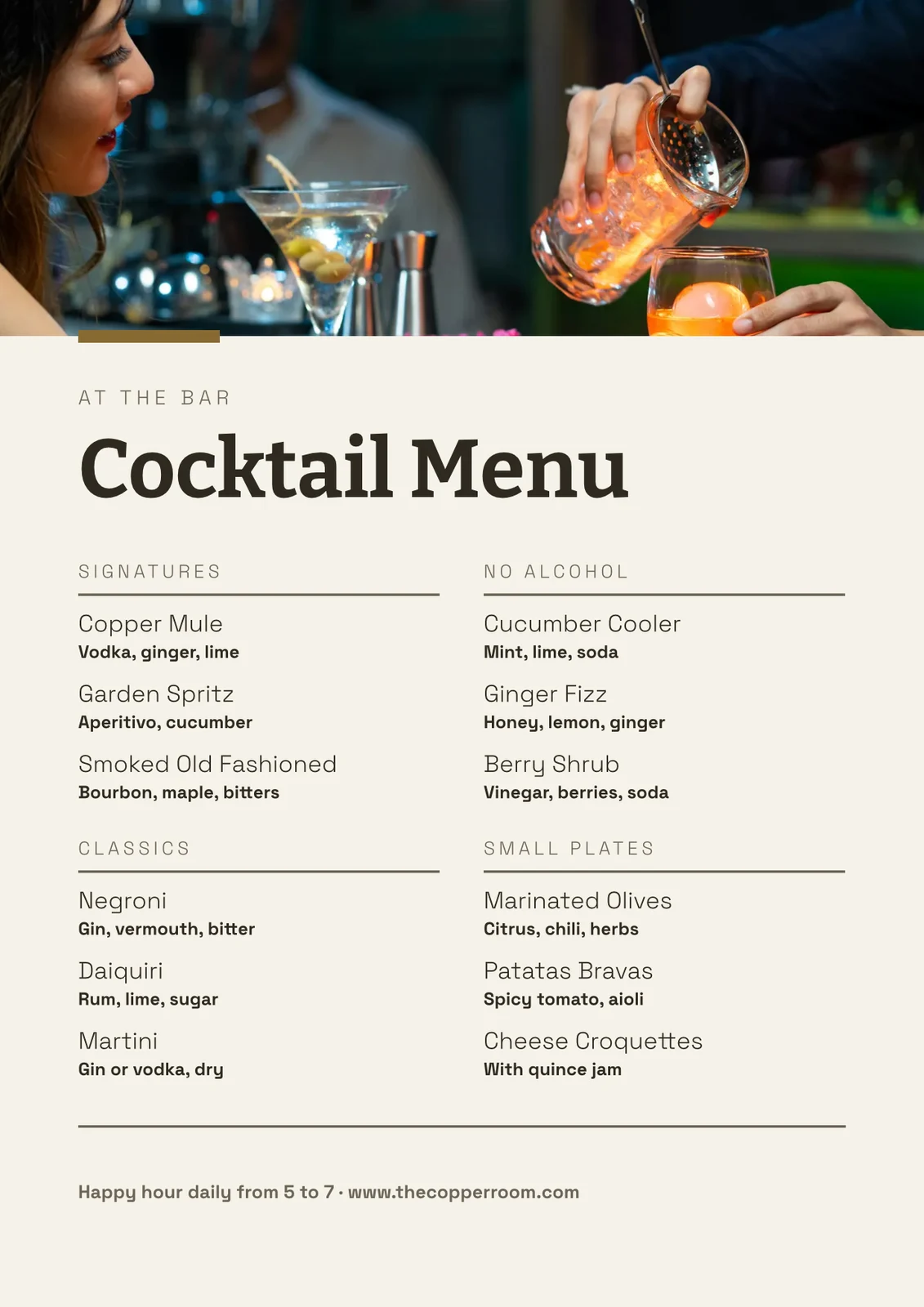


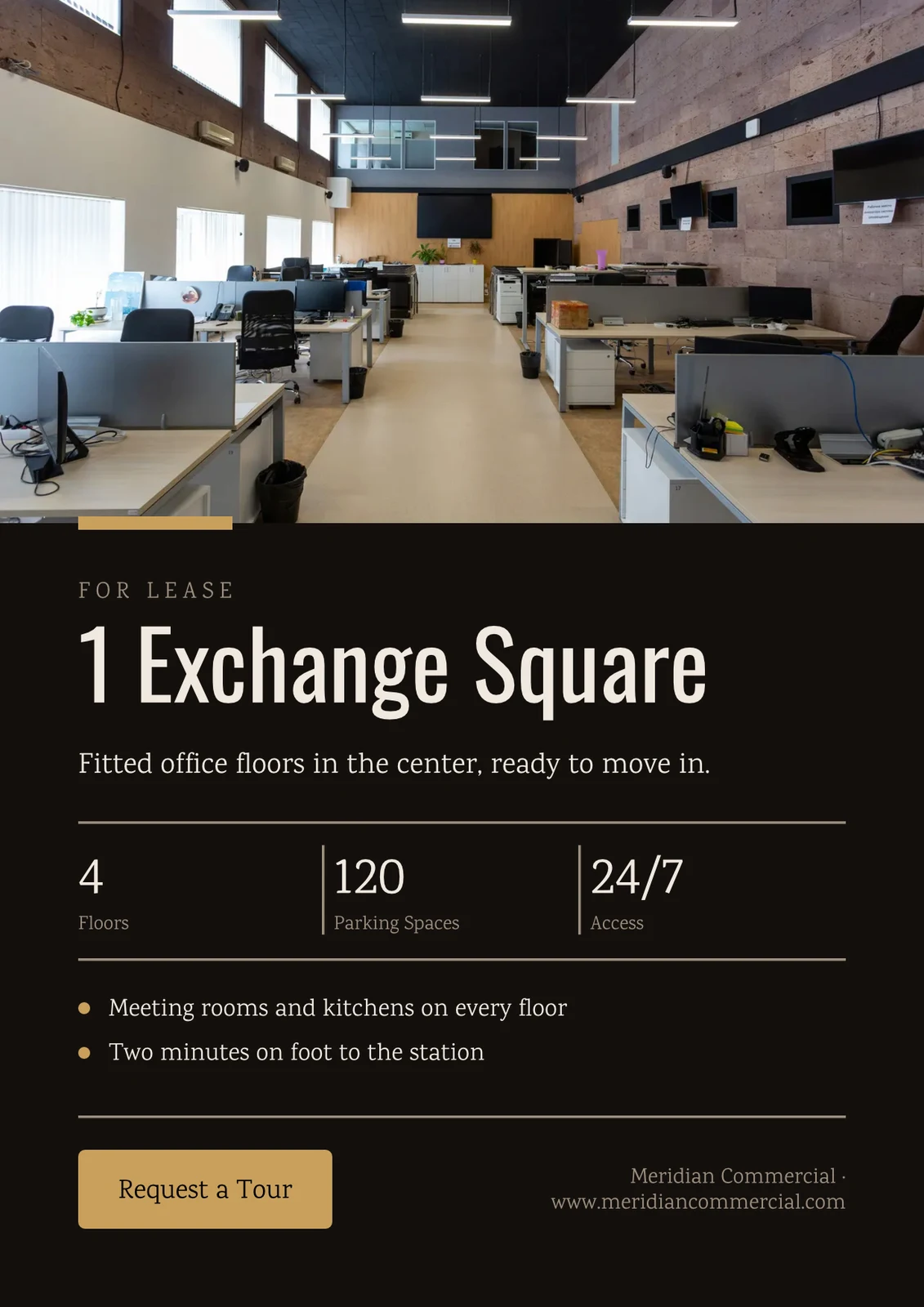
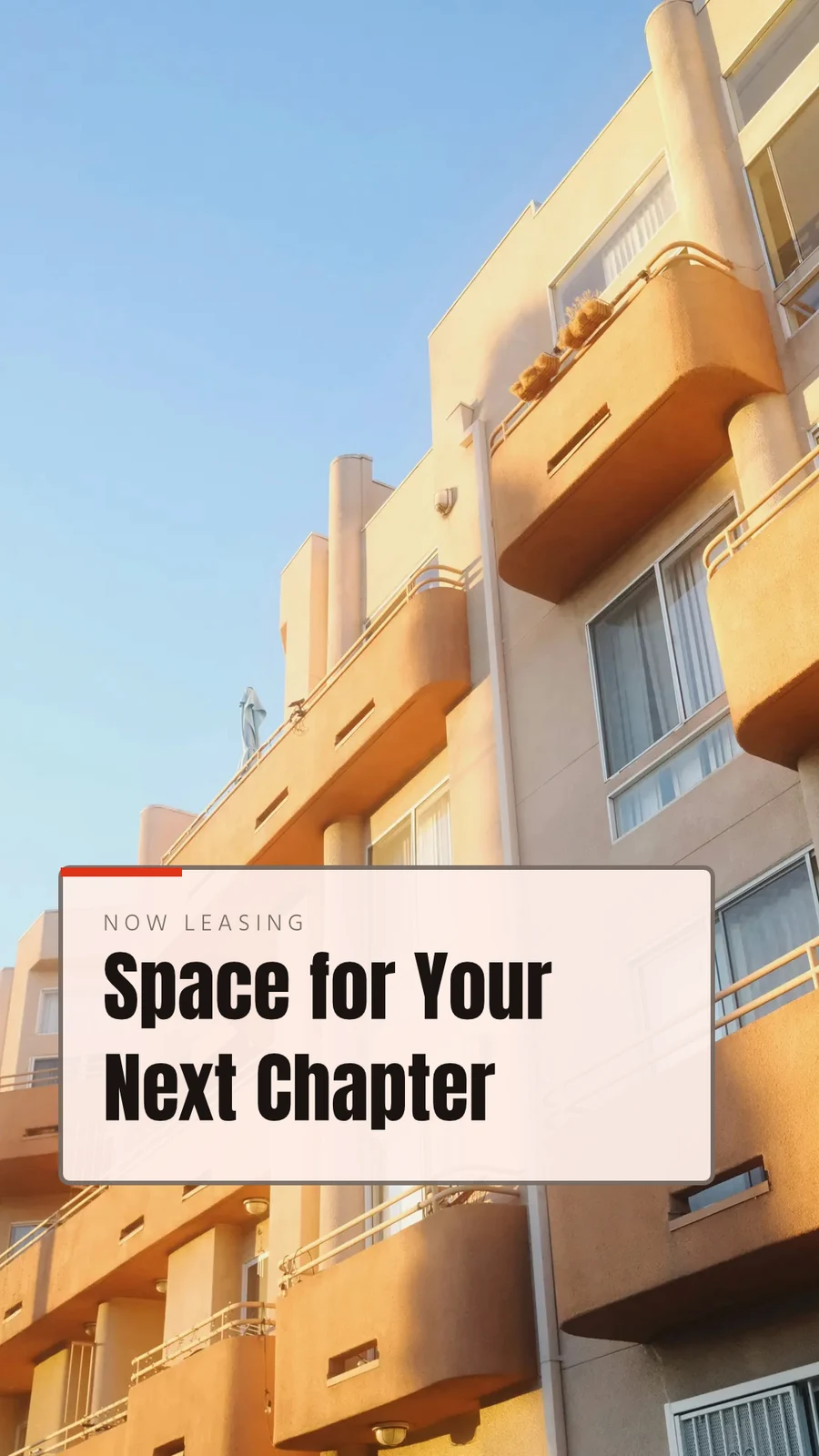
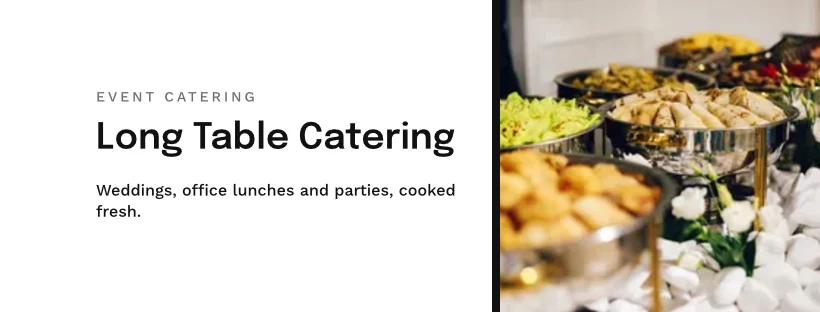
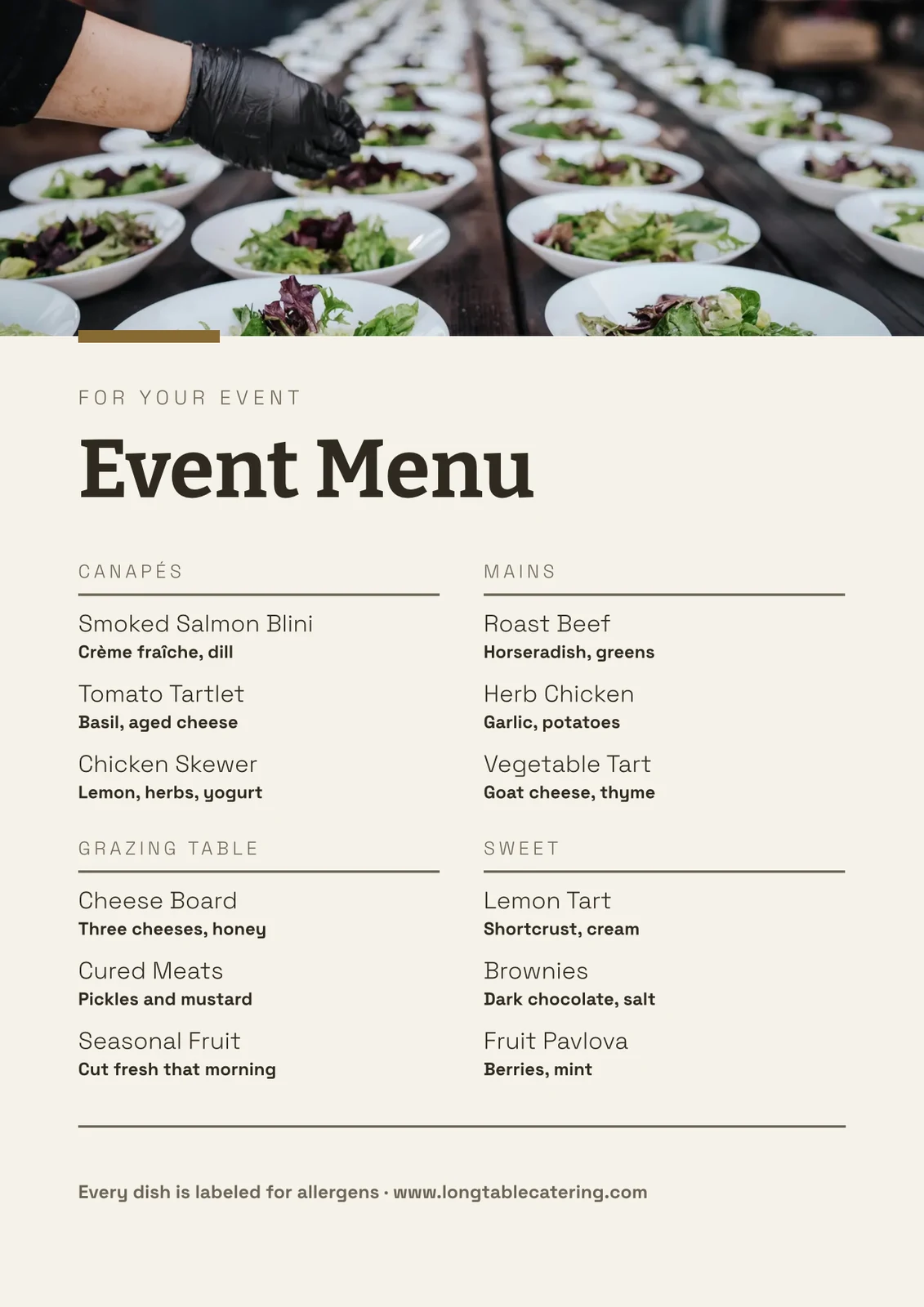
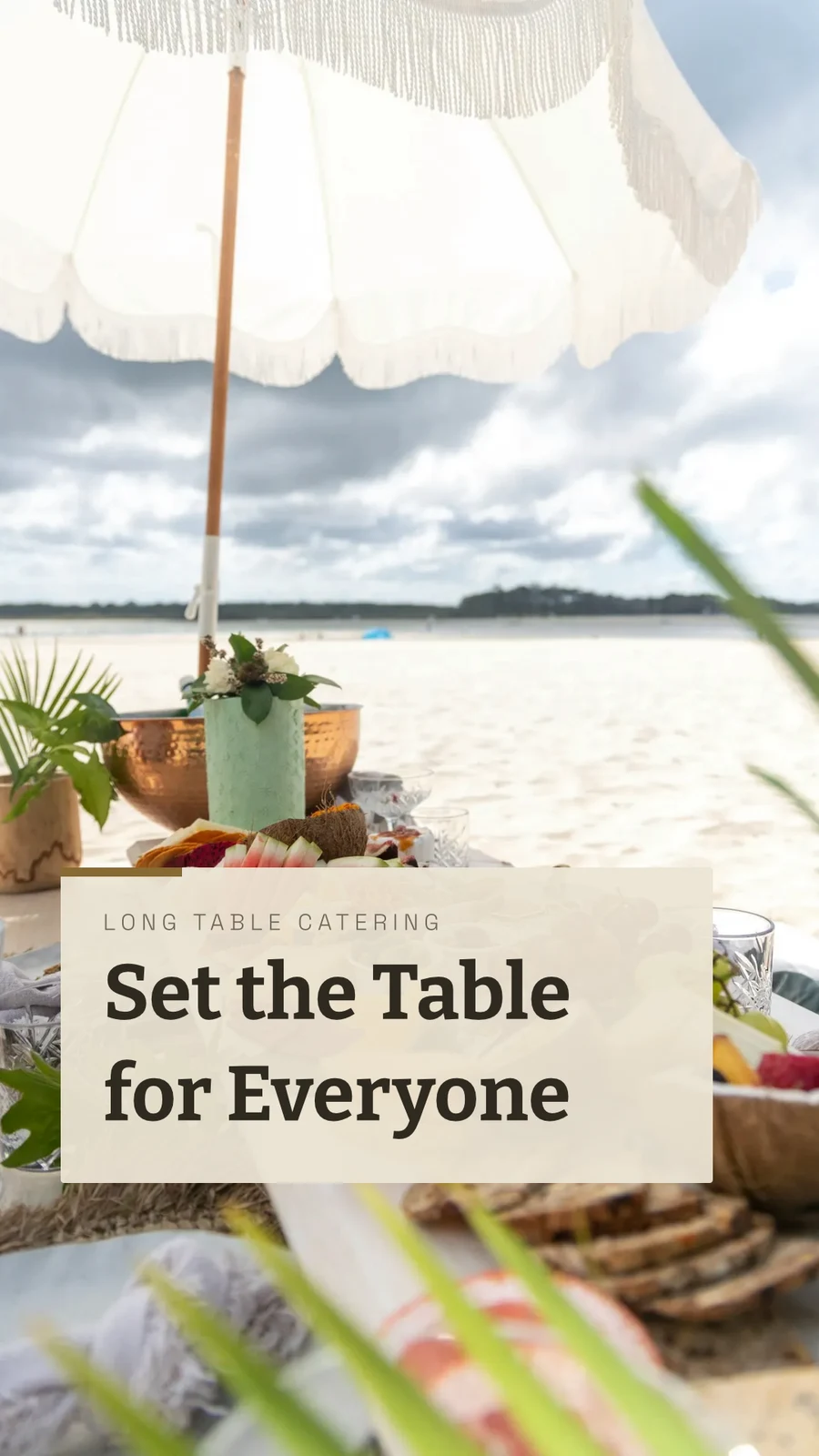


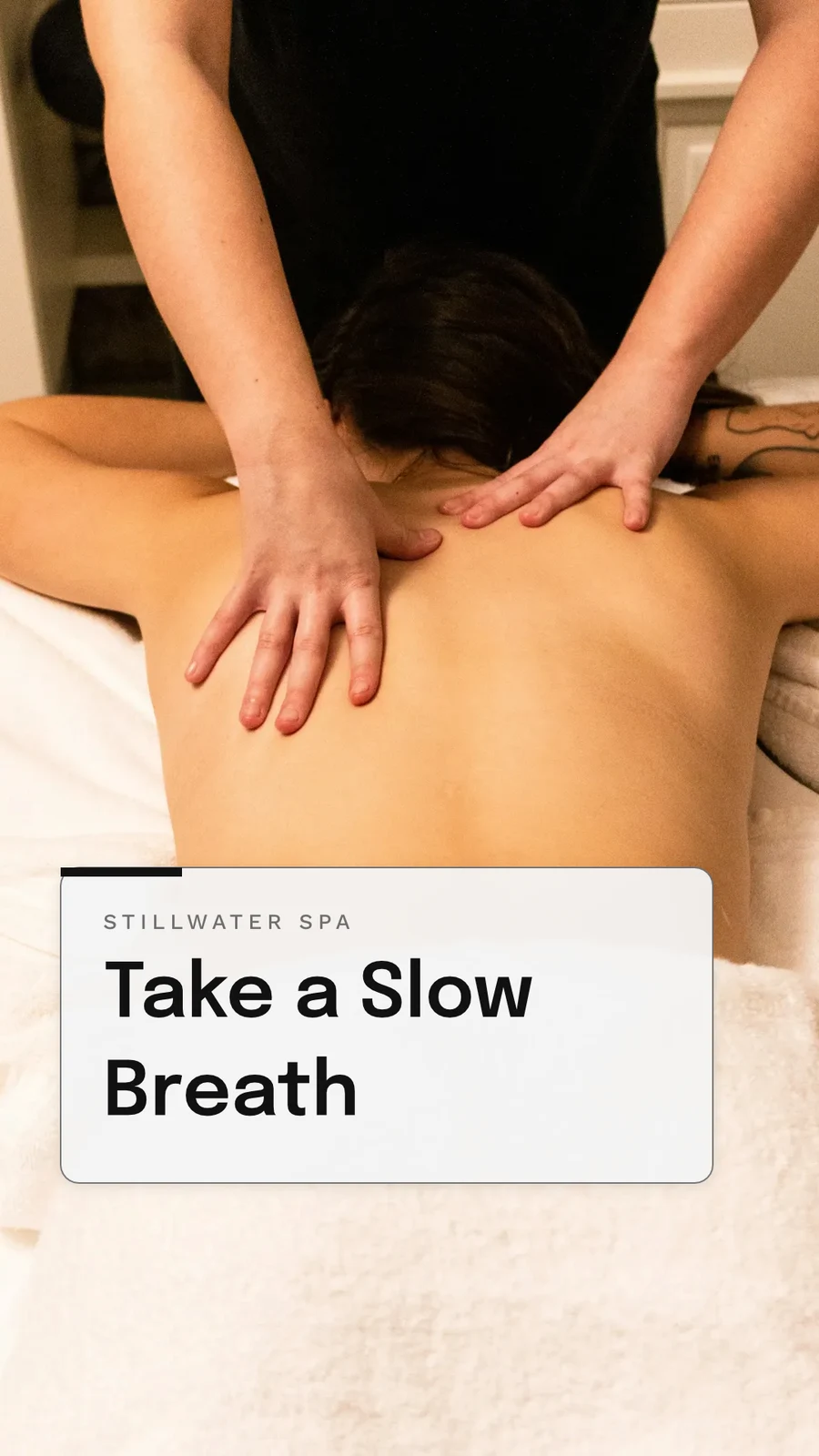

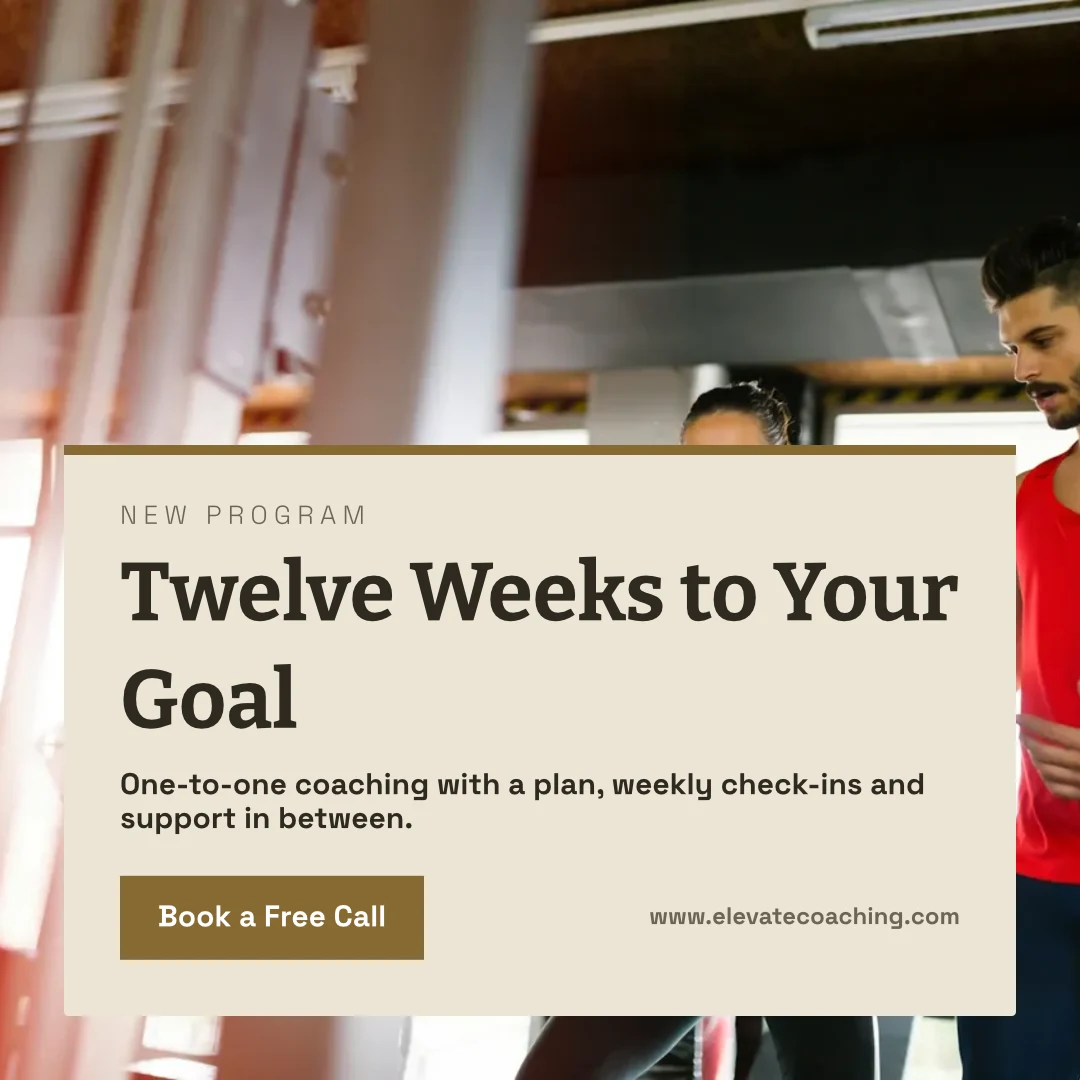
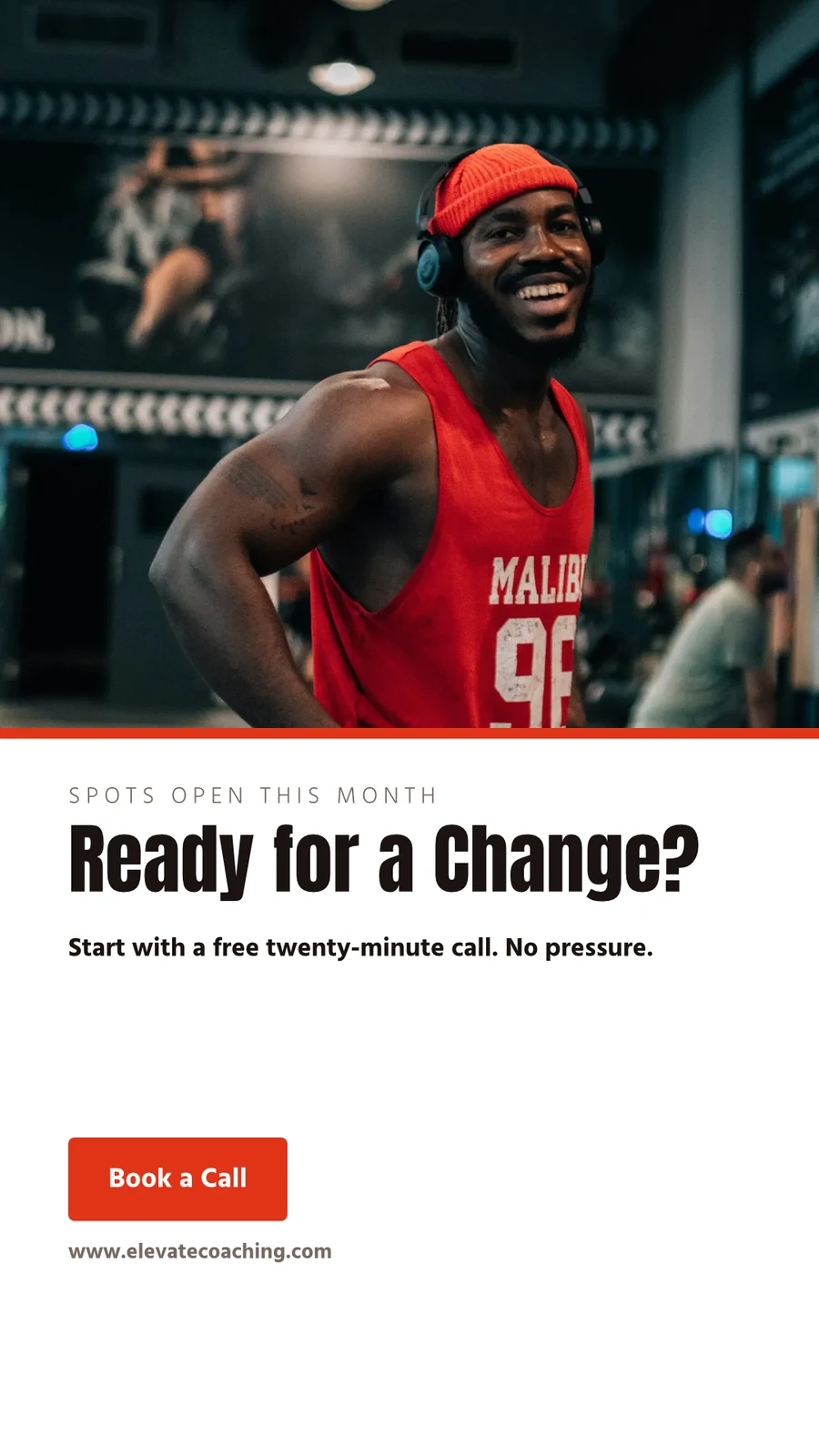
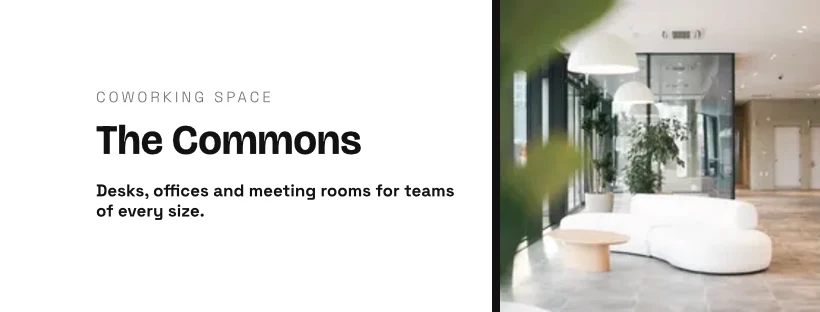
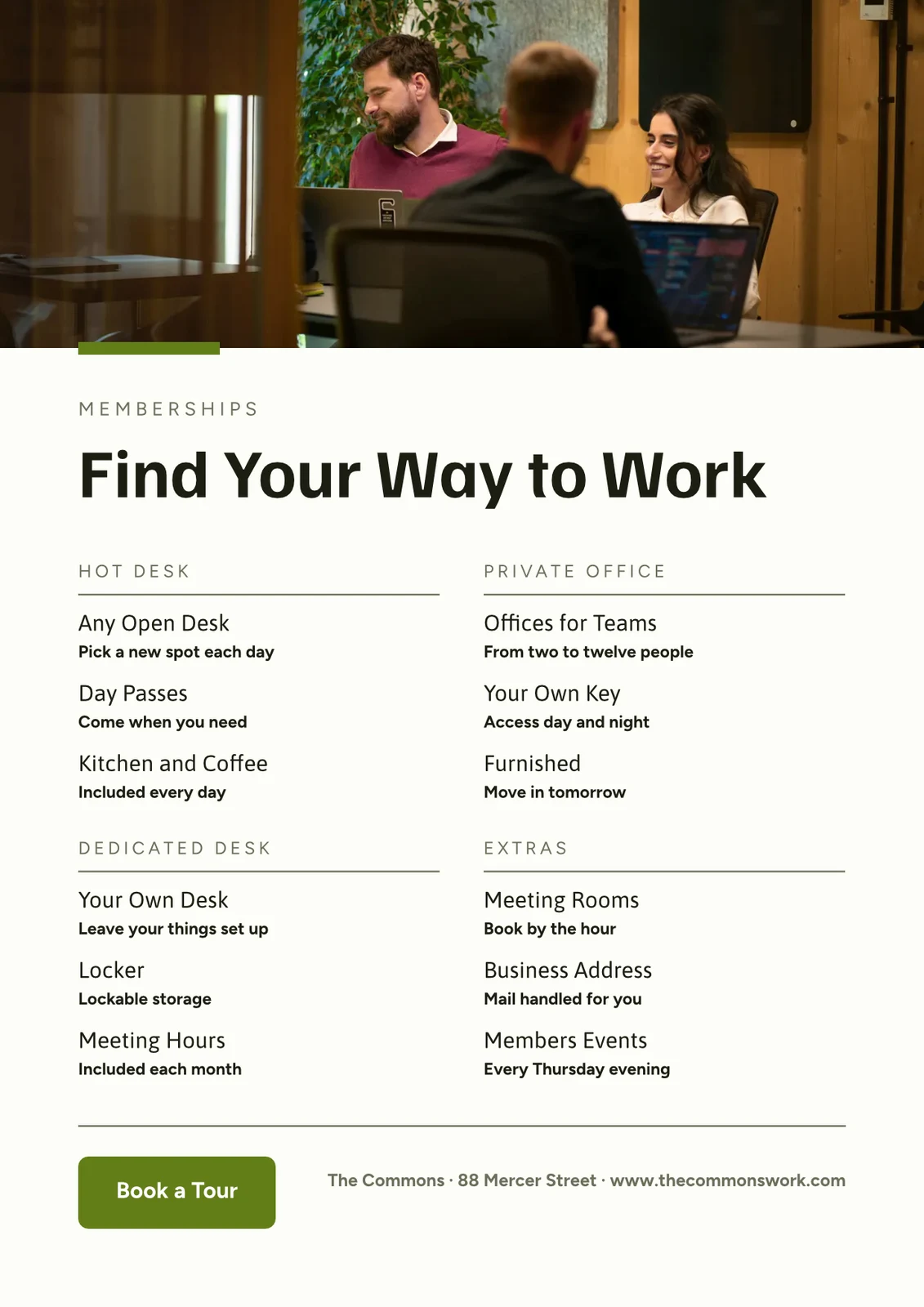
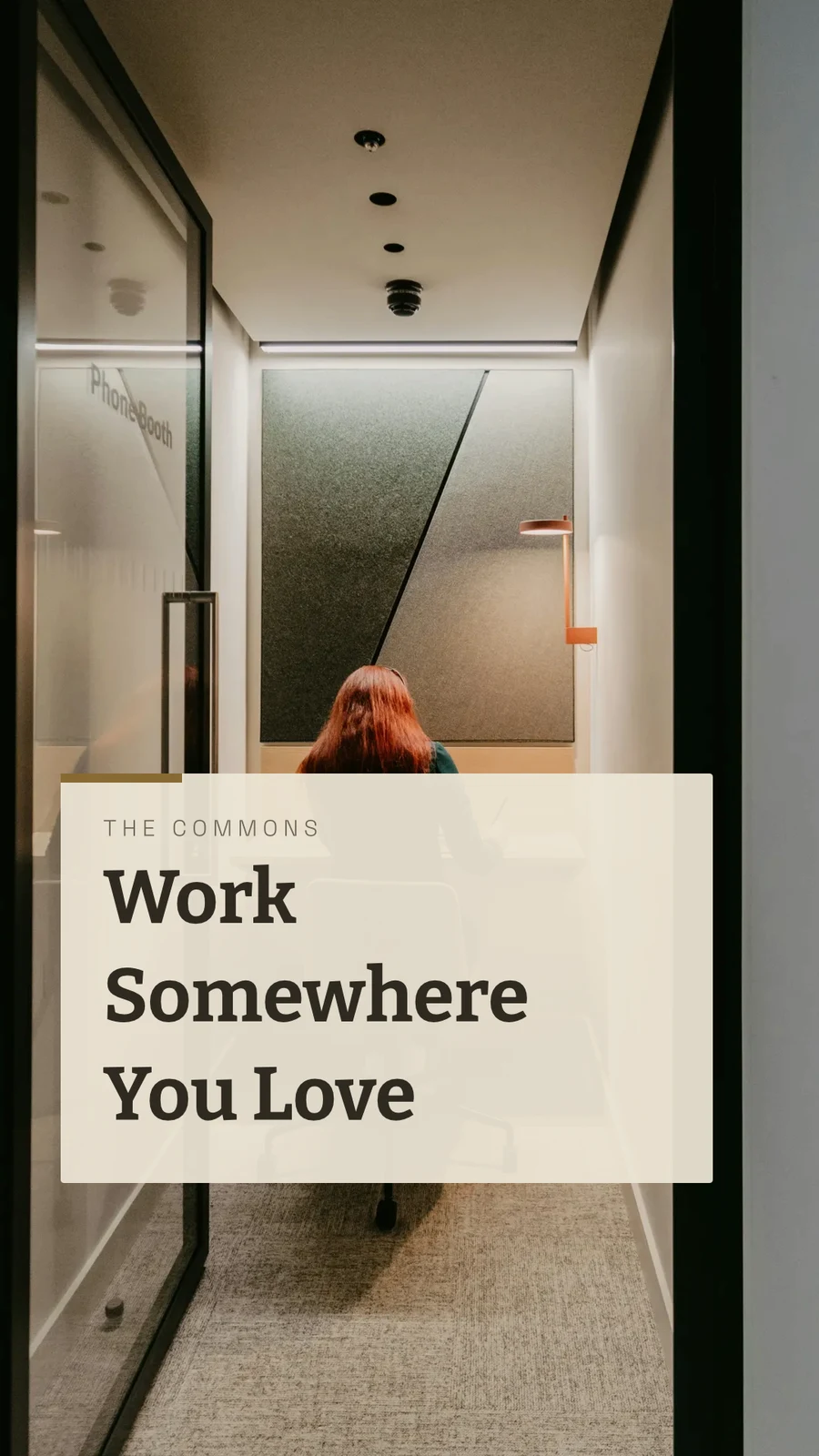
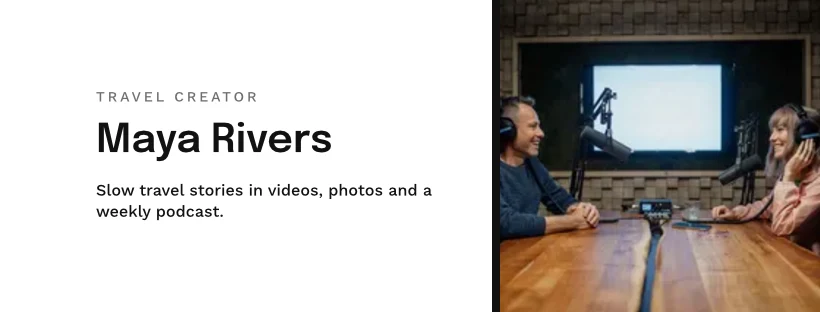
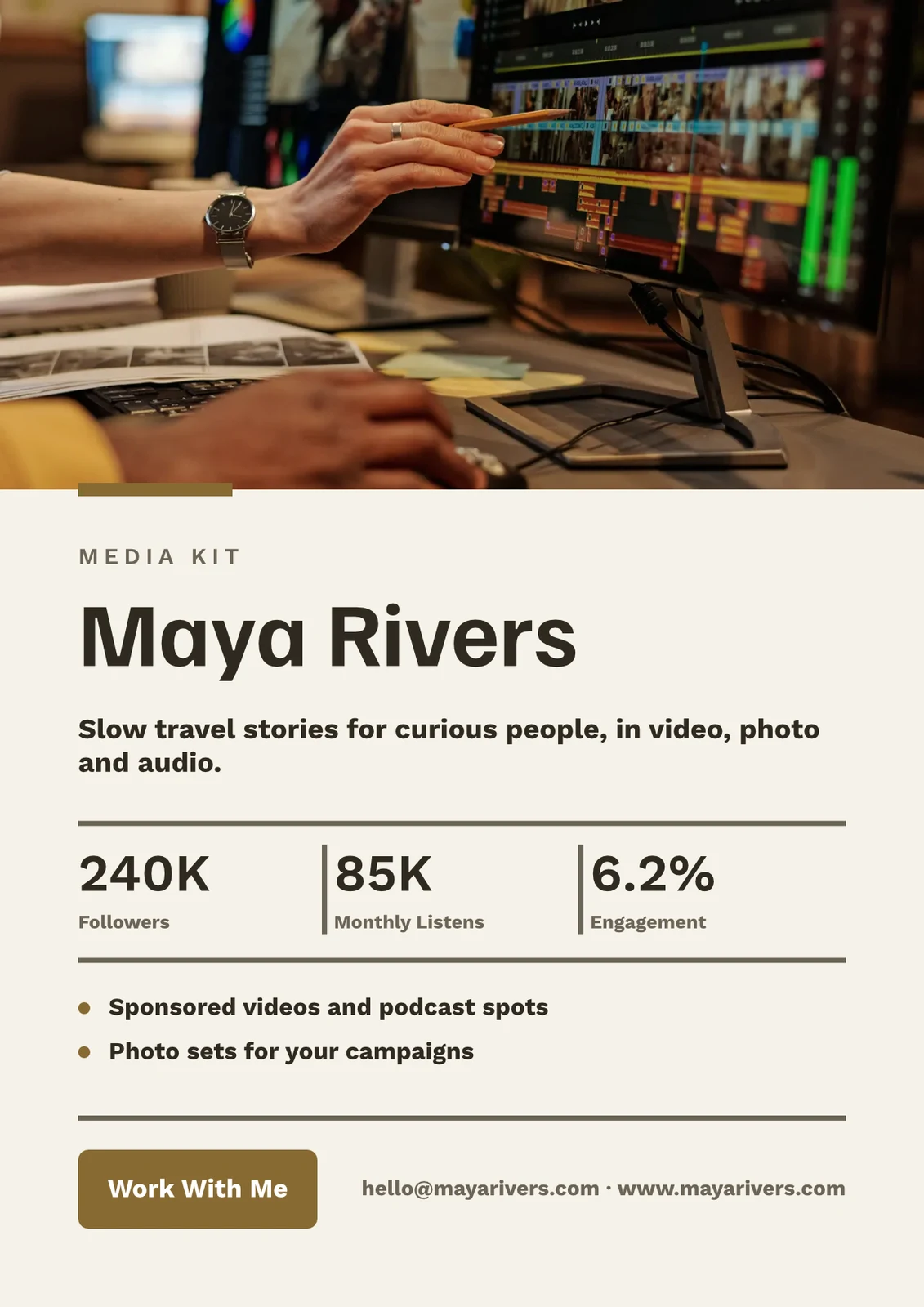
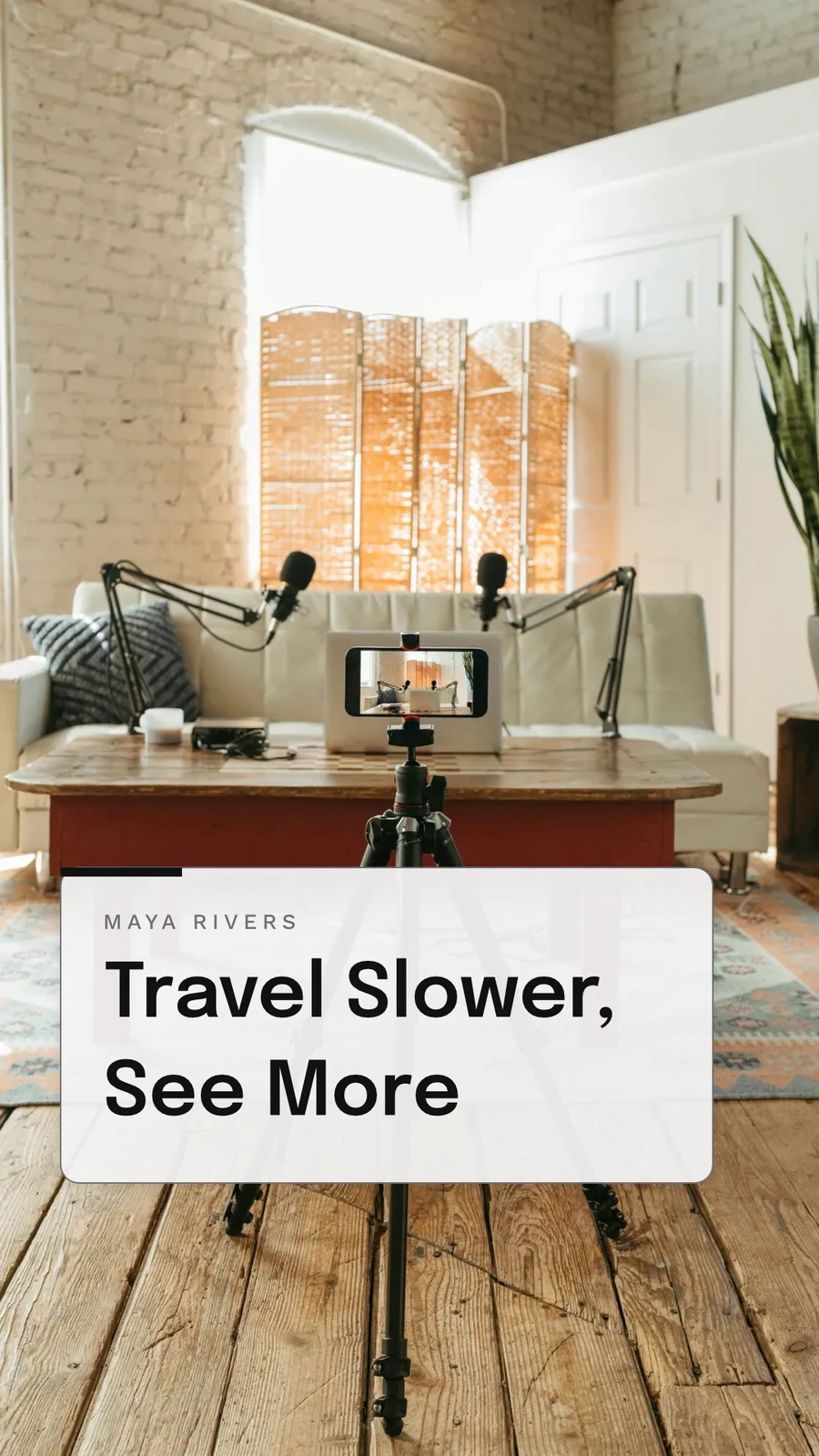
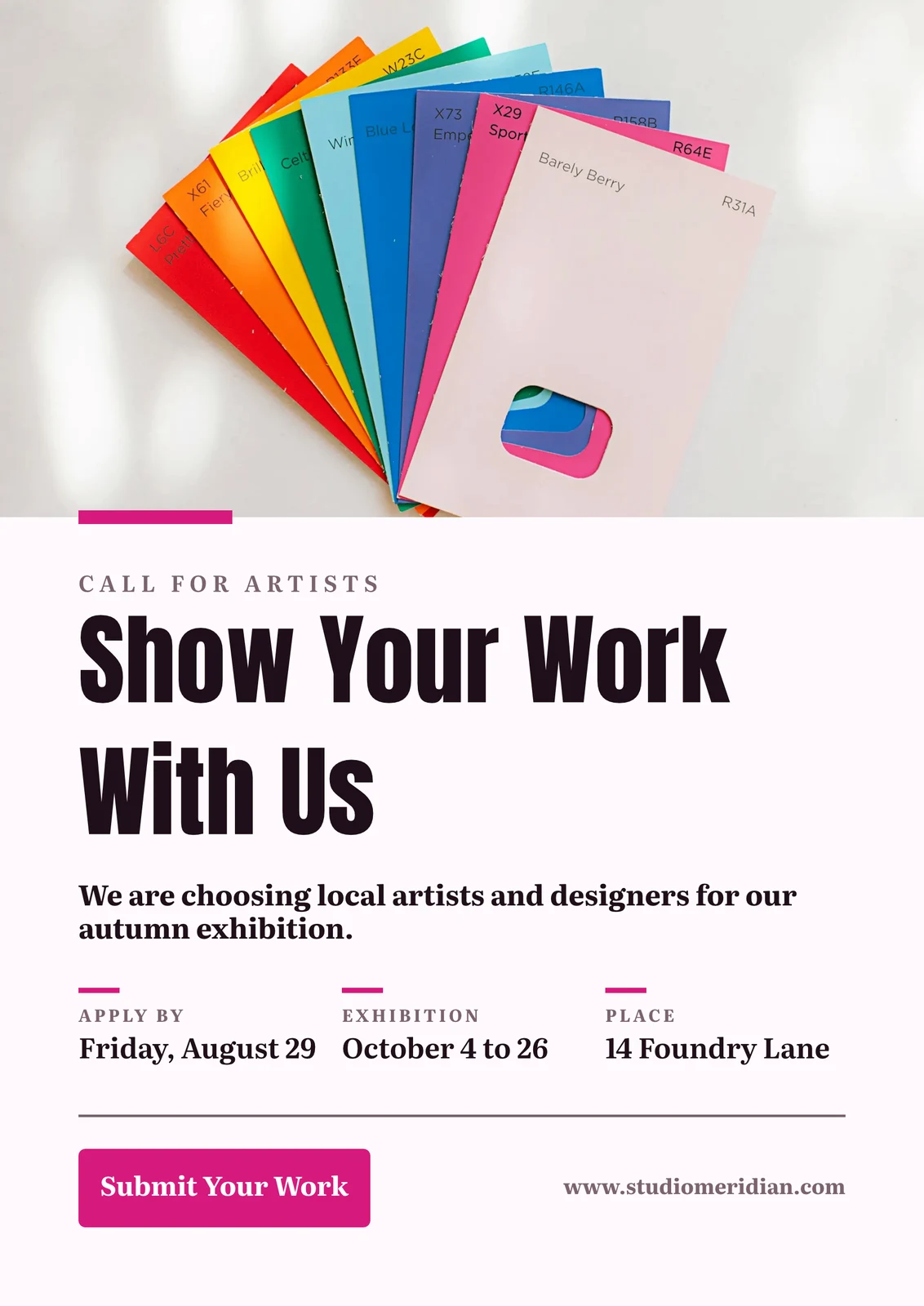
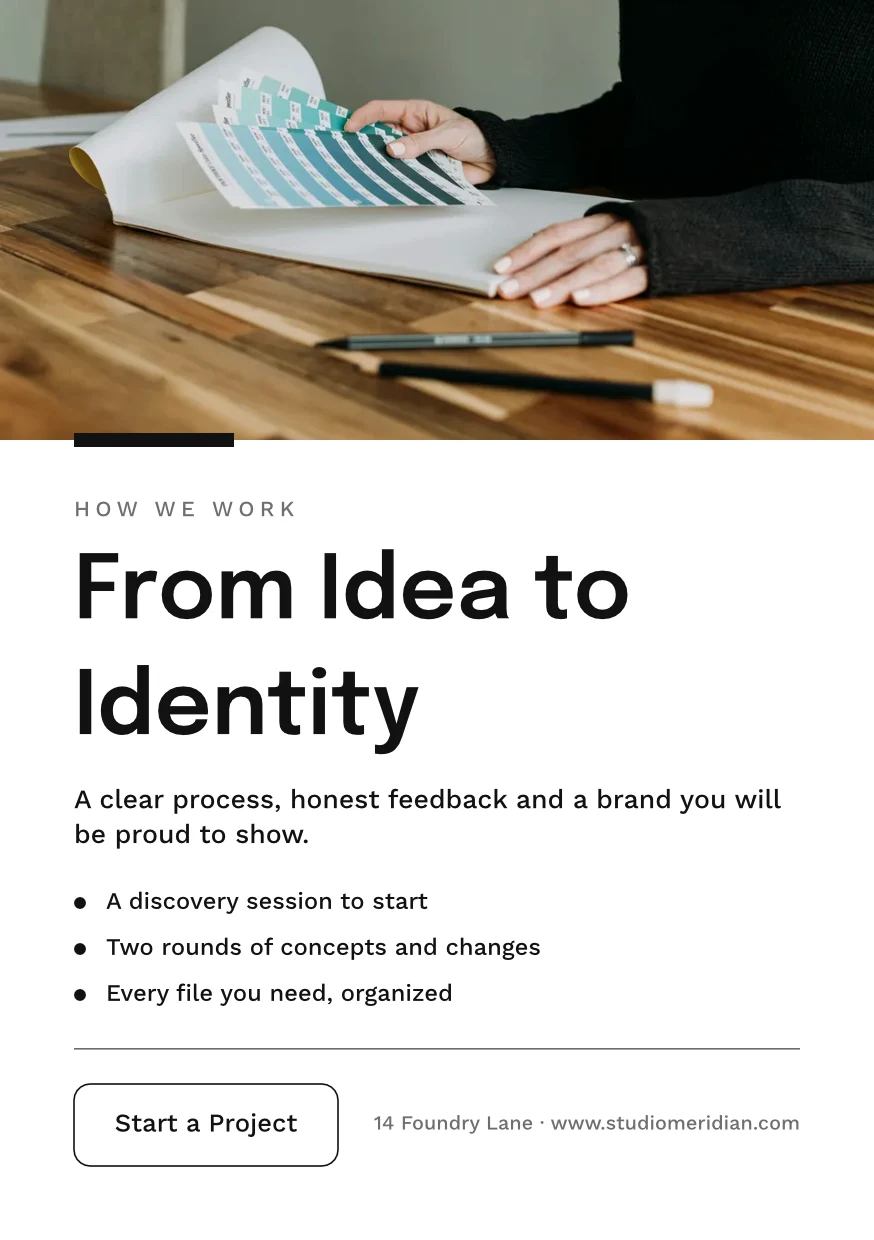



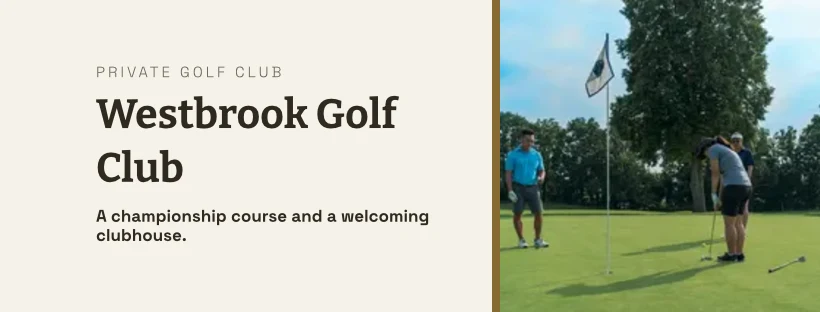
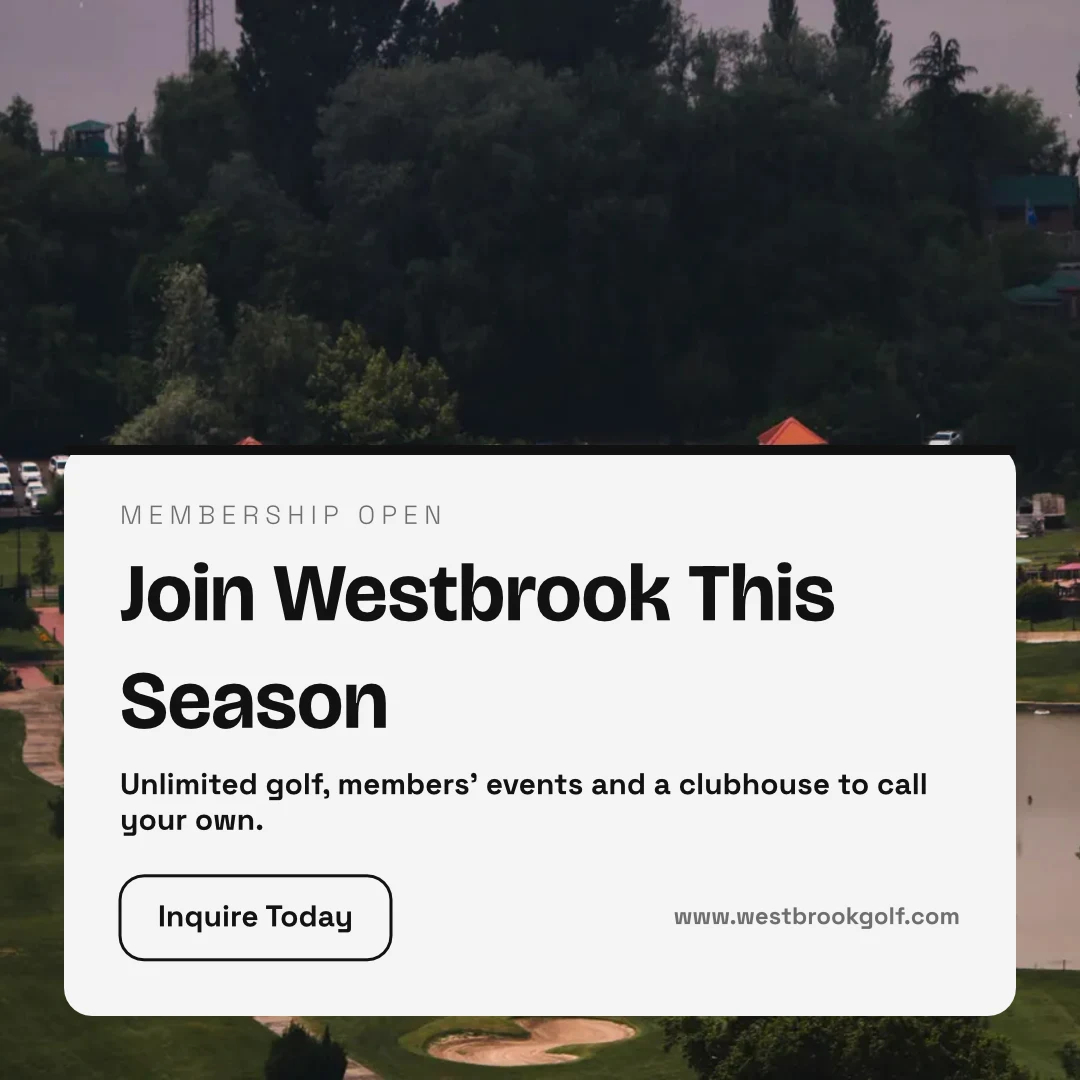



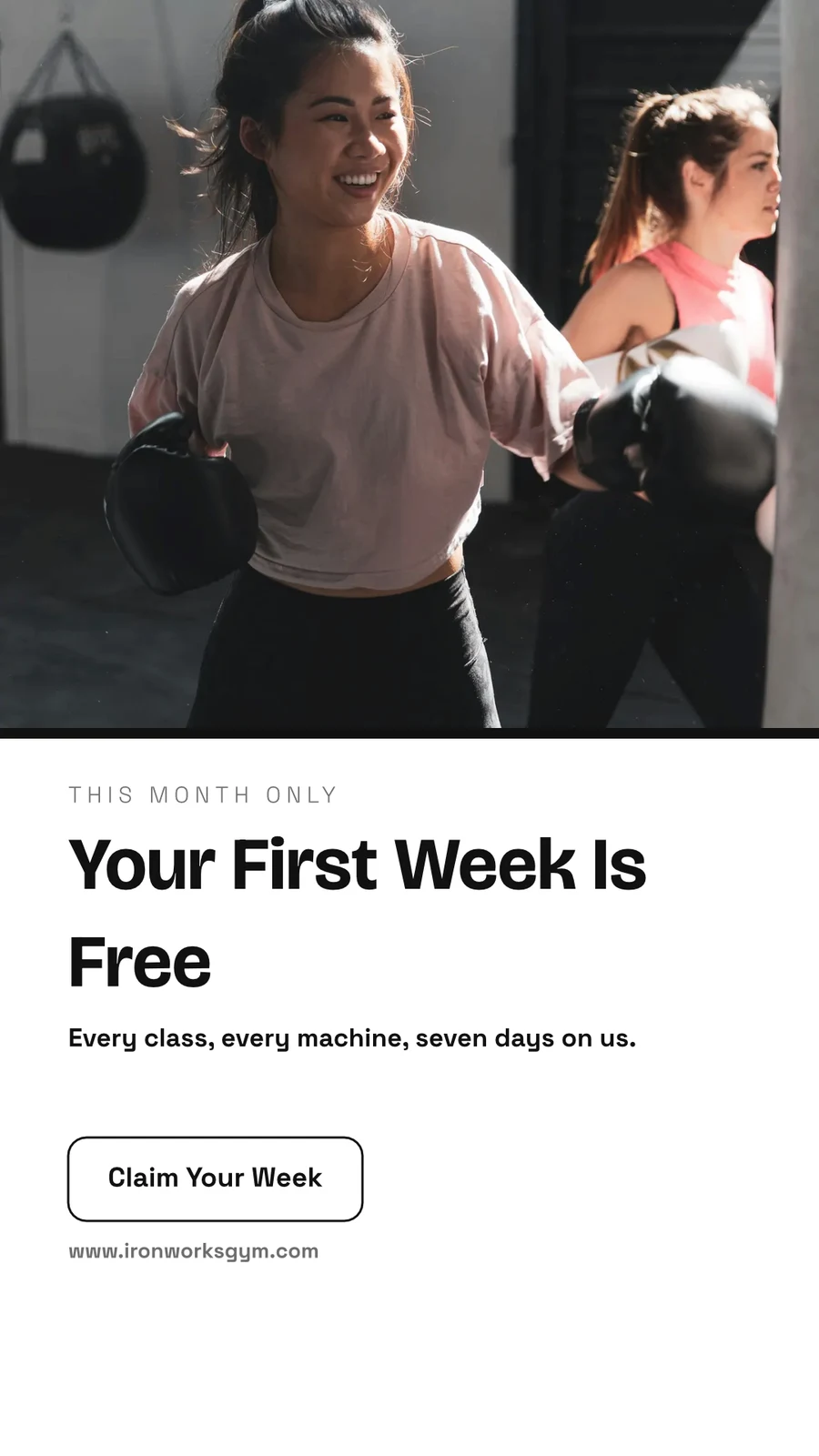
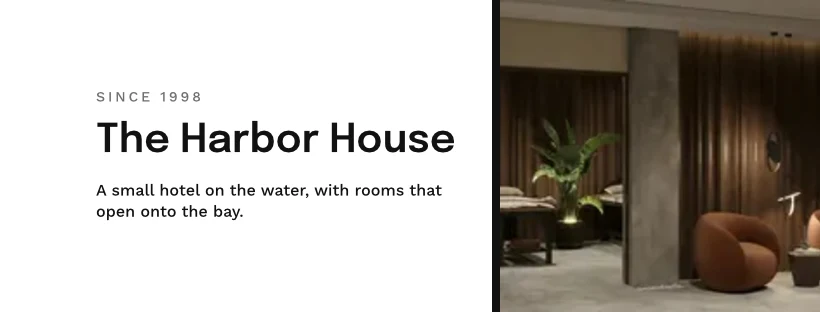










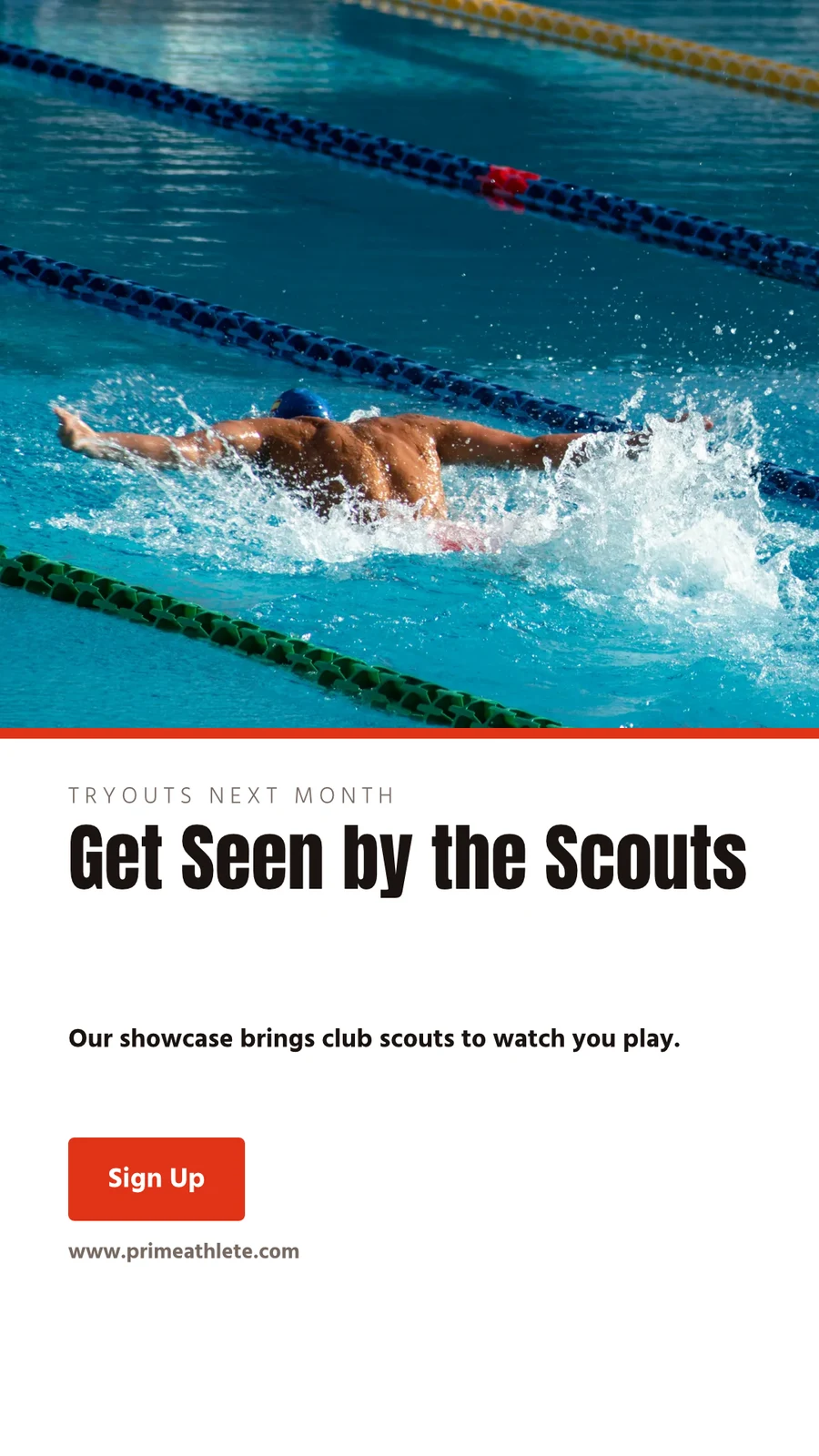
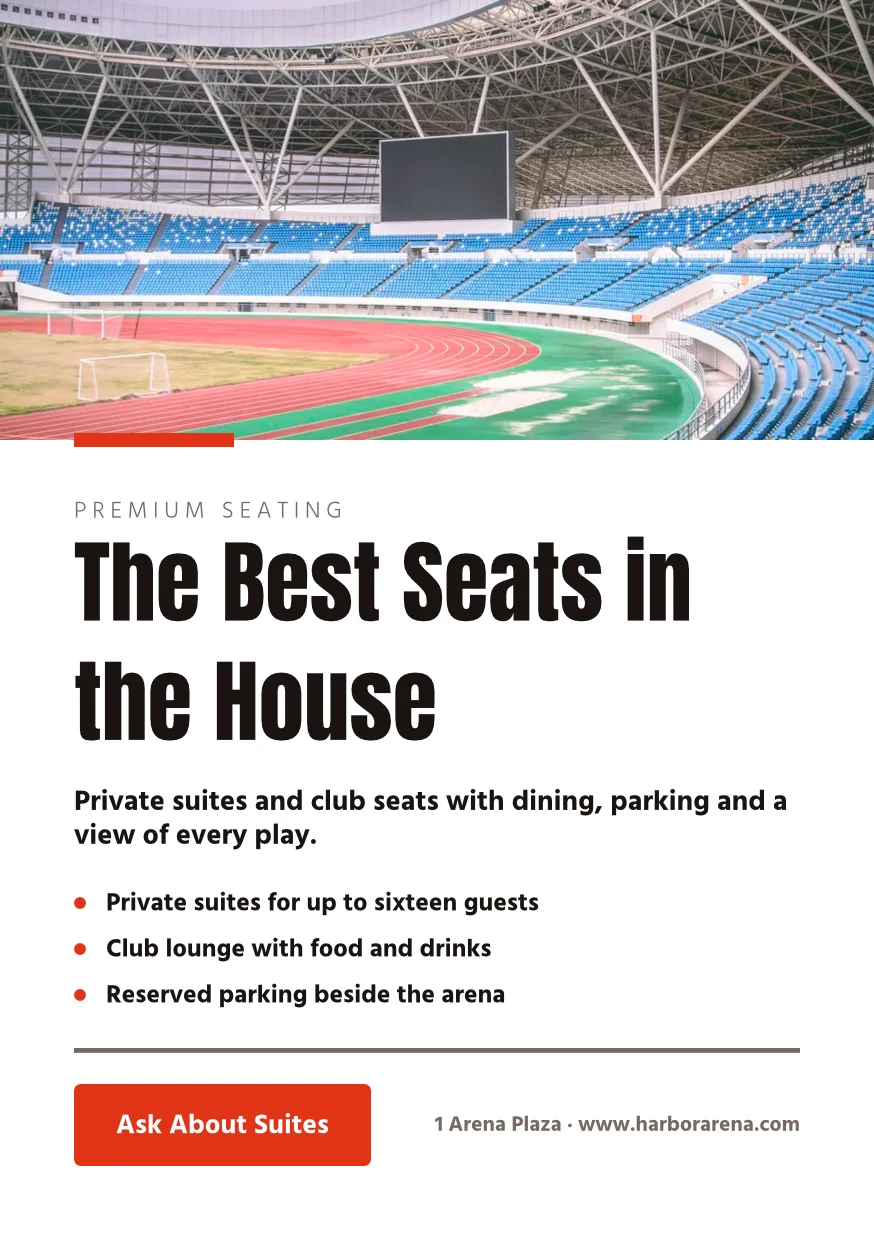
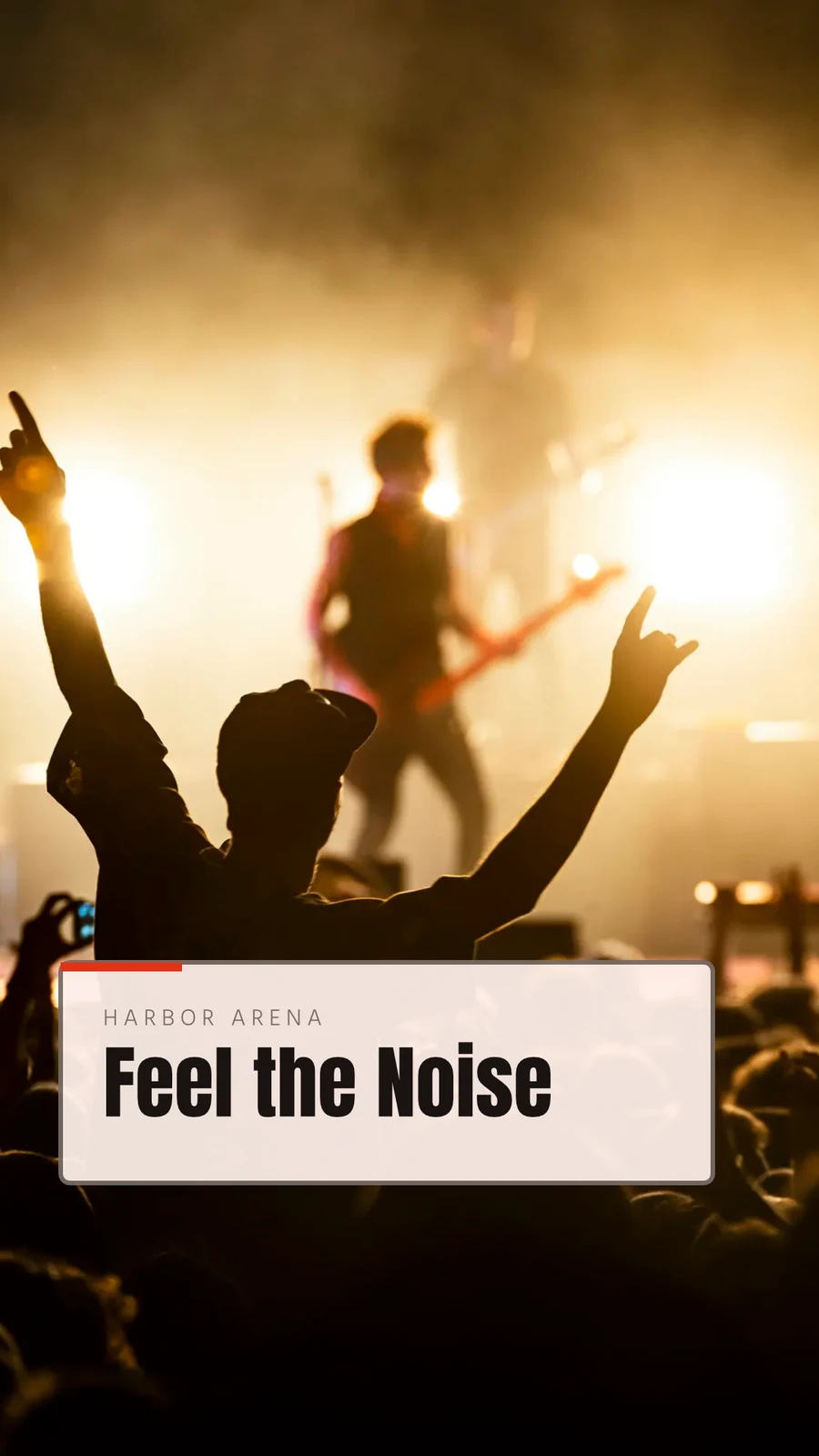

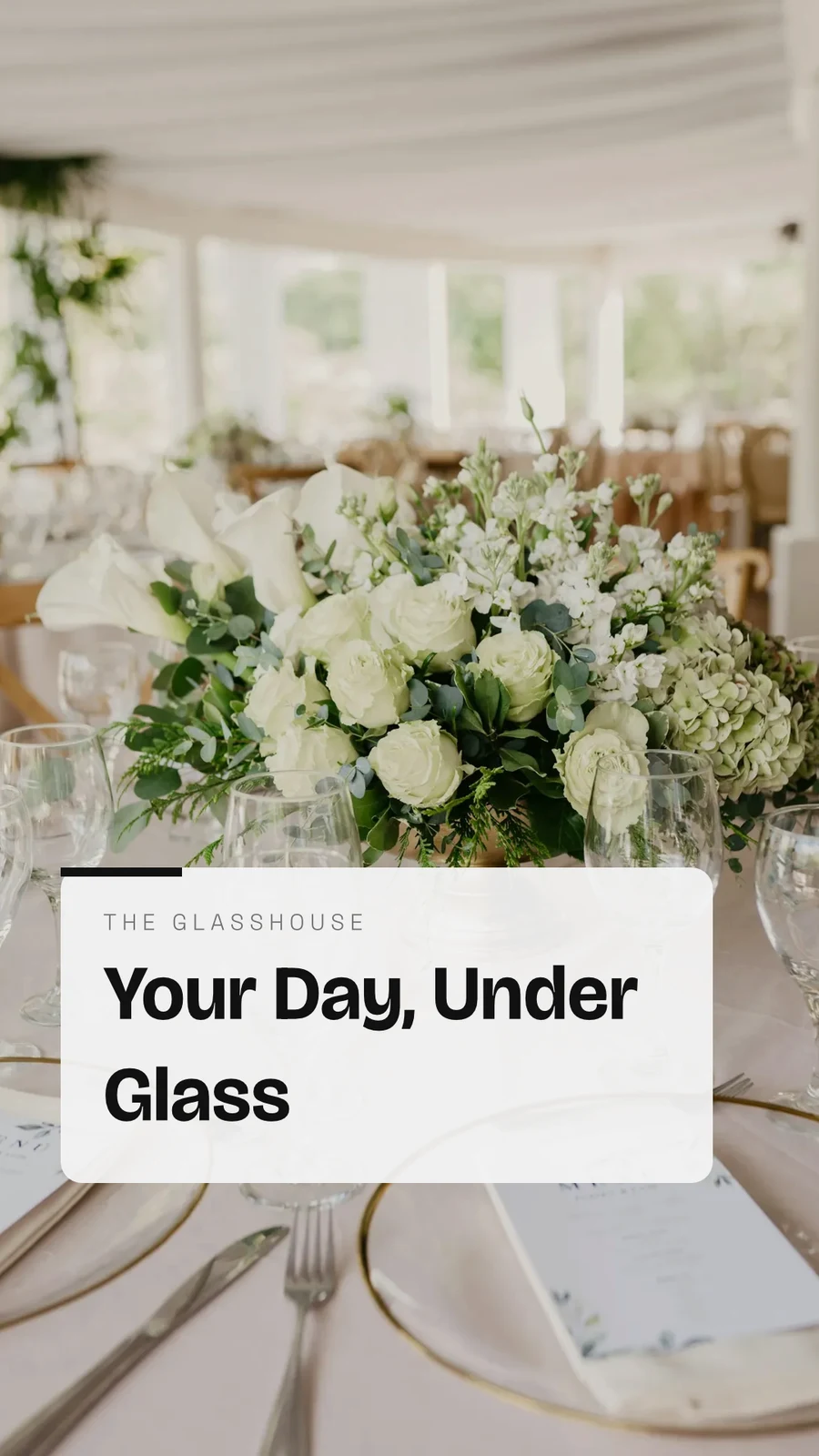
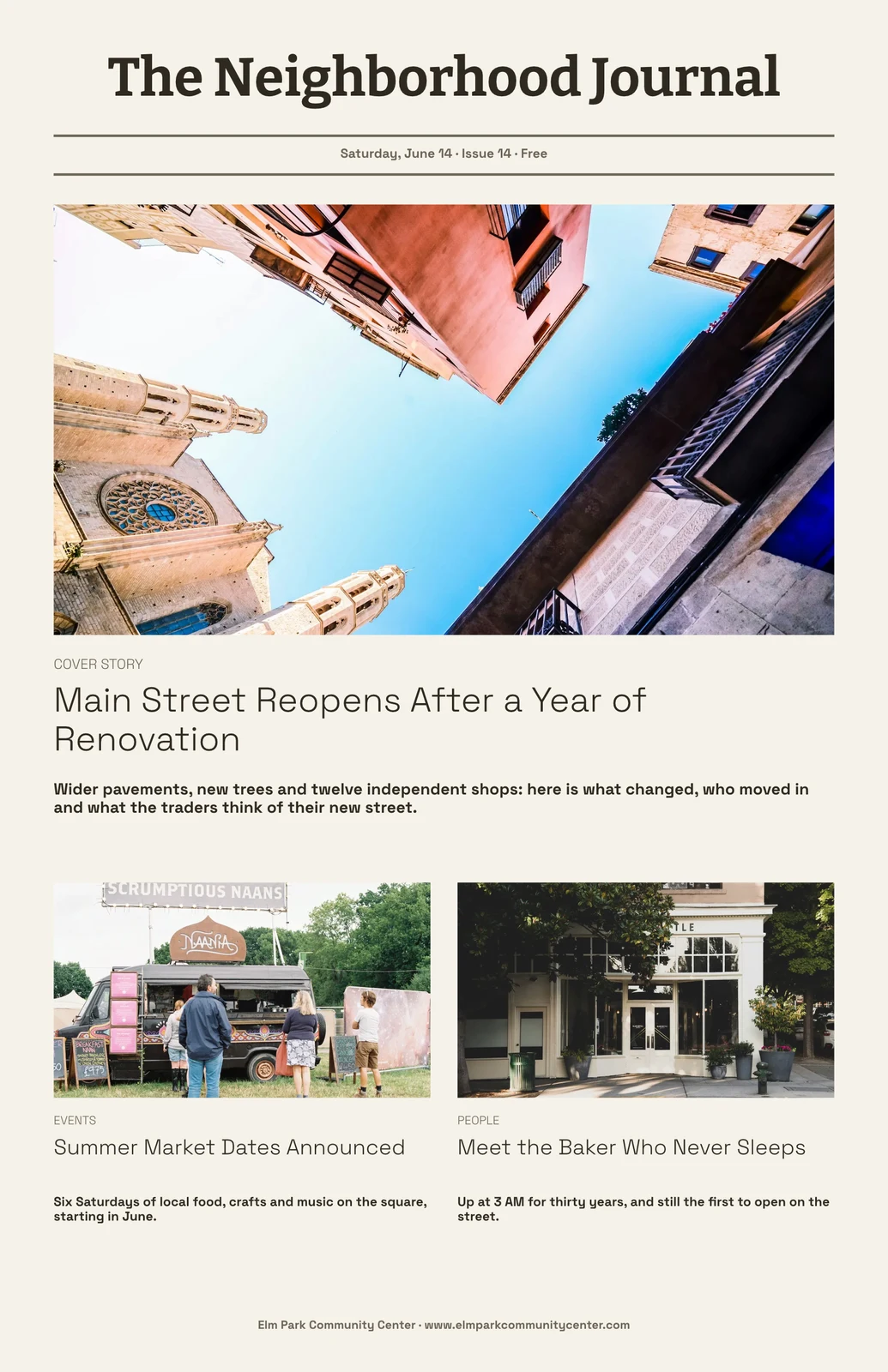
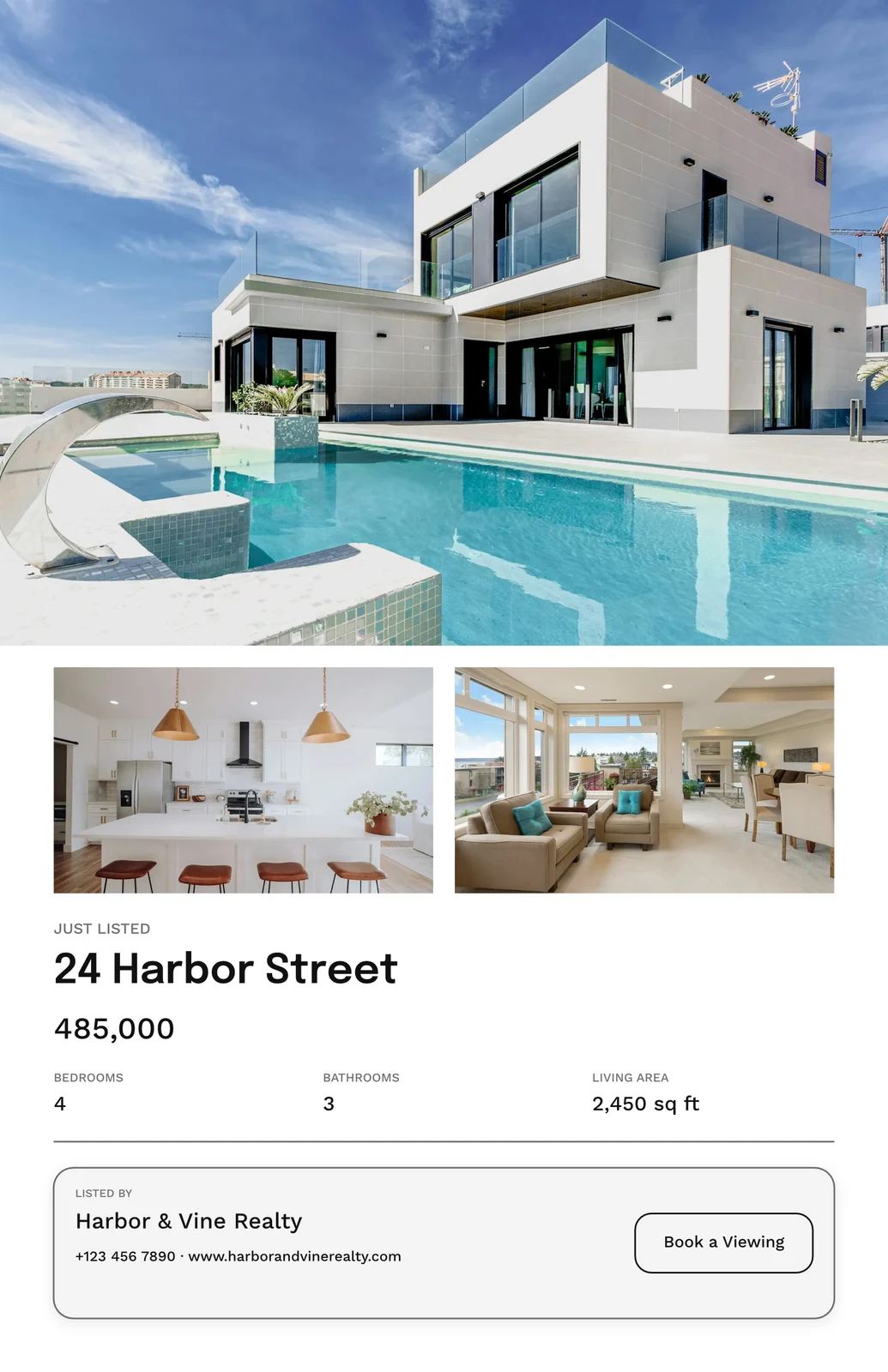


Every design, from the first template to the print
Social posts, print, video and screens, at Calisto’s sizes or any size you set.
Start
A template, a Theme or a blank size.
Edit
Words, photos, shapes and charts, on layers.
Vector and Animate
Paths and keyframes on the same file.
Versions
Many designs from one.
Send Out
Export, print, share or hand off.
Together
Shared, live, and every version kept.
Whiteboards
Sticky notes before the design.
On a Phone
Change the words and photos.
Start from a template, a Theme or a blank size
Templates are Calisto’s layouts in every Theme, filtered by type, industry, style and colors. A Theme sets the colors, typefaces and spacing a design wears. A blank size opens on its exact artboard for social, print, video or screens, or at any width and height you set.
My Brand
Every template drawn in your brand kit before you pick one.
Templates



The Brand Kit
Colors, typefaces and logo, edited in Studio’s Settings and offered in every picker.
Settings
Brand Only, With Engage
People without a Studio seat build with the brand’s typefaces, colors and Theme alone.

Your Own Templates
Save as Template keeps a copy of the open design; Customize Template changes a template’s look.
Templates
Describe It
Say what you need in a sentence and three designs come back in your brand, to keep or save as templates.
Describe It
Say what you need and Calisto makes three designs in your brand. Pick one to finish it.
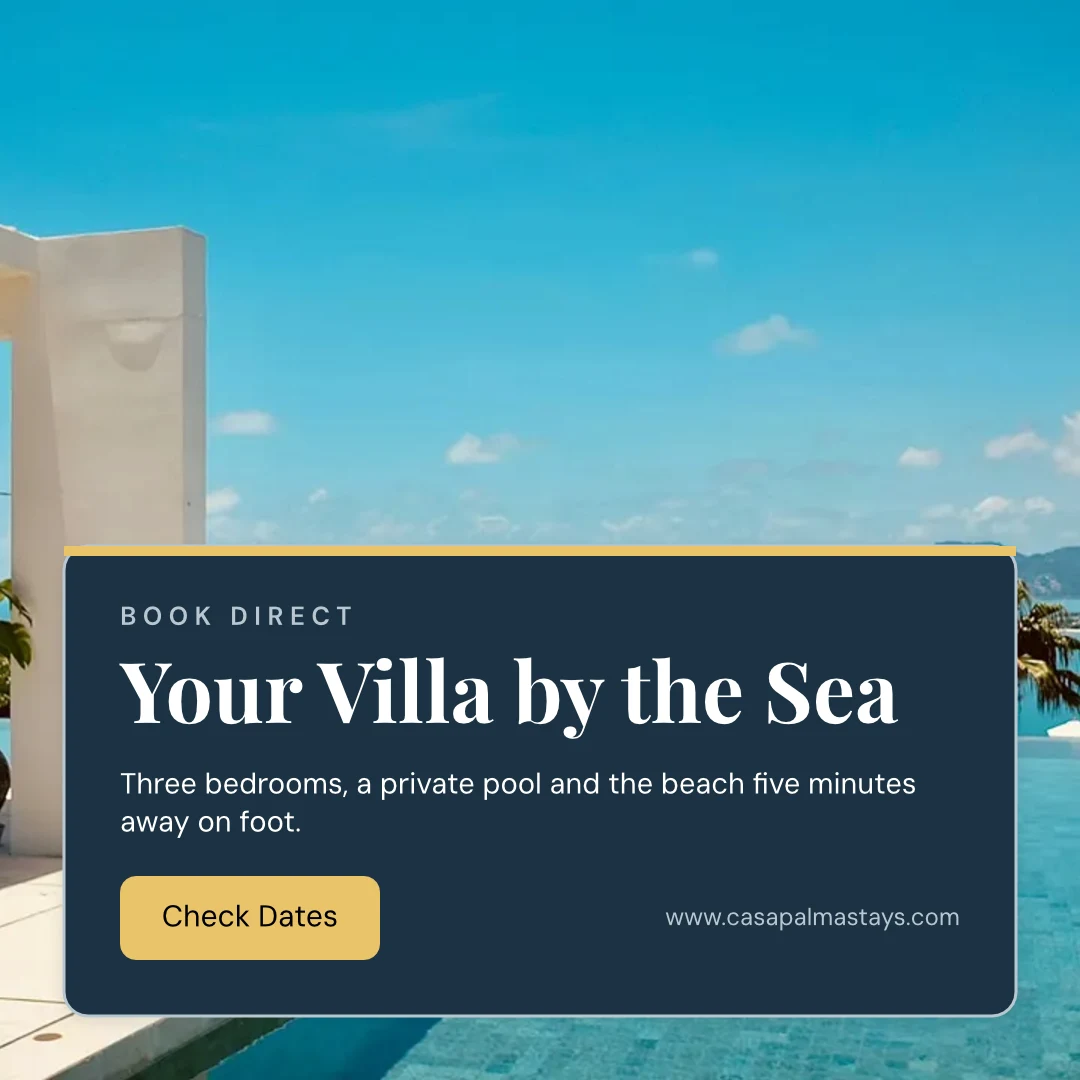
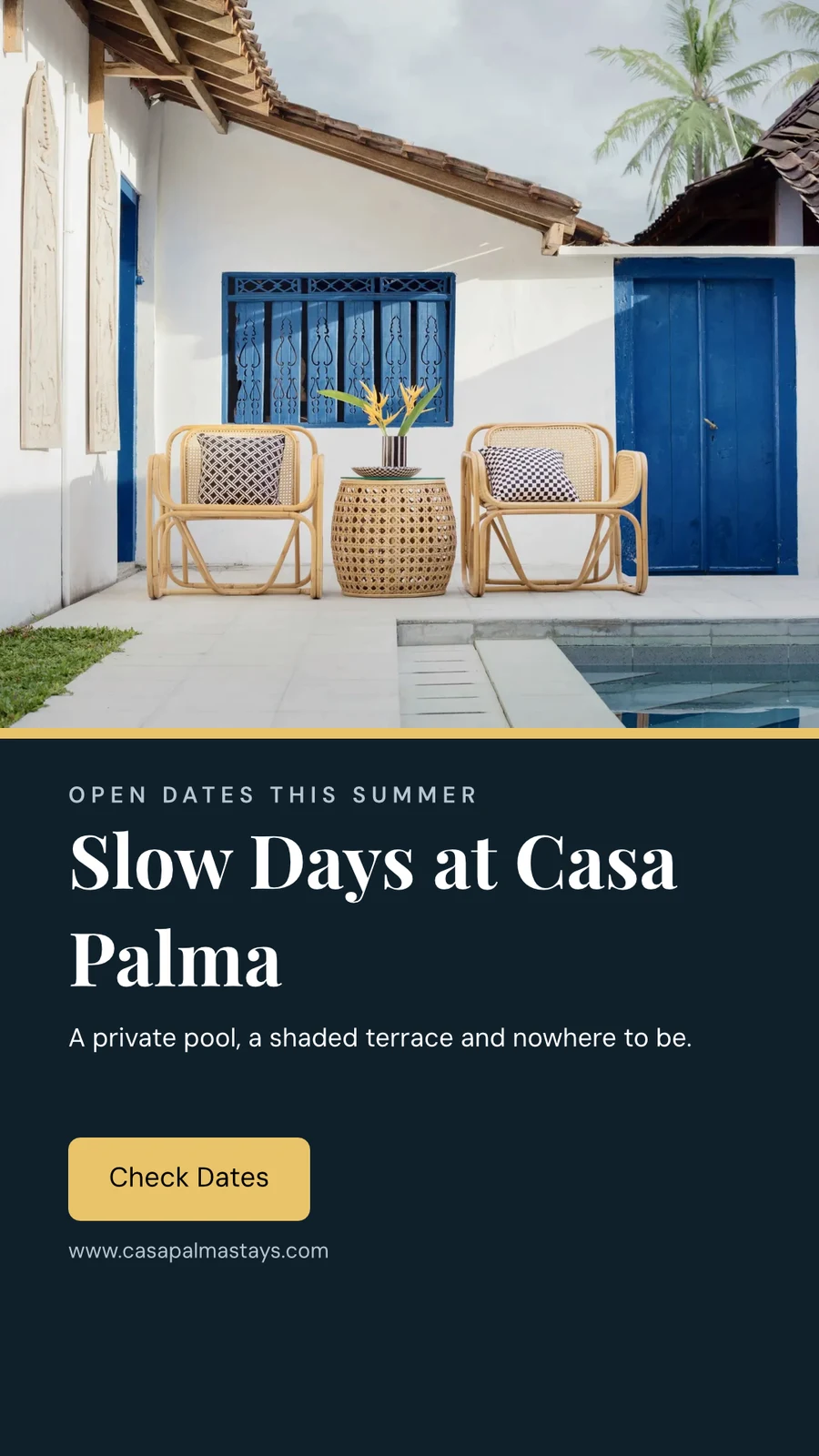
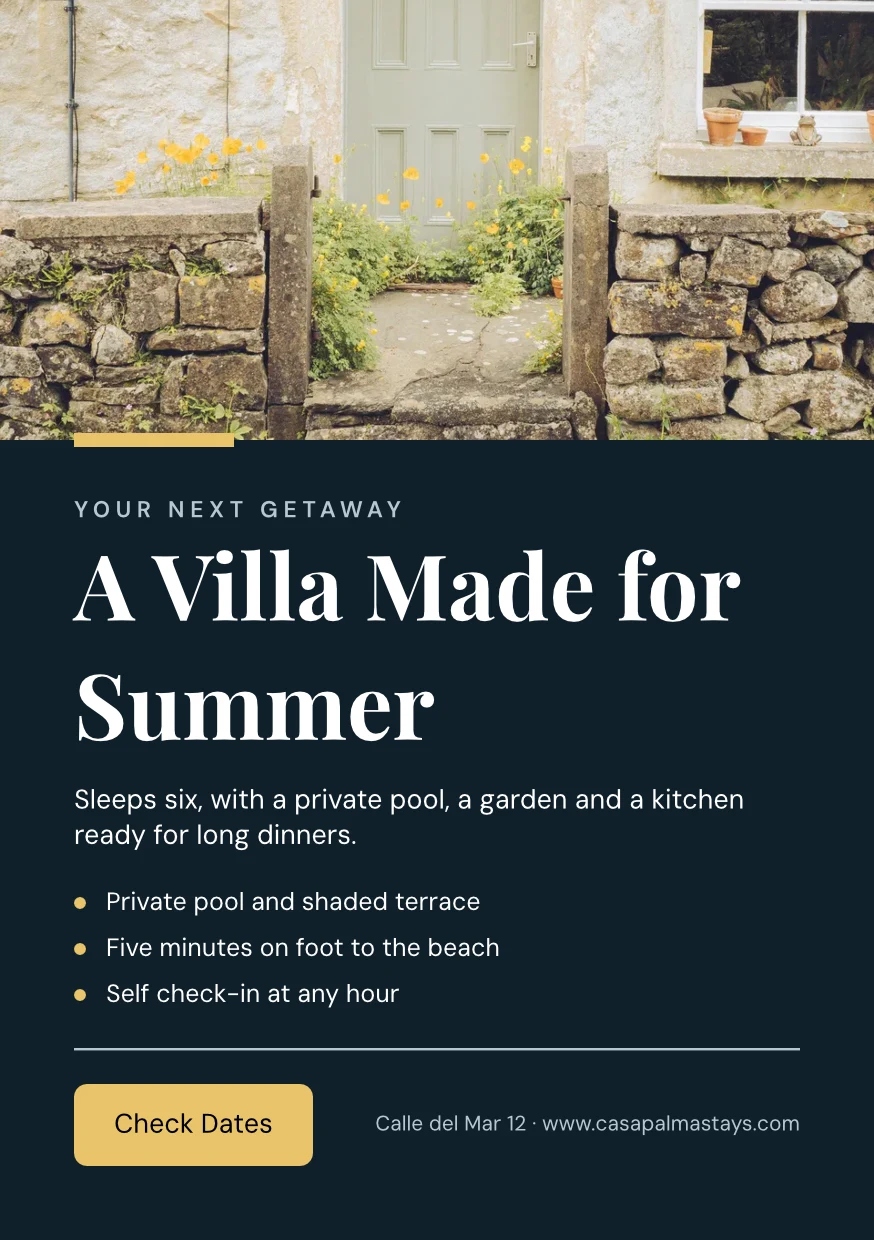
From Your Website
Your brand kit read from your site or your brand guidelines PDF: its colors, typefaces and logo, saved when you say so.
Settings
From Your Website

Brand Rules
Hold a design to the brand’s colors and typefaces; the brand check names what is off, and nothing off brand is exported.
Templates
Change the words, the photos and the look
Add words, photos, shapes, charts, QR codes and generated images, and set each one’s typeface, color and place. Essentials keeps to the everyday controls; Pro shows every one.
Draw vectors and animate on the same file
Draw your own logo and artwork with a pen, and set a design moving on a timeline, in the same file. Both open with a Create seat; the ready-made moves and the shape tools are on every design.
- 01In, Loop and OutFade, rise, pop, typewriter, count up, pulse, float and spin on every design, each written as keyframes.
- 02Draw and Combine ShapesA freehand line that smooths into curves, and combined shapes on the selection, for everyone.
- 03Plays Where It GoesOn the public link, as a GIF or animated WebP, and on designed screens.
- 04Warp TextWith a Create seat: arc, arch, bulge, flag, wave, rise, fisheye or squeeze, with the words still editable and sharp in a PDF.
- 05Image to VectorWith a Create seat: a PNG or JPG traced into editable paths on your own device, or a vector graphic generated from a description.
 PhotoVector
Fade, rise, pop, typewriter, count up, pulse, float and spin on every design, each written as keyframes.
A freehand line that smooths into curves, and combined shapes on the selection, for everyone.
On the public link, as a GIF or animated WebP, and on designed screens.
With a Create seat: arc, arch, bulge, flag, wave, rise, fisheye or squeeze, with the words still editable and sharp in a PDF.
With a Create seat: a PNG or JPG traced into editable paths on your own device, or a vector graphic generated from a description.
PhotoVectorMake many versions from one design
Bulk Create fills a design’s text placeholders from a CSV or pasted rows, up to 200 designs in one run, and a second press makes none twice. Copy & Resize lays a design out again at another size and saves it as a new design.
Copy & Resize
A design laid out again at another size, saved as a new design.
Copy & Resize
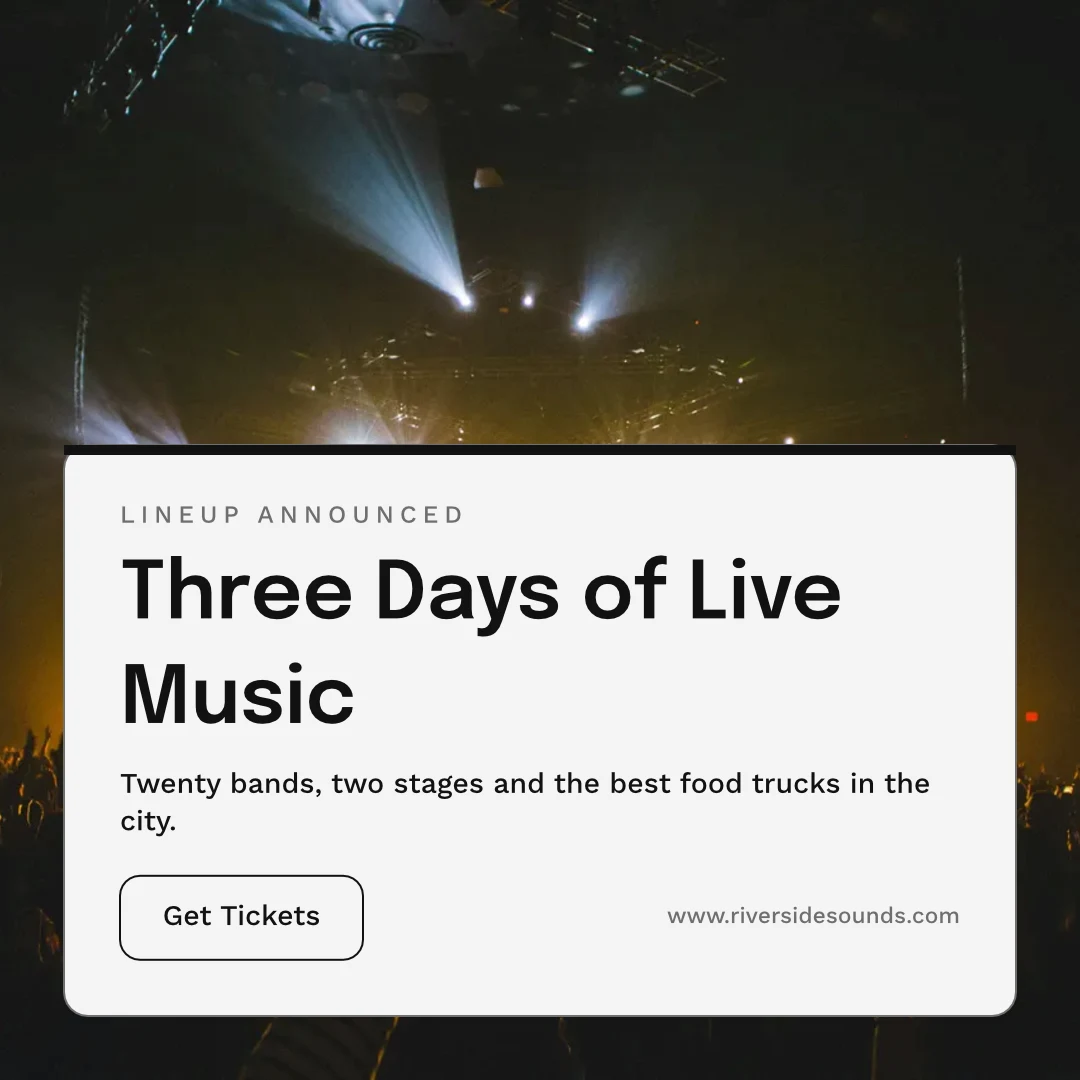
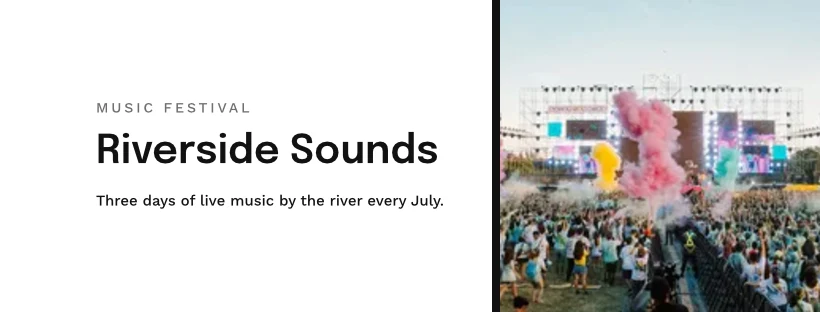
 Three Days of Live Music
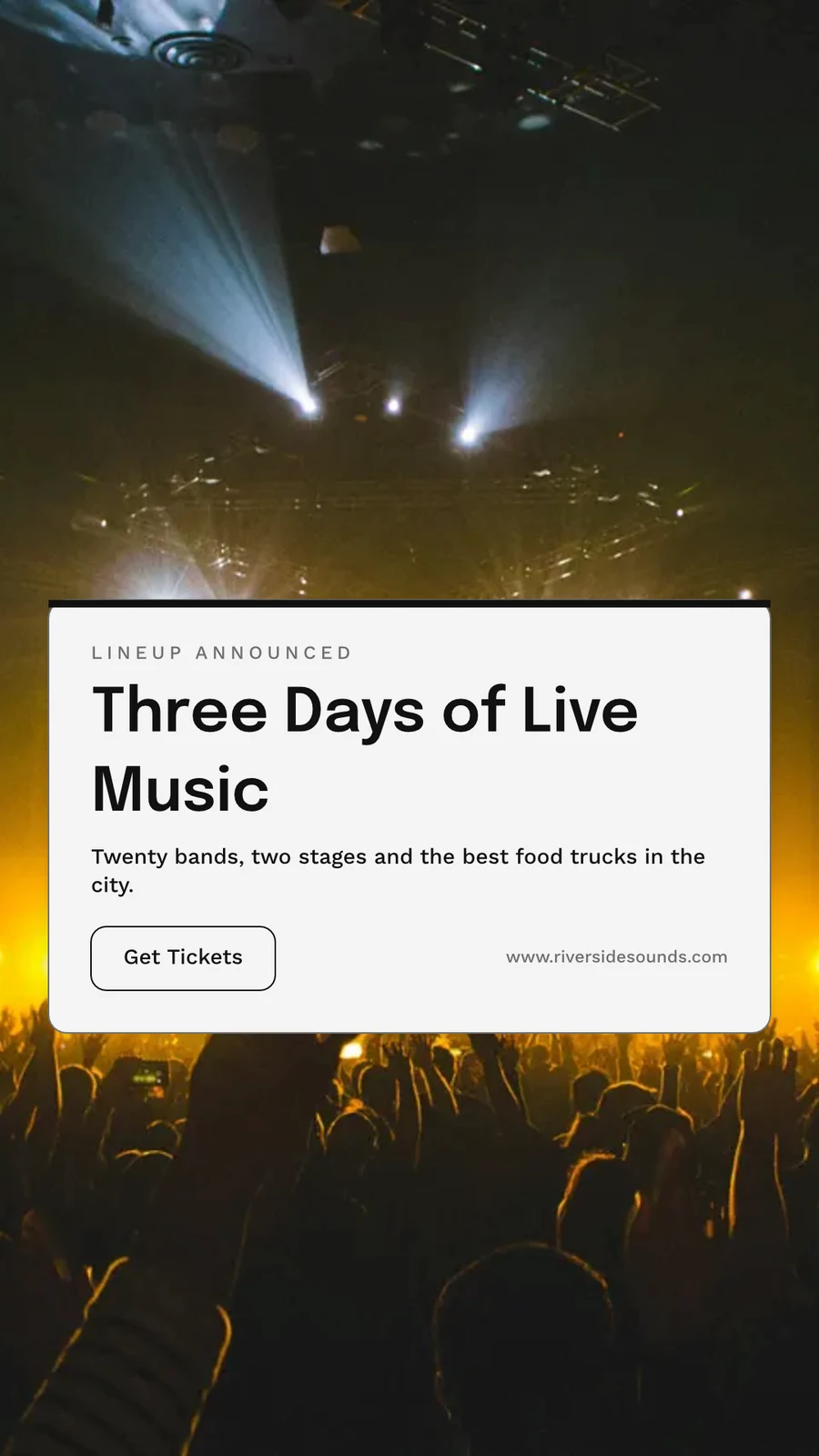
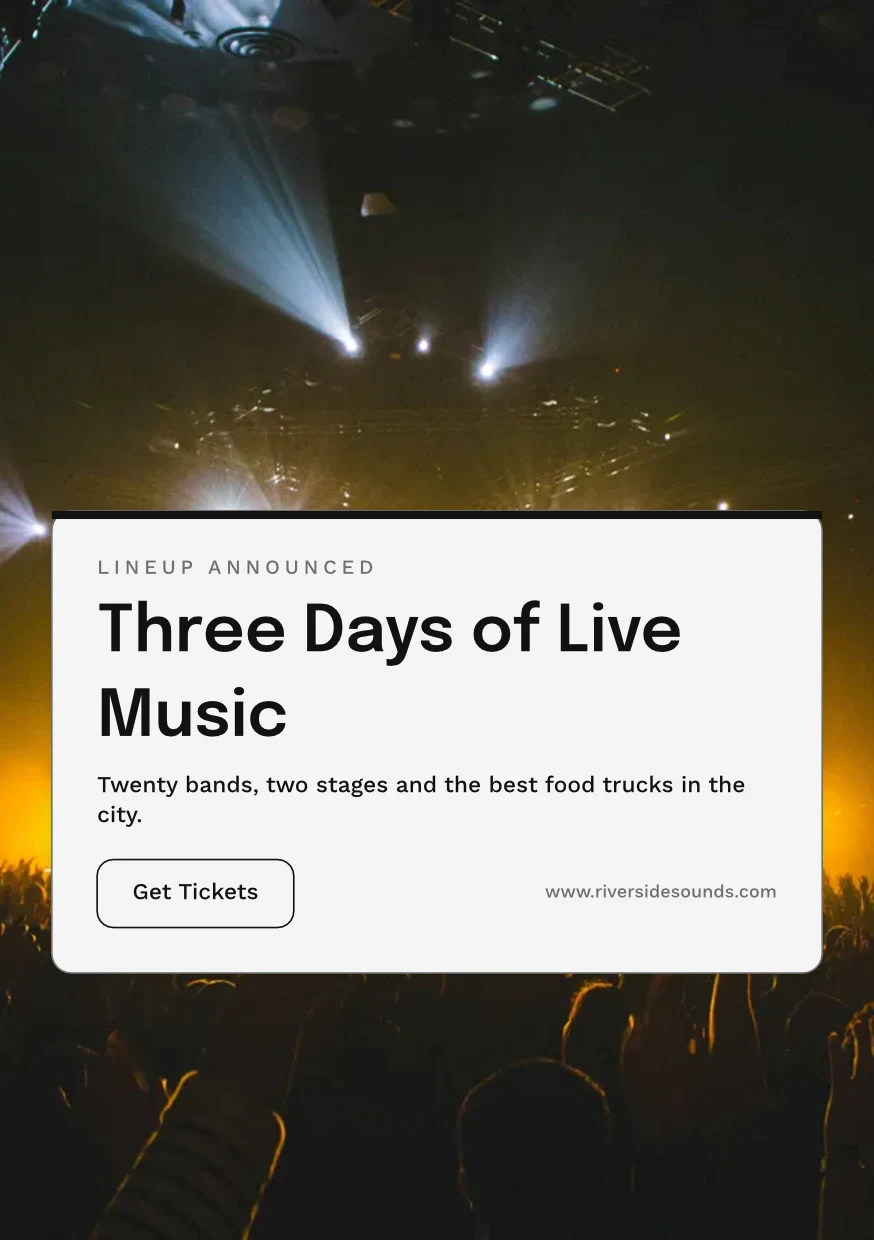
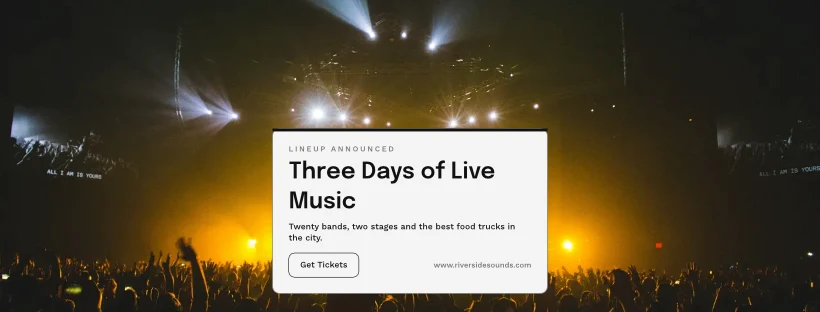
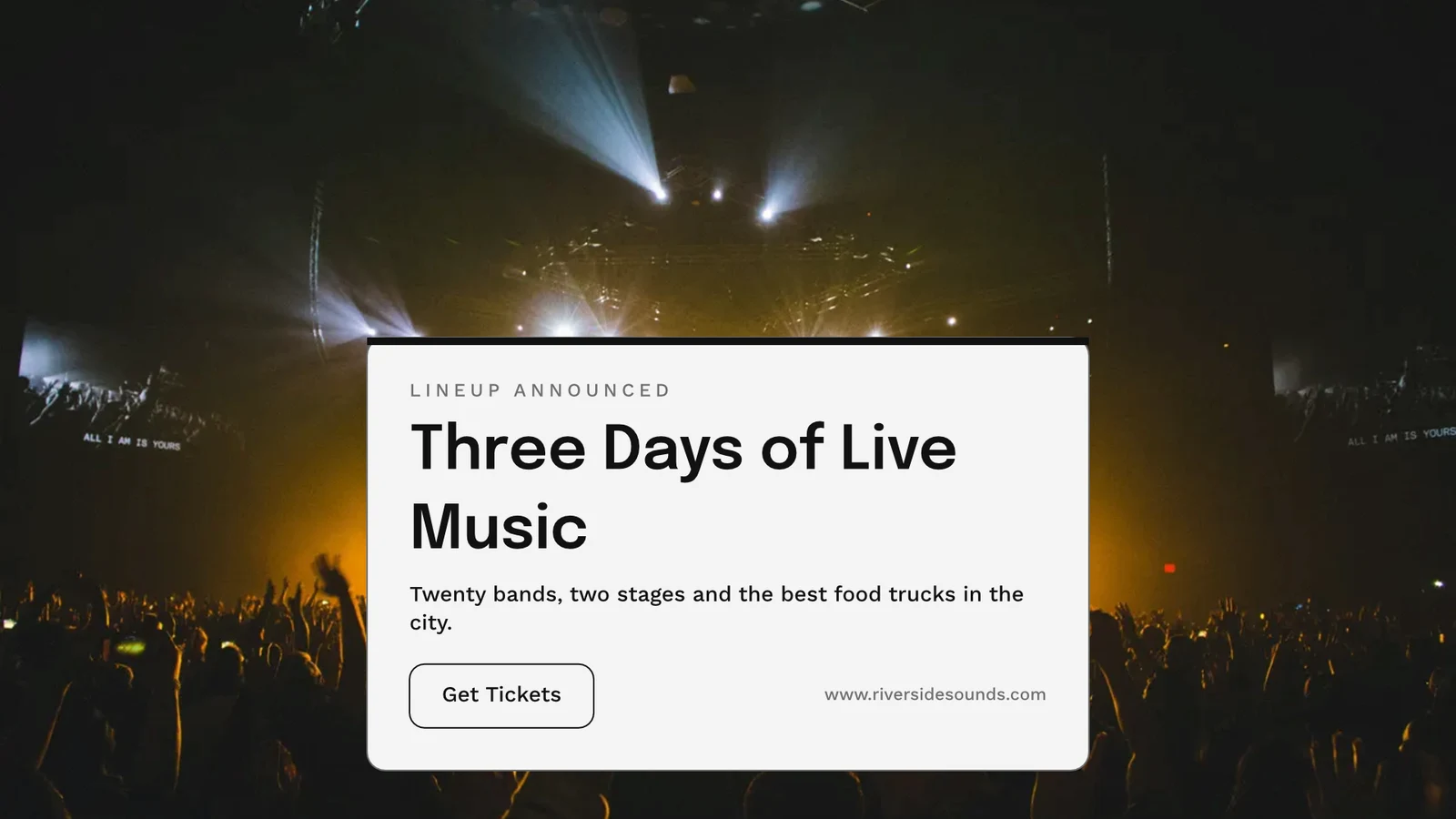
Export, print, share or send it to another app
PNG, JPG, SVG and PDF at web or print resolution, with bleed and crop marks on a print PDF, or a CMYK PDF for the press. A public link shows it and embeds on any website. Send to App takes it into Display, Campaigns or Sites. Analytics counts the designs made, the exports by format and the public links live.
Export
PNG, JPG, SVG and PDF at web or print resolution, a transparent background, and every export kept to export again.
Export & Share
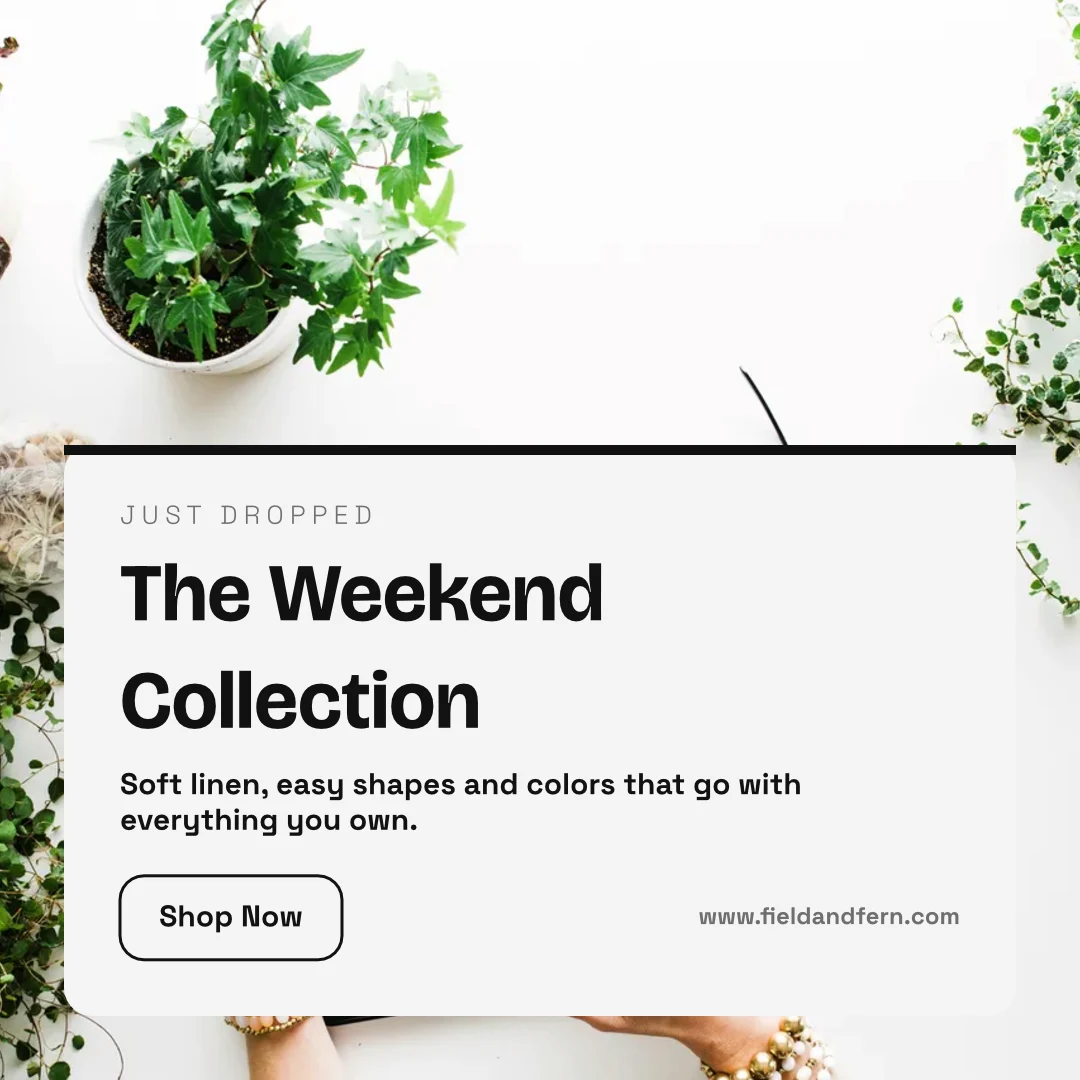
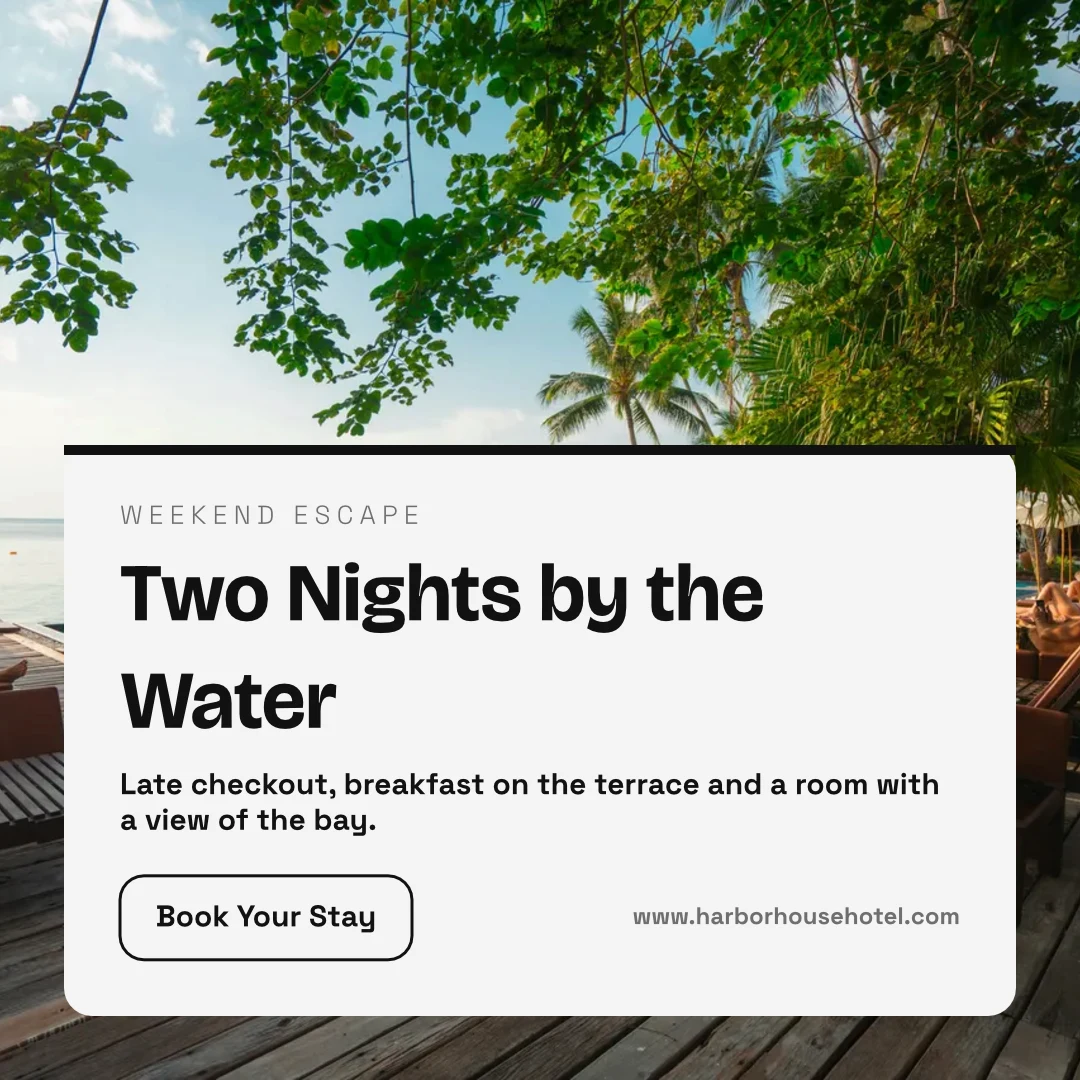
The Weekend Collection · 1080 × 1080 px
Format
Public Link and Embed
A link that shows the design, plays it if it moves, and embeds on any website, with its own QR code.
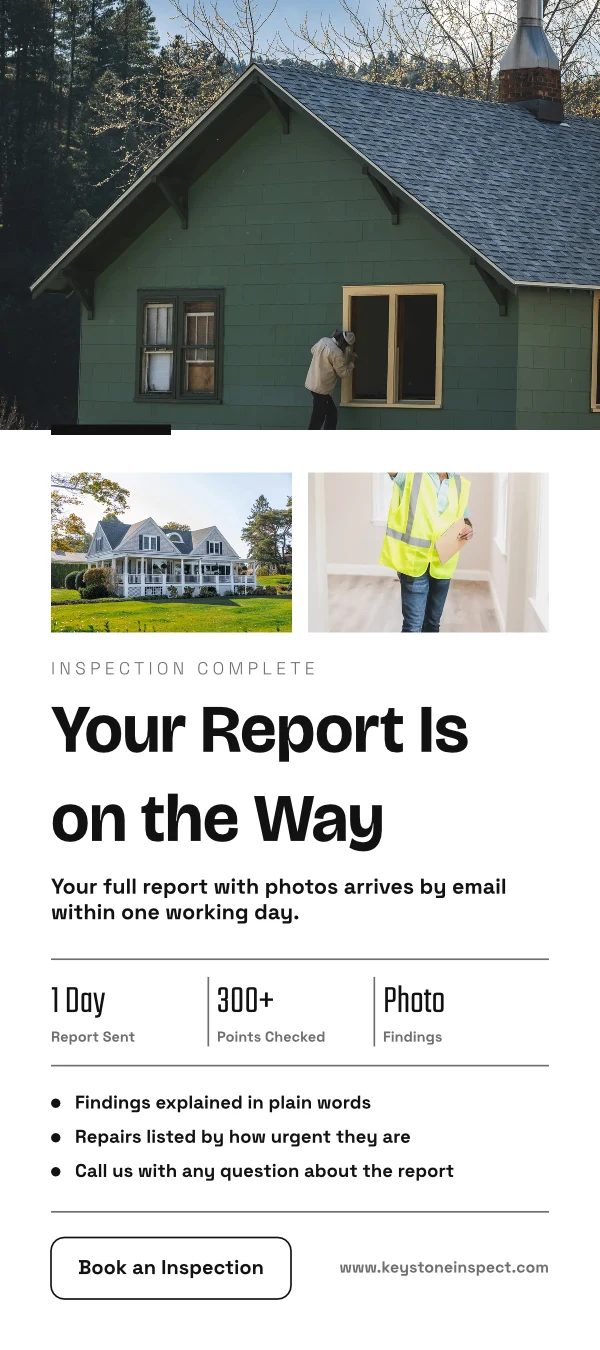
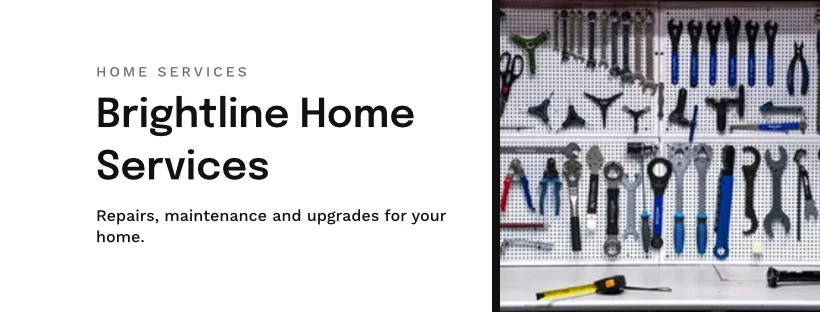
Repairs Done Right
 Download
Public Link
https://studio.calistoco.com/p/design/k7Qm2xW9rTEmbed in a Page
<iframe src="https://studio.calistoco.com/p/design/k7Qm2xW9rT" width="1080" height="1080" style="border:0" loading="lazy"></iframe>QR Code
Print or display in person214 scansSend to App
Send it to Display for your screens, into a new email in Campaigns, or into a website’s files in Sites.
Export & Share
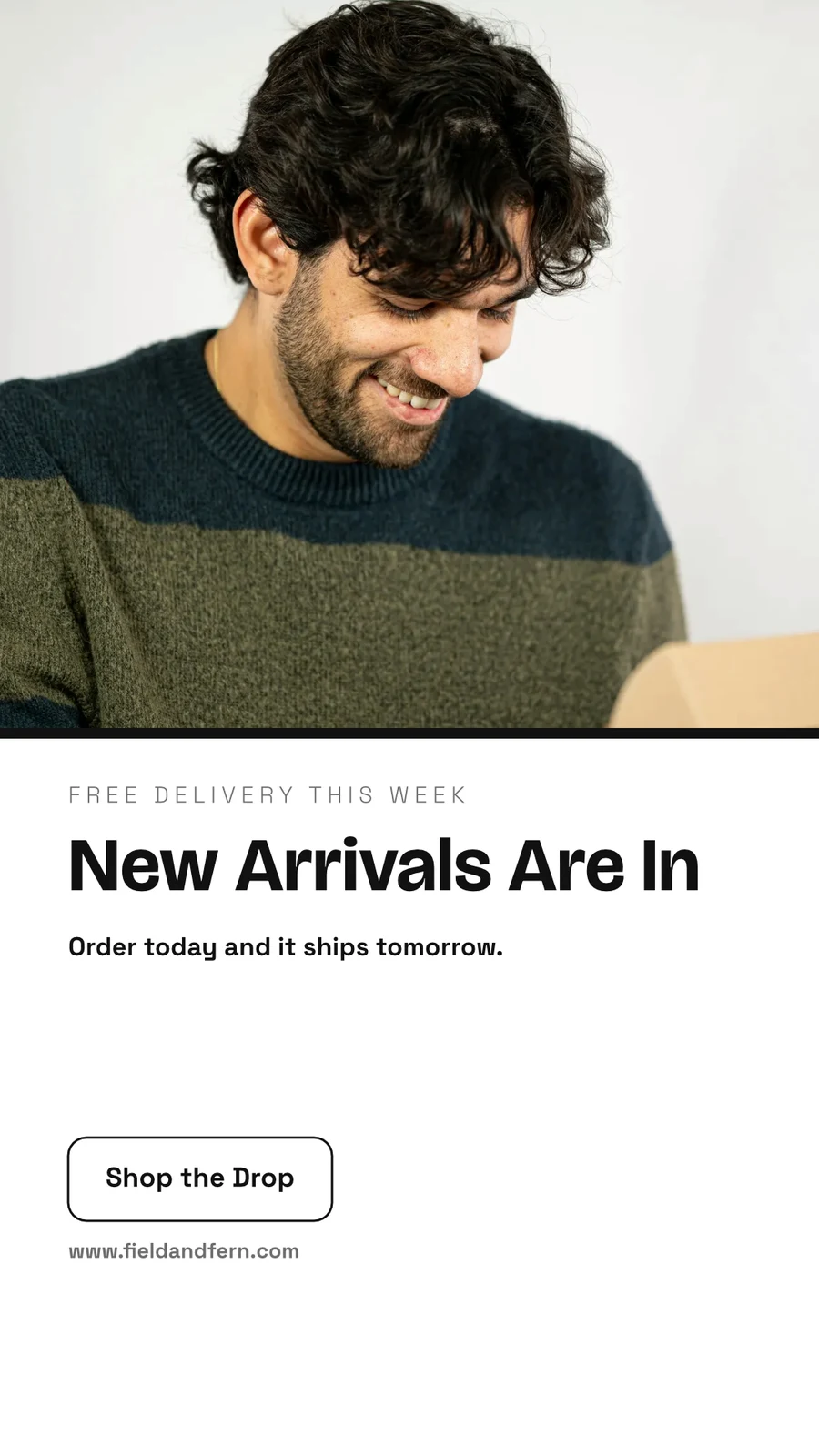
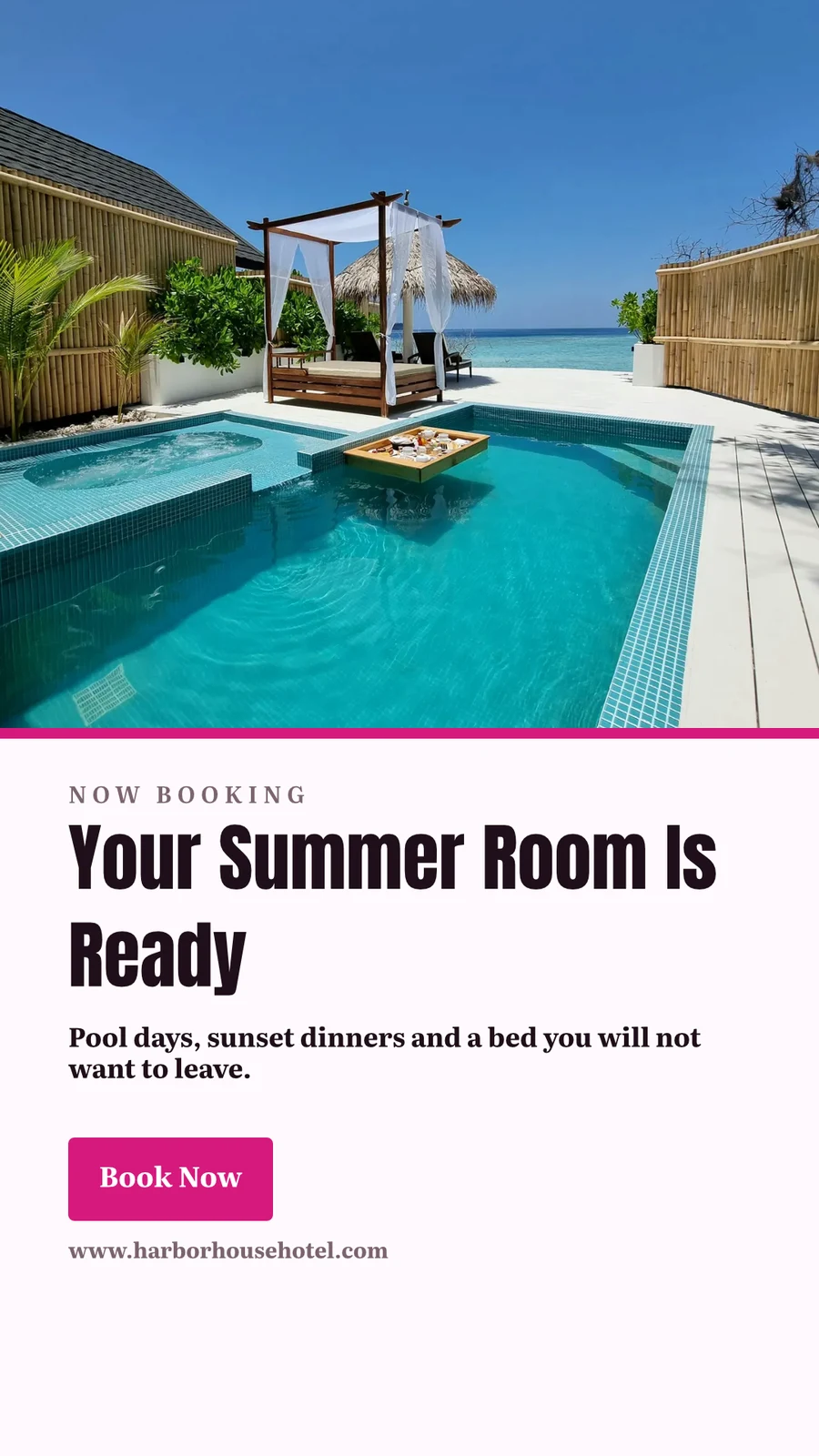
Your Summer Room Is Ready · 1080 × 1920 px
Send to app
Hand this design off to another Calisto app to place it there.Create Video, With Clips
Every page a clip with its motion, then titles, music, captions and an MP4.
GIF and Animated WebP
For a design that moves, every page for its own length.
Export & Share
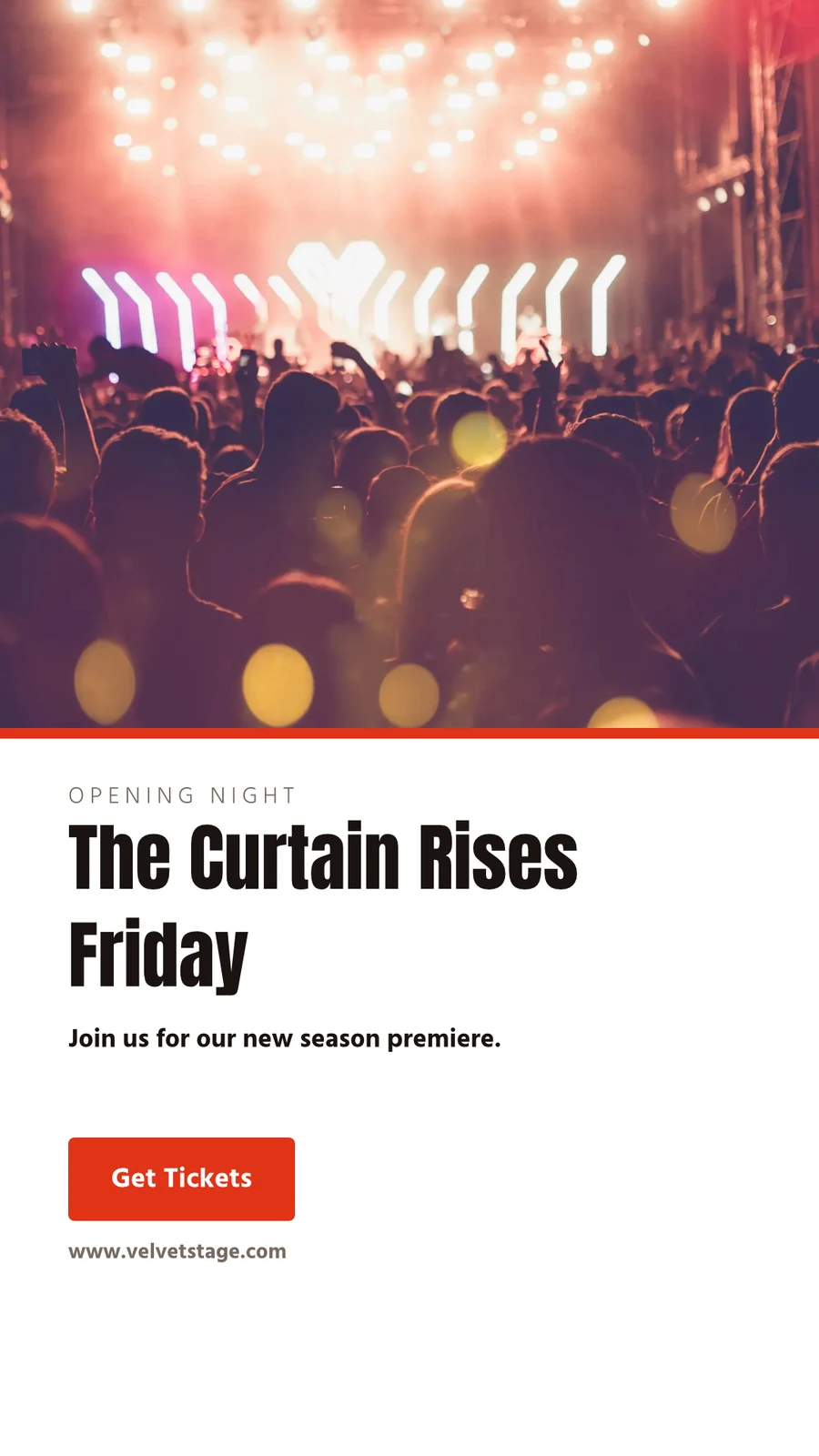
The Curtain Rises Friday · 1080 × 1920 px
Format
Trim, bleed, crop marks and a safe margin in Print Setup, and the design prints without the app around it.
PDF for Print (CMYK)
Converted to CMYK on your own device, with your print shop’s profile when they give you one.
Export & Share
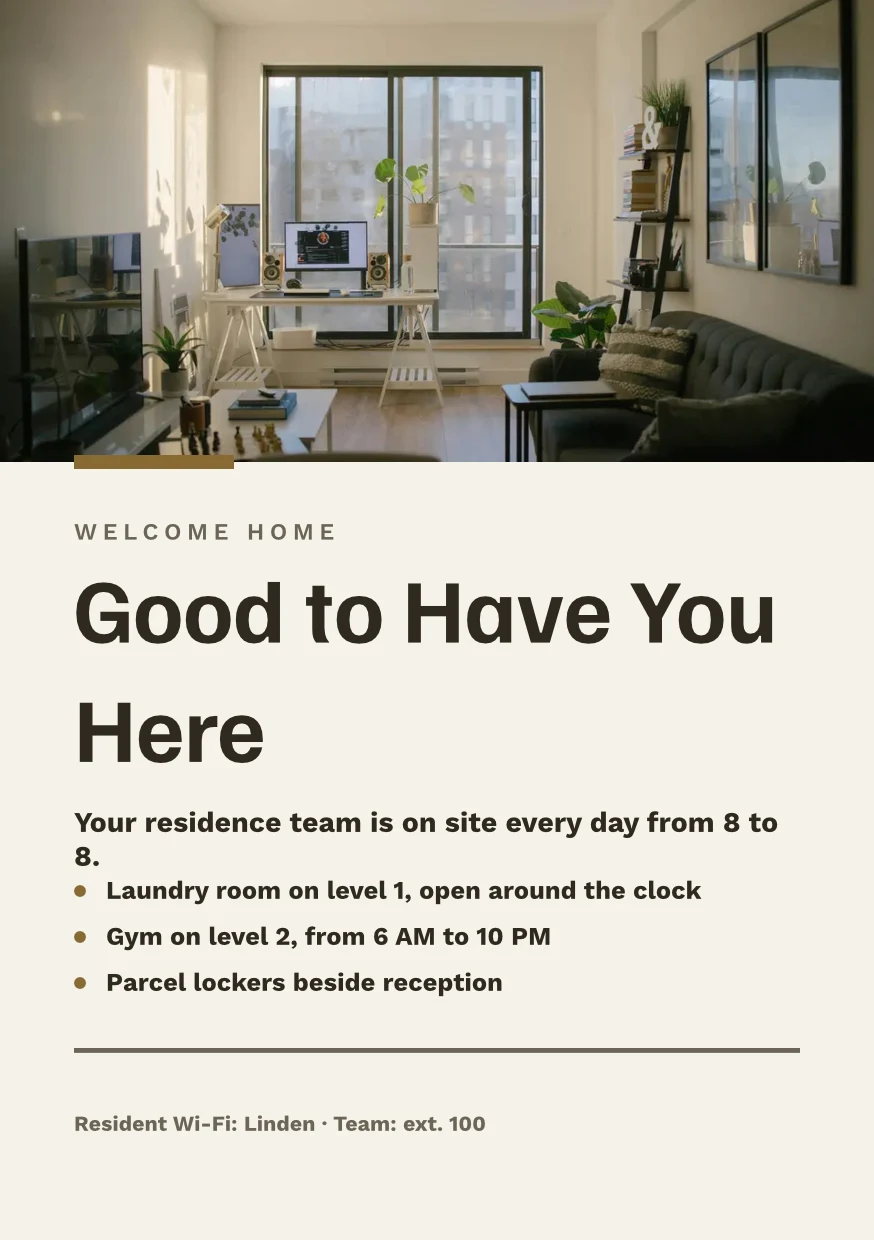
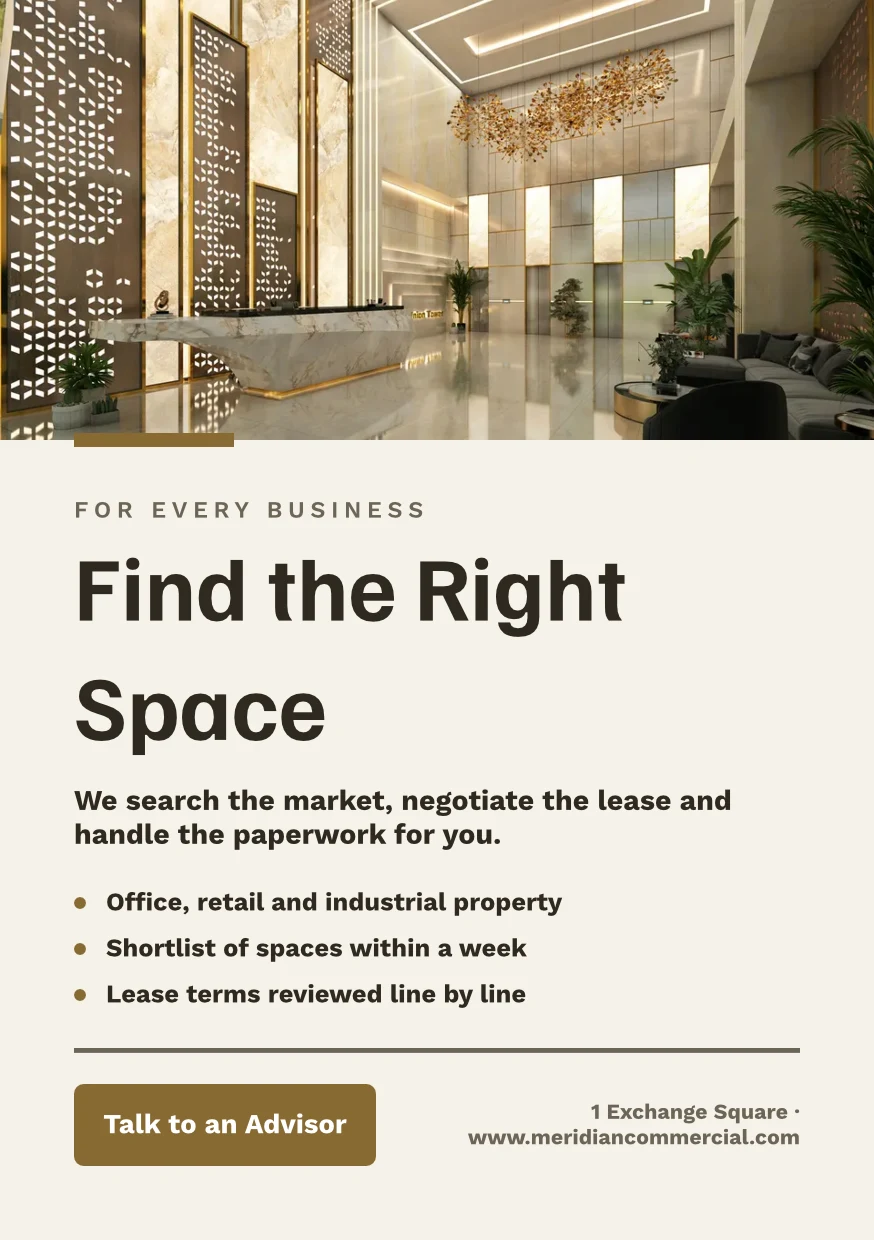
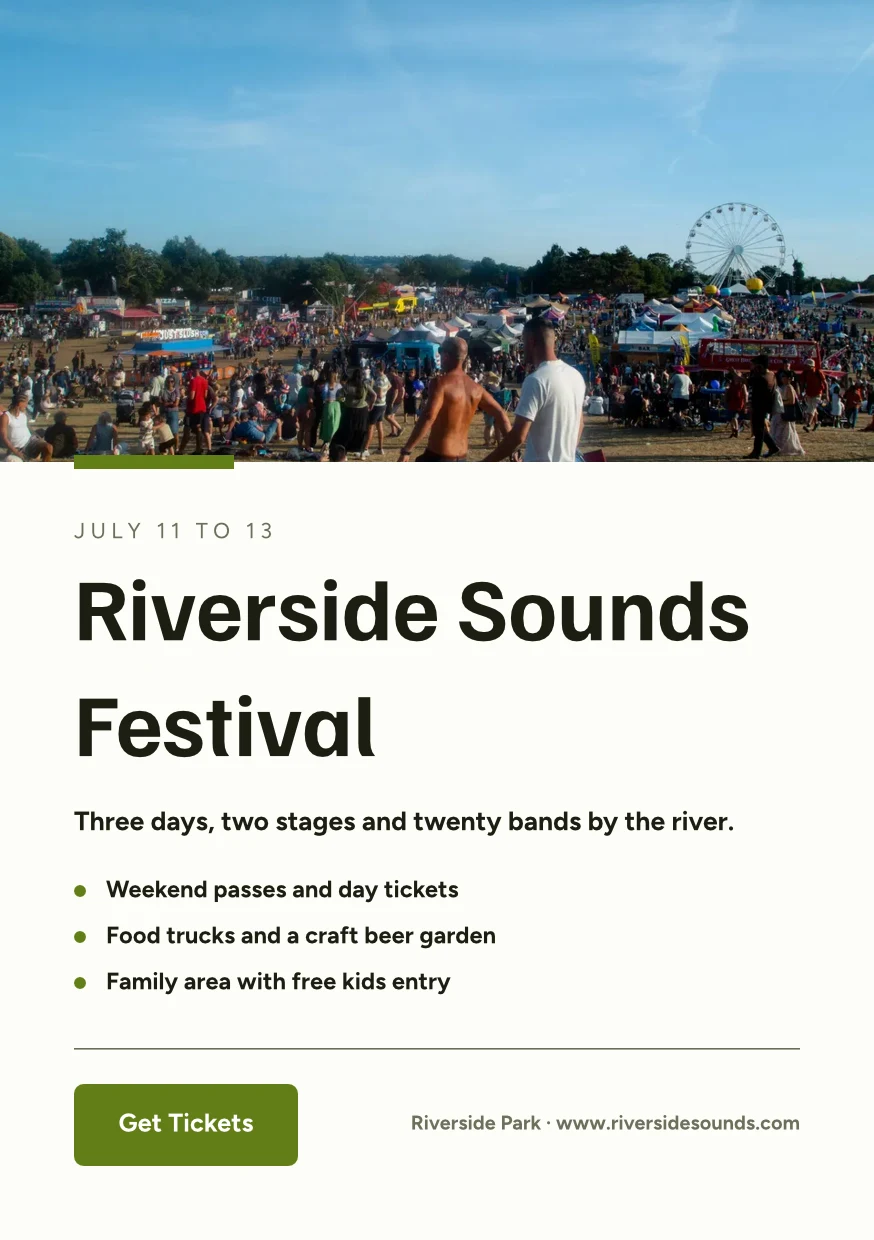
Find the Right Space · 874 × 1240 px
Format
Printer's Profile
Druckerei Weber Coated.icc2.1 MBColors are converted for Druckerei Weber Coated.icc, read on this device and not uploaded.Work on a design together, and keep every version
Share a design with a person as Can view, Can comment or Can edit. Everyone in it is shown, and two people on different pages never overwrite each other. Every save keeps the version before it, and any version can be restored. Hubs group designs with the business’s other files.
Share and Edit Together
Share as Can view, Can comment or Can edit, and see everyone in the design as they work.
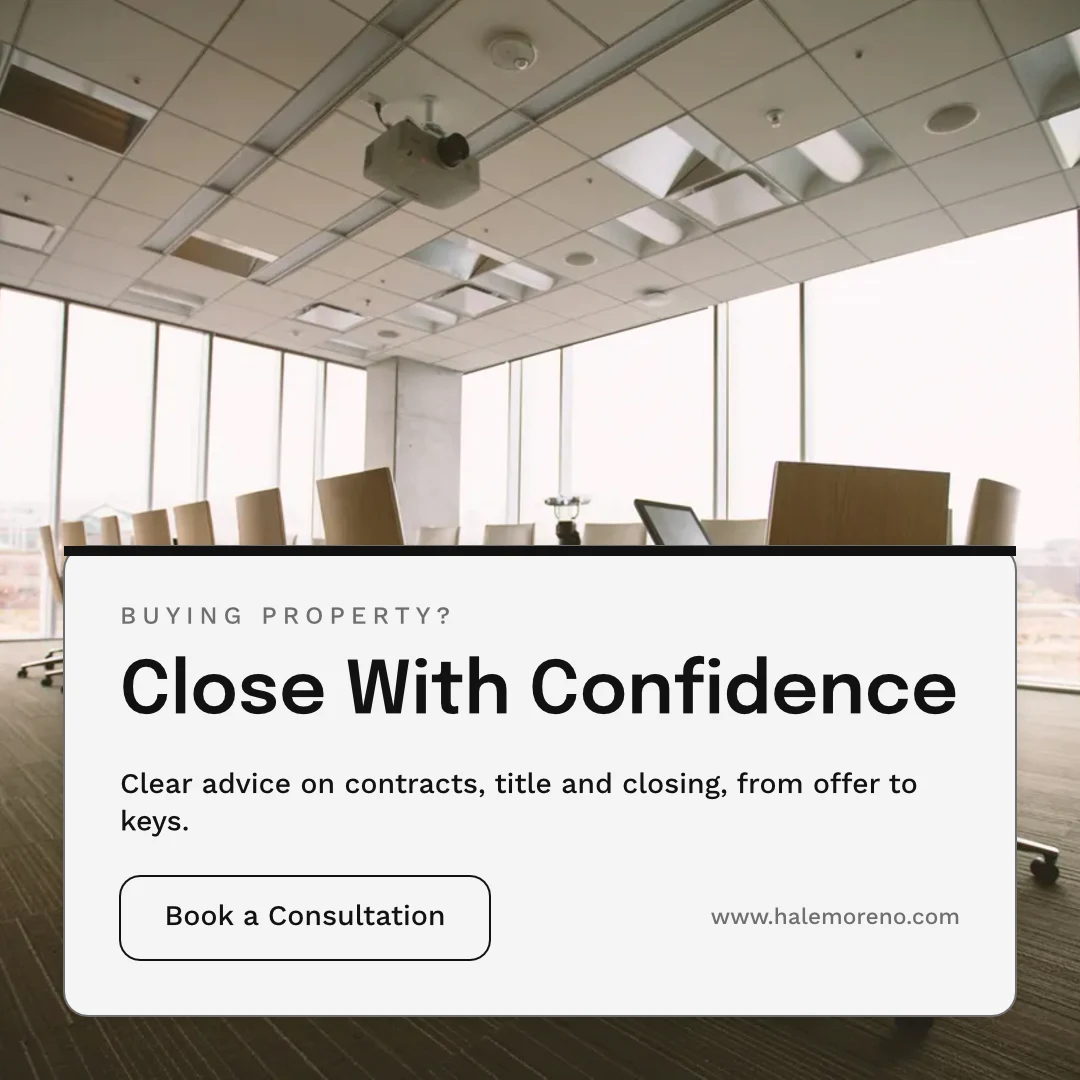
Share “Close With Confidence”
Comments on the Page
Drop a pin where the change goes, mention a teammate or hand them the thread, and resolve it when it is done.
 12345
Send for Approval
To a teammate, who decides it in Approvals, or as a link your client answers with no account.
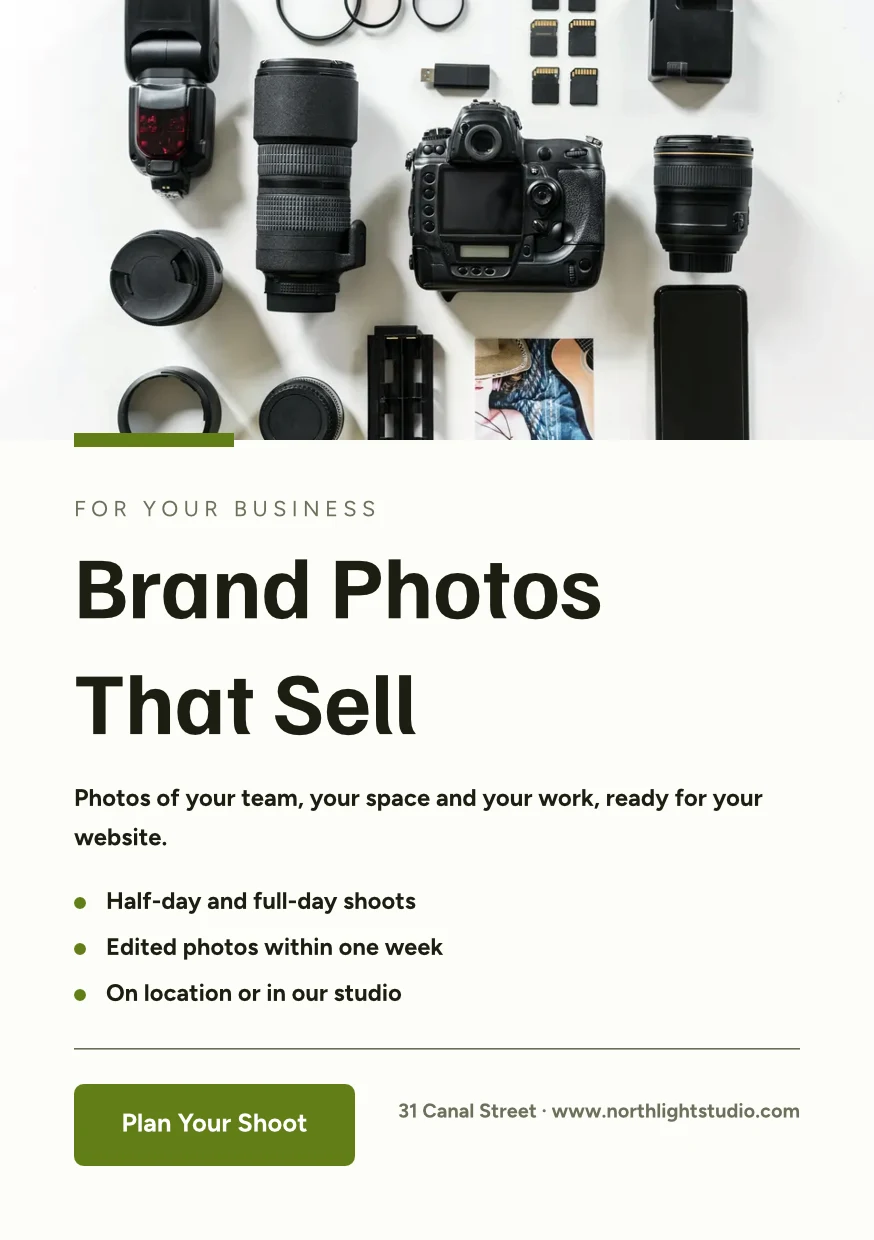
Brand Photos That Sell
Approve This Design
Northlight Studio · Round 2Message
The new photo works. Approved at the 18 500 kr we agreed, please send it to print.Version History
Every save keeps the version before it, and any version can be restored.
Version History
A Copy That Follows
Each location’s copy keeps the parts the original locks, and takes their changes.
Library
Your designs, themes and templates in one grid, newest first.
Library
Everything you have made: your designs, your themes and your templates.
Assign to Project
A design goes on a client project from Designs or the editor.
Designs
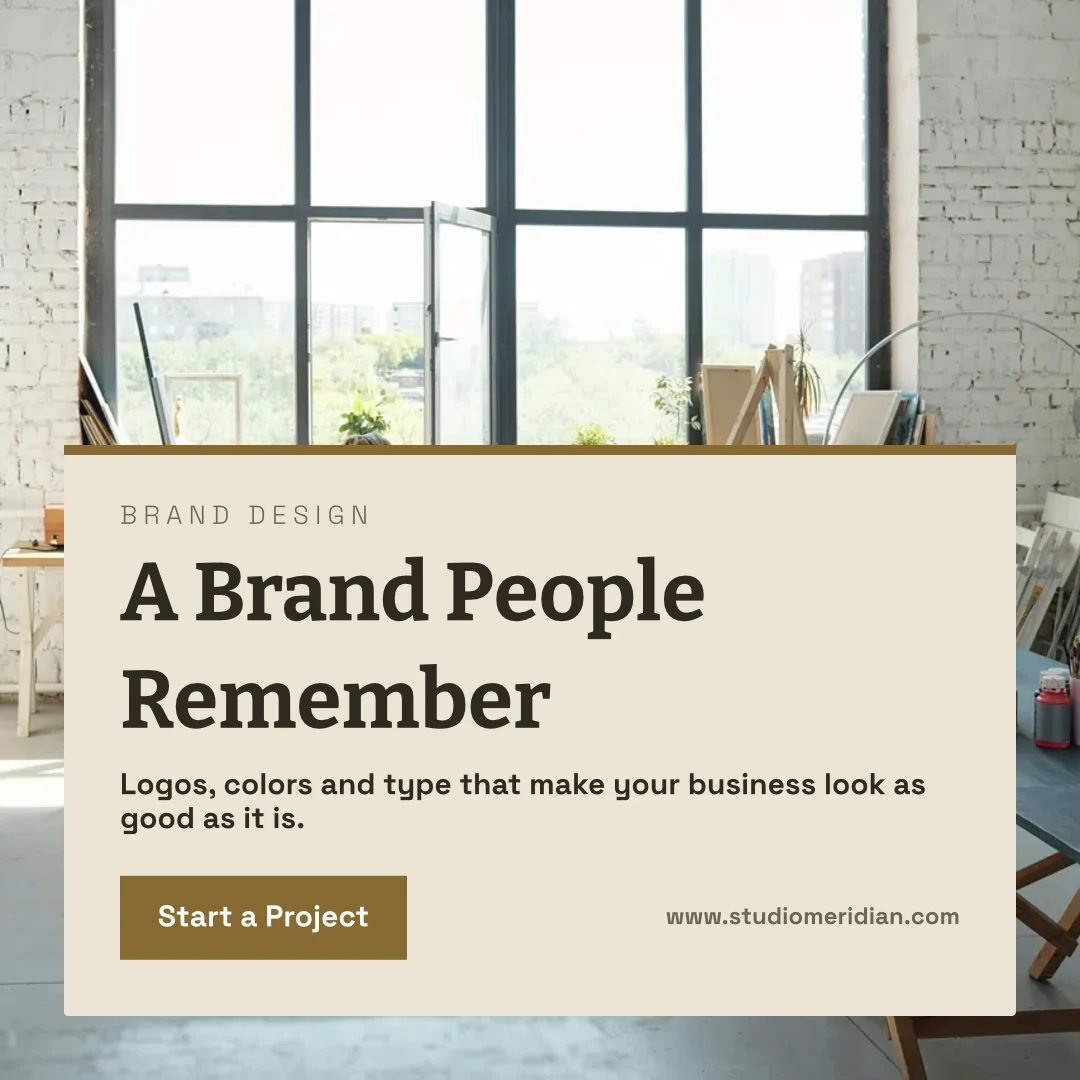
 A Brand People RememberInstagram Post · Edited 12 minutes ago
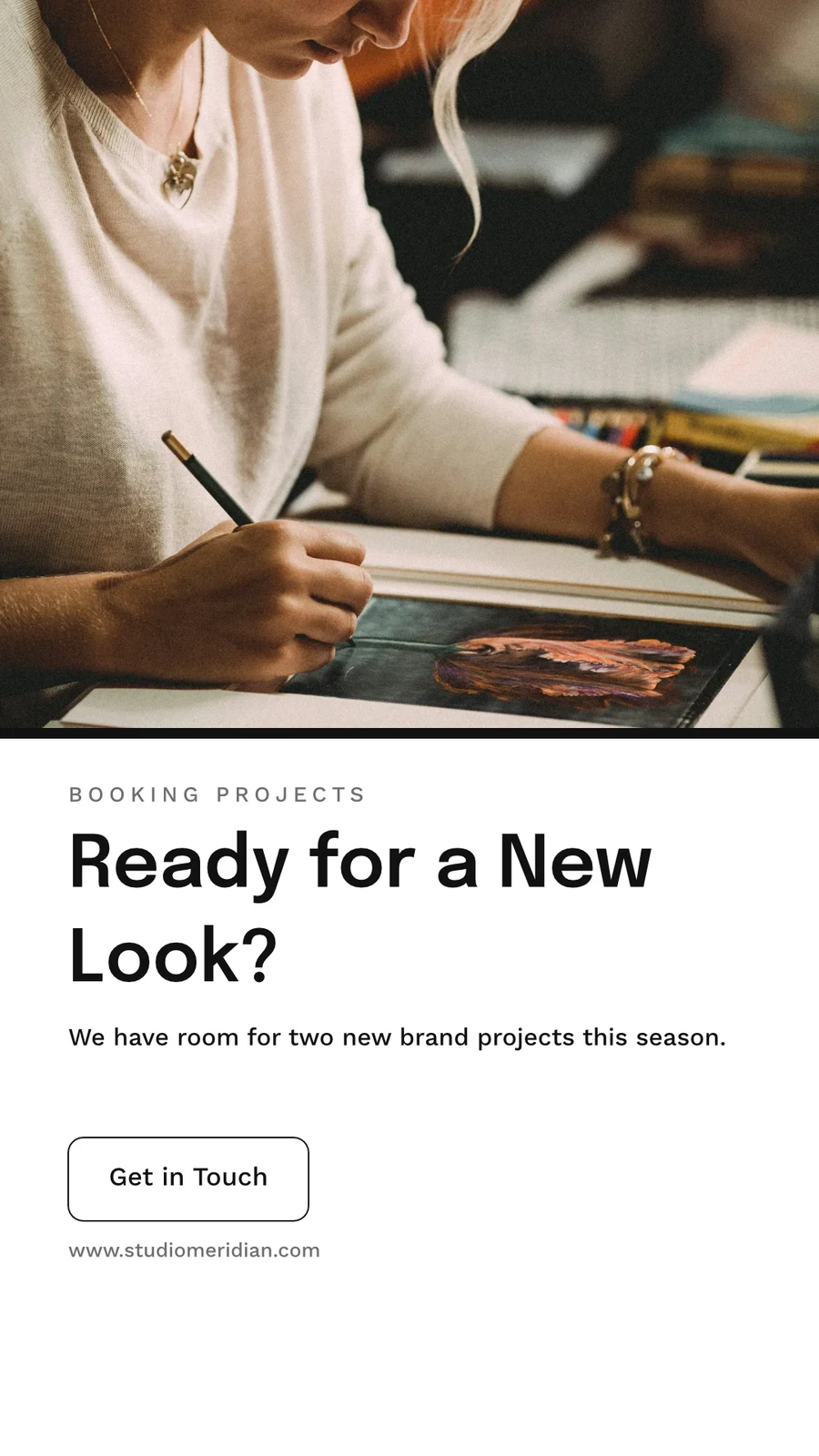
 Ready for a New Look?Instagram Story · Edited 1 hour ago
 From Idea to IdentityA5 Portrait · Edited Yesterday
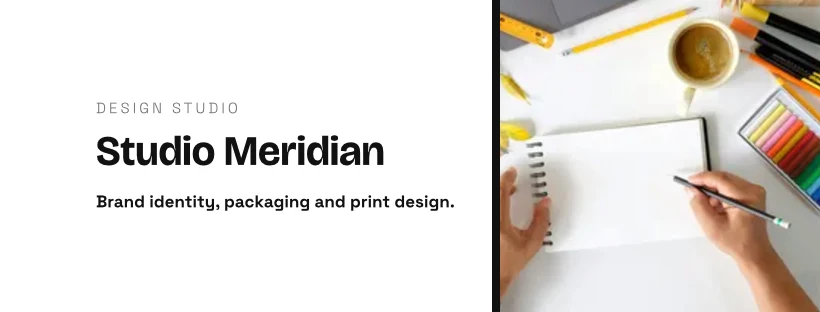
 Studio Meridian Page CoverFacebook Cover · Edited 2 days ago
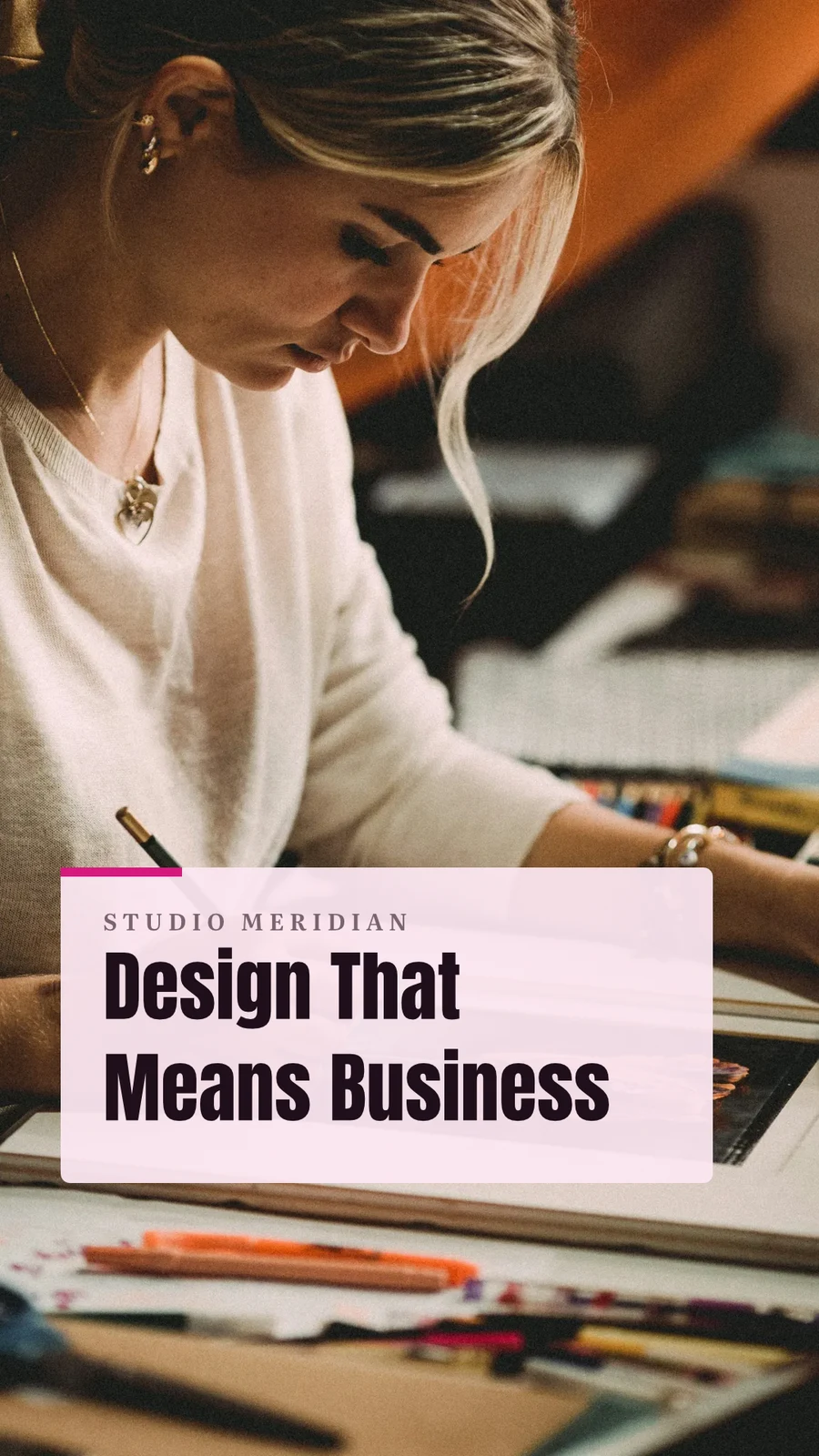
 Design That Means BusinessVertical Video (9:16) · Edited Last week
Assign to Project
Trash for 30 Days
Then deleted with everything it holds.
Designs
Designs you move to Trash stay here until you restore them or delete them forever.
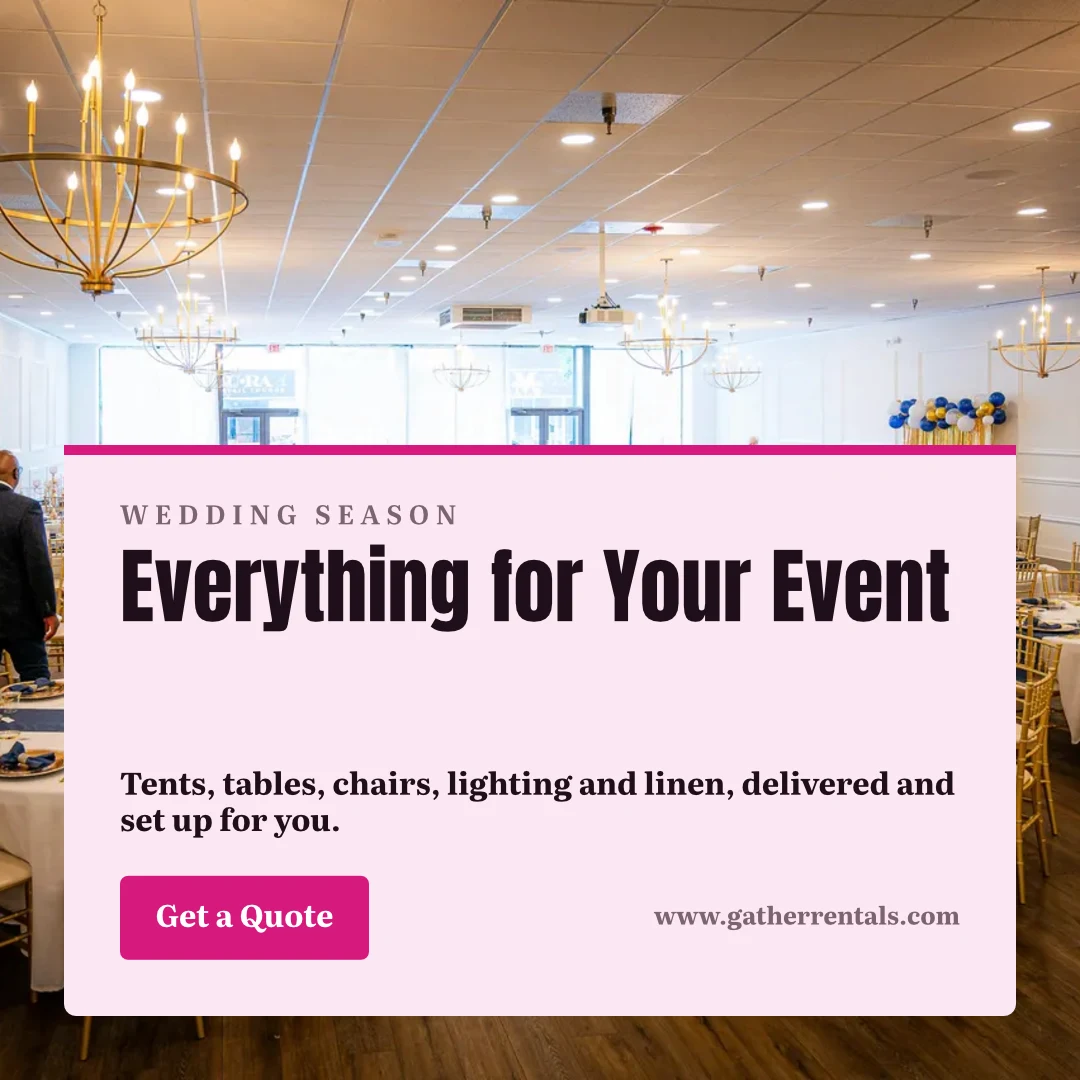
 Everything for Your EventInstagram Post · Edited 12 minutes agoRestoreDelete Forever
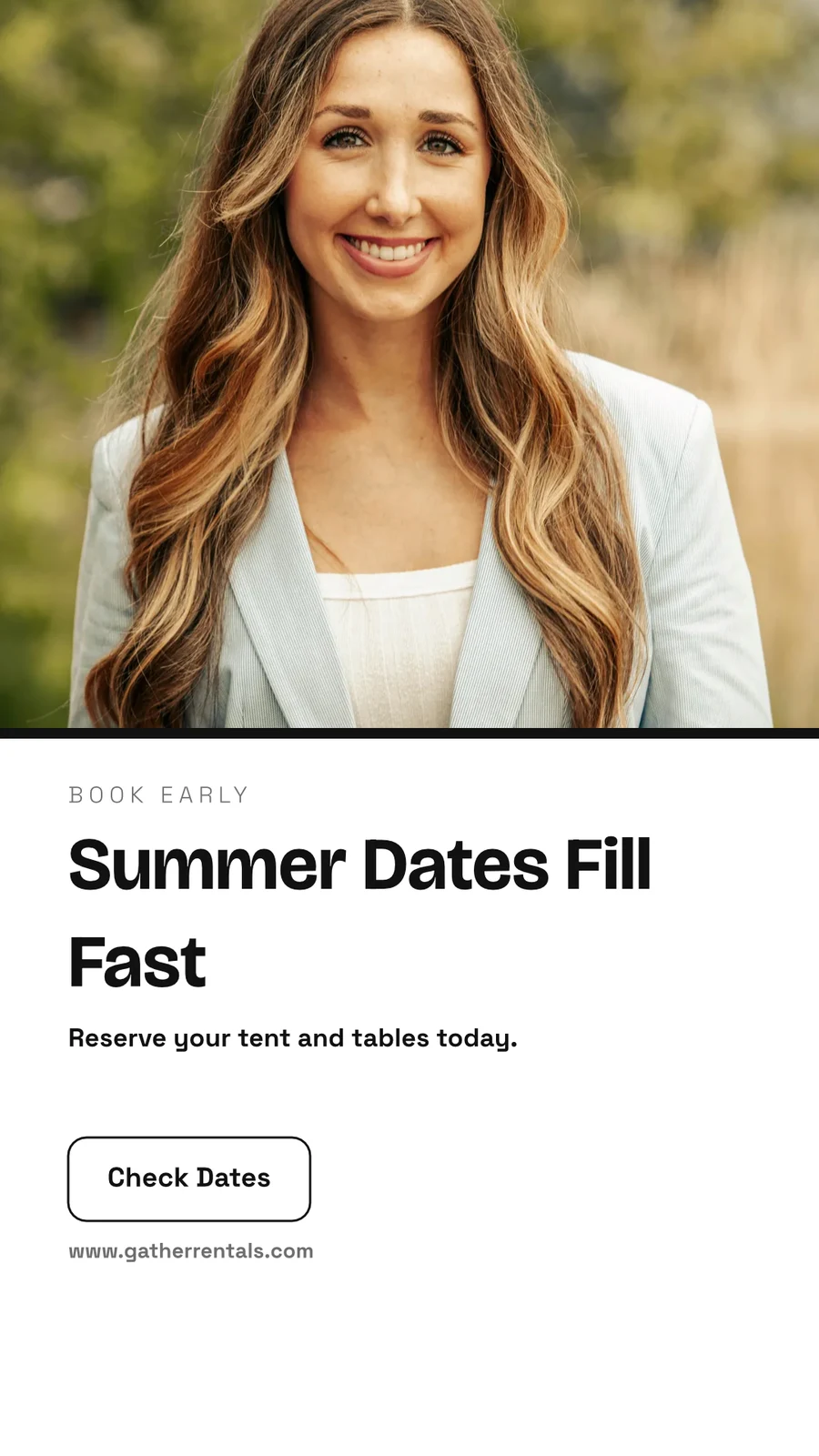
 Summer Dates Fill FastInstagram Story · Edited 1 hour agoRestoreDelete Forever
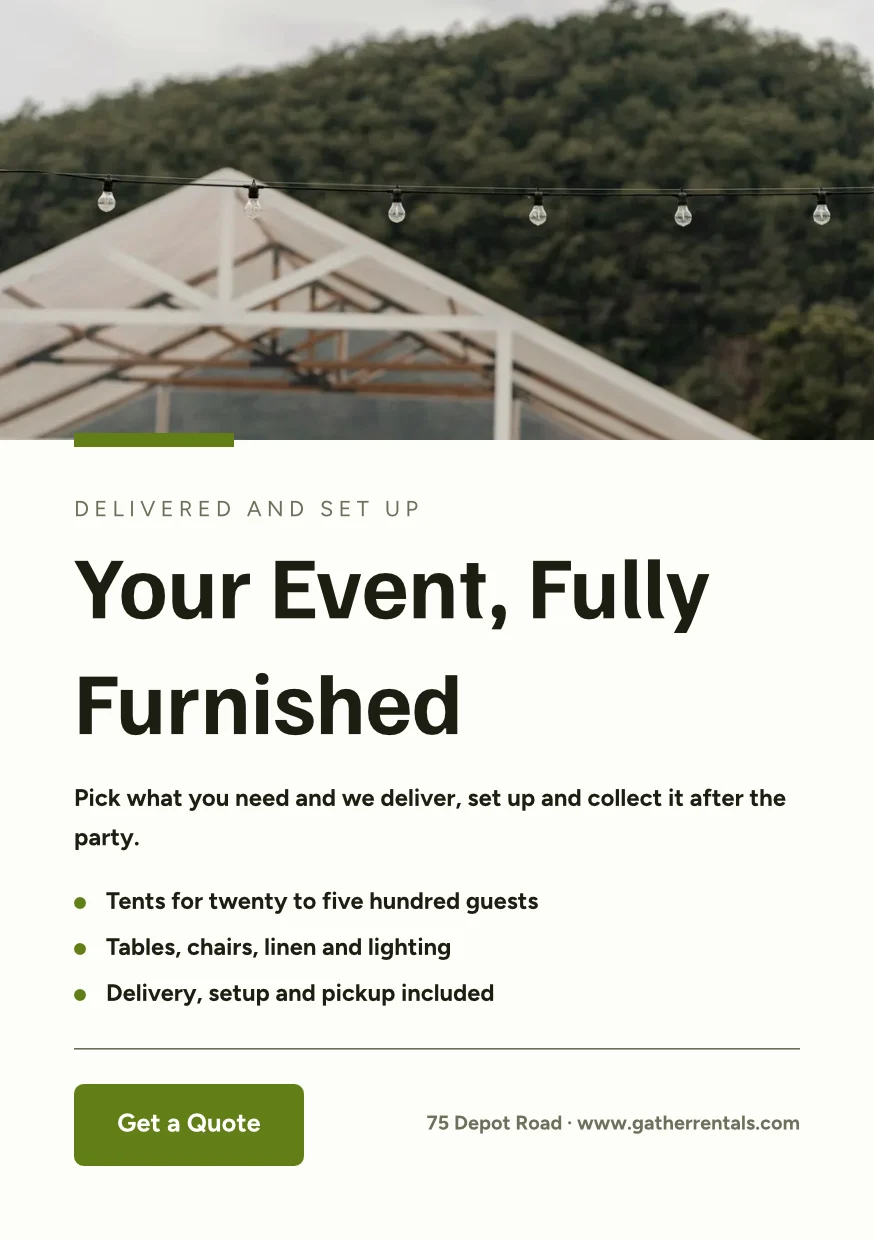
 Your Event, Fully FurnishedA5 Portrait · Edited YesterdayRestoreDelete Forever
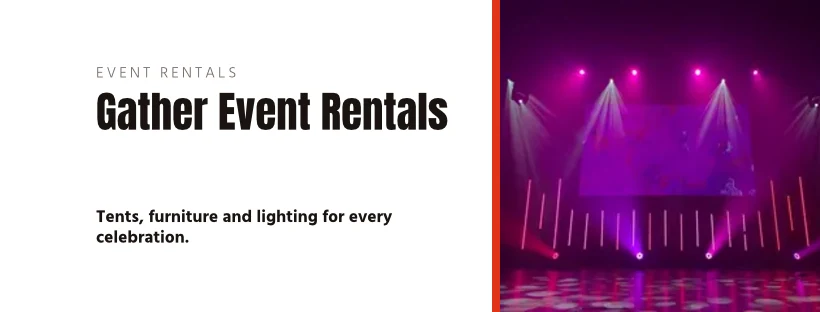
 Gather Event Rentals Page CoverFacebook Cover · Edited 2 days agoRestoreDelete Forever
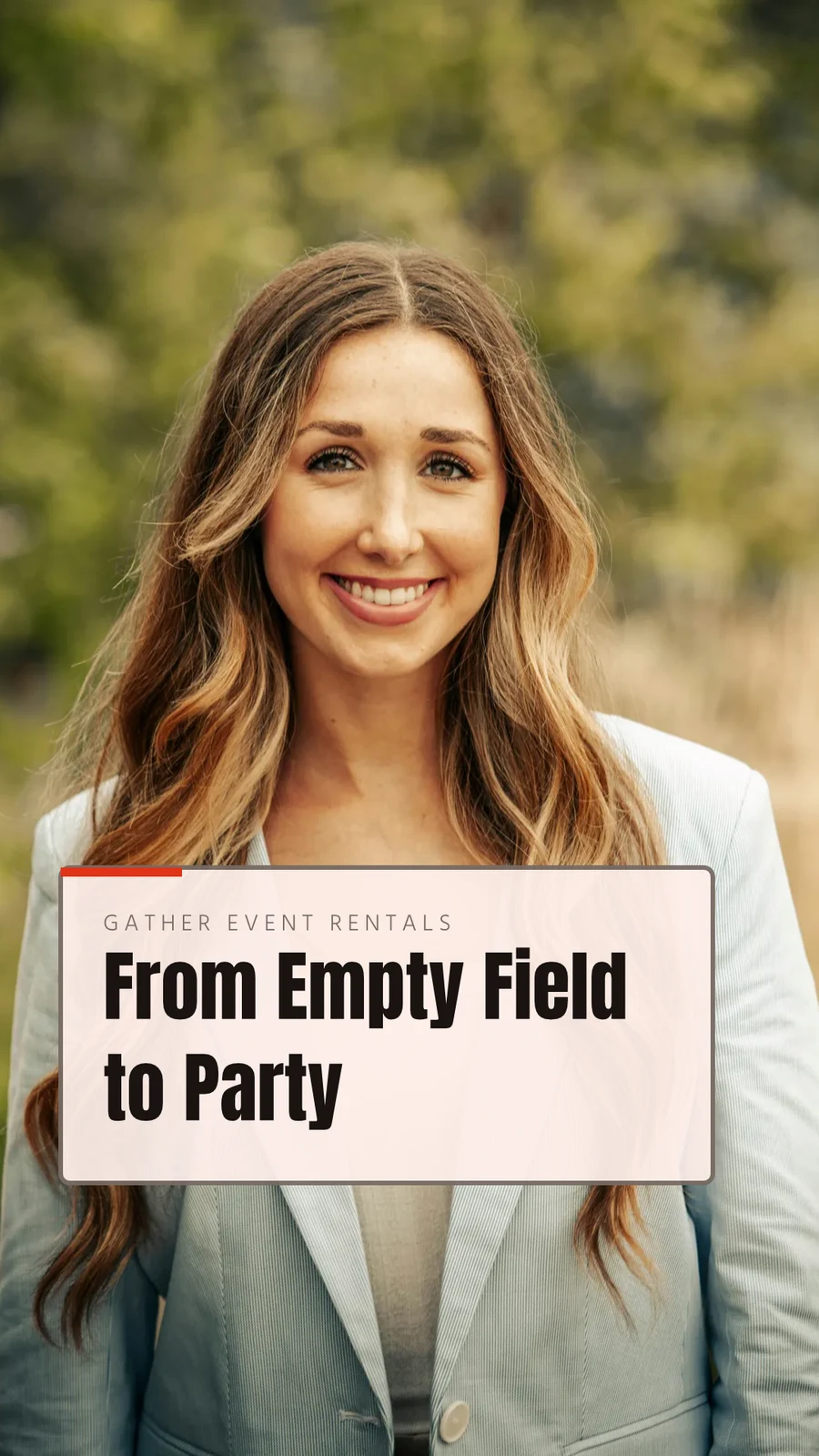
 From Empty Field to PartyVertical Video (9:16) · Edited Last weekRestoreDelete Forever
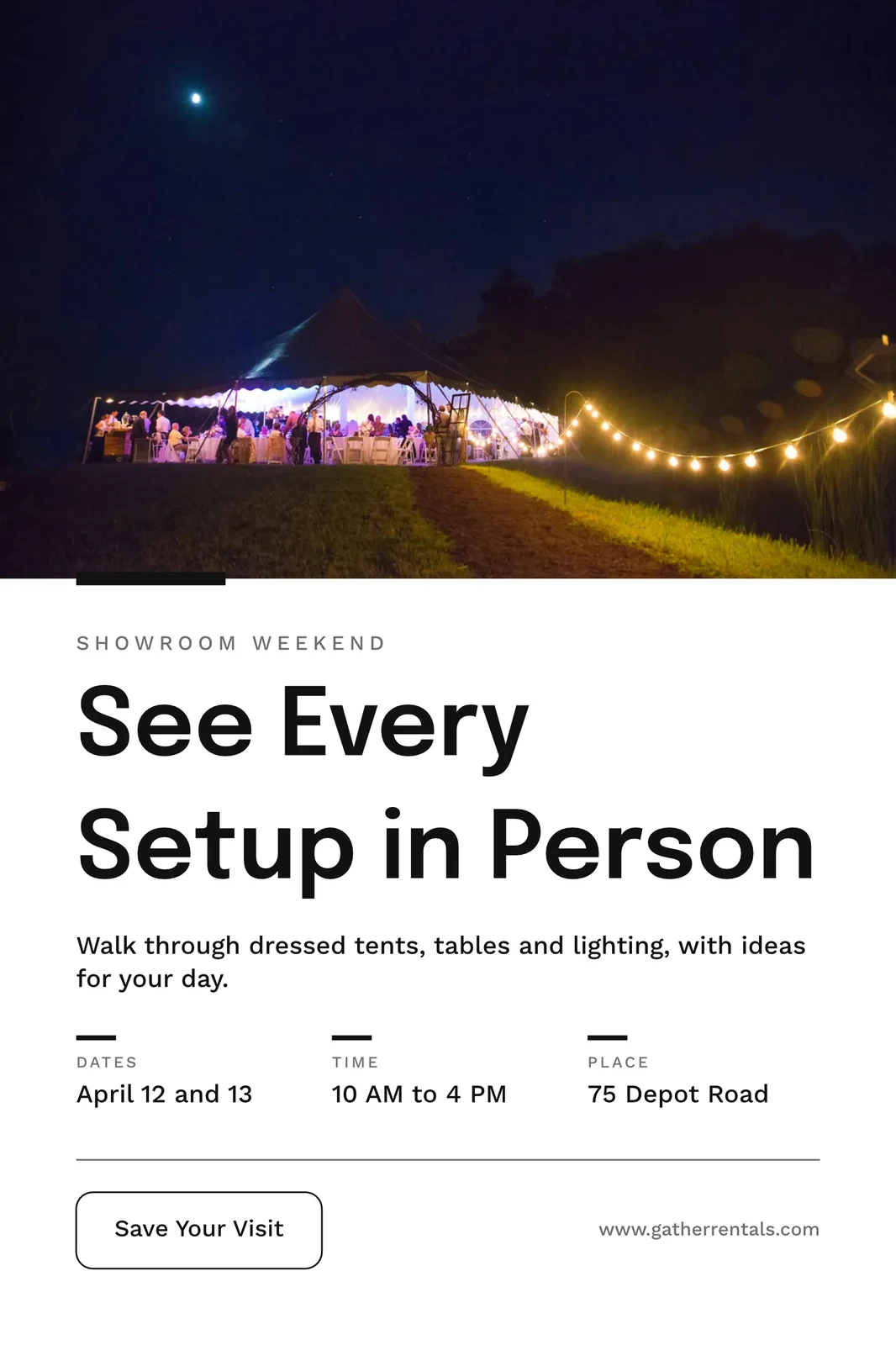
 See Every Setup in PersonPoster (24×36") · Edited 3 weeks agoRestoreDelete Forever
Share “Close With Confidence”
Think it through on a whiteboard first
A board starts blank or from Brainstorm, Mind Map, Flowchart or Retrospective, with sticky notes, shapes, text and connectors. It saves as you go, and a board open on two devices never overwrites the newer copy without asking.
Start From a Template
Whiteboards
Infinite-canvas boards for brainstorming and planning
Start a New Whiteboard
Brainstorm, Mind Map, Flowchart or Retrospective, or a blank board.
Notes, Shapes and Connectors
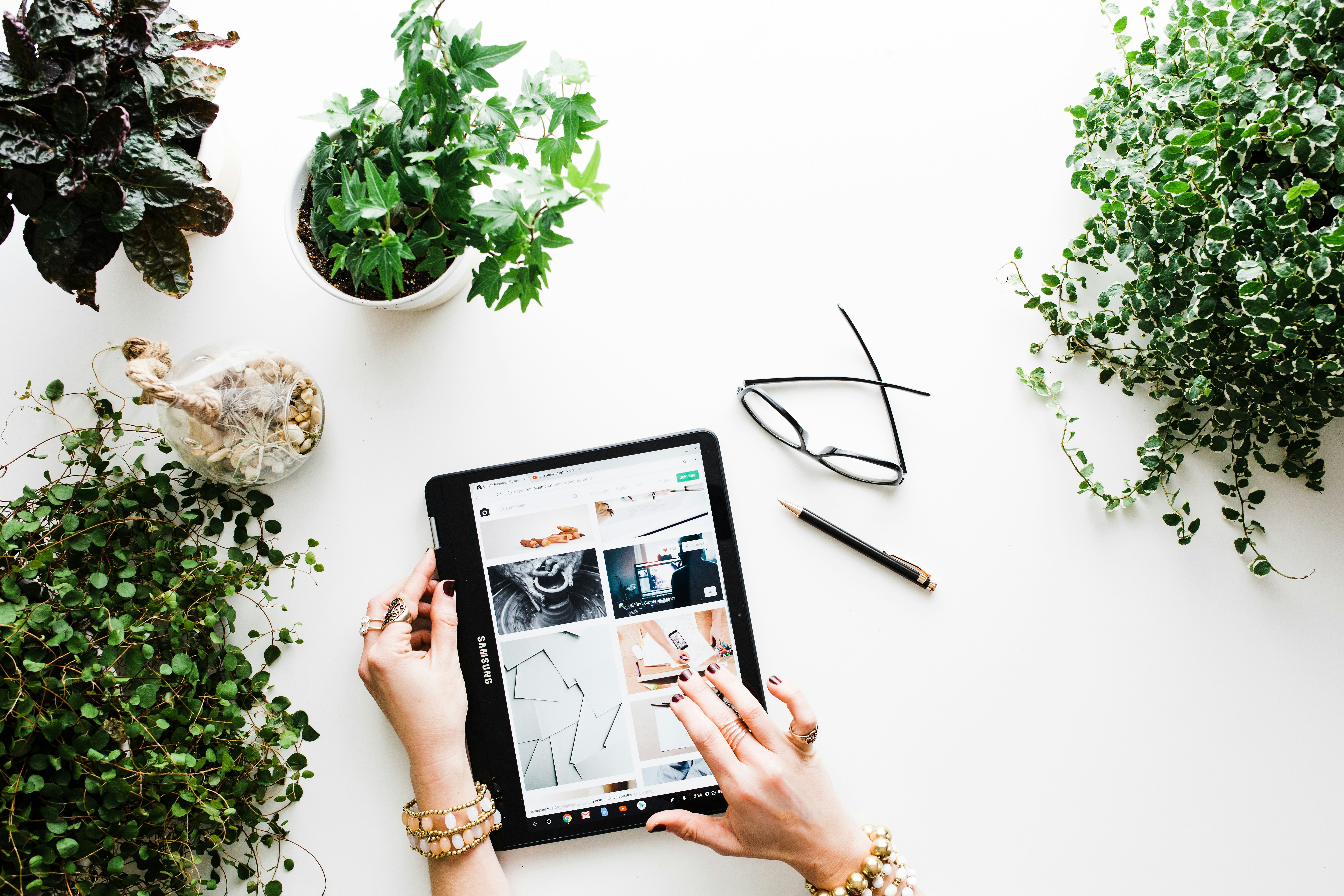
Space-drag or two-finger scroll to pan · ⌘/Ctrl-scroll to zoom
Sticky notes, shapes, text, arrows, drawing with a pen, and images.
Never Overwritten
A board open on two devices asks Reload or Keep Mine before saving over the newer copy.
The Whole Screen
Pinch to zoom · two fingers to move
A board opens full screen, with pinch and two-finger pan on touch.
Make a design on your phone from a template
Home, Designs, Templates and Whiteboards are the tabs. On a phone a design opens as its words and photos to change, dressed in its Theme, and becomes a design when you save it.

Where Studio touches everything else.
2 of these 7 connections are in your plan today; the others are their own apps.
Depot
Every design is a file in Depot, in the Hubs it sits in, beside the business’s other files.
Foto
A photo on a design opens in Foto from its Adjust panel.
Clips
Create Video opens the design on a timeline, every page a clip with its motion, and makes an MP4.
Display
A finished design is sent from its export page to a screen.
Campaigns
A finished design is sent from its export page into a new email in Campaigns.
Sites
A finished design is sent from its export page into a website’s files, ready to place on a page.
Listings
Create Flyer on a listing opens a flyer in Studio with the listing’s photo and details on it.
Everything included in Calisto Studio.
- Social: Instagram Post, Instagram Story, Portrait Post (4:5), Facebook Post, Facebook Cover, X Post, LinkedIn Banner, YouTube Thumbnail and TikTok Cover.
- Video: 16:9, vertical 9:16, square 1:1 and portrait 4:5, for a design made to be played.
- Print: A3, A4 and A5, US Letter, Legal and Tabloid, a business card, a rack card and a 24 × 36 inch poster.
- Digital: presentations in 16:9 and 4:3, an email header, a lobby display and a portrait kiosk.
- A custom size at any whole-pixel width and height from 16 to 20,000.
- A size is a design: each opens on its exact artboard, followed by Calisto’s layouts at that size.
- New Design has three doors: From Theme, From Template and Blank Design.
- Templates: every Calisto layout in every Calisto Theme, filtered by type, industry, style, colors and size, with a name search.
- My Brand draws every template in the account’s brand kit.
- Use This Template opens an unsaved copy; it becomes a design when it is saved.
- Customize Template shows every page beside the Theme’s controls; Save Template keeps the result in Mine.
- Save as Template, in the editor, keeps a copy of the open design as one of the account’s templates.
- Edit Template changes one of the account’s own templates in place; one with no Theme of its own inherits the account’s.
- Describe It: a sentence becomes three designs from Calisto’s layouts in the business’s Theme, each its words written for it, to keep or save as a template; a figure nobody gave (a price, a date) is left for you to fill in.
- Themes: Calisto’s, the account’s own and those bought in the Pro Shop, each built and tuned in the theme builder.
- The Theme bar in the editor repaints the design in another Theme, and Save as Theme keeps the look.
- Templates and Themes from the Pro Shop, bought by whoever the owner’s billing setting allows.
- Left rail, where things are added: Page, Text, Shapes, Elements, Stickers, Graphics, Photos, Chart, QR Code and Generate.
- Elements: rectangle, circle, triangle, line, star, arrow and divider, and photo frames (square, rounded and circle).
- Stickers and Emoji: animated stickers and color emoji, each sticker with its license credit.
- Right rail, where they are refined: Format, Design (the Theme), Assist, Mockups, Print Setup and Comments.
- The selection chip holds up to five quick controls; right-click or a long press opens Cut, Copy, Paste, Duplicate, Group, stacking order, Align to Page and Delete.
- Pages with each page’s layers: show or hide and lock or unlock each layer.
- Enter Group and Leave Group edit inside a group, with the group’s path shown above the canvas.
- Position and size (X, Y, width, height, rotation) and the layer’s role, in Format’s More.
- Rulers, the hand tool, Pages and Layers, and full screen under the canvas, with the page number and zoom.
- Search Actions (⌘K) and Keyboard Shortcuts (⌘/) list every command and key.
- Essentials or Pro, each person’s own preference: Pro shows every control, Essentials folds the rarer ones behind More.
- Rulers and sizes in px, in or cm, each person’s own unit.
- Undo and redo, autosave, and nothing typed lost when a tab closes or a session lapses.
- Typeface, size, weight, color, alignment, line height and letter spacing on the selection.
- Shrink Text to Fit, shadow, outline, opacity and blend mode.
- Vertical type for Chinese, Japanese and Korean, mixed or all upright.
- Type on a Path, with its start and side set in Format.
- Bar, line, area, pie, donut and scatter charts from figures typed or pasted.
- Drawn in the design’s Theme as vector shapes and words, so a chart stays sharp in a PDF.
- Edit Chart Data reopens the figures; a redraw keeps the chart’s place, name and look.
- The Media Library: the account’s own files, stock photography and Calisto’s gallery, each pick copied into the account’s storage.
- Upload from the device: PNG, JPEG, WebP, HEIC and HEIF, SVG and Photoshop files.
- A Photoshop file opens with its layers kept, its text editable and its folders as groups.
- An SVG opens as editable vector.
- Adjust: Auto, looks, brightness, contrast and saturation, with vibrance, hue, gamma, sharpen, blur, grain and pixelate at Pro.
- Open in Foto takes a photo into Foto.
- Replace, crop, fill, fit or stretch, opacity and flip on a photo.
- Remove Background on the person’s own device: the picture is never uploaded.
- Upscale makes a photo 2× or 4× larger on the person’s own device, keeping the frame and crop, up to 4096 × 4096 pixels.
- Generate an image from a description, saved into the account’s storage.
- Vector Graphic (with the Create suite): a flat picture from a description, traced into editable vector paths.
- Draft copy for the design, dressed in its Theme.
- Erase part of a photo, or extend it past its edges.
- Assist reviews the layout and a selected photo.
- Tools: Selection, Direct Selection, Pen, Add and Delete Anchor Point, Anchor Point, Pencil, Shape Builder, Scissors, Knife, Width and Type on a Path.
- Combine Shapes: Unite, Subtract, Intersect, Exclude and Divide.
- Outline Stroke and Create Outlines, Join, compound paths, Offset Path, Simplify and Reverse.
- Stroke weight, alignment, width profiles, caps, corners, miter limit and dashes.
- Align and Distribute, and Symbols: new, redefine, break link and Repeat Grid.
- Snapping to anchor points, corners and centers, with smart guides.
- Warp: arc, arch, bulge, flag, wave, rise, fisheye or squeeze, with a Bend, the words still editable and vector in a PDF and an SVG.
- Image to Vector: a PNG or JPG traced on the device into a group of editable paths.
- Draw and Combine Shapes are on every design, in Design.
- Without the suite, Vector shows marked Upgrade, and a design that holds paths opens, saves and draws for everyone.
- In, Loop and Out on every design: fade, rise, drop, slide, grow, focus, pop, slow zoom, draw on, typewriter, word by word, line by line, count up, pulse, float, spin, and fade, sink or shrink out.
- Each preset writes real keyframes, its start, length and stagger behind More, and Preview plays the page.
- The Animate workspace (with the Create suite): a timeline, keyframes on position, scale, rotation, opacity, blur, color, draw on, path shape and count.
- Auto-Key, a motion path drawn on the canvas, ease curves, repeat once, loop or ping-pong, and stagger.
- Page transitions with their length.
- A moving design plays on its public link, exports as a GIF or animated WebP and plays on designed screens.
- The brand kit, colors, typefaces and logo, edited in Studio’s Settings and offered in every picker.
- On an Engage account, people without a Studio seat build with the brand kit only: its typefaces, its colors and its Theme.
- Every element added to a design arrives in the design’s Theme.
- A Copy That Follows: parts the original locks stay as the original has them in every copy, and take its changes.
- Who may lock parts for copies is the owner’s setting.
- From Your Website: the colors, typefaces, logo and icon read from the business’s site into the brand kit, saved when you say so.
- Brand Rules: the business’s (Ethos ▸ Settings ▸ Brand Guard) or one Hub’s own, holding a design to the brand’s colors only and the brand’s typefaces only.
- The brand check in the header names what is off brand, and no export goes out while a design is off brand.
- The brand kit’s palettes, by name, in every color control.
- Draft Copy in the brand’s voice, each line showing its brand findings with Apply.
- Copy & Resize lays a design out again at another size and saves it as a new design.
- Bulk Create fills a design’s text placeholders from a CSV or pasted rows, up to 200 designs in one run, each made once.
- A Bulk Create run downloads as one ZIP of PNGs.
- QR Code: a link or text, its colors, size and error correction, and a logo in the center.
- Mockup: a design on a t-shirt, mug, phone case, business card, poster frame, laptop, tote bag or billboard.
- Make a Copy, and Duplicate a template.
- Translate: every word of a design in another language, as a new design or in place, each word keeping its type; a line that cannot be translated stays as it was.
- PNG, JPG, SVG and PDF, at web or print resolution, with a transparent background on PNG and SVG.
- Print Setup: trim size, bleed, slug and safe margin, crop marks, registration marks and color bars.
- PDF for Print (CMYK): every color converted on your device to a PDF/X-3 for the press, with a coated press profile or your print shop’s own profile.
- Every page as one PDF, or a ZIP of pictures.
- GIF and animated WebP for a design that moves.
- Print prints the design, never the app around it.
- Export history on every design, with Re-Export.
- A custom scale beside web and print resolution.
- A public link that shows the design and embeds on any website; a design in Trash is not shown by it.
- The public link’s QR code and its preview card.
- Send to App hands a design to Display, Campaigns or Sites.
- Create Video opens the design in the media editor, every page a clip, then titles, music, captions and an MP4 (with Clips).
- Share with a person as Can view, Can comment or Can edit; a view or comment share opens read-only.
- Comments pinned to a point on a page, with replies, mentions, assigning a thread and resolving it; notices open the design on the thread.
- Send for Approval to a teammate, who approves or declines it in Approvals, with a note.
- Send for Approval to a client as a link: they see every page and approve it or ask for changes, with no account; each round is its own link.
- Your Approval Steps: the levels set in Settings ▸ Approvals, asked in order (an art director, then the client).
- A chip beside the title shows the latest answer.
- Shared with Me lists the designs others shared.
- Live co-editing, with everyone in the design shown in the header; two people on different pages never overwrite each other.
- Version History: every save keeps the version before it, autosaves one every ten minutes, named versions kept, any version restored.
- Hubs, Private or Public, and their Folders: Move To files a design in a Folder of a Hub.
- Recent, Starred, Shared with Me and Trash, with a title search.
- The Library: all of the account’s designs, themes and templates in one grid, newest first, filtered by kind.
- Assign to Project puts a design on a client project.
- Trash keeps a design for 30 days, then deletes it with everything it holds.
- Blank, Brainstorm, Mind Map, Flowchart and Retrospective starts.
- Sticky notes, shapes, text, connectors, drawing and images on an open board.
- Saves as you go; a board open on two devices asks Reload or Keep Mine rather than overwrite the newer one.
- Full screen, with pinch, two-finger pan and touch-and-hold to edit a note.
- Create Flyer on a listing opens a flyer with the listing’s photo and details on it (with Listings).
- Make a Post turns a review into a post for Instagram, Facebook or X, and Share on Social opens it in Impreta (with Reputation).
- Every design is in Depot with the business’s other files (with Depot).
- Designs created and edited, how many have a card, exports by format and the public links live.
- Over the last 7, 30 or 90 days, the last 12 months or all time.
- Home, Designs, Templates and Whiteboards as the tabs.
- A design opens as its words and photos to change, dressed in its Theme; Upscale 2× or 4× under each photo.
- Add Text, Add Photo and Add Sticker on the phone, then Save design.
- A design’s actions: share the image, share with people, Send for Approval, publish or copy the link, versions, star, rename, Move To, make a copy, Translate, Bulk Create, download a PNG, a PDF or more formats, and Move to Trash.
- Shortcuts: New Design, Recent Designs, Templates and Whiteboards.
- Photos, SVG, Photoshop files and text shared to Calisto start a new design.
- Notices when a design is shared or commented on, a teammate or a client answers its approval, a Bulk Create finishes, the brand kit changes or a design’s video is ready.
- Comments in a sheet, and Send for Approval and Translate from a design’s actions.
- Kept on This Device, switched on per device: Home, Designs, New Design, Templates and Whiteboards with no signal.
- The business’s identity, brand kit and language, edited in place.
- Each person’s units, export format and resolution, and Essentials or Pro, kept in their own account.
No setup cost. Pay when you start using.
Graphic design and whiteboards, in your brand.
Calisto Create
A Studio seat designs anything at every size, from Calisto’s templates or a blank page: layers, photos, Copy & Resize, Bulk Create, mockups, QR codes, print-ready PDFs, sharing and whiteboards.
Recommended for you
Works well together.
Calisto Depot
Calisto Foto
Calisto Create
The Library, Auto, Bulk Auto, Looks, Adjust and Galleries, included with every Calisto account.
Learn more →Calisto Clips
Calisto Display
Calisto Display
Runs the TVs in a business: kitchen displays, pickup and now-serving boards, guest TVs, menu boards, signage and designed screens, with schedules, alerts and performance.
Learn more →Calisto Campaigns
Calisto Engage
Lists and consent per channel, emails built from blocks, sends at each person’s best hour, sequences and announcements, and what each campaign earned, credited to the click.
Learn more →Calisto Sites
Calisto Sites
A website and its phone app, built from a template on the page itself, showing what you sell from your own records and published on your own domain.
Learn more →Calisto Listings
Listings
Your listings, appointments, developments, rentals and the office, for each person who works in Listings.
Learn more →Recommended for
The industries that run Studio, and what each of them runs it for.
Coaching & TrainingContent production
Program videos, demos and content.
Coaching & Training on Calisto →Spa & WellnessClinical photography & content
Before and after galleries, treatment content.
Spa & Wellness on Calisto →Medical AestheticsBefore-and-after photography
Consented before-and-after galleries per treatment.
Medical Aesthetics on Calisto →Salons & BarbersBefore and after galleries
Before and after galleries, salon content.
Salons & Barbers on Calisto →Sports Agents & AthletesContent production
Produce content for your athletes and sponsors.
Sports Agents & Athletes on Calisto →Videography & PhotographersEditing & post-production
Edit, retouch and deliver every shoot.
Videography & Photographers on Calisto →Graphic Designers & ArtistsProduction studio
Produce the work you deliver.
Graphic Designers & Artists on Calisto →Questions about Calisto Studio
No. Studio opens at Essentials: start from a template in your industry, change the words and photos, and press Auto on a photo. Designers switch to Pro in their own preferences, which shows every control and the Vector and Animate workspaces on the same file.
They open with a Create seat. Without one they show in the switcher marked Upgrade. A design that already holds vector paths or keyframes still opens, saves and plays for everyone, and the In, Loop and Out animations are on every design.
Yes, at the same time. Each person sees who else is in the design, and two people on different pages never overwrite each other. Share a design as Can view, Can comment or Can edit, pin comments where a change goes, and send it for approval to a teammate or, as a link, to a client with no account. Whiteboards take one person at a time.
Yes. A Photoshop file opens with its layers and editable text, and an SVG as editable vector. Photos, including HEIC, come in from your device or your Media Library. Another design tool’s own project file is not read.
PNG, JPG, SVG and PDF, at web or print resolution, a print PDF with bleed, crop marks and registration marks, and a CMYK PDF for the press, made on your device. A design that moves exports as a GIF or an animated WebP, and as an MP4 through Create Video in Clips. Every page can leave as one PDF or a ZIP.
The brand kit, its colors, typefaces and logo, is read from your website or set by hand in Studio’s Settings, and offered in every color and typeface picker. On an Engage account, people without a Studio seat build with the brand kit only: its typefaces, its colors and its Theme, and nothing else.
Up to 200, one per row of a CSV or pasted rows, each filling the design’s text placeholders. Each lands in your Library as its own design, and the whole run downloads as one ZIP of PNGs.
A design becomes a video with Create Video, which opens it in Clips, every page a clip with its motion, then adds titles, music and captions and makes an MP4. Long and short video editing is Video’s and Clips’.
In Depot, with the business’s other files, in the Hubs you put them in. A design in Trash stays for 30 days, then it is deleted with everything it holds.
No. Generate makes an image or drafts copy, Assist reviews the layout and a photo, and a photo can be erased, extended past its edges or cut out of its background, which happens on your own device. Every template, size and export works without them.
