Edit a photo in one tap, by hand or in layers.
The photo editor for the photos already in your account. Finish one photo or a whole shoot, then share a Gallery your client picks their favorites from.
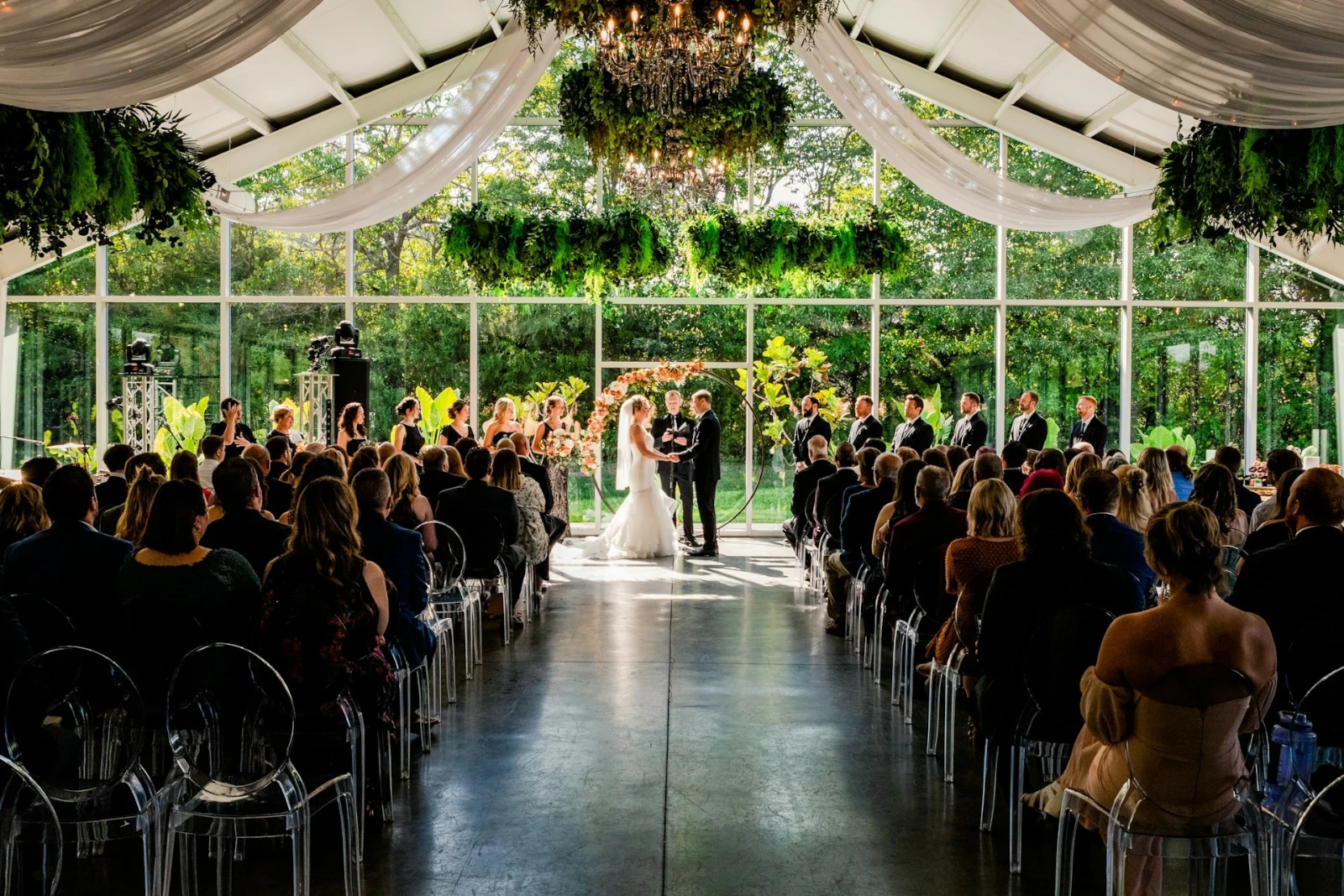
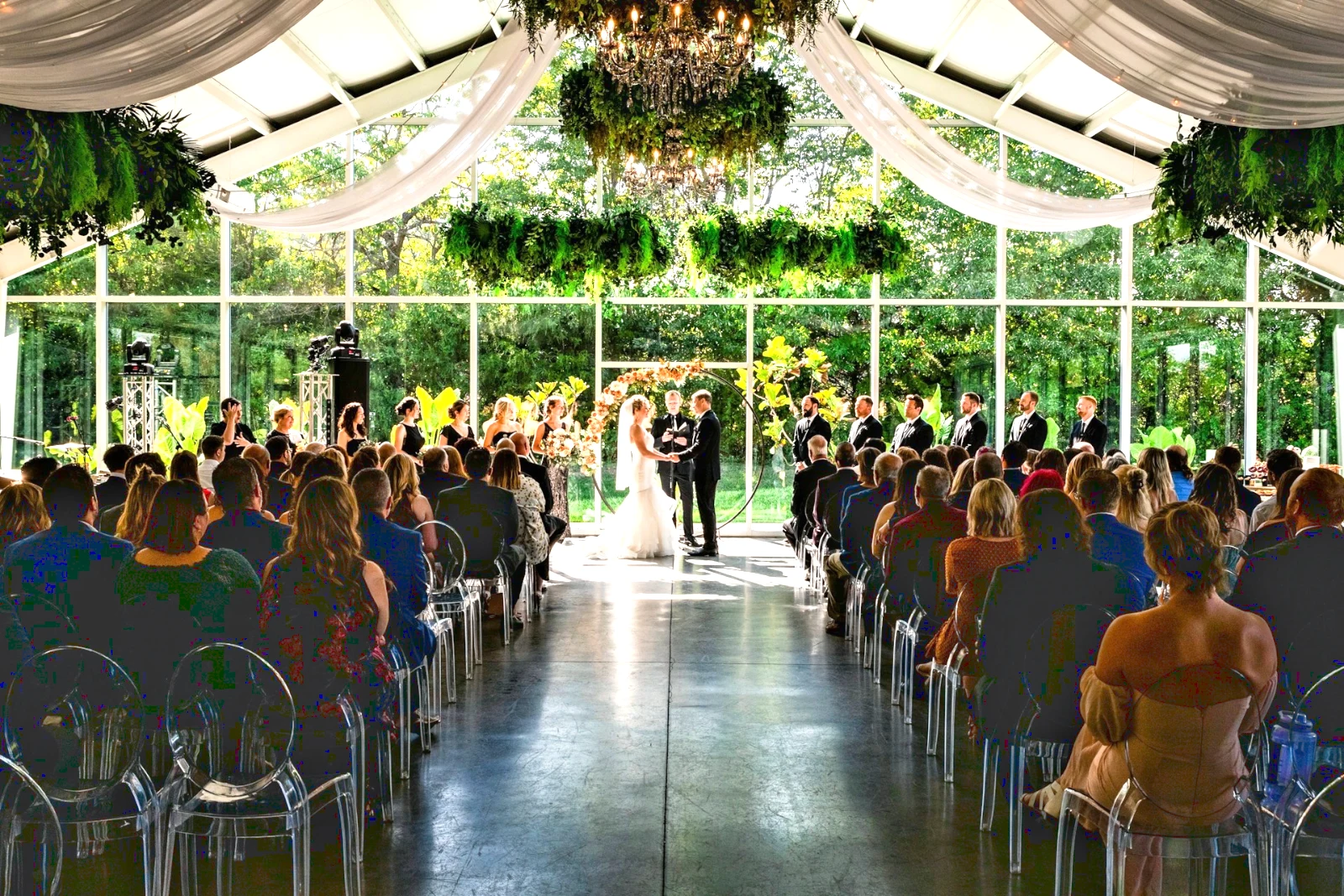
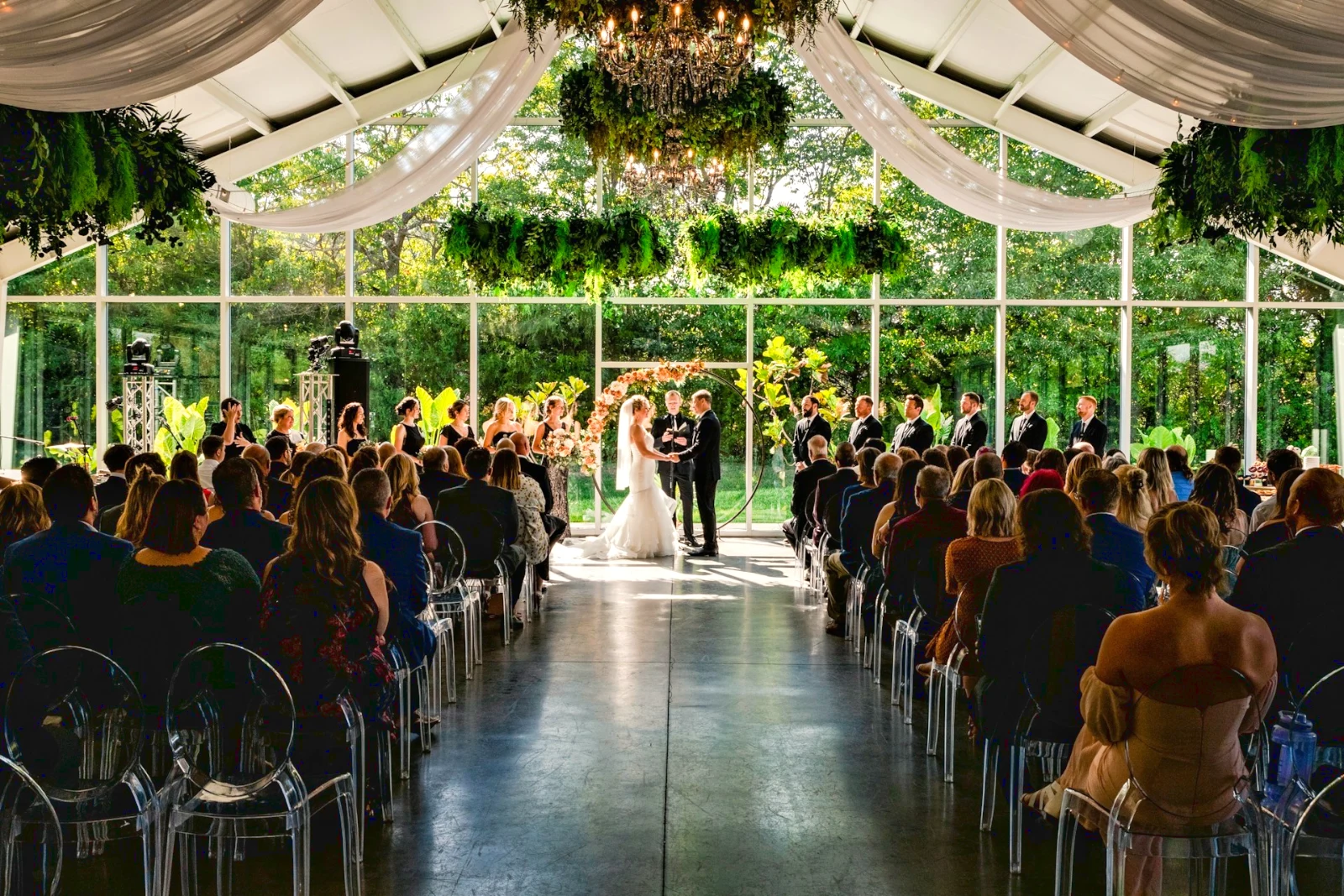
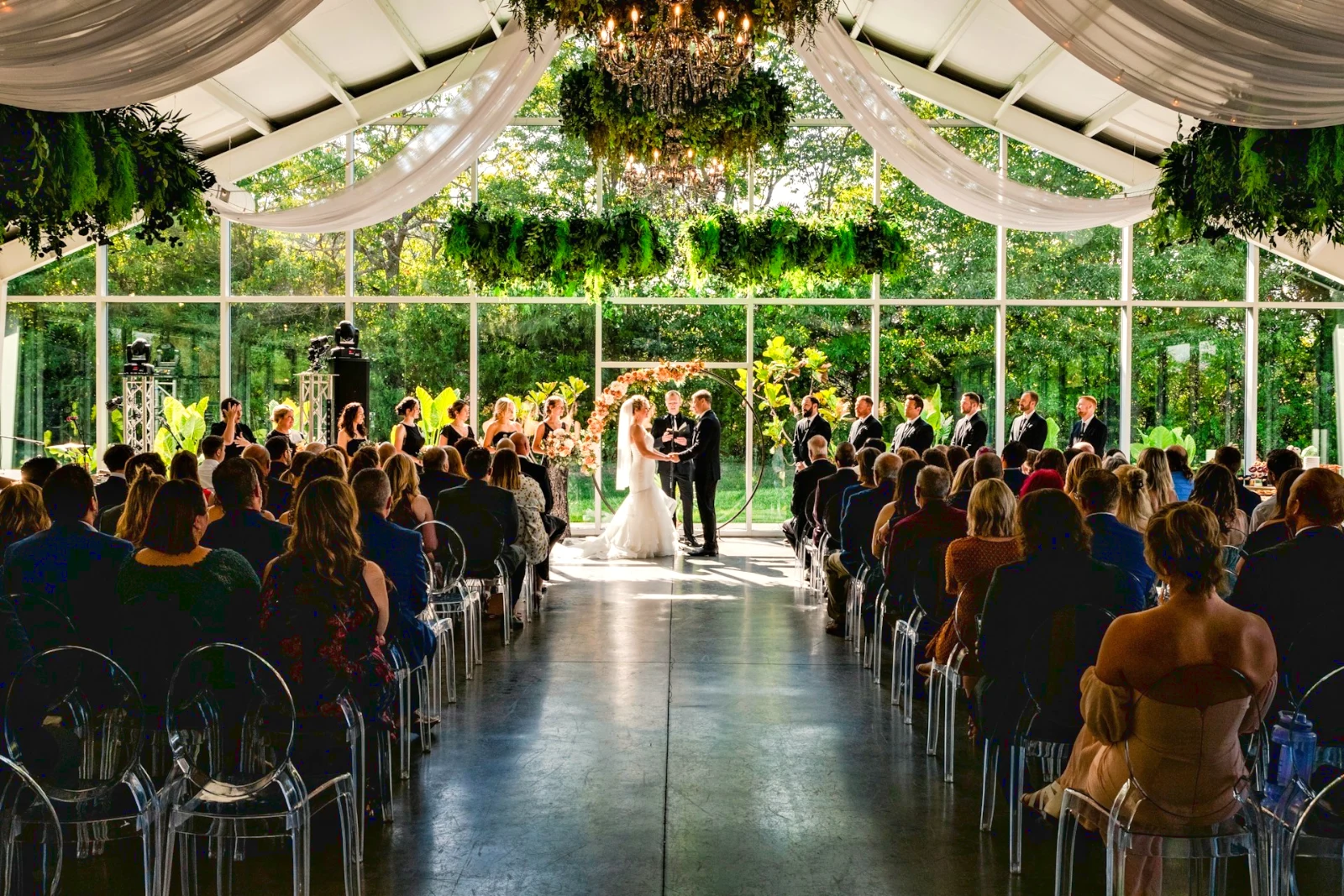
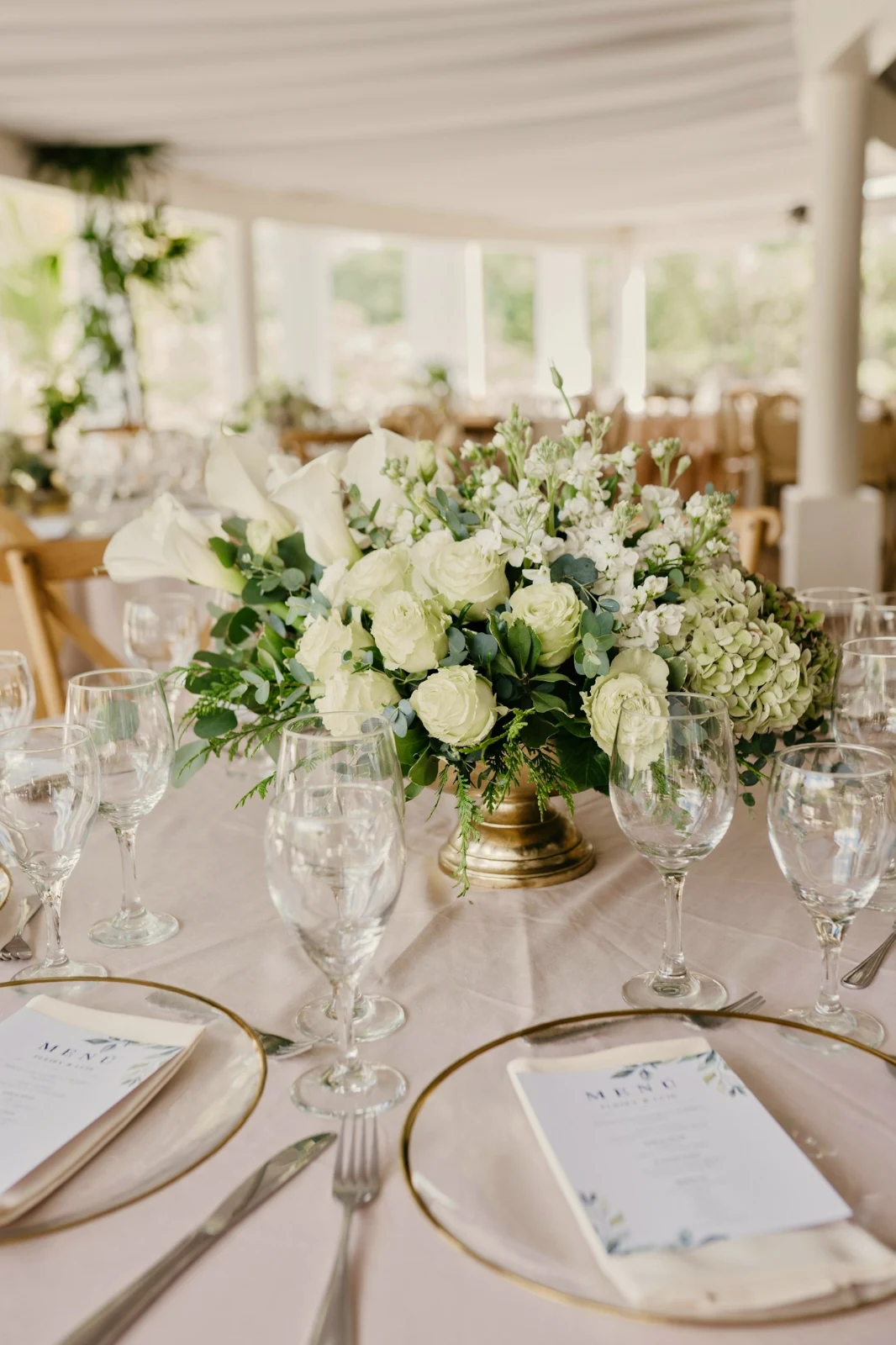
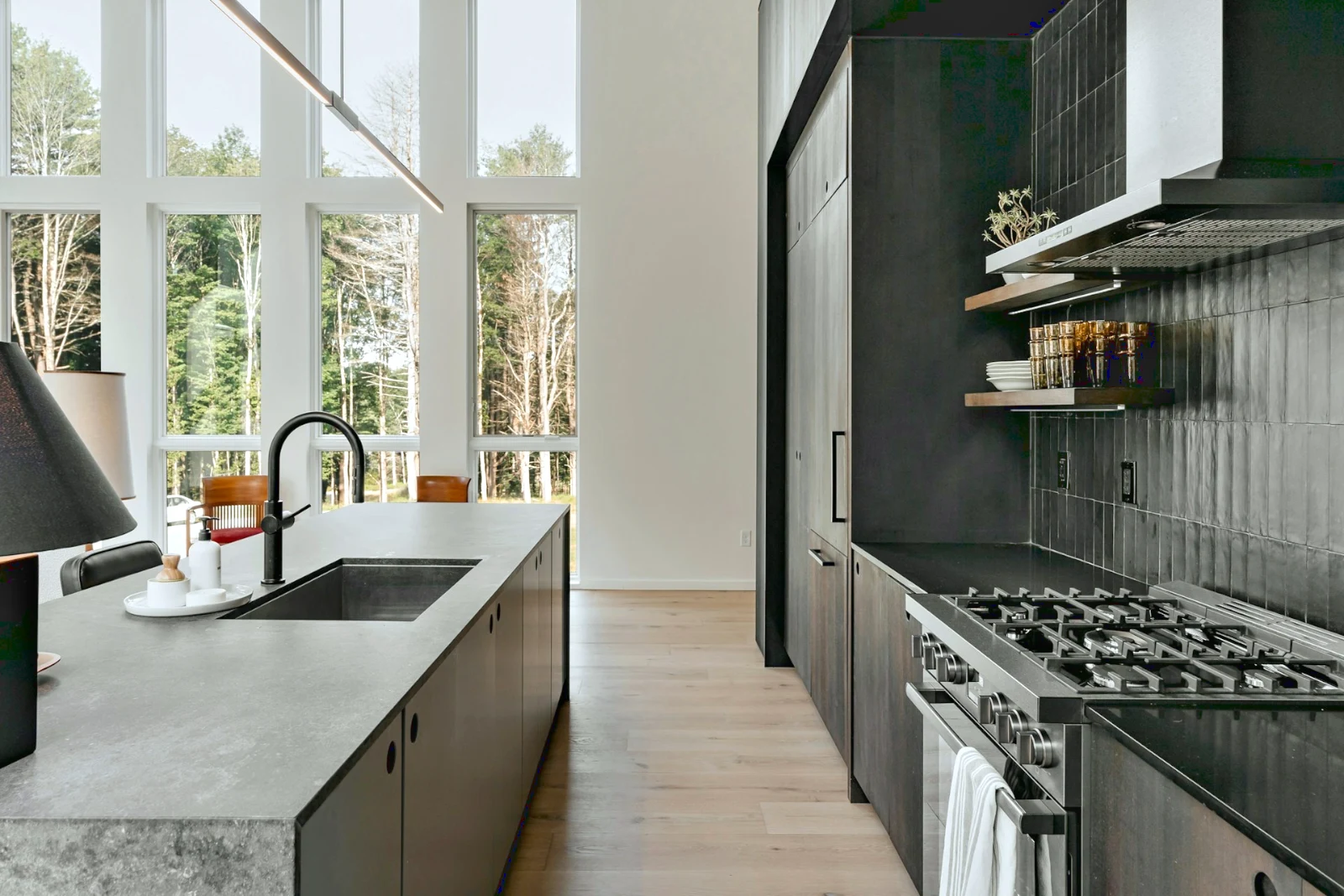 Bright and Airy
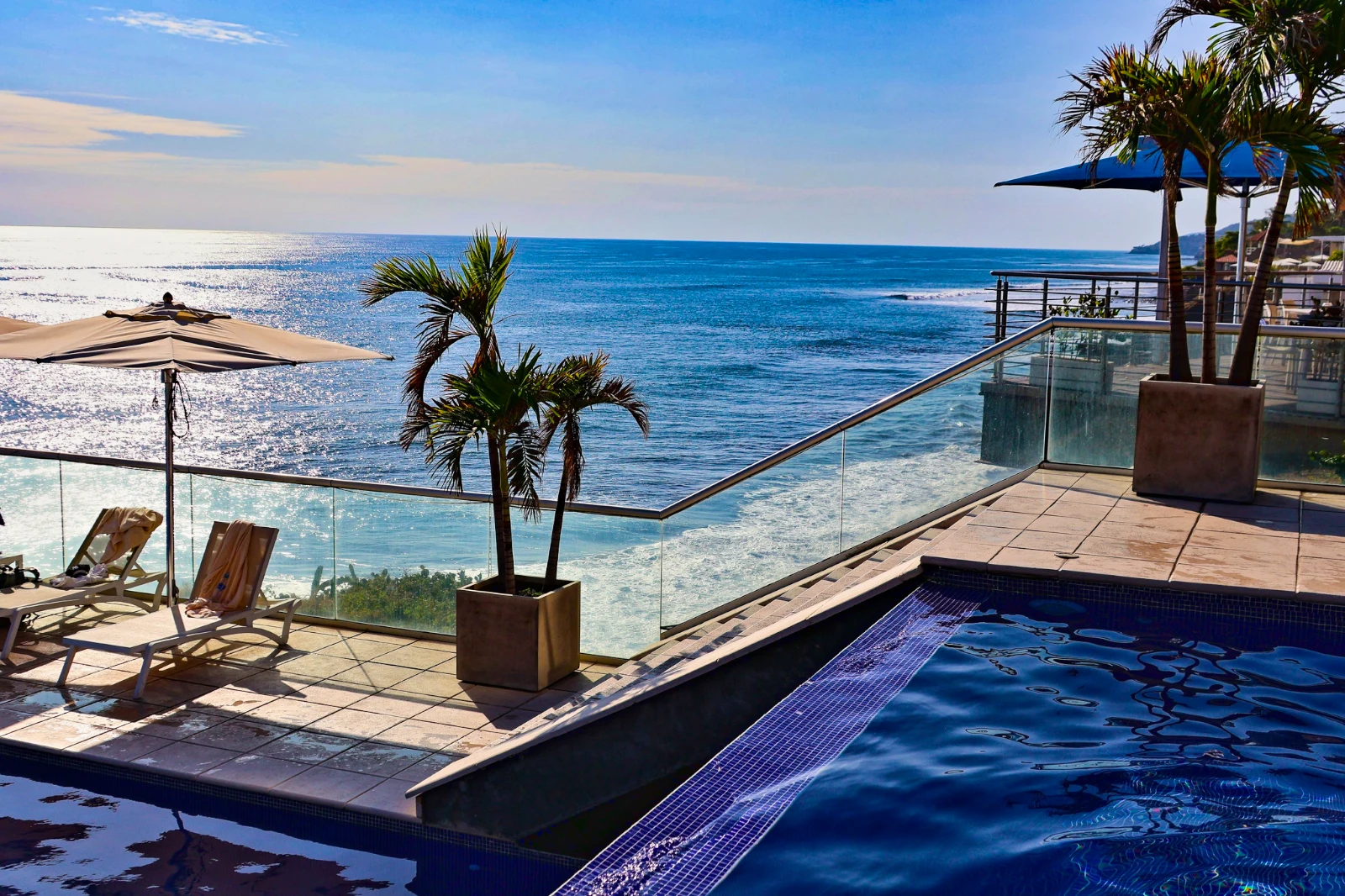 Punchy Social
 Punchy Social
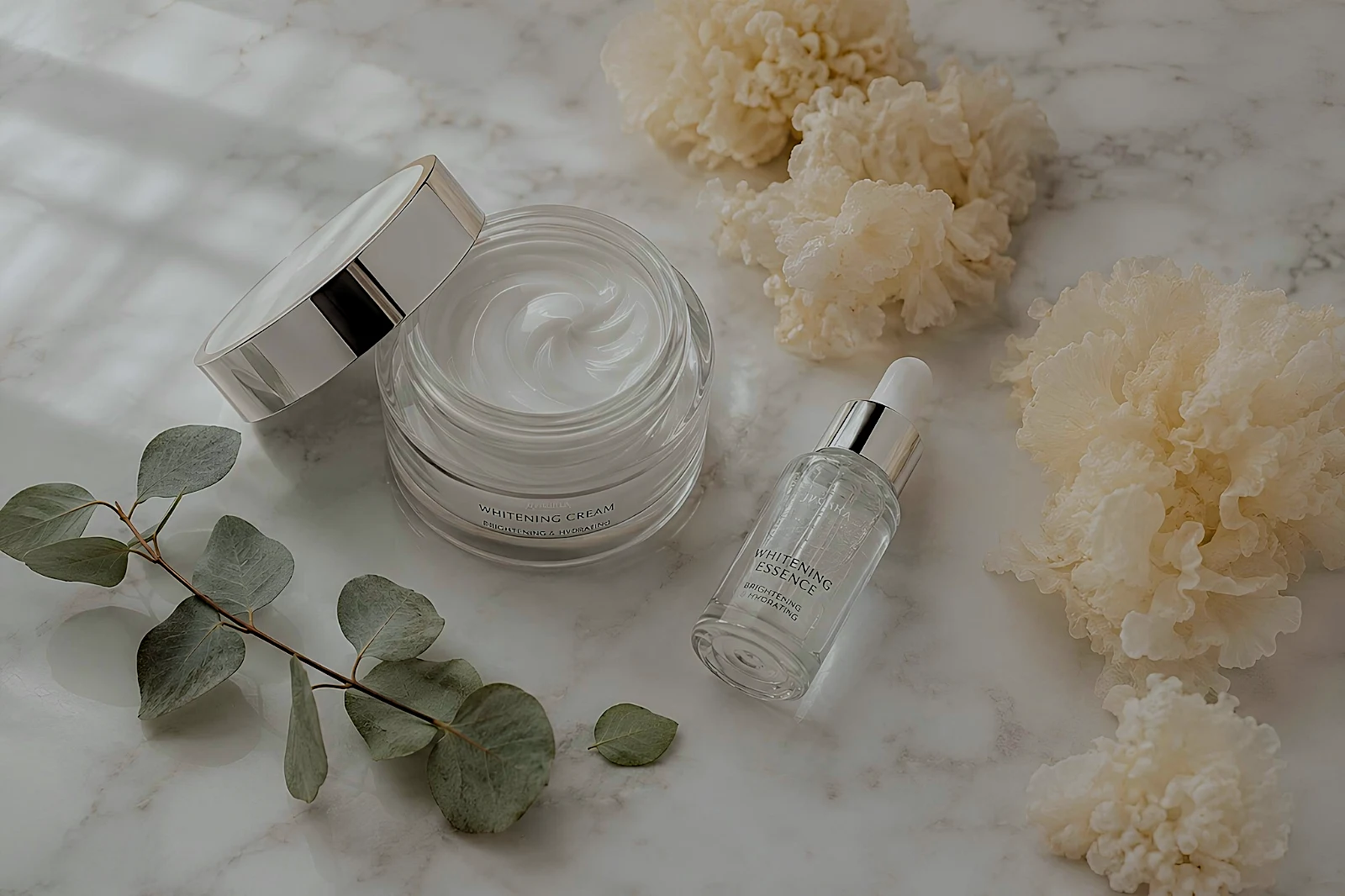 True Color
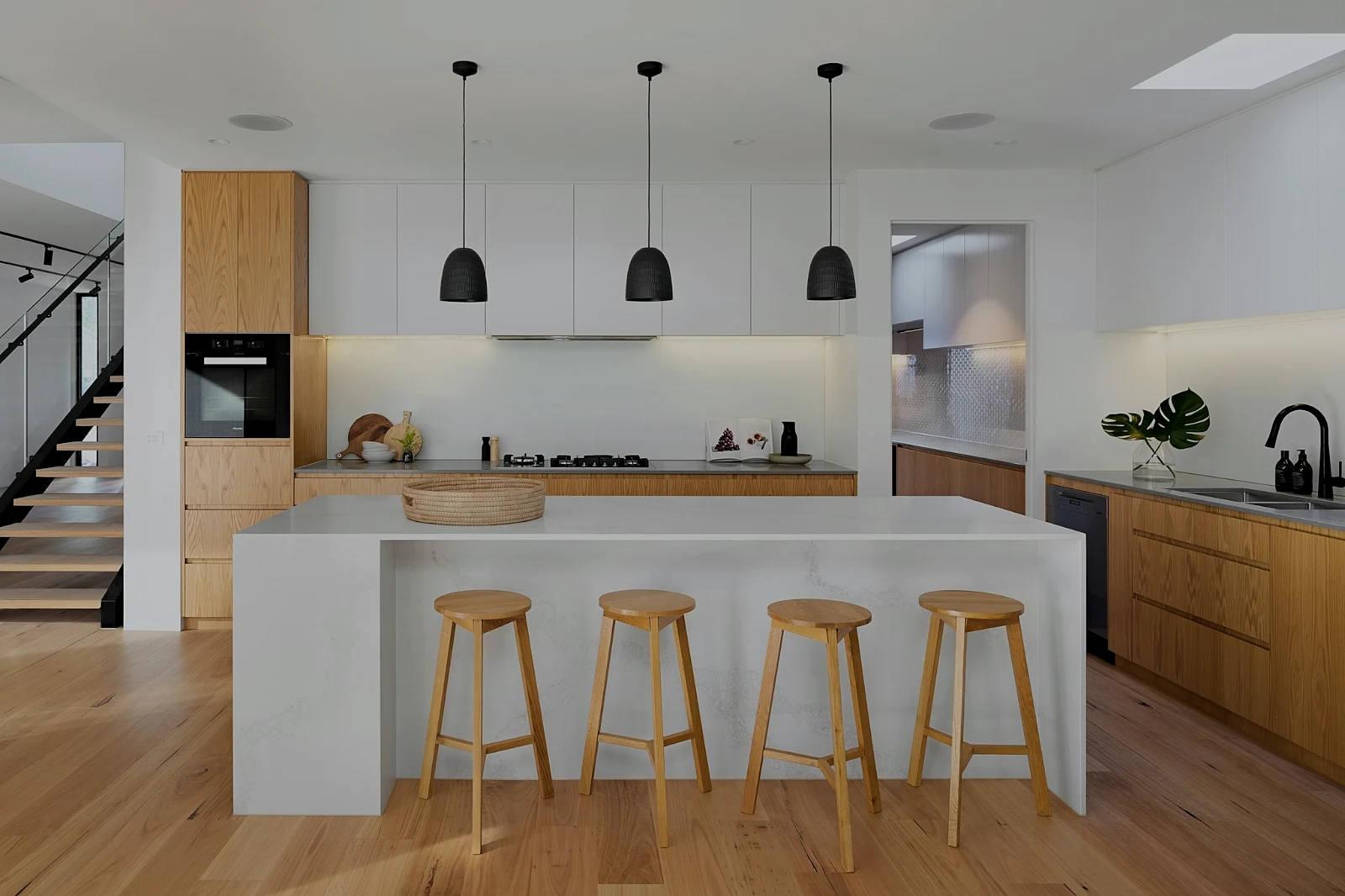 True Color
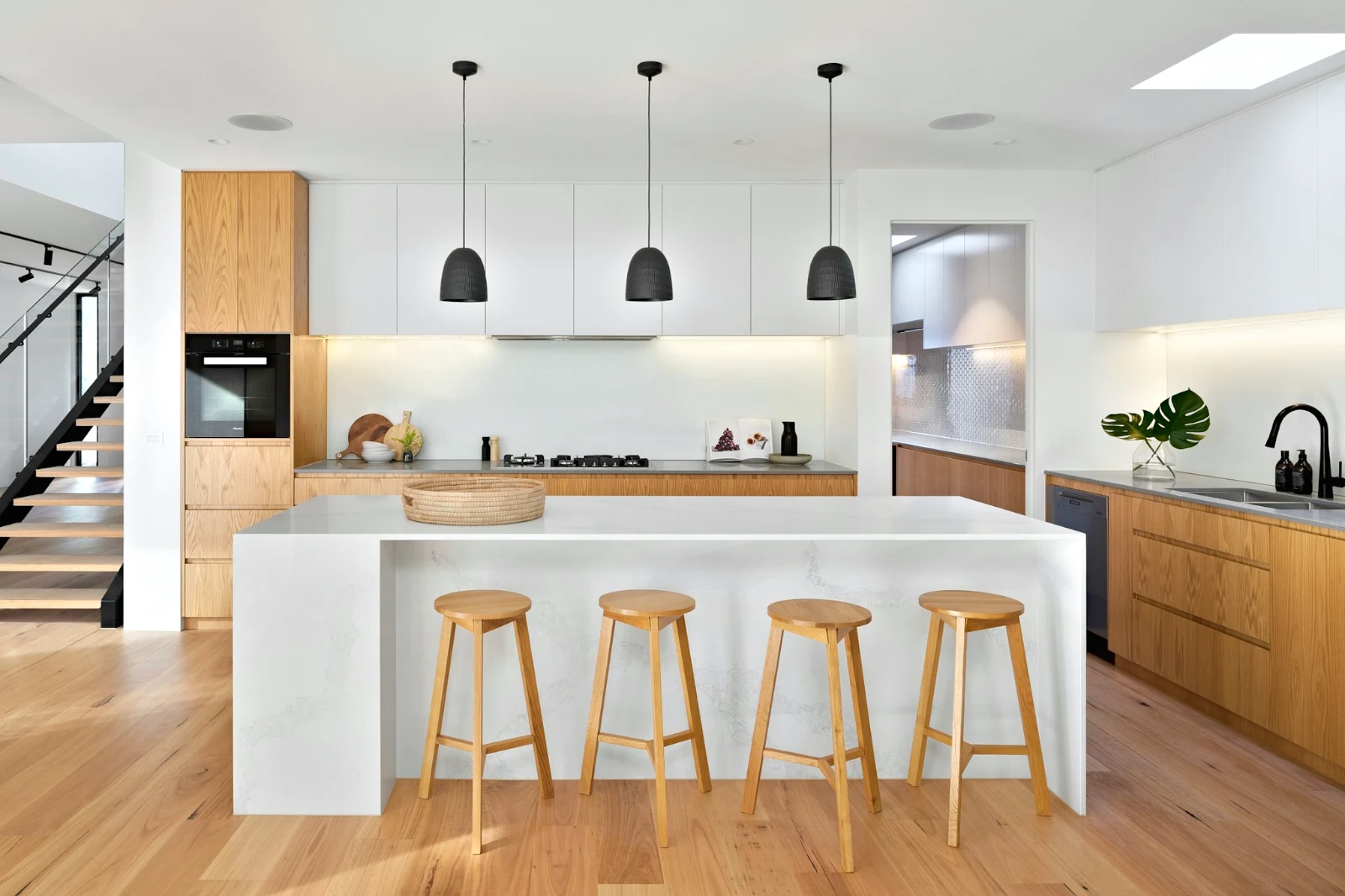
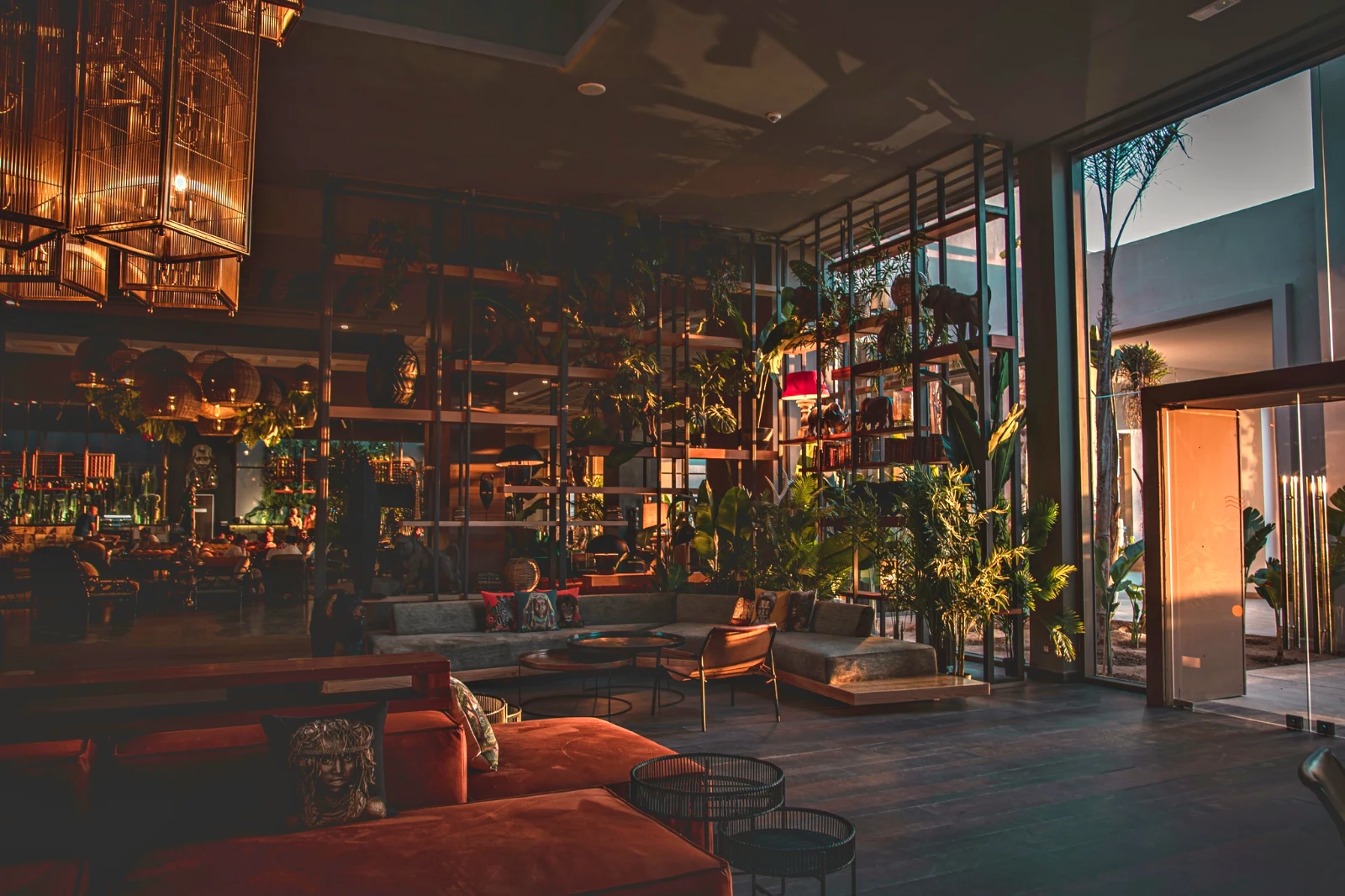 Warm Interior
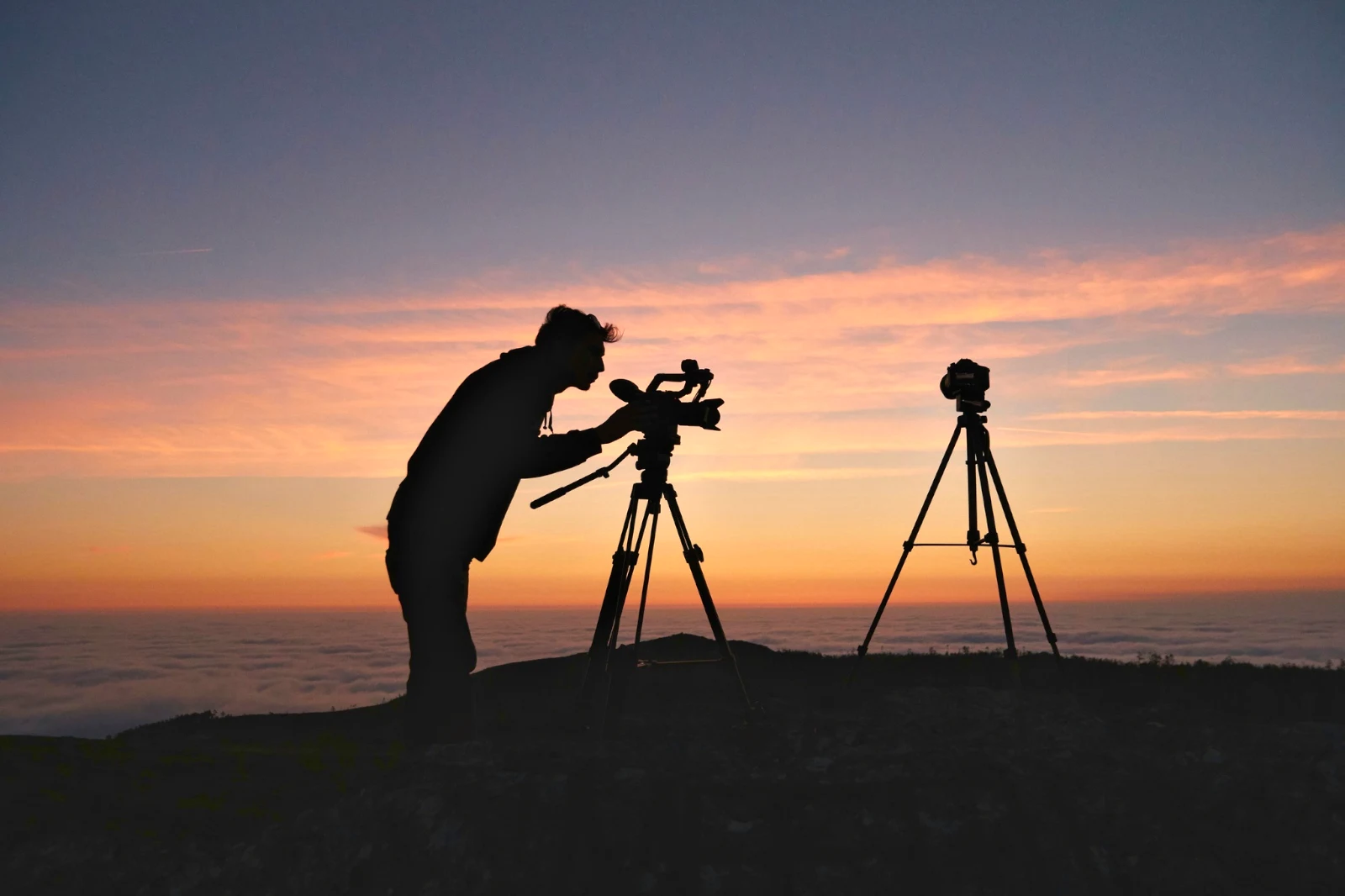
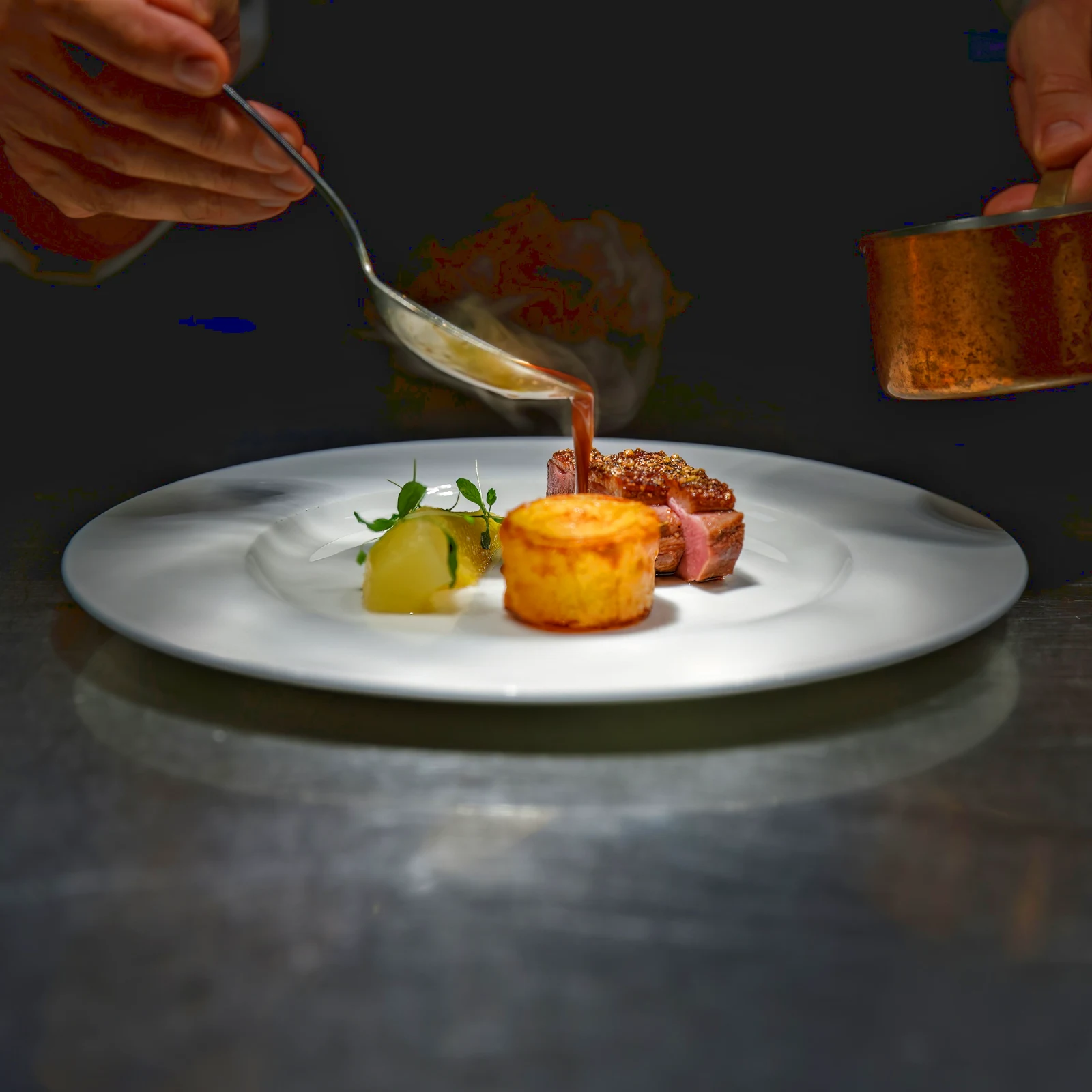 Twilight Glow
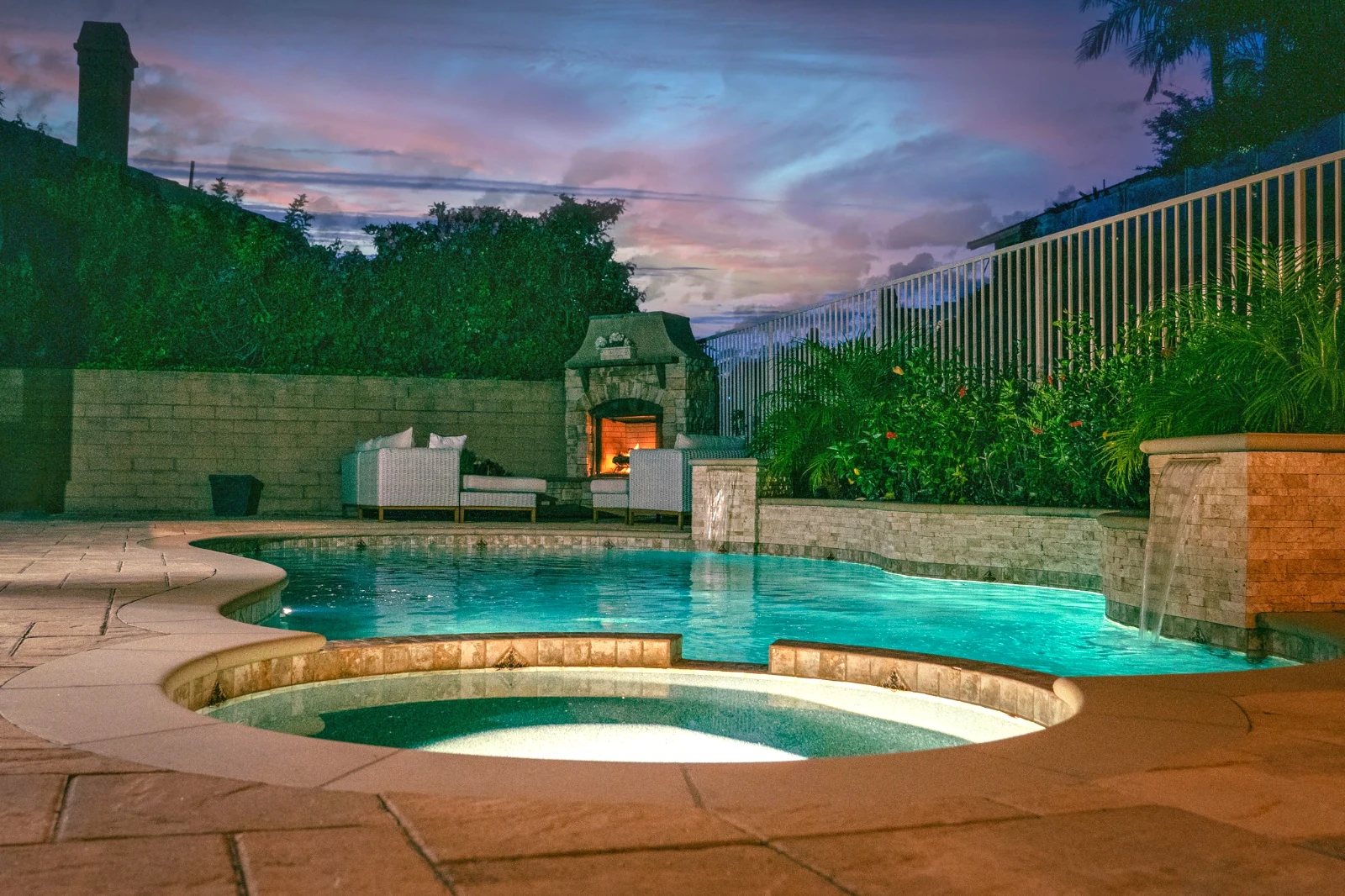 Bright and Airy
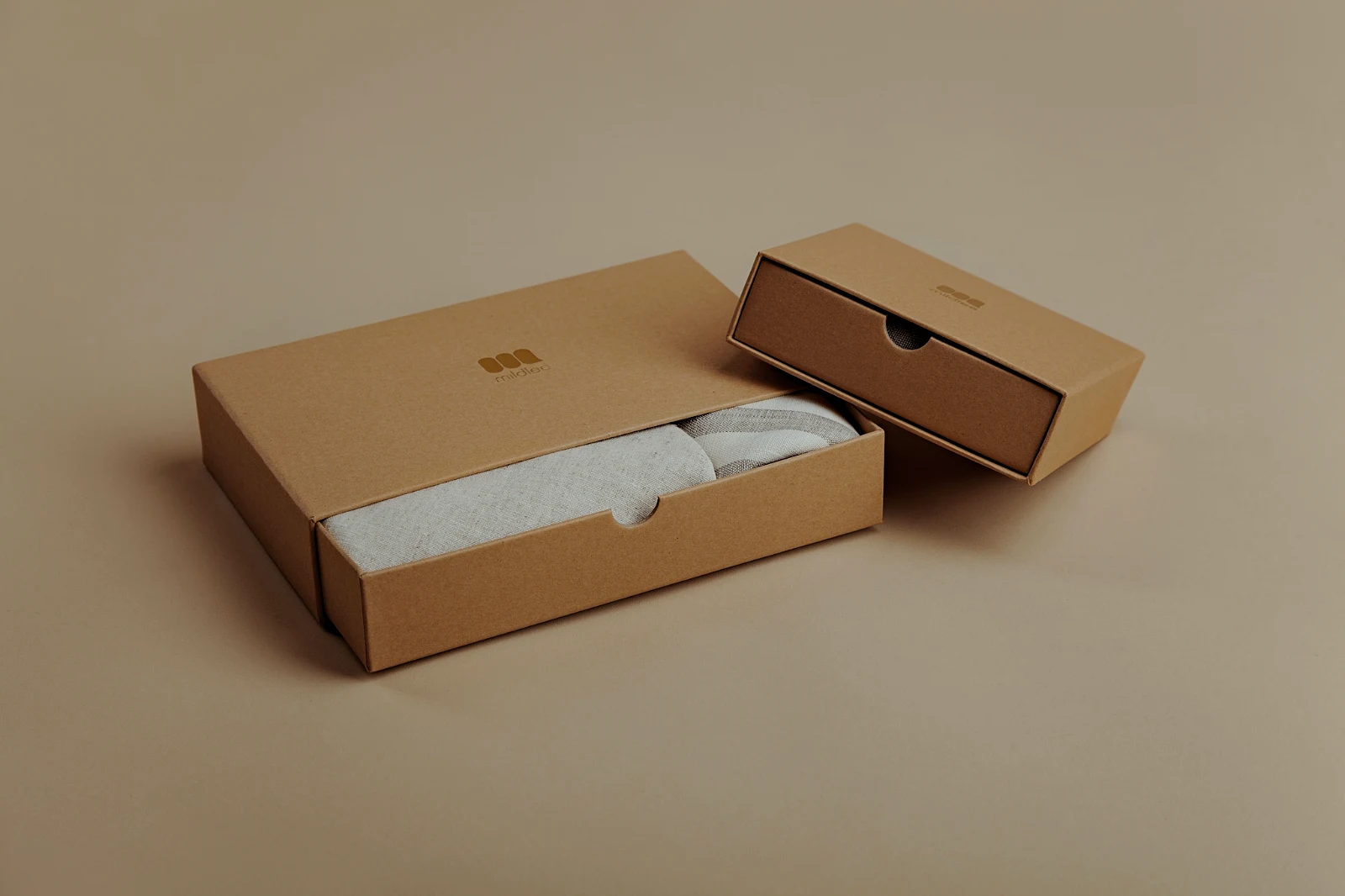 True ColorBright and AiryPunchy SocialPunchy SocialTrue ColorTrue ColorWarm InteriorTwilight GlowBright and AiryTrue ColorBright and AiryPunchy SocialPunchy SocialTrue ColorTrue ColorWarm InteriorTwilight GlowBright and AiryTrue ColorBright and AiryPunchy SocialPunchy SocialTrue ColorTrue ColorWarm InteriorTwilight GlowBright and AiryTrue Color
 Golden Hour WarmthMoje
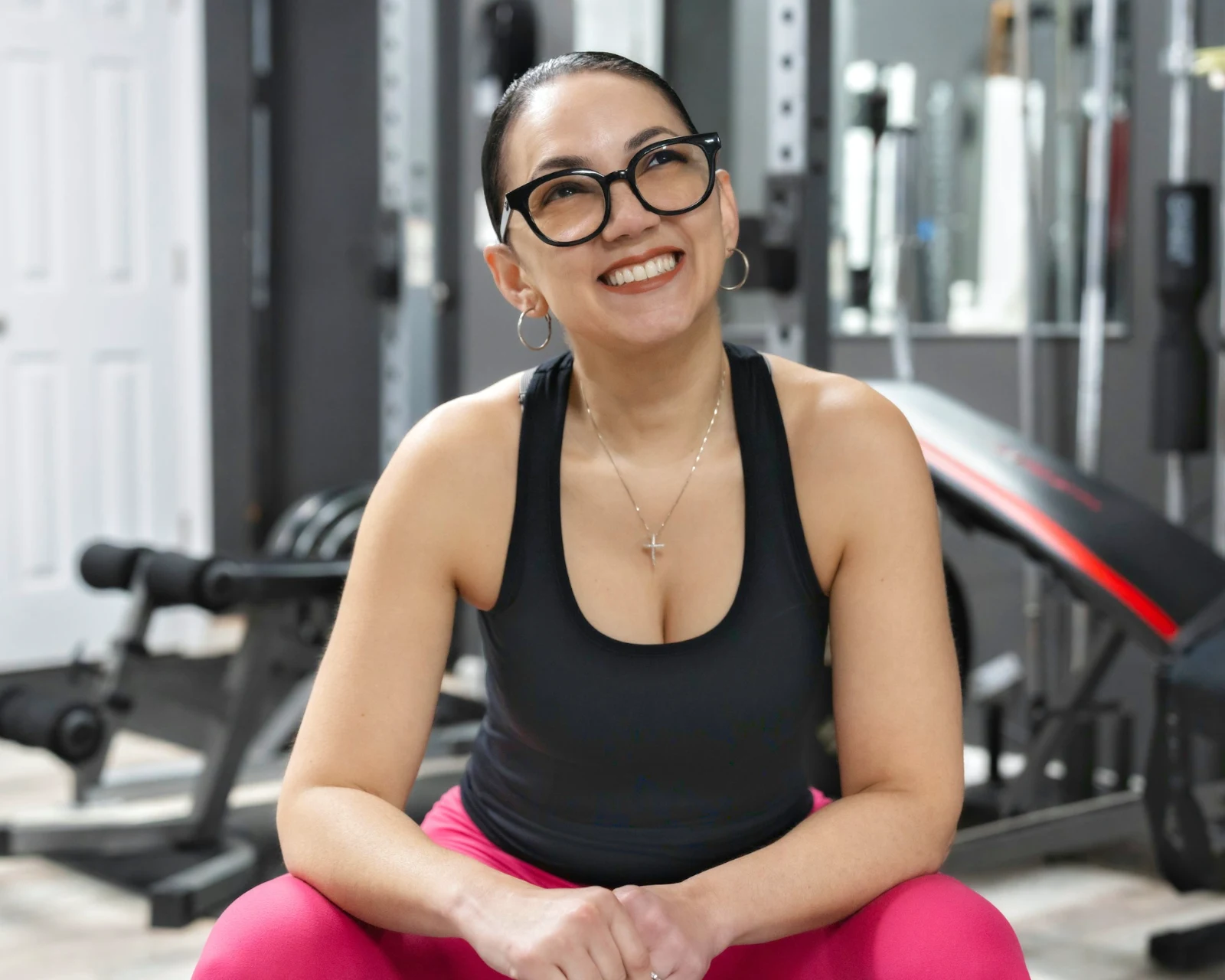 Soft Portrait
 Punchy Social
 Punchy Social
 Czarno-biały
 Soft Portrait
 Soft Portrait
 Twilight Glow
 Soft Portrait
 Soft PortraitGolden Hour WarmthMojeSoft PortraitPunchy SocialPunchy SocialCzarno-białySoft PortraitSoft PortraitTwilight GlowSoft PortraitSoft PortraitGolden Hour WarmthMojeSoft PortraitPunchy SocialPunchy SocialCzarno-białySoft PortraitSoft PortraitTwilight GlowSoft PortraitSoft PortraitGolden Hour WarmthMojeSoft PortraitPunchy SocialPunchy SocialCzarno-białySoft PortraitSoft PortraitTwilight GlowSoft PortraitSoft PortraitBright and AiryPunchy SocialPunchy SocialTrue ColorTrue ColorWarm InteriorTwilight GlowBright and AiryTrue ColorGolden Hour WarmthMojeSoft PortraitPunchy SocialPunchy SocialCzarno-białySoft PortraitSoft PortraitTwilight GlowSoft PortraitSoft Portrait
From the shoot to the client’s picks
One editor at two depths: simple for everyone, every control for the people who edit for a living.
Biblioteka
Every photo the account keeps.
Culling
Flags, Best First and similar shots.
Auto and Looks
One tap, or a look of your own.
Roczny bilet
Light, color, lines and parts.
Masowa automatyzacja
A whole set in one run.
Warstwy
Selections, masks and paint.
Galerii
The client picks and notes.
Wyślij do
A design, a website, a listing.
On a Phone
The photo full screen.
Bring every photo in, and find it again
Upload from a desk, the camera or the camera roll, or share a photo to Foto from any app. Every photo the account keeps in Depot is in the Library, found again by its star, its tags, the client’s picks or a search.
 Edytowano



 Edytowano
 Edytowano




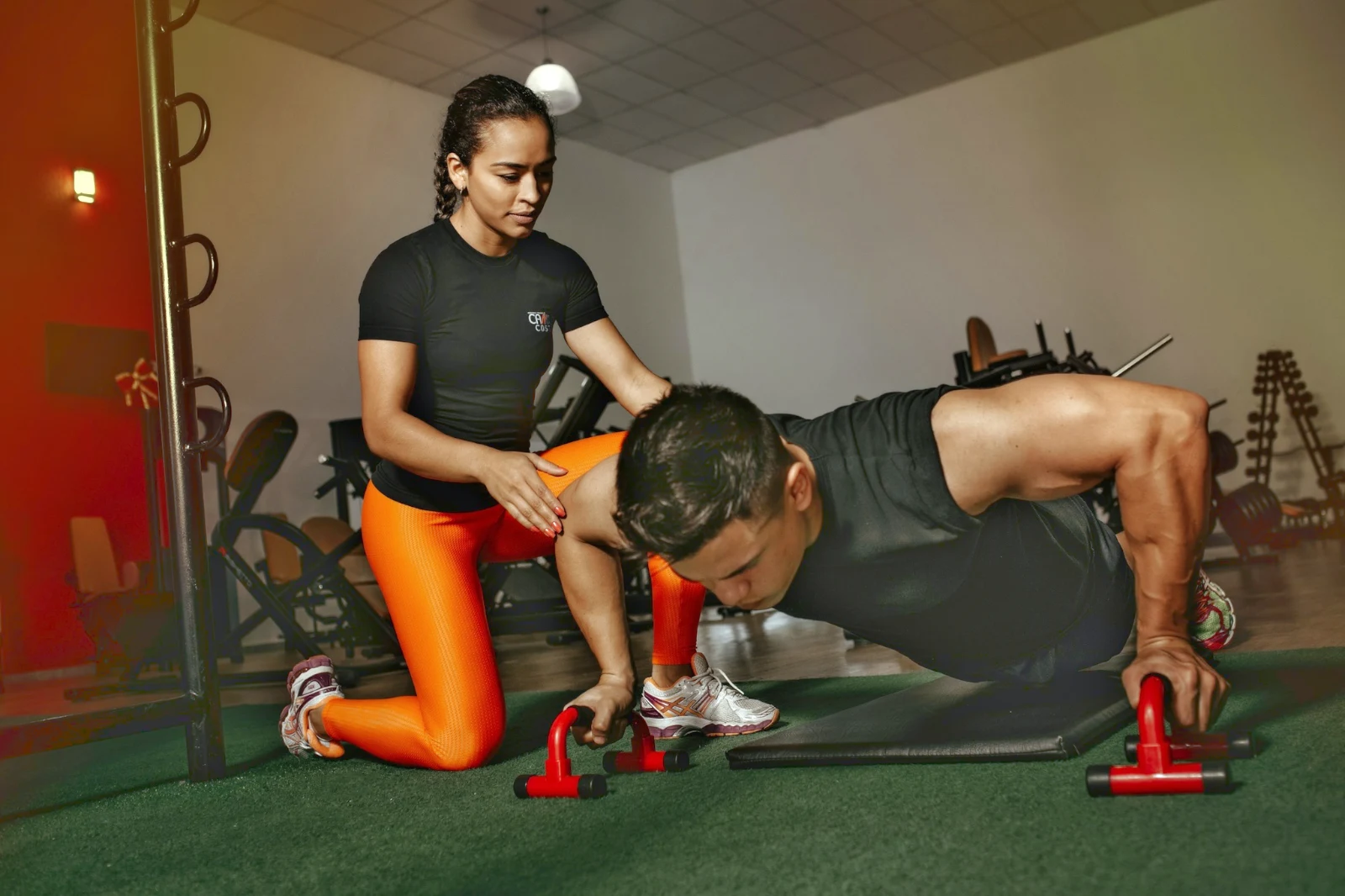
Star and Tags
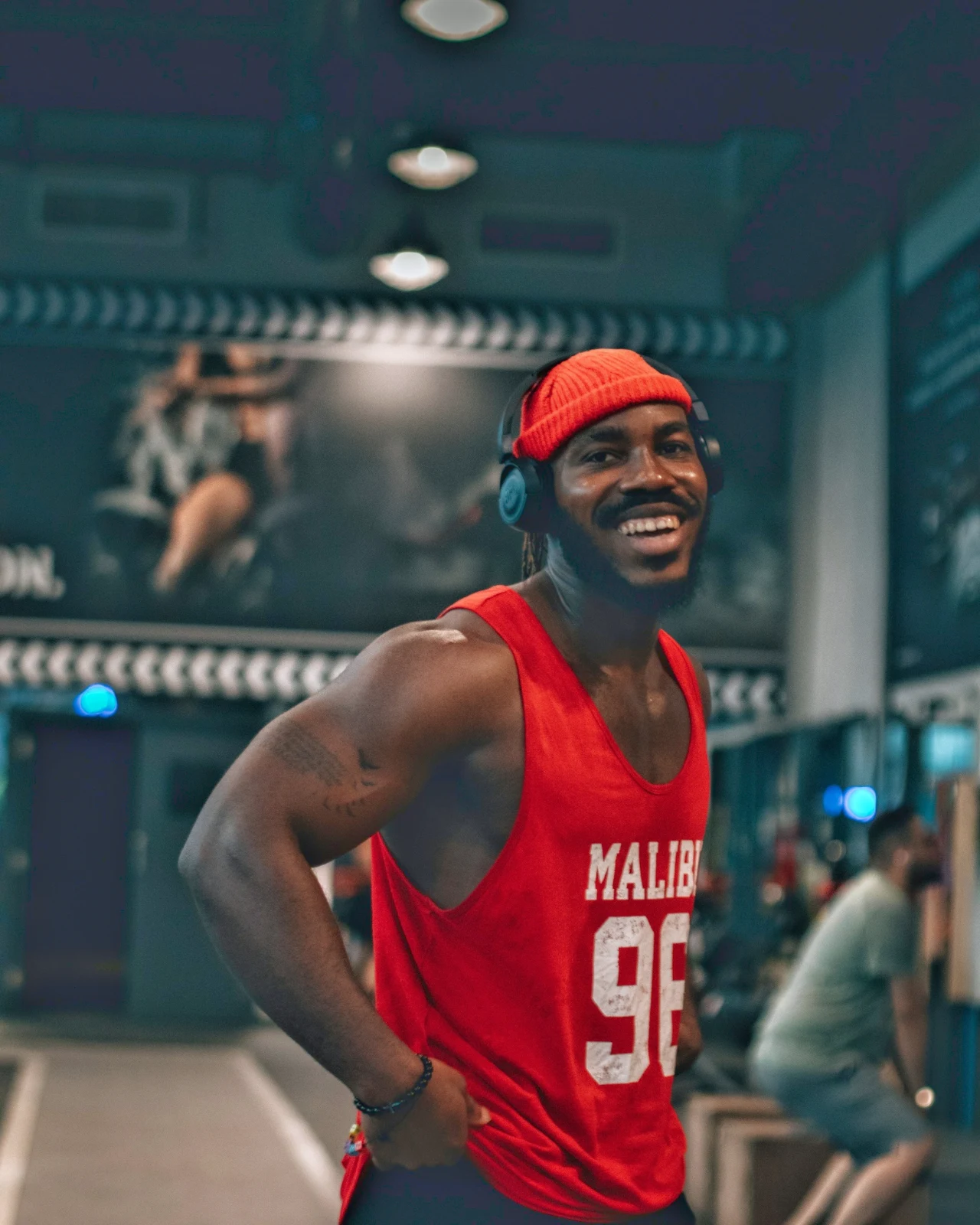
The same star and tags Depot, Docs and Studio read.
Hubs and Folders
A Hub’s photos on their own; Move To… a Folder (with Depot).
RAW and HEIC
A RAW is developed on the device, or on the server when it cannot be.
Tethered Capture
Camera on USBCamera connected · Canon EOS R6 Mark II
 Widok na żywoStrzałStop Live View
PrzybyłPictures from the camera land here and in the Camera Uploads Hub.
Apply to Each New FrameApply True Color AW27_flatlay_01.jpg
 AW27_packing.jpg
 AW27_unboxing.jpg
 AW27_shelf.jpg
 AW27_tote.jpg
Shoot straight into Foto by USB with Live View, or from the camera’s own Wi-Fi upload.
Find the keepers without looking at every frame
Every photo is read after it is uploaded: its focus, its exposure, and whether anyone’s eyes are closed. Sort Best First, show the suggested best shots, filter by each flag, and compare similar shots side by side. Nothing is starred for you: you choose the keepers.
 Closed EyesMissed FlashMissed FocusBlurryBlack Frame
Closed Eyes and Missed Focus
Flagged on the photo, as are Blurry, Black Frame and Missed Flash, each one a filter.
Closed EyesBlurryMissed FocusMissed FlashBlack FrameFix a photo in one tap, or apply a look
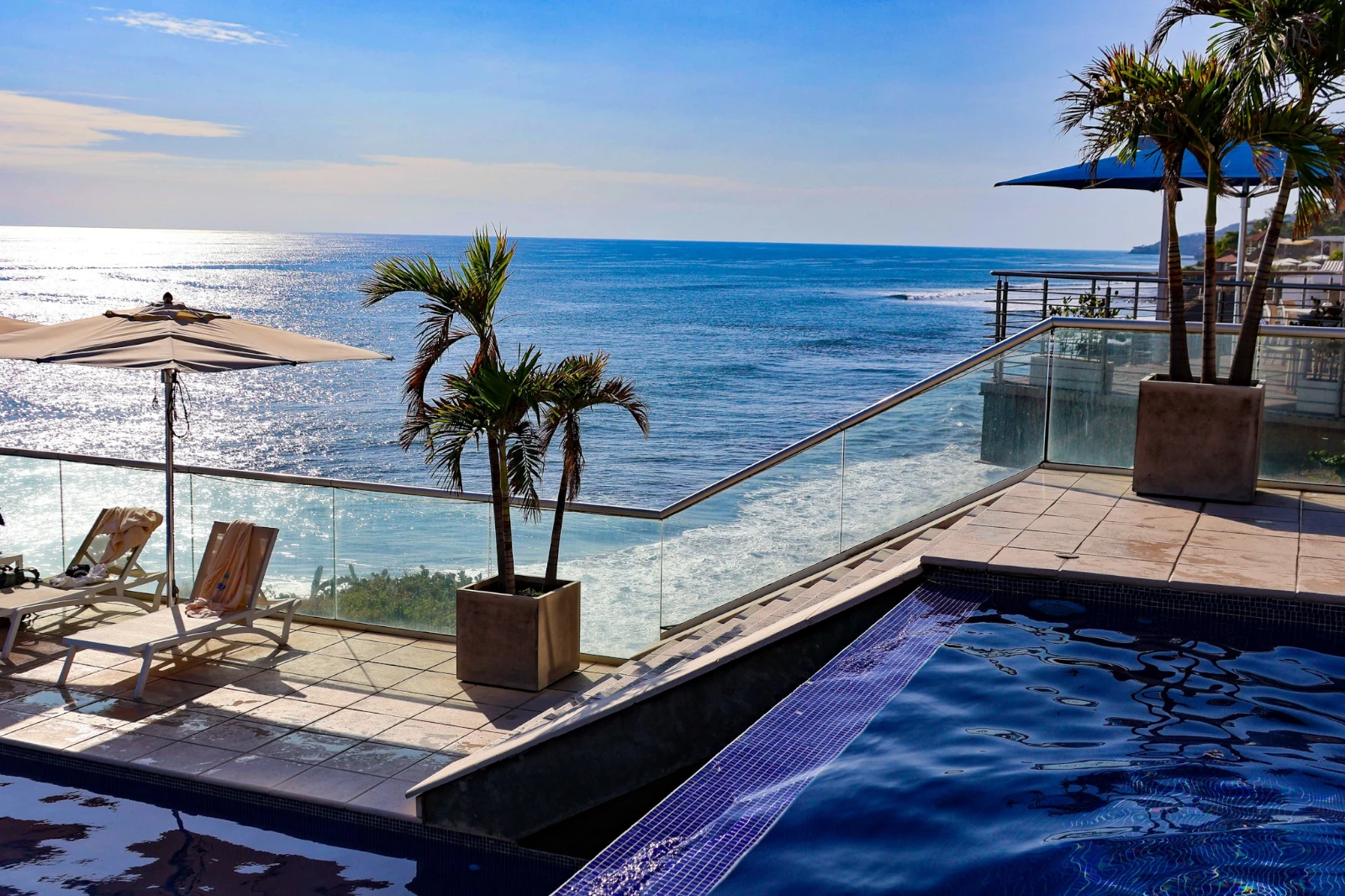
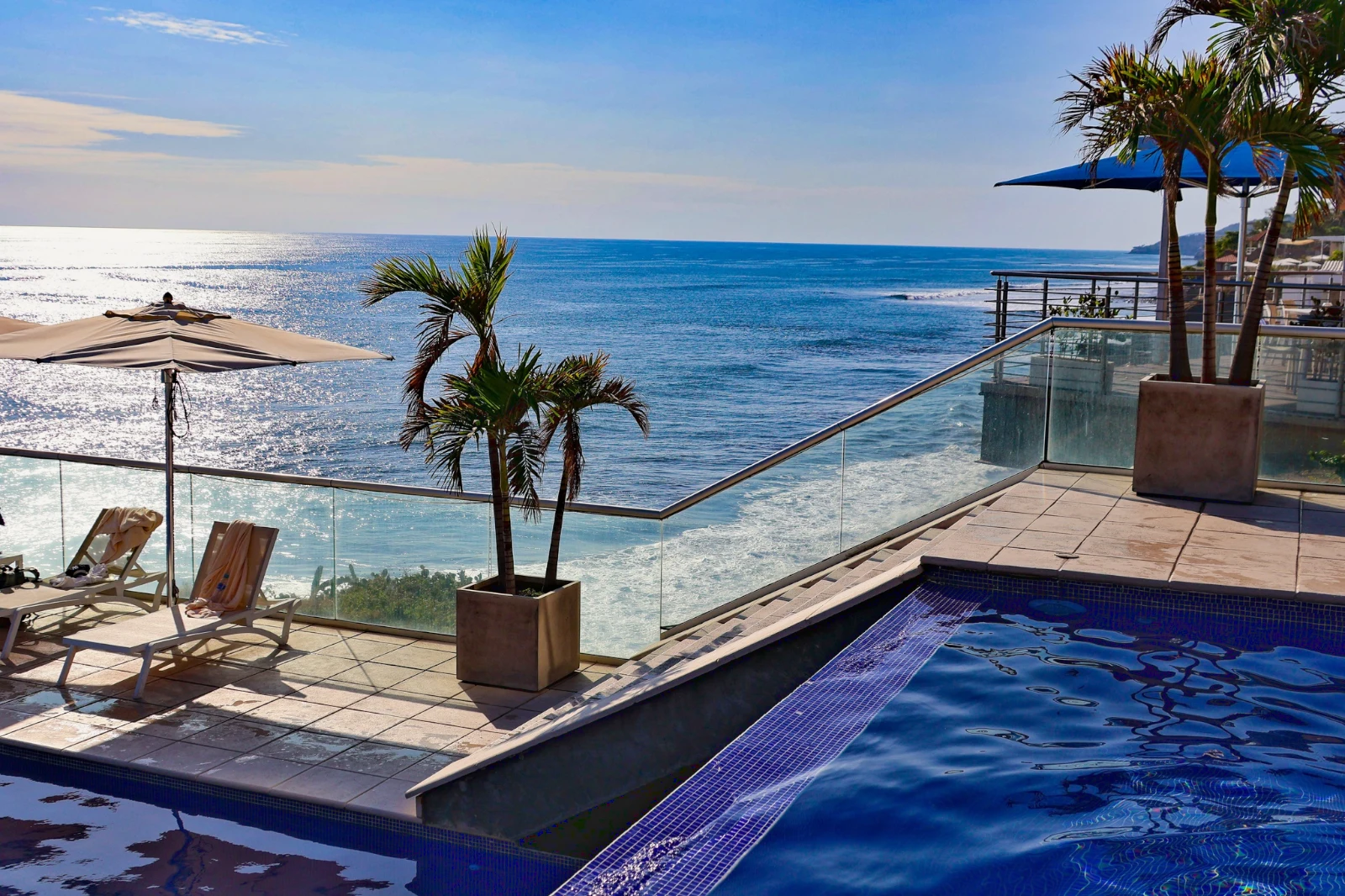
Auto reads the photo on your device, sets its sliders and names each one it moved; Undo puts the photo back. Looks holds Calisto’s looks and your own, the ones that fit the photo first, and Save Look keeps any edit as one of yours.
Your Style
Auto moved the way you move it, learned from your own edits; every value a slider.
Suggested Looks
The looks made for a photo like this one, first in the list.
Działania
Record your steps once and play them on any photo or a whole selection.
Contact Sheets
A selection printed on a grid with names, stars, picks and flags, as a PDF.
Match a Photo
Another photo’s light and color, set as this one’s sliders.
Never the Original
An edit sits beside the photo with its history; the original stays as it came.
Przed
Press and hold to see the photo as it came.
 Przed
Set the light, the color and the lines by hand
Light, Color and Crop open first, and every other control, from the tone curve to noise and the lens, is one tap away behind More. Straighten Lines finds the photo’s lines and sets Transform itself, or solves the lines you draw.


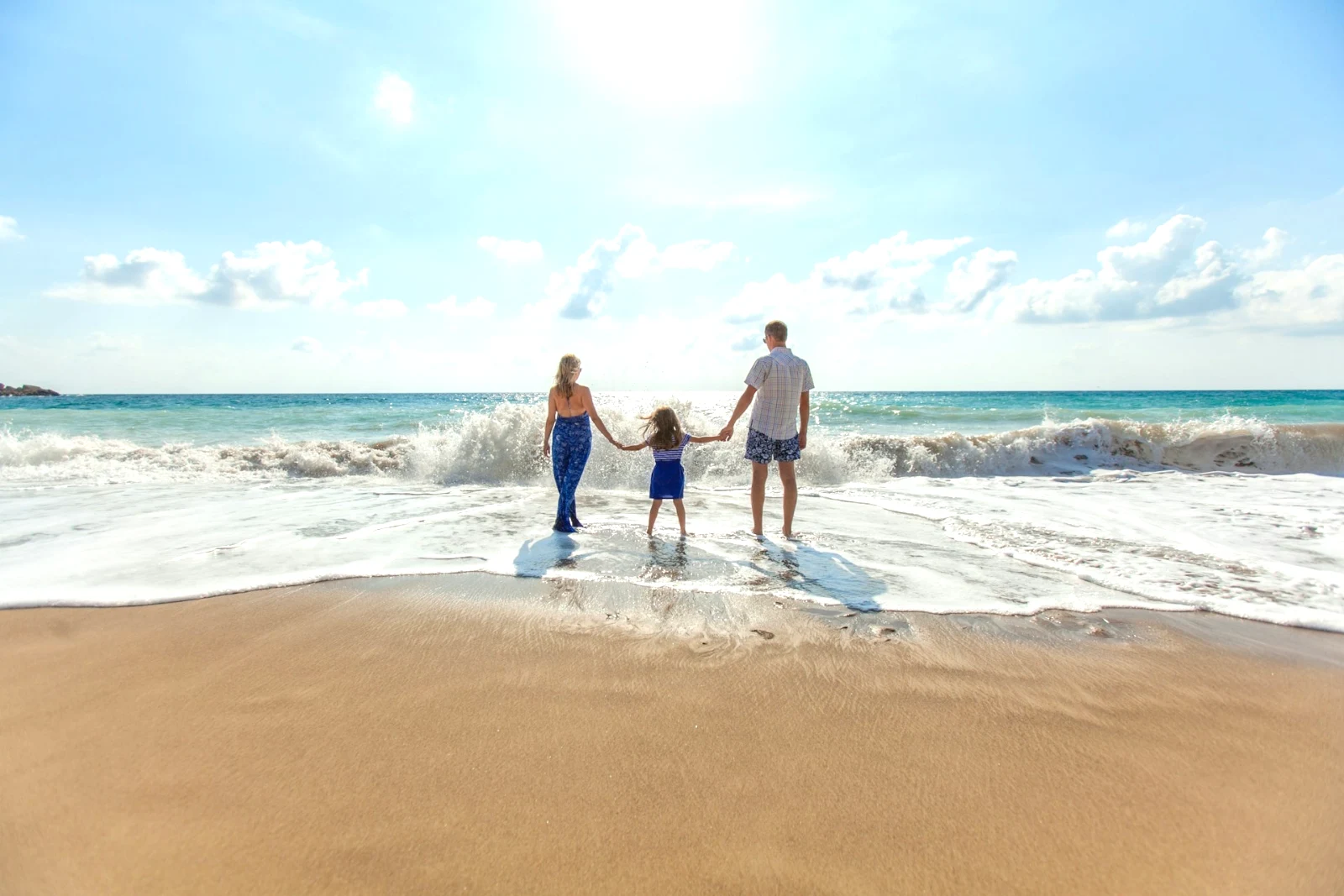
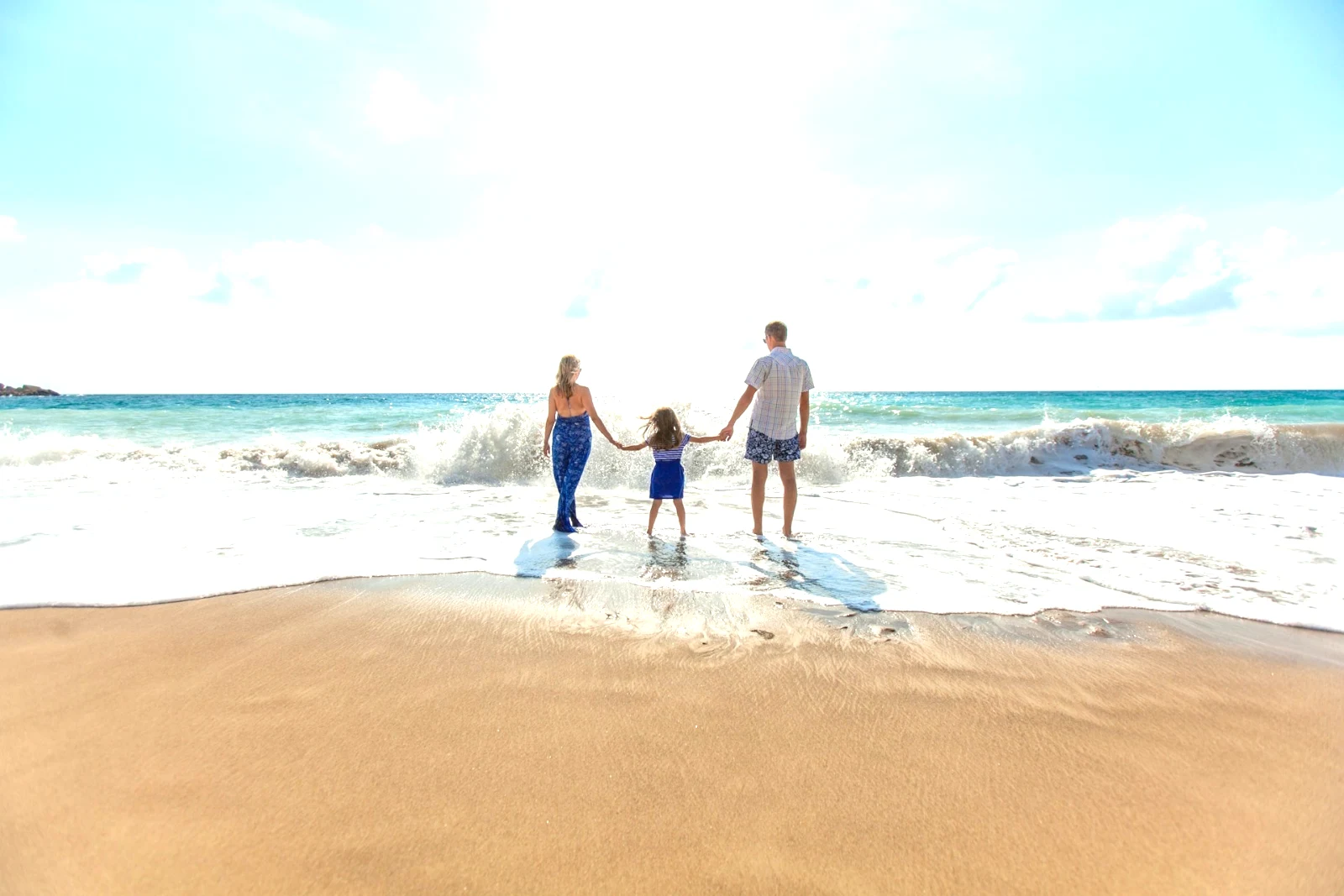
Usuń i napraw
Paint over a cable or a stain; Clone and Fill beside it.
Reguluj część
The sky, the subject or the background, a brush, gradients or a brightness range.
Ludzie
Skin, face, eyes, lips, hair, clothes or the whole person; Retouch Skin evens it toward their own tone.
Lens and Portrait Blur
The background blurred, or the whole photo by its depth, with the focus where you set it.
Film Negatives
A scanned color or black and white negative turned positive, the orange mask removed.
Prawidłowa soczewka
The camera’s own correction, else the lens profile, and color fringes removed.
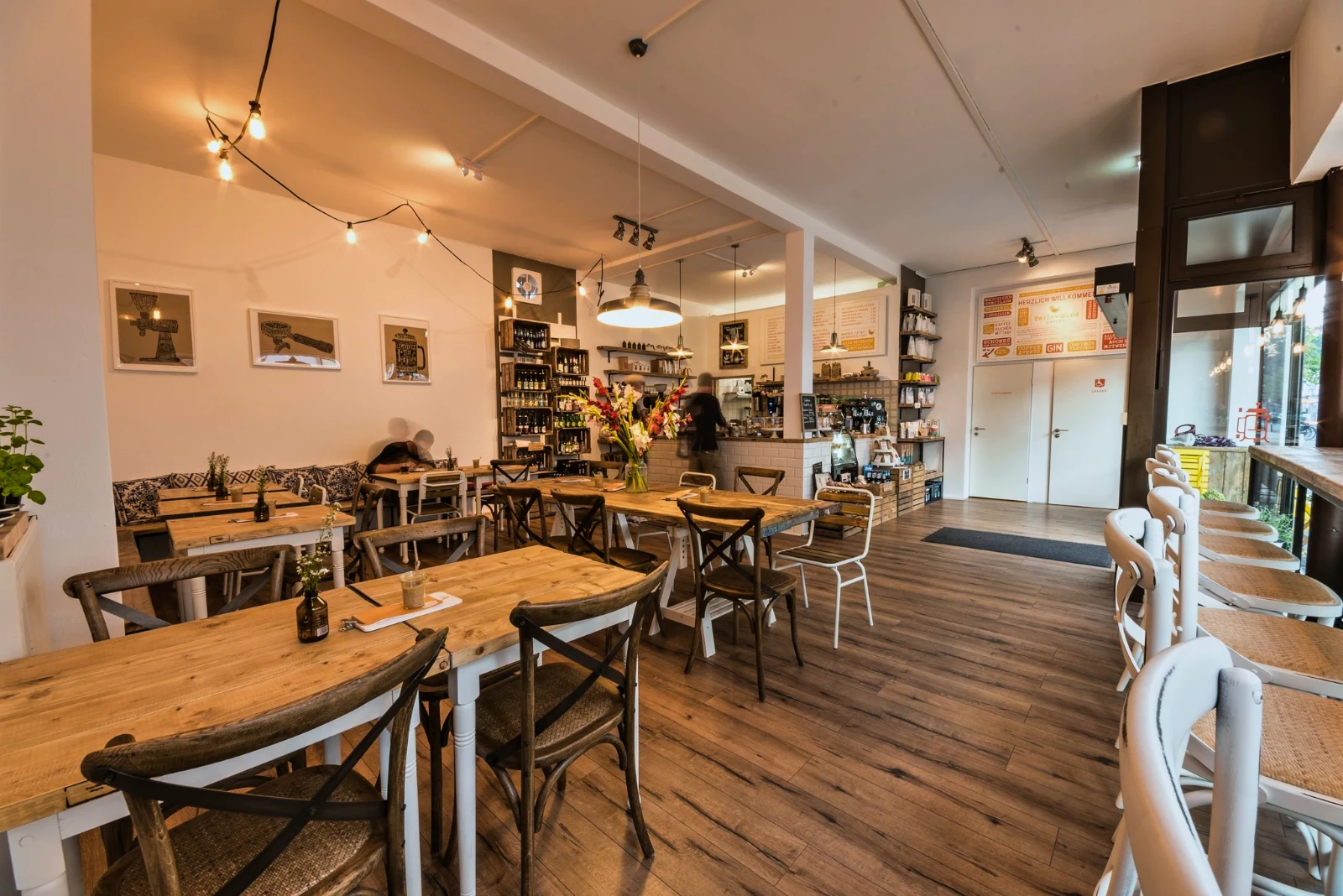
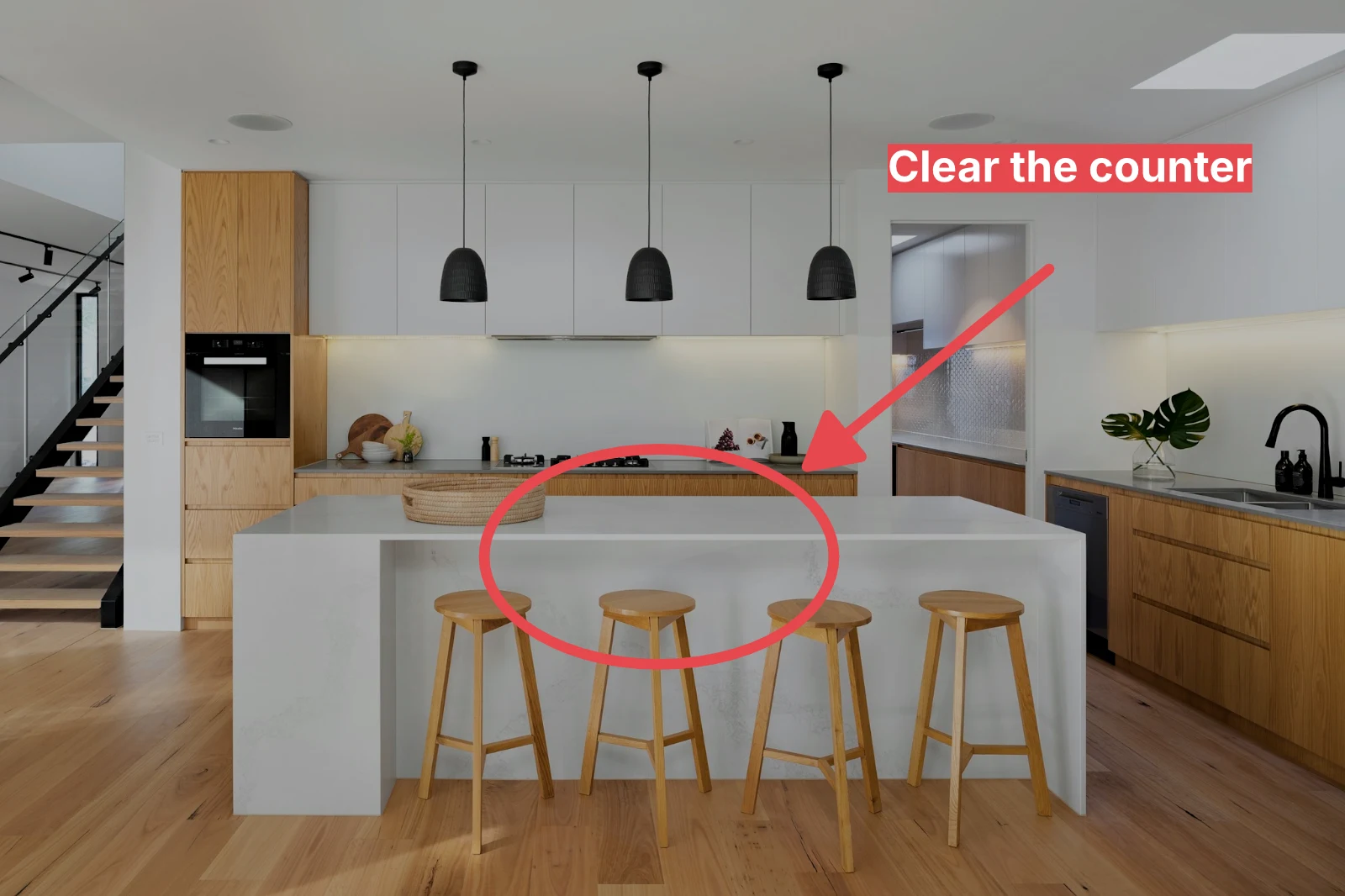
Nadmargines
An arrow, a circle, a box or a label drawn on the photo.
Give a whole set its Auto and your look
Choose photos in the Library and a look, then press Bulk Auto. Each photo gets its own Auto on your device, then the look, saved as a step of its edit. The exports are made on the server, so they finish with the page closed.



2. Wybierz stylizację
Golden Hour WarmthTylko samochody9 z 9 kopii gotowych.
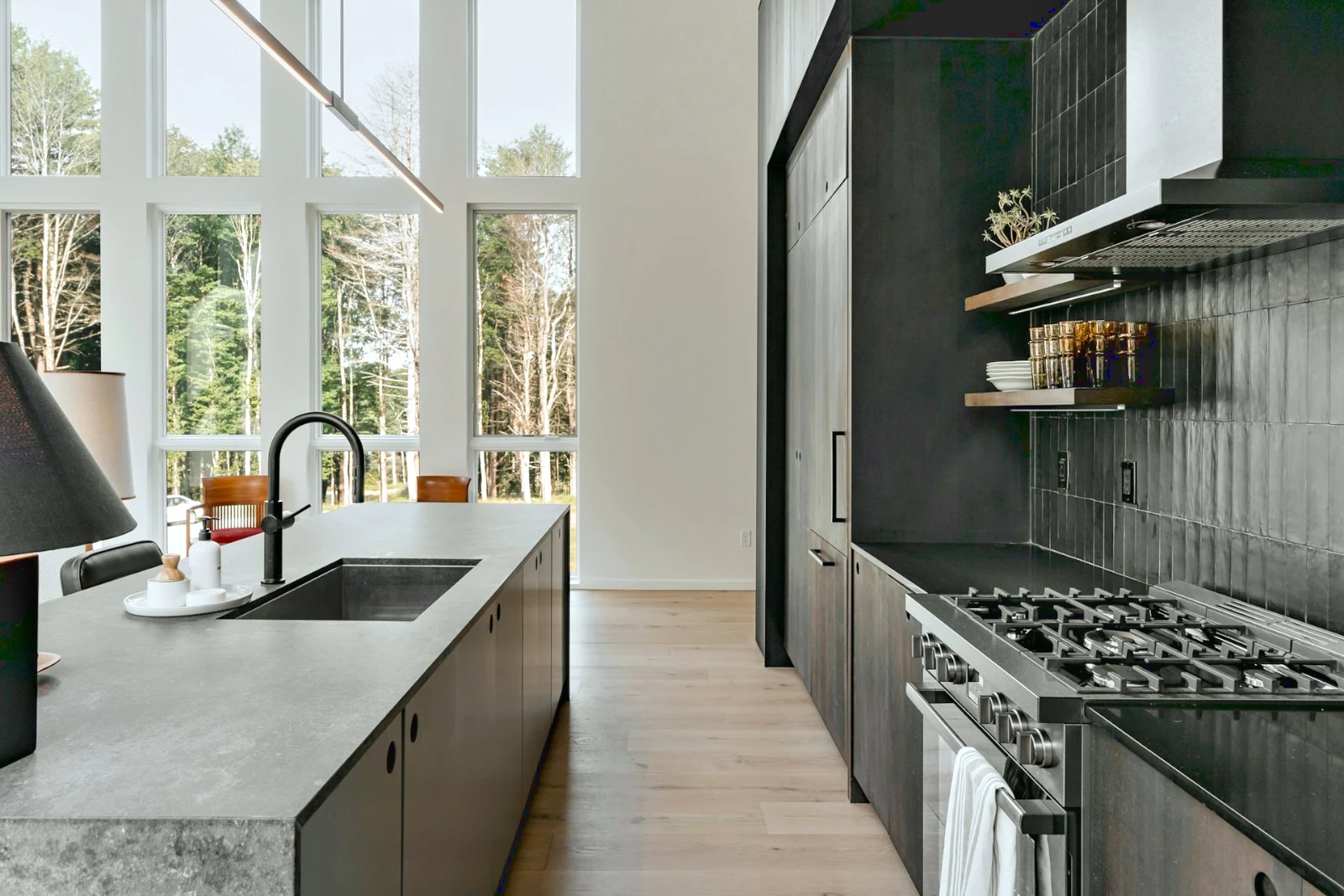
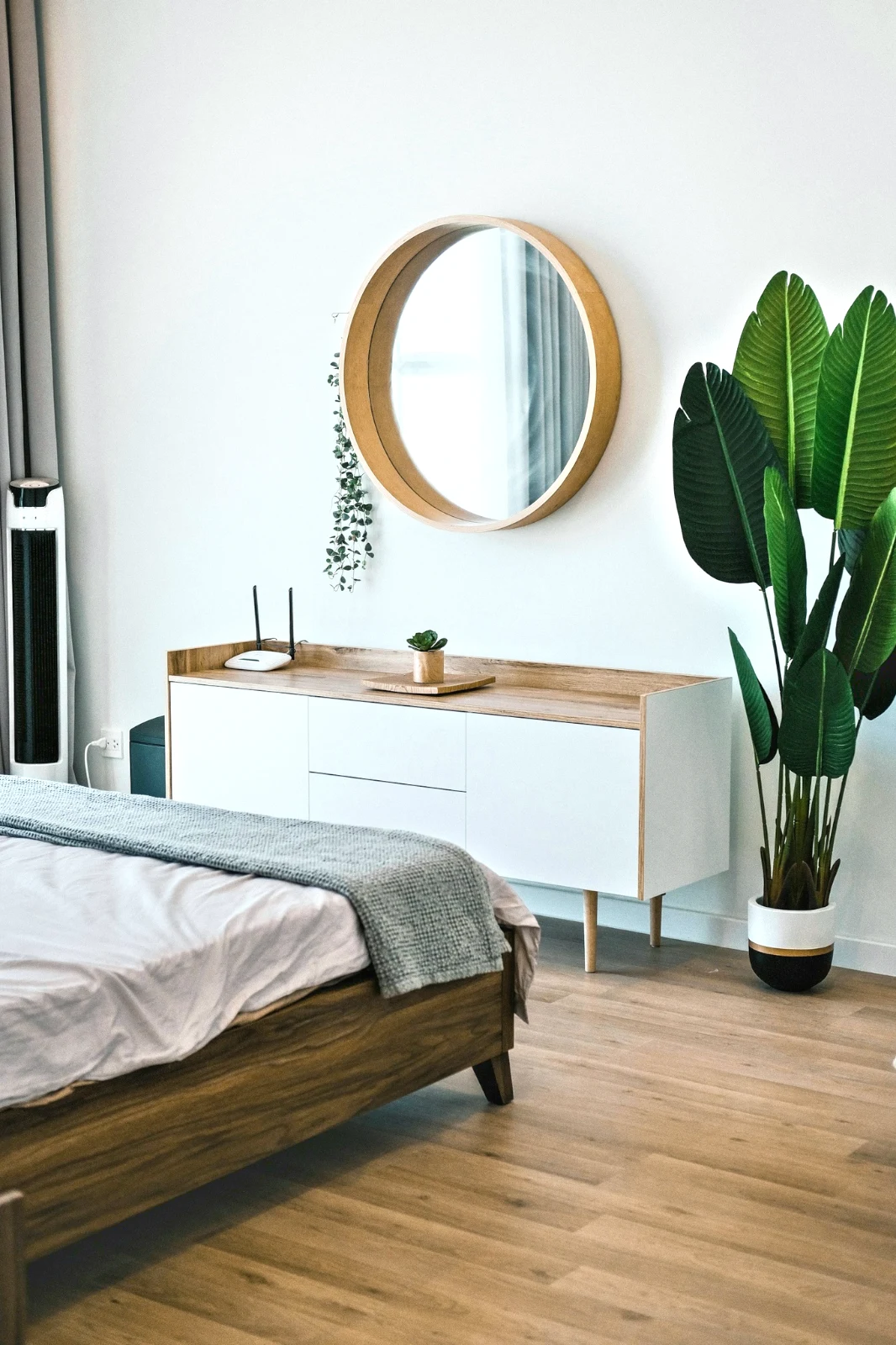
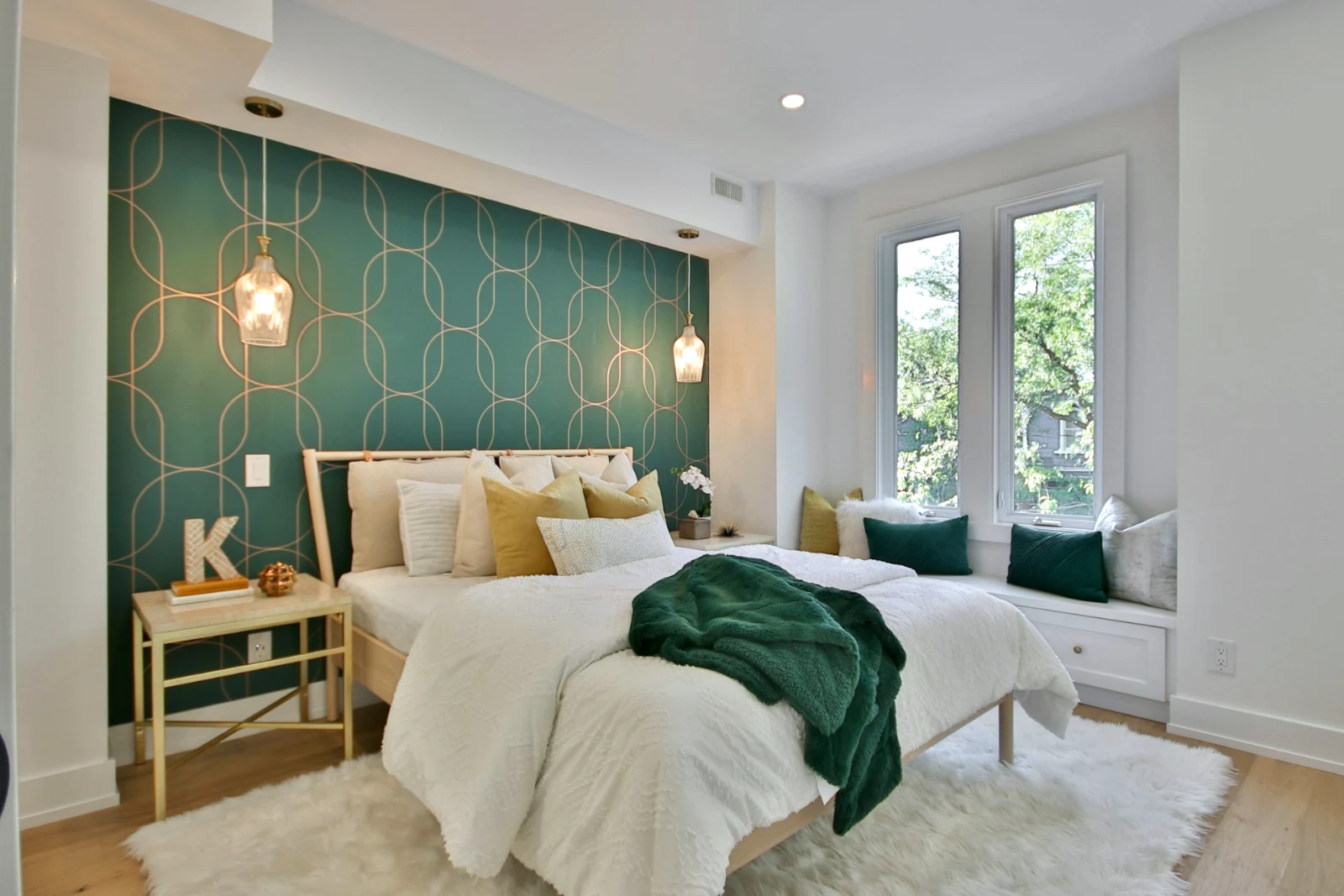
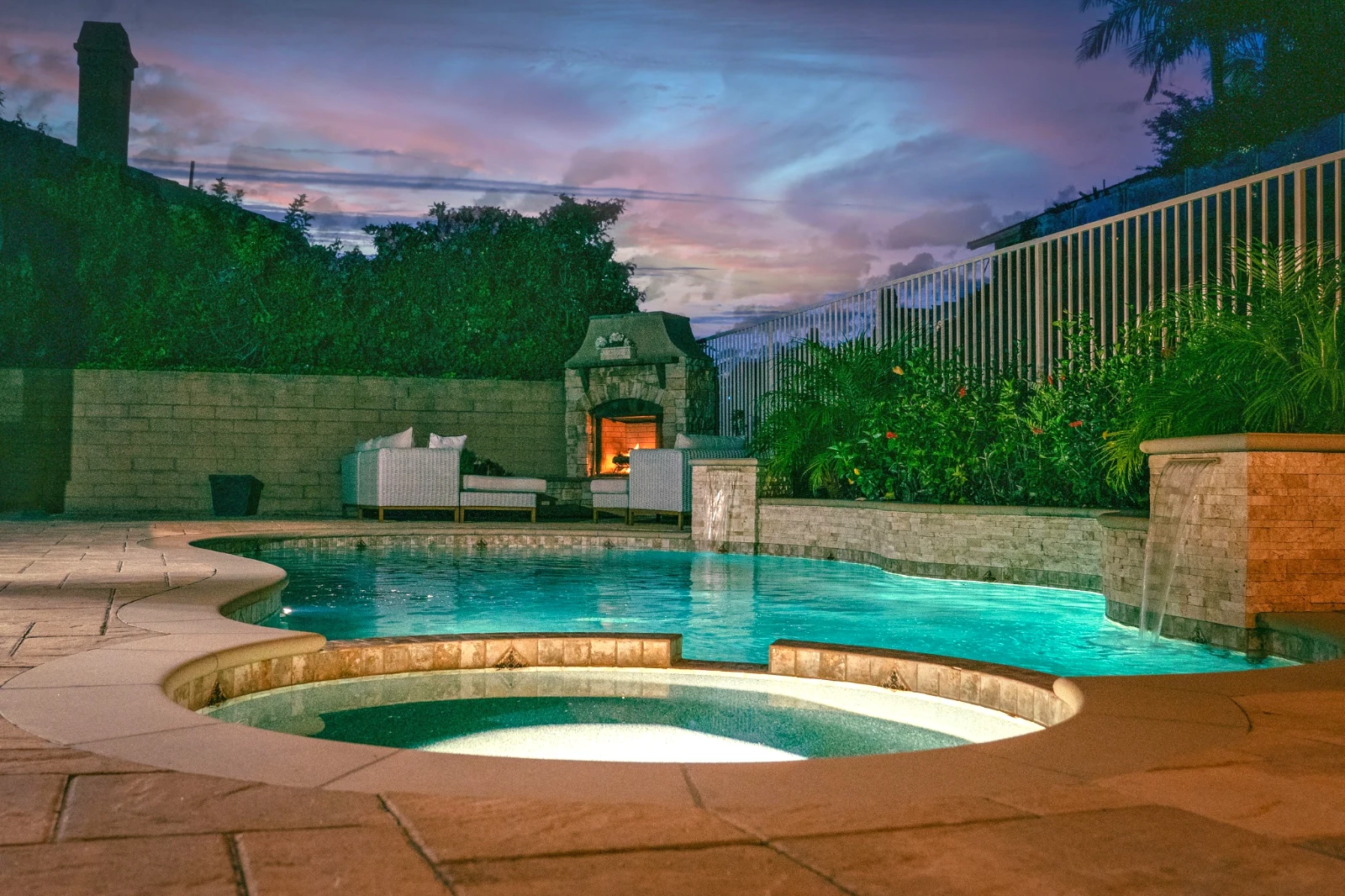
Build a photo in layers, and export it anywhere
Start a new Photo at a size people post, or open a selection as layers, each photo keeping its own edit. Select the subject or the sky, mask, paint, heal, clone and warp, add text and shapes, then export as JPEG, PNG, WebP, AVIF, TIFF or a layered PSD.
Selections
Feather, expand, refine edges and turn a selection into a mask.
Share a Gallery and see what the client picks
Put a shoot in a Gallery and share it for proofing. The client picks up to the number you set, leaves a note on any photo and sends their selection, approves or asks for changes, round by round. Their picks are Client Picks in your Library.
Weryfikacja dowodów
Każda galeria udostępniona do weryfikacji: co klient wybrał i zauważył, oraz jak odpowiedział na rundę.
| Galeria | Okrągły | Picked | Z | Notatki | Odpowiedz | Klient | Odpowiedziano |
|---|---|---|---|---|---|---|---|
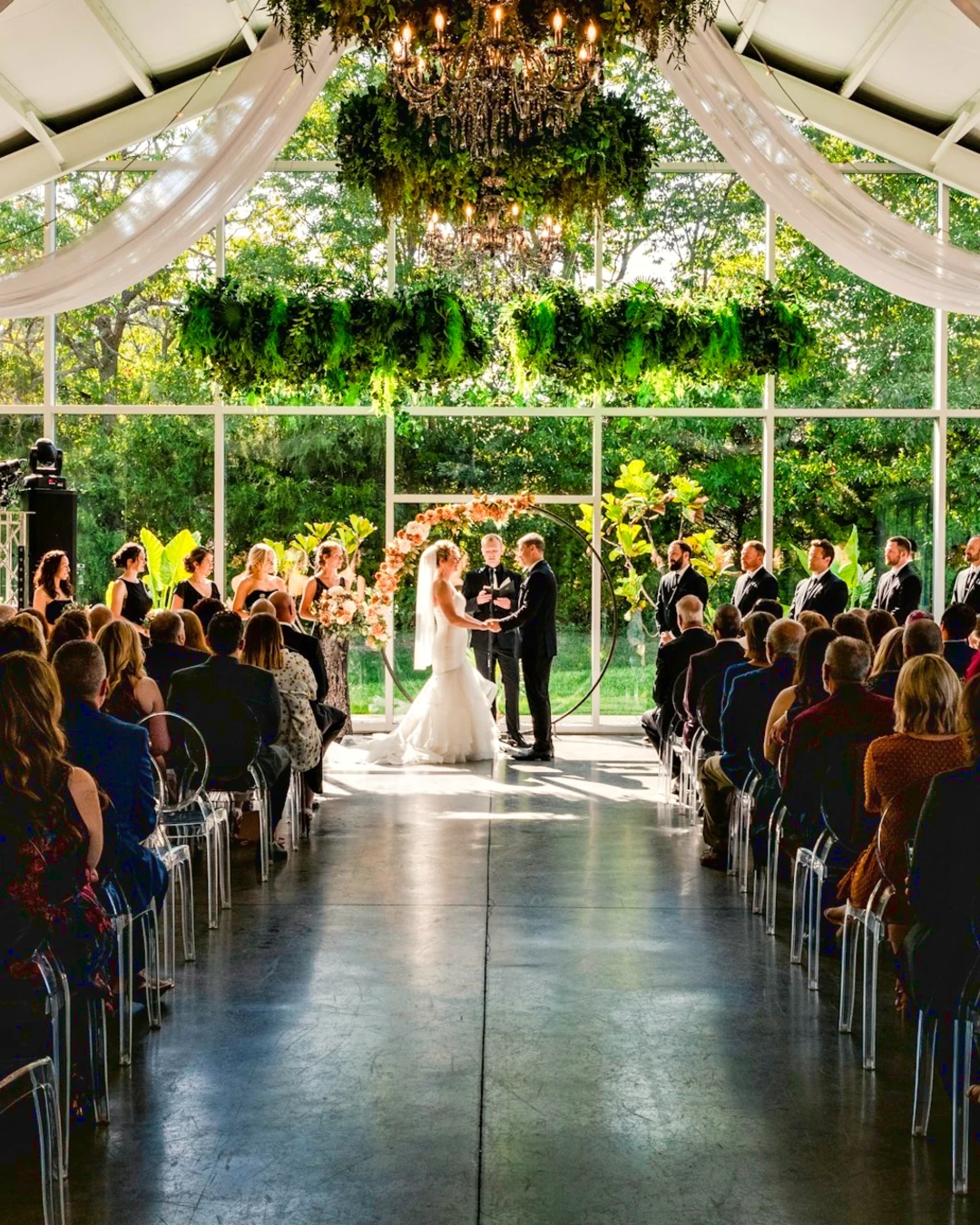
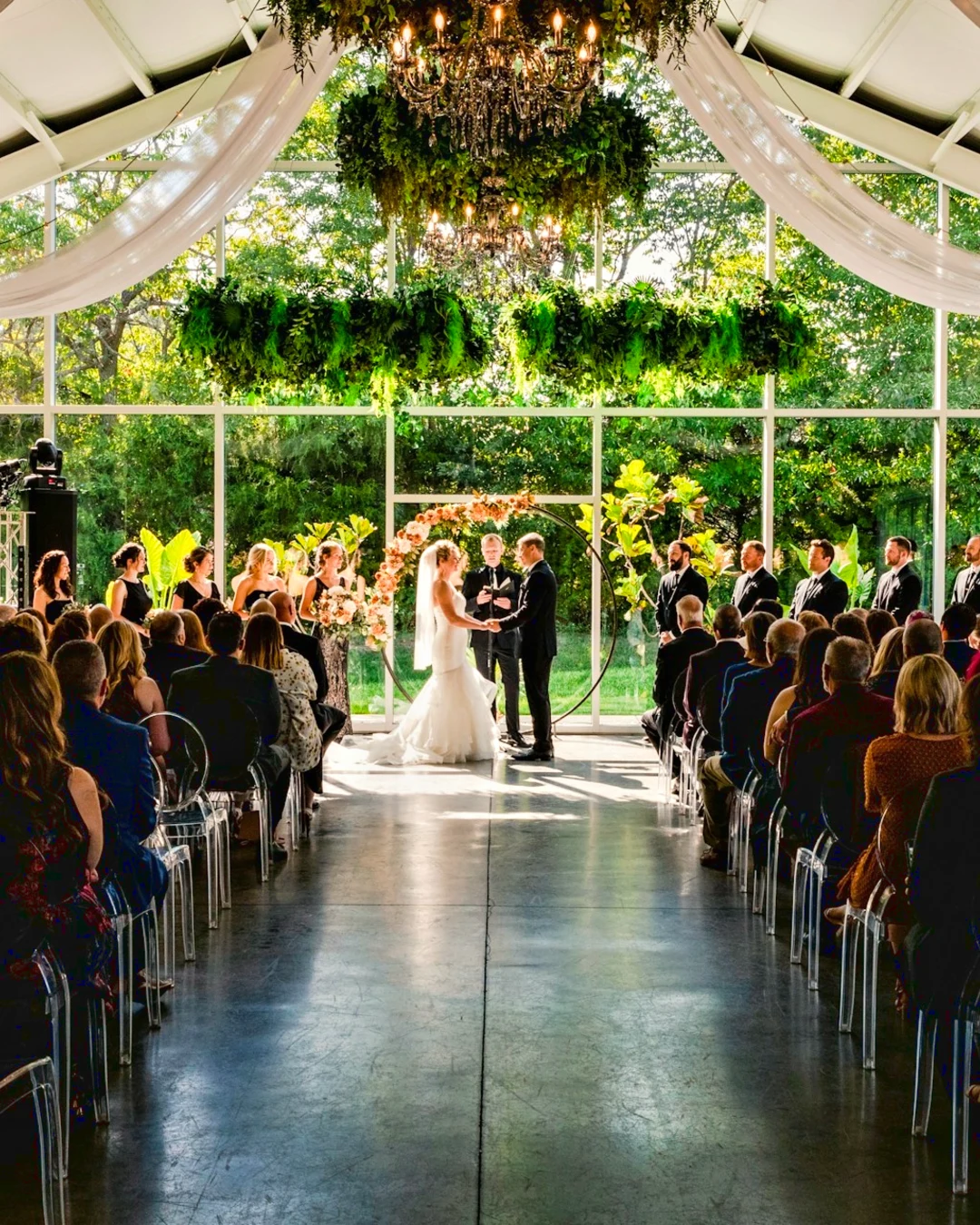
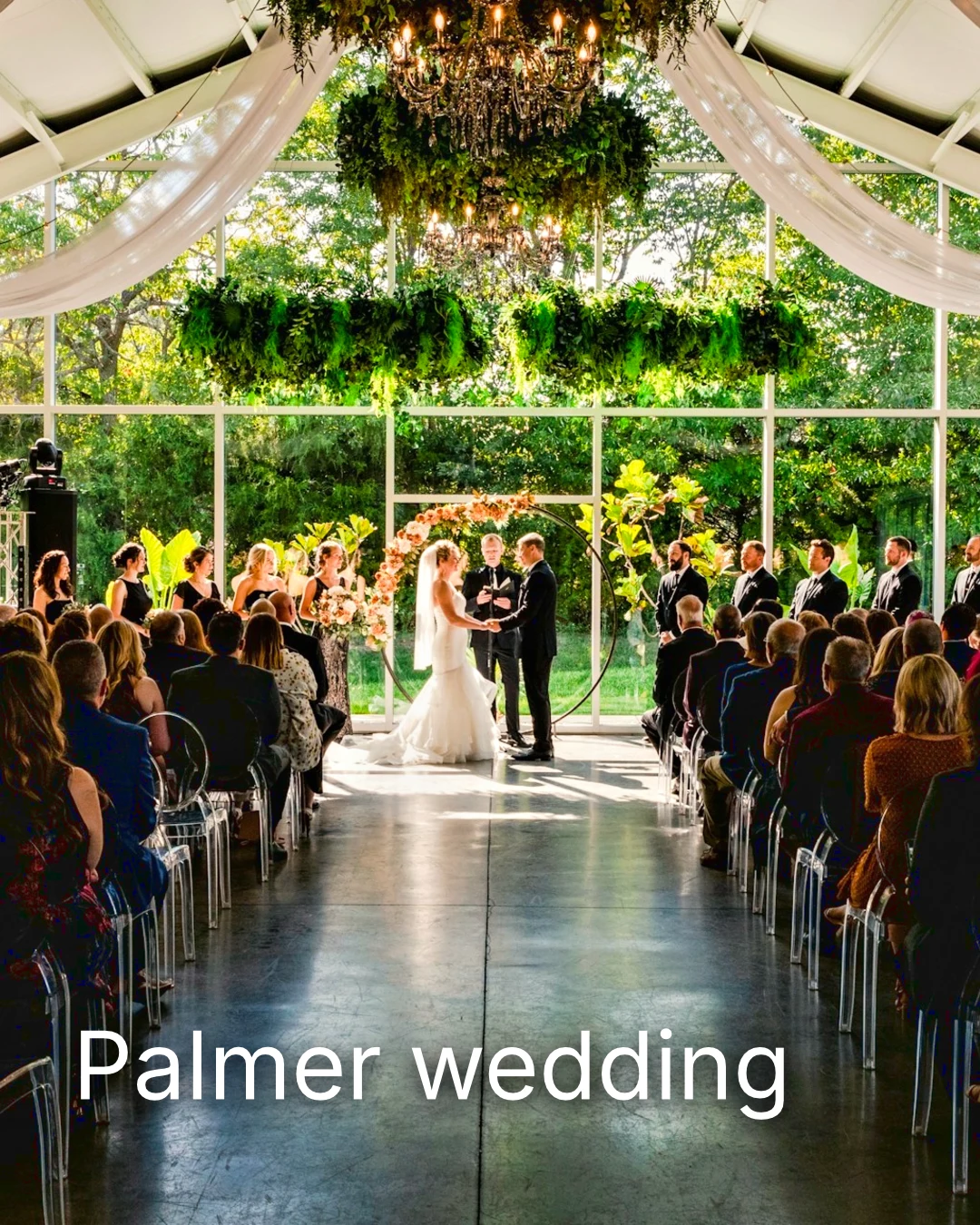
| Palmer wedding | 1 | 4 | 4 | 2 | Oczekiwanie na klienta | Sarah Palmer | Oczekiwanie na klienta |
| Carter portrait session | 2 | 3 | Brak limitu | 0 | Zatwierdzone | James Carter | 19/11/2026 |
| Harbourline Dental team headshots | 1 | 0 | Brak limitu | 2 | Poproszone zmiany | James Bennett | 19/11/2026 |
| Nguyen Family at Brighton | 1 | 12 | 15 | 3 | Wybór wysłany | Linh Nguyen | 20/11/2026 |
| Okonkwo Engagement | 2 | 20 | 20 | 0 | Zatwierdzone | Ada Okonkwo | 17/11/2026 |
| St Kilda Bakery Menu | 1 | 6 | Brak limitu | 1 | Oczekiwanie na klienta | Marco Ricci | Oczekiwanie na klienta |
Notes on the Photo
Each note shows on its photo while you edit.
View or Download
Avenida da Liberdade 212
Galeria
Each link is view only or downloadable, with an optional password.
Your Watermark
Wybierz swoje ulubione i zostaw notatkę przy każdej zmianie, którą chciałbyś wprowadzić. Gdy skończysz, wyślij swoją odpowiedź. Możesz odpowiedzieć na każdą rundę tylko raz.
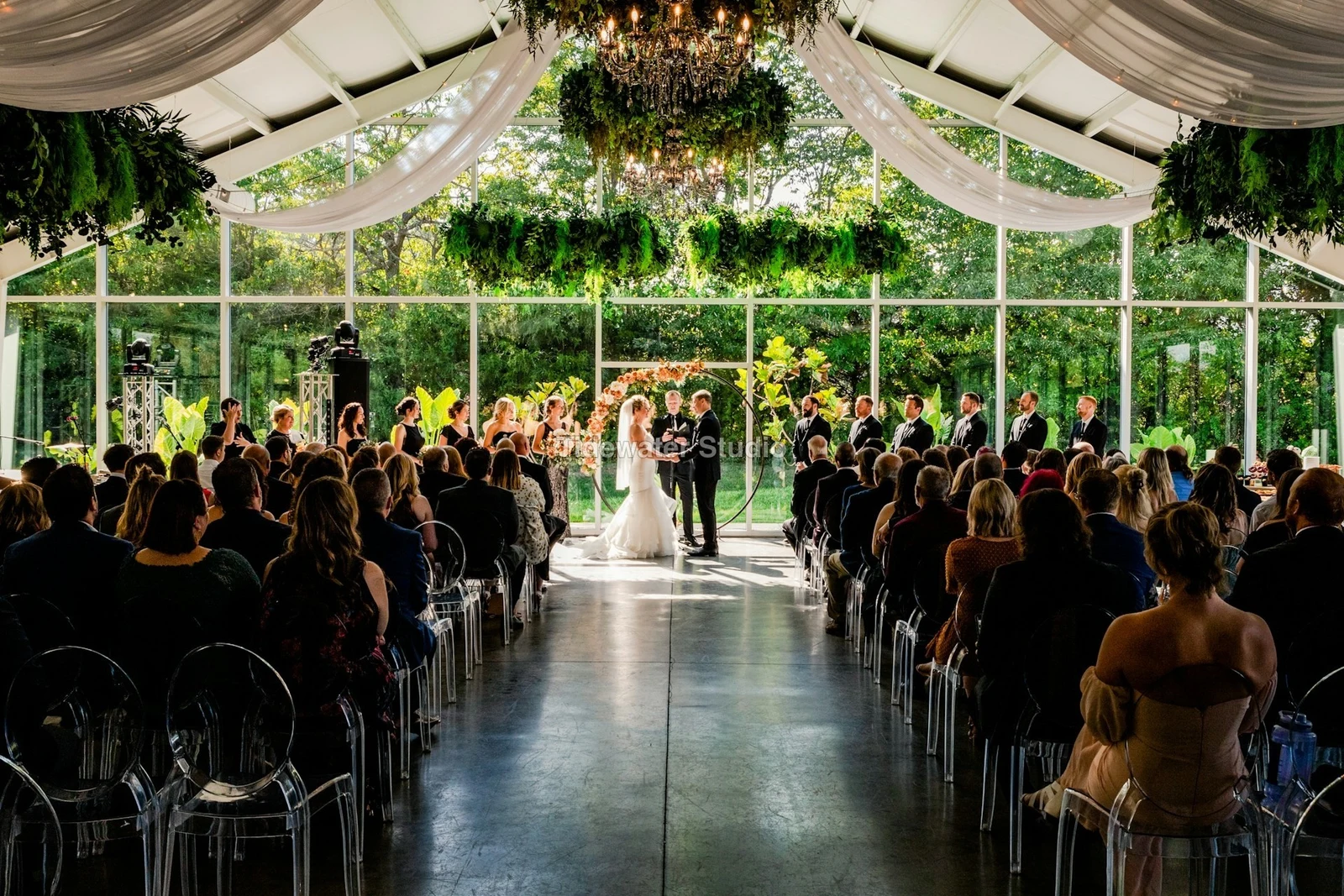
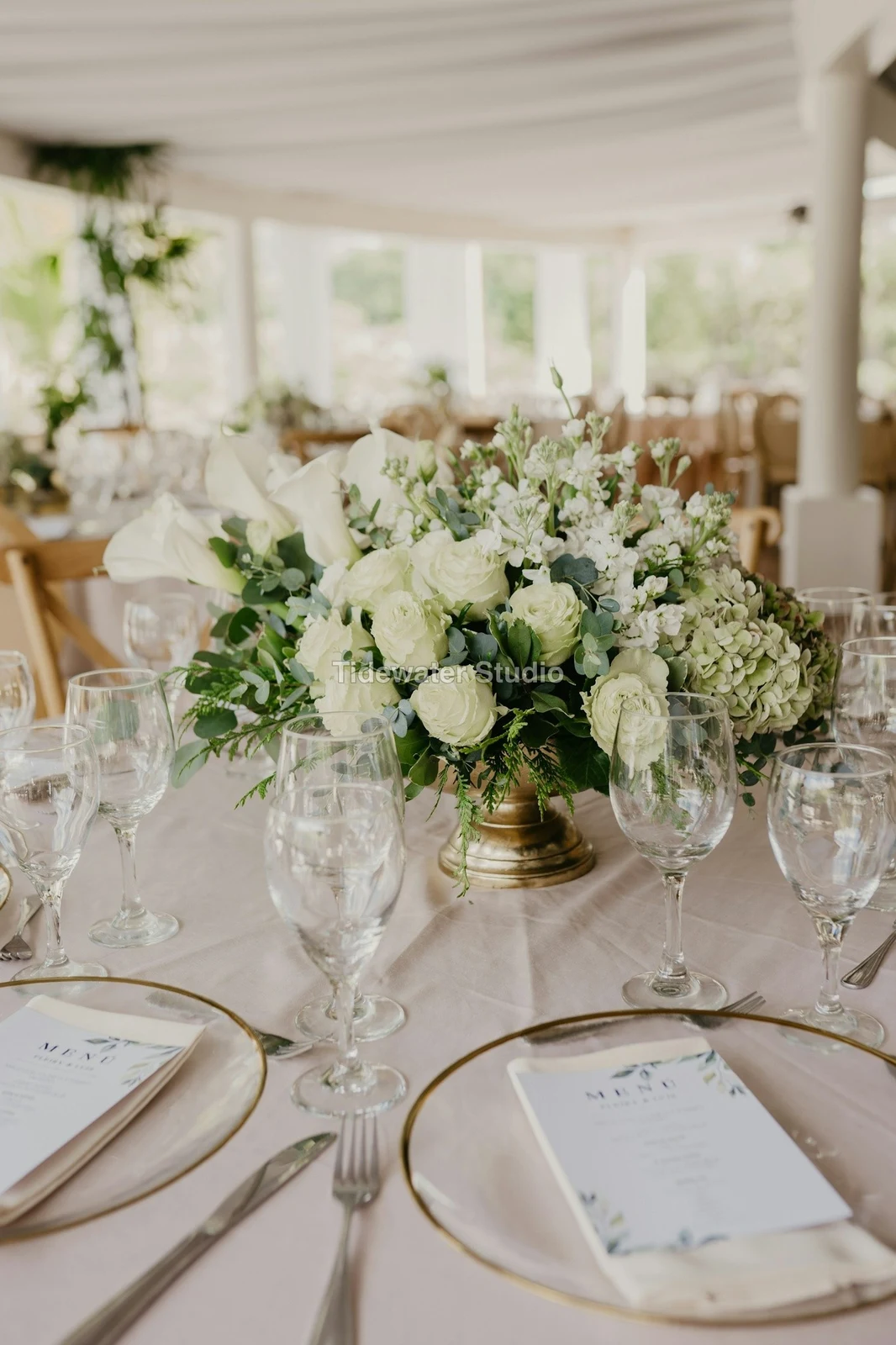

Your logo or words on every photo the client sees or downloads, until you deliver.
Prints From the Gallery
$ 149.000 each. Shipping and tax are added at checkout.
The client buys a print of any photo, made and shipped by your lab, paid on your own checkout.
A Job’s Gallery, With Talent
Lookbook SS27 W przeglądaniu
- Klient
- Maison Kiri
- Okrągły
- 1
- Picked
- 8 / 12
- Odpowiedz
- Oczekiwanie na klienta
- Link się zamyka
- 2026/12/12
A job in Talent has its own Gallery, proofed the same way.
A Closing Day
Galerii
Galeria każdego zadania: to, co klient widzi, wybiera i pobiera.
| Galeria | Klient | Etap pracy | Link się zamyka | Utworzono |
|---|---|---|---|---|
| Program Shoot · Strength | Thandi Mokoena | W przeglądaniu | 2026/11/30 | 2026/11/09 |
| Client Story · Pieter | Pieter van Wyk | W przeglądaniu | 2026/12/07 | 2026/11/12 |
| Mobility Series | Aisha Davids | Dostarczone | 2026/12/18 | 2026/10/22 |
| Coaches Team Photos | Kopje Coaching | Dostarczone | 2027/01/05 | 2026/10/31 |
| Summer Bootcamp | Lerato Nkosi | W produkcji | 2027/01/20 | 2026/11/18 |
Each Gallery’s link closes on the day you set, and the Galleries list shows the ones closing in the next 30 days.
Send a finished photo where it is used
A photo goes on as its newest export, or the original when it has none: into a Gallery at full size, onto a new design, into a website’s assets or onto a listing. Every picture picker in Calisto already lists the account’s photos, exports included.
A Design, With Studio
A new post or story opens with the photo placed.
 Menú de OtoñoTostadas de jaiba, desde hoy
A Website, With Sites
Added to the site’s assets.
Aktywa
A Listing, With Listings
Added to its photos, when the business has a listing.
T3 Rua do Século 41 Opublikowano
Edit with the photo full screen on your phone
Pinch to zoom, double-tap to fit and press and hold for Before. Each section is a chip under the photo whose controls dock below it, never over it, and a slider moves only on a sideways drag, so scrolling never edits.
Shared to Foto
A photo shared from the camera roll lands in Add Photos.
Udostępnij zdjęcia do Foto z dowolnej aplikacji na tym urządzeniu, zrób jedno lub wybierz je tutaj.
Zdjęcia do dodania
No Signal
Home, the Library, Looks and Add Photos open; edits and uploads wait and land once.
Udostępnij zdjęcia do Foto z dowolnej aplikacji na tym urządzeniu, zrób jedno lub wybierz je tutaj.
Zdjęcia do dodania
Where Foto touches everything else.
4 of these 5 connections are in your plan today; the other is its own app.
Depot
Every photo and every export is a file in Depot, on the account’s one storage quota, and a Gallery is a Hub.
Studio
An image’s Adjust in Studio is Foto’s, Send To opens a new design with the photo placed, and a layered Photo opens there as a design.
Talent
Galleries and Proofing are the same views Talent shows, and a job’s Gallery is the Hub of that job.
Listings
Bulk Auto takes a listing’s photos as a set, and the exports replace them on the listing.
Sites
Send To adds a photo to a website’s assets.
Brak kosztów konfiguracji. Płaćcie, gdy zaczniecie używać.
Photos edited in one tap, by hand or in layers.
Calisto Create
The Library, Auto, Bulk Auto, Looks, Adjust and Galleries, included with every Calisto account.
Foto Pro
Every Adjust control inline and the Layers workspace, for one person, on a seat of its own or with a Create seat; a business assigns its seats to its people.
Zalecane dla Ciebie
Działa dobrze razem.
Calisto Depot
Calisto Studio
Calisto Create
A Studio seat designs anything at every size, from Calisto’s templates or a blank page: layers, photos, Copy & Resize, Bulk Create, mockups, QR codes, print-ready PDFs, sharing and whiteboards.
Learn more →Calisto Talent
Zawarte w Twoich planach
Twoja aplikacja Core pokazuje wszystko, co włączają Twoje plany Commerce i Ops.
Learn more →Calisto Listings
Oferty
Your listings, appointments, developments, rentals and the office, for each person who works in Listings.
Learn more →Calisto Sites
Lokale Calisto
A website and its phone app, built from a template on the page itself, showing what you sell from your own records and published on your own domain.
Learn more →Wszystko zawarte w Calisto Foto.
- Foto Essentials for every signed-in person: Home, the Library, Auto, Bulk Auto, Looks, Adjust with Auto, Light, Color and Crop, and Galleries; every other control one tap away behind More.
- Foto Pro, a seat per person: every Adjust control inline and the Layers workspace.
- Essentials or Pro is each person’s own choice, in Profile & Preferences ▸ Creative Tools, never a business setting.
- Without a seat, More and Layers read Pro · Upgrade, or Ask for a Pro Seat for a team member.
- A photo whose edit holds Pro fields always opens, saves and draws at Essentials.
- First open asks nothing technical at Essentials, and leads with Layers and the keys at Pro.
- Every photo read after it is uploaded: when it was taken, its exposure, its focus and its faces.
- Flags: Blurry, Missed Focus, Black Frame, Missed Flash and Closed Eyes, each a filter in the Library.
- A score from focus, exposure and open eyes: Best First, and the Suggested Best Shots.
- Similar Shots: bursts, brackets and the same pose taken twice, grouped best first, with Star the Best of Each.
- Faces and eyes are read on your own device; nothing is starred or hidden for you.
- Home: the photos to pick up again, Upload Photos, New Photo, From Media Library, Bulk Auto, and Recent Photos.
- The Library: All Photos, Starred, Edited, Similar Shots, Layers and Client Picks, with search, sort (Best First and Date Taken included) and a Tag filter.
- A Hub’s photos on their own, from the Hubs in the sidebar; Move To… a Folder of a Hub, and New Hub, Private or Public (with Depot).
- A selection is starred, tagged, given a look, run through Bulk Auto, sent on, opened as layers or assigned to a client project.
- Star and Tags are the platform’s: the same in Depot, Docs and Studio, carried wherever the photo is picked.
- An export is listed with its photo, never among the originals.
- The account’s storage shown in the Library, on the one Depot quota (with Depot).
- Upload from a desk, the camera or the device’s photos, through the one upload queue.
- Add Photos is where a photo shared to Foto lands: the camera roll’s Share sheet, or Open With on a desk.
- Then Adjust for one photo, Bulk Auto for a set, or the Library.
- JPEG, PNG, WebP, HEIC, HEIF, AVIF, TIFF and camera RAW; a RAW is developed on the device, or converted on the server when the device cannot.
- The camera and lens a file says made it, read once from the original and kept on the file.
- Auto: one tap reads the photo on the device, sets its sliders and names each one; Undo puts the photo back.
- Your Style beside Auto, once you have edited eight photos: Auto moved the way you move it, and the Texture, Clarity and Saturation you usually set, learned from your own edits; yours, never the business’s.
- Light, Color, Crop and Straighten; Whites and Blacks, Detail (Detail, Fine Detail, Clear Haze), Tone Curve, Color Mixer, Color Grading, Sharpening and Noise, Lens, Transform and Effects.
- Straighten Lines: Auto and Vertical, and Level, Full and Guided (up to four lines drawn on the photo); it sets the Transform sliders it solved and names them, and leaves a photo with no clear lines as it is.
- Lens: Correct Lens from the camera’s own correction in the RAW, else the lens profile; Remove Color Fringes; nothing the camera already corrected is corrected twice.
- How it was drawn, said under the control it concerns.
- Remove and Repair: Remove what you paint over; Clone and Fill.
- Adjust Part: Sky, Subject and Background; a Brush, Linear and Radial gradients and a Brightness Range.
- People: Skin, Face, Eyes, Lips, Hair, Clothes and Body, found on your device.
- Retouch Skin: Even Skin smooths blotches and keeps the pores; Match Skin Tone evens the skin toward the person’s own tone.
- Frequency Separation: paint where, then Smooth Tone and Fine Detail retouch the tone and the texture each on its own.
- Portrait Blur on the background, and Lens Blur by the photo’s depth with Focus Distance and Depth of Focus.
- Film Negative: a scanned color or black and white negative turned positive from its film base, shared across a roll by copying the edit.
- Changes: every change to a part, with its own controls, opacity, blend and invert.
- Markup: an arrow, a circle, a box, a freehand line or a label drawn on the photo, carried by every export.
- Before: press and hold. Undo and Redo through the edit’s whole history.
- The original is never changed; the edit is kept beside it with its history.
- A client’s note from Proofing shown on the photo while it is edited.
- Calisto’s looks and the business’s own, in Looks ▸ Calisto and Mine.
- Match a Photo: another photo’s look, solved into Exposure, Contrast, Saturation, White Balance and Color Grading.
- Suggested looks first in Adjust: the looks made for a photo like this one, from the kind of photo each of Calisto’s was made for and the photos each of yours has been put on.
- Save Look keeps an edit’s settings as a look of the business’s own.
- A look given to one photo or a whole selection.
- A selection from the Library, or one listing’s photos for a business with listings (with Listings), and a look.
- Start From Auto or Your Style.
- Each photo read on the device and given its own Auto, then the look; a look that straightens lines solves each photo’s lines.
- Saved as a step of each photo’s edit.
- The exports made on the server, so they finish with the page closed; the results screen shows each one as it is ready.
- For a listing’s photos, the exports replace them on the listing, through Listings’ own write (with Listings).
- Bulk Auto Finished is sent once per run, to the person who started it.
- Camera on USB, in Chrome or Edge: Connect Camera, Shoot, Live View on Canon EOS and Nikon, every frame straight into Foto.
- The camera’s own Wi-Fi upload: FTP, FTPS or SFTP to Calisto with a login of your own, the password shown once.
- Every frame in the Camera Uploads Hub as it lands, with the last edited frame’s edit or a look applied to each new one.
- Nothing to install: the camera talks to the page itself.
- Record Action in Adjust: your steps kept as steps, then played on any photo or a Library selection, with Auto, looks, straightening and found parts solved again for each photo.
- Actions are the business’s, kept beside its looks.
- Contact Sheet: a selection or a Gallery printed 2 to 8 across, portrait or landscape, with names, stars, client picks and culling flags, filed in Depot as a PDF.
- HDR: bracketed exposures fused into one photo, lined up even when taken by hand.
- Panorama: overlapping frames joined, laid on a cylinder for a known lens, cropped clean; brackets at each position fused first.
- Focus Stack: frames focused at different distances, sharp from near to far.
- Astro Stack: night-sky frames aligned on their stars and stacked by sigma clipping, median or mean, dark frames taken off.
- A new photo in Depot every time; the photos merged stay as they were. Large merges finish on our servers.
- Smart Objects: Convert to Smart Object, New Linked Copy, Update Linked Copies and Release Smart Object; each copy keeps its own opacity, blend and styles.
- New Photo at a size people make: YouTube Thumbnail, Instagram Post and Story, Square, A4 and US Letter at 300 ppi, or a custom size, on white, black, a color or transparent.
- Open as Layers on a selection: each photo a layer carrying its own edit.
- Photo, pixels, adjustment, text and shape layers in one layer tree: chosen, checked to act on several, shown, hidden, locked, renamed, moved, grouped, duplicated and deleted.
- Tools: Move, Select Rectangle, Ellipse, Freehand and Straight Lines, Select Similar Color, Select Subject and Sky, Brush, Eraser, Dodge, Burn, Blur, Sharpen, Heal, Clone, Fill, Warp, Warp Grid, Warp Perspective, Text, Shapes and Crop.
- The Select menu: Select All, Deselect, Invert, Feather, Expand, Contract, Smooth, Refine Edges, Selection to Mask and Fill with Color; Shift adds, Alt subtracts, both intersect.
- Layer masks and shape masks, each enabled, inverted, feathered, applied or deleted; layer styles: drop and inner shadow, outer and inner glow, color overlay and stroke.
- Apply and Convert to Pixels; every paint stroke written as new tiles, so every earlier step still undoes.
- Export as JPEG, PNG, WebP, AVIF, TIFF or a layered PSD, with what it could not hold said in plain words; Recent Exports in the Export dialog.
- A layered Photo opens in Studio as any design does (with Studio).
- Without the seat, a layered Photo opens to look at.
- A Gallery is a Hub shared with a client through its link, Private or Public; a job’s Gallery is the Hub of that job (with Talent).
- Send To ▸ Gallery puts the photos in at full size.
- Share for Proofing: the client’s email (the Gallery also lists in their portal), how many they may pick, view or download, a password, and your watermark.
- Your watermark on every photo of the link, at every size and on every download: your logo, your business name or your own words, where it sits, its size and its opacity, set once in Settings ▸ Photos ▸ Watermark.
- Watermark the Photos or Remove the Watermark on a link in Proofing, so the final delivery goes out clean.
- Prints from the Gallery: Choose Prints from your drop-ship products on sale online; the client taps Buy Print on a photo, picks the print, the size and how many, and pays on your own checkout (with Shop and Orderflow).
- Your lab prints the photo the client chose and ships it to them; the order is in Orderflow beside every other web order.
- The client picks up to the limit, leaves notes, and sends their selection, approves or asks for changes, round by round.
- Open the Next Round, or Stop Proofing; an earlier round stays as it was.
- Galleries counts what is delivered, waiting on the client and closing in 30 days.
- The same Galleries and Proofing views Talent shows (with Talent).
- A photo goes on as its current export, or the original when it has none.
- A Gallery; a design, opened in Studio with the photo placed (with Studio); a website’s assets (with Sites); a listing’s photos, when the business has a listing (with Listings).
- Every picture picker in Calisto lists the business’s photos in Depot, exports included.
- Adjust and Layers, switched in the header: ⌘⌥1 and ⌘⌥2, or A and L.
- Keyboard Shortcuts (⌘/) lists every key; ⌘K finds every command.
- Each editor’s back link returns to the Library.
- Home, Library and Settings in the tab bar; shortcuts to Add Photos, the Library, Bulk Auto and Looks.
- The photo fills the screen: pinch to zoom and pan, double-tap to fit, press and hold for Before.
- Each section a chip under the photo, its tray docked under it, never over it, with the desk’s controls and a Reset.
- A slider moves only on a sideways drag, so a scroll never edits; words are typed in a dialog above the keyboard.
- Layers on a phone: the canvas full screen, the tools in a bottom bar, the layer tree and Format as bottom sheets.
- Keep Foto on This Device: Home, the Library, Looks and Add Photos open with no signal; an edit’s save, a new look and uploads wait and land once.
- Copy Saved is sent when the server finishes a copy, to the person who asked for it.
- Foto installs as part of the Calisto app.
- Every photo and every export is a Depot file on the account’s one quota; each Foto Pro seat adds its included storage to it (with Depot).
- Working copies and the render cache never count.
- Settings ▸ General: the business’s name, design and sign-in.
- Settings ▸ Photos: the export format, size on the long side or the original’s, quality, and the look Bulk Auto starts from; changed by the business’s admins, and Purview may lock it.
Questions about Calisto Foto
Every signed-in person has Foto Essentials: the Library, Auto, Bulk Auto, Looks, Adjust with Light, Color and Crop, and Galleries. Every other Adjust control is behind More. Foto Pro puts them all inline and adds the Layers workspace, for one person per seat.
No. An edit is kept beside the photo with its history, so any step can be undone later. An export is a new file in Depot, reached from its photo, and the original stays as it came.
JPEG, PNG, WebP, HEIC, HEIF, AVIF, TIFF and camera RAW files. A RAW is developed on your device, or on the server when the device cannot. A layered Photo exports as JPEG, PNG, WebP, AVIF, TIFF or a layered PSD.
Studio opens a layered PSD as a design. Foto saves a layered Photo as a PSD that keeps its layers, masks, blends, groups, text and styles, and says in plain words what it could not keep.
Share the Gallery for proofing. The client opens the link, picks up to the number you set, leaves a note on any photo and sends their selection, approves or asks for changes, round by round. Their picks appear as Client Picks in your Library, and each note shows on the photo while you edit.
Yes. Choose which of your drop-ship products the Gallery sells, such as prints your lab makes and ships. The client taps Buy Print on a photo, picks the print, the size and how many, and pays on your own checkout. Your lab prints that photo and ships it to them.
In Depot, on your account’s one storage quota, where every picture picker in Calisto finds them. Each Foto Pro or Create seat adds the storage it includes to that same quota.
