I-edit ang isang larawan sa isang tapos, sa kamay o sa layers.
Ang editor ng larawan para sa mga larawang nasa iyong account na. Tapusin ang isang larawan o buong pag-shoot, pagkatapos ay ibahagi ang Gallery kung saan pipiliin ng iyong kliyente ang kanilang mga favorite.
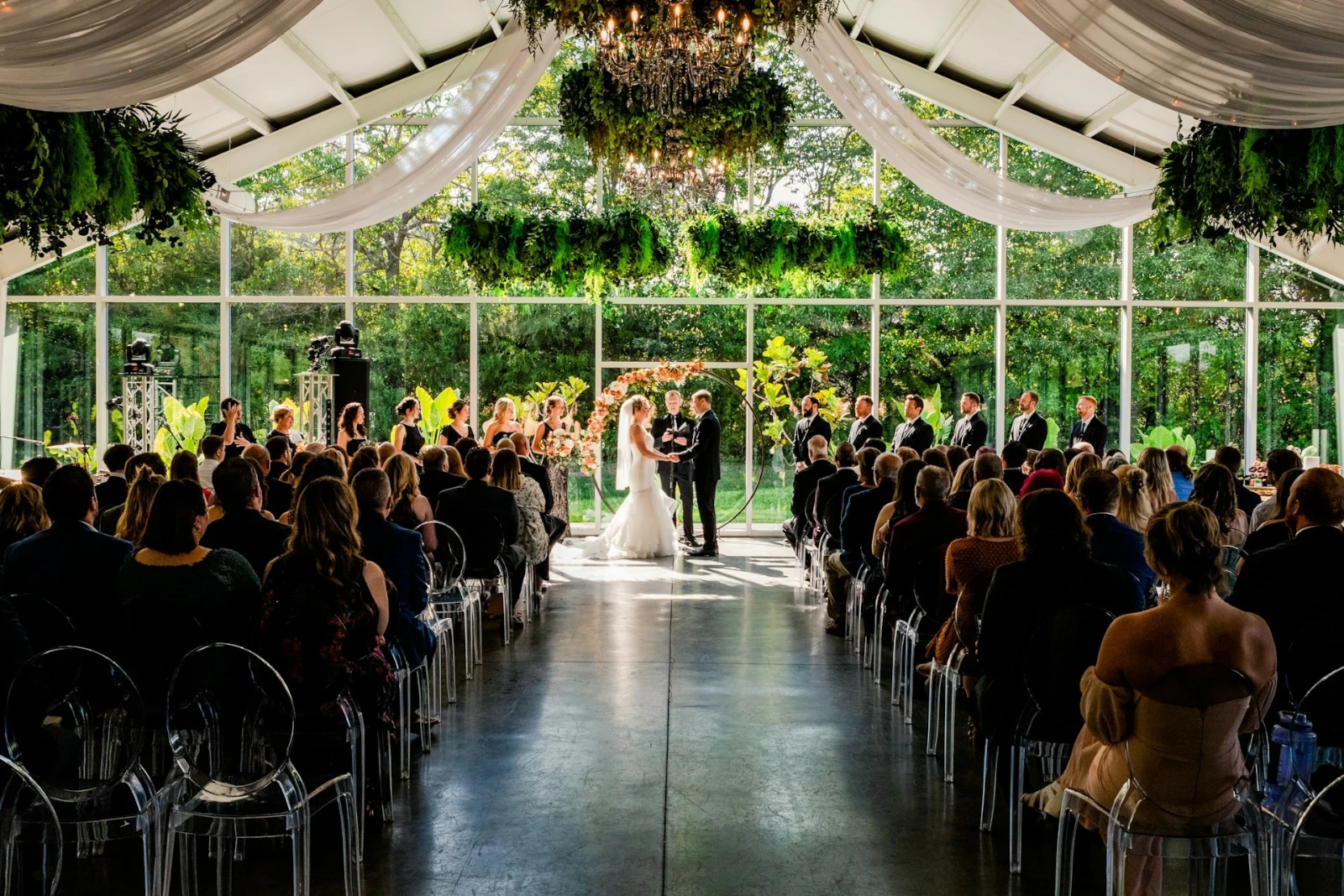
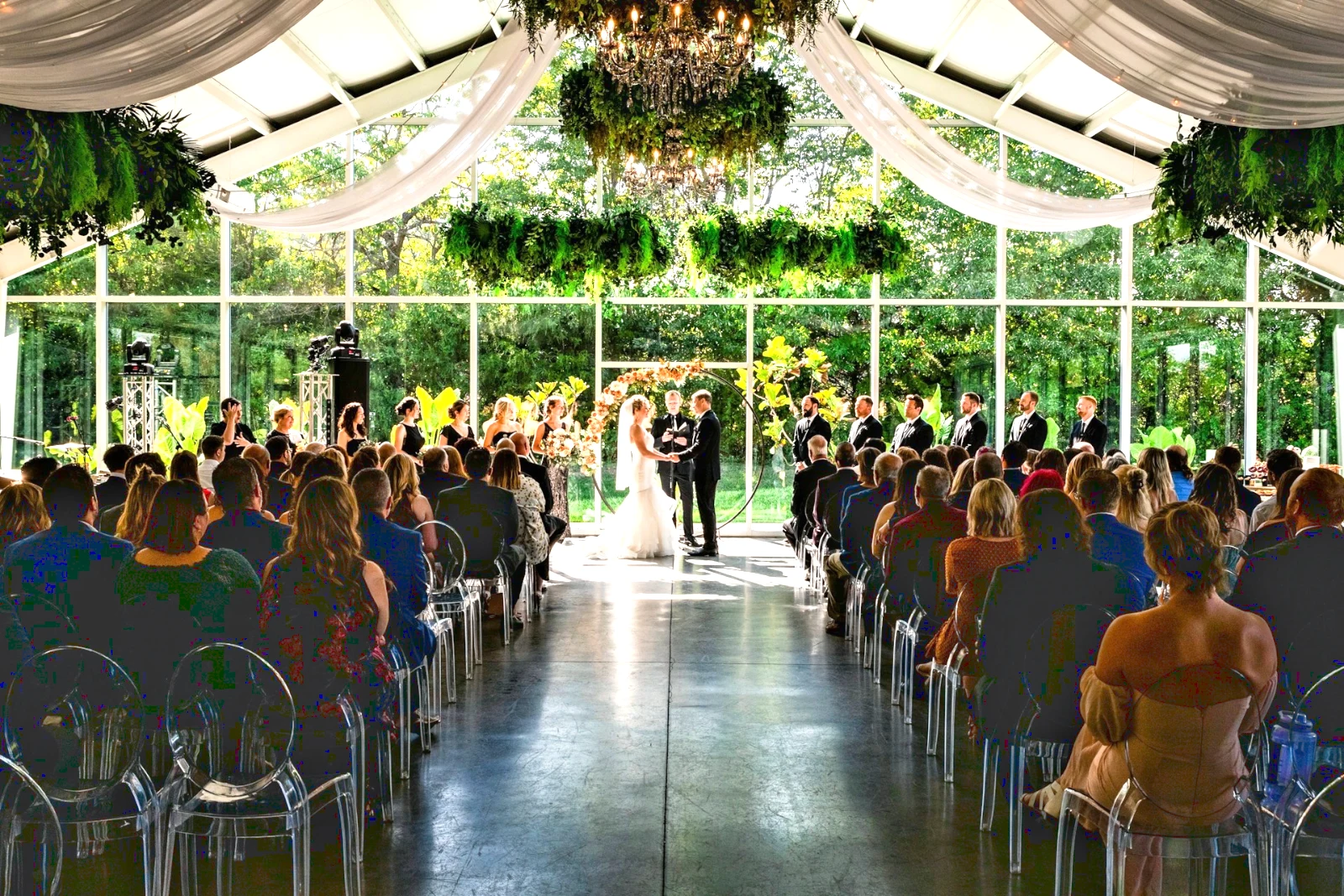
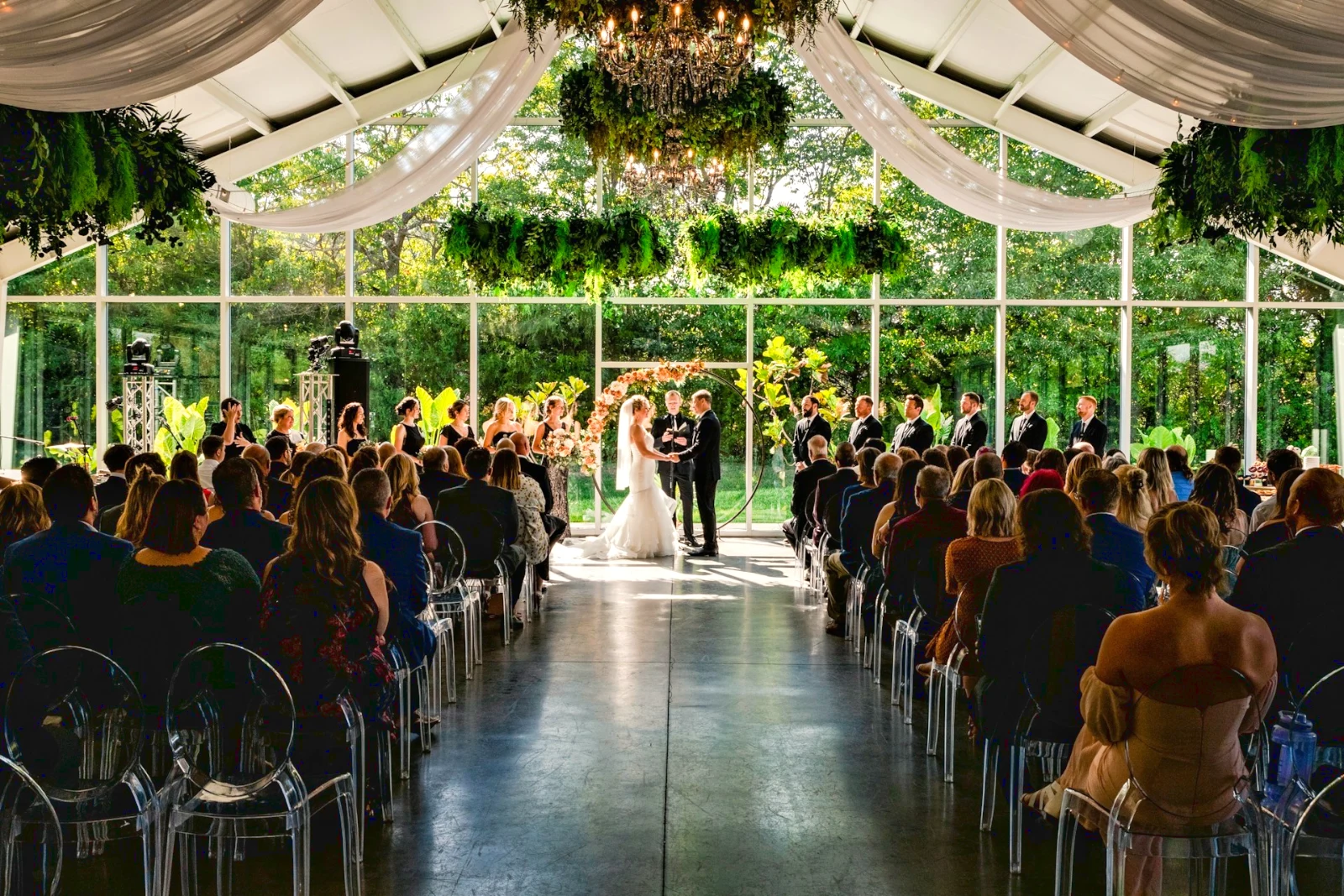
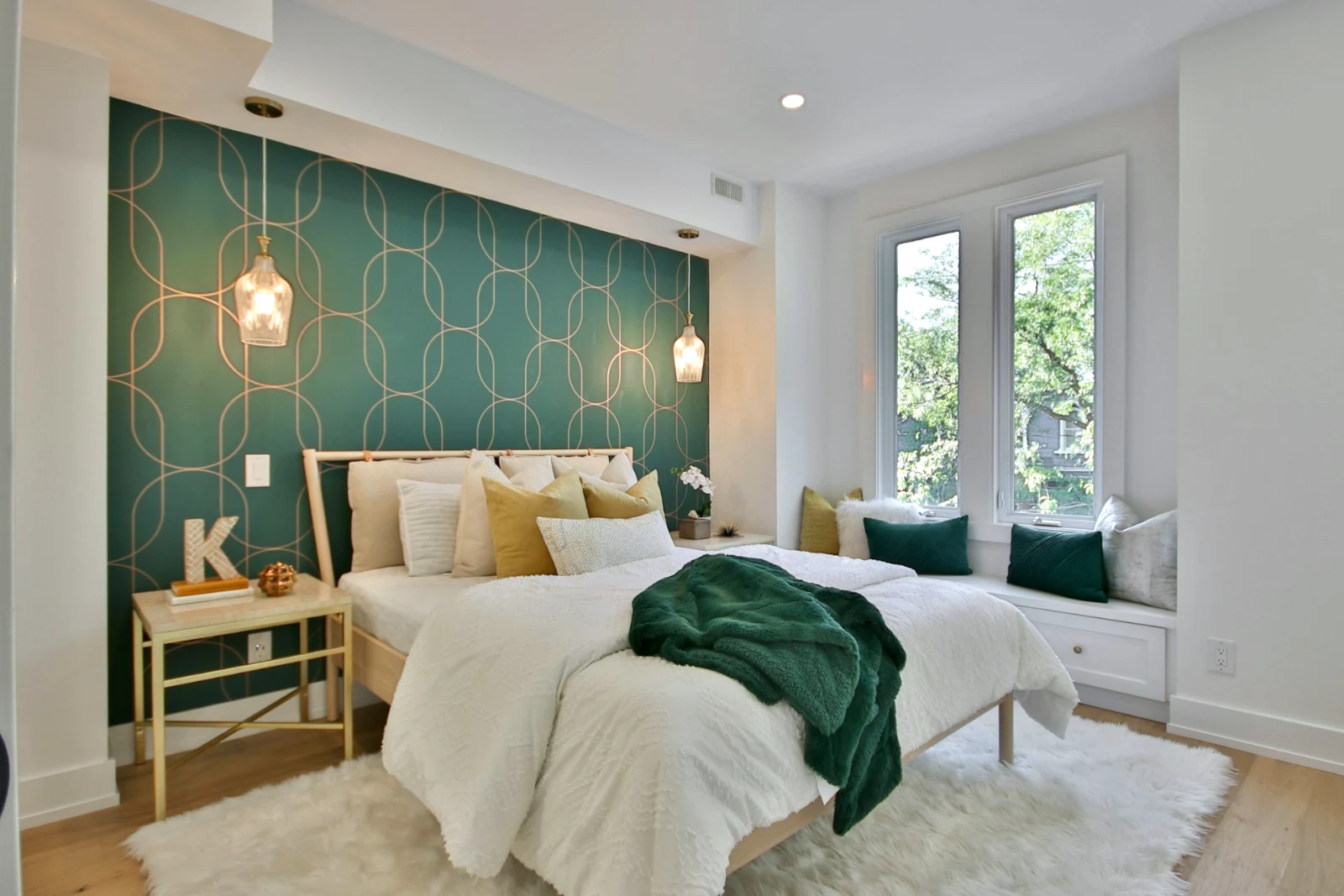
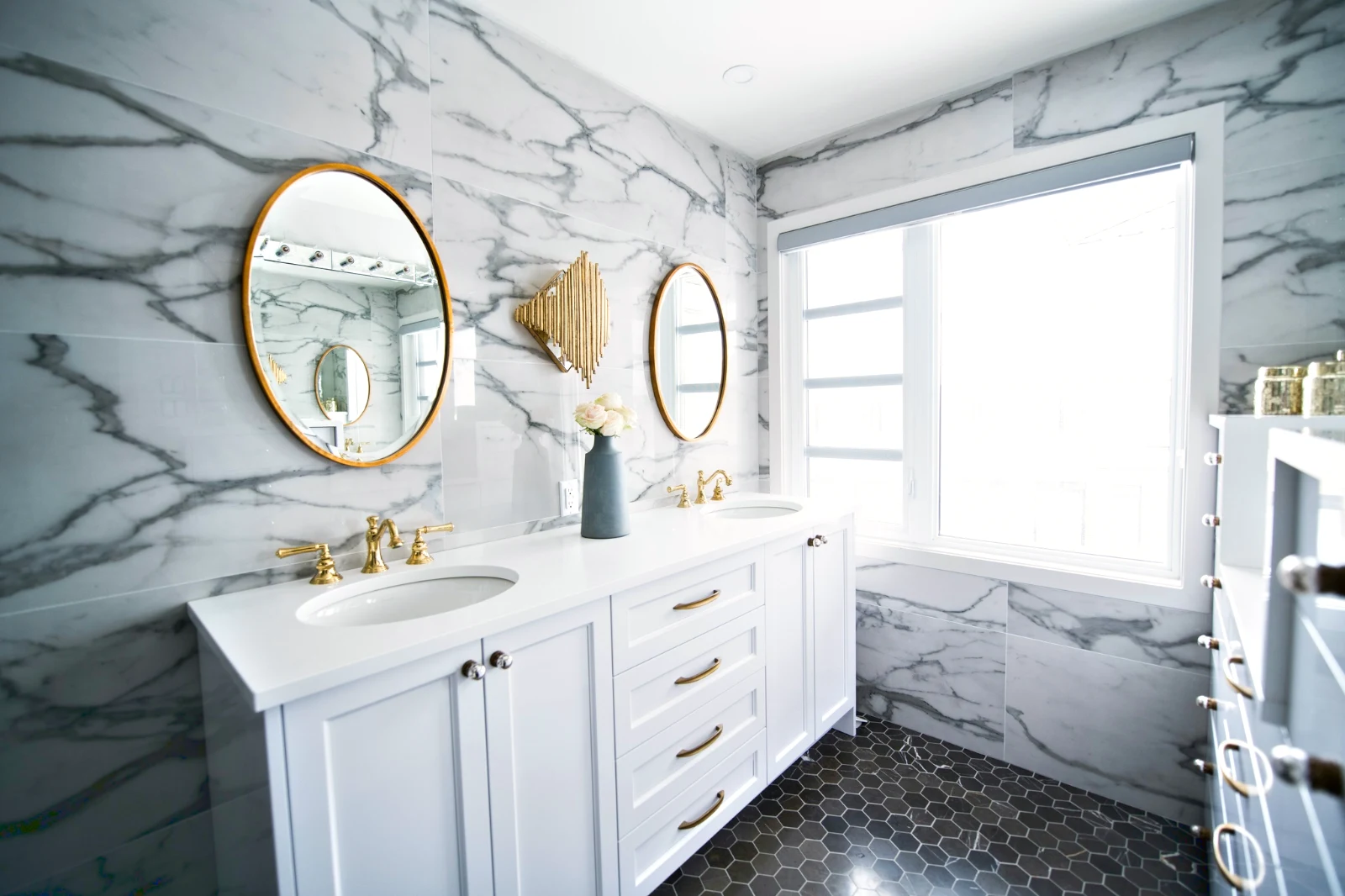
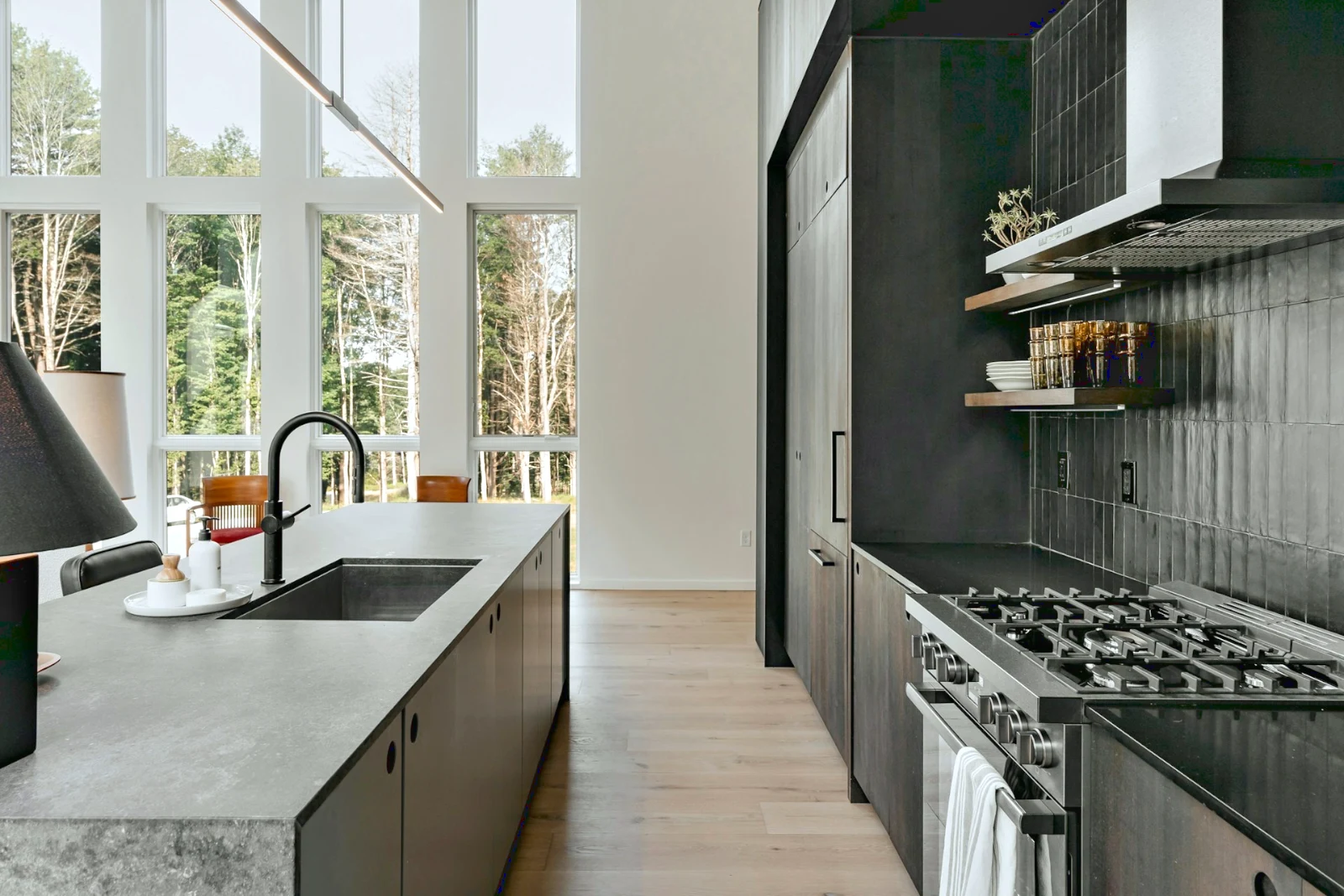 Bright and Airy
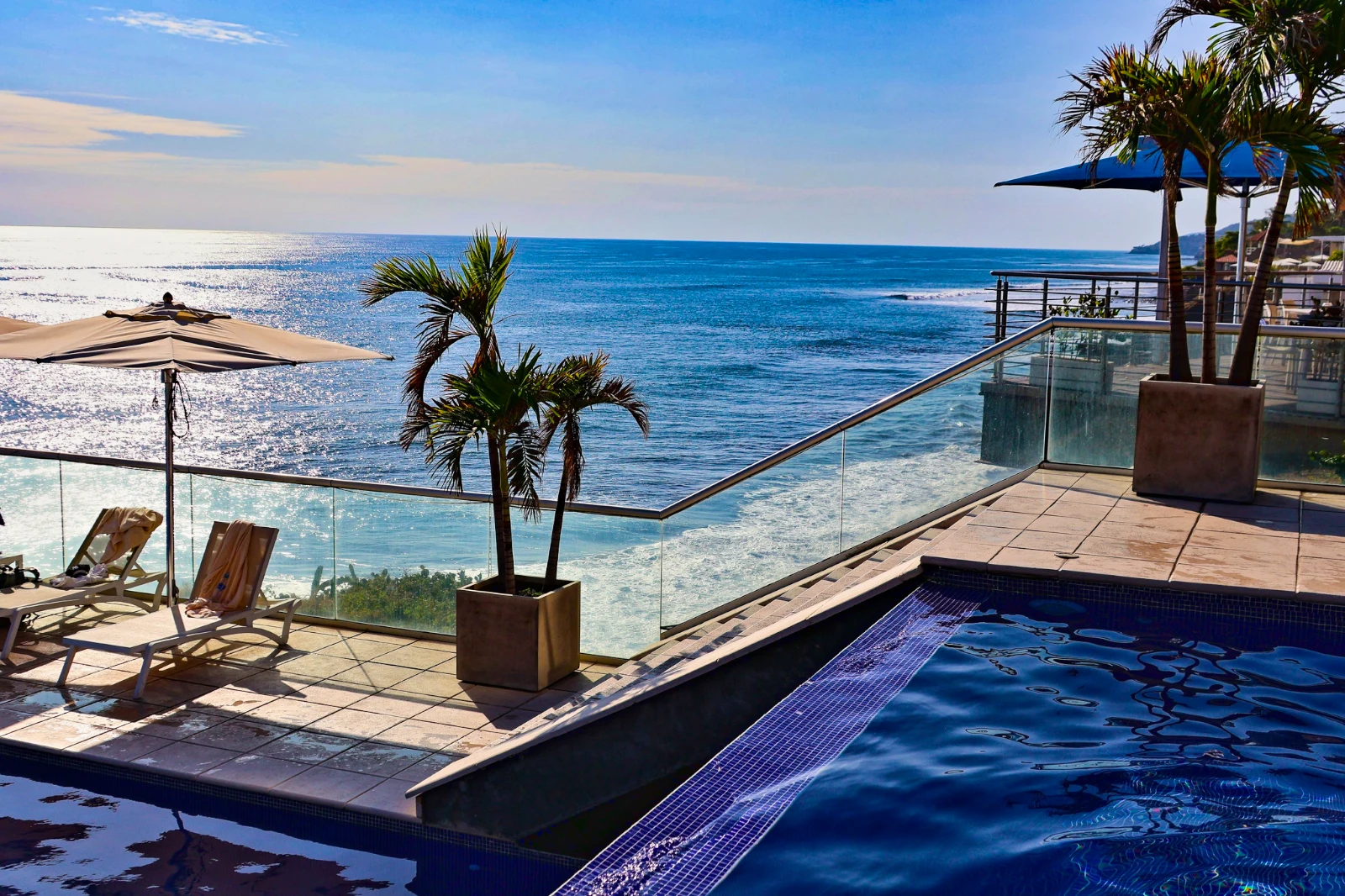 Punchy Social
 Punchy Social
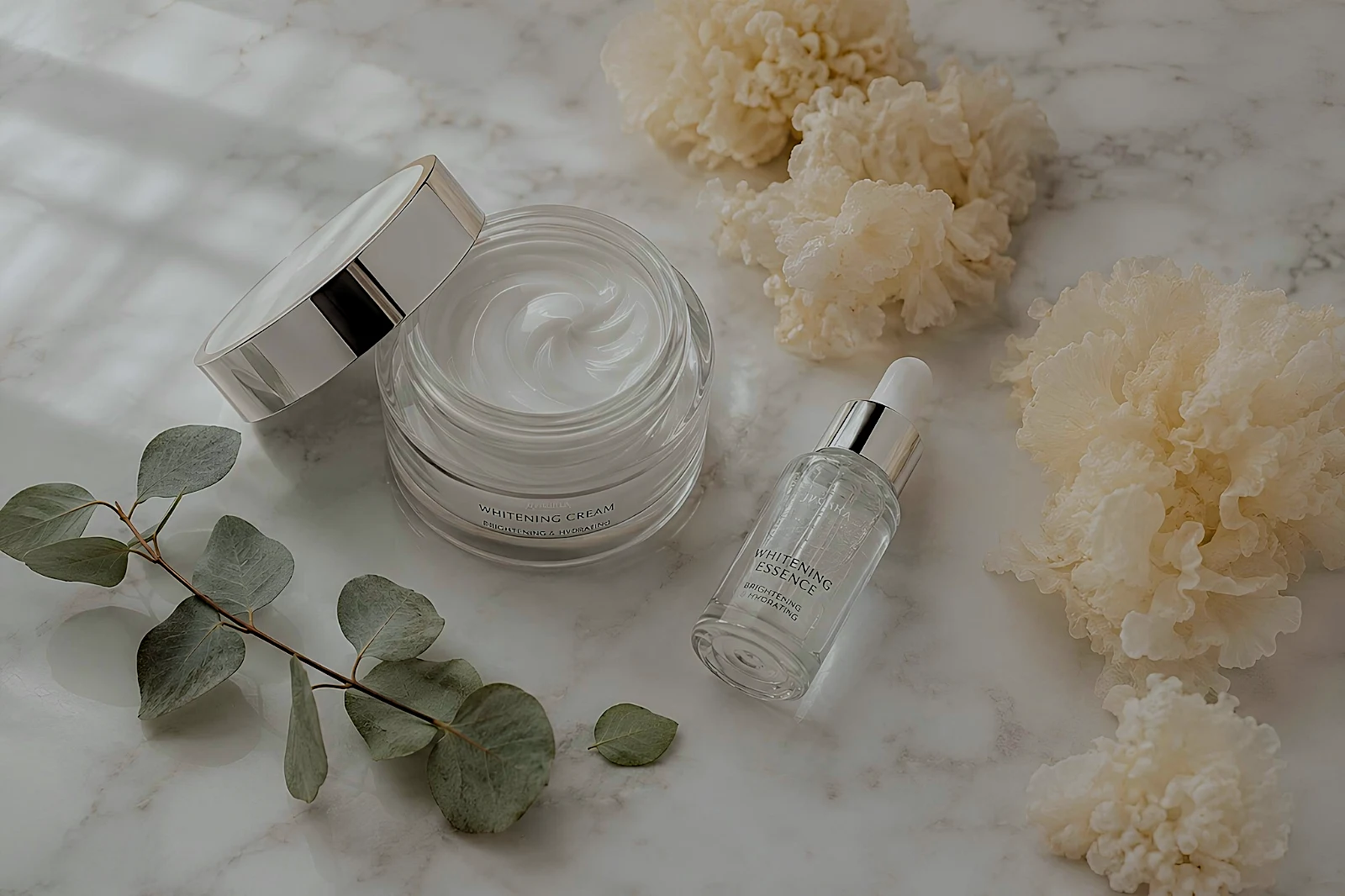 True Color
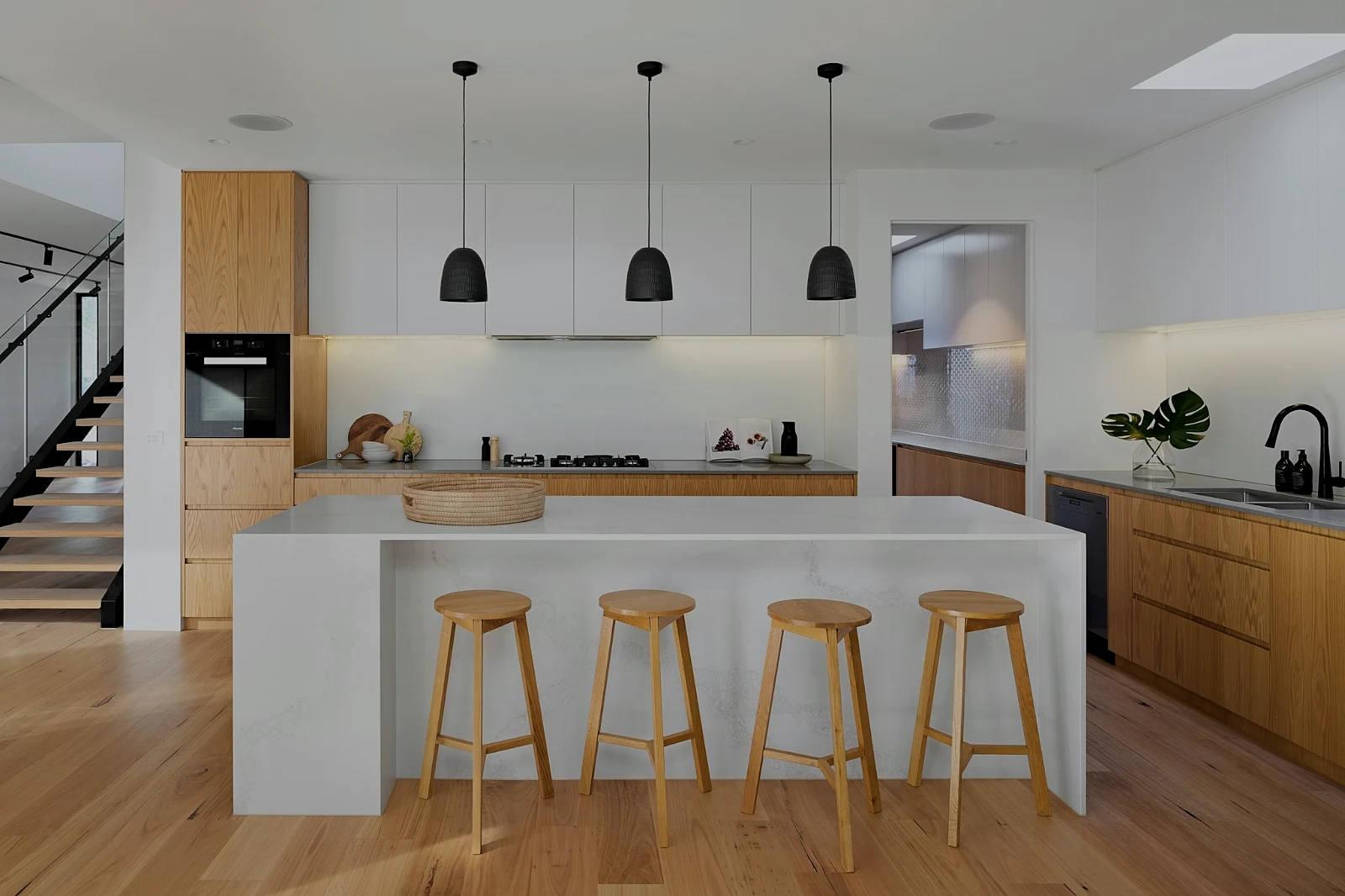 True Color
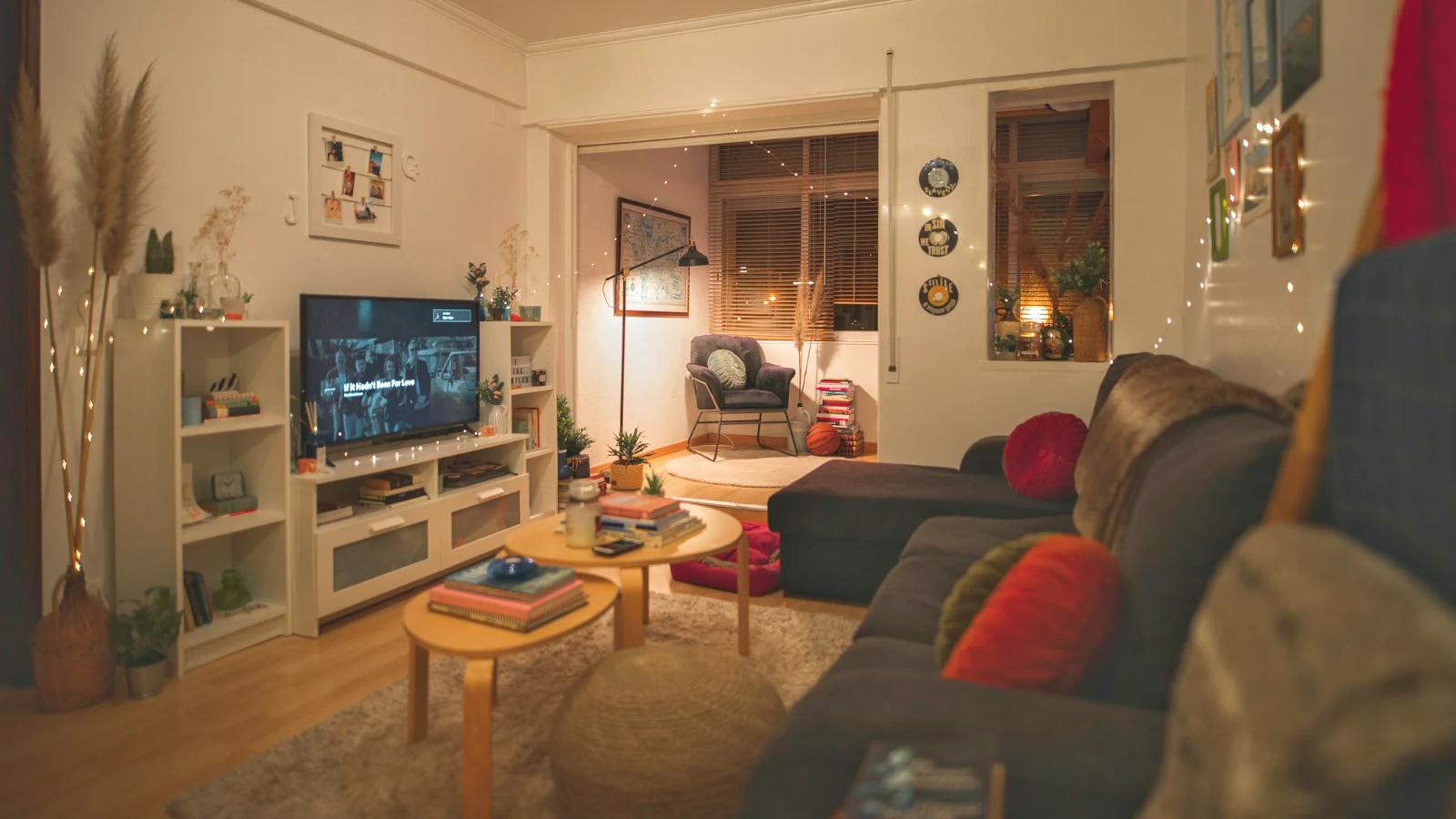
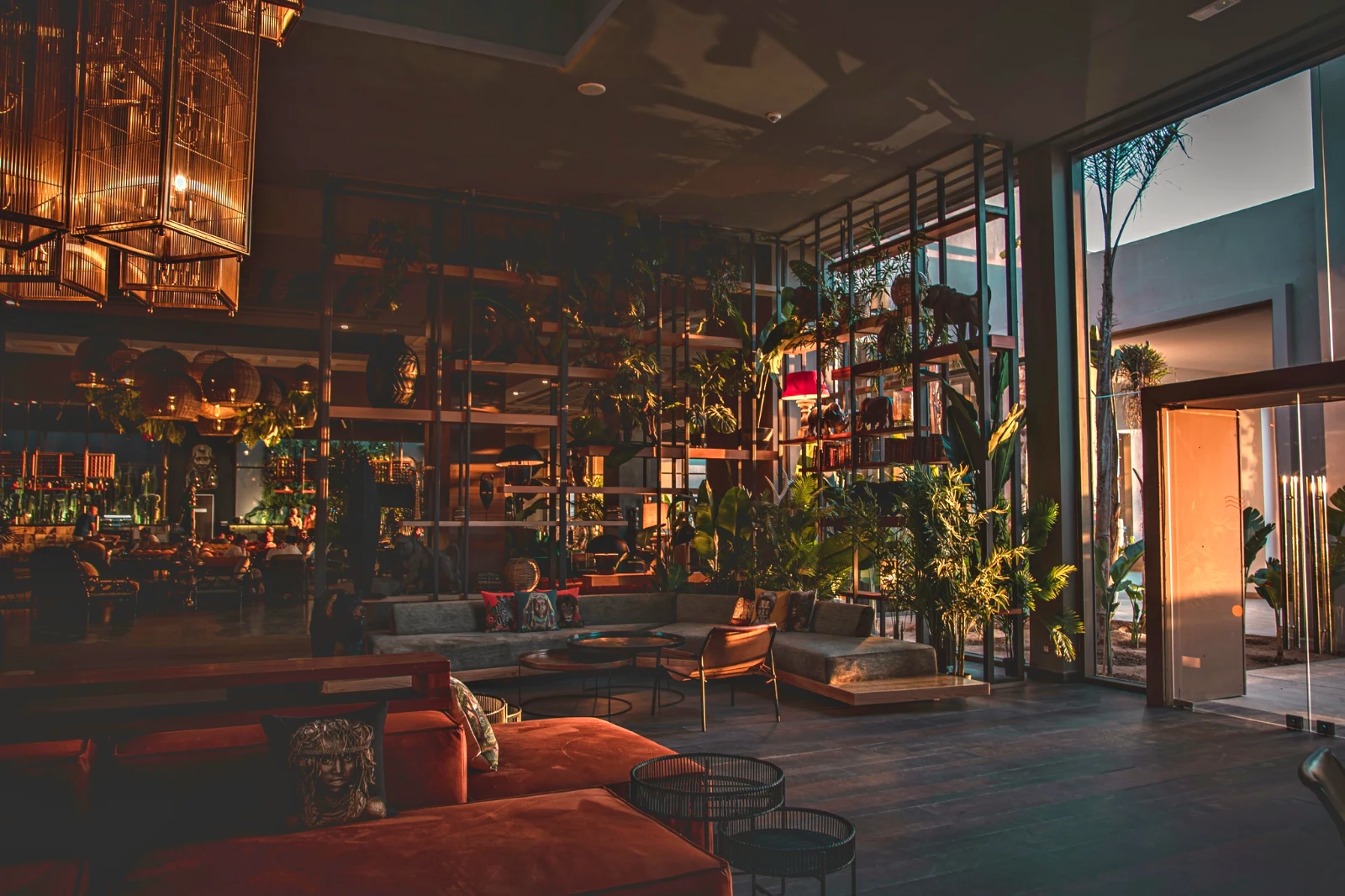 Warm Interior
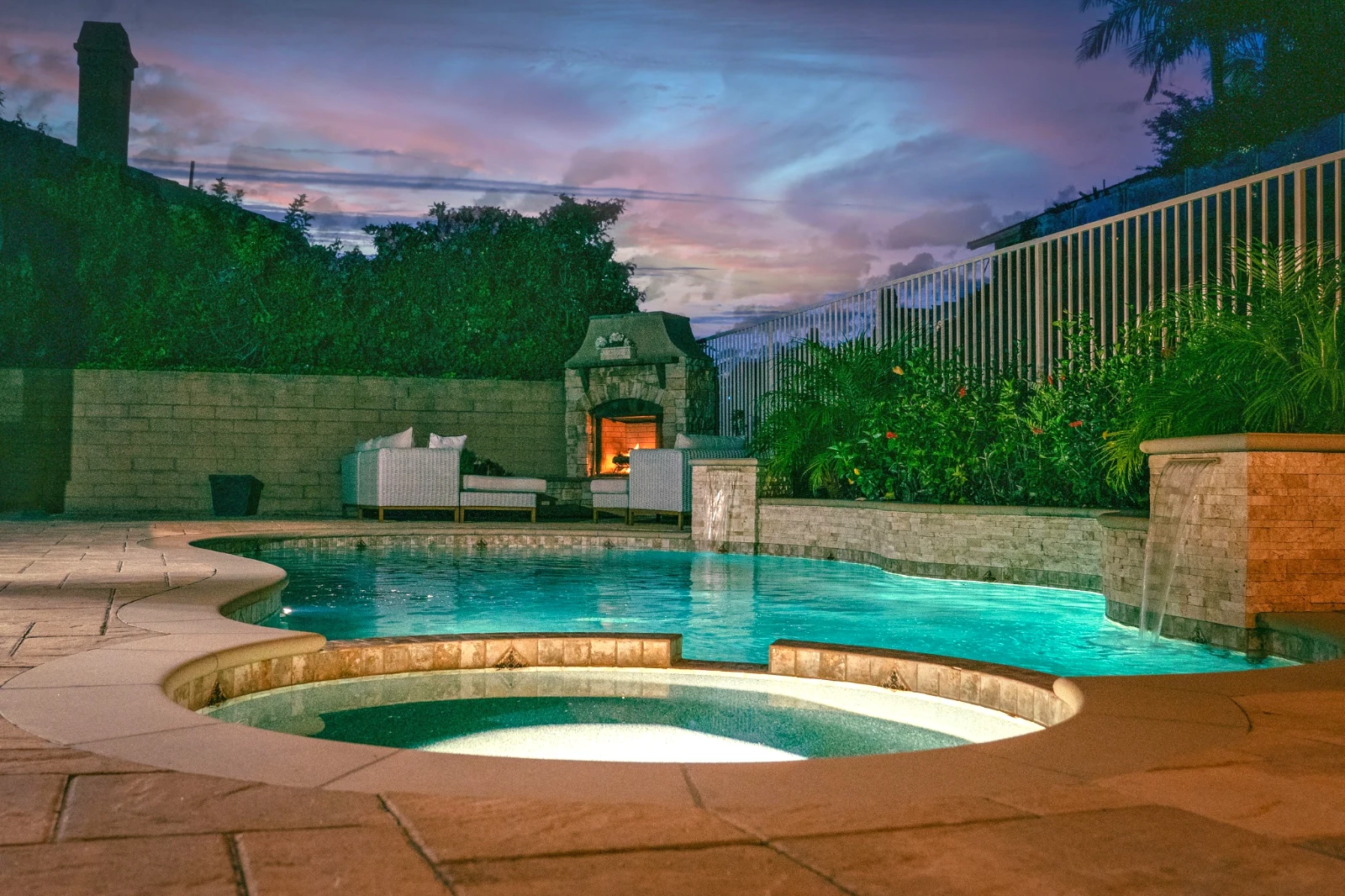
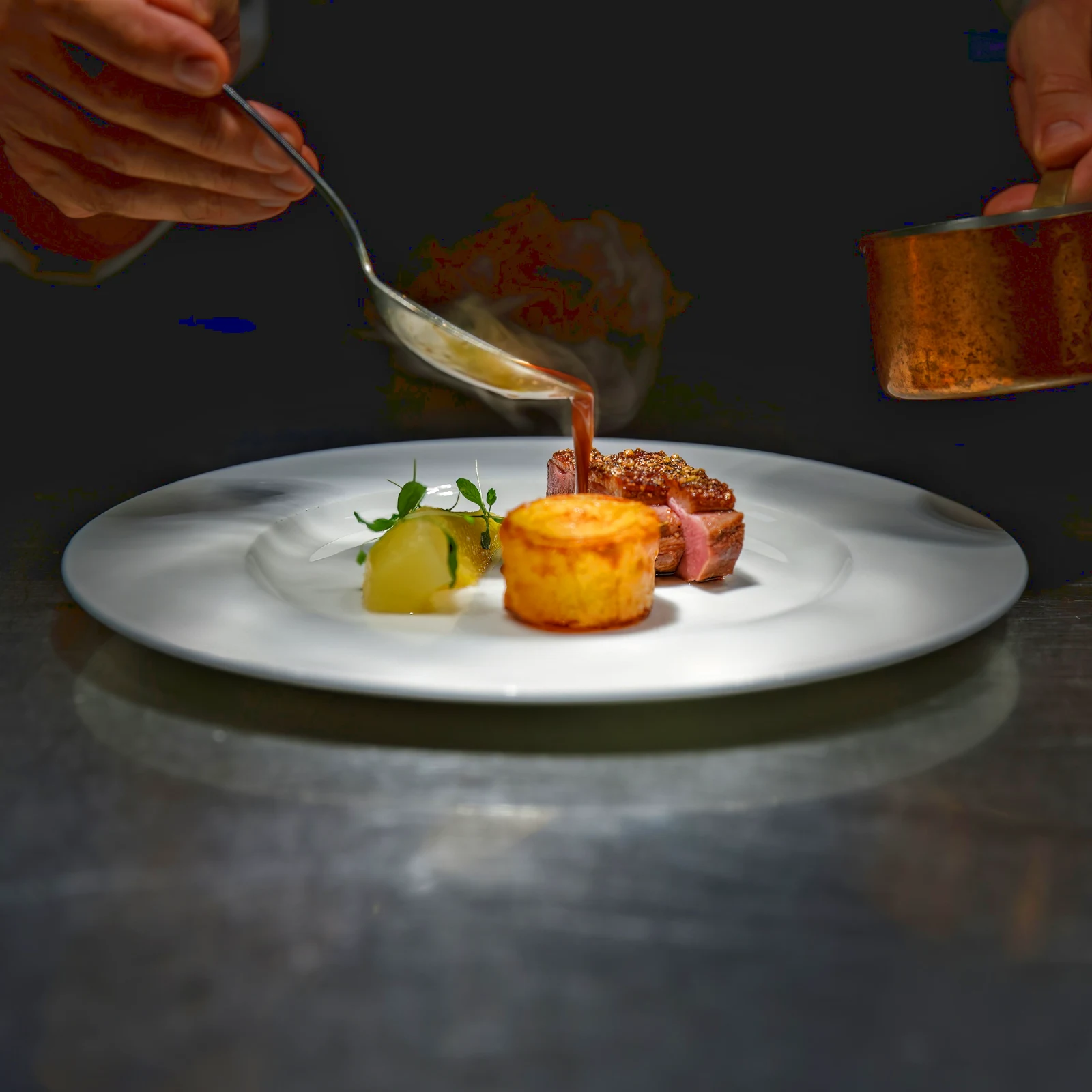 Twilight Glow
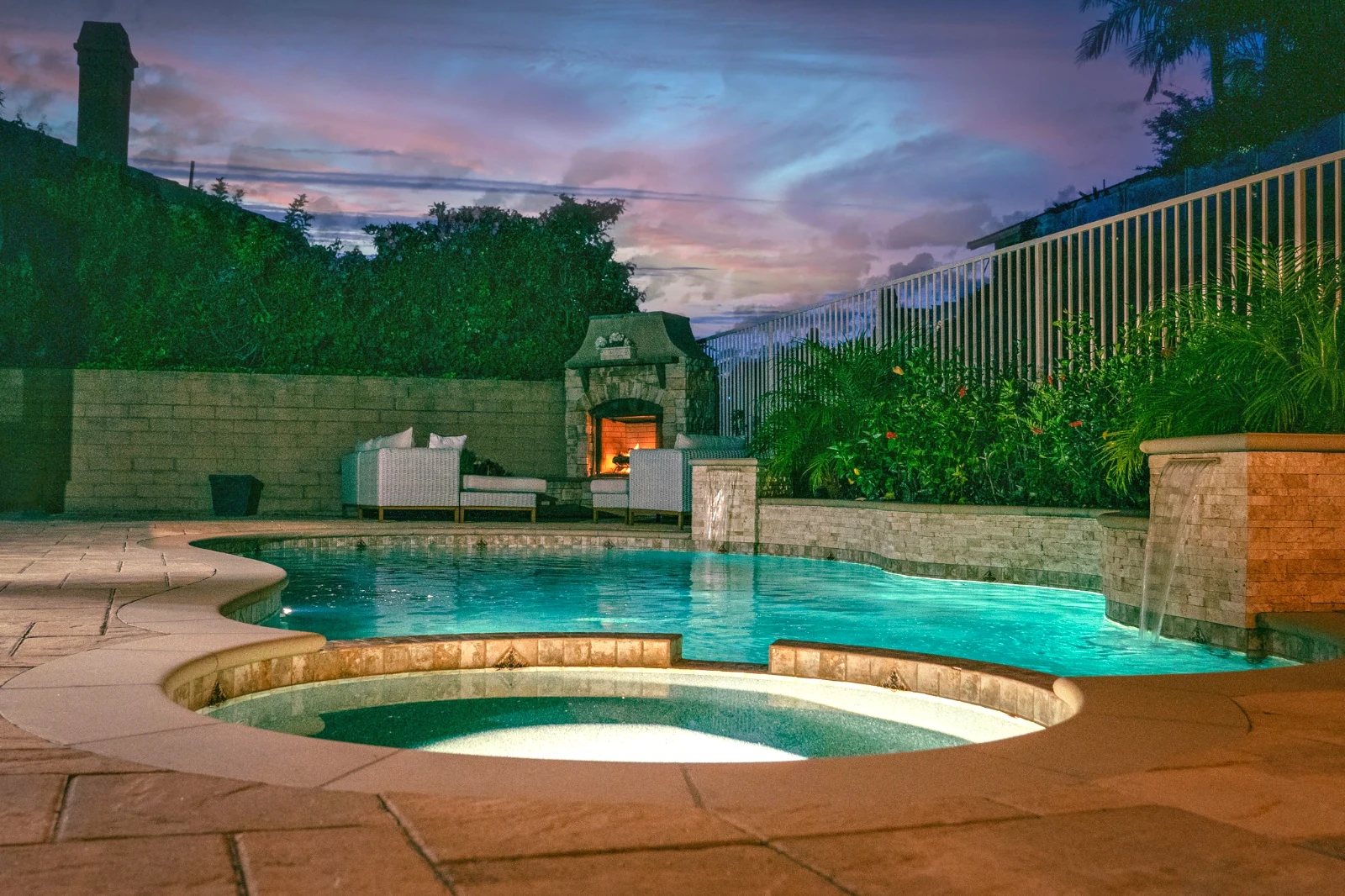 Bright and Airy
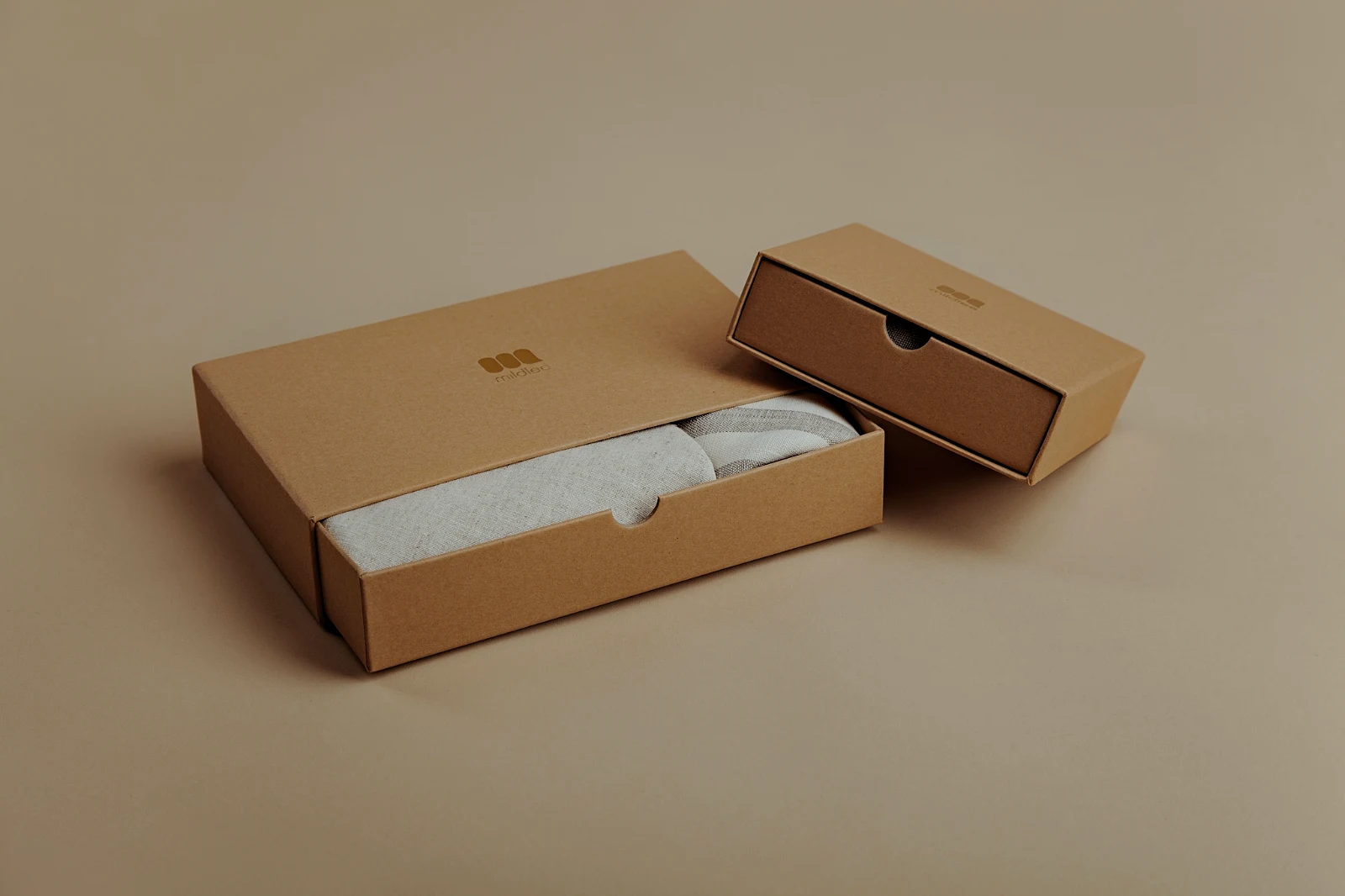 True ColorBright and AiryPunchy SocialPunchy SocialTrue ColorTrue ColorWarm InteriorTwilight GlowBright and AiryTrue ColorBright and AiryPunchy SocialPunchy SocialTrue ColorTrue ColorWarm InteriorTwilight GlowBright and AiryTrue ColorBright and AiryPunchy SocialPunchy SocialTrue ColorTrue ColorWarm InteriorTwilight GlowBright and AiryTrue Color
 Golden Hour WarmthAking mga gawaing inihanda
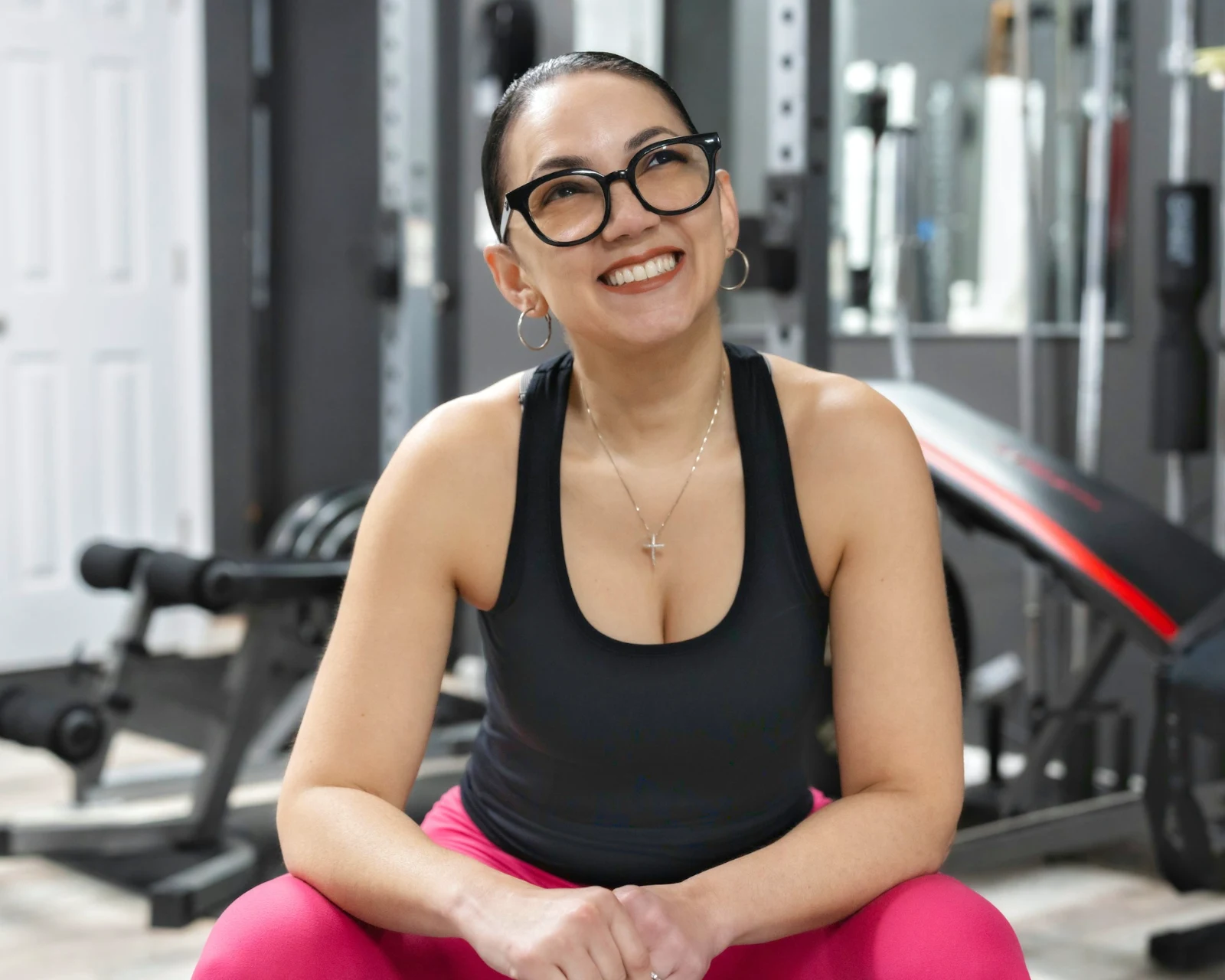 Soft Portrait
 Punchy Social
 Punchy Social
 Itim at Puti
 Soft Portrait
 Soft Portrait
 Twilight Glow
 Soft Portrait
 Soft PortraitGolden Hour WarmthAking mga gawaing inihandaSoft PortraitPunchy SocialPunchy SocialItim at PutiSoft PortraitSoft PortraitTwilight GlowSoft PortraitSoft PortraitGolden Hour WarmthAking mga gawaing inihandaSoft PortraitPunchy SocialPunchy SocialItim at PutiSoft PortraitSoft PortraitTwilight GlowSoft PortraitSoft PortraitGolden Hour WarmthAking mga gawaing inihandaSoft PortraitPunchy SocialPunchy SocialItim at PutiSoft PortraitSoft PortraitTwilight GlowSoft PortraitSoft PortraitBright and AiryPunchy SocialPunchy SocialTrue ColorTrue ColorWarm InteriorTwilight GlowBright and AiryTrue ColorGolden Hour WarmthAking mga gawaing inihandaSoft PortraitPunchy SocialPunchy SocialItim at PutiSoft PortraitSoft PortraitTwilight GlowSoft PortraitSoft Portrait
Mula sa pagkuha hanggang sa mga picks ng kliyente
Isang editor sa dalawang antas: simpleng para sa lahat, bawat kontrol para sa mga taong nag-e-edit bilang pang-araw-araw.
Pamahalaan
Lahat ng larawan na pinapanatili ng account.
Culling
mga Bandila, Pinakamuna at katulad na mga kuha.
Auto at Looks
Isang tap, o isang tingin mo mismo.
Ayusin
Ilaw, kulay, linya at bahagi.
Bulk Auto
Isang buong set sa isang paggana.
Layers
Mga pagpili, mga maskara at pinto.
Mga Galeriya
Pinipili at inilalarawan ng kliyente.
Ipadala Sa
Isang disenyo, isang website, isang listing.
Sa isang Telepono
Ang larawan na buong screen.
Dalhin ang lahat ng larawan, at hanapin ulit ito
I-upload mula sa mesa, kamera, o camera roll, o ibahagi ang isang larawan sa Foto mula sa anumang app. Ang bawat larawang pinapanatili ng account sa Depot ay nasa Library, muling makikita sa pamamagitan ng bituin nito, mga tag nito, mga pili ng kliyente, o isang paghahanap.
 Binaguhin


 Binaguhin
 Binaguhin



Star at Tags
Ang parehong bituin at mga tag Depot, Docs at Studio ang nababasa.
Mga Hubs at Folder
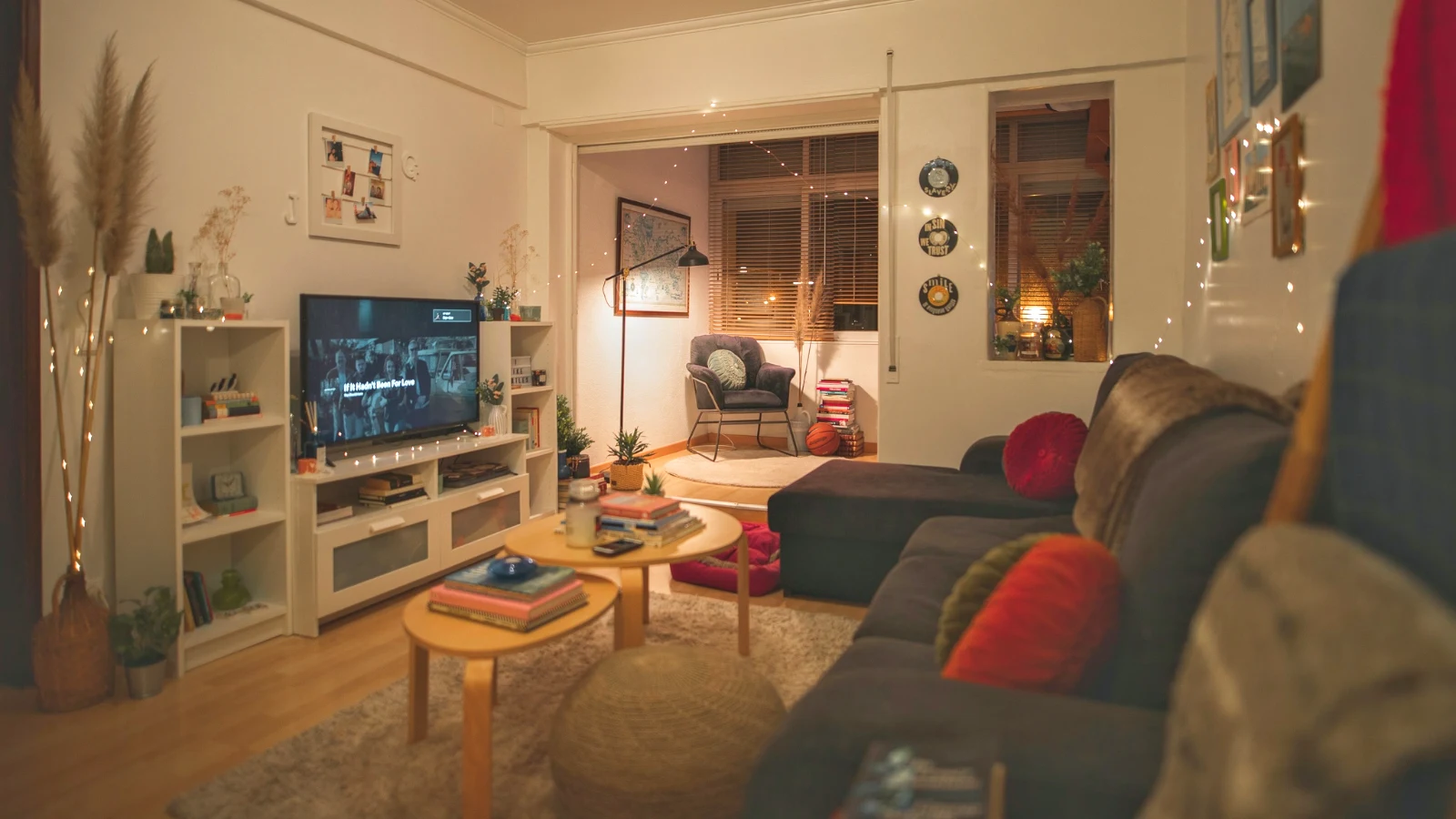
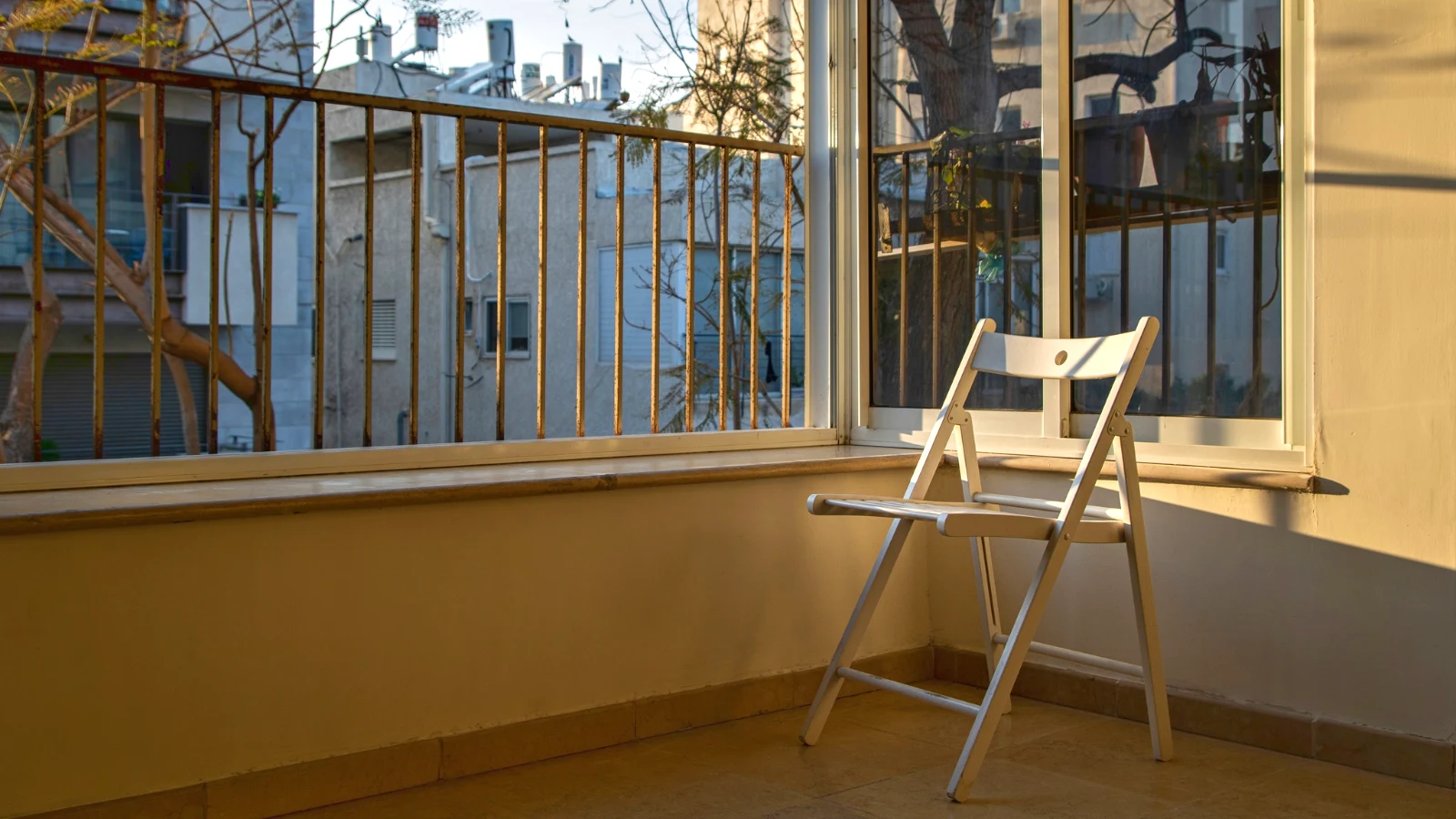
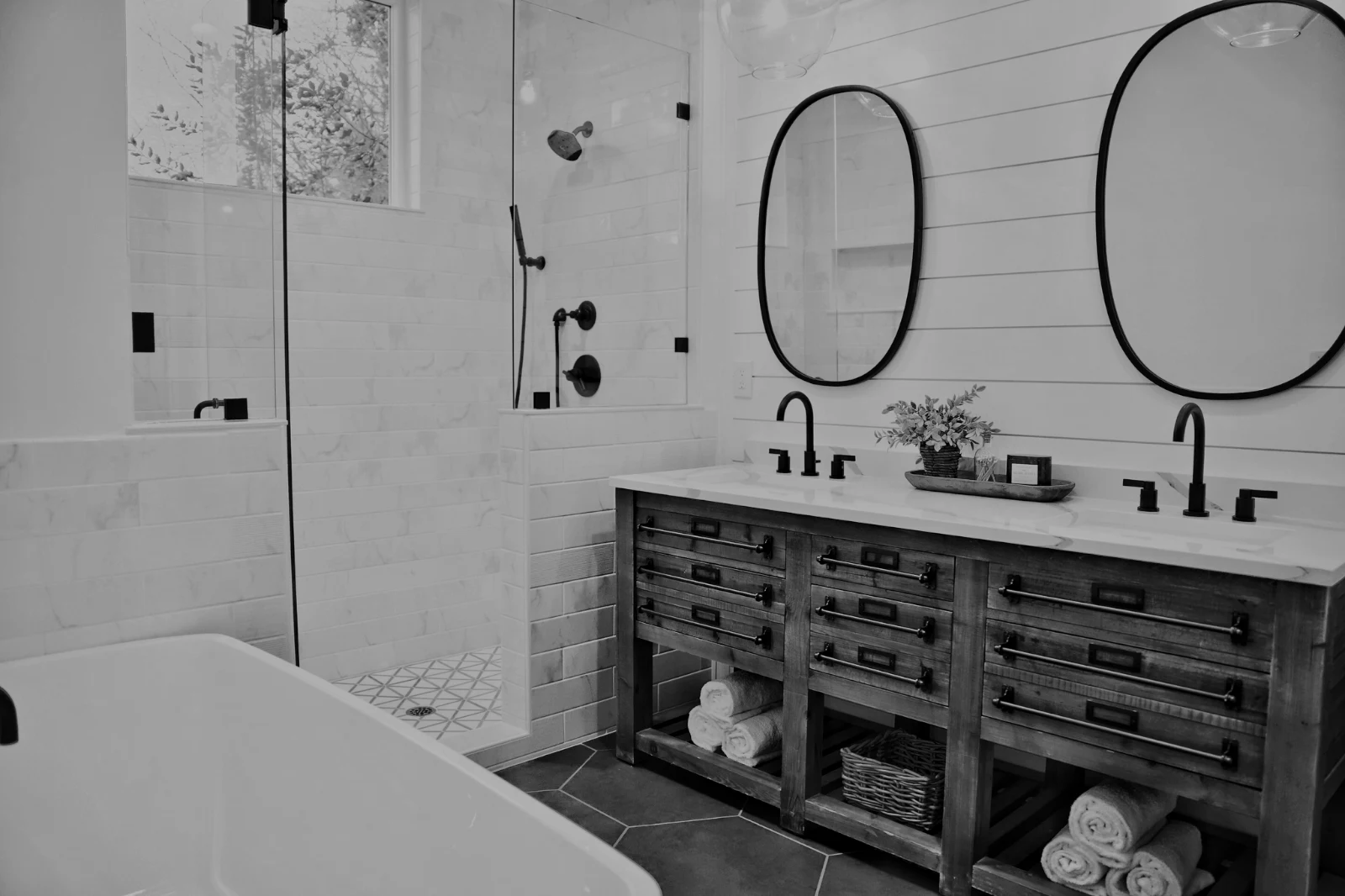
Ang mga larawan ng isang Hub nang hiwalay; Move To… isang Folder (may Depot).
RAW at HEIC
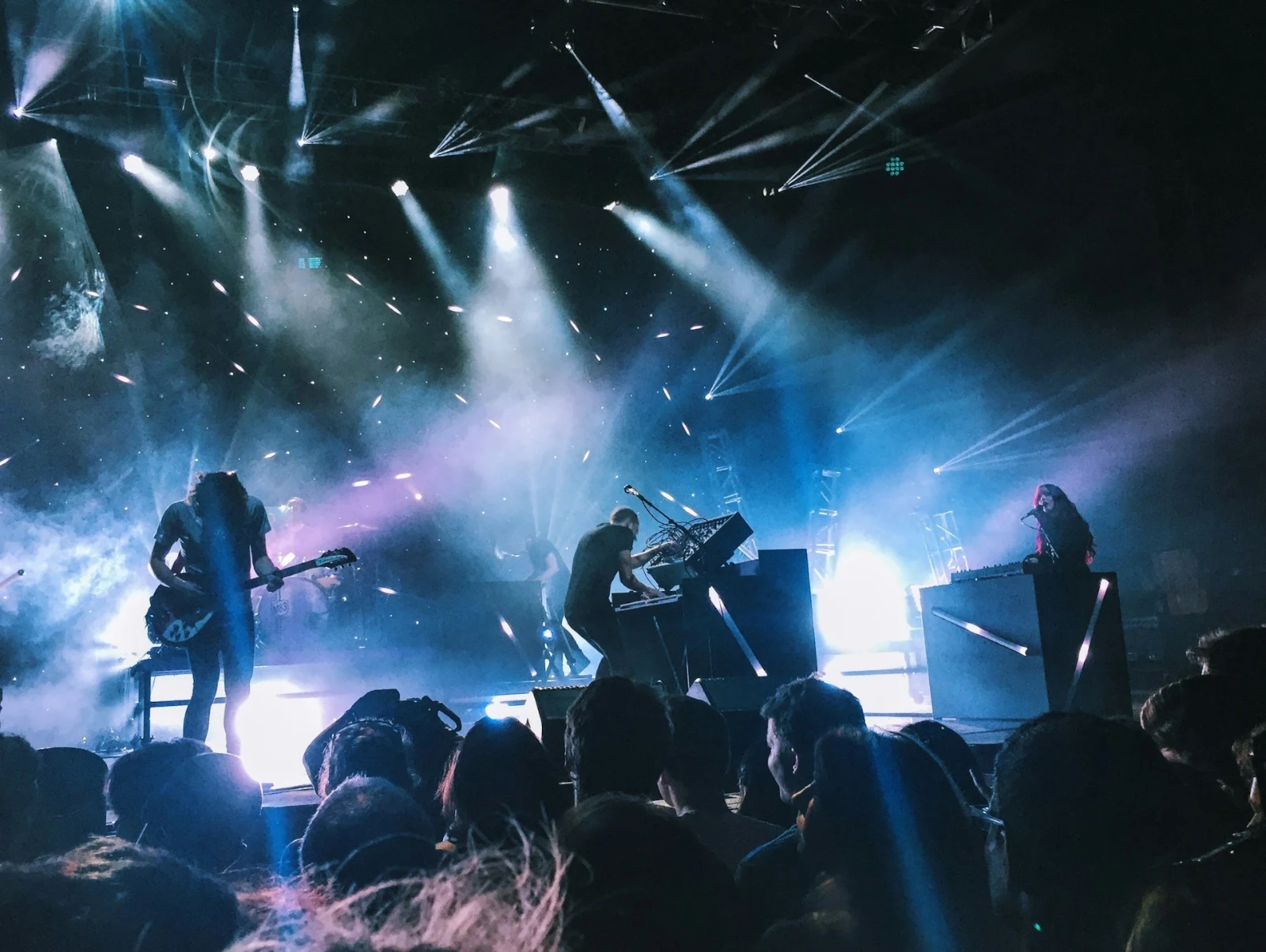
Isang RAW ay in-develop sa device, o sa server kapag hindi ito kaya.
Tethered Capture
Kamera sa USBNakakonektang kamera · Canon EOS R6 Mark II
 Tanawin ng BuhayPagsasagawaI-stop ang Live View
DumatingAng mga larawan mula sa kamera ay dumadaan dito at sa Camera Uploads Hub.
Ilang Bagong Frame ang dapat itulakMag-apply True Color AW27_flatlay_01.jpg
 AW27_packing.jpg
 AW27_unboxing.jpg
 AW27_shelf.jpg
 AW27_tote.jpg
Lumakad nang direkta sa Foto gamit ang USB gamit ang Live View, o mula sa sariling Wi-Fi upload ng kamera.
Hanapin ang mga tagapag-alaga nang hindi tinitingnan ang bawat frame
Ang bawat larawan ay binabasa pagkatapos itong i-upload: ang kanyang focus, ang kanyang exposure, at kung mayroon bang nakasara ang mga mata ng sinuman. I-sort Best First, ipakita ang mga inirerekomendang pinakamagandang shots, i-filter sa bawat flag, at i-compare ang mga katulad na shots side by side. Walang binibigyang bituin para sa iyo: ikaw ang pumipili ng keepers.
 Closed EyesMissed FlashMissed FocusBlurryBlack Frame
Nakasara ang mga mata at nawala ang focus
Inilagyan ng bandila sa larawan, katulad ng Blurry, Black Frame at Missed Flash, bawat isa ay isang filter.
Closed EyesBlurryMissed FocusMissed FlashBlack FrameAyusin ang isang larawan sa isang tap, o mag-apply ng isang tingin
Auto ay binabasa ang larawan sa iyong device, inilagay ang mga sliders nito at binanggit ang bawat isa na inilipat; Undo ay bubalik ang larawan. Looks ay naghihiwalay sa mga looks ng Calisto at ng iyong sarili, ang mga tumutugma sa larawan muna, at Save Look ay nag-iimbak ng anumang edit bilang isa sa iyong sarili.
Iyong Estilo
Auto ay gumalaw sa paraan na mo itong galaw, natutunan mula sa iyong sariling edits; bawat value ay isang slider.
Inirerekomendang mga Tampilan
Ang mga anyo na ginawa para sa isang larawan tulad nito, una sa listahan.
Mga Aksyon
I-record ang iyong hakbang nang isang beses at i-play ito sa anumang larawan o buong piliin.
Contact Sheets
Isang pagpili na inilathala sa grid na may mga pangalan, bituin, mga pagpili at bandila, bilang PDF.
28 na weekend
Ang liwanag at kulay ng isa pang larawan, inilagay bilang mga sliders ng ito.
Hindi Kailanman ang Orihinal
May edit na nasa tabi ng litrato kasama ang kanyang kasaysayan; ang orihinal ay nanatili tulad ng dumaan.
Bago
Pindutin at pahawakan upang makita ang larawan tulad ng ito.
 Bago
I-set ang liwanag, ang kulay, at ang linya sa kamay
Ang Light, Color at Crop ay bukas muna, at bawat ibang kontrol, mula sa tone curve hanggang sa noise at lens, ay nasa isang tapos lamang sa likod ng Mas. Ang Straighten Lines ay nakikita ang mga linya ng larawan at nag-set ng Transform mismo, o nagresolba sa mga linyang ginuhit mo.
Tanggalin at Ayusin
Sigaw sa kable o stain; Clone at Fill sa tabi nito.
Ayusin ang Bahagi
Ang langit, ang paksa o ang background, isang pinto, mga gradient o isang antas ng liwanag.
Mga Tao
Puno, mukha, mata, labi, buhok, damit o buong tao; ang Retouch Skin ay nagpapabuti nito patungo sa kanilang sariling tone.
Lens at Portrait Blur
Nilalagyan ng background blur, o buong larawan ayon sa depth, na may focus sa kung saan mo ito inilagay.
Film Negatives
Isang nakascan na kulay o itim at puting negative na naging positive, ang orange na mask ay tinanggal.
Tamang Lens
Ang sariling koreksyon ng kamera, kung hindi man ang lens profile, at ang mga kulay na fringes ay tinanggal.
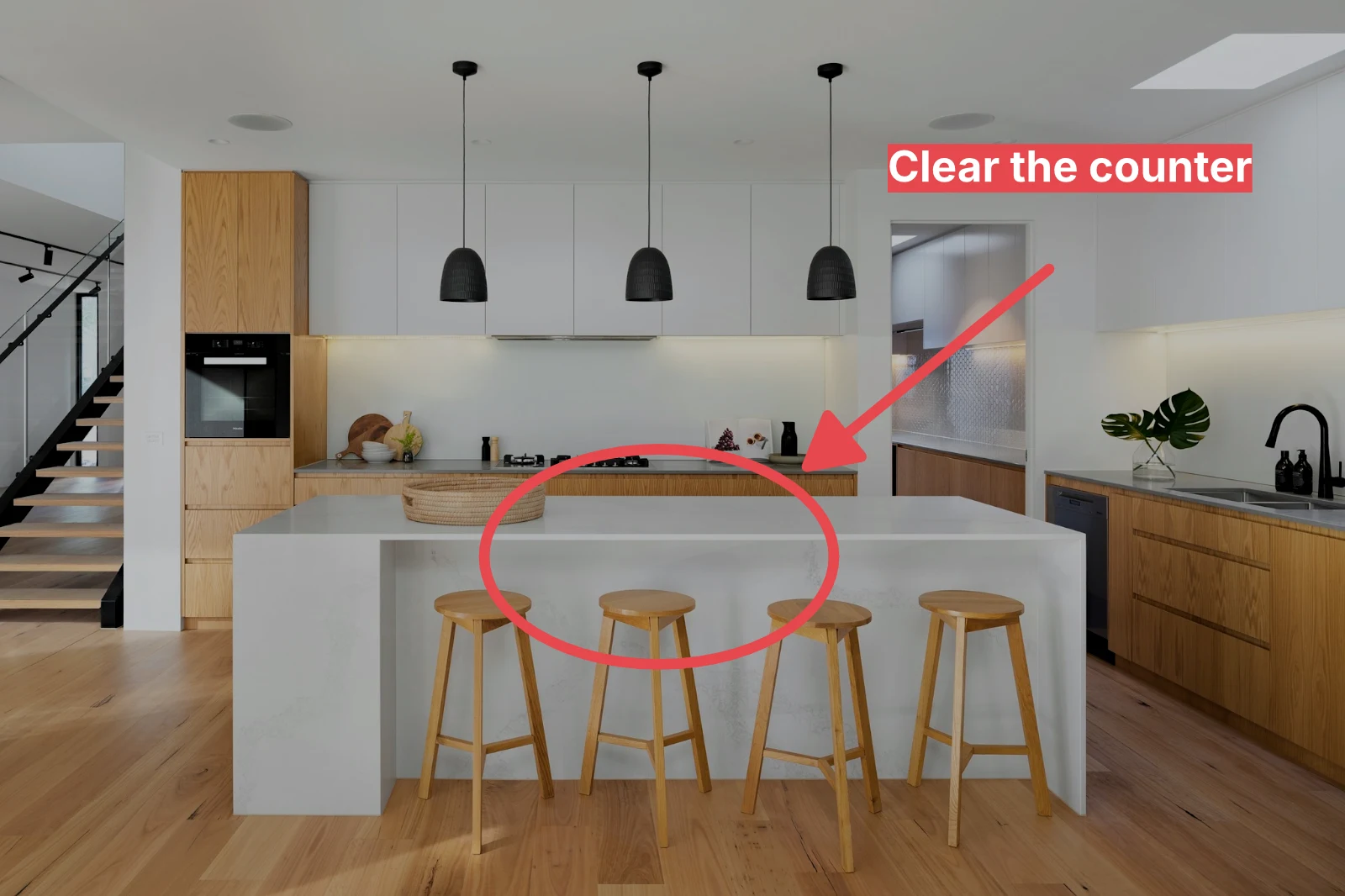
Markup
Isang arrow, isang bilog, isang kahon o isang label na nakadrawing sa larawan.
Bigyan ng Auto at iyong anyo ang buong set
Pumili ng mga larawan sa Library at isang tingin, tapos pindutin ang Bulk Auto. Bawat larawan ay nagkakaroon ng sariling Auto sa iyong device, tapos ang tingin, na inililipat bilang isang hakbang ng edit nito. Ang mga exports ay ginagawa sa server, kaya't tapos na kapag sarado ang pahina.



2. Pumili ng Look
Golden Hour WarmthAuto Lang9 sa 9 na kopya ang handa.
Gumawa ng photo sa layers, at i-export saan man
Simulan ang bagong Photo sa isang laki na ginagamit ng mga tao sa pagpo-post, o buksan ang pili bilang layers, na bawat photo ay pinapanatili ang kanyang sariling edit. Piliin ang subject o ang langit, mask, paint, heal, clone at warp, dagdagan ang teksto at hugis, pagkatapos i-export bilang JPEG, PNG, WebP, AVIF, TIFF o isang layered PSD.
Mga pili
Feather, expand, refine edges at gawing mask ang isang selection.
Ibahagi ang isang galeriya at tingnan kung ano ang pinili ng kliyente picks
Ilagay ang shoot sa Gallery at ibahagi ito para sa proofing. Pinipili ng client hanggang sa bilang na iyong itinatakda, naglalagay ng note sa anumang photo at nagpapadala ng kanilang pili, nag-aaprubo o humihingi ng pagbabago, round by round. Ang kanilang pili ay Client Picks sa iyong Library.
Proofing
Bawat gallery na ibinahagi para sa proofing: anong pinili at inilagay ng client, at kung paano nila sumagot sa round.
| Galeriya | Round | Pinili | Ng | Tala | Sagutin | Client | Na-sagot na |
|---|---|---|---|---|---|---|---|
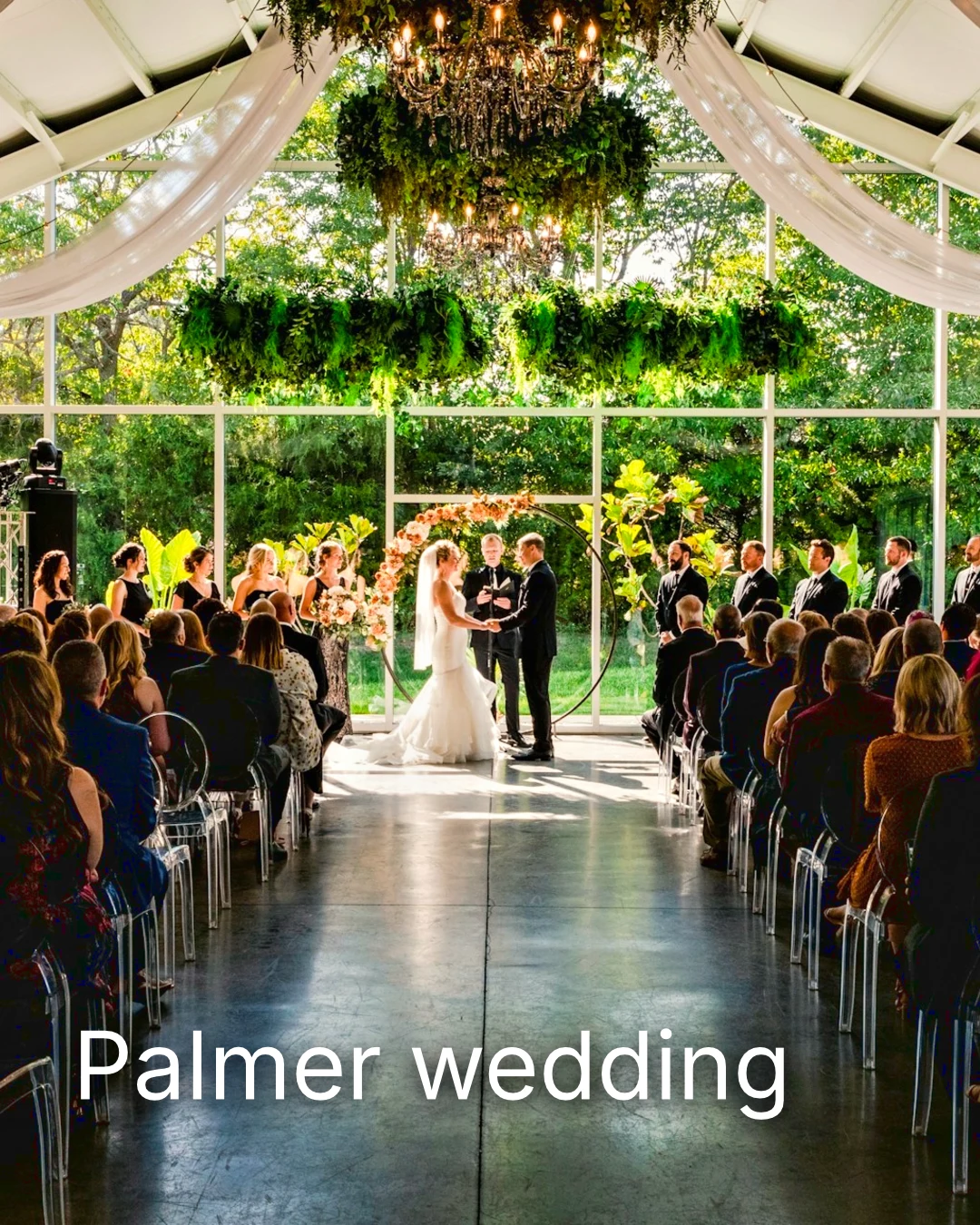
| Palmer wedding | 1 | 4 | 4 | 2 | Naghahangad sa kliyente | Sarah Palmer | Naghahangad sa kliyente |
| Carter portrait session | 2 | 3 | Walang limitasyon | 0 | Approved | James Carter | 19/11/2026 |
| Harbourline Dental team headshots | 1 | 0 | Walang limitasyon | 2 | Hiniling na mga pagbabago | James Bennett | 19/11/2026 |
| Nguyen Family at Brighton | 1 | 12 | 15 | 3 | Natutugunan ang pagpili | Linh Nguyen | 20/11/2026 |
| Okonkwo Engagement | 2 | 20 | 20 | 0 | Approved | Ada Okonkwo | 17/11/2026 |
| St Kilda Bakery Menu | 1 | 6 | Walang limitasyon | 1 | Naghahangad sa kliyente | Marco Ricci | Naghahangad sa kliyente |
Mga Tala sa Larawan
Ang bawat nota ay makikita sa kanyang larawan habang nag-e-edit.
Tingnan o I-download
Avenida da Liberdade 212
Galeriya
Bawat link ay view only o maaaring i-download, kasama ang optional na password.
Iyong Watermark
Pumili ng iyong mga favorites at iwanan ang tala sa anumang gusto mong baguhin. Kapag tapos ka, i-isa-isa ang iyong sagot. Maaari kang mag-isa-isa nang isang beses bawat round.
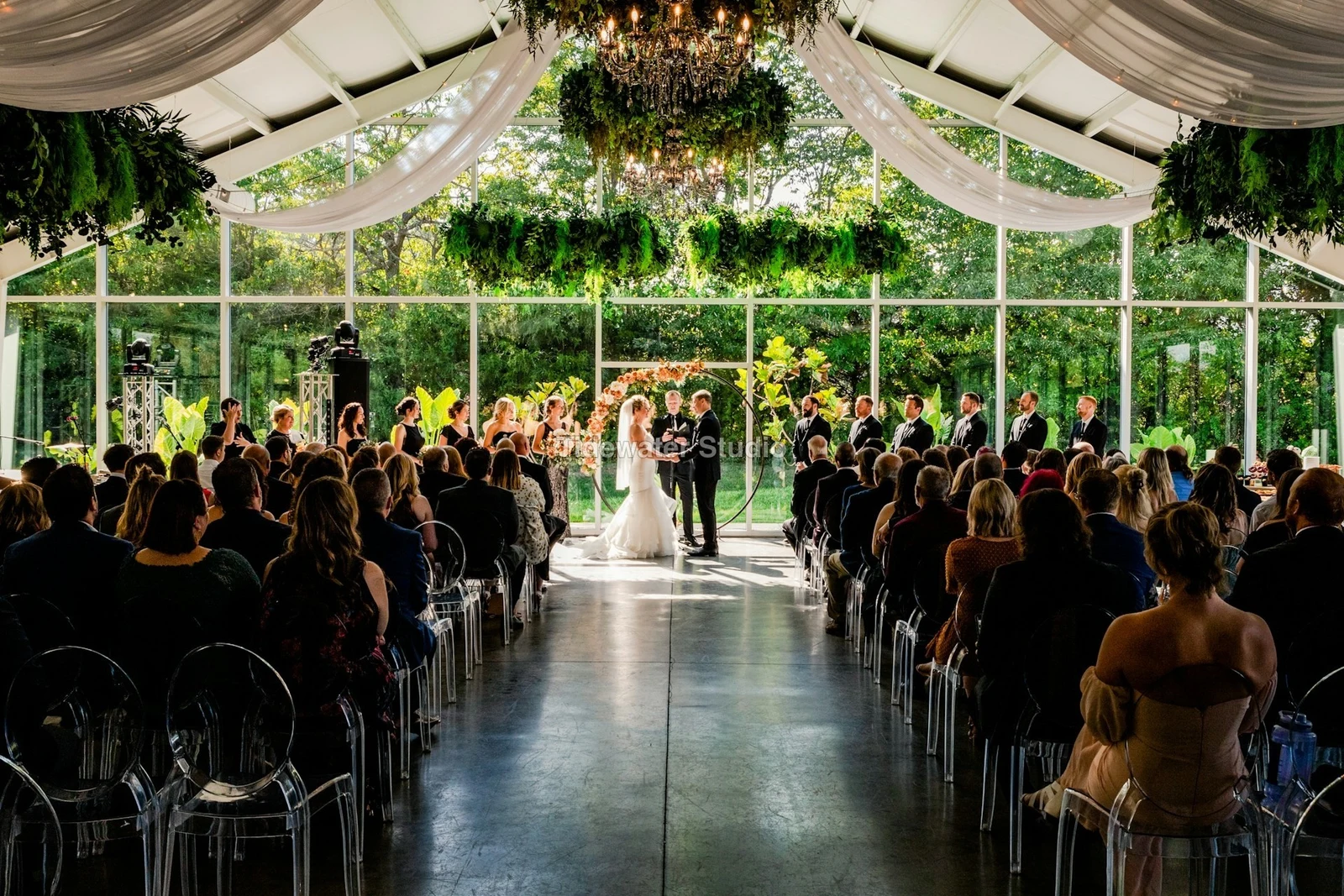
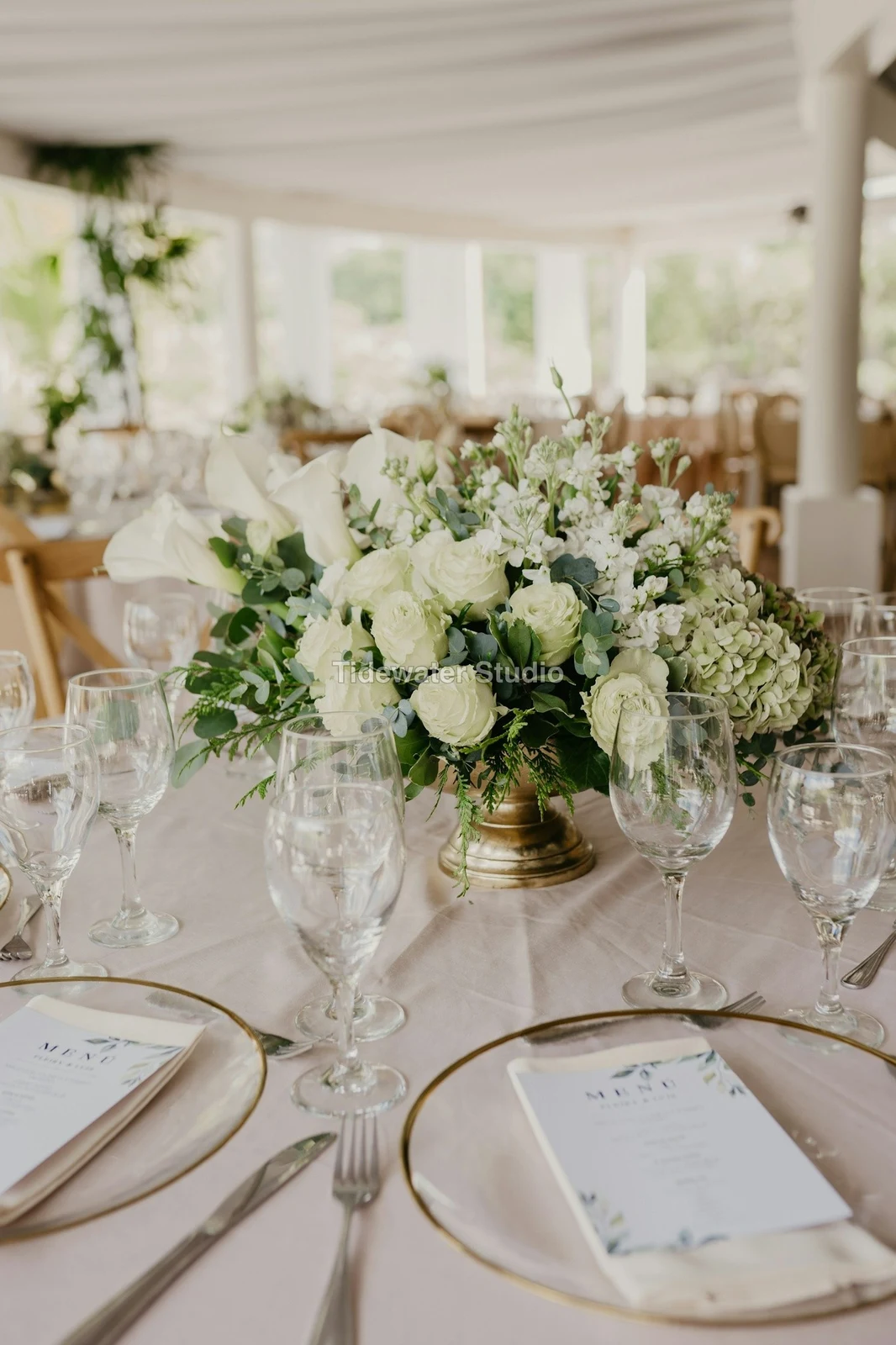
Ang iyong logo o mga salita sa bawat larawang makikita o idudownload ng kliyente, hanggang sa ibigay mo.
Prints From the Gallery
$ 149.000 bawat isa. Idinagdag ang shipping at tax sa checkout.
Bumibili ang kliyente ng print ng anumang larawan, ginawa at inilabas ng iyong lab, na bayad sa iyong sariling checkout.
Gallery ng Trabaho, May Talento
Lookbook SS27 Sa pag-a-review
- Client
- Maison Kiri
- Round
- 1
- Pinili
- 8 / 12
- Sagutin
- Naghahangad sa kliyente
- Nagtatapos ang Link
- 2026/12/12
May sariling Gallery ang isang trabaho sa Talent, na pinagsuri sa parehong paraan.
Isang Araw ng Pagtatapos
Mga Galeriya
Ang gallery ng bawat trabaho: ang nakikita, pinipili, at pinapadala ng kliyente.
| Galeriya | Client | Tahimik ng Trabaho | Nagtatapos ang Link | Ginawa |
|---|---|---|---|---|
| Program Shoot · Strength | Thandi Mokoena | Sa pag-a-review | 2026/11/30 | 2026/11/09 |
| Client Story · Pieter | Pieter van Wyk | Sa pag-a-review | 2026/12/07 | 2026/11/12 |
| Mobility Series | Aisha Davids | Delivered | 2026/12/18 | 2026/10/22 |
| Coaches Team Photos | Kopje Coaching | Delivered | 2027/01/05 | 2026/10/31 |
| Summer Bootcamp | Lerato Nkosi | Nasa produksyon | 2027/01/20 | 2026/11/18 |
Ang link ng bawat Gallery ay isasara sa araw na iyong itinakda, at ang Galleries list ay nagpapakita ng mga nasa pagdarating sa susunod na 30 araw.
Ipadala ang tapos na larawan kung saan ito ginagamit
Naglalagay ang isang larawan bilang pinakabagong export, o ang orihinal kung wala ito: sa isang Gallery sa buong laki, sa isang bagong disenyo, sa assets ng website, o sa isang listing. Ang bawat picture picker sa Calisto ay nakalista na ang mga larawan ng account, kasama ang mga export.
Isang Disenyo, Kasama ang Studio
Isang bagong post o story ang bukas na may nakalagay na larawan.
 Menú de OtoñoTostadas de jaiba, desde hoy
Isang Website, Kasama ang Sites
Idinagdag sa assets ng site.
Aktibo
Isang Listing, May mga Listing
Idinadagdag sa mga larawan, kapag may listing ang negosyo.
T3 Rua do Século 41 Ipinubliko
I-edit gamit ang larawan na buong screen sa iyong phone
Pincha para zoom, doble toque para ajustar y mantén presionado para Antes. Cada sección es un chip debajo de la foto cuyos controles se anclan debajo de ella, nunca encima, y el deslizador solo se mueve con un arrastre lateral, por lo que el desplazamiento nunca edita.
Ibahagi sa Foto
Isang larawang ibinahagi mula sa camera roll ay lumalabas sa Add Photos.
Ibahagi ang mga larawan sa Foto mula sa anumang app sa device na ito, kumuha ng isa, o pumili dito.
Mga larawan na dadagdag
Walang Signal
Home, the Library, Looks at Add Photos bukas; ang mga edits at uploads ay hihinto at tatanggapin nang sabay-sabay.
Ibahagi ang mga larawan sa Foto mula sa anumang app sa device na ito, kumuha ng isa, o pumili dito.
Mga larawan na dadagdag
Saan Foto ay sumasakop sa lahat ng ibang bagay.
4 of these 5 connections are in your plan today; the other is its own app.
Depot
Every photo and every export is a file in Depot, on the account’s one storage quota, and a Gallery is a Hub.
Studio
An image’s Adjust in Studio is Foto’s, Send To opens a new design with the photo placed, and a layered Photo opens there as a design.
Talent
Galleries and Proofing are the same views Talent shows, and a job’s Gallery is the Hub of that job.
Listings
Bulk Auto takes a listing’s photos as a set, and the exports replace them on the listing.
Sites
Send To adds a photo to a website’s assets.
Walang gastusin sa pag-setup. Bayaran kapag nagsimula nang gamitin.
Photos edited in one tap, by hand or in layers.
Calisto Create
Ang Library, Auto, Bulk Auto, Looks, Adjust at Galleries, kasama sa bawat Calisto account.
Foto Pro
Bawat kontrol ng Adjust inline at ang Layers workspace, para sa isang tao, sa isang upuan ng sarili o sa pamamagitan ng Create seat; isang negosyo ang nag-aalok ng mga upuan sa mga tao nito.
Inirerekomenda para sa iyo
Magaganda ang pagkakasama-sama.
Calisto Depot
Calisto Studio
Calisto Create
A Studio seat designs anything at every size, from Calisto’s templates or a blank page: layers, photos, Copy & Resize, Bulk Create, mockups, QR codes, print-ready PDFs, sharing and whiteboards.
Learn more →Calisto Talent
Kasama sa Iyong mga Plano
Ang iyong Core app ay nagpapakita ng lahat ng mga ginagawa ng iyong Commerce at Ops plans.
Learn more →Calisto Listings
Listahan
Ang iyong listings, appointments, developments, rentals at office, para sa bawat taong gumagana sa Listings.
Learn more →Calisto Sites
Calisto Sites
A website and its phone app, built from a template on the page itself, showing what you sell from your own records and published on your own domain.
Learn more →Lahat ng kasama sa Calisto Foto.
- Foto Essentials for every signed-in person: Home, the Library, Auto, Bulk Auto, Looks, Adjust with Auto, Light, Color and Crop, and Galleries; every other control one tap away behind More.
- Foto Pro, a seat per person: every Adjust control inline and the Layers workspace.
- Essentials or Pro is each person’s own choice, in Profile & Preferences ▸ Creative Tools, never a business setting.
- Without a seat, More and Layers read Pro · Upgrade, or Ask for a Pro Seat for a team member.
- A photo whose edit holds Pro fields always opens, saves and draws at Essentials.
- First open asks nothing technical at Essentials, and leads with Layers and the keys at Pro.
- Every photo read after it is uploaded: when it was taken, its exposure, its focus and its faces.
- Flags: Blurry, Missed Focus, Black Frame, Missed Flash and Closed Eyes, each a filter in the Library.
- A score from focus, exposure and open eyes: Best First, and the Suggested Best Shots.
- Similar Shots: bursts, brackets and the same pose taken twice, grouped best first, with Star the Best of Each.
- Faces and eyes are read on your own device; nothing is starred or hidden for you.
- Home: the photos to pick up again, Upload Photos, New Photo, From Media Library, Bulk Auto, and Recent Photos.
- The Library: All Photos, Starred, Edited, Similar Shots, Layers and Client Picks, with search, sort (Best First and Date Taken included) and a Tag filter.
- A Hub’s photos on their own, from the Hubs in the sidebar; Move To… a Folder of a Hub, and New Hub, Private or Public (with Depot).
- A selection is starred, tagged, given a look, run through Bulk Auto, sent on, opened as layers or assigned to a client project.
- Star and Tags are the platform’s: the same in Depot, Docs and Studio, carried wherever the photo is picked.
- An export is listed with its photo, never among the originals.
- The account’s storage shown in the Library, on the one Depot quota (with Depot).
- Upload from a desk, the camera or the device’s photos, through the one upload queue.
- Add Photos is where a photo shared to Foto lands: the camera roll’s Share sheet, or Open With on a desk.
- Then Adjust for one photo, Bulk Auto for a set, or the Library.
- JPEG, PNG, WebP, HEIC, HEIF, AVIF, TIFF and camera RAW; a RAW is developed on the device, or converted on the server when the device cannot.
- The camera and lens a file says made it, read once from the original and kept on the file.
- Auto: one tap reads the photo on the device, sets its sliders and names each one; Undo puts the photo back.
- Your Style beside Auto, once you have edited eight photos: Auto moved the way you move it, and the Texture, Clarity and Saturation you usually set, learned from your own edits; yours, never the business’s.
- Light, Color, Crop and Straighten; Whites and Blacks, Detail (Detail, Fine Detail, Clear Haze), Tone Curve, Color Mixer, Color Grading, Sharpening and Noise, Lens, Transform and Effects.
- Straighten Lines: Auto and Vertical, and Level, Full and Guided (up to four lines drawn on the photo); it sets the Transform sliders it solved and names them, and leaves a photo with no clear lines as it is.
- Lens: Correct Lens from the camera’s own correction in the RAW, else the lens profile; Remove Color Fringes; nothing the camera already corrected is corrected twice.
- How it was drawn, said under the control it concerns.
- Remove and Repair: Remove what you paint over; Clone and Fill.
- Adjust Part: Sky, Subject and Background; a Brush, Linear and Radial gradients and a Brightness Range.
- People: Skin, Face, Eyes, Lips, Hair, Clothes and Body, found on your device.
- Retouch Skin: Even Skin smooths blotches and keeps the pores; Match Skin Tone evens the skin toward the person’s own tone.
- Frequency Separation: paint where, then Smooth Tone and Fine Detail retouch the tone and the texture each on its own.
- Portrait Blur on the background, and Lens Blur by the photo’s depth with Focus Distance and Depth of Focus.
- Film Negative: a scanned color or black and white negative turned positive from its film base, shared across a roll by copying the edit.
- Changes: every change to a part, with its own controls, opacity, blend and invert.
- Markup: an arrow, a circle, a box, a freehand line or a label drawn on the photo, carried by every export.
- Before: press and hold. Undo and Redo through the edit’s whole history.
- The original is never changed; the edit is kept beside it with its history.
- A client’s note from Proofing shown on the photo while it is edited.
- Calisto’s looks and the business’s own, in Looks ▸ Calisto and Mine.
- Match a Photo: another photo’s look, solved into Exposure, Contrast, Saturation, White Balance and Color Grading.
- Suggested looks first in Adjust: the looks made for a photo like this one, from the kind of photo each of Calisto’s was made for and the photos each of yours has been put on.
- Save Look keeps an edit’s settings as a look of the business’s own.
- A look given to one photo or a whole selection.
- A selection from the Library, or one listing’s photos for a business with listings (with Listings), and a look.
- Start From Auto or Your Style.
- Each photo read on the device and given its own Auto, then the look; a look that straightens lines solves each photo’s lines.
- Saved as a step of each photo’s edit.
- The exports made on the server, so they finish with the page closed; the results screen shows each one as it is ready.
- For a listing’s photos, the exports replace them on the listing, through Listings’ own write (with Listings).
- Bulk Auto Finished is sent once per run, to the person who started it.
- Camera on USB, in Chrome or Edge: Connect Camera, Shoot, Live View on Canon EOS and Nikon, every frame straight into Foto.
- The camera’s own Wi-Fi upload: FTP, FTPS or SFTP to Calisto with a login of your own, the password shown once.
- Every frame in the Camera Uploads Hub as it lands, with the last edited frame’s edit or a look applied to each new one.
- Nothing to install: the camera talks to the page itself.
- Record Action in Adjust: your steps kept as steps, then played on any photo or a Library selection, with Auto, looks, straightening and found parts solved again for each photo.
- Actions are the business’s, kept beside its looks.
- Contact Sheet: a selection or a Gallery printed 2 to 8 across, portrait or landscape, with names, stars, client picks and culling flags, filed in Depot as a PDF.
- HDR: bracketed exposures fused into one photo, lined up even when taken by hand.
- Panorama: overlapping frames joined, laid on a cylinder for a known lens, cropped clean; brackets at each position fused first.
- Focus Stack: frames focused at different distances, sharp from near to far.
- Astro Stack: night-sky frames aligned on their stars and stacked by sigma clipping, median or mean, dark frames taken off.
- A new photo in Depot every time; the photos merged stay as they were. Large merges finish on our servers.
- Smart Objects: Convert to Smart Object, New Linked Copy, Update Linked Copies and Release Smart Object; each copy keeps its own opacity, blend and styles.
- New Photo at a size people make: YouTube Thumbnail, Instagram Post and Story, Square, A4 and US Letter at 300 ppi, or a custom size, on white, black, a color or transparent.
- Open as Layers on a selection: each photo a layer carrying its own edit.
- Photo, pixels, adjustment, text and shape layers in one layer tree: chosen, checked to act on several, shown, hidden, locked, renamed, moved, grouped, duplicated and deleted.
- Tools: Move, Select Rectangle, Ellipse, Freehand and Straight Lines, Select Similar Color, Select Subject and Sky, Brush, Eraser, Dodge, Burn, Blur, Sharpen, Heal, Clone, Fill, Warp, Warp Grid, Warp Perspective, Text, Shapes and Crop.
- The Select menu: Select All, Deselect, Invert, Feather, Expand, Contract, Smooth, Refine Edges, Selection to Mask and Fill with Color; Shift adds, Alt subtracts, both intersect.
- Layer masks and shape masks, each enabled, inverted, feathered, applied or deleted; layer styles: drop and inner shadow, outer and inner glow, color overlay and stroke.
- Apply and Convert to Pixels; every paint stroke written as new tiles, so every earlier step still undoes.
- Export as JPEG, PNG, WebP, AVIF, TIFF or a layered PSD, with what it could not hold said in plain words; Recent Exports in the Export dialog.
- A layered Photo opens in Studio as any design does (with Studio).
- Without the seat, a layered Photo opens to look at.
- A Gallery is a Hub shared with a client through its link, Private or Public; a job’s Gallery is the Hub of that job (with Talent).
- Send To ▸ Gallery puts the photos in at full size.
- Share for Proofing: the client’s email (the Gallery also lists in their portal), how many they may pick, view or download, a password, and your watermark.
- Your watermark on every photo of the link, at every size and on every download: your logo, your business name or your own words, where it sits, its size and its opacity, set once in Settings ▸ Photos ▸ Watermark.
- Watermark the Photos or Remove the Watermark on a link in Proofing, so the final delivery goes out clean.
- Prints from the Gallery: Choose Prints from your drop-ship products on sale online; the client taps Buy Print on a photo, picks the print, the size and how many, and pays on your own checkout (with Shop and Orderflow).
- Your lab prints the photo the client chose and ships it to them; the order is in Orderflow beside every other web order.
- The client picks up to the limit, leaves notes, and sends their selection, approves or asks for changes, round by round.
- Open the Next Round, or Stop Proofing; an earlier round stays as it was.
- Galleries counts what is delivered, waiting on the client and closing in 30 days.
- The same Galleries and Proofing views Talent shows (with Talent).
- A photo goes on as its current export, or the original when it has none.
- A Gallery; a design, opened in Studio with the photo placed (with Studio); a website’s assets (with Sites); a listing’s photos, when the business has a listing (with Listings).
- Every picture picker in Calisto lists the business’s photos in Depot, exports included.
- Adjust and Layers, switched in the header: ⌘⌥1 and ⌘⌥2, or A and L.
- Keyboard Shortcuts (⌘/) lists every key; ⌘K finds every command.
- Each editor’s back link returns to the Library.
- Home, Library and Settings in the tab bar; shortcuts to Add Photos, the Library, Bulk Auto and Looks.
- The photo fills the screen: pinch to zoom and pan, double-tap to fit, press and hold for Before.
- Each section a chip under the photo, its tray docked under it, never over it, with the desk’s controls and a Reset.
- A slider moves only on a sideways drag, so a scroll never edits; words are typed in a dialog above the keyboard.
- Layers on a phone: the canvas full screen, the tools in a bottom bar, the layer tree and Format as bottom sheets.
- Keep Foto on This Device: Home, the Library, Looks and Add Photos open with no signal; an edit’s save, a new look and uploads wait and land once.
- Copy Saved is sent when the server finishes a copy, to the person who asked for it.
- Foto installs as part of the Calisto app.
- Every photo and every export is a Depot file on the account’s one quota; each Foto Pro seat adds its included storage to it (with Depot).
- Working copies and the render cache never count.
- Settings ▸ General: the business’s name, design and sign-in.
- Settings ▸ Photos: the export format, size on the long side or the original’s, quality, and the look Bulk Auto starts from; changed by the business’s admins, and Purview may lock it.
Questions about Calisto Foto
May Foto Essentials ang bawat nakasign-in na tao: ang Library, Auto, Bulk Auto, Looks, Adjust with Light, Color at Crop, at Galleries. Sa likod ng "More" ang lahat ng ibang kontrol sa Adjust. Ang Foto Pro ay naglalagay ng lahat nito sa isang linya at nagdadagdag ng workspace na Layers, para sa isang tao bawat upuan.
Hindi. Pinapanatili ang edit sa tabi ng larawan kasama ang kanyang kasaysayan, kaya't maaaring burahin ang anumang hakbang sa hinaharap. Isang export ay isang bagong file sa Depot, na abot mula sa kanyang larawan, at ang orihinal ay nananatili tulad ng dumaan.
Archivos JPEG, PNG, WebP, HEIC, HEIF, AVIF, TIFF y cámara RAW. Un archivo RAW se desarrolla en tu dispositivo, o en el servidor cuando el dispositivo no puede. Una foto con capas exporta como JPEG, PNG, WebP, AVIF, TIFF o un PSD con capas.
Studio ay nagbubukas ng layered PSD bilang isang disenyo. Foto ay nag-save ng layered Photo bilang PSD na nagpapanatili ng kanyang mga layers, masks, blends, groups, teksto at styles, at sinasabi sa simpleng salita kung ano ang hindi niya maipagpatuloy.
Bahagiin ang Gallery para sa pagsubok. Buksan ang link ng kliyente, piliin hanggang sa bilang na iyong itinatakda, iwanan ang tala sa anumang larawan at ipadala ang kanilang pagpipili, ayusin o humingi ng pagbabago, bilang-bilang. Ang kanilang mga pagpipili ay lumalabas bilang Client Picks sa iyong Library, at bawat tala ay makikita sa larawan habang nag-eedit ka.
Oo. Piliin kung alin sa iyong drop-ship na produkto ang bibenta ang Gallery, tulad ng mga print na ginagawa at iniiwan ng iyong lab. Ang kliyente ay pindutin ang Buy Print sa isang larawan, pumili ng print, laki at ilang kopya, at bayad sa iyong sariling checkout. Ang iyong lab ay nagpapakita ng larawan na ito at iniiwan ito sa kanila.
Sa Depot, sa isang storage quota ng iyong account, kung saan ang bawat picture picker sa Calisto ay makikita ang mga ito. Ang bawat Foto Pro o Create seat ay nagdadagdag ng storage na kasama nito sa parehong quota.
