สร้างวิดีโอแนวตั้งสั้นๆ ใส่คำบรรยายและตัดต่อตามจังหวะ beat.
เริ่มต้นจากเทมเพลตหรือวิดีโอของคุณเอง ใส่คำบรรยายตามสิ่งที่พูด ตัดต่อให้เข้ากับจังหวะ และเผยแพร่ไปยัง TikTok, Reels และ Shorts
คลิปทุกคลิป ตั้งแต่การตัดครั้งแรกจนถึง โพสต์
คลิปมีอัตราส่วน 9:16 และผสมสำหรับการวิดีโอโซเชียลทันทีที่สร้าง พร้อมคำบรรยายจากสิ่งที่พูด
เริ่มคลิป
เทมเพลต วิดีโอ หรือแบบว่างเปล่า
แก้ไข
บนโทรศัพท์ แท็บเล็ต หรือโต๊ะทำงาน
คำบรรยายและหัวข้อ
จากสิ่งที่กล่าวมา โดยตัวหนา
เบตส์และเสียง
ตัดตามจังหวะ ผสมเสียง
ความเร็วและการจัดเฟรม
ทางลาด การปรับเฟรม และการจัดแสง
Clips Pro
สี หน้ากาก คีย์ และการติดตาม
ส่งออกและเผยแพร่
ไป TikTok, Reels และ Shorts
ห้องสมุด
คลิปทุกคลิป ฮับ และโปรเจกต์ของมัน
เริ่ม Clip จากเทมเพลตหรือ วิดีโอ ของคุณเอง
หน้าหลักมีผนังเทมเพลต: การ์ดแต่ละใบสร้าง Clip ในเทมเพลตนั้น และ Blank สร้างอันที่ว่างเปล่า การสร้าง Clip ใหม่จะสร้างทันทีในแนวตั้งขนาด 9:16 วิดีโอที่วางลงบนหน้าหลัก หรือแชร์จากโทรศัพท์ จะกลายเป็น Clip โดยมีการวางตำแหน่งไว้
เทมเพลต
รีล คลิปสั้น หรือ TikTok, ชื่อหัวข้อ, การ์ดท้าย, ชื่อและบทบาท และการ์ดบท
ต่อจากที่คุณหยุดไว้
คลิปใหม่เทมเพลต
Recent Clips
 พบกับทีม
 เบื้องหลังฉาก
 New This November
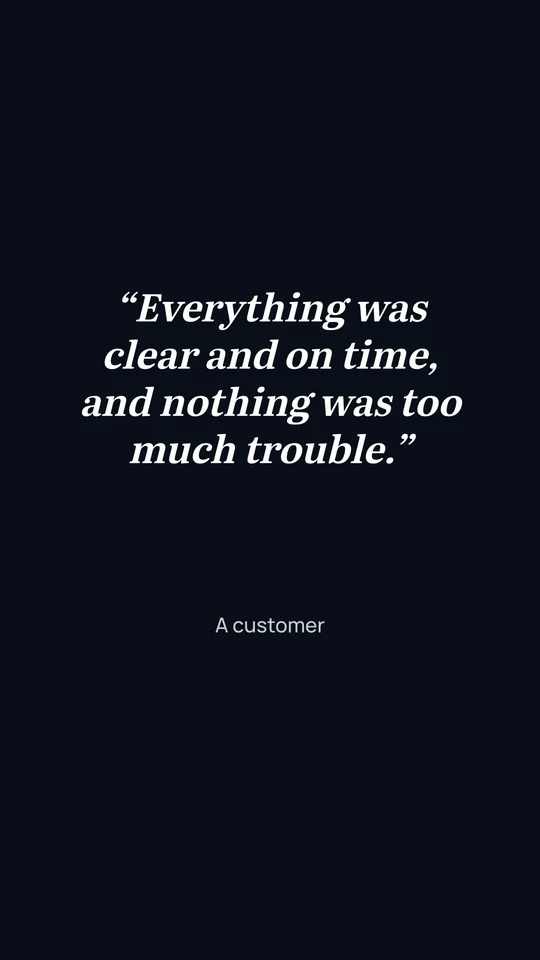 A Customer Says Thank You
 Our Holiday Hours
จากวิดีโอของคุณ
วิดีโอที่เลือกบนโทรศัพท์หรือคอมพิวเตอร์ของคุณจะถูกสร้างเป็นคลิปและถูกวางตำแหน่ง
จากวิดีโอของคุณ
 IMG_2207.MOVPick a video on this device to make a Clip from it.
เทมเพลต
คลิปหนึ่งต่อหนึ่งครั้งการกด
การแตะครั้งที่สองหรือการลองใหม่อีกครั้งจะเปิดคลิปเดิมเสมอ ไม่เปิดคลิปที่สอง
เทมเพลตแต่งสิ่งที่อยู่บนไทม์ไลน์ สิ่งทั้งหมดที่เพิ่มเข้ามาสามารถแก้ไขได้ และคำสั่งยกเลิกจะนำมันกลับ
วิดีโอและดนตรีสต็อก
วิดีโอสต็อก เพลง และเอฟเฟกต์เสียง วางจากห้องสมุดสื่อ
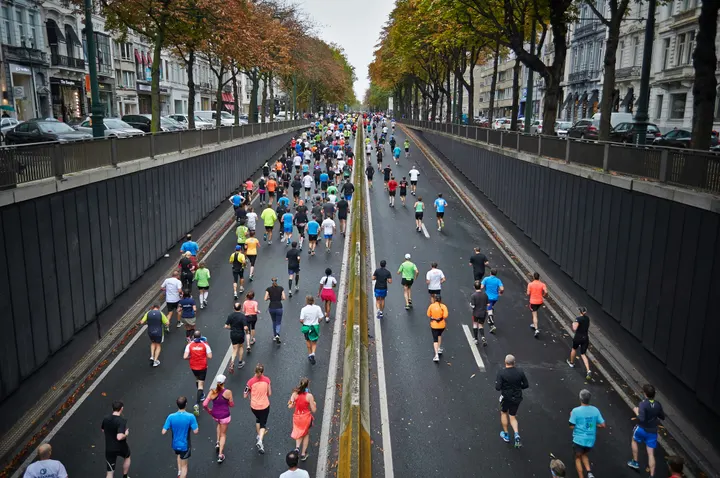 Morning Run0:14
 City Rooftop0:22
 Market Stall0:09
 Studio Light0:18
 Coastline0:31
 Night Crowd0:12
ดนตรี
ต่อจากที่คุณหยุดไว้
คลิปใหม่เทมเพลต
Recent Clips
พบกับทีมเบื้องหลังฉากNew This NovemberA Customer Says Thank YouOur Holiday Hoursแก้ไขคลิปในมือคุณหรือที่ โต๊ะทำงาน
คลิปเปิดเต็มหน้าจอในโทรศัพท์: ภาพตัวอย่างแนวตั้งเหนือไทม์ไลน์หลายคลิป พร้อมซูมด้วยการบีบนิ้ว จัดการตัดแต่ง และกดค้างเพื่อจัดลำดับใหม่ บนโต๊ะทำงาน สามารถเพิ่มสื่อและเครื่องมือทางซ้าย และปรับปรุงทางขวา ใกล้กับภาพตัวอย่างและข้อความสรุป
So, um, twelve new wines by the glass this week.
Three of them are Irish, like, from Wexford. หยุด 1.8 วินาที
The red from Rioja actually, is my pick.
Happy hour runs every day from five to seven.
You know, come early for the window.
ใส่คำบรรยายสำหรับคลิปจากสิ่งที่พูด คำต่อคำ คำ
คำบรรยายจะจับเวลาตามคำพูดทุกคำ ถูกถอดเสียงบนอุปกรณ์ของคุณก่อน และเริ่มต้นด้วยตัวหนาแบบ Pop: ตัวพิมพ์ใหญ่หนาที่สว่างขึ้นเมื่อแต่ละคำถูกพูด ชื่อเรื่องคือหน้าออกแบบ ตั้งแต่หัวข้อจนถึงการ์ดท้ายสุด แก้ไขในเครื่องมือแก้ไขดีไซน์และทำอนิเมชั่นเข้าและออก
แปลงเสียงเป็นข้อความและเพิ่มคำบรรยาย
ทุกคำถูกจับเวลาขณะพูด ในภาษาที่ใช้พูด โดยคำที่กำลังพูดจะสว่างขึ้น
6 คำบรรยาย สร้างจากสิ่งที่พูดในการตัดต่อ ตัดคำออกก่อน แล้วสร้างใหม่
ดู
คำบรรยายถูกสร้างจากคำที่เล่น และถูกจับเวลาทีละคำ
ตัดตามจังหวะ และให้เสียง ชัดเจน
Find Beats ทำเครื่องหมายจังหวะของเสียงบนอุปกรณ์ของคุณ หรือพิมพ์จังหวะหรือแตะเพื่อตั้งค่า การตัดตามจังหวะ (Cut to Beat) จะตัดตรงทุกจังหวะ ทุกสองจังหวะ หรือทุก小节 ในขั้นตอนเดียว เสียงที่กำลังนิยมสามารถเป็นแนวทางที่เก็บไว้บนอุปกรณ์ของคุณ ใช้สำหรับกำหนดเวลาและไม่ถูกส่งออก
เสียงจังหวะบนไทม์ไลน์นี้
ค้นหา Beats
ค้นหาจังหวะในเสียงนี้พบในอุปกรณ์นี้ จากเสียงเอง
ตัดตามจังหวะ
เลือกคลิปที่จะตัด แล้วเลือกความถี่
4 คลิปบน 4 จังหวะ
แก้ไขเป็นเสียง
ใช้เฉพาะเพื่อเวลาเท่านั้น ข้อมูลจะคงอยู่ในอุปกรณ์นี้และไม่ถูกส่งออก
Tempo Grid
แก้ไขเป็นเสียง
ค้นหาเสียงที่กำลังนิยมเลือกเสียงที่นี่ แล้วเพิ่มเป็นเสียงนำทางหรือแตะจังหวะเวลา Calisto ไม่อ่านข้อมูลจากหน้านี้
เสียง
ระดับ
ทำความสะอาด
ลบเสียงรบกวนพื้นหลังการหลบหลีก
เสียงพูดต่ำเสียง
Equalizer
คอมเพรสเซอร์
ติดตาม
ขนาด
อัตราเฟรม
ระดับเสียง
การส่งออกถูกวัดและนำมาที่ระดับเสียงนี้ ไม่เกิน −1 dB true peak
Whole Mix
เร่งความเร็ว รักษาวัตถุให้อยู่ใน เฟรม
รันความเร็วแบบแตะครั้งเดียวห้าแบบ เขียนคีย์เฟรมจริงและตั้งชื่อสิ่งที่ตั้งค่าไว้ พร้อมรักษาการย้อนกลับ, ภาพหยุดนิ่ง และระดับเสียงของเสียงไว้ Auto-Reframe จะหาวัตถุบนอุปกรณ์ของคุณและติดตามมันในกรอบแนวตั้ง การมอง, การเปลี่ยนผ่าน หรือการตัดทุกครั้งจะเปลี่ยนแปลงด้วยการแตะครั้งเดียว
ความเร็ว
คงอยู่ 0:04 ที่ความเร็วนี้ ส่วนที่เหลือของแทร็กจะเคลื่อนตาม
เร่งความเร็ว
กลับ
เล่นย้อนกลับภาพหยุดนิ่ง
หยุดภาพที่จุดเล่นทางลาดความเร็ว
เร่งความเร็ว
ความเร็วเร็วและช้า, ช้ากลาง, ใกล้หยุด, ช้าลง และเร่งความเร็วด้วยเพียงหนึ่งครั้งสัมผัส พร้อมฟังก์ชันย้อนกลับและหยุดภาพนิ่งในคลิปโปร
ปรับกรอบอัตโนมัติ
ขนาด
ปรับกรอบอัตโนมัติ
ปรับกรอบอัตโนมัติสำหรับทุกคลิปปรับกรอบอัตโนมัติสำหรับคลิปที่เลือกแต่ละการบันทึกจะเต็มเฟรมและติดตามบุคคลหรือสิ่งของในนั้น ค้นหาและติดตามบนอุปกรณ์นี้ เลือกขนาดก่อน คีย์ที่มันตั้งค่าอยู่ใน Transform & Keyframes
แต่ละช็อตจะเติมเต็มเฟรมแนวตั้งและติดตามบุคคลหรือวัตถุในนั้น ซึ่งพบได้ที่อุปกรณ์ของคุณ
รูปลักษณ์
รูปลักษณ์
สี่ลุคในหนึ่งแตะ แต่ละอันบอกสิ่งที่ตั้งไว้พอดี และ Undo จะดึงมันกลับ
การเปลี่ยนผ่าน
เข้าคลิปที่เลือก
การเปลี่ยนผ่านซ้อนทับคลิปทั้งสองโดยความยาวของมัน ดังนั้นส่วนที่เหลือของแทร็กจึงเคลื่อนไปทางซ้ายตามนั้น
ในหนึ่งตัด หรือประยุกต์ใช้กับการตัดทั้งหมดพร้อมกัน
ปรับแต่ง
ปรับแต่ง
ความสว่าง ความคมชัด ความอิ่มตัว และอุณหภูมิ
จัดเกรดสี หน้ากาก กุญแจ และติดตามด้วย Pro
Clips Pro คือที่นั่งของบุคคลหนึ่ง เปิดพื้นที่ทำงาน Adjust (การปรับระดับสี, การลดสัญญาณรบกวน และสโคป) และพื้นที่ทำงาน Effects (คีย์เฟรม, หน้ากาก, ชั้นติดตาม, การคีย์สี, การติดตาม และชั้นปรับแต่ง), เพิ่ม Mixer ไปยังการแก้ไข และแสดงการควบคุมที่แม่นยำทุกประการแบบอินไลน์ คลิปที่ถืองาน Pro จะเปิด บันทึก และส่งออกเสมอ ไม่ว่าจะมีที่นั่งหรือไม่ก็ตาม
ระดับสี
ล้อ ระดับ โค้ง .cube LUTs และ Auto Color อ่านค่าจากสโคป
ล้อสี
ระดับ
โค้ง
Look (LUT)
Keyframes พร้อม Clips Pro
ตำแหน่ง ขนาด หมุน ความโปร่งแสง และครอป แบบนุ่มนวล
ตำแหน่งและขนาด
การปรับความเร็วของ Keyframe
ตัดภาพ
ตัด Keyframeหน้ากากและกุญแจ
วาดทับรูปภาพ; ปุ่ม Auto Key จะเลือกสีหน้าจอ
เพิ่มหน้ากาก
Chroma Key
คีย์อัตโนมัติTrack Matte
ติดตามรายการนี้
การติดตาม
Track This ติดตามจุดหรือระนาบและเขียนคีย์เฟรม
ติดตามรายการนี้
เสถียรภาพ
เสถียรด้วยแทร็กสุดท้ายวิถี
ความลึกของคุณเอง
Essentials หรือ Pro ขึ้นอยู่กับความชอบของแต่ละบุคคล ในทุกธุรกิจ
ล้อสี
ระดับ
โค้ง
Look (LUT)
ส่งออกบนอุปกรณ์ของคุณ และเผยแพร่ที่ผู้ชมของคุณ ดู
คลิปจะส่งออกเป็นไฟล์ MP4 ความละเอียด 1080p ในรูปแบบของแต่ละแพลตฟอร์ม บนกราฟิกของอุปกรณ์ของคุณเป็นอันดับแรก และบนเซิร์ฟเวอร์ของ Calisto เมื่อไม่สามารถทำได้ การเผยแพร่จะส่งไปยัง TikTok Instagram Reels หรือ YouTube Shorts ผ่านบัญชีที่ธุรกิจเชื่อมต่อ และระบุว่าเสียงแนะนำใดที่จะเพิ่มไว้ที่นั่น
เผยแพร่
ไป TikTok, Instagram Reels และ YouTube Shorts ผ่านบัญชีของคุณเอง หรือกำหนดเวลาด้วย Impreta
ที่ไหน
รูปแบบเพิ่มเติม
เสียง M4A หรือ MP3; 720p, 4K, WebM, WAV และ ProRes พร้อม Clips Pro
อุปกรณ์นี้จะสร้างไฟล์ หากไม่สามารถเสร็จสิ้นได้ เซิร์ฟเวอร์ของ Calisto จะเข้ามารับช่วงต่อ
แจ้งเตือนพร้อมใช้งาน
การส่งออกเซิร์ฟเวอร์จะประกาศตัวเองด้วย Publish
ส่งไปยังโทรศัพท์
สำหรับ Instagram และ YouTube คลิปจะปรากฏบนโทรศัพท์ของคุณเพื่อโพสต์จากที่นั่น
 9:41
ไฟล์คำบรรยาย
ไฟล์คำบรรยายสำหรับแต่ละภาษาของคำบรรยาย เก็บไว้ใน Depot
ไฟล์คำบรรยาย
เก็บไว้กับมันในไฟล์ของคุณ
ค้นหาคลิปทุกคลิป และจัดเก็บไว้ในที่ที่งาน อยู่
ห้องสมุดจะแสดงคลิปทั้งหมดในบัญชี คลิปใหม่สุดอยู่ก่อนสุด แต่ละคลิปอยู่ในรูปแนวตั้ง พร้อมค้นหา เปลี่ยนชื่อ และลบ คลิปเป็นของธุรกิจและบันทึกผู้สร้าง แหล่งที่มาและการส่งออกเป็นไฟล์ในที่เก็บ Depot ของบัญชี
พบกับทีมเบื้องหลังฉากNew This NovemberA Customer Says Thank YouOur Holiday Hoursจุดที่ Clips สัมผัสทุกอย่าง อื่นๆ.
2 of these 6 connections are in your plan today; the others are their own apps.
Depot
Every source and export is a file in Depot, and every Clip sits in its Hubs.
Video
A landscape or square one opens in Video, and Make Shorts turns a Video’s moments into Clips.
Studio
Create Video opens a design in the Clips editor, with the same Clips Pro seat.
Direct
Make a Clip opens a video post in the Clips editor.
Velocity
A Clip goes on a client project, so the work shows there.
Workforce
A business assigns its Clips Pro seats where its people are set up.
ไม่มีต้นทุนการติดตั้ง จ่ายเมื่อเริ่มใช้งาน
Short vertical videos, captioned and cut on the beat.
Clips Pro
พื้นที่ทำงาน Adjust และ Effects สำหรับคนเดียว บนที่นั่งของตัวเองหรือกับที่นั่งที่สร้าง; ธุรกิจจะมอบหมายที่นั่งให้ผู้คนในองค์กร
สิ่งทั้งหมดที่รวมอยู่ใน Calisto Clips.
- The Clips to pick up again, then the Templates wall, then Recent Clips.
- New Clip makes an Untitled Clip at once, 9:16 in the vertical template, and opens it; its captions start in Bold Pop when you add them.
- Templates: Reel, Short or TikTok, Intro Title, End Card, Name and Role, Chapter Cards, and Blank.
- A video dropped anywhere on Home is made a Clip with the video placed (MP4, MOV or WebM).
- Every door that makes a Clip makes exactly one per press, even after a retry.
- 9:16 at 1080 × 1920 and 30 fps, mixed to −14 LUFS, until you change it in Clip Settings.
- Clip Settings: the size for each platform, the frame rate, the loudness target and the whole mix.
- Renamed from its title in the editor header; autosaved, with Saving, Saved and Not Saved shown.
- Edits from two windows are merged; one that cannot be merged shows the saved version and offers yours back.
- A landscape or square one opens in Video, which says so.
- Cut to Beat and Captions up front in the header.
- The left rail adds: Media, Record, Audio, Text, Captions, Transitions, Effects and Templates.
- The right rail refines: Clip, Transform & Keyframes, Adjust, Speed, Audio, Caption Style and Clip Settings.
- Essentials folds each panel’s precise controls behind one More; Pro shows them inline.
- The transcript beside the preview on a desk: cut words to cut the video, Remove Filler Words, Remove Silences, and restore what was removed.
- The strip: play, In and Out, markers, snapping, ripple and zoom; tracks with mute, lock and hide.
- Search Actions (⌘K), the shortcuts list (⌘/) and a right-click menu for the selection; undo and redo.
- Keys: Space, J, K and L, I and O, S or ⌘B to split, delete and ripple delete, duplicate, nudge, zoom and markers.
- Upload from the device, or place your files from Depot; a 720p proxy is made on the device.
- Record the camera, the screen or the microphone into the Clip.
- A teleprompter: your script scrolls over the preview at a reading pace while you record, in your size, mirrored for a glass if you want, and never in the video.
- Waveforms and thumbnails drawn on the device.
- Captions word-timed from the transcript, made on the device, with Calisto’s servers as the fallback.
- Caption looks: Classic, Bold Pop, Boxed, Minimal, Neon and Big Center.
- Caption Style: font, size, all capitals, colors and height on screen; weight, width and lines under More.
- Translate Captions: a caption track in any of 31 languages, at the same times and in the same look, shown in place of the original and edited like any caption.
- Speaker Coach: each speaker’s pace, filler words, long pauses, words said twice and quiet words, each a moment to jump to, read on the device.
- Designed titles (Headline, Lower Third, Quote, Pop, Label, Chapter, End Card), edited in the design editor.
- In Your Brand: captions and titles set in the brand kit’s fonts and colors in one tap, its fonts and colors listed first, and its logo placed as a title.
- In and Out animations on any picture, title or sticker: Fade, Rise, Drop, Slide, Pop, Zoom and Spin.
- The beats lane on the desk and the phone, and Snap to Beats.
- Find Beats in a sound, on the device; or a Tempo Grid from a typed BPM or Tap Tempo.
- Cut to Beat on every beat, every two or every bar, in one undo step that names what it did.
- Guide sounds: a sound from the device for timing only, never uploaded, kept or exported; the track says Timing Only.
- Find a Trending Sound opens TikTok Creative Center’s trending songs, and Instagram Reels and YouTube Shorts with where their Trending list is in the app.
- Speed: constant speed, five one-tap ramps that name what they set, Reverse, Freeze Frame and keep the voice’s pitch.
- The ramp curve editor at Pro.
- Auto-Reframe finds the subject on the device and keeps it in the vertical frame.
- Stabilize in one tap, on the desk and the phone: the shake taken out on the device, a deliberate pan kept.
- Transitions on one cut or on every cut, with their exact length under More.
- Looks (Natural, Warm, Cool, Vivid, Black and White, Faded, Punchy, Moody) and Auto, which reports what it set.
- Adjust: brightness, contrast, saturation and temperature.
- Volume, remove background noise and lower music under voices.
- Gain, volume keyframes, a noise gate, an equalizer, a compressor, track volume and pan with Clips Pro.
- One-tap voice presets (Clear Voice, Broadcast, Studio Clean, Warm), each saying what it set and undone in one step.
- The Adjust workspace: Color Grade (wheels, levels, curves, .cube LUTs with intensity, Auto Color) and Scopes.
- The Effects workspace: Transform & Keyframes with named or custom eases, Masks (rectangle, ellipse, pen), Key with Auto Key and the eyedropper, Tracking and adjustment layers.
- Masks, keys and trackers drawn and edited on the picture.
- Stabilize: a tracked point or plane held still, zoomed to hide the moving edges.
- The Mixer: every track and bus a channel with a fader, pan, mute, solo, a live meter, its route and a channel strip (EQ, then compressor); buses added and named there.
- Every precise control inline, without More.
- Without the seat, Pro reads Pro · Upgrade, or Ask for a Pro Seat for a team member.
- A Clip that already holds Pro work always opens, saves, plays and exports.
- Essentials or Pro is each person’s own preference, the same in every business.
- MP4 at 1080p, each platform’s shape, and M4A or MP3 audio.
- Each caption track as an SRT or WebVTT subtitle file, downloaded and kept with the Clip in Depot.
- 720p, 4K, WebM and WAV, and an export on Calisto’s servers by choice, with Clips Pro.
- With Clips Pro, the codec (H.264, HEVC or AV1; VP9 or AV1), ProRes 422 HQ and 4444, and the frame rate from 23.976 to 60.
- Exported on the device’s graphics first; on Calisto’s servers when the device cannot, or when you choose.
- A finished export is kept with the Clip in your files on Depot storage.
- A server export sends a notice when it is ready, with Publish on it; a failed one says so.
- Publish from the ⋯ menu or the export notice: TikTok, Instagram Reels and YouTube Shorts.
- Schedule with Impreta: the finished Clip opens in Impreta’s composer, and its queue and calendar send it when it is due (with Impreta).
- Over the accounts the business connects, from inside Clips.
- A Clip edited against a guide sound says which sound to add on the network and where it starts.
- Send to Phone, for Instagram and YouTube: a notice on your own phone that opens the publish dialog on the Clip, to post from there.
- Every Clip, newest edit first, each in its 9:16 shape; search by title.
- Rename and Delete from a card or from the checked cards.
- Hubs in the sidebar narrow the Library to one Hub (with Depot).
- Assign to Project puts a Clip on a client project (with Velocity).
- The account’s Depot storage shown in the header.
- A Clip belongs to the account and records who made it; anyone in the account who opens Clips can open it.
- Edited together: everyone in a Clip sees the others’ edits as they happen, who else is in it and where their playheads are.
- Comments pinned to a moment of the Clip, with replies, @mentions, assign and resolve, marked on the timeline; a reviewer’s notes from the review link show at their moments too.
- Home, Library and Settings in the tab bar; + is New Clip.
- Home leads with From Your Videos: a video picked on the phone is made a Clip with it placed.
- The phone editor takes the whole screen: a vertical preview, a multi-clip timeline under a centered playhead, pinch zoom, trim handles and press and hold to reorder.
- Its ⋯ holds Publish and Clip Settings; its tool bar leads with Captions and Audio.
- Shortcuts: New Clip, Templates and Library. A video shared from the Share sheet is made a Clip.
- The Library two across, with pull to refresh and the selection bar.
- Home and the Library open with no signal, showing the Clips last read on that device, when you keep them there.
- On a desktop, Clips comes in the Calisto app, installed from the browser or the Microsoft Store, with the Recent Clips widget on Windows.
- Every source and export is a file on the account’s one Depot storage.
- Each Clips Pro seat adds its included storage to that same storage (with Depot).
- Proxies and the render cache are working copies and never count.
- General: the business, its design and sign-in, the one business record.
- Clips: Essentials or Pro (your own preference), the Depot storage Clips use, and This Device.
- A business assigns its Clips Pro seats where its people are set up (with Workforce).
Questions about Calisto Clips
พื้นที่ทำงาน The Edit: เทมเพลต เส้นเวลาโทรศัพท์ การบันทึก สื่อของคุณจาก Depot คำบรรยายจากบทสนทนา หัวข้อที่ออกแบบ การเปลี่ยนภาพ การดูแบบแตะเดียวและเสียง ตัดตามจังหวะ ความเร็วแบบขั้นบันได การปรับเฟรมอัตโนมัติ การส่งออกและการเผยแพร่ ทุกคนที่ลงชื่อเข้าใช้จะมีสิ่งนี้ โดยไม่ต้องตรวจสอบแผน
ปรับแต่ง (ปรับสีด้วยล้อ ระดับ เส้นโค้ง .cube LUTs และ Auto Color การลดเสียงรบกวนและสโคป) เอฟเฟกต์ (คีย์เฟรม หน้ากาก ชั้นติดตามและปรับแต่ง chroma key ด้วย Auto Key การติดตามและชั้นปรับแต่ง) มิกเซอร์ เกน เกต อีควอไลเซอร์ และคอมเพรสเซอร์สำหรับเสียงใดๆ และการส่งออก 720p 4K WebM WAV และ ProRes ที่นั่ง Clips Pro เป็นของบุคคลหนึ่งคน และเพิ่มพื้นที่เก็บข้อมูล Depot ของมันให้กับบัญชี ที่นั่ง Create ก็ถือไว้เช่นกัน สมาชิกในทีมที่ไม่มีหนึ่งสามารถขอหนึ่งจากบรรณาธิการได้
มันยังคงเปิด บันทึก เล่น และส่งออกได้ ระดับ หน้ากาก และคีย์ยังคงเหมือนเดิม และเครื่องมือ Essentials ยังคงทำงานกับมันได้
ผู้แก้ไขหนึ่งคนและบันทึกหนึ่งรายการ แนวตั้งหนึ่งรายการคือคลิปและเปิดในคลิป; แนวตั้งหรือสี่เหลี่ยมจัตุรัสหนึ่งรายการคือวิดีโอและเปิดในวิดีโอ การทำ Shorts ของวิดีโอจะเปลี่ยนช่วงเวลาของวิดีโอที่ยาวเป็นคลิป แต่ละอย่างมีที่นั่ง Pro ของตัวเอง และที่นั่งสร้างถือทั้งสองอย่าง
TikTok, Instagram Reels และ YouTube Shorts ผ่านบัญชีที่ธุรกิจเชื่อมต่อ สำหรับ Instagram และ YouTube Send to Phone จะนำคลิปไปยังโทรศัพท์ของคุณเพื่อโพสต์จากที่นั่น คลิปที่ตัดต่อโดยใช้เสียงที่เก็บไว้เฉพาะบนอุปกรณ์ของคุณจะระบุเสียงที่จะเพิ่มบนเครือข่ายและจุดเริ่มต้น
ใช่ ในฐานะผู้แนะนำ การเปิดเพลงที่กำลังนิยม (Find a Trending Sound) จะแสดงเพลงที่กำลังนิยมบน TikTok รวมถึง Reels และ Shorts พร้อมตำแหน่งของรายการที่กำลังนิยมในแอป เสียงที่คุณเพิ่มจากอุปกรณ์ของคุณจะถูกใช้สำหรับการจับเวลาเท่านั้น: ไม่มีการอัปโหลด, เก็บไว้ใน Depot หรือส่งออก
ข้อความบรรยายและคำบรรยายถูกเขียนขึ้นในภาษาที่พูด จับเวลาตามคำต่อคำบนอุปกรณ์ของคุณก่อน จากนั้น Translate Captions จะสร้างแทร็กคำบรรยายในภาษาใดก็ได้ของ 31 ภาษา ในเวลาเดียวกันและรูปแบบเดียวกัน เพื่อให้คุณแก้ไขได้ โดยแต่ละภาษาจะมีไฟล์คำบรรยายแยกกัน
หน้าหลักและห้องสมุดจะเปิดได้แม้ไม่มีสัญญาณและแสดงคลิปที่อ่านล่าสุดบนอุปกรณ์นั้น เมื่อคุณเก็บคลิปไว้ที่นั่น (การตั้งค่า, อุปกรณ์นี้) การสร้างหรือแก้ไขคลิปต้องการการเชื่อมต่อ เนื่องจากวิดีโอของมันอยู่ใน Depot
