แก้ไขวิดีโอยาวตั้งแต่การตัดครั้งแรกจนถึง การส่งออก
นำวิดีโอของคุณมาวางบนไทม์ไลน์ ตัดเป็นเฟรมต่อเฟรม หรือลบคำพูดออก เพิ่มคำบรรยายและหัวข้อ แล้วโพสต์ลงช่องทางต่างๆ ของคุณ จากคอมพิวเตอร์หรือโทรศัพท์มือถือ
วิดีโอทุกชิ้น ตั้งแต่การถ่ายครั้งแรกจนถึง โพสต์
ตอนสัมภาษณ์ วิดีโอผลิตภัณฑ์ และภาพยนตร์ที่ธุรกิจสร้างขึ้นเกี่ยวกับตนเอง
เริ่ม
ภาพเคลื่อนไหว การบันทึก หรือแม่แบบ
แก้ไข
โดยกรอบหรือโดยคำ
เสียง
ความผสมผสาน เสียง และจังหวะ
คำบรรยาย
ทุกคำถูกกำหนดเวลา ทุกส่วนมีชื่อหัวข้อ
วิดีโอโปร
สี, หน้ากาก, คีย์ และ multicam
เผยแพร่
ส่งออก, กางเกงขาสั้น และช่องทางต่างๆ
บนโทรศัพท์
วิดีโอเดียวกันในมือของคุณ
เริ่มวิดีโอจากภาพเคลื่อนไหว การบันทึก หรือ เทมเพลต
New Video เปิดทีละหนึ่ง กรอบอัตราส่วน 16:9 พร้อมหัวข้อแนะนำและการ์ดท้ายคลิป วางฟุตเทจที่หน้าหลัก หรือเลือกภายใต้ Media และจะถูกวางไว้ แหล่งข้อมูลและการส่งออกทั้งหมดเป็นไฟล์ใน Depot และวิดีโอทุกชิ้นจะอยู่ใน Hubs ของมัน
บันทึก
กล้อง หน้าจอพร้อมไมโครโฟน หรือไมโครโฟนเพียงอย่างเดียว ที่ตำแหน่งหัวเล่น
แหล่งที่มา
การบันทึกถูกบันทึกไว้ในไฟล์ของคุณและถูกวางที่จุดเล่นเมื่อคุณหยุด
โทรพรอมปเตอร์
สคริปต์ของคุณจะเลื่อนผ่านตัวอย่างด้วยความเร็วที่คุณอ่านขณะบันทึก และจะสะท้อนกลับหากคุณต้องการสำหรับกระจก แต่จะไม่ปรากฏในวิดีโอ
แหล่งที่มา
การบันทึกถูกบันทึกไว้ในไฟล์ของคุณและถูกวางที่จุดเล่นเมื่อคุณหยุด
โทรพรอมปเตอร์
Bienvenidos a Spa Brisa. Aquí cada visita empieza con un té y una conversación. Después elegimos juntos el masaje que necesitas, y el resto del día es tuyo.
แสดงเหนือตัวอย่างกระจกสำหรับเทเลพรอมปเตอร์ใช้เวลาอ่านประมาณ 0:12 นาที สคริปต์จะเริ่มจากด้านบนในแต่ละครั้งการถ่ายทำ และจะไม่ปรากฏในวิดีโอ
เทมเพลต
วิดีโอ YouTube, ชื่อหัวข้อแนะนำ, การ์ดบท, ชื่อและบทบาท, การ์ดจบ, โพสต์สี่เหลี่ยม และอะวอดิโอแกรม
เทมเพลตแต่งสิ่งที่อยู่บนไทม์ไลน์ สิ่งทั้งหมดที่เพิ่มเข้ามาสามารถแก้ไขได้ และคำสั่งยกเลิกจะนำมันกลับ
วิดีโอและดนตรีสต็อก
วิดีโอสต็อก เพลง และเอฟเฟกต์เสียง วางจากห้องสมุดสื่อ
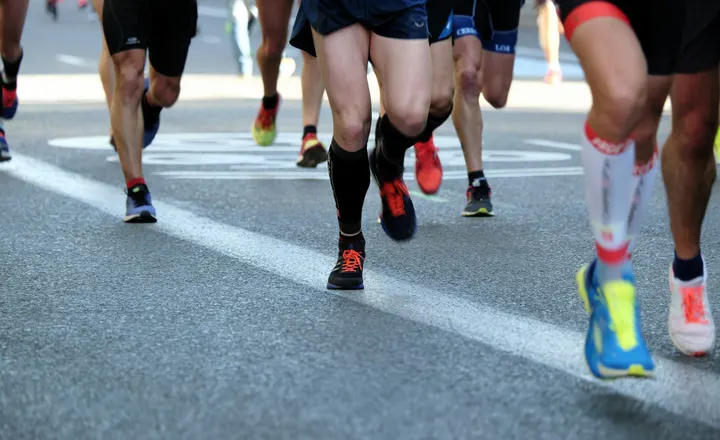 Morning Run0:14
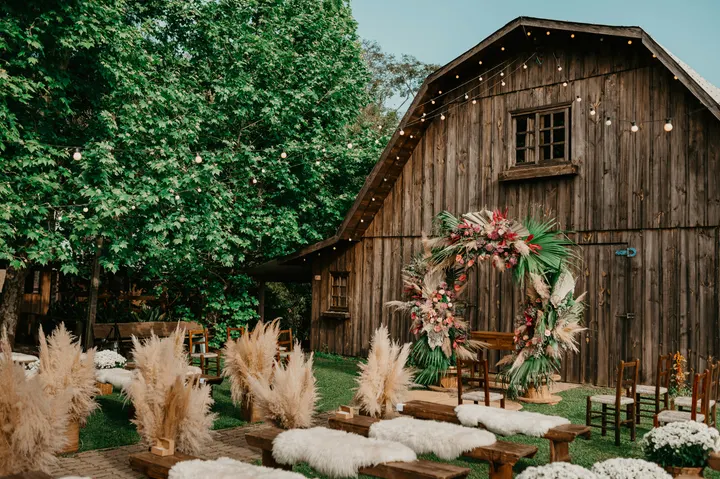 City Rooftop0:22
 Market Stall0:09
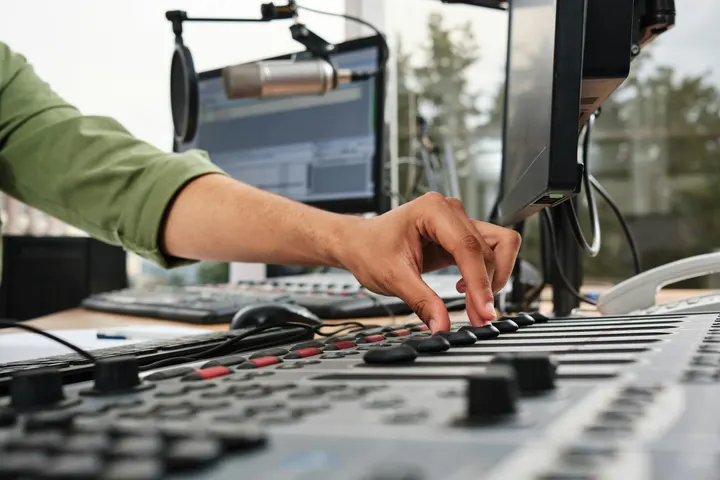 Studio Light0:18
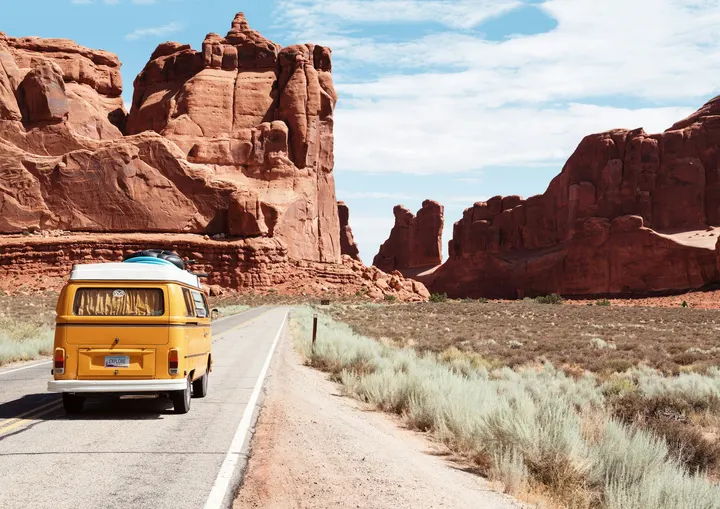 Coastline0:31
 Night Crowd0:12
ดนตรี
ห้องสมุดและ Hubs
ค้นหา เปลี่ยนชื่อ และจัดเก็บวิดีโอทุกชิ้น หรือใส่ลงในโครงการลูกค้าด้วย Velocity
 Casa Ámbar
 Trattoria Lucia
 Northside Strength
 Spa Brisa
 Atelier Noor
 Tejo Residências
 Harbourline
 Ridgeview Golf Club
แหล่งที่มา
การบันทึกถูกบันทึกไว้ในไฟล์ของคุณและถูกวางที่จุดเล่นเมื่อคุณหยุด
ตัดบนไทม์ไลน์หลายแทร็ก โดยเฟรมหรือโดย คำ
วิดีโอ, เสียง, ข้อความ และแทร็กการปรับแต่ง พร้อมการแยก, การลบบน, เครื่องหมาย และคีย์ที่บรรณาธิการใช้กันอยู่แล้ว ข้อความถอดเสียงจะอยู่เคียงข้างเส้นเวลา: ลบคำและช่วงเวลาของมันจะถูกตัดออก, และฟังก์ชัน "ลบคำเติม" และ "ลบความเงียบ" จะล้างการบันทึกแต่ละครั้งในขั้นตอนเดียว
So, um, pick a desk for the day or keep one for the month.
Meeting rooms are booked from your phone, like, in a couple of taps. หยุด 2.4 วินาที
I moved my whole team in here last March, actually, and we never looked back.
The coffee is free, the view is the harbour, and the door opens at seven.
You know, it just works.
ผสมเสียง ทำเสียงให้ชัดเจน และตัดต่อให้เข้ากับจังหวะ beat
คลิปวิดีโอทุกคลิปจะมีระดับเสียง การลดเสียงรบกวนพื้นหลัง และดนตรีที่ลดระดับลงใต้เสียงพูด วิดีโอจะรักษาระดับเสียงให้ตรงกับเป้าหมายที่คุณเลือก ไม่ว่าจะเป็นการสตรีมมิ่ง พอดแคสต์ หรือการแพร่สัญญาณ และจังหวะที่พบในเสียงจะกลายเป็นการตัดต่อในทุกจังหวะหรือทุกท่อน
เสียง
เสียงจังหวะบนไทม์ไลน์นี้
ค้นหา Beats
ค้นหาจังหวะในเสียงนี้พบในอุปกรณ์นี้ จากเสียงเอง
ตัดตามจังหวะ
เลือกคลิปที่จะตัด แล้วเลือกความถี่
4 คลิปบน 4 จังหวะ
แก้ไขเป็นเสียง
ใช้เฉพาะเพื่อเวลาเท่านั้น ข้อมูลจะคงอยู่ในอุปกรณ์นี้และไม่ถูกส่งออก
Tempo Grid
ขนาด
อัตราเฟรม
ระดับเสียง
การส่งออกถูกวัดและนำมาที่ระดับเสียงนี้ ไม่เกิน −1 dB true peak
Whole Mix
ระดับ
ทำความสะอาด
ลบเสียงรบกวนพื้นหลังการหลบหลีก
เสียงพูดต่ำเสียง
Equalizer
คอมเพรสเซอร์
ติดตาม
ใส่คำบรรยายทุกคำ และตั้งชื่อแต่ละ ส่วน
แปลงเสียงและเพิ่มคำบรรยายทีละคำ ในภาษาที่พูด พร้อมเน้นคำที่พูด หน้าปกคือหน้าออกแบบ: หัวข้อ ชื่อและบทบาท คำพูด การ์ดบทที่ทุกจุด และการ์ดจบ
แปลงเสียงเป็นข้อความและเพิ่มคำบรรยาย
ทุกคำถูกจับเวลาขณะพูด ในภาษาที่ใช้พูด โดยคำที่กำลังพูดจะสว่างขึ้น
24 คำบรรยาย สร้างจากสิ่งที่พูดในการตัดต่อ ตัดคำออกก่อน แล้วสร้างใหม่
ดู
คำบรรยายถูกสร้างจากคำที่เล่น และถูกจับเวลาทีละคำ
จัดเกรด, หน้ากาก, กุญแจ, ติดตามและตัดวิดีโอหลายกล้องด้วย Video Pro
ปรับแต่งสีเกรดด้วยล้อ ระดับ เส้นโค้ง LUTs และ Auto Color อ่านค่าจากสโคป เอฟเฟกต์เพิ่มหน้ากาก คีย์สีโครมา ติดตามแมตต์ การติดตาม การทำให้เสถียร และเลเยอร์การปรับแต่ง ส่วนแก้ไขได้รับ Multicam ลำดับชั้นซ้อนกันและเครื่องผสม วิดีโอที่มีงานระดับมืออาชีพจะเปิดและเล่นเสมอ ไม่ว่าจะมีที่นั่งหรือไม่ก็ตาม
ระดับสี
ล้อ ระดับ โค้ง และสีอัตโนมัติ พร้อมลุคแปดแบบของ Calisto เอง หรือไฟล์ลุคของคุณเอง
ล้อสี
ระดับ
โค้ง
Look (LUT)
ขอบเขต
คลื่นเสียง RGB parade vectorscope และฮิสโตแกรม
ขอบเขต




อ่านจากกรอบที่แสดงตัวอย่างตามที่ได้รับการประเมิน
หน้ากาก กุญแจ และการติดตาม
หน้าจอภาพแบบสี่เหลี่ยม วงรี และปากกา, กุญแจอัตโนมัติสำหรับฉากเขียว และหัวข้อที่ติดตามสิ่งที่เคลื่อนไหวในภาพ
เพิ่มหน้ากาก
Chroma Key
คีย์อัตโนมัติTrack Matte
ติดตามรายการนี้
หลายกล้อง
มุมมองที่ซิงค์ด้วยเสียงหรือรหัสเวลา เปลี่ยนผ่านปุ่ม 1 ถึง 9
มุมมอง
มุมกล้อง: คลิกที่มุมใดมุมหนึ่งเพื่อตัดไปที่มุมนั้น
 1Wide
 2Thandi
 3Sipho
 4Desk
รายการตัด
แต่ละการตัดคือคลิปบนไทม์ไลน์: ลากขอบเพื่อเคลื่อนย้ายการตัด
ลำดับขั้นซ้อน
การเลือกที่ทำในลำดับหนึ่ง สามารถนำไปใช้ซ้ำในวิดีโอใดๆ ก็ได้
จัดกลุ่มการเลือก
คลิปที่เลือกจะรวมเป็นหนึ่งคลิปที่เล่นลำดับของตัวเอง เปิดเข้าไปแก้ไขภายใน ทุกตำแหน่งที่ใช้คลิปนี้จะมีการอัปเดตตามไปด้วย
แทรกลำดับ
ความลึกของคุณเอง
แต่ละคนเลือก Essentials หรือ Pro สำหรับตัวเอง
ล้อสี
ระดับ
โค้ง
Look (LUT)
ส่งออกมัน ตัดเป็น Shorts แล้วเผยแพร่ มัน
ส่งออกเป็น MP4 เฟรม YouTube โพสต์แนวตั้งหรือสี่เหลี่ยม หรือเสียง บนอุปกรณ์หรือเซิร์ฟเวอร์ของ Calisto การทำ Shorts จะเสนอช่วงเวลาจากบทสรุปของวิดีโอ แต่ละช่วงจะถูกสร้างเป็นคลิปใน Clips การเผยแพร่จะส่งไปยัง TikTok Instagram Reels หรือ YouTube ผ่านการเชื่อมต่อของคุณเอง
ส่งออก
ไฟล์สำหรับ YouTube, โพสต์แนวตั้งหรือสี่เหลี่ยม, หรือเสียงเพียงอย่างเดียว ที่สร้างบนอุปกรณ์นี้หรือบนเซิร์ฟเวอร์ของ Calisto; 4K และ ProRes พร้อม Video Pro
อุปกรณ์นี้จะสร้างไฟล์ หากไม่สามารถเสร็จสิ้นได้ เซิร์ฟเวอร์ของ Calisto จะเข้ามารับช่วงต่อ
สร้างคลิปสั้น
ช่วงเวลาที่ทำงานได้ด้วยตนเองจะถูกคัดเลือกจากสิ่งที่กล่าวหา และแต่ละช่วงจะกลายเป็นคลิปที่มีคำบรรยายใน Clips
Calisto อ่านสิ่งที่พูดในวิดีโอนี้และเสนอช่วงเวลาที่เหมาะสมเอง คุณเลือก; แต่ละช่วงจะกลายเป็นคลิปที่ถูกจัดกรอบใหม่และใส่คำบรรยาย
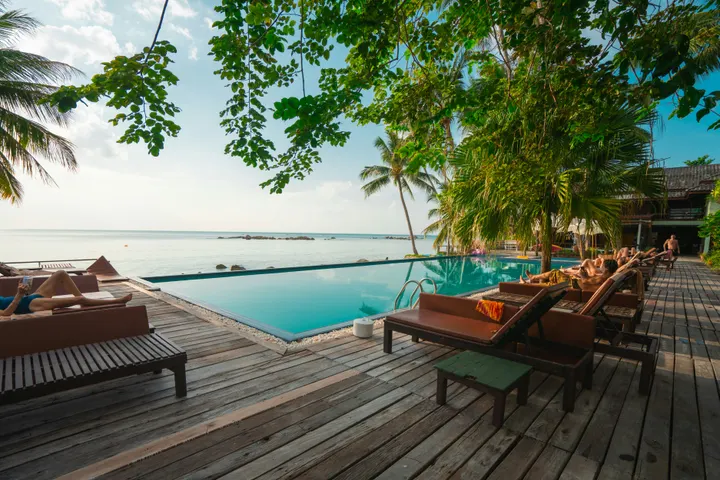 คลิป 10:42 ถึง 1:08 · ความยาว 0:26“Every room opens onto the courtyard light.”
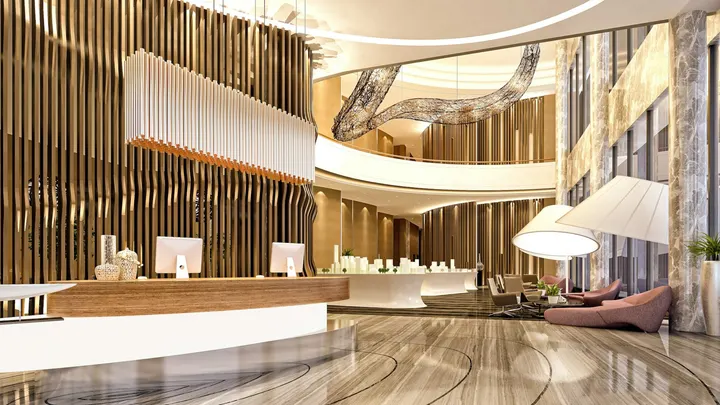 คลิป 21:31 ถึง 1:52 · ความยาว 0:21“Breakfast is served by the pool from seven.”
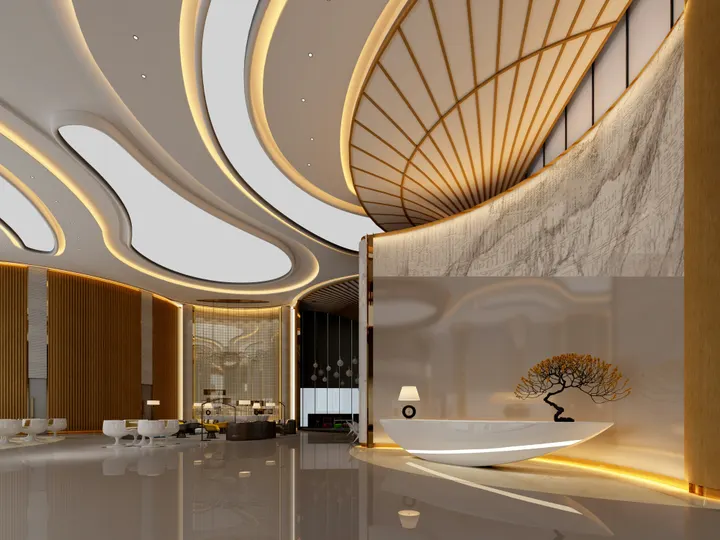 คลิป 32:40 ถึง 3:12 · ความยาว 0:32“Our guests come back for the people, not the pool.”
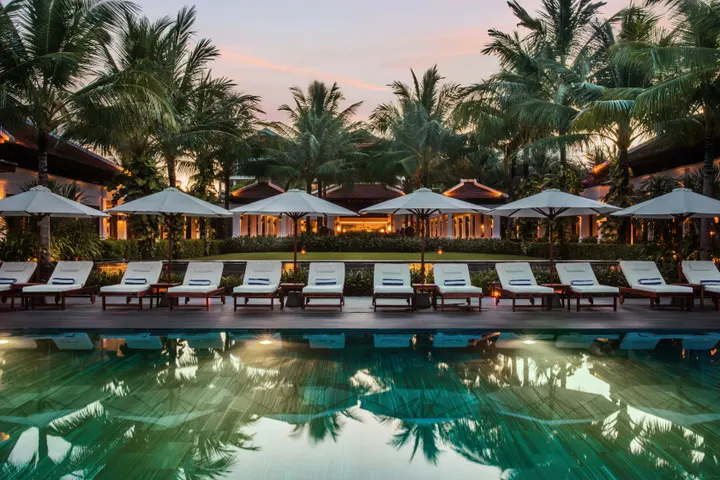 คลิป 44:05 ถึง 4:27 · ความยาว 0:22“Oaxaca is ten minutes away on foot.”คลิป 55:18 ถึง 5:44 · ความยาว 0:26“Lucía greets every guest by name.”
เผยแพร่
ไป TikTok, Instagram Reels และ YouTube ผ่านบัญชีของคุณเอง หรือกำหนดเวลาด้วย Impreta
ที่ไหน
ปรับกรอบอัตโนมัติ
คลิปทุกคลิป หรือคลิปที่เลือก ถูกจัดกรอบใหม่เป็นรูปทรงใหม่
ขนาด
ปรับกรอบอัตโนมัติ
ปรับกรอบอัตโนมัติสำหรับทุกคลิปปรับกรอบอัตโนมัติสำหรับคลิปที่เลือกแต่ละการบันทึกจะเต็มเฟรมและติดตามบุคคลหรือสิ่งของในนั้น ค้นหาและติดตามบนอุปกรณ์นี้ เลือกขนาดก่อน คีย์ที่มันตั้งค่าอยู่ใน Transform & Keyframes
ส่งไปยังโทรศัพท์
สำหรับ Instagram และ YouTube วิดีโอจะปรากฏบนโทรศัพท์ของคุณเพื่อโพสต์จากที่นั่น
 9:41
แจ้งเมื่อเสร็จสิ้นแล้ว
การส่งออกเซิร์ฟเวอร์ส่งการแจ้งเตือนพร้อม Publish บนนั้น
ไฟล์คำบรรยาย
ไฟล์คำบรรยายสำหรับแต่ละภาษาของคำบรรยาย เก็บไว้ใน Depot
ไฟล์คำบรรยาย
เก็บไว้กับมันในไฟล์ของคุณ
แก้ไขวิดีโอเดียวกันบนโทรศัพท์ แม้จะออฟไลน์
ตัวแก้ไขครอบคลุมทั้งหน้าจอ พร้อมฟังก์ชันยกเลิกที่แตะเดียวตัดต่อด้วยนิ้ว และปุ่มสร้าง Shorts และเผยแพร่ในเมนู คลิปวิดีโอจากแกลเลอรี่จะกลายเป็นวิดีโอใหม่ หากเปิดใช้งานเก็บวิดีโอในอุปกรณ์นี้ การแก้ไขที่ทำออฟไลน์จะถูกบันทึกเมื่อสัญญาณกลับมา
จุดที่วิดีโอสัมผัสกับทุกสิ่งอื่นๆ.
3 of these 5 connections are in your plan today; the others are their own apps.
Depot
Every source and export is a file in Depot, and every Video sits in its Hubs.
Clips
Make Shorts turns a Video’s moments into Clips, which open in Clips.
Creators
A Calisto TV video’s edit is a Video, opened from Creators.
Velocity
A Video goes on a client project, so the work shows there.
Workforce
A business assigns its Video Pro seats where its people are set up.
ไม่มีต้นทุนการติดตั้ง จ่ายเมื่อเริ่มใช้งาน
Long-form video, from the first cut to the export.
วิดีโอโปร
ปรับแต่ง เอฟเฟกต์ มัลติแคม ลำดับซ้อนกัน และเครื่องผสม สำหรับหนึ่งคน บนที่นั่งของตัวเองหรือสร้างที่นั่งใหม่; ธุรกิจจะมอบที่นั่งให้พนักงานของตน
แนะนำสำหรับคุณ
ทำงานร่วมกันได้ดี
Calisto Depot
Calisto Clips
Calisto Creators
Included with any app a creator works in
Inquiries, proposals, appointments, projects and galleries for client work, and posts, videos, podcasts, live, memberships, courses, digital products and prints for your audience, in one app.
Learn more →Calisto Velocity
Calisto Workforce
สิ่งทั้งหมดที่รวมอยู่ใน Calisto Video.
- Home: the Videos to pick up again, New Video, Recent Videos beside the Media bin (the account’s videos in Depot).
- New Video makes Untitled Video at once, in the YouTube Video template, and opens it; it is renamed in the editor’s header.
- Footage dropped anywhere on Home, or picked in the Media bin, makes a Video with it placed.
- Library: every Video, newest edit first, searched by title, with Rename, Delete, Assign to Project and Move To a Hub’s Folder, from a card or the checked cards.
- The Hubs in the sidebar each open the Library narrowed to that Hub.
- The account’s Depot storage is shown in the Library’s header.
- A vertical video is a Clip: anything that shows one says Open in Clips.
- A new Video: 16:9 at 30 fps, loudness at −14 LUFS, classic captions, the 1080p MP4 export first.
- Size: Landscape (16:9), Vertical (9:16), Square (1:1), Portrait (4:5), Widescreen (21:9) and 4K (16:9), or an exact width and height.
- Frame Rate: 24, 25, 29.97, 30, 50 or 60.
- Loudness: Streaming and Social (−14 LUFS), Podcast (−16), Podcast Mono (−19), Broadcast (−23), or Leave As Recorded, never past a −1 dB true peak.
- The whole mix: volume, background noise removed from everything, fade in and fade out.
- Auto-Reframe every clip, or the selected clips, to a new shape, on the device.
- Stabilize the selected clips in one tap, on the desk and the phone: the shake taken out on the device, a deliberate pan kept.
- The Video’s client project (with Velocity).
- Media: upload files, or pick from the Media Library in Depot; add as picture in picture.
- A proxy is made on the device for editing; the export uses the original.
- Elements and Stickers: the design editor’s elements, stickers and emoji, placed on the picture.
- Record: camera, screen with the microphone, or microphone alone, with a live level meter; the take is saved to your files and placed at the playhead.
- A teleprompter: your script scrolls over the preview at a reading pace while you record, in your size, mirrored for a glass if you want, and never in the video.
- Audio: upload music or a sound, or pick one from Depot, and lower it under voices.
- Text: Headline, Lower Third, Quote, Pop, Label, Chapter and End Card, each a designed title edited in the design editor, with an animation in and out (Fade, Rise, Drop, Slide, Pop, Zoom or Spin).
- Templates: Intro Title, End Card, Name and Role, Chapter Cards, YouTube Video, Reel, Short or TikTok, Square Post and Audiogram.
- Transitions: crossfades, dissolves, fades through black, wipes, slides, shapes and more, on one cut or applied to every cut, with their length.
- A multitrack timeline: video, audio, text and adjustment tracks, each muted, locked, hidden, renamed, moved or deleted.
- Split, cut, copy, paste, duplicate, delete and ripple delete; trim; snapping and ripple editing switched with a key.
- Markers, named as chapters, in their own lane.
- The transcript beside the timeline: delete words to cut them, remove filler words and silences, restore what was removed.
- Speed from 0.25x to 8x, keeping the voice’s pitch, or an exact speed; speed ramps (Fast and Slow, Slow Middle, Near Stop, Slow Down, Speed Up) or the curve edited by hand; reverse; a freeze frame at the playhead.
- Transform: position, scale and rotation dragged in the preview; with Video Pro, position, scale, rotation, opacity and crop keyframed with easing.
- Adjust: brightness, contrast, saturation and temperature on any clip.
- Looks in one tap: Natural, Warm, Cool, Vivid, Black and White, Faded, Punchy, Moody.
- Undo and redo of every change; a save failed shows Retry, and an edit made elsewhere at the same time offers Restore My Version.
- ⌘K searches every action; ⌘/ lists every key: J, K and L, I and O, S to split, M for a marker, ⌘E to export and more.
- Volume, background noise removed, and music lowered under voices, on every clip.
- With Video Pro: gain, a gate for the quiet parts, an equalizer, a compressor, track volume, pan and volume keyframes.
- Voice in one tap: Clear Voice, Broadcast, Studio Clean, Warm, or As Recorded.
- Beats found in a sound on the device, snapped to, and cut to (every beat, every two beats or every bar), placed or split on the beats.
- A tempo grid by BPM or Tap Tempo; a guide sound to edit against, kept on the device and never exported.
- Find a Trending Sound opens TikTok’s Creative Center, Instagram Reels and YouTube Shorts.
- Transcribe and Add Captions: the words timed one by one, on the device first and on Calisto’s servers when it cannot.
- The language spoken is detected from the recording.
- Translate Captions: a caption track in any of 31 languages, at the same times and in the same look, shown in place of the original and edited like any caption.
- Speaker Coach: each speaker’s pace, filler words, long pauses, words said twice and quiet words, each a moment to jump to, read on the device.
- Looks: Classic, Bold Pop, Boxed, Minimal, Neon and Big Center, with the word being spoken highlighted.
- Caption style: font, size, all capitals, colors, a box behind the words, an outline, the height on screen, the width and the number of lines.
- In Your Brand: captions and titles set in the brand kit’s fonts and colors in one tap, its fonts and colors listed first, and its logo placed as a title.
- Adjust: Color Grade (Auto Color, one of Calisto’s eight looks (Teal and Orange, Film Fade, Bleach Bypass, Warm Film, Cool Night, Noir, Vintage, Clean Punch) or a LUT uploaded as a .cube file, with its intensity, color wheels, levels, curves) and the scopes (waveform, RGB parade, vectorscope, histogram).
- Effects: masks (rectangle, ellipse or pen, feathered, inverted, animated), chroma key and Auto Key with spill suppression, and adjustment layers.
- Tracking: a point or a plane tracked, with the title or picture turning and growing with it; stabilize, zooming to hide the edges.
- Multicam: angles synced by sound, by timecode or as placed, switched on keys 1 to 9, with the cut list.
- Nested Sequences: nest a selection, open it, insert one into another Video.
- The Mixer: every track and bus a channel with a fader, pan, mute, solo, a live meter, its route and a channel strip (EQ, then compressor); buses added and named there.
- Without the seat, every Pro control reads Pro · Upgrade (or Ask for a Pro Seat), and a Video that already holds Pro work still opens, saves and plays.
- Each person picks Essentials or Pro for themselves, in their preferences.
- Moments of a Video proposed from its transcript: 3, 5, 8 or 10 of them, each watched first.
- Each moment picked is made a Clip, reframed to 9:16 and captioned, and opens in Clips.
- MP4 at 1080p, YouTube (16:9), Reels, Shorts and TikTok (9:16, reframed), Square and Portrait feed posts, AAC and MP3 audio; at Pro, MP4 at 720p and 4K, WebM and WAV.
- Each caption track as an SRT or WebVTT subtitle file, downloaded and kept with the Video in Depot.
- Rendered on the device, or on Calisto’s servers while the device keeps working; a server export sends a notice when it is done, or when it fails.
- At Pro, the codec (H.264, HEVC or AV1 in MP4; VP9 or AV1 in WebM), ProRes 422 HQ and ProRes 4444, and the frame rate from 23.976 to 60.
- Recent Exports lists what was made; every export is a file in Depot.
- Publish: TikTok (to drafts or posted), Instagram Reels and YouTube, over the accounts the business connects, with who can see it, made for kids, comments, duets and stitches, a brand promoted, and the networks’ label for generated media.
- Schedule with Impreta: the finished Video opens in Impreta’s composer, and its queue and calendar send it when it is due (with Impreta).
- Send to Phone, for Instagram and YouTube: a notice on your own phone that opens the same Video ready to publish.
- Edited against a guide sound: the publish dialog says to add the sound on the network.
- A Video belongs to the account and records who made it; anyone in the account who can open the editor can open it.
- Edited together: everyone in a Video sees the others’ edits as they happen, who else is in it and where their playheads are.
- Comments pinned to a moment of the Video, with replies, @mentions, assign and resolve, marked on the timeline; a reviewer’s notes from the review link show at their moments too.
- Every Video is in Depot, in its Hubs and on a client project like everything else a person makes.
- Sources and exports are Depot files on the account’s one quota; each Video Pro seat adds its storage to it.
- A Calisto TV video’s edit is a Video (with Creators), and it is deleted with its TV video.
- The tab bar: Home, Library and Settings.
- The editor takes the whole screen: rename in its header, thumb-sized undo and redo, Saved or Retry, Export, and ⋯ for Make Shorts, Publish and Essentials or Pro.
- Its tool bar: Edit, Audio, Text, Stickers, Captions, Speed, Effects, Video, Comments and Export; trim handles a finger wide; the timeline a third of the screen at most.
- Shortcuts: New Video and Library.
- Footage shared to Calisto (MP4, MOV, WebM) becomes a new Video with it placed.
- Keep Video on this device: the lists, the Hubs and every Video opened, with no signal; an edit made offline is saved when the signal comes back.
Questions about Calisto Video
พื้นที่แก้ไข: เส้นเวลาหลายแทร็ก, การบันทึก, สื่อจาก Depot, เสียง และเครื่องมือจังหวะ, ชื่อที่ออกแบบ, คำบรรยายจากบทสนทนา, การเปลี่ยนผ่าน, ลุคและเสียงแบบแตะเดียว, เทมเพลต, ความเร็วและ Ramp, การส่งออกและการเผยแพร่ Keyframes, ควบคุมเสียงที่ละเอียดขึ้น และ Mixer มาพร้อมกับ Video Pro ทุกคนที่ลงชื่อเข้าใช้มี Essentials โดยไม่มีการตรวจสอบแผน
ปรับแต่ง (ปรับโทนสีด้วยล้อเลื่อน ระดับ เส้นโค้ง LUTs และ Auto Color รวมถึงเครื่องมือวัดภาพ), เอฟเฟกต์ (มาสก์ โครมาคีย์และ Auto Key, มัตต์ติดตาม การติดตามและการปรับเสถียรภาพ เลเยอร์ปรับแต่ง), และ Multicam, Nested Sequences และ Mixer ในส่วนแก้ไข นอกจากนี้ยังเพิ่มการลดสัญญาณรบกวนของภาพ; คีย์เฟรม การตัดต่อและโหมดการผสมผสาน; การเพิ่มสัญญาณ (gain), เกต (gate), อีควอไลเซอร์ และคอมเพรสเซอร์; และการส่งออก 4K, WebM, WAV และ ProRes ที่นั่ง Video Pro เป็นของบุคคลหนึ่งคน และเพิ่มพื้นที่เก็บข้อมูล Depot เข้ากับบัญชี ที่นั่ง Create ก็เก็บข้อมูลนี้ได้เช่นกัน
มันยังคงเปิด บันทึก เล่น และส่งออก ระดับ หน้ากาก คีย์ และลำดับซ้อนกันยังคงเหมือนเดิม และเครื่องมือ Essentials ยังคงทำงานกับมัน
ใน Depot บนพื้นที่จัดเก็บของบัญชี เป็นไฟล์ของวิดีโอที่พวกมันเป็นส่วนหนึ่ง แต่ละที่นั่ง Video Pro หรือ Create จะเพิ่มพื้นที่จัดเก็บของตัวเองลงในโควต้าเดียวกัน Proxies และแคชเรนเดอร์เป็นสำเนาทำงานและไม่เคยถูกนับ
บนอุปกรณ์ก่อน และบนเซิร์ฟเวอร์ของ Calisto เมื่อทำไม่ได้ หรือเมื่อคุณเลือกเอง การส่งออกจากเซิร์ฟเวอร์จะส่งการแจ้งเตือนเมื่อเสร็จ พร้อมปุ่มเผยแพร่
ภาษาที่ใช้พูดจะถูกตรวจจับจากการบันทึก และคำบรรยายจะถูกเขียนในภาษานั้นพร้อมเวลาของคำแต่ละคำ Translate Captions จะสร้างแทร็กคำบรรยายในภาษาใดก็ได้ 31 ภาษา ในเวลาเดียวกันและรูปแบบเดียวกัน เพื่อให้คุณแก้ไขได้ และแต่ละภาษาจะมีไฟล์คำบรรยายแยกกัน
TikTok, Instagram Reels และ YouTube ผ่านบัญชีที่ธุรกิจเชื่อมต่อ ส่งไปยังโทรศัพท์จะส่งวิดีโอไปยังโทรศัพท์ของคุณเองเพื่อโพสต์จากที่นั่น
ผู้แก้ไขหนึ่งคนและบันทึกหนึ่งรายการ วิดีโอเป็นแนวนอนหรือสี่เหลี่ยมจัตุรัสและเปิดในวิดีโอ; ส่วนคลิปแนวตั้งจะเปิดในคลิป การทำ Shorts จะเปลี่ยนช่วงเวลาของวิดีโอให้เป็นคลิป และ Clips Pro เป็นที่นั่งแยกต่างหาก หรือมาพร้อมกับที่นั่งสร้างเนื้อหา
