Maak een korte verticale video, met ondertiteling en gesneden op de beat.
Begin met een sjabloon of uw eigen video, caption het op basis van wat er wordt gezegd, snijd het op het ritme en publiceer het naar TikTok, Reels en Shorts.
Every Clip, from the first cut to the post
Een Clip is 9:16 en gemengd voor sociale video vanaf het moment dat het wordt gemaakt, en ondertiteld vanuit wat er gezegd wordt.
Start een clip
Een sjabloon, een video of een lege.
Edit
Op een telefoon, een tablet of een bureau.
Ondertitels en titels
Uit wat er gezegd wordt, in vet.
Beats en geluid
Snijd naar de beat, meng de stem.
Snelheid en kadering
Ramppen, herformuleren en looks.
Clips Pro
Kleur, maskers, sleutels en tracking.
Exporteren en publiceren
Naar TikTok, Reels en Shorts.
Bibliotheek
Elke Clip, zijn Hubs en projecten.
Start een Clip vanuit een sjabloon of uw eigen video
Home bevat de muur met sjablonen: elke kaart maakt een Clip in dat sjabloon, en Blank maakt een lege. Nieuwe Clip maakt er direct één, 9:16 in het verticale sjabloon. Een video die op Home wordt gedropt, of gedeeld vanuit de telefoon, wordt een Clip waarbij deze wordt geplaatst.
Sjablonen
Reel, Short of TikTok, Intro Titel, End Card, Naam en Rol en Hoofdstukkaarten.
Ga verder waar u stopte
Nieuwe clipSjablonen
Recent Clips
 Maak kennis met het team
 Achter de schermen
 New This November
 A Customer Says Thank You
 Our Holiday Hours
Uit uw video's
A video picked on your phone or computer is made a Clip with it placed.
Uit uw video's
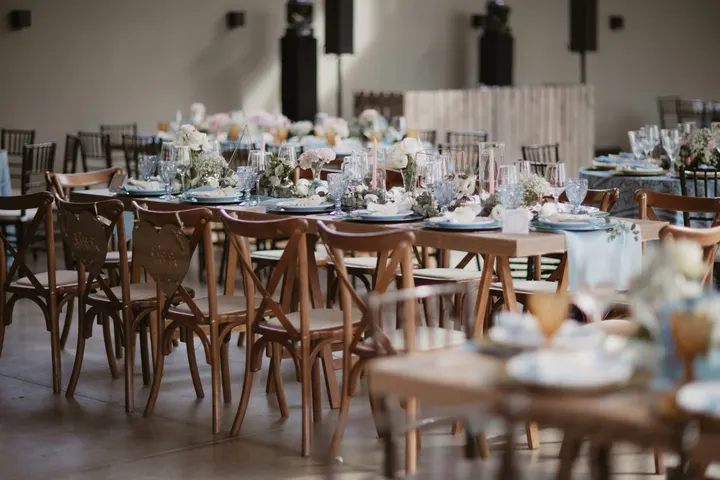 IMG_2207.MOVPick a video on this device to make a Clip from it.
Sjablonen
Een clip per pers
Een tweede tik of een herhaling opent dezelfde Clip, nooit een tweede.
A template dresses what is on the timeline. Everything it adds stays editable, and Undo takes it back.
Stockvideo's en muziek
Stock videos, music and sound effects, placed from the Media Library.
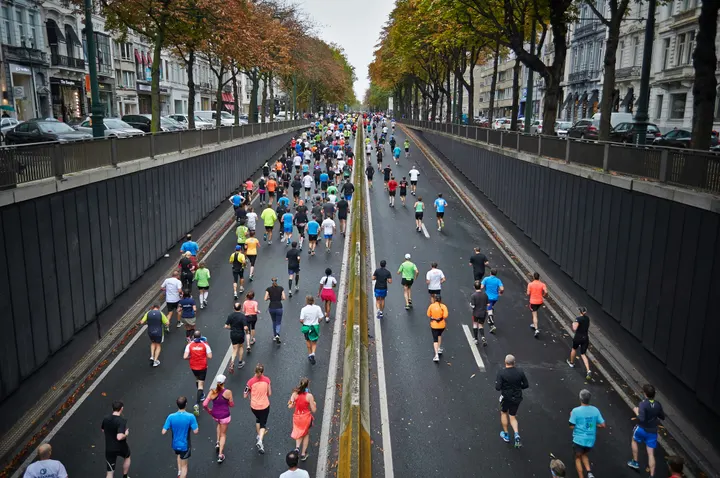 Morning Run0:14
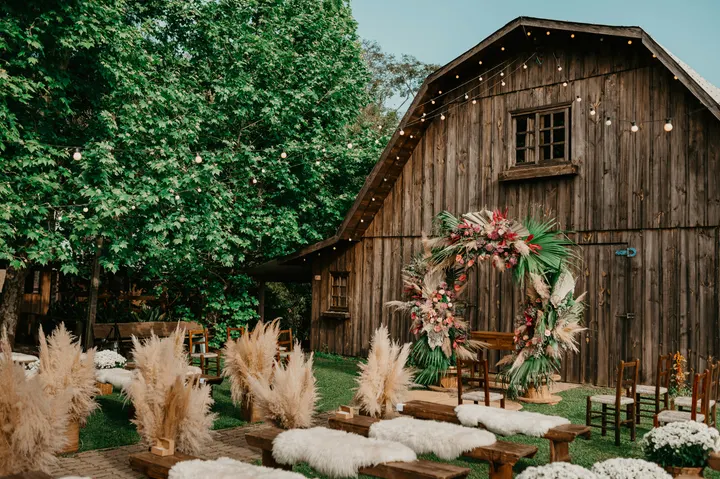 City Rooftop0:22
 Market Stall0:09
 Studio Light0:18
 Coastline0:31
 Night Crowd0:12
Muziek
Ga verder waar u stopte
Nieuwe clipSjablonen
Recent Clips
Maak kennis met het teamAchter de schermenNew This NovemberA Customer Says Thank YouOur Holiday HoursBewerk een clip in uw hand of aan een schrijftafel
Een clip opent op volledige scherm op een telefoon: een verticale voorvertoning boven een tijdlijn met meerdere clips, met pinch-zoom, knipgrepen en drukken en vasthouden om te herschikken. Aan een bureau worden media en tools aan de linkerkant toegevoegd en aan de rechterkant verfijnd, naast de voorvertoning en de transcriptie.
So, um, twelve new wines by the glass this week.
Three of them are Irish, like, from Wexford. Pauze 1.8s
The red from Rioja actually, is my pick.
Happy hour runs every day from five to seven.
You know, come early for the window.
Caption a Clip from what is said, word by word
Ondertitels zijn getimed per gesproken woord, eerst getranscribeerd op uw apparaat, en beginnen in Bold Pop: zware hoofdletters die oplichten naarmate elk woord wordt gesproken. Titels zijn ontworpen pagina's, van een kop tot een eindkaart, bewerkt in de ontwerpbewerker en geanimeerd in en uit.
Transcriptie maken en ondertiteling toevoegen
Elk woord getimed terwijl het wordt gezegd, in de gesproken taal, met het woord dat wordt gezegd verlicht.
6 ondertitels, gemaakt van wat er in de bewerking gezegd wordt. Snijd eerst woorden weg en maak ze daarna opnieuw.
Kijken
Ondertitels worden gemaakt van de woorden die spelen en worden woord voor woord getimed.
Snijd op de beat en houd de stem helder
Beats markers vinden markeert de beats van een geluid op uw apparaat, of typ een tempo of tik erop. Cut to Beat snijdt op elke beat, elke twee of elke maat, in één stap. Een trending geluid kan een gids zijn die op uw apparaat blijft staan, gebruikt voor timing en nooit wordt geëxporteerd.
Beats op deze tijdslijn
Beats zoeken
Beats vinden in deze geluidOntdekt op dit apparaat, vanuit het geluid zelf.
Knip op het ritme
Selecteer de clips om te knippen, en kies vervolgens hoe vaak.
4 clips op 4 beats
Bewerk naar een Geluid
Alleen voor het tijdstip. Het blijft op dit apparaat en wordt nooit geëxporteerd.
Tempo Grid
Bewerk naar een Geluid
Een trending geluid vindenPick a sound there, then add it here as a guide sound or tap its tempo. Calisto reads nothing from these pages.
Stemcommando
Niveau
Opruimen
Achtergrondruis verwijderenDucking
Verlaag onderstemmenStemcommando
Equalizer
Compressor
Volgen
Size
Frame Rate
Luidheid
The export is measured and brought to this loudness, never past a −1 dB true peak.
Whole Mix
Verhoog de snelheid, houd het onderwerp in het beeld
Vijf snelheidsrampen met één tik schrijven echte sleutelframes en noemen wat ze instellen, met Reverse, Freeze Frame en de toonhoogte van de stem behouden. Auto-Reframe vindt het onderwerp op uw apparaat en volgt het in het verticale kader. Een blik, een overgang of elke snede verandert met één tik.
Speed
Duurt 0:04 op deze snelheid. De rest van zijn baan beweegt om hem te volgen.
Snelheidsramp
Omgekeerd
TerugspoelenVriezer
Freeze Frame at the PlayheadSnelheidshellingen
Snelheidsramp
Snel en traag, traag midden, bijna stoppen, afremmen en versnellen in één tik, met Reverse en Freeze Frame; de curve zelf met Clips Pro.
Auto-Herformuleren
Size
Auto-Herformuleren
Elke clip automatisch opnieuw kadrerenAutomatisch opnieuw kaderen van de geselecteerde clipsElke opname vult het kader en volgt de persoon of het ding erin, gevonden en gevolgd op dit apparaat. Kies eerst de grootte; de sleutels die deze instelt staan in Transformatie & Keyframes.
Elke shot vult het verticale kader en volgt de persoon of het object erin, gevonden op uw apparaat.
Uiterlijk
Uiterlijk
Acht looks in één tik, elk precies aangevend wat het instelde, en Undo neemt het terug.
Overgangen
Naar de geselecteerde clip
Een overgang overlapt de twee clips met zijn lengte, zodat de rest van de track naar links verschuift.
Op één keer, of tegelijkertijd toegepast op elke snede.
Aanpassen
Aanpassen
Helderheid, contrast, verzadiging en temperatuur.
Kleur, masker, sleutel en track graden met Pro
Clips Pro is de zitplaats van één persoon. Het opent de werkruimte Ajusteren (kleurcorrectie, ruisreductie en oscilloscopen) en de werkruimte Effecten (keyframes, maskers, track mattes, chromakey, tracking en aanpassingslagen), voegt de Mixer toe aan Bewerken en toont elke precieze controle inline. Een Clip die Pro-werk bevat opent, slaat op en exporteert altijd, met of zonder zitplaats.
Kleurencorrectie
Wheels, levels, curves, .cube LUTs and Auto Color, read on the scopes.
Color Wheels
Niveaus
Curves
Look (LUT)
Keyframes, met Clips Pro
Positie, schaal, rotatie, doorzichtigheid en uitsnijden, geïnterpoleerd.
Positie en grootte
Keyframe Ease
Oogst
Crop KeyframeMaskers en Sleutel
Getekend op de foto; Auto Key kiest de schermkleur.
Een masker toevoegen
Chroma Key
Automatische sleutelTrack Matte
Dit volgen
Tracking
Track This follows a point or a plane and writes the keyframes.
Dit volgen
Stabiliseren
Stabilize with the Last TrackSporen
Uw eigen diepte
Essentials of Pro is de voorkeur van elke persoon, in elk bedrijf.
Color Wheels
Niveaus
Curves
Look (LUT)
Exporteren op uw apparaat en publiceren waar uw publiek kijkt
Een Clip wordt geëxporteerd als MP4 in 1080p in de vorm van elk platform, eerst op de grafische processor van uw apparaat en op de servers van Calisto wanneer dit niet mogelijk is. Publiceren stuurt het naar TikTok, Instagram Reels of YouTube Shorts via de accounts die het bedrijf koppelt, en geeft aan welke gidsgeluid er moet worden toegevoegd.
Publiceren
Naar TikTok, Instagram Reels en YouTube Shorts via uw eigen accounts, of gepland met Impreta.
Where
Meer formaten
M4A of MP3 audio; 720p, 4K, WebM, WAV en ProRes met Clips Pro.
Dit apparaat maakt het bestand. Als het niet kan afmaken, nemen de servers van Calisto het over.
Klaar Bericht
Een serverexport geeft zichzelf aan met Publish erop.
Versturen naar Telefoon
Voor Instagram en YouTube komt de Clip op je telefoon om daar van te posten.
 9:41
Ondertiteld bestanden
Een ondertitelf bestand voor elke ondertiteltaal, opgeslagen in Depot.
Ondertiteld bestanden
Bij het bewaren in uw bestanden.
Vind elke Clip en plaats deze waar het werk is
De Bibliotheek lijst alle Clips in de account op, nieuwste bewerking eerst, elk in zijn eigen verticale vorm, met zoekfunctie, hernoemen en verwijderen. Een Clip behoort tot het bedrijf en registreert wie het heeft gemaakt. De bronnen en exports zijn bestanden in de Depot-opslag van de account.
Maak kennis met het teamAchter de schermenNew This NovemberA Customer Says Thank YouOur Holiday HoursWhere Clips touches everything else.
2 of these 6 connections are in your plan today; the others are their own apps.
Depot
Every source and export is a file in Depot, and every Clip sits in its Hubs.
Video
A landscape or square one opens in Video, and Make Shorts turns a Video’s moments into Clips.
Studio
Create Video opens a design in the Clips editor, with the same Clips Pro seat.
Direct
Make a Clip opens a video post in the Clips editor.
Velocity
A Clip goes on a client project, so the work shows there.
Workforce
A business assigns its Clips Pro seats where its people are set up.
Geen opstartkosten. Betaal wanneer u begint met gebruiken.
Short vertical videos, captioned and cut on the beat.
Clips Pro
De werkruimten Adjust en Effects, voor één persoon, op een eigen zetel of met een Create seat; een bedrijf wijst zijn zetels toe aan zijn mensen.
Alles inbegrepen in Calisto Clips.
- The Clips to pick up again, then the Templates wall, then Recent Clips.
- New Clip makes an Untitled Clip at once, 9:16 in the vertical template, and opens it; its captions start in Bold Pop when you add them.
- Templates: Reel, Short or TikTok, Intro Title, End Card, Name and Role, Chapter Cards, and Blank.
- A video dropped anywhere on Home is made a Clip with the video placed (MP4, MOV or WebM).
- Every door that makes a Clip makes exactly one per press, even after a retry.
- 9:16 at 1080 × 1920 and 30 fps, mixed to −14 LUFS, until you change it in Clip Settings.
- Clip Settings: the size for each platform, the frame rate, the loudness target and the whole mix.
- Renamed from its title in the editor header; autosaved, with Saving, Saved and Not Saved shown.
- Edits from two windows are merged; one that cannot be merged shows the saved version and offers yours back.
- A landscape or square one opens in Video, which says so.
- Cut to Beat and Captions up front in the header.
- The left rail adds: Media, Record, Audio, Text, Captions, Transitions, Effects and Templates.
- The right rail refines: Clip, Transform & Keyframes, Adjust, Speed, Audio, Caption Style and Clip Settings.
- Essentials folds each panel’s precise controls behind one More; Pro shows them inline.
- The transcript beside the preview on a desk: cut words to cut the video, Remove Filler Words, Remove Silences, and restore what was removed.
- The strip: play, In and Out, markers, snapping, ripple and zoom; tracks with mute, lock and hide.
- Search Actions (⌘K), the shortcuts list (⌘/) and a right-click menu for the selection; undo and redo.
- Keys: Space, J, K and L, I and O, S or ⌘B to split, delete and ripple delete, duplicate, nudge, zoom and markers.
- Upload from the device, or place your files from Depot; a 720p proxy is made on the device.
- Record the camera, the screen or the microphone into the Clip.
- A teleprompter: your script scrolls over the preview at a reading pace while you record, in your size, mirrored for a glass if you want, and never in the video.
- Waveforms and thumbnails drawn on the device.
- Captions word-timed from the transcript, made on the device, with Calisto’s servers as the fallback.
- Caption looks: Classic, Bold Pop, Boxed, Minimal, Neon and Big Center.
- Caption Style: font, size, all capitals, colors and height on screen; weight, width and lines under More.
- Translate Captions: a caption track in any of 31 languages, at the same times and in the same look, shown in place of the original and edited like any caption.
- Speaker Coach: each speaker’s pace, filler words, long pauses, words said twice and quiet words, each a moment to jump to, read on the device.
- Designed titles (Headline, Lower Third, Quote, Pop, Label, Chapter, End Card), edited in the design editor.
- In Your Brand: captions and titles set in the brand kit’s fonts and colors in one tap, its fonts and colors listed first, and its logo placed as a title.
- In and Out animations on any picture, title or sticker: Fade, Rise, Drop, Slide, Pop, Zoom and Spin.
- The beats lane on the desk and the phone, and Snap to Beats.
- Find Beats in a sound, on the device; or a Tempo Grid from a typed BPM or Tap Tempo.
- Cut to Beat on every beat, every two or every bar, in one undo step that names what it did.
- Guide sounds: a sound from the device for timing only, never uploaded, kept or exported; the track says Timing Only.
- Find a Trending Sound opens TikTok Creative Center’s trending songs, and Instagram Reels and YouTube Shorts with where their Trending list is in the app.
- Speed: constant speed, five one-tap ramps that name what they set, Reverse, Freeze Frame and keep the voice’s pitch.
- The ramp curve editor at Pro.
- Auto-Reframe finds the subject on the device and keeps it in the vertical frame.
- Stabilize in one tap, on the desk and the phone: the shake taken out on the device, a deliberate pan kept.
- Transitions on one cut or on every cut, with their exact length under More.
- Looks (Natural, Warm, Cool, Vivid, Black and White, Faded, Punchy, Moody) and Auto, which reports what it set.
- Adjust: brightness, contrast, saturation and temperature.
- Volume, remove background noise and lower music under voices.
- Gain, volume keyframes, a noise gate, an equalizer, a compressor, track volume and pan with Clips Pro.
- One-tap voice presets (Clear Voice, Broadcast, Studio Clean, Warm), each saying what it set and undone in one step.
- The Adjust workspace: Color Grade (wheels, levels, curves, .cube LUTs with intensity, Auto Color) and Scopes.
- The Effects workspace: Transform & Keyframes with named or custom eases, Masks (rectangle, ellipse, pen), Key with Auto Key and the eyedropper, Tracking and adjustment layers.
- Masks, keys and trackers drawn and edited on the picture.
- Stabilize: a tracked point or plane held still, zoomed to hide the moving edges.
- The Mixer: every track and bus a channel with a fader, pan, mute, solo, a live meter, its route and a channel strip (EQ, then compressor); buses added and named there.
- Every precise control inline, without More.
- Without the seat, Pro reads Pro · Upgrade, or Ask for a Pro Seat for a team member.
- A Clip that already holds Pro work always opens, saves, plays and exports.
- Essentials or Pro is each person’s own preference, the same in every business.
- MP4 at 1080p, each platform’s shape, and M4A or MP3 audio.
- Each caption track as an SRT or WebVTT subtitle file, downloaded and kept with the Clip in Depot.
- 720p, 4K, WebM and WAV, and an export on Calisto’s servers by choice, with Clips Pro.
- With Clips Pro, the codec (H.264, HEVC or AV1; VP9 or AV1), ProRes 422 HQ and 4444, and the frame rate from 23.976 to 60.
- Exported on the device’s graphics first; on Calisto’s servers when the device cannot, or when you choose.
- A finished export is kept with the Clip in your files on Depot storage.
- A server export sends a notice when it is ready, with Publish on it; a failed one says so.
- Publish from the ⋯ menu or the export notice: TikTok, Instagram Reels and YouTube Shorts.
- Schedule with Impreta: the finished Clip opens in Impreta’s composer, and its queue and calendar send it when it is due (with Impreta).
- Over the accounts the business connects, from inside Clips.
- A Clip edited against a guide sound says which sound to add on the network and where it starts.
- Send to Phone, for Instagram and YouTube: a notice on your own phone that opens the publish dialog on the Clip, to post from there.
- Every Clip, newest edit first, each in its 9:16 shape; search by title.
- Rename and Delete from a card or from the checked cards.
- Hubs in the sidebar narrow the Library to one Hub (with Depot).
- Assign to Project puts a Clip on a client project (with Velocity).
- The account’s Depot storage shown in the header.
- A Clip belongs to the account and records who made it; anyone in the account who opens Clips can open it.
- Edited together: everyone in a Clip sees the others’ edits as they happen, who else is in it and where their playheads are.
- Comments pinned to a moment of the Clip, with replies, @mentions, assign and resolve, marked on the timeline; a reviewer’s notes from the review link show at their moments too.
- Home, Library and Settings in the tab bar; + is New Clip.
- Home leads with From Your Videos: a video picked on the phone is made a Clip with it placed.
- The phone editor takes the whole screen: a vertical preview, a multi-clip timeline under a centered playhead, pinch zoom, trim handles and press and hold to reorder.
- Its ⋯ holds Publish and Clip Settings; its tool bar leads with Captions and Audio.
- Shortcuts: New Clip, Templates and Library. A video shared from the Share sheet is made a Clip.
- The Library two across, with pull to refresh and the selection bar.
- Home and the Library open with no signal, showing the Clips last read on that device, when you keep them there.
- On a desktop, Clips comes in the Calisto app, installed from the browser or the Microsoft Store, with the Recent Clips widget on Windows.
- Every source and export is a file on the account’s one Depot storage.
- Each Clips Pro seat adds its included storage to that same storage (with Depot).
- Proxies and the render cache are working copies and never count.
- General: the business, its design and sign-in, the one business record.
- Clips: Essentials or Pro (your own preference), the Depot storage Clips use, and This Device.
- A business assigns its Clips Pro seats where its people are set up (with Workforce).
Questions about Calisto Clips
De werkruimte The Edit: sjablonen, de telefoon-tijdslijn, opname, uw media vanuit Depot, ondertitels uit de transcriptie, ontworpen titels, overgangen, één-klik-looks en stem, Cut to Beat, snelheidsrampen, Auto-Reframe, exporteren en publiceren. Iedere ingelogde persoon heeft het, zonder dat een plan is geselecteerd.
Aanpassen (Kleurgraderen met wielen, niveaus, curves, .cube LUTs en Auto Color, Ruisreductie en scopes), Effecten (keyframes, masks, track mattes, chromakey met Auto Key, tracking en aanpassingslagen), de Mixer, gain, een gate, een equalizer en een compressor op elk geluid, en 720p, 4K, WebM, WAV en ProRes exports. Een Clips Pro-plek is voor één persoon en voegt zijn Depot-opslag toe aan het account. Een Create-plek houdt het ook. Een teamlid zonder een kan erom vragen bij de editor.
Het opent, slaat op, speelt af en exporteert nog steeds. De cijfer, maskers en sleutels blijven zoals ze zijn, en de Essentials-tools blijven erop werken.
One editor and one record. A vertical one is a Clip and opens in Clips; a landscape or square one is a Video and opens in Video. Video’s Make Shorts turns a long Video’s moments into Clips. Each has its own Pro seat, and a Create seat holds both.
TikTok, Instagram Reels and YouTube Shorts, over the accounts the business connects. For Instagram and YouTube, Send to Phone puts the Clip on your own phone to post from there. A Clip edited against a sound kept only on your device says which sound to add on the network and where it starts.
Ja, als gids. Find a Trending Sound opent de trending songs van TikTok, en Reels en Shorts met waar hun Trending-lijst in de app staat. De geluid die u van uw apparaat toevoegt, wordt alleen voor het tijdstip gebruikt: het wordt nooit geüpload, opgeslagen in Depot of geëxporteerd.
De transcriptie en de ondertiteling zijn geschreven in de gesproken taal, woord voor woord getimed, eerst op uw apparaat. Translate Captions maakt vervolgens een ondertiteltrack in elk van de 31 talen, op dezelfde tijdstippen en met hetzelfde uiterlijk, zodat u deze kunt bewerken; elke taal is ook een eigen ondertitelbestand.
Home and the Library open with no signal and show the Clips last read on that device, when you keep Clips there (Settings, This Device). Making or editing a Clip needs a connection, because its videos are in Depot.
