Hariri picha kwa kinyumbuzi moja, kwa mkono au katika layers.
Mtengenezaji wa picha kwa picha zilizopo kwenye akaunti yako. Kamilisha picha moja au shughuli nzima, kisha ushiriki Kijamii ambapo mkundi yako anachagua vyema vyake.
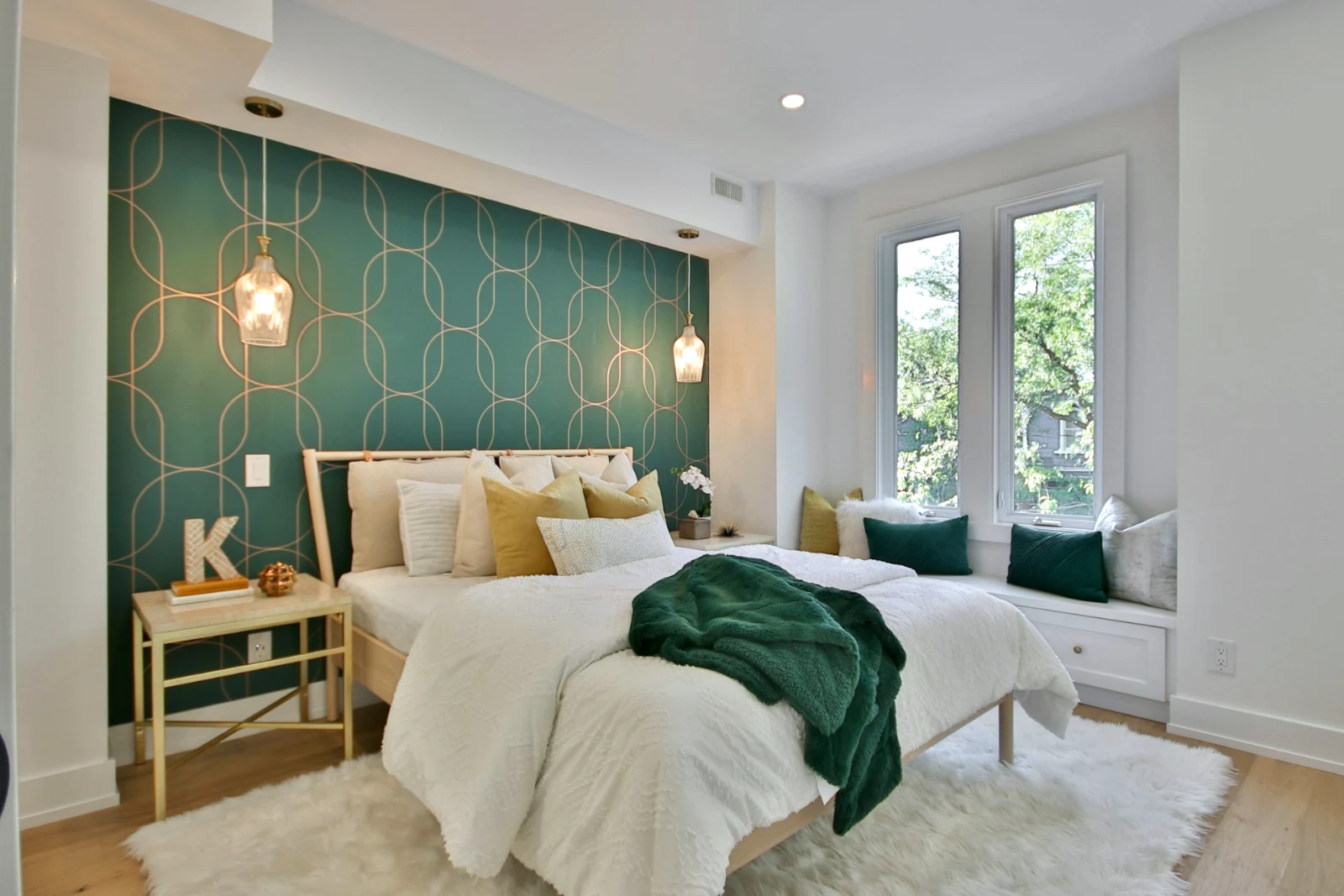
 Bright and Airy
 Punchy Social
 Punchy Social
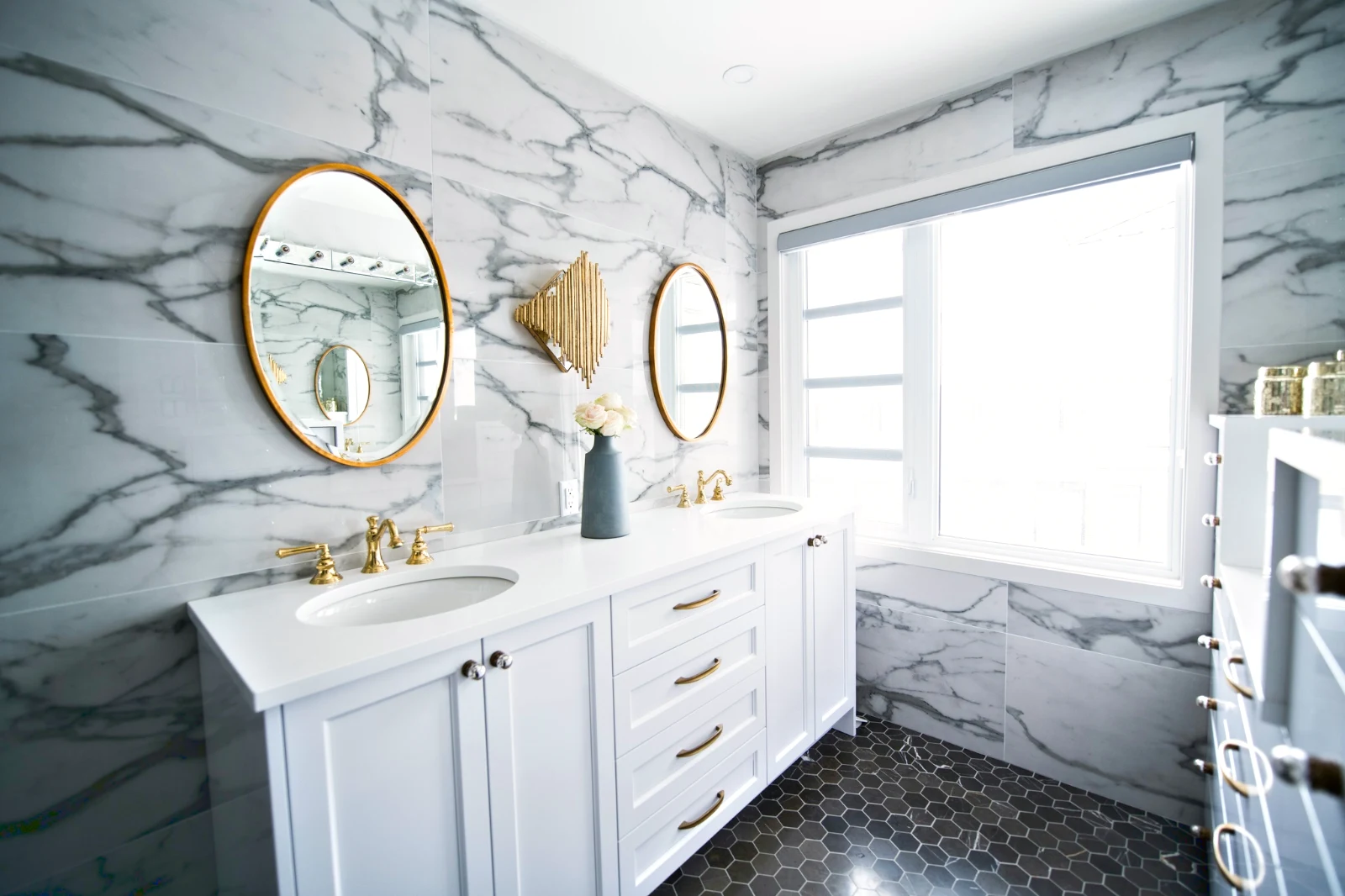
 True Color
 True Color
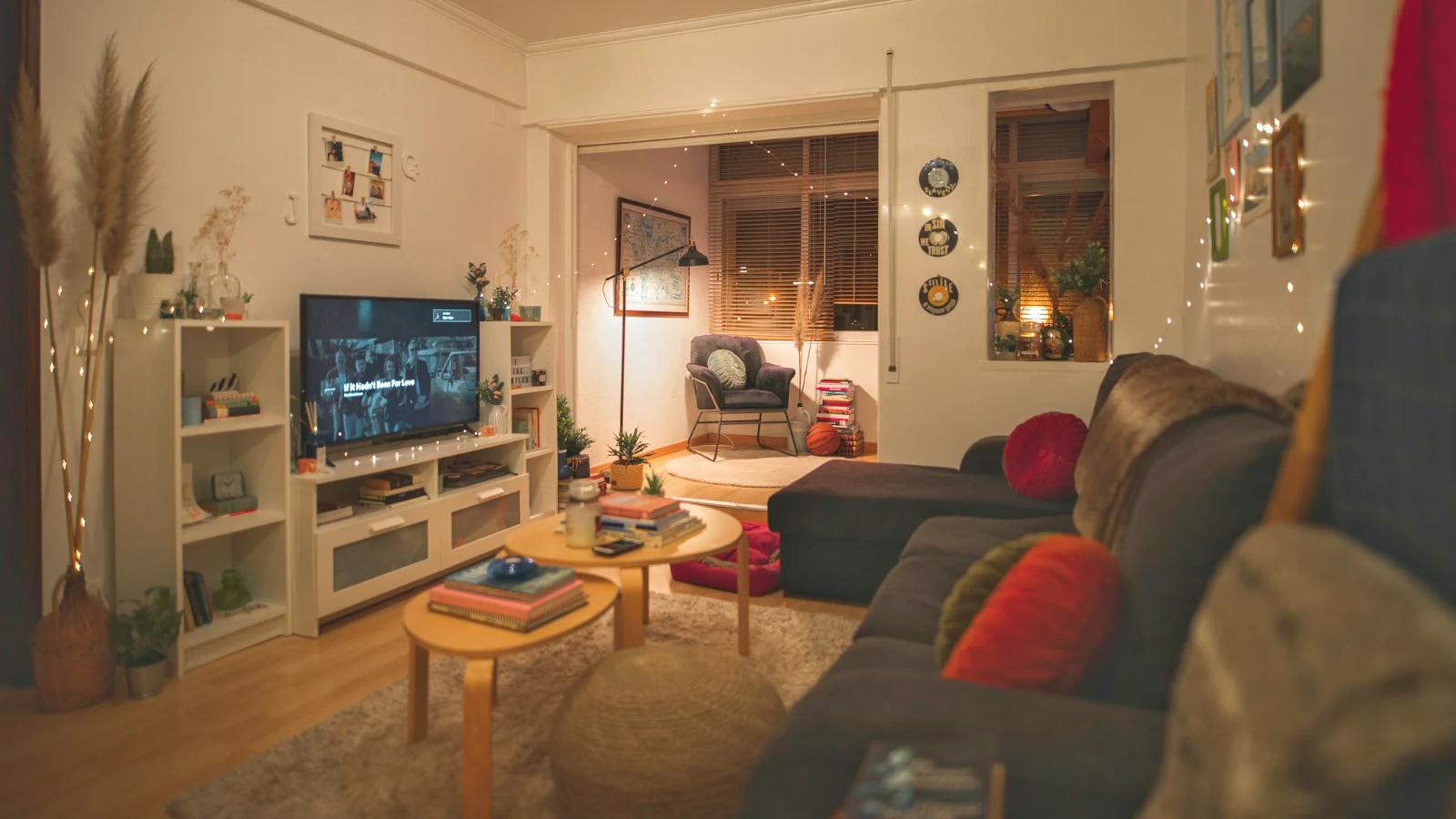
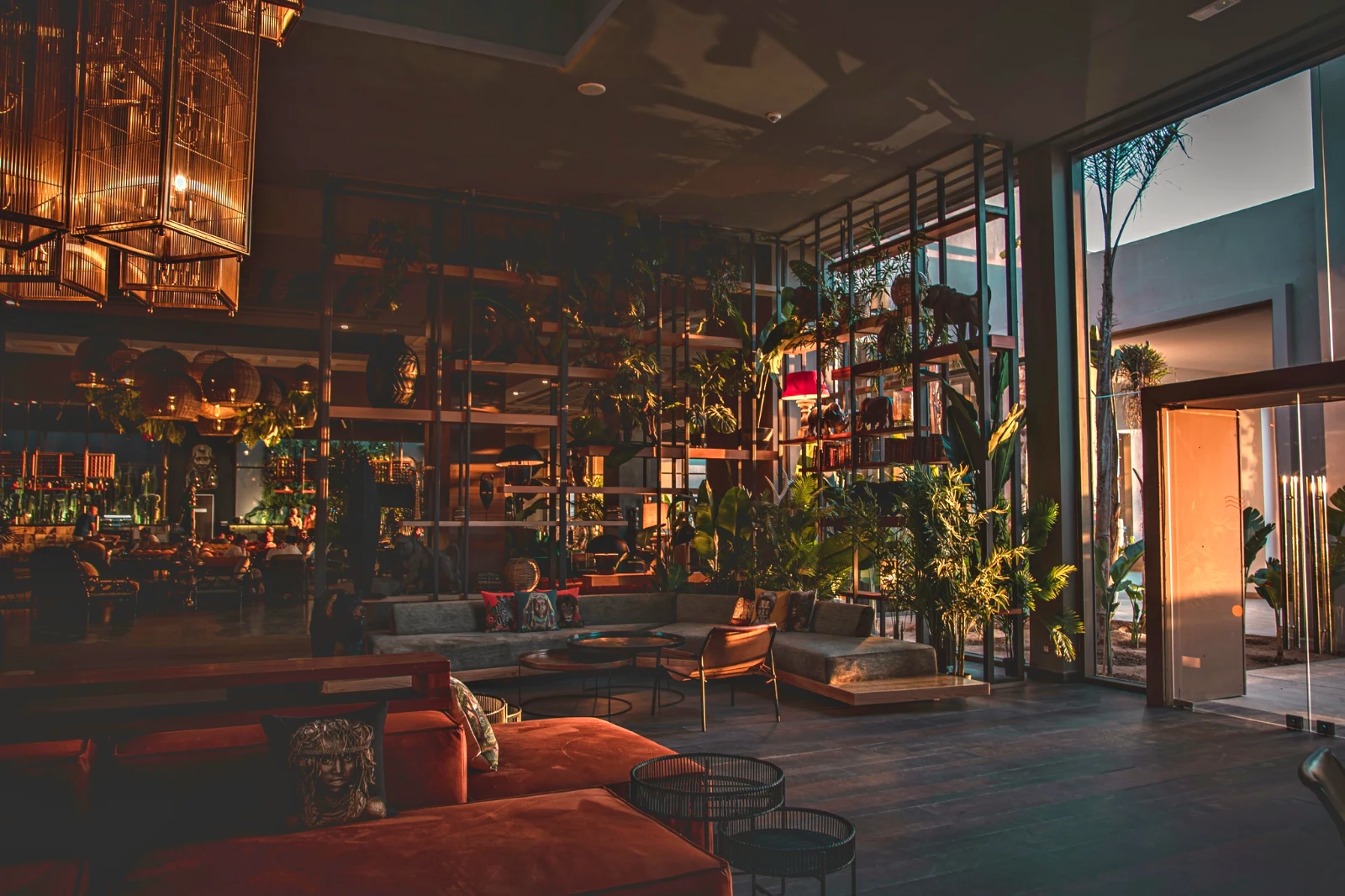 Warm Interior
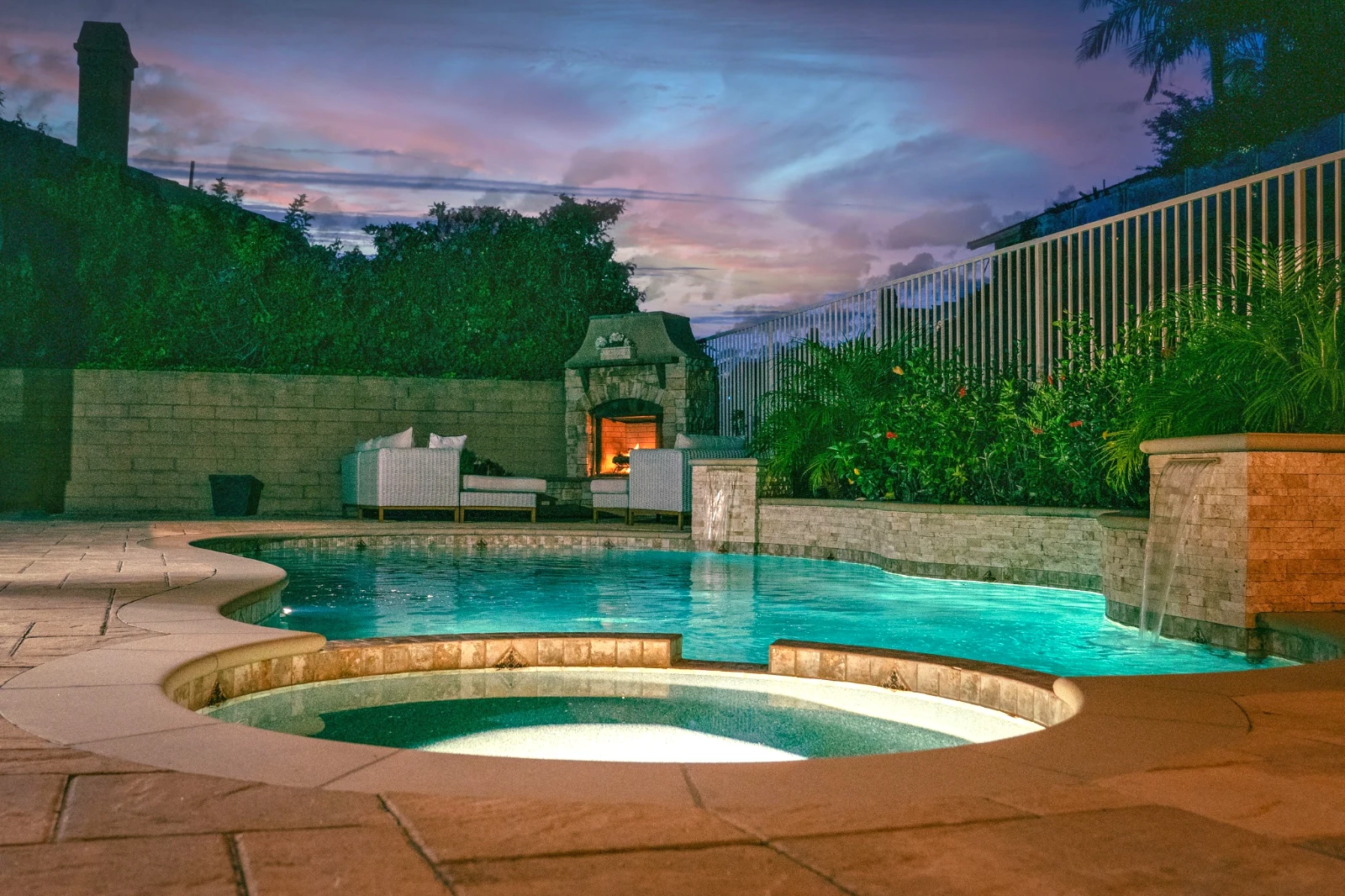
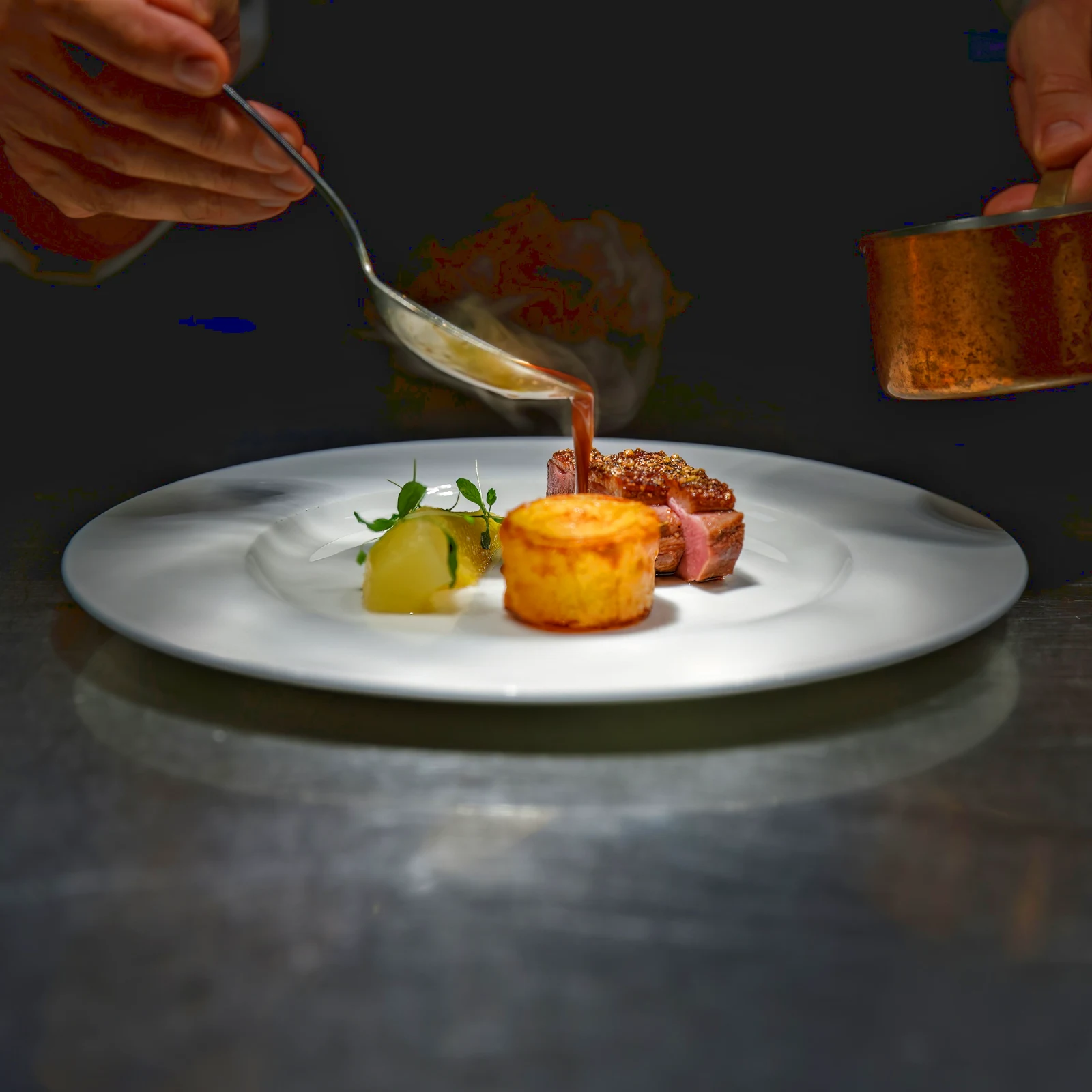 Twilight Glow
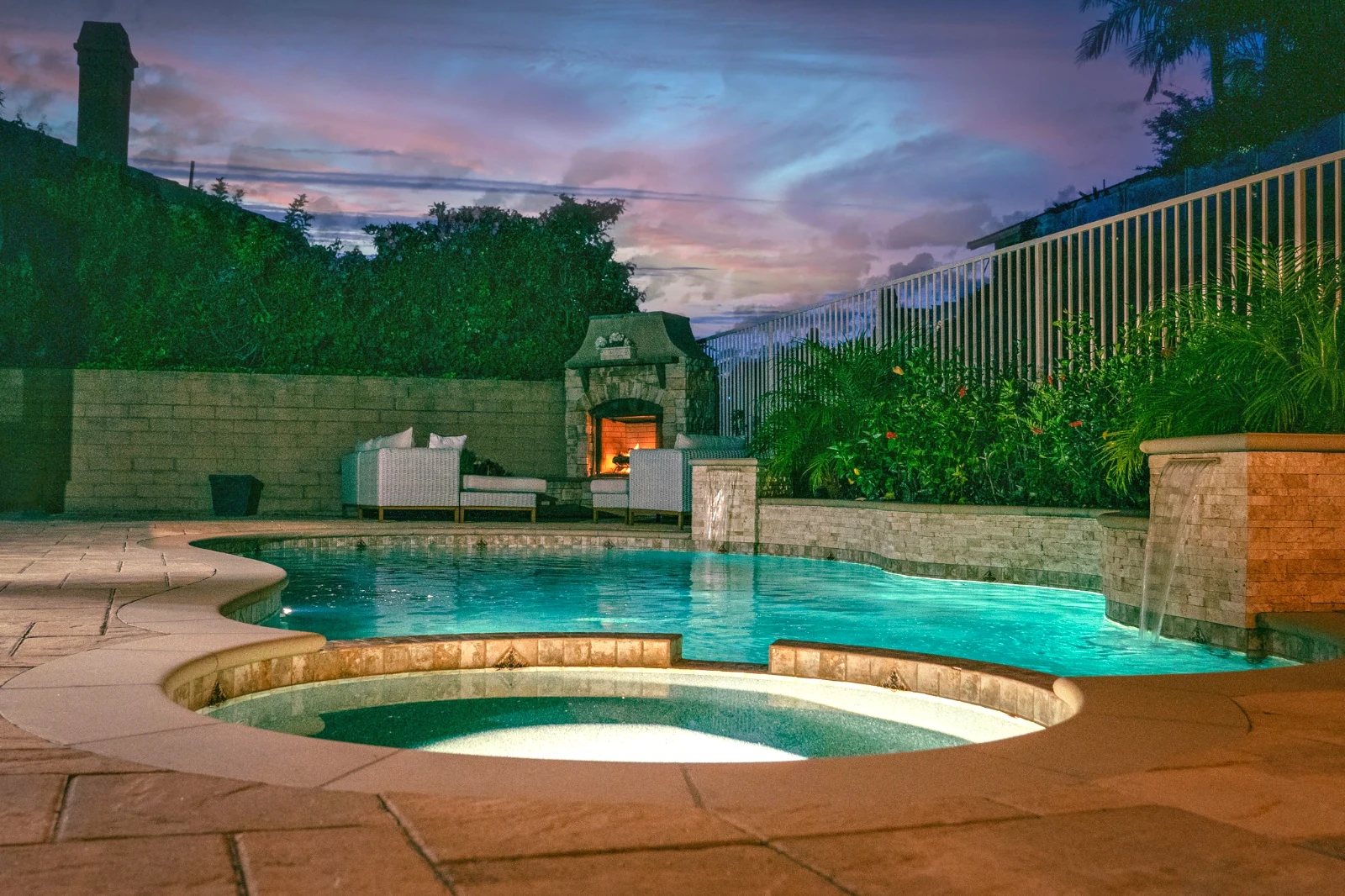 Bright and Airy
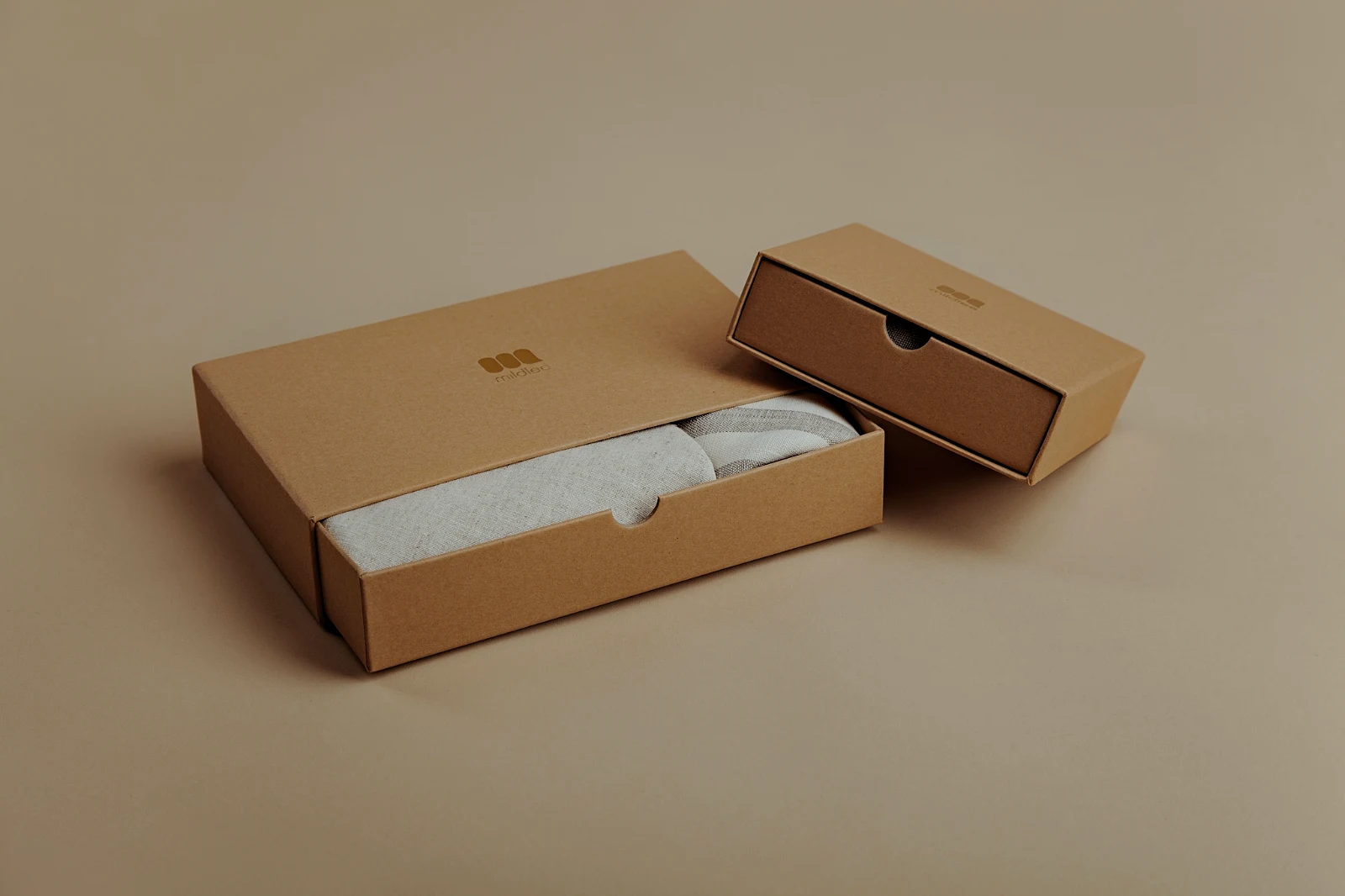 True ColorBright and AiryPunchy SocialPunchy SocialTrue ColorTrue ColorWarm InteriorTwilight GlowBright and AiryTrue ColorBright and AiryPunchy SocialPunchy SocialTrue ColorTrue ColorWarm InteriorTwilight GlowBright and AiryTrue ColorBright and AiryPunchy SocialPunchy SocialTrue ColorTrue ColorWarm InteriorTwilight GlowBright and AiryTrue Color
 Golden Hour WarmthYangu
 Soft Portrait
 Punchy Social
 Punchy Social
 Nyekundu na Nyeusi
 Soft Portrait
 Soft Portrait
 Twilight Glow
 Soft Portrait
 Soft PortraitGolden Hour WarmthYanguSoft PortraitPunchy SocialPunchy SocialNyekundu na NyeusiSoft PortraitSoft PortraitTwilight GlowSoft PortraitSoft PortraitGolden Hour WarmthYanguSoft PortraitPunchy SocialPunchy SocialNyekundu na NyeusiSoft PortraitSoft PortraitTwilight GlowSoft PortraitSoft PortraitGolden Hour WarmthYanguSoft PortraitPunchy SocialPunchy SocialNyekundu na NyeusiSoft PortraitSoft PortraitTwilight GlowSoft PortraitSoft PortraitBright and AiryPunchy SocialPunchy SocialTrue ColorTrue ColorWarm InteriorTwilight GlowBright and AiryTrue ColorGolden Hour WarmthYanguSoft PortraitPunchy SocialPunchy SocialNyekundu na NyeusiSoft PortraitSoft PortraitTwilight GlowSoft PortraitSoft Portrait
Kutoka kwenye shoo hadi picks za mteja
One editor at two depths: simple for everyone, every control for the people who edit for a living.
Kitabu cha maudhui
Every photo the account keeps.
Kuchagua
Flags, Best First and similar shots.
Auto and Looks
One tap, or a look of your own.
Adjust
Nuru, rangi, mstari na sehemu.
Bulk Auto
Seti nzima katika mrundikaji mmoja.
Layers
Chaguo, masaa na rangi.
Majaribio
Mteja anachagua na kuandika.
Tumia
Uundaji, tovuti, orodha.
Kwenye Simu
Picha nzima ya skrini.
Bring every photo in, and find it again
Fichua kutoka kwenye mstari wa kazi, kamera au kamera roll, au kushiriki picha kwenye Foto kutoka programu yoyote. Kila picha akaunti inayohifadhiwa Depot ipo kwenye Library, inapatikana tena kwa kumbukumbu yake, alama zake, chaguzi za mteja au utafutaji.
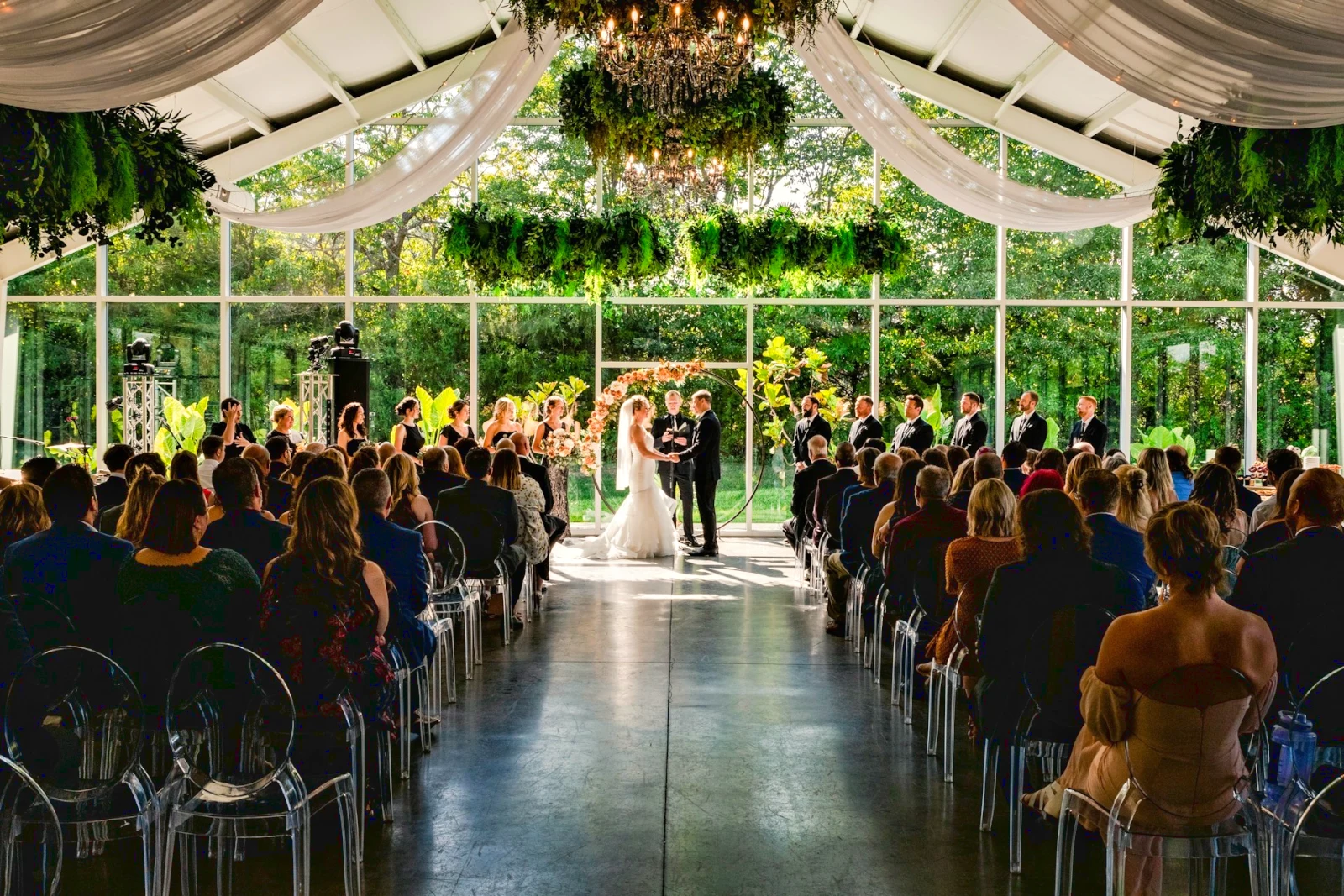 Edited
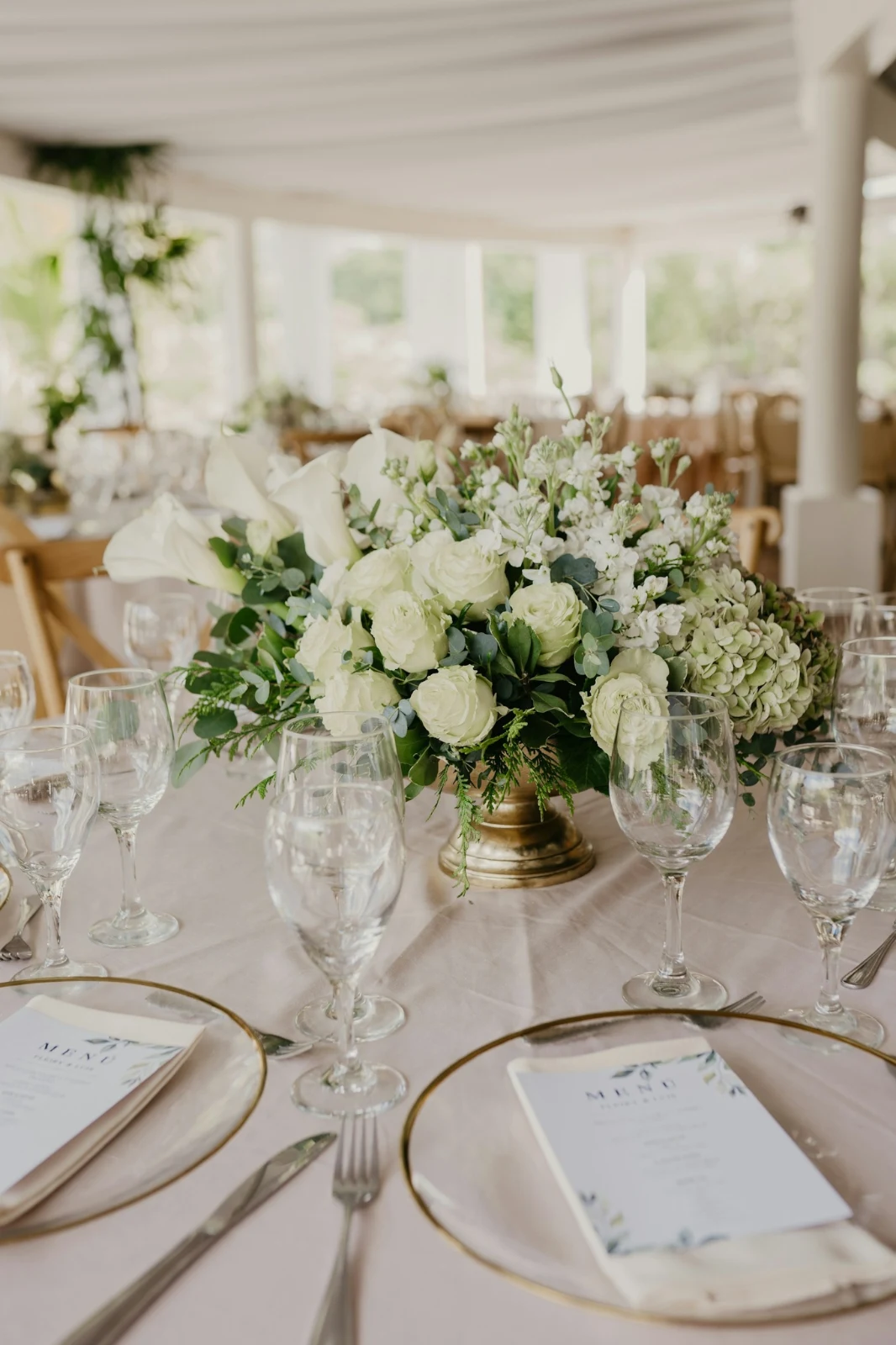

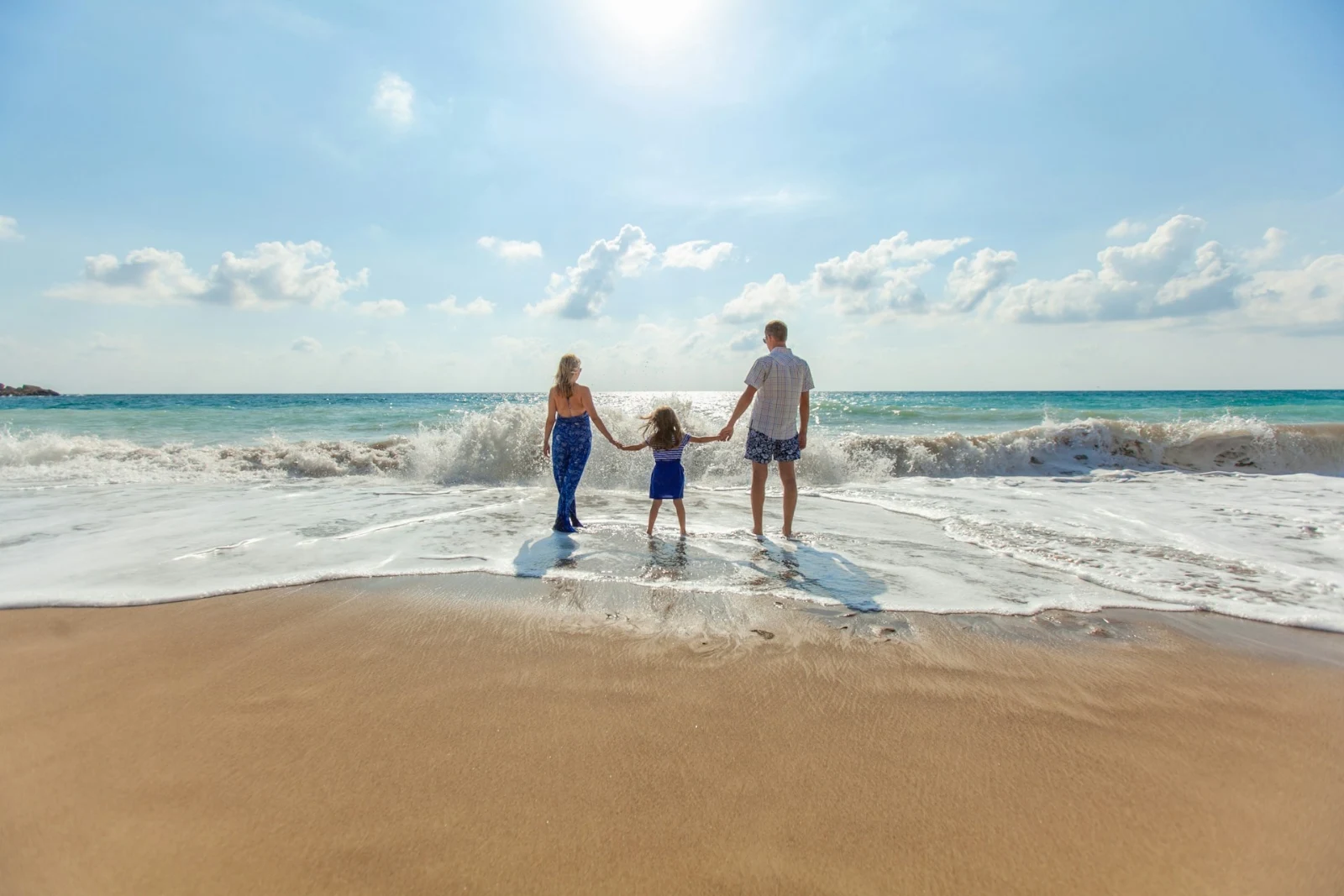

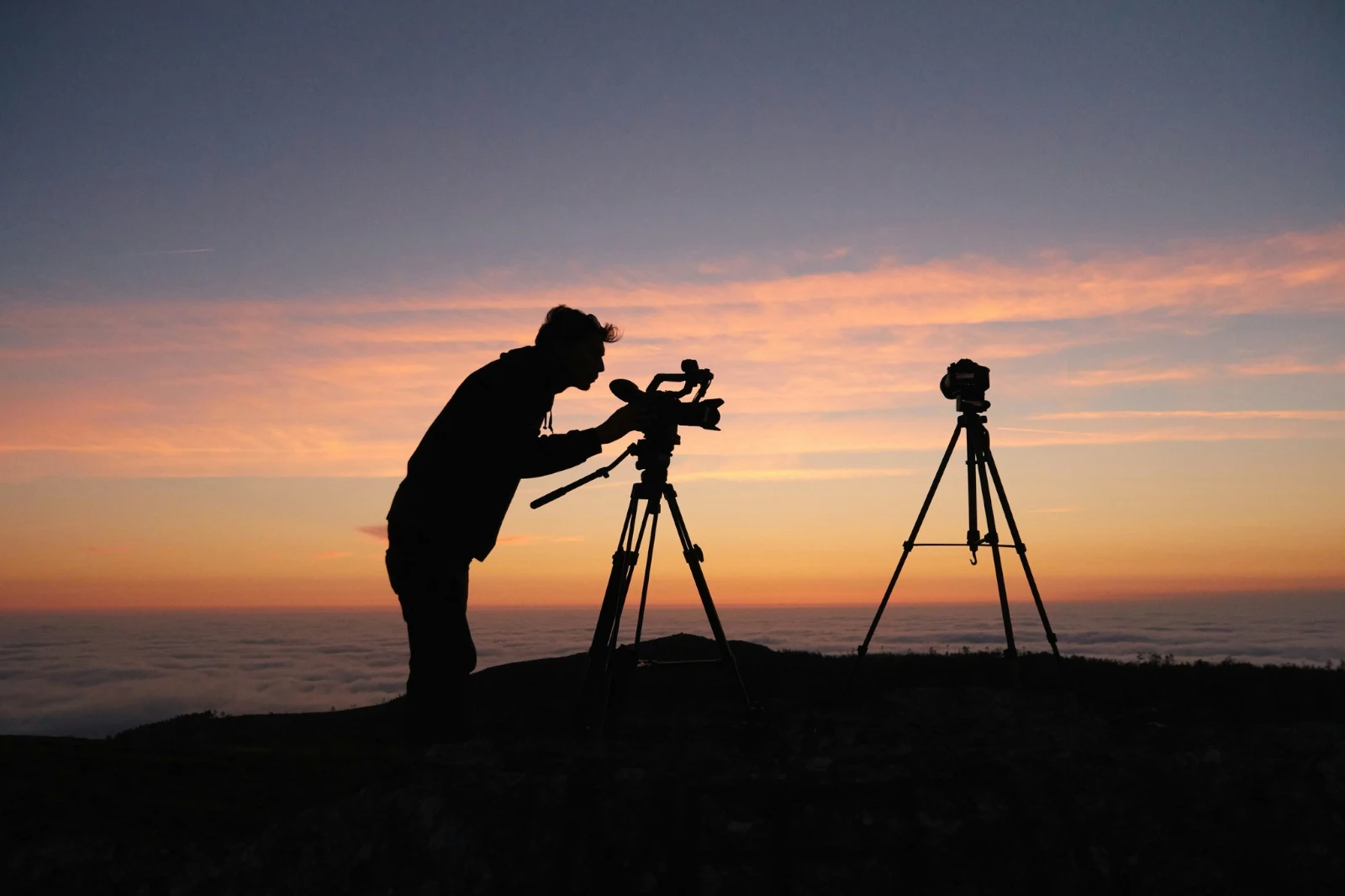
 Edited
 Edited


Star and Tags
Mwanamuziki na alama Depot, Docs na Studio zinaeleweka sawa.
Viwanja na Faili
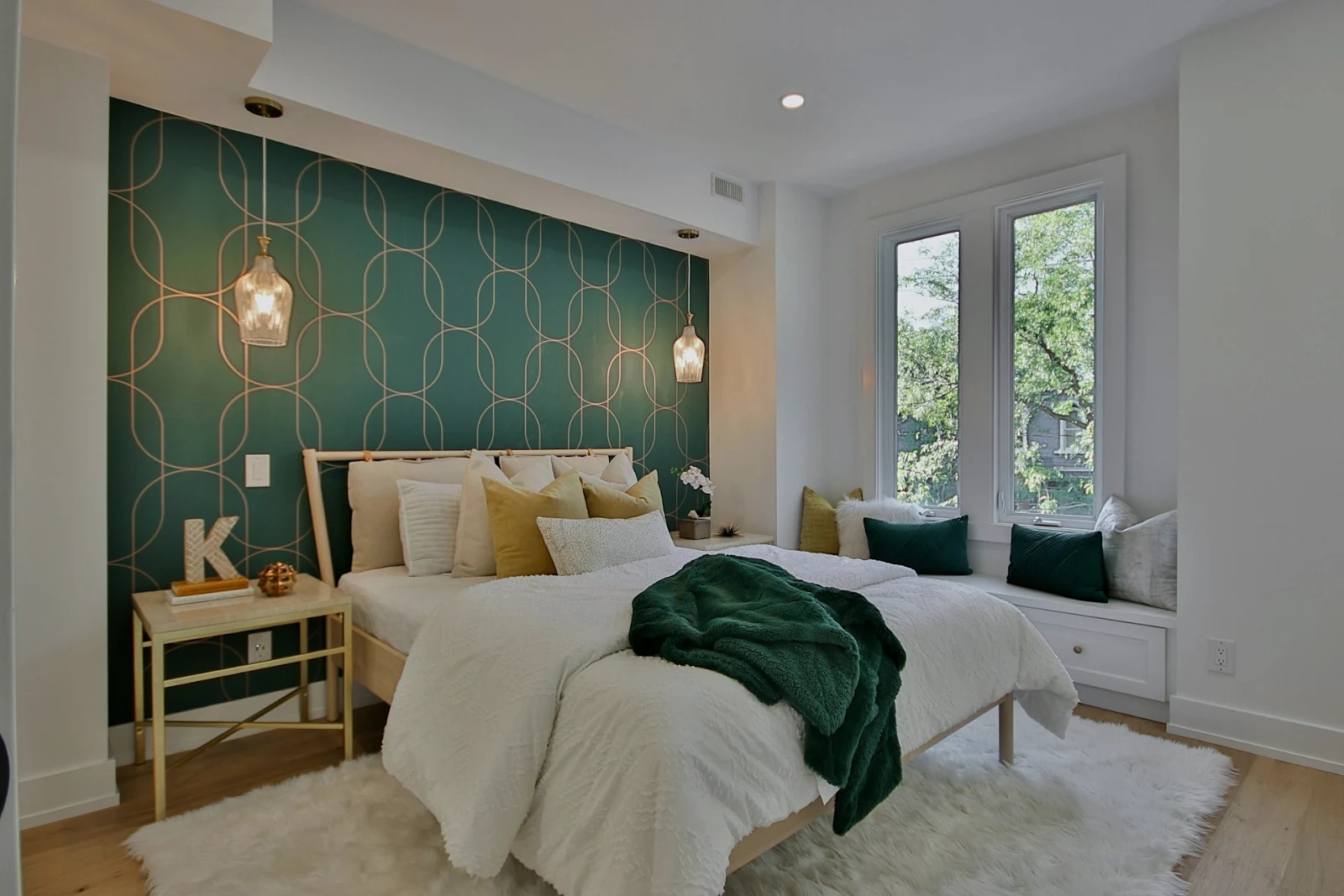
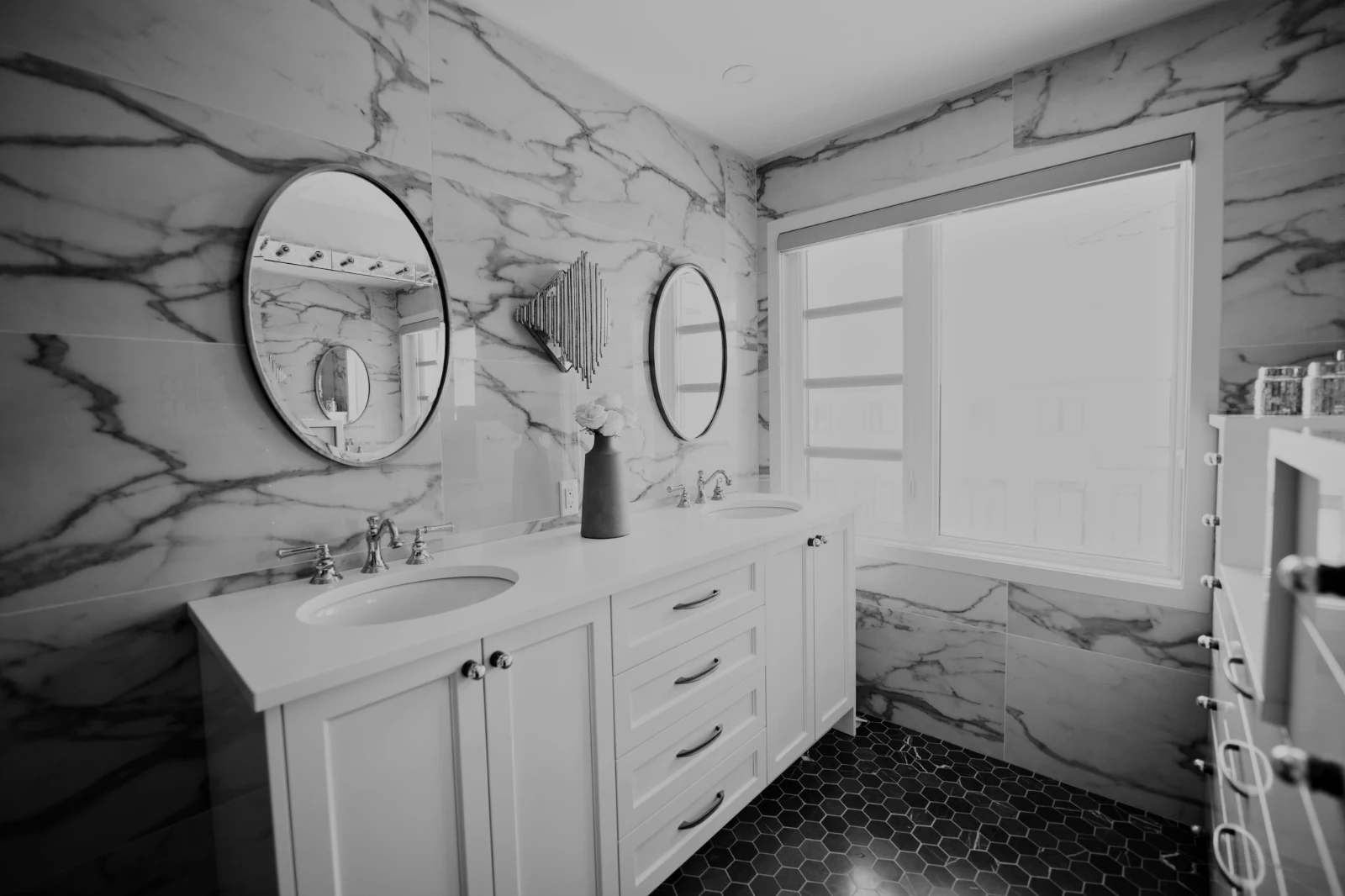
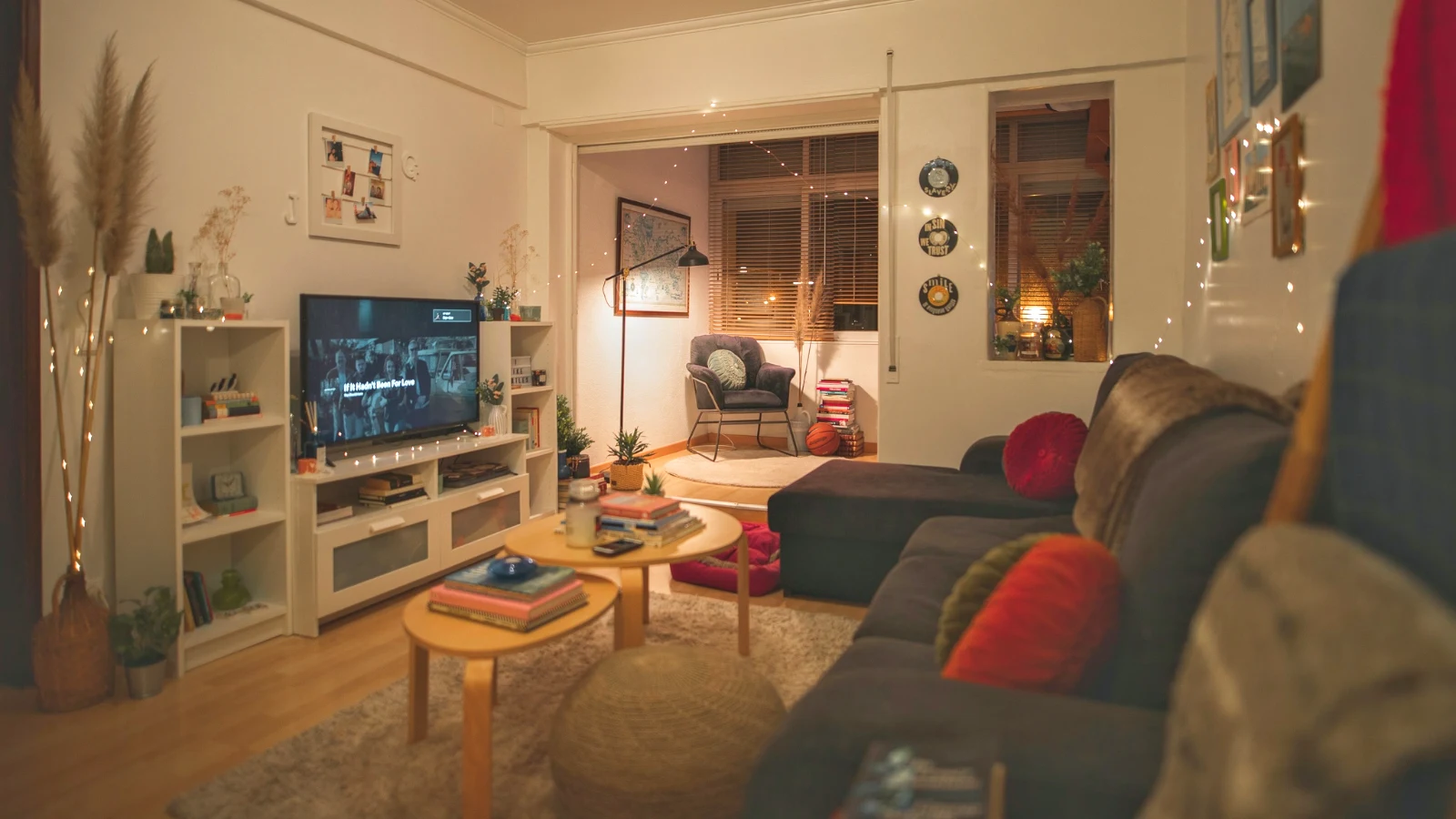
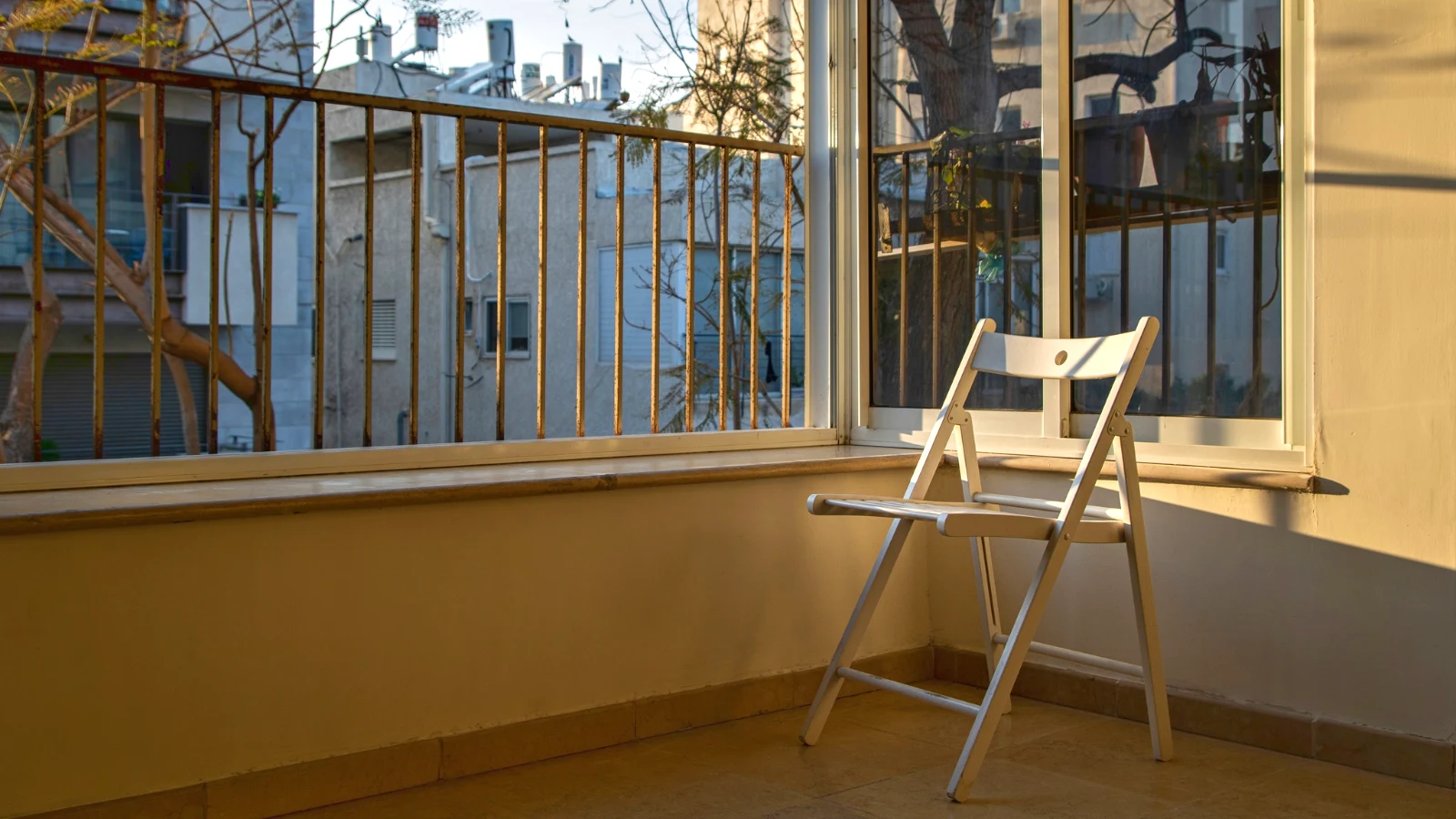
Picha za Hub kwenye pekee; Sogeza Kwenye... Kifungu (na Depot).
RAW na HEIC
A RAW is developed on the device, or on the server when it cannot be.
Tethered Capture
Kamera kwenye USBCamera connected · Canon EOS R6 Mark II
 Live ViewChukua pichaStop Live View
ArrivedPictures from the camera land here and in the Camera Uploads Hub.
Tumia kwa Kila Kifungu MpyaTumia True Color AW27_flatlay_01.jpg
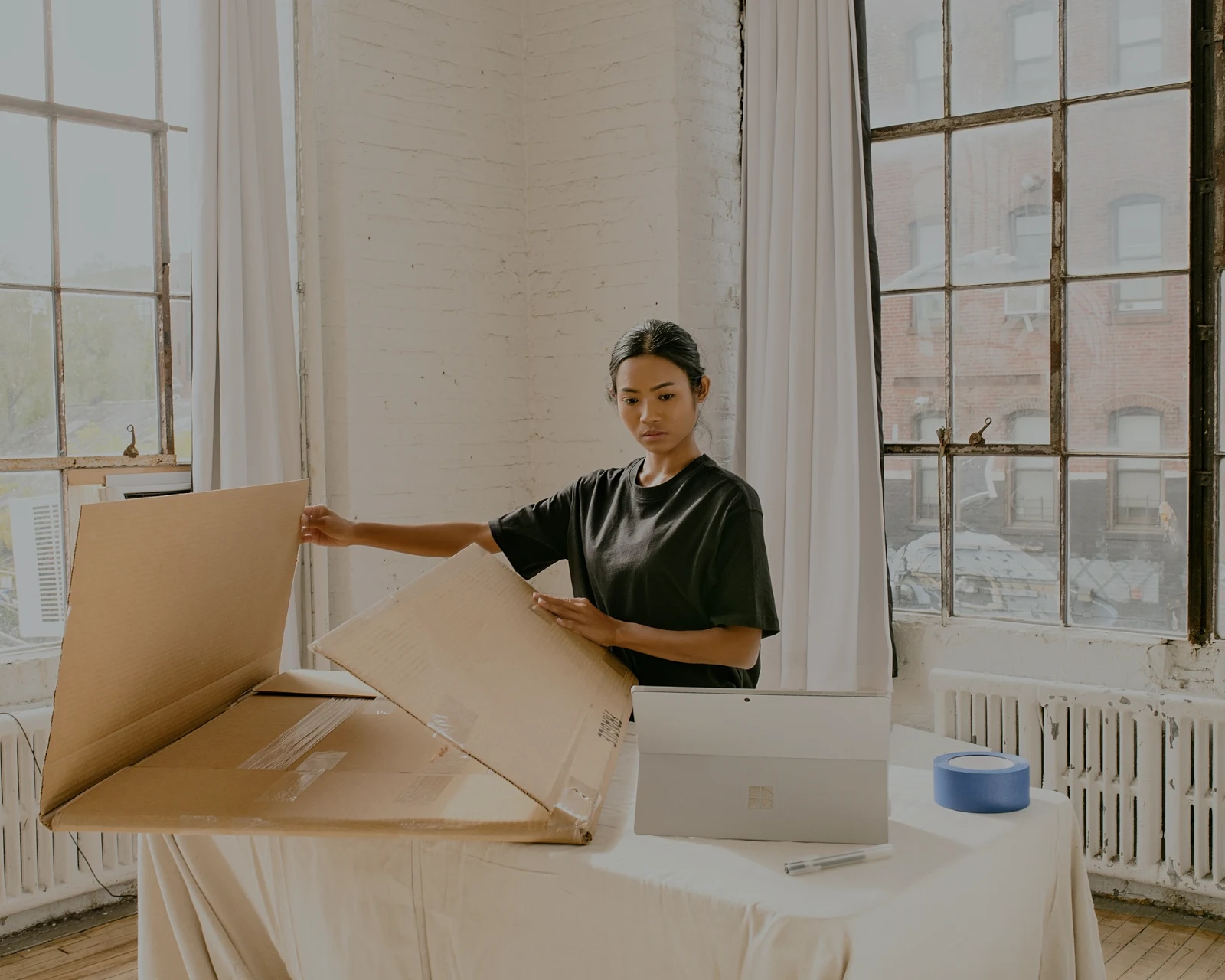 AW27_packing.jpg
 AW27_unboxing.jpg
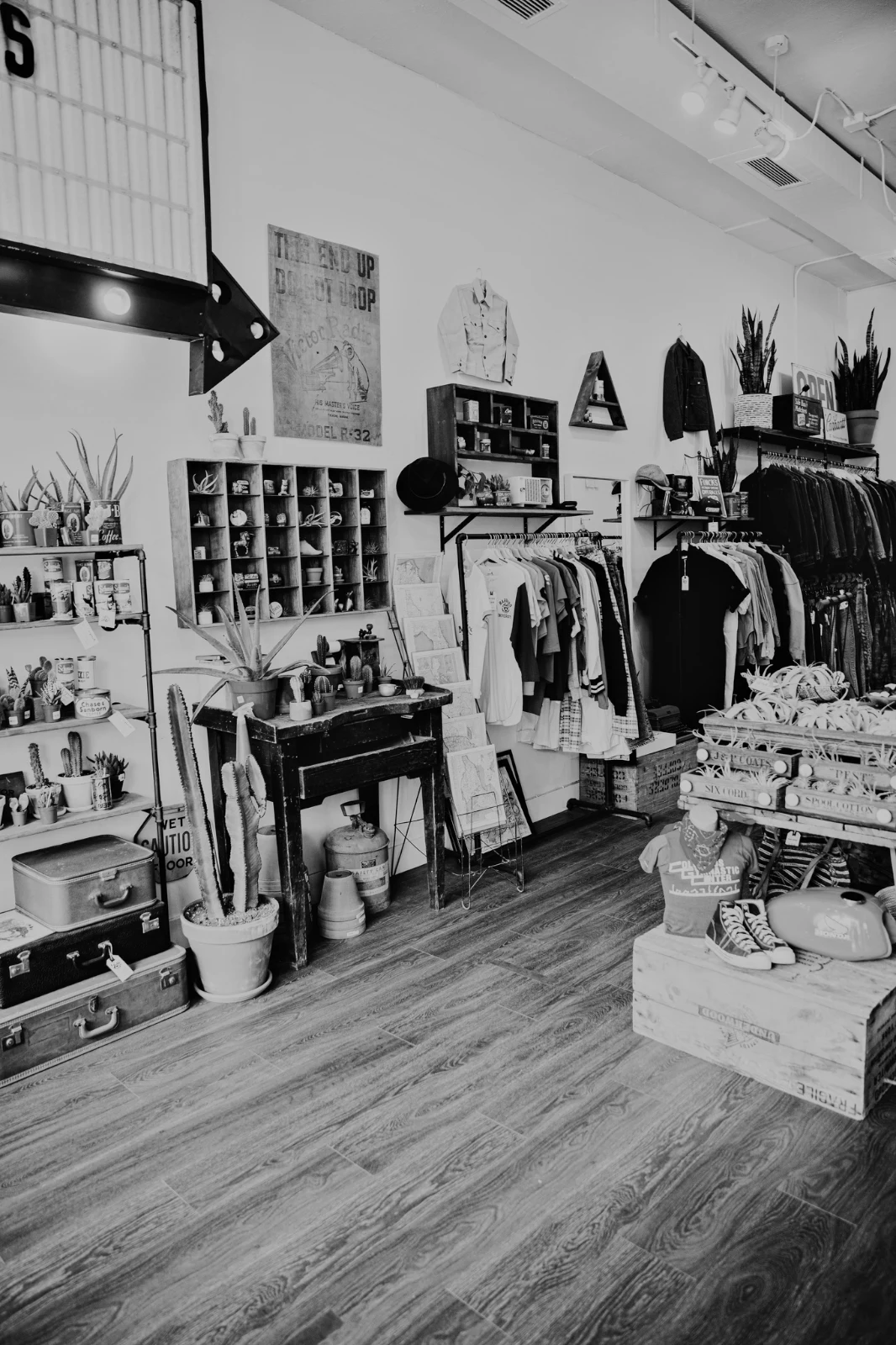 AW27_shelf.jpg
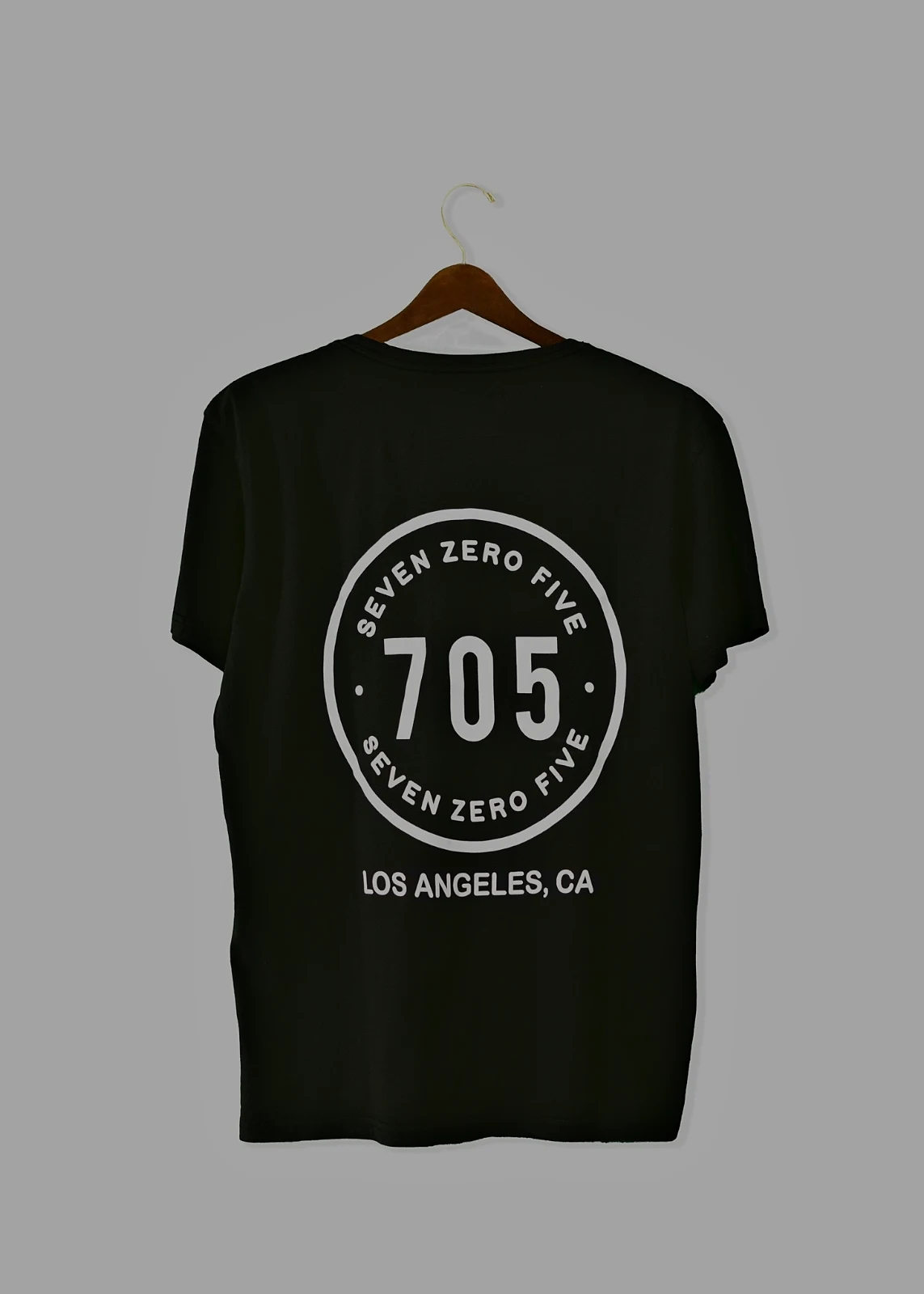 AW27_tote.jpg
Shoot straight into Foto by USB with Live View, or from the camera’s own Wi-Fi upload.
Tafuta wahifadhi bila kuangalia kila kiolezo
Picha zote zinapimwa baada ya kuongezwa: kilele chake, uwezo wake wa kuonyesha picha, na kama macho ya mtu yoyote yamefungwa. Tangaza Bora Kwanza,onyesha picha bora zilizotajwa, gawanya kulingana na alama zote, na kulinganisha picha zinazofanana upande kwa upande. Hakuna picha zilizochaguliwa kwa ajili yako: wewe ndio unachagua zile zinazohifadhiwa.
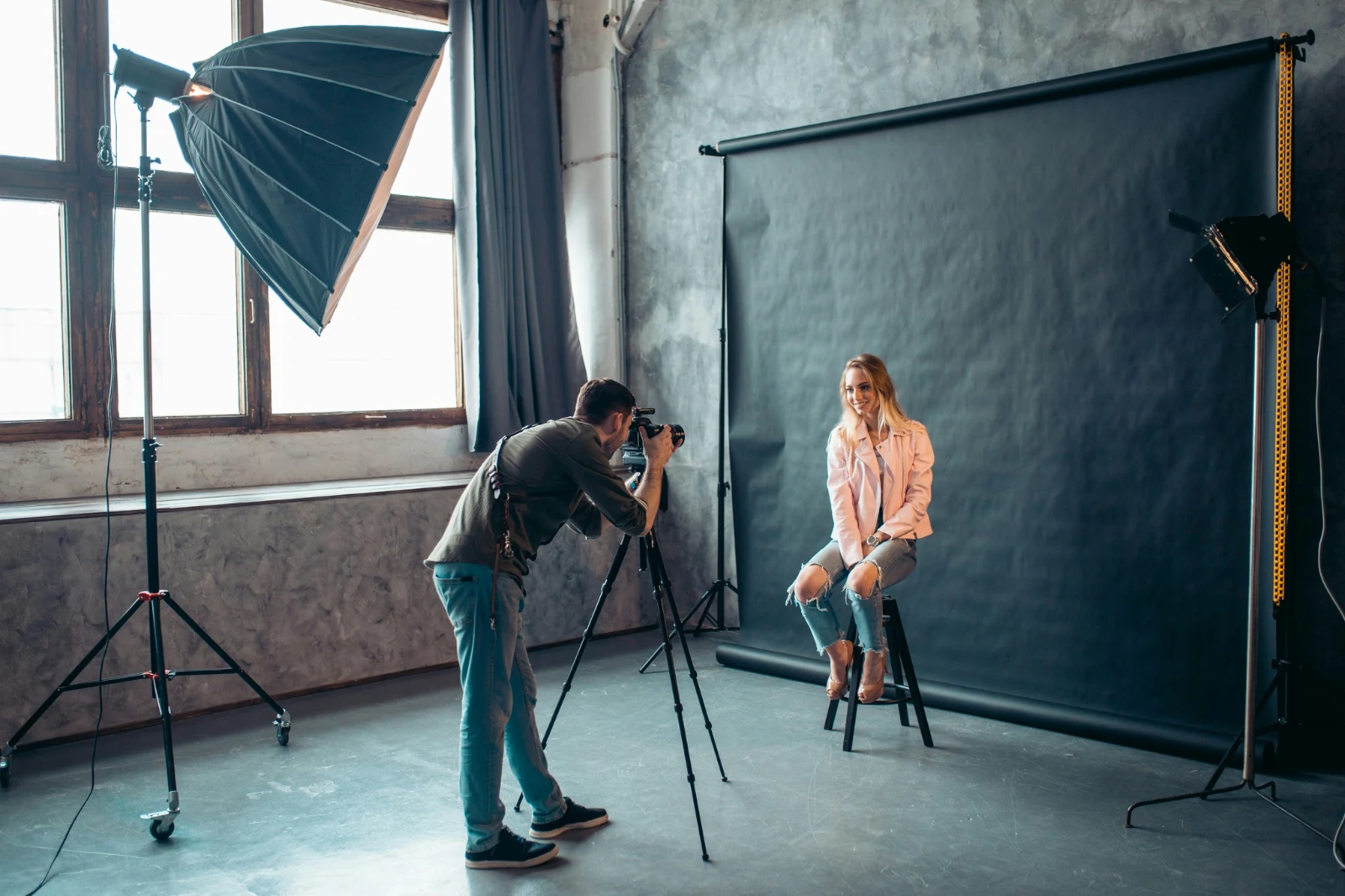
 Closed EyesMissed FlashMissed FocusBlurryBlack Frame
Miguu Imefungwa na Ufikiaji Uliopotea
Imeashiriwa kwenye picha, kama vile Blurry, Black Frame na Missed Flash, kila moja ni kichujio.
Closed EyesBlurryMissed FocusMissed FlashBlack FrameRuhusu picha kwa kigongoni moja, au tumia mtazamo
Auto inasoma picha kwenye kifaa chako, inaweka sliders zake na inajua kila moja iliyohamishwa; Undo hurudisha picha. Looks huzalisha maoneo ya Calisto na yako, hayo yanayofaa picha kwanza, na Save Look huhifadhi urekebishaji wowote kati ya yako.
Stili yako
Auto imehamisha kama unavyohamisha, imejifunza kutoka marekebisho yako; thamani yote ni slider.
Mipangilio Inayotajwa
Uwezo uliojengwa kwa picha kama hii, kwanza kwenye orodha.
Mapendekezo
Record your steps once and play them on any photo or a whole selection.
Contact Sheets
Chaguo lilichapishwa kwenye gridi na majina, vijani, chaguo na bendera, kama PDF.
Tengeneza Picha
Mwangaza na rangi ya picha nyingine, umejengwa kama slider za hii.
Never the Original
Uhariri umepangwa upande wa picha pamoja na historia yake; asili inabaki kama ilivyokuwa.
Before
Bonyeza na kushikilia kuona picha kama ilivyokuja.
 Before
Weka mwanga, rangi na mstari kwa mkono
Mwanga, Rangi na Kukuza hufunguka kwanza, na kila kinyume, kutoka kwenye mstari wa sauti hadi kelele na linzi, ni kwenye tapo moja nyuma ya Zaidi. Kujaza Mstari hupata mistari ya picha na kuweka Ubadilishaji wenyewe, au kutatua mistari unayoandika.
Ondoa na Marudisha
Risha juu ya kamba au dhahabu; Kloni na Risha upande wake.
Adjust Part
Anga, mada au mandhari, kisu, mizigo au kiwango cha mwanga.
Watu
Mifupa, uso, macho, mawili, nywele, nguo au mtu mzima; Retouch Skin inafanya iwe sawa na rangi yake.
Lens na Kuchanganya Portreti
Nyuma iligongwa, au picha nzima kwa kina, na kuzingatia mahali ulivyoweka.
Nguvu za Filamu
Picha iliyosimuliwa ya rangi au nyeupe iliyobadilishwa kuwa chanya, maski ya orange imeondolewa.
Lensi sahihi
Uhariri wa kamera yenyewe, au muundo wa linzi, na mabano ya rangi yaliyotolewa.
Markup
Mshale, duara, kuta au alama iliyorishwa kwenye picha.
Give a whole set its Auto and your look
Choose photos in the Library and a look, then press Bulk Auto. Each photo gets its own Auto on your device, then the look, saved as a step of its edit. The exports are made on the server, so they finish with the page closed.


2. Choose a Look
Golden Hour WarmthWazi Wenyewe9 of 9 copies ready.
Build a photo in layers, and export it anywhere
Anza picha mpya kwa saizi watu wanapochora, au fungua chaguo kama vyanzo, kila picha ikibaki na urekebisho wake wenyewe. Chagua mwanadamu au anga, mask, rangisha, lehe, clone na warp, ongeza maandishi na shakani, kisha uwasilishe kama JPEG, PNG, WebP, AVIF, TIFF au PSD yenye vyanzo.
Selections
Feather, expand, refine edges and turn a selection into a mask.
Shiriki Galari na uone wewe pika
Weka shughuli kwenye Galeri na uishare kwa ajili ya uthibitisho. Mteja anapiga kwenye idadi unayoipangilia, acha ombi kwenye picha yoyote na ayesha chaguo zake, athibitishe au angalie mabadiliko, kila kundi. Chaguo zake ni Chaguo za Mteja kwenye Hifadhi yako.
Proofing
Kila galari iliyoshirikiwa kwa ajili ya uchunguzi: kile mteja alichagua na kuelezea, na jinsi alivyojibu roho hiyo.
| Galeri | Round | Picked | Kwa | Maelezo | Jibu | Mteja | Jibu lilipewa |
|---|---|---|---|---|---|---|---|
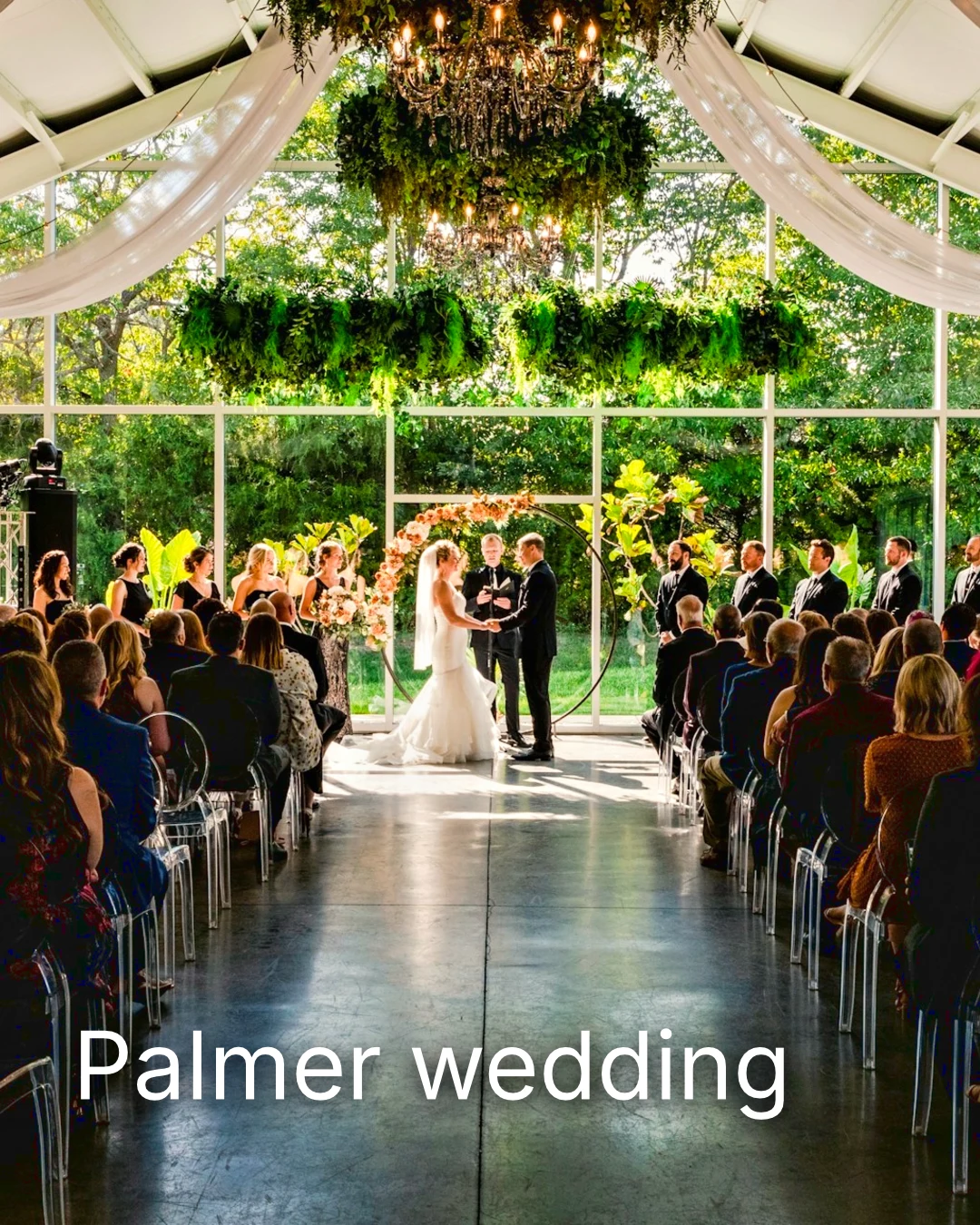
| Palmer wedding | 1 | 4 | 4 | 2 | Kwa ajili ya mteja | Sarah Palmer | Kwa ajili ya mteja |
| Carter portrait session | 2 | 3 | Hakuna kikomo | 0 | Imekubaliwa | James Carter | 19/11/2026 |
| Harbourline Dental team headshots | 1 | 0 | Hakuna kikomo | 2 | Mabadiliko yaliyohitajika | James Bennett | 19/11/2026 |
| Nguyen Family at Brighton | 1 | 12 | 15 | 3 | Chaguo lililopigwa | Linh Nguyen | 20/11/2026 |
| Okonkwo Engagement | 2 | 20 | 20 | 0 | Imekubaliwa | Ada Okonkwo | 17/11/2026 |
| St Kilda Bakery Menu | 1 | 6 | Hakuna kikomo | 1 | Kwa ajili ya mteja | Marco Ricci | Kwa ajili ya mteja |
Maelezo kwenye Picha
Kila kumbukumbu inaonekana kwenye picha yake wakati unarekebisha.
Angalia au Fungua
Avenida da Liberdade 212
Galeri
Each link is view only or downloadable, with an optional password.
Alama yako ya maji
Chagua vyakubwa vyako naacha ujumbe kwenye kitu chochote unachotaka kubadilishwa. Unapoisha, tuma jibu lako. Unaweza kujibu kila baada ya mara moja.
Logo yako au maneno kwenye pila yote mteja anavyoona au akapata, hadi uweze kutoa.
Chapa kutoka Galeri
$ 149.000 kila moja. Usafirishaji na kodi ziongezwa wakati wa kumalizia.
Mteja anatumia pesa ya kila picha, iliyotengenezwa na kulelewa na laboratoria yako, kupaidiwa kwenye checkout yako.
Galeri ya Kazi, Na Uwezo
Lookbook SS27 In review
- Mteja
- Maison Kiri
- Round
- 1
- Picked
- 8 / 12
- Jibu
- Kwa ajili ya mteja
- Linki Inafunga
- 2026/12/12
Kazi kwenye Talent ina Galari yake yenyewe, uthibitishwa kwa njia ileile.
Siku ya Kufunga
Majaribio
Galeri ya kila ajira: kitu wateja wanaona, chagua na kupakua.
| Galeri | Mteja | Hatua ya kazi | Linki Inafunga | Created |
|---|---|---|---|---|
| Program Shoot · Strength | Thandi Mokoena | In review | 2026/11/30 | 2026/11/09 |
| Client Story · Pieter | Pieter van Wyk | In review | 2026/12/07 | 2026/11/12 |
| Mobility Series | Aisha Davids | Imepitishwa | 2026/12/18 | 2026/10/22 |
| Coaches Team Photos | Kopje Coaching | Imepitishwa | 2027/01/05 | 2026/10/31 |
| Summer Bootcamp | Lerato Nkosi | Kwenye uzalishaji | 2027/01/20 | 2026/11/18 |
Linki za kila Galeri inafungwa siku uliyoweka, na orodha ya Galeri inaonyesha zile zinazofungwa katika siku 30 zijazo.
Send a finished photo where it is used
Picha inajengwa kama uhamisho mpya, au asili ikiwa haina: kwenye Galeri kwa ukubwa kamili, kwenye muundo mpya, kwenye vifaa vya tovuti au kwenye orodha. Kila chaguo cha picha kwenye Calisto tayari linataja picha za akaunti, pamoja na uhamisho.
A Design, With Studio
Andiko jipya au hadithi huanza picha imepangwa.
 Menú de OtoñoTostadas de jaiba, desde hoy
Tovuti, Pamoja na Tovuti
Iliyongezwa kwenye mali za tovuti.
Assets
A Listing, With Listings
Added to its photos, when the business has a listing.
T3 Rua do Século 41 Imepatikana
Badilisha picha nzima kwenye simu yako
Piga pamoja kuwa na ukubwa, piga mara mbili kuwa na ukubwa na piga na ushikilie kabla ya. Kila sehemu ni chip chini ya picha ambacho vifaa vake vinapigwa chini yake, sio juu yake, na slider inasonga tu kwenye kugonga upande, hivyo kusimama sio kubadilisha.
Shared to Foto
Picha iliyoshirikiwa kutoka kwenye mkusanyiko wa kamera inakuwa kwenye Ongeza Picha.
Share photos to Foto from any app on this device, take one, or choose them here.
Photos to add
Hakuna Signal
Nyumbani, Kitabu, Uonekana na Ongeza Picha zimefunguka; hariri na upakiazi hupumzika na kuingia mara moja.
Share photos to Foto from any app on this device, take one, or choose them here.
Photos to add
Mahali Foto inapofikia kila kitu kinyume.
4 of these 5 connections are in your plan today; the other is its own app.
Depot
Every photo and every export is a file in Depot, on the account’s one storage quota, and a Gallery is a Hub.
Studio
An image’s Adjust in Studio is Foto’s, Send To opens a new design with the photo placed, and a layered Photo opens there as a design.
Talent
Galleries and Proofing are the same views Talent shows, and a job’s Gallery is the Hub of that job.
Listings
Bulk Auto takes a listing’s photos as a set, and the exports replace them on the listing.
Sites
Send To adds a photo to a website’s assets.
Hakuna gharama ya uanzishaji. Tumia unapokuwa unatumia.
Photos edited in one tap, by hand or in layers.
Calisto Create
The Library, Auto, Bulk Auto, Looks, Adjust na Galleries, zimepangwa na kila akaunti ya Calisto.
Foto Pro
Kila uongozi wa Adjust kwenye mstari na eneo la Layers, kwa mtu mmoja, kwenye nafasi yake pekee au na Kuunda nafasi; biashara inatoa nafasi zake kwa watu wake.
Inapendekezwa kwako
Inafanya kazi vizuri pamoja.
Calisto Depot
Calisto Studio
Calisto Create
A Studio seat designs anything at every size, from Calisto’s templates or a blank page: layers, photos, Copy & Resize, Bulk Create, mockups, QR codes, print-ready PDFs, sharing and whiteboards.
Learn more →Calisto Talent
Iliyowekwa na Mpango Wako
App yako ya Core inaonyesha yote ambayo mipango yako ya Biashara na Mafunzo inaweka kwenye uwezo.
Learn more →Calisto Listings
Orodha
Orodha zako, maonyesho, maendeleo, makazi na ofisi, kwa kila mtu anayefanya kazi katika Orodha.
Learn more →Calisto Sites
Calisto Sites
A website and its phone app, built from a template on the page itself, showing what you sell from your own records and published on your own domain.
Learn more →Everything included in Calisto Foto.
- Foto Essentials for every signed-in person: Home, the Library, Auto, Bulk Auto, Looks, Adjust with Auto, Light, Color and Crop, and Galleries; every other control one tap away behind More.
- Foto Pro, a seat per person: every Adjust control inline and the Layers workspace.
- Essentials or Pro is each person’s own choice, in Profile & Preferences ▸ Creative Tools, never a business setting.
- Without a seat, More and Layers read Pro · Upgrade, or Ask for a Pro Seat for a team member.
- A photo whose edit holds Pro fields always opens, saves and draws at Essentials.
- First open asks nothing technical at Essentials, and leads with Layers and the keys at Pro.
- Every photo read after it is uploaded: when it was taken, its exposure, its focus and its faces.
- Flags: Blurry, Missed Focus, Black Frame, Missed Flash and Closed Eyes, each a filter in the Library.
- A score from focus, exposure and open eyes: Best First, and the Suggested Best Shots.
- Similar Shots: bursts, brackets and the same pose taken twice, grouped best first, with Star the Best of Each.
- Faces and eyes are read on your own device; nothing is starred or hidden for you.
- Home: the photos to pick up again, Upload Photos, New Photo, From Media Library, Bulk Auto, and Recent Photos.
- The Library: All Photos, Starred, Edited, Similar Shots, Layers and Client Picks, with search, sort (Best First and Date Taken included) and a Tag filter.
- A Hub’s photos on their own, from the Hubs in the sidebar; Move To… a Folder of a Hub, and New Hub, Private or Public (with Depot).
- A selection is starred, tagged, given a look, run through Bulk Auto, sent on, opened as layers or assigned to a client project.
- Star and Tags are the platform’s: the same in Depot, Docs and Studio, carried wherever the photo is picked.
- An export is listed with its photo, never among the originals.
- The account’s storage shown in the Library, on the one Depot quota (with Depot).
- Upload from a desk, the camera or the device’s photos, through the one upload queue.
- Add Photos is where a photo shared to Foto lands: the camera roll’s Share sheet, or Open With on a desk.
- Then Adjust for one photo, Bulk Auto for a set, or the Library.
- JPEG, PNG, WebP, HEIC, HEIF, AVIF, TIFF and camera RAW; a RAW is developed on the device, or converted on the server when the device cannot.
- The camera and lens a file says made it, read once from the original and kept on the file.
- Auto: one tap reads the photo on the device, sets its sliders and names each one; Undo puts the photo back.
- Your Style beside Auto, once you have edited eight photos: Auto moved the way you move it, and the Texture, Clarity and Saturation you usually set, learned from your own edits; yours, never the business’s.
- Light, Color, Crop and Straighten; Whites and Blacks, Detail (Detail, Fine Detail, Clear Haze), Tone Curve, Color Mixer, Color Grading, Sharpening and Noise, Lens, Transform and Effects.
- Straighten Lines: Auto and Vertical, and Level, Full and Guided (up to four lines drawn on the photo); it sets the Transform sliders it solved and names them, and leaves a photo with no clear lines as it is.
- Lens: Correct Lens from the camera’s own correction in the RAW, else the lens profile; Remove Color Fringes; nothing the camera already corrected is corrected twice.
- How it was drawn, said under the control it concerns.
- Remove and Repair: Remove what you paint over; Clone and Fill.
- Adjust Part: Sky, Subject and Background; a Brush, Linear and Radial gradients and a Brightness Range.
- People: Skin, Face, Eyes, Lips, Hair, Clothes and Body, found on your device.
- Retouch Skin: Even Skin smooths blotches and keeps the pores; Match Skin Tone evens the skin toward the person’s own tone.
- Frequency Separation: paint where, then Smooth Tone and Fine Detail retouch the tone and the texture each on its own.
- Portrait Blur on the background, and Lens Blur by the photo’s depth with Focus Distance and Depth of Focus.
- Film Negative: a scanned color or black and white negative turned positive from its film base, shared across a roll by copying the edit.
- Changes: every change to a part, with its own controls, opacity, blend and invert.
- Markup: an arrow, a circle, a box, a freehand line or a label drawn on the photo, carried by every export.
- Before: press and hold. Undo and Redo through the edit’s whole history.
- The original is never changed; the edit is kept beside it with its history.
- A client’s note from Proofing shown on the photo while it is edited.
- Calisto’s looks and the business’s own, in Looks ▸ Calisto and Mine.
- Match a Photo: another photo’s look, solved into Exposure, Contrast, Saturation, White Balance and Color Grading.
- Suggested looks first in Adjust: the looks made for a photo like this one, from the kind of photo each of Calisto’s was made for and the photos each of yours has been put on.
- Save Look keeps an edit’s settings as a look of the business’s own.
- A look given to one photo or a whole selection.
- A selection from the Library, or one listing’s photos for a business with listings (with Listings), and a look.
- Start From Auto or Your Style.
- Each photo read on the device and given its own Auto, then the look; a look that straightens lines solves each photo’s lines.
- Saved as a step of each photo’s edit.
- The exports made on the server, so they finish with the page closed; the results screen shows each one as it is ready.
- For a listing’s photos, the exports replace them on the listing, through Listings’ own write (with Listings).
- Bulk Auto Finished is sent once per run, to the person who started it.
- Camera on USB, in Chrome or Edge: Connect Camera, Shoot, Live View on Canon EOS and Nikon, every frame straight into Foto.
- The camera’s own Wi-Fi upload: FTP, FTPS or SFTP to Calisto with a login of your own, the password shown once.
- Every frame in the Camera Uploads Hub as it lands, with the last edited frame’s edit or a look applied to each new one.
- Nothing to install: the camera talks to the page itself.
- Record Action in Adjust: your steps kept as steps, then played on any photo or a Library selection, with Auto, looks, straightening and found parts solved again for each photo.
- Actions are the business’s, kept beside its looks.
- Contact Sheet: a selection or a Gallery printed 2 to 8 across, portrait or landscape, with names, stars, client picks and culling flags, filed in Depot as a PDF.
- HDR: bracketed exposures fused into one photo, lined up even when taken by hand.
- Panorama: overlapping frames joined, laid on a cylinder for a known lens, cropped clean; brackets at each position fused first.
- Focus Stack: frames focused at different distances, sharp from near to far.
- Astro Stack: night-sky frames aligned on their stars and stacked by sigma clipping, median or mean, dark frames taken off.
- A new photo in Depot every time; the photos merged stay as they were. Large merges finish on our servers.
- Smart Objects: Convert to Smart Object, New Linked Copy, Update Linked Copies and Release Smart Object; each copy keeps its own opacity, blend and styles.
- New Photo at a size people make: YouTube Thumbnail, Instagram Post and Story, Square, A4 and US Letter at 300 ppi, or a custom size, on white, black, a color or transparent.
- Open as Layers on a selection: each photo a layer carrying its own edit.
- Photo, pixels, adjustment, text and shape layers in one layer tree: chosen, checked to act on several, shown, hidden, locked, renamed, moved, grouped, duplicated and deleted.
- Tools: Move, Select Rectangle, Ellipse, Freehand and Straight Lines, Select Similar Color, Select Subject and Sky, Brush, Eraser, Dodge, Burn, Blur, Sharpen, Heal, Clone, Fill, Warp, Warp Grid, Warp Perspective, Text, Shapes and Crop.
- The Select menu: Select All, Deselect, Invert, Feather, Expand, Contract, Smooth, Refine Edges, Selection to Mask and Fill with Color; Shift adds, Alt subtracts, both intersect.
- Layer masks and shape masks, each enabled, inverted, feathered, applied or deleted; layer styles: drop and inner shadow, outer and inner glow, color overlay and stroke.
- Apply and Convert to Pixels; every paint stroke written as new tiles, so every earlier step still undoes.
- Export as JPEG, PNG, WebP, AVIF, TIFF or a layered PSD, with what it could not hold said in plain words; Recent Exports in the Export dialog.
- A layered Photo opens in Studio as any design does (with Studio).
- Without the seat, a layered Photo opens to look at.
- A Gallery is a Hub shared with a client through its link, Private or Public; a job’s Gallery is the Hub of that job (with Talent).
- Send To ▸ Gallery puts the photos in at full size.
- Share for Proofing: the client’s email (the Gallery also lists in their portal), how many they may pick, view or download, a password, and your watermark.
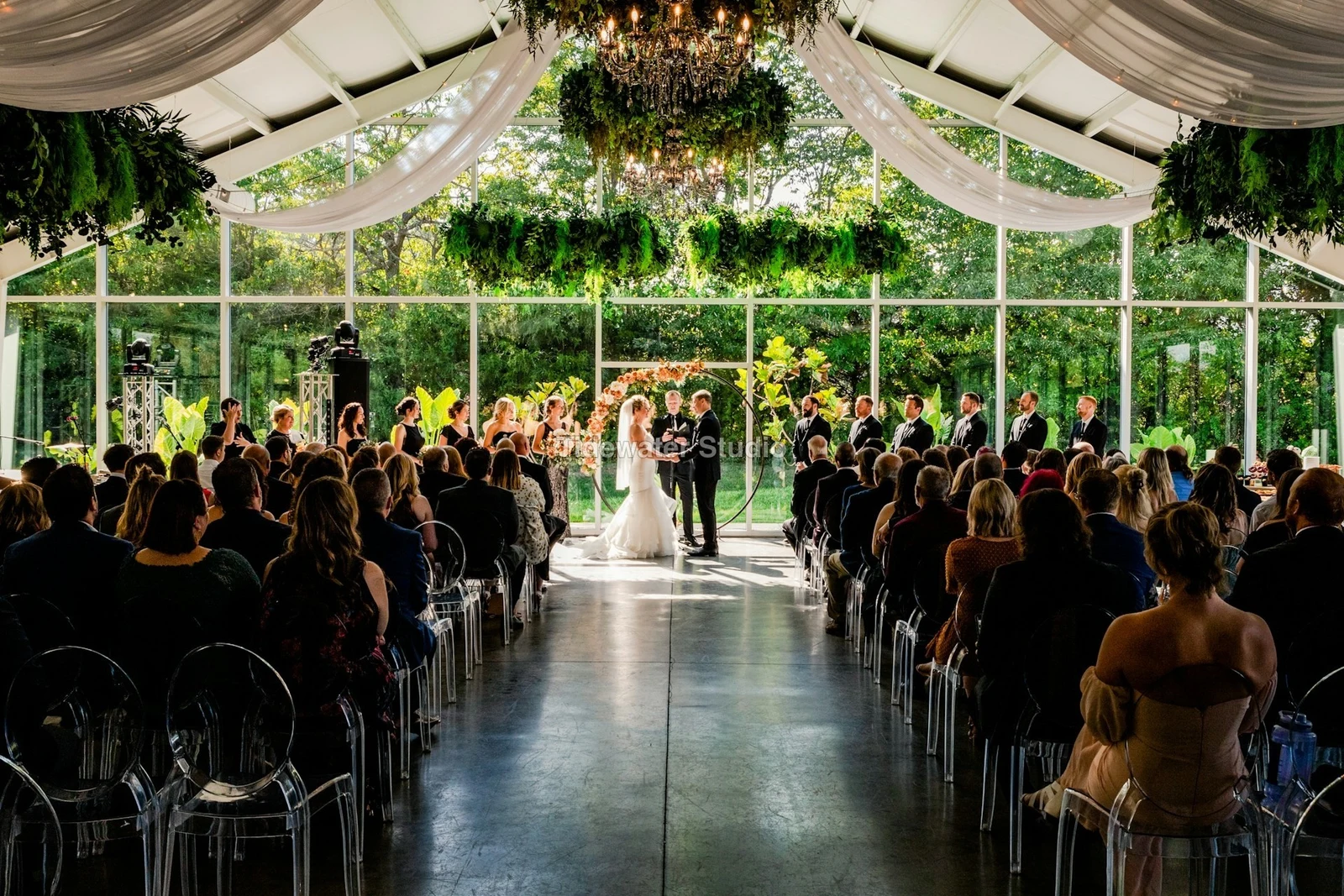
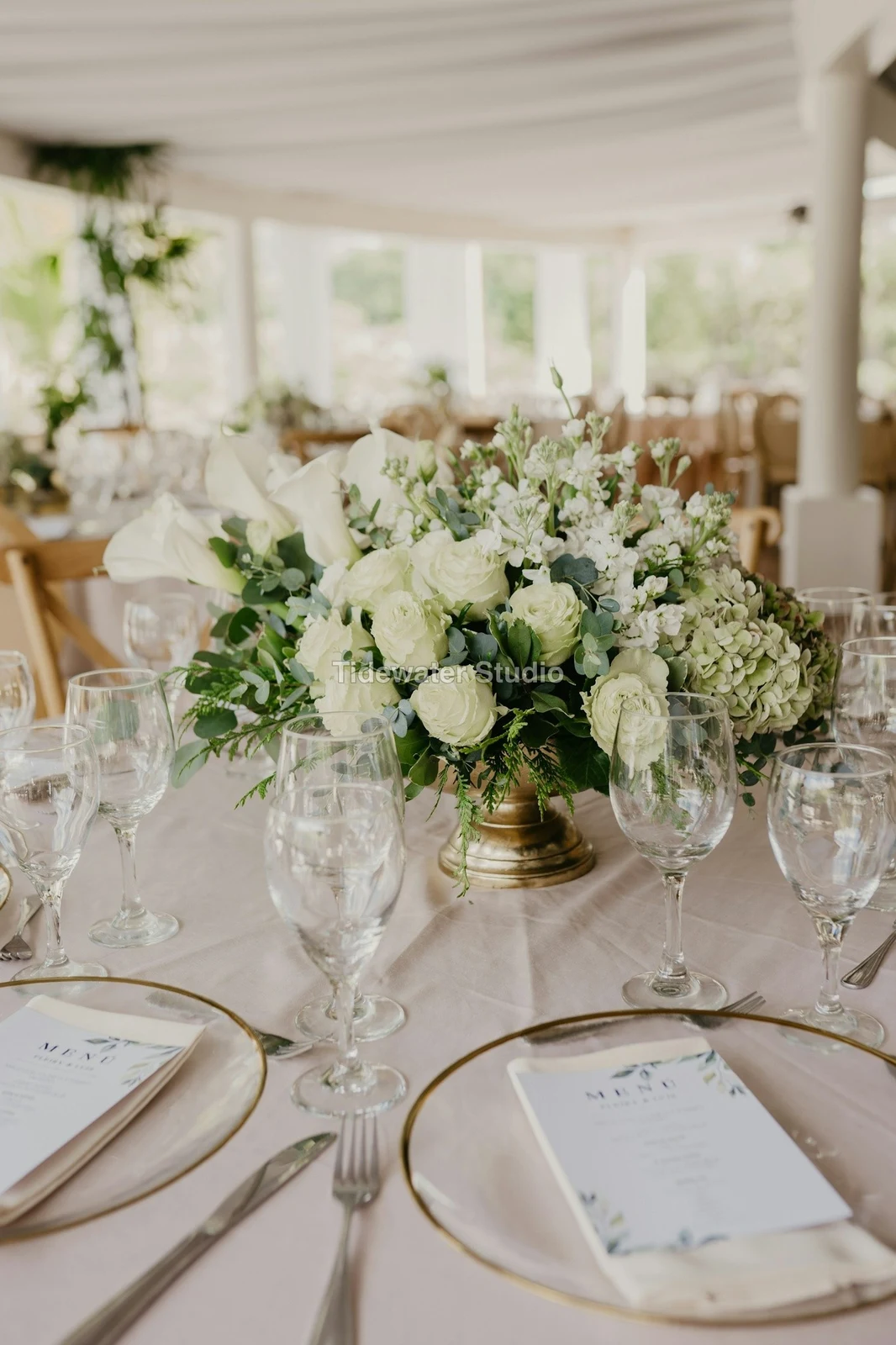
- Your watermark on every photo of the link, at every size and on every download: your logo, your business name or your own words, where it sits, its size and its opacity, set once in Settings ▸ Photos ▸ Watermark.
- Watermark the Photos or Remove the Watermark on a link in Proofing, so the final delivery goes out clean.
- Prints from the Gallery: Choose Prints from your drop-ship products on sale online; the client taps Buy Print on a photo, picks the print, the size and how many, and pays on your own checkout (with Shop and Orderflow).
- Your lab prints the photo the client chose and ships it to them; the order is in Orderflow beside every other web order.
- The client picks up to the limit, leaves notes, and sends their selection, approves or asks for changes, round by round.
- Open the Next Round, or Stop Proofing; an earlier round stays as it was.
- Galleries counts what is delivered, waiting on the client and closing in 30 days.
- The same Galleries and Proofing views Talent shows (with Talent).
- A photo goes on as its current export, or the original when it has none.
- A Gallery; a design, opened in Studio with the photo placed (with Studio); a website’s assets (with Sites); a listing’s photos, when the business has a listing (with Listings).
- Every picture picker in Calisto lists the business’s photos in Depot, exports included.
- Adjust and Layers, switched in the header: ⌘⌥1 and ⌘⌥2, or A and L.
- Keyboard Shortcuts (⌘/) lists every key; ⌘K finds every command.
- Each editor’s back link returns to the Library.
- Home, Library and Settings in the tab bar; shortcuts to Add Photos, the Library, Bulk Auto and Looks.
- The photo fills the screen: pinch to zoom and pan, double-tap to fit, press and hold for Before.
- Each section a chip under the photo, its tray docked under it, never over it, with the desk’s controls and a Reset.
- A slider moves only on a sideways drag, so a scroll never edits; words are typed in a dialog above the keyboard.
- Layers on a phone: the canvas full screen, the tools in a bottom bar, the layer tree and Format as bottom sheets.
- Keep Foto on This Device: Home, the Library, Looks and Add Photos open with no signal; an edit’s save, a new look and uploads wait and land once.
- Copy Saved is sent when the server finishes a copy, to the person who asked for it.
- Foto installs as part of the Calisto app.
- Every photo and every export is a Depot file on the account’s one quota; each Foto Pro seat adds its included storage to it (with Depot).
- Working copies and the render cache never count.
- Settings ▸ General: the business’s name, design and sign-in.
- Settings ▸ Photos: the export format, size on the long side or the original’s, quality, and the look Bulk Auto starts from; changed by the business’s admins, and Purview may lock it.
Questions about Calisto Foto
Mtu yeyote aliyeingia ana Foto Essentials: Kitabu cha Kazi, Auto, Auto kwa Wengi, Mipangilio, Badilisha na Nuru, Rangi na Kugawanya, na Galeri. Mipangilio yote nyingine ya Badilisha iko nyuma ya Zaidi. Foto Pro inawaweka wote pamoja na kuongeza eneo la Layers, kwa mtu mmoja kwa kila kiti.
No. An edit is kept beside the photo with its history, so any step can be undone later. An export is a new file in Depot, reached from its photo, and the original stays as it came.
JPEG, PNG, WebP, HEIC, HEIF, AVIF, TIFF and camera RAW files. A RAW is developed on your device, or on the server when the device cannot. A layered Photo exports as JPEG, PNG, WebP, AVIF, TIFF or a layered PSD.
Studio inafungua PSD iliyokatwa kama muundo. Foto inahifadhi Photo iliyokatwa kama PSD inayodumisha vitengo vyake, masaa, mchanganyiko, vikundi, maandishi na staili, na kuambia kwa maneno rahisi hayo iliyoweza kuyahifadhi.
Gusa Gallery kwa ajili ya uthibitisho. Mteja anafungua kiungo, chagua hadi idadi uliyoweka, acha ujumbe kwenye picha yoyote na kutuma chaguo lake, kuthibitisha au komba mabadiliko, kila kundi. Chaguo zake zinatokea kama Chaguo za Mteja kwenye Kumbukumbu yako, na kila ujumbe unatokea kwenye picha wakati unarekebisha.
Ndiyo. Chagua bidhaa zako za kuwasilisha ambazo Gallery zinazouza, kama vile chanzo ambacho labora yako inapanga na kuwasilisha. Mteja anagonga Kompa Chanzo kwenye picha, anachagua chanzo, ukubwa na idadi, na kulipa kwenye ukaguzi wako. Labora yako inapanga picha hiyo na kuwasilisha kwake.
Katika Depot, kwenye kiasi cha hifadhi cha akaunti yako, ambapo kila mtazamaji wa picha katika Calisto hupata zake. Kila sehemu ya Foto Pro au Create inaongeza hifadhi inayoitwa kwenye kiasi hicho cha hifadhi.
