Edit video panjang dari potongan pertama hingga eksport.
Letkan rakaman anda pada garis masa, potong secara bingkai demi bingkai atau dengan memadamkan perkataan yang diucapkan, tambah tajuk dan tajuk, dan muat naik ke saluran anda, dari komputer atau telefon anda.
Setiap Video, dari pengambilan pertama hingga ke pasca
Episod, temu bual, video produk dan filem yang dibuat oleh sebuah perniagaan tentang dirinya sendiri.
Mula
Rekod, rakaman atau templat.
Edit
Melalui bingkai atau melalui perkataan.
Bunyi
Campuran, nada dan irama.
Teks
Setiap perkataan dikala, setiap bahagian bertajuk.
Video Pro
Warna, topeng, kunci dan multicam.
Terbitkan
Eksport, Shorts dan saluran.
Di Telefon
Video yang sama di tangan anda.
Mula Video daripada rekod, rakaman atau templat
Video Baru dibuka satu demi satu, dibingkai 16:9 dengan tajuk pengenalan dan kad penutup. Seret rakaman ke Rumah, atau pilih di bawah Media, dan ia akan diletakkan. Setiap sumber dan eksport adalah fail di Depot, dan setiap Video berada di Hubnya.
Rekod
Kamera, skrin dengan mikrofon, atau mikrofon sahaja, diletakkan pada penanda main.
Sumber
Rekod disimpan ke fail anda dan diletakkan pada kepala main apabila anda berhenti.
Teleprompter
Naskah anda akan bergulir di atas prapenampakan pada kadar bacaan anda semasa merekod, dipantulkan untuk kaca jika anda mahu, dan tidak pernah dalam Video.
Sumber
Rekod disimpan ke fail anda dan diletakkan pada kepala main apabila anda berhenti.
Teleprompter
Bienvenidos a Spa Brisa. Aquí cada visita empieza con un té y una conversación. Después elegimos juntos el masaje que necesitas, y el resto del día es tuyo.
Paparan di atas PratinjapCermin untuk Kaca TeleprompterSekitar 0:12 untuk dibaca. Naskhah bermula dari atas dengan setiap lakonan, dan tidak pernah dalam video.
Templat
Video YouTube, Tajuk Pengenalan, Kad Bab, Nama dan Peranan, Kad Akhir, Pos Persegi dan Audiogram.
Templat memakini apa yang ada pada garis masa. Segala apa yang ditambahkan kekal boleh diedit, dan Unduh mengambilnya kembali.
Video dan Muzik Stok
Video stok, muzik dan kesan bunyi, diletakkan dari Perpustakaan Media.
 Morning Run0:14
 City Rooftop0:22
 Market Stall0:09
 Studio Light0:18
 Coastline0:31
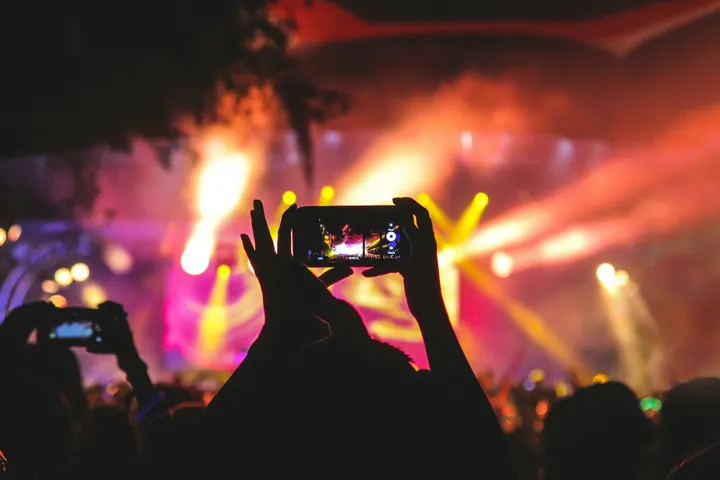 Night Crowd0:12
Muzik
Perpustakaan dan Hub
Cari, namakan semula dan fail setiap Video, atau letakkan pada projek klien, dengan Velocity.
 Casa Ámbar
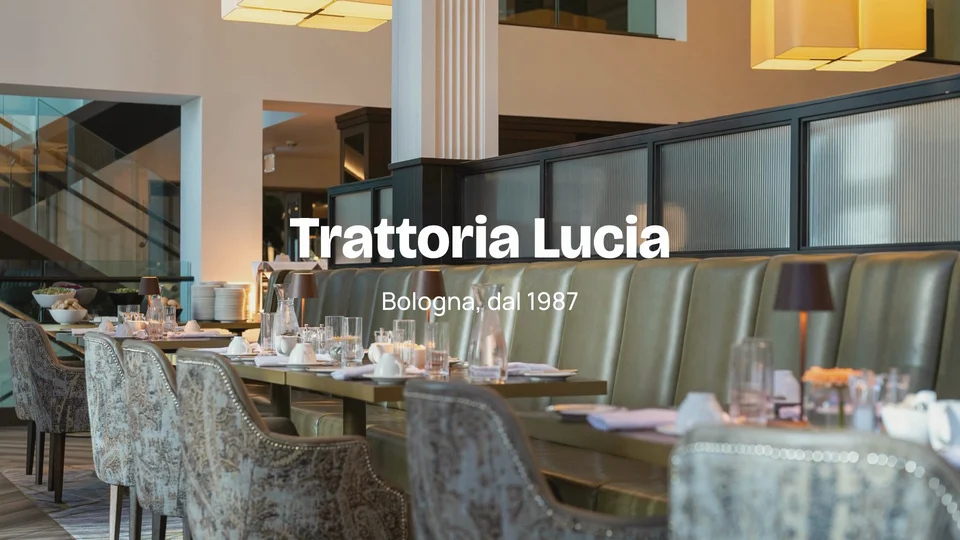 Trattoria Lucia
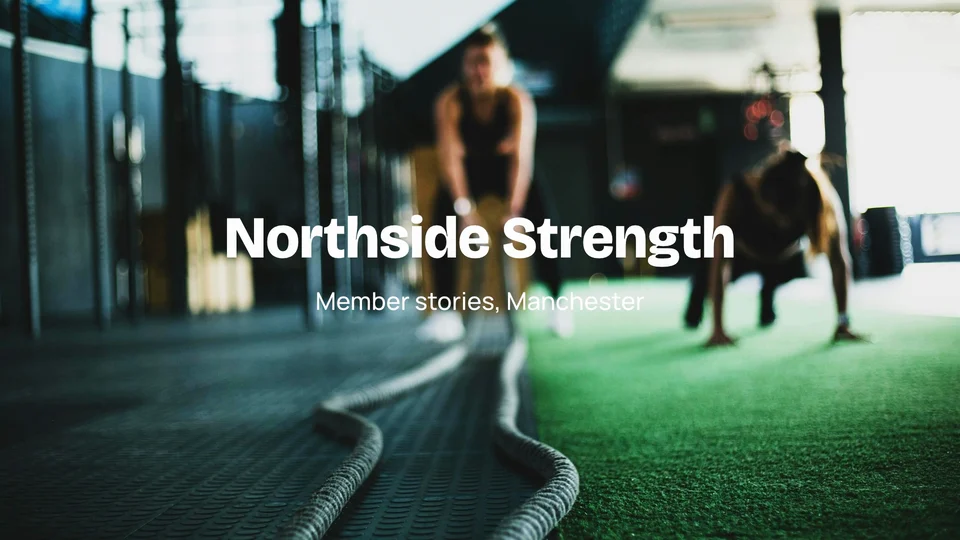 Northside Strength
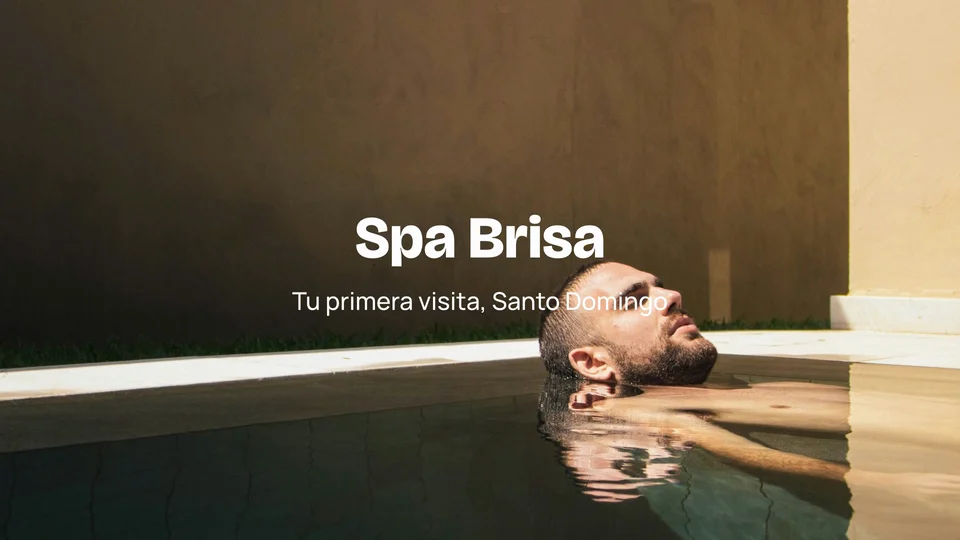 Spa Brisa
 Atelier Noor
 Tejo Residências
 Harbourline
 Ridgeview Golf Club
Sumber
Rekod disimpan ke fail anda dan diletakkan pada kepala main apabila anda berhenti.
Potong pada garis masa banyak trek, mengikut bingkai atau mengikut perkataan
Video, audio, teks dan trek penyesuaian, dengan pecahan, padam riak, penanda dan kunci yang sudah digunakan oleh editor. Transkrip duduk bersebelahan dengan garis masa: padam satu perkataan dan saatnya dipotong, dan Buang Perkataan Penuh dan Buang Keheningan masing-masing membersihkan satu rakaman dalam satu langkah.
So, um, pick a desk for the day or keep one for the month.
Meeting rooms are booked from your phone, like, in a couple of taps. Jeda 2.4s
I moved my whole team in here last March, actually, and we never looked back.
The coffee is free, the view is the harbour, and the door opens at seven.
You know, it just works.
Campurkan bunyi, bersihkan suara dan potong ke ritma
Setiap klip mempunyai kelopaknya, pengurangan bunyi latar belakang dan muzik yang diturunkan di bawah suara. Video mengekalkan kelopaknya kepada sasaran yang anda pilih, untuk streaming, podcast atau siaran. Beat yang ditemui dalam bunyi menjadi potongan pada setiap beat atau setiap bar.
Suara
Lagu pada Garis Masa Ini
Cari Beat
Cari Beat dalam Suara IniDitemui pada peranti ini, daripada bunyi itu sendiri.
Potong Pada Ritma
Pilih klip untuk dipotong, kemudian pilih kekerapannya.
4 klip pada 4 irama
Edit ke Bunyi
Hanya untuk masa. Ia kekal pada peranti ini dan tidak pernah dieksport.
Grid Tempo
Saiz
Kadar Bingkai
Kekuatan
Eksport diukur dan dibawa ke tahap kelantangan ini, tidak pernah melebihi puncak sebenar −1 dB.
Campuran Penuh
Tahap
Bersihkan
Buang bunyi latar belakangMengelak
Rendahkan suaraSuara
Equalizer
Pemampat
Pantau
Beri tajuk pada setiap perkataan, dan beri tajuk pada setiap bahagian
Terjemahkan dan tambah tajuk untuk setiap perkataan satu demi satu, dalam bahasa yang digunakan, dengan perkataan yang diucapkan disorot. Tajuk direka bentuk sebagai halaman: tajuk utama, nama dan peranan, petikan, kad bab pada setiap penanda, dan kad akhir.
Transkrip dan Tambah Subtitar
Setiap perkataan diukur masa seperti yang diucapkan, dalam bahasa yang digunakan, dengan perkataan yang diucapkan diterangi.
24 tajuk, dibuat daripada apa yang dikatakan dalam edit. Potong perkataan dahulu, kemudian buat semula.
Penampilan
Tajuk dibuat daripada perkataan yang dimainkan, dan dikala kata demi kata.
Darjah, topeng, kunci, laluan dan potong multicam dengan Video Pro
Sesuaikan warna markah dengan roda, tahap, lengkung, LUT dan Auto Color, baca pada skop. Tambah kesan dengan topeng, kunci kromatik, lapisan penjejakan, penjejakan, lapisan penstabilan dan lapisan penyesuaian, serta Ambil Grain untuk membuang butiran daripada gambar. Edit menambah Multikamera, Susunan Bersarang dan Mixer. Video dengan kerja Pro sentiasa dibuka dan dimainkan, ada kerusi atau tidak.
Kelulusan Warna
Roda, aras, lengkung dan Auto Color, dengan lapan gaya milik Calisto atau fail gaya milik anda sendiri.
Roda Warna
Tahap
Lekuk
Look (LUT)
Skop
Gelombang, perarakan RGB, vektoroskop dan histogram.
Skop


Baca dari bingkai pratinjau yang ditunjukkan, seperti yang ia dinilai.
Topeng, Kunci dan Pemantauan
Maski segi empat tepat, elips dan pen, Auto Key untuk skrin hijau, dan tajuk yang mengikuti apa yang bergerak dalam adegan.
Tambah Topeng
Kunci Warna
Kunci AutomatikTrack Matte
Pantau Ini
Multikamera
Sudut yang diselaraskan oleh bunyi atau kod masa, ditukar pada kekunci 1 hingga 9.
Sudut
Sudut: klik satu untuk memotong ke situ
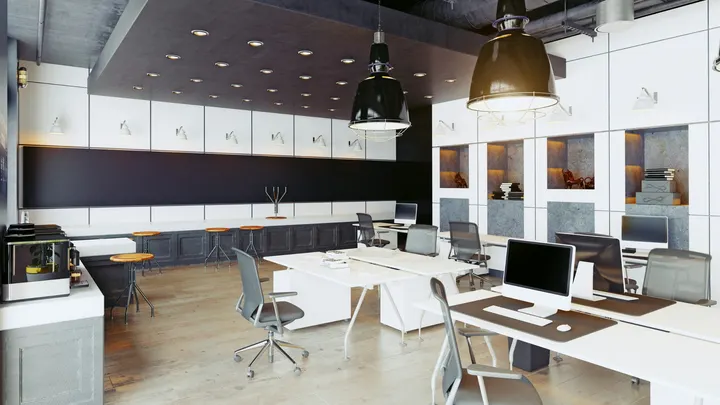 1Wide
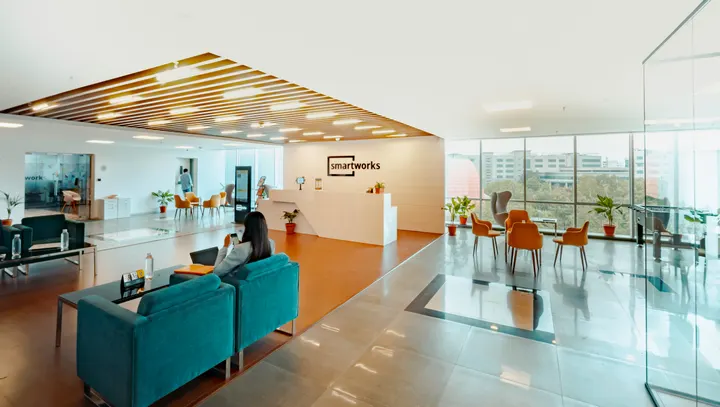 2Thandi
 3Sipho
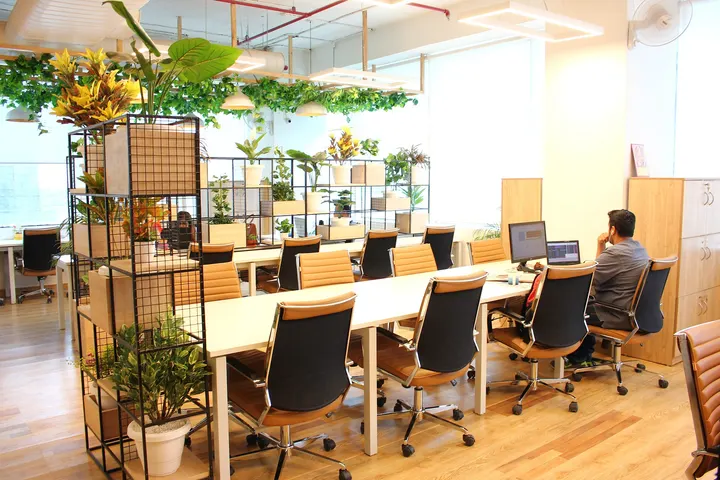 4Desk
Senarai Potong
Setiap potongan adalah klip pada garis masa: seret tepinya untuk memindahkan potongan.
Urutan Bersarang
Pemilihan yang dibuat dalam satu urutan, digunakan semula dalam mana-mana Video.
Sarankan Pilihan
Klip yang dipilih menjadi satu klip yang memutar urutan tersendiri. Buka untuk mengedit di dalamnya; setiap tempat ia digunakan akan mengikuti.
Masukkan Urutan
Kedalaman Anda Sendiri
Setiap orang memilih Essentials atau Pro untuk diri sendiri.
Roda Warna
Tahap
Lekuk
Look (LUT)
Eksportkan, buat Shorts daripadanya dan terbitkan ia
Eksport ke MP4, bingkai YouTube, pos menegak atau segi empat, atau audio, pada peranti atau pada pelayan Calisto. Cadangan Shorts menghasilkan momen-momen video dari transkripnya, setiap satu dibuat sebagai Klip dalam Klip. Terbit menghantarnya ke TikTok, Instagram Reels atau YouTube melalui sambungan anda sendiri.
Eksport
Fail untuk YouTube, pos menegak atau persegi, atau bunyi sahaja, dibuat pada peranti ini atau pada pelayan Calisto; 4K dan ProRes dengan Video Pro.
Peranti ini akan membuat fail tersebut. Jika ia tidak dapat menamatkannya, pelayan Calisto akan mengambil alih.
Buat Shorts
Momen-momen yang berfungsi sendiri dipilih dari apa yang dikatakan, dan setiap satu menjadi Clip bertajuk menegak dalam Klip.
Calisto membaca apa yang dikatakan dalam video ini dan mencadangkan momen yang berfungsi secara sendiri. Anda memilih; setiap satu menjadi Klip, dibingkai semula dan ditanda.
 Tampal 10:42 hingga 1:08 · 0:26“Every room opens onto the courtyard light.”
 Tampal 21:31 hingga 1:52 · 0:21“Breakfast is served by the pool from seven.”
 Tampal 32:40 hingga 3:12 · 0:32“Our guests come back for the people, not the pool.”
 Tampal 44:05 hingga 4:27 · 0:22“Oaxaca is ten minutes away on foot.”Tampal 55:18 hingga 5:44 · 0:26“Lucía greets every guest by name.”
Terbitkan
Ke TikTok, Instagram Reels dan YouTube melalui akaun anda sendiri, atau dijadualkan dengan Impreta.
Di mana
Auto-Reframe
Setiap klip, atau yang dipilih, dibingkai semula ke bentuk baru.
Saiz
Auto-Reframe
Auto-Reframe Setiap KlipAuto-Reframe Klip yang DipilihSetiap rakaman mengisi bingkai dan mengikuti orang atau benda di dalamnya, ditemui dan diikuti pada peranti ini. Pilih saiz dahulu; kekunci yang ditetapkan berada dalam Transform & Keyframes.
Hantar ke Telefon
Untuk Instagram dan YouTube, Video tiba di telefon anda untuk diposkan dari situ.
 9:41
Diberitahu Apabila Selesai
Eksport pelayan menghantar notis, dengan Terbitkan di atasnya.
Fail Subtitan
Fail tajuk untuk setiap bahasa tajuk, disimpan di Depot.
Fail Subtitan
Disimpan bersama dalam fail anda.
Edit video yang sama di telefon, walaupun tanpa sambungan internet
Editor mengambil seluruh skrin, dengan batalkan hanya satu sentuhan, pemegang pemotongan selebar jari dan Buat Video Pendek serta Terbitkan dalam menu. Rakaman yang dikongsi dari galeri kamera menjadi Video baharu. Dengan Simpan Video pada peranti ini, penyuntingan yang dibuat secara offline akan disimpan apabila isyarat kembali.
Di mana Video menyentuh segala sesuatu.
3 of these 5 connections are in your plan today; the others are their own apps.
Depot
Every source and export is a file in Depot, and every Video sits in its Hubs.
Clips
Make Shorts turns a Video’s moments into Clips, which open in Clips.
Creators
A Calisto TV video’s edit is a Video, opened from Creators.
Velocity
A Video goes on a client project, so the work shows there.
Workforce
A business assigns its Video Pro seats where its people are set up.
Tiada kos tetapan. Bayar apabila mula menggunakan.
Long-form video, from the first cut to the export.
Video Pro
Sesuaikan, Efek, Multikamera, Urutan Bersarang dan Mixer, untuk seorang individu, pada kerusi sendiri atau dengan kerusi Cipta; perniagaan menetapkan kerusinya kepada orang-orangnya.
Disyorkan untuk anda
Berfungsi dengan baik bersama.
Calisto Depot
Calisto Clips
Calisto Creators
Included with any app a creator works in
Inquiries, proposals, appointments, projects and galleries for client work, and posts, videos, podcasts, live, memberships, courses, digital products and prints for your audience, in one app.
Learn more →Calisto Velocity
Calisto Workforce
Semua yang termasuk dalam Calisto Video.
- Home: the Videos to pick up again, New Video, Recent Videos beside the Media bin (the account’s videos in Depot).
- New Video makes Untitled Video at once, in the YouTube Video template, and opens it; it is renamed in the editor’s header.
- Footage dropped anywhere on Home, or picked in the Media bin, makes a Video with it placed.
- Library: every Video, newest edit first, searched by title, with Rename, Delete, Assign to Project and Move To a Hub’s Folder, from a card or the checked cards.
- The Hubs in the sidebar each open the Library narrowed to that Hub.
- The account’s Depot storage is shown in the Library’s header.
- A vertical video is a Clip: anything that shows one says Open in Clips.
- A new Video: 16:9 at 30 fps, loudness at −14 LUFS, classic captions, the 1080p MP4 export first.
- Size: Landscape (16:9), Vertical (9:16), Square (1:1), Portrait (4:5), Widescreen (21:9) and 4K (16:9), or an exact width and height.
- Frame Rate: 24, 25, 29.97, 30, 50 or 60.
- Loudness: Streaming and Social (−14 LUFS), Podcast (−16), Podcast Mono (−19), Broadcast (−23), or Leave As Recorded, never past a −1 dB true peak.
- The whole mix: volume, background noise removed from everything, fade in and fade out.
- Auto-Reframe every clip, or the selected clips, to a new shape, on the device.
- Stabilize the selected clips in one tap, on the desk and the phone: the shake taken out on the device, a deliberate pan kept.
- The Video’s client project (with Velocity).
- Media: upload files, or pick from the Media Library in Depot; add as picture in picture.
- A proxy is made on the device for editing; the export uses the original.
- Elements and Stickers: the design editor’s elements, stickers and emoji, placed on the picture.
- Record: camera, screen with the microphone, or microphone alone, with a live level meter; the take is saved to your files and placed at the playhead.
- A teleprompter: your script scrolls over the preview at a reading pace while you record, in your size, mirrored for a glass if you want, and never in the video.
- Audio: upload music or a sound, or pick one from Depot, and lower it under voices.
- Text: Headline, Lower Third, Quote, Pop, Label, Chapter and End Card, each a designed title edited in the design editor, with an animation in and out (Fade, Rise, Drop, Slide, Pop, Zoom or Spin).
- Templates: Intro Title, End Card, Name and Role, Chapter Cards, YouTube Video, Reel, Short or TikTok, Square Post and Audiogram.
- Transitions: crossfades, dissolves, fades through black, wipes, slides, shapes and more, on one cut or applied to every cut, with their length.
- A multitrack timeline: video, audio, text and adjustment tracks, each muted, locked, hidden, renamed, moved or deleted.
- Split, cut, copy, paste, duplicate, delete and ripple delete; trim; snapping and ripple editing switched with a key.
- Markers, named as chapters, in their own lane.
- The transcript beside the timeline: delete words to cut them, remove filler words and silences, restore what was removed.
- Speed from 0.25x to 8x, keeping the voice’s pitch, or an exact speed; speed ramps (Fast and Slow, Slow Middle, Near Stop, Slow Down, Speed Up) or the curve edited by hand; reverse; a freeze frame at the playhead.
- Transform: position, scale and rotation dragged in the preview; with Video Pro, position, scale, rotation, opacity and crop keyframed with easing.
- Adjust: brightness, contrast, saturation and temperature on any clip.
- Looks in one tap: Natural, Warm, Cool, Vivid, Black and White, Faded, Punchy, Moody.
- Undo and redo of every change; a save failed shows Retry, and an edit made elsewhere at the same time offers Restore My Version.
- ⌘K searches every action; ⌘/ lists every key: J, K and L, I and O, S to split, M for a marker, ⌘E to export and more.
- Volume, background noise removed, and music lowered under voices, on every clip.
- With Video Pro: gain, a gate for the quiet parts, an equalizer, a compressor, track volume, pan and volume keyframes.
- Voice in one tap: Clear Voice, Broadcast, Studio Clean, Warm, or As Recorded.
- Beats found in a sound on the device, snapped to, and cut to (every beat, every two beats or every bar), placed or split on the beats.
- A tempo grid by BPM or Tap Tempo; a guide sound to edit against, kept on the device and never exported.
- Find a Trending Sound opens TikTok’s Creative Center, Instagram Reels and YouTube Shorts.
- Transcribe and Add Captions: the words timed one by one, on the device first and on Calisto’s servers when it cannot.
- The language spoken is detected from the recording.
- Translate Captions: a caption track in any of 31 languages, at the same times and in the same look, shown in place of the original and edited like any caption.
- Speaker Coach: each speaker’s pace, filler words, long pauses, words said twice and quiet words, each a moment to jump to, read on the device.
- Looks: Classic, Bold Pop, Boxed, Minimal, Neon and Big Center, with the word being spoken highlighted.
- Caption style: font, size, all capitals, colors, a box behind the words, an outline, the height on screen, the width and the number of lines.
- In Your Brand: captions and titles set in the brand kit’s fonts and colors in one tap, its fonts and colors listed first, and its logo placed as a title.
- Adjust: Color Grade (Auto Color, one of Calisto’s eight looks (Teal and Orange, Film Fade, Bleach Bypass, Warm Film, Cool Night, Noir, Vintage, Clean Punch) or a LUT uploaded as a .cube file, with its intensity, color wheels, levels, curves) and the scopes (waveform, RGB parade, vectorscope, histogram).
- Effects: masks (rectangle, ellipse or pen, feathered, inverted, animated), chroma key and Auto Key with spill suppression, and adjustment layers.
- Tracking: a point or a plane tracked, with the title or picture turning and growing with it; stabilize, zooming to hide the edges.
- Multicam: angles synced by sound, by timecode or as placed, switched on keys 1 to 9, with the cut list.
- Nested Sequences: nest a selection, open it, insert one into another Video.
- The Mixer: every track and bus a channel with a fader, pan, mute, solo, a live meter, its route and a channel strip (EQ, then compressor); buses added and named there.
- Without the seat, every Pro control reads Pro · Upgrade (or Ask for a Pro Seat), and a Video that already holds Pro work still opens, saves and plays.
- Each person picks Essentials or Pro for themselves, in their preferences.
- Moments of a Video proposed from its transcript: 3, 5, 8 or 10 of them, each watched first.
- Each moment picked is made a Clip, reframed to 9:16 and captioned, and opens in Clips.
- MP4 at 1080p, YouTube (16:9), Reels, Shorts and TikTok (9:16, reframed), Square and Portrait feed posts, AAC and MP3 audio; at Pro, MP4 at 720p and 4K, WebM and WAV.
- Each caption track as an SRT or WebVTT subtitle file, downloaded and kept with the Video in Depot.
- Rendered on the device, or on Calisto’s servers while the device keeps working; a server export sends a notice when it is done, or when it fails.
- At Pro, the codec (H.264, HEVC or AV1 in MP4; VP9 or AV1 in WebM), ProRes 422 HQ and ProRes 4444, and the frame rate from 23.976 to 60.
- Recent Exports lists what was made; every export is a file in Depot.
- Publish: TikTok (to drafts or posted), Instagram Reels and YouTube, over the accounts the business connects, with who can see it, made for kids, comments, duets and stitches, a brand promoted, and the networks’ label for generated media.
- Schedule with Impreta: the finished Video opens in Impreta’s composer, and its queue and calendar send it when it is due (with Impreta).
- Send to Phone, for Instagram and YouTube: a notice on your own phone that opens the same Video ready to publish.
- Edited against a guide sound: the publish dialog says to add the sound on the network.
- A Video belongs to the account and records who made it; anyone in the account who can open the editor can open it.
- Edited together: everyone in a Video sees the others’ edits as they happen, who else is in it and where their playheads are.
- Comments pinned to a moment of the Video, with replies, @mentions, assign and resolve, marked on the timeline; a reviewer’s notes from the review link show at their moments too.
- Every Video is in Depot, in its Hubs and on a client project like everything else a person makes.
- Sources and exports are Depot files on the account’s one quota; each Video Pro seat adds its storage to it.
- A Calisto TV video’s edit is a Video (with Creators), and it is deleted with its TV video.
- The tab bar: Home, Library and Settings.
- The editor takes the whole screen: rename in its header, thumb-sized undo and redo, Saved or Retry, Export, and ⋯ for Make Shorts, Publish and Essentials or Pro.
- Its tool bar: Edit, Audio, Text, Stickers, Captions, Speed, Effects, Video, Comments and Export; trim handles a finger wide; the timeline a third of the screen at most.
- Shortcuts: New Video and Library.
- Footage shared to Calisto (MP4, MOV, WebM) becomes a new Video with it placed.
- Keep Video on this device: the lists, the Hubs and every Video opened, with no signal; an edit made offline is saved when the signal comes back.
Questions about Calisto Video
Ruang Penyuntingan: garis masa pelbagai trek, rakaman, media dari Depot, audio dan alat irama, tajuk yang direka, kapsyen dari transkrip, peralihan, penampilan dan suara dengan satu sentuhan, templat, kelajuan dan ramp, eksport dan penerbitan. Bingkai kunci, kawalan bunyi yang lebih halus dan Mixer disertakan dengan Video Pro. Setiap orang yang log masuk mempunyai Peralatan Asas, tanpa pelan yang dipilih.
Sesuaikan (Terasa Warna dengan roda, tahap, lengkung, LUTs dan Auto Color, dan skop), Kesan (topeng, kunci kroma dan Auto Key, lilitan trek, penjejakan dan menstabilkan, lapisan penyesuaian), dan Multicam, Susunan Bersarang dan Mixer dalam Edit. Ia juga menambah pengurangan hingar gambar; bingkai kunci, tanaman dan mod campur; keuntungan, pintu, pengimbang dan pemampat; dan eksport 4K, WebM, WAV dan ProRes. Kursi Video Pro adalah milik seorang individu, dan ia menambah simpanan Depotnya ke akaun. Kursi Create juga menyimpannya.
Ia masih dibuka, disimpan, dimainkan dan dieksport. Darjah, topeng, kunci dan urutan bersarang kekal seperti sedia ada, dan alat-alat Essentials terus berfungsi di atasnya.
Dalam Depot, pada penyimpanan akaun, sebagai fail Video yang mereka milik. Setiap kerusi Video Pro atau Create menambah penyimpanan ke kuota yang sama. Proksi dan cache render adalah salinan kerja dan tidak pernah dikira.
Pada peranti dahulu, dan pada pelayan Calisto apabila ia tidak dapat, atau apabila anda memilih. Eksport pelayan menghantar notis apabila ia siap, dengan Terbitkan di atasnya.
Bahasa yang bercakap dideteksi dari rakaman, dan transkrip serta kapsyen ditulis dalam bahasa tersebut, dikala kata demi kata. Translate Captions kemudian membuat laluan kapsyen dalam mana-mana 31 bahasa, pada masa yang sama dan dengan penampilan yang sama, untuk anda edit; setiap bahasa juga fail subtitle tersendiri.
TikTok, Instagram Reels dan YouTube, melalui akaun yang disambungkan oleh perniagaan. Hantar ke Telefon tangan memindahkan Video ke telefon anda sendiri untuk diposkan dari situ.
Satu penyunting dan satu rekod. Video adalah mendatar atau segi empat dan dibuka dalam Video; yang menegak ialah Klip dan dibuka dalam Klip. Buat Shorts menukar momen Video kepada Klip, dan Klip Pro ialah tempat duduk tersendiri, atau disertakan dengan tempat duduk Buat.
