Bewerk 'n lang video van die eerste sny tot die uitvoer.
Plaas u beelde op 'n tydllyn, sny dit raam vir raam of deur die gesproke woorde te verwyder, voeg ondertitels en titels by, en plaas dit op u kanale, vanaf u rekenaar of u foon.
Elke Video, van die eerste opname tot die pos
Episodes, interviews, produkvideo's en die films wat 'n bedryf oor homself maak.
Begin
Opnames, 'n opname of 'n sjabloon.
Bewerk
Per raam of per woord.
Geluide
Die mengsel, die stem en die ritme.
Opskrifte
Elke woord getim, elke deel getitel.
Kennis
Kleur, maske, sleutels en multicam.
Publikasie
Export, Shorts en die kanale.
Op 'n Telefoon
Die selfde Video in jou hand.
Begin 'n Video vanaf beelde, 'n opname of 'n sjabloon
Nuwe Video's open een onmiddellik, in 'n 16:9 raam met 'n inleidingstitel en 'n eindkaart. Sleep beelde na die Huis, of kies dit onder Media, en dit word geplaas. Elke bron en uitvoer is 'n lêer in Depot, en elke Video sit in sy Hubs.
Opneem
Die kamera, die skerm met die mikrofoon, of slegs die mikrofoon, geplaas by die afspeelkop.
Bron
Die opname word opgestoor in jou lêers en geplaas by die afspeelkop wanneer jy stop.
Teleprompter
Jou skrif rol oor die voorskou op jou lees-tempo terwyl jy opneem, gespieël vir 'n glas as jy wil, en nooit in die Video nie.
Bron
Die opname word opgestoor in jou lêers en geplaas by die afspeelkop wanneer jy stop.
Teleprompter
Bienvenidos a Spa Brisa. Aquí cada visita empieza con un té y una conversación. Después elegimos juntos el masaje que necesitas, y el resto del día es tuyo.
Toon oor die VoorbeeldSpiegel vir 'n Teleprompter-glasOngeveer 0:12 om te lees. Die skrip begin by die boonste met elke opname en verskyn nooit in die video nie.
Sjablone
YouTube-video, Inleidingstitel, Hoofstukkaarte, Naam en Rol, Eindekortjie, Vierkante Pos en Audiogram.
'n Sjabloon draai wat op die tydlinies is. Alles wat dit byvoeg, bly redigeerbaar, en Ongedaan maak dit terug.
Voorraad Videos en Musiek
Stock videos, music and sound effects, placed from the Media Library.
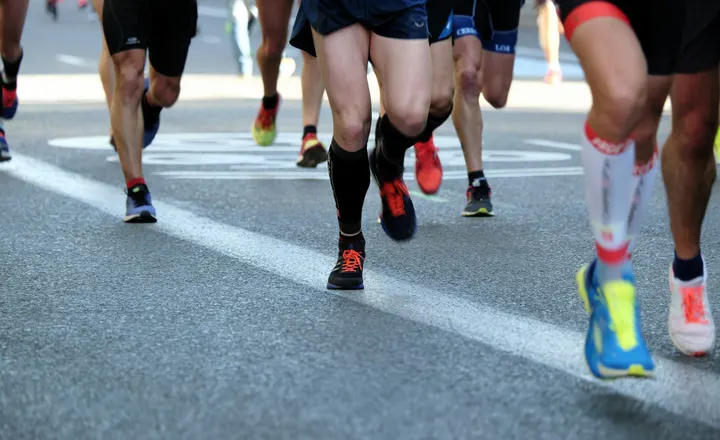 Morning Run0:14
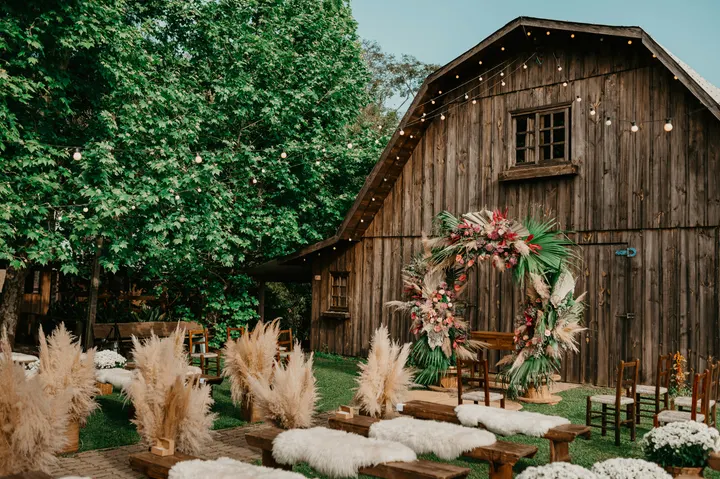 City Rooftop0:22
 Market Stall0:09
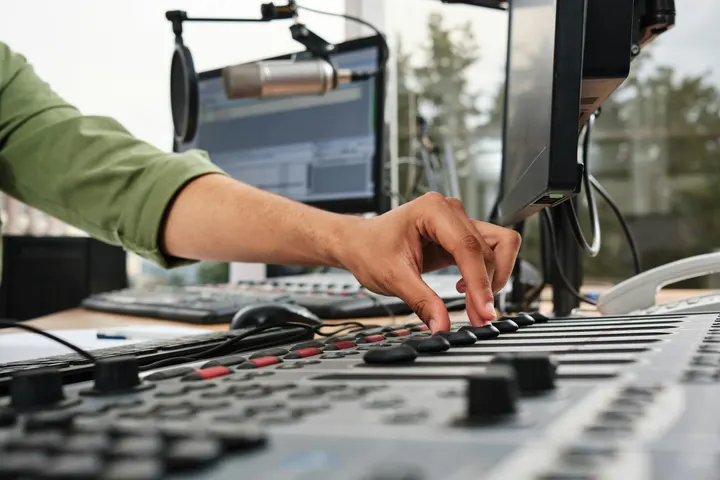 Studio Light0:18
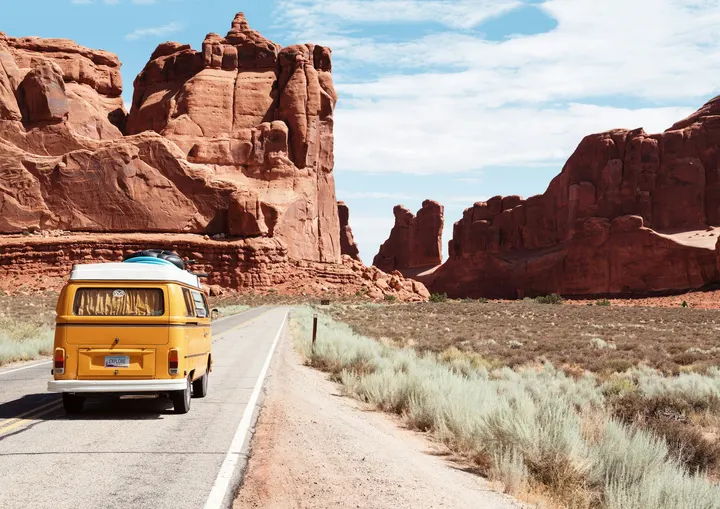 Coastline0:31
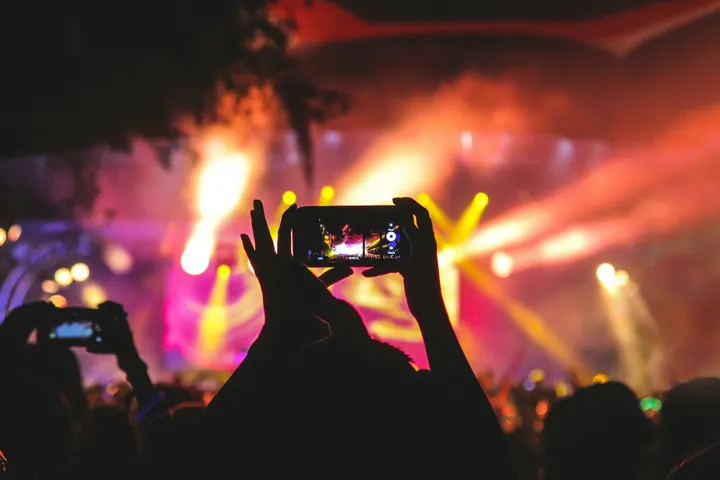 Night Crowd0:12
Musiek
Biblioteek en Hubs
Soek, hernoem en lê elke Video in, of plaas dit op 'n kliëntprojek, met Velocity.
 Casa Ámbar
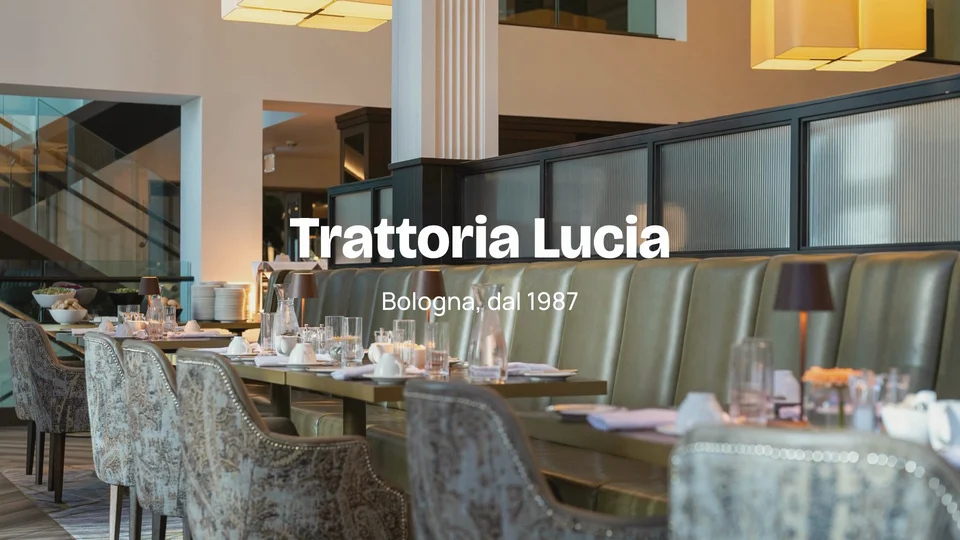 Trattoria Lucia
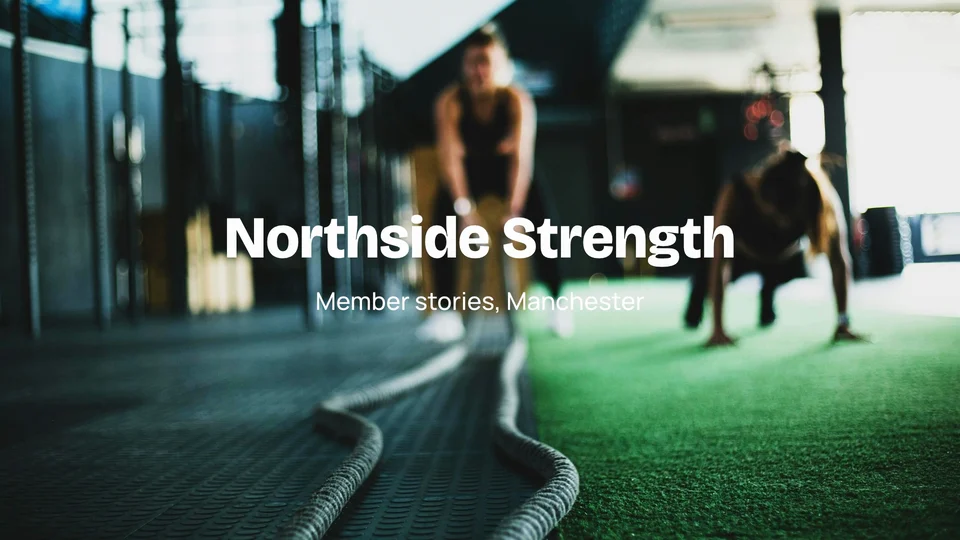 Northside Strength
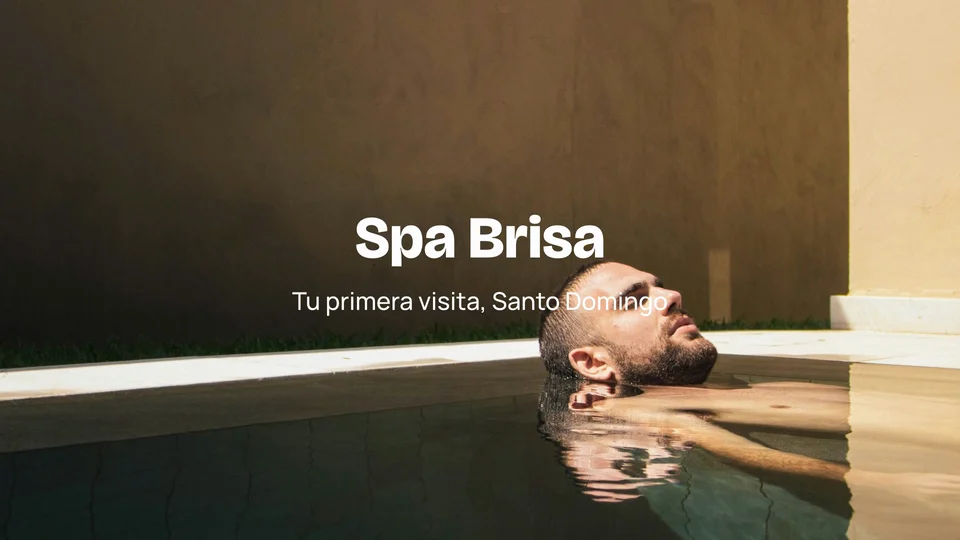 Spa Brisa
 Atelier Noor
 Tejo Residências
 Harbourline
 Ridgeview Golf Club
Bron
Die opname word opgestoor in jou lêers en geplaas by die afspeelkop wanneer jy stop.
Knip op 'n meervoudige spoor-tydlyn, per raam of per woord
Video, audio, teks en aanpassingspore, met splitsing, rimpelverwydering, merkers en die sleutels wat redakteurs reeds gebruik. Die transkrip sit langs die tydllyn: verwyder 'n woord en sy oomblik word gesny, en Verwyder Vulwoorde en Verwyder Stiltes skoon elk 'n opname in een stap.
So, um, pick a desk for the day or keep one for the month.
Meeting rooms are booked from your phone, like, in a couple of taps. Pauzeer 2.4s
I moved my whole team in here last March, actually, and we never looked back.
The coffee is free, the view is the harbour, and the door opens at seven.
You know, it just works.
Meng die klank, skoon stemme en sny na die beat
Elke klip het sy volume, agtergrondgeruisverwydering en musiek wat onder die stemme afgevoer word. Die Video hou sy luierheid by die doelwit wat jy kies, of dit nou stroom, 'n podcast of uitsending is. Beats wat in 'n klank gevind word, word snitte op elke beat of elke maat.
Stem
Beats op Hierdie Tydlyn
Vind Beats
Vind Beats in Hierdie GeluidVind op hierdie toestel, vanaf die klank self.
Knip tot die slag
Kies die klippies om te sny, kies dan hoe dikwels.
4 klippe op 4 ritmes
Bewerk na 'n Geluid
Slegs vir tydsbepaling. Dit bly op hierdie toestel en word nooit geëksporteer nie.
Tempo Raster
Grootte
Raamfrekwensie
Volume
Die uitvoer word gemeet en gebring na hierdie volume, nooit verder as 'n −1 dB ware piek nie.
Hele Mengsel
Niveau
Opknip
Verwyder agtergrondgeraasDuik
Laer onderstemmeStem
Equalizer
Kompresor
Spoor
Beeld elke woord, en titel elke deel
Transcribe and Add Captions times the words one by one, in the language spoken, with the spoken word highlighted. Titles are designed pages: a headline, a name and role, a quote, a chapter card at every marker, an end card.
Omskryf en Voeg Ondertitels By
Elke woord gety as dit gesê word, in die taal wat gepraat word, met die woord wat gesê word verlig.
24 opskrifte, gemaak van wat gesê word in die redigering. Haal eers woorde uit, en maak hulle dan weer.
Kyk
Ondertitels word gemaak uit die woorde wat speel, en word woord vir woord getiemed.
Gradeer, mask, sleutel, volg en sny multicam met Video Pro
Pas kleur van grade aan met wieltjies, vlakke, krommes, LUTs en Auto Kleur, lees op die skope. Effekte voeg maske, chroma-sleutel, spoor-matte, sporing, stabilisering en aanpasingslae by, en Adjust haal die korrel uit 'n prent. Edit wenk Multikamera, Geneste Volgordes en die Mengelaar. 'n Video met Pro-werk open en speel altyd, sitplek of nie sitplek nie.
Kleurgraad
Roue, vlakke, krommes en Auto Kleur, met agt uitsigte van Calisto se eie of 'n uitsig-lêer van jou eie.
Kleurwiele
Grade
Curves
Kyk (LUT)
Omvang
Golfform, RGB-parade, vektorskop en histogram.
Omvang



Lees van die raam die voorskou wat dit wys, soos dit geklassifiseer is.
Maske, Sleutels en Volging
Reëls, ellips en pen maske, Auto Key vir 'n groen skerm, en 'n titel wat volg wat beweeg in die skoot.
Voeg 'n Maske by
Chroma Key
Auto SleutelTrack Matte
Hierdie Volg
Multicam
Hoekies gesinkroniseer deur klank of tydkode, omskakel op sleutels 1 tot 9.
Hoekies
Hoekpunte: klik een om na dit oor te skakel
 1Wide
 2Thandi
 3Sipho
 4Desk
Snyplys
Elke snit is 'n klip op die tydllyn: sleep sy rand om die snit te beweeg.
Geneste Volgorde
'n Keuse gemaak in een reeks, weer gebruik in enige Video.
Nest die Keuse
The selected clips become one clip that plays a sequence of its own. Open it to edit inside; every place it is used follows.
Voeg 'n Volgorde In
Jou Eie Diepte
Elke persoon kies Essensiële of Pro vir homself.
Kleurwiele
Grade
Curves
Kyk (LUT)
Exporteer dit, maak Shorts daarvan en publiseer dit
Exporteer na MP4, 'n YouTube-kader, 'n vertikale of vierkante posting, of audio, op die toetskerm of op Calisto se bedieners. Make Shorts stel 'n Video se oomblikke voor van sy transkrip, elk gemaak tot 'n Klip in Klippe. Publikasie stuur dit na TikTok, Instagram Reels of YouTube oor jou eie verbindinge.
Exporteer
'n Lêer vir YouTube, 'n vertikale of vierkante posting, of die klank alleen, gemaak op hierdie toestel of op Calisto se bedieners; 4K en ProRes met Video Pro.
Hierdie toestel sal die lêer maak. As dit nie kan afhandel nie, neem Calisto se bedieners oorgawe.
Maak Shorts
The moments that work on their own are picked from what is said, and each becomes a vertical, captioned Clip in Clips.
Calisto lees wat in hierdie video gesê word en stel die momente voor wat van self werk. Jy kies; elkeen word 'n Klip, herontwerp en ondertiteld.
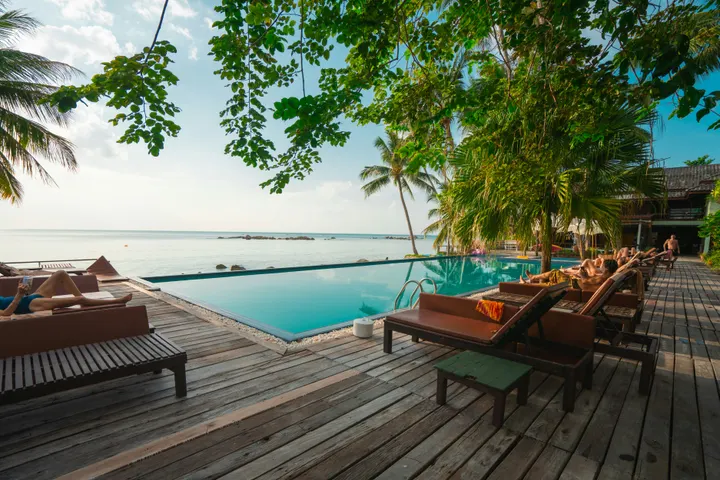 Klip 10:42 to 1:08 · 0:26“Every room opens onto the courtyard light.”
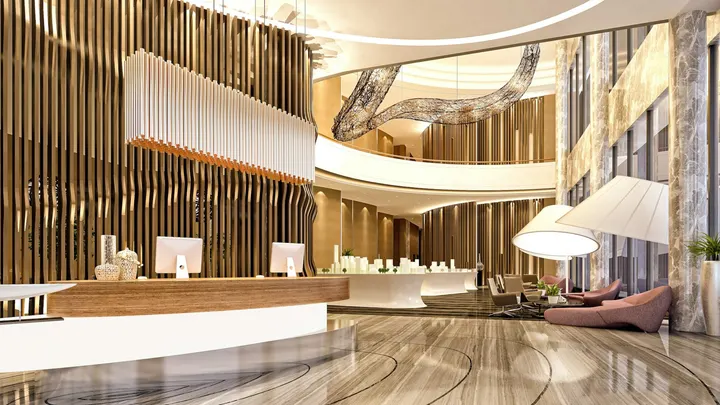 Klip 21:31 to 1:52 · 0:21“Breakfast is served by the pool from seven.”
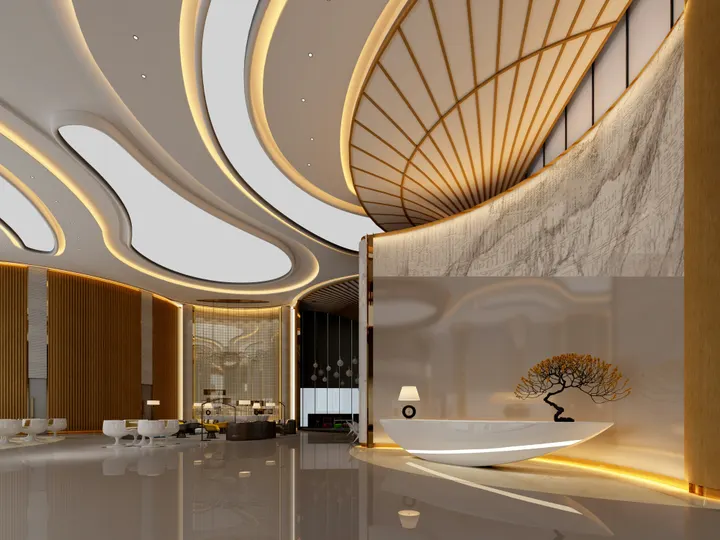 Klip 32:40 to 3:12 · 0:32“Our guests come back for the people, not the pool.”
 Klip 44:05 to 4:27 · 0:22“Oaxaca is ten minutes away on foot.”Klip 55:18 to 5:44 · 0:26“Lucía greets every guest by name.”
Publikasie
Na TikTok, Instagram Reels en YouTube via jou eie rekke, of beplan met Impreta.
Where
Auto-Herstelraam
Elke klip, of die een wat gekies is, herontwerp na 'n nuwe vorm.
Grootte
Auto-Herstelraam
Auto-Herstelraam elke klipOutomaties Herkader die Geselekteerde KlippeElke opname vul die raam en volg die persoon of ding daarin, gevind en gevolg op hierdie toestel. Kies eerstens die grootte; die sleutels wat dit stel, is in Transform & Keyframes.
Stuur na Telefoon
Vir Instagram en YouTube, die Video kom op jou foon aan om daaruit te plaas.
 9:41
Toegezeg wanneer dit klaar is
'n Server-eksport stuur 'n kennisgewing, met Publish daarop.
Ondertitelbestande
'n Ondertitel-lêer vir elke ondertitel-taal, gehou in Depot.
Ondertitelbestande
Gehou saam daarin in jou lêers.
Bewerk dieselfde Video op 'n telefoon, selfs sonder aansluiting
Die redigeerder neem die hele skerm in beslag, met ondoorkom op 'n tik afstand, kniphandvatsels so wyd as 'n vinger en Maak Kortvideos en Publikasie in sy menu. Voetage wat gedeel word vanaf die kamera-rol word 'n nuwe Video. Met Behou Video op hierdie toestel, word 'n redigering wat offline gemaak is, gespaar wanneer die sein terugkeer.
Waar Video alles ander raak.
3 of these 5 connections are in your plan today; the others are their own apps.
Depot
Every source and export is a file in Depot, and every Video sits in its Hubs.
Clips
Make Shorts turns a Video’s moments into Clips, which open in Clips.
Creators
A Calisto TV video’s edit is a Video, opened from Creators.
Velocity
A Video goes on a client project, so the work shows there.
Workforce
A business assigns its Video Pro seats where its people are set up.
Geen opsetkoste. Betaal wanneer jy begin gebruik.
Long-form video, from the first cut to the export.
Kennis
Pas, Effekte, Multikamera, Geneste Volgordes en die Mengelaar, vir een persoon, op 'n eie stoel of met 'n Skep-stoel; 'n besigheid verleen sy stoelle aan sy mense.
Aanbeveel vir jou
Werk goed saam.
Calisto Depot
Calisto Clips
Calisto Creators
Included with any app a creator works in
Inquiries, proposals, appointments, projects and galleries for client work, and posts, videos, podcasts, live, memberships, courses, digital products and prints for your audience, in one app.
Learn more →Calisto Velocity
Calisto Workforce
Alles wat in Calisto inbegroom word Video.
- Home: the Videos to pick up again, New Video, Recent Videos beside the Media bin (the account’s videos in Depot).
- New Video makes Untitled Video at once, in the YouTube Video template, and opens it; it is renamed in the editor’s header.
- Footage dropped anywhere on Home, or picked in the Media bin, makes a Video with it placed.
- Library: every Video, newest edit first, searched by title, with Rename, Delete, Assign to Project and Move To a Hub’s Folder, from a card or the checked cards.
- The Hubs in the sidebar each open the Library narrowed to that Hub.
- The account’s Depot storage is shown in the Library’s header.
- A vertical video is a Clip: anything that shows one says Open in Clips.
- A new Video: 16:9 at 30 fps, loudness at −14 LUFS, classic captions, the 1080p MP4 export first.
- Size: Landscape (16:9), Vertical (9:16), Square (1:1), Portrait (4:5), Widescreen (21:9) and 4K (16:9), or an exact width and height.
- Frame Rate: 24, 25, 29.97, 30, 50 or 60.
- Loudness: Streaming and Social (−14 LUFS), Podcast (−16), Podcast Mono (−19), Broadcast (−23), or Leave As Recorded, never past a −1 dB true peak.
- The whole mix: volume, background noise removed from everything, fade in and fade out.
- Auto-Reframe every clip, or the selected clips, to a new shape, on the device.
- Stabilize the selected clips in one tap, on the desk and the phone: the shake taken out on the device, a deliberate pan kept.
- The Video’s client project (with Velocity).
- Media: upload files, or pick from the Media Library in Depot; add as picture in picture.
- A proxy is made on the device for editing; the export uses the original.
- Elements and Stickers: the design editor’s elements, stickers and emoji, placed on the picture.
- Record: camera, screen with the microphone, or microphone alone, with a live level meter; the take is saved to your files and placed at the playhead.
- A teleprompter: your script scrolls over the preview at a reading pace while you record, in your size, mirrored for a glass if you want, and never in the video.
- Audio: upload music or a sound, or pick one from Depot, and lower it under voices.
- Text: Headline, Lower Third, Quote, Pop, Label, Chapter and End Card, each a designed title edited in the design editor, with an animation in and out (Fade, Rise, Drop, Slide, Pop, Zoom or Spin).
- Templates: Intro Title, End Card, Name and Role, Chapter Cards, YouTube Video, Reel, Short or TikTok, Square Post and Audiogram.
- Transitions: crossfades, dissolves, fades through black, wipes, slides, shapes and more, on one cut or applied to every cut, with their length.
- A multitrack timeline: video, audio, text and adjustment tracks, each muted, locked, hidden, renamed, moved or deleted.
- Split, cut, copy, paste, duplicate, delete and ripple delete; trim; snapping and ripple editing switched with a key.
- Markers, named as chapters, in their own lane.
- The transcript beside the timeline: delete words to cut them, remove filler words and silences, restore what was removed.
- Speed from 0.25x to 8x, keeping the voice’s pitch, or an exact speed; speed ramps (Fast and Slow, Slow Middle, Near Stop, Slow Down, Speed Up) or the curve edited by hand; reverse; a freeze frame at the playhead.
- Transform: position, scale and rotation dragged in the preview; with Video Pro, position, scale, rotation, opacity and crop keyframed with easing.
- Adjust: brightness, contrast, saturation and temperature on any clip.
- Looks in one tap: Natural, Warm, Cool, Vivid, Black and White, Faded, Punchy, Moody.
- Undo and redo of every change; a save failed shows Retry, and an edit made elsewhere at the same time offers Restore My Version.
- ⌘K searches every action; ⌘/ lists every key: J, K and L, I and O, S to split, M for a marker, ⌘E to export and more.
- Volume, background noise removed, and music lowered under voices, on every clip.
- With Video Pro: gain, a gate for the quiet parts, an equalizer, a compressor, track volume, pan and volume keyframes.
- Voice in one tap: Clear Voice, Broadcast, Studio Clean, Warm, or As Recorded.
- Beats found in a sound on the device, snapped to, and cut to (every beat, every two beats or every bar), placed or split on the beats.
- A tempo grid by BPM or Tap Tempo; a guide sound to edit against, kept on the device and never exported.
- Find a Trending Sound opens TikTok’s Creative Center, Instagram Reels and YouTube Shorts.
- Transcribe and Add Captions: the words timed one by one, on the device first and on Calisto’s servers when it cannot.
- The language spoken is detected from the recording.
- Translate Captions: a caption track in any of 31 languages, at the same times and in the same look, shown in place of the original and edited like any caption.
- Speaker Coach: each speaker’s pace, filler words, long pauses, words said twice and quiet words, each a moment to jump to, read on the device.
- Looks: Classic, Bold Pop, Boxed, Minimal, Neon and Big Center, with the word being spoken highlighted.
- Caption style: font, size, all capitals, colors, a box behind the words, an outline, the height on screen, the width and the number of lines.
- In Your Brand: captions and titles set in the brand kit’s fonts and colors in one tap, its fonts and colors listed first, and its logo placed as a title.
- Adjust: Color Grade (Auto Color, one of Calisto’s eight looks (Teal and Orange, Film Fade, Bleach Bypass, Warm Film, Cool Night, Noir, Vintage, Clean Punch) or a LUT uploaded as a .cube file, with its intensity, color wheels, levels, curves) and the scopes (waveform, RGB parade, vectorscope, histogram).
- Effects: masks (rectangle, ellipse or pen, feathered, inverted, animated), chroma key and Auto Key with spill suppression, and adjustment layers.
- Tracking: a point or a plane tracked, with the title or picture turning and growing with it; stabilize, zooming to hide the edges.
- Multicam: angles synced by sound, by timecode or as placed, switched on keys 1 to 9, with the cut list.
- Nested Sequences: nest a selection, open it, insert one into another Video.
- The Mixer: every track and bus a channel with a fader, pan, mute, solo, a live meter, its route and a channel strip (EQ, then compressor); buses added and named there.
- Without the seat, every Pro control reads Pro · Upgrade (or Ask for a Pro Seat), and a Video that already holds Pro work still opens, saves and plays.
- Each person picks Essentials or Pro for themselves, in their preferences.
- Moments of a Video proposed from its transcript: 3, 5, 8 or 10 of them, each watched first.
- Each moment picked is made a Clip, reframed to 9:16 and captioned, and opens in Clips.
- MP4 at 1080p, YouTube (16:9), Reels, Shorts and TikTok (9:16, reframed), Square and Portrait feed posts, AAC and MP3 audio; at Pro, MP4 at 720p and 4K, WebM and WAV.
- Each caption track as an SRT or WebVTT subtitle file, downloaded and kept with the Video in Depot.
- Rendered on the device, or on Calisto’s servers while the device keeps working; a server export sends a notice when it is done, or when it fails.
- At Pro, the codec (H.264, HEVC or AV1 in MP4; VP9 or AV1 in WebM), ProRes 422 HQ and ProRes 4444, and the frame rate from 23.976 to 60.
- Recent Exports lists what was made; every export is a file in Depot.
- Publish: TikTok (to drafts or posted), Instagram Reels and YouTube, over the accounts the business connects, with who can see it, made for kids, comments, duets and stitches, a brand promoted, and the networks’ label for generated media.
- Schedule with Impreta: the finished Video opens in Impreta’s composer, and its queue and calendar send it when it is due (with Impreta).
- Send to Phone, for Instagram and YouTube: a notice on your own phone that opens the same Video ready to publish.
- Edited against a guide sound: the publish dialog says to add the sound on the network.
- A Video belongs to the account and records who made it; anyone in the account who can open the editor can open it.
- Edited together: everyone in a Video sees the others’ edits as they happen, who else is in it and where their playheads are.
- Comments pinned to a moment of the Video, with replies, @mentions, assign and resolve, marked on the timeline; a reviewer’s notes from the review link show at their moments too.
- Every Video is in Depot, in its Hubs and on a client project like everything else a person makes.
- Sources and exports are Depot files on the account’s one quota; each Video Pro seat adds its storage to it.
- A Calisto TV video’s edit is a Video (with Creators), and it is deleted with its TV video.
- The tab bar: Home, Library and Settings.
- The editor takes the whole screen: rename in its header, thumb-sized undo and redo, Saved or Retry, Export, and ⋯ for Make Shorts, Publish and Essentials or Pro.
- Its tool bar: Edit, Audio, Text, Stickers, Captions, Speed, Effects, Video, Comments and Export; trim handles a finger wide; the timeline a third of the screen at most.
- Shortcuts: New Video and Library.
- Footage shared to Calisto (MP4, MOV, WebM) becomes a new Video with it placed.
- Keep Video on this device: the lists, the Hubs and every Video opened, with no signal; an edit made offline is saved when the signal comes back.
Questions about Calisto Video
Die Werkruimte van The Edit: die multitrack-timeline, opname, media vanuit Depot, klank en die ritme-gereedskap, ontwerpde titels, onderskrifte van die transkripsie, oorgange, een-klik-looks en stem, sjablonies, spoed en rampe, uitvoer en publikasie. Sleutelframe, die fynere klankbeheer en die Mengelaar kom saam met Video Pro. Elke ingelogde persoon het Essentials, met geen plan aangevink nie.
Pas aan (Kleurgradeer met wieltjies, vlakke, krommes, LUTs en Auto-Kleur, en die omvang), Effekte (maske, chroma-sleutel en Auto-Sleutel, spoor matte, tracking en stabilisering, aanpaslae), en Multikamera, Geneste Volgorde en die Mengelaar in Bewerk. Dit voeg ook beeldruisvermindering by; sleutelframe, afknip en mengmodus; win, 'n poort, 'n ewekenaar en 'n kompressor; en 4K, WebM, WAV en ProRes-uitvoere. 'n Video Pro-plek is vir een persoon en voeg sy Depot-opberging by die rekening. 'n Maak-plek hou dit ook.
Dit open steeds, slaan, speel en eksporteer. Die graad, maske, sleutels en ingeslote volgorde bly soos hulle is, en die Essentials-gereedskap werk steeds daaraan.
In Depot, op die rekening se stoorruimte, as lêers van die Video waaraan hulle behoort. Elke Video Pro- of Maak-plek voeg sy stoorruimte by dieselfde kwota. Proksies en die render-cache is werklike kopieë en tel nooit nie.
Eers op die toestel, en op Calisto se bedieners wanneer dit nie kan nie, of wanneer jy kies. 'n Bediener-uitvoer stuur 'n kennisgewing wanneer dit klaar is, met Publikasie daarop.
Die taal wat gepraat word, word gedetecteer uit die opname, en die transkripsie en ondertitels word daarin geskryf, woord vir woord gety. Translate Captions skep dan 'n ondertitelbaan in een van 31 tale, op dieselfde tye en met dieselfde voorkoms, vir jou om te redigeer; elke taal is ook sy eie ondertitel-lêer.
TikTok, Instagram Reels en YouTube, oor die rekings wat die besigheid verbind. Stuur na Telefoon gee 'n Video aan jou eie telefoon om daaruit te plaas.
Een redakteur en een rekord. 'n Video is horisontaal of vierkantig en open in Video; 'n vertikale een is 'n Klip en open in Klippe. Maak Shorts maak 'n Video se oomblikke tot Klippe, en Clips Pro is 'n sitplek van sy eie, of kom saam met 'n Maak-sitplek.
